1
41
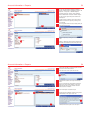
Payment instructions > Release payments to Bank
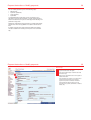
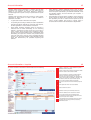
There are two ways of sending payments: automatically or manually.
1
If it is set to send automatically, the payments will be sent directly to the Bank after their
authorization at all levels.
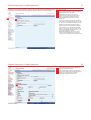
Manual sending is additional method of control of the payments, as there is an opportunity to
check again it before sending. With manual sending do the following:
2
2
3
4
3
1
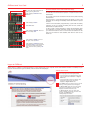
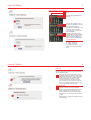
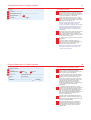
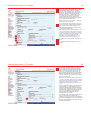
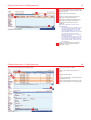
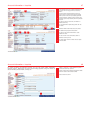
System will switch to “Release Req’d” sheet
Mark the payments to send
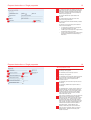
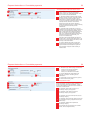
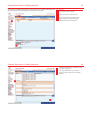
Click one of the following buttons according to
operations to make with payments:
•
“Release” to send the payment to the Bank;
•
“Send to Repair” button to modify the payment;
Then payment must be reauthorized again at
all levels;
•
“Delete” button to reject the payment and
delete it;
•
“Go to Details” to view the details of the
payment (it is still possible to authorize the
payment in details window);
•
“Other Options” to make additional operations
with payment.
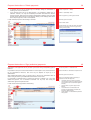
Notice: While sending to the Bank, initially
payment will have “Sent” status. Wait until status
changes to “CB Accepted” by periodically updating
screen.
4
42
Payment instructions > View payments
Review of the payment is necessary when You need to know the status of the payment or its
details.
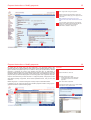
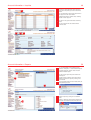
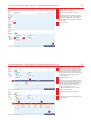
In order to view details do the following in CitiDirect:
2
1
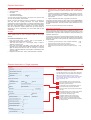
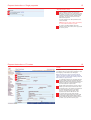
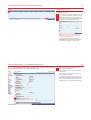
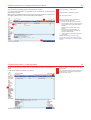
Choose “Payments” -> “Release” menu
1
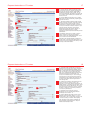
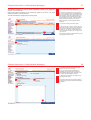
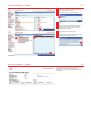
Choose “Payments” -> “View All menu. “View” sheet
becomes active.
2
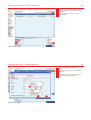
“View” sheet allows seeing payments created during
the last two days; to see earlier payments refer to
“Search Payments” section.