1
7. CONNECTING YOUR CELL PHONE TO SPYKEE CELL
1)
Check your cell phone is switched on.
2)
Activate your cell phone's Bluetooth® function.
3)
Once Bluetooth® has been switched on:
Access your telephone's Main Menu.
Look for the “Spykee Cell” application in your cell phone and open it.
During your first connection, please choose your language: English (other).
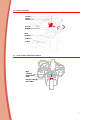
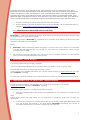
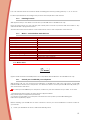
A picture of Spykee Cell appears on your screen:
- A Warning Message might appear asking if you want to allow the “Spykee Cell“
application to use the connectivity applications : say Yes.
- Wait a few seconds for connection to be established *
* The first connection takes the longest, it can take up to 45 seconds. Following ones are faster.
4)
You will come to the Spykee Cell application Main Menu and you can now control your robot.
If you have not activated Bluetooth® on your cell phone or it is disabled, when you try to connect a
warning message might appear saying “Bluetooth® Disabled”. Switch on Bluetooth®!
8. PLAYING WITH SPYKEE CELL
8.1. Available functions on compatible cell phones
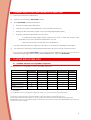
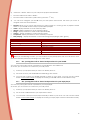
All functions are not available for each compatible cell phone:
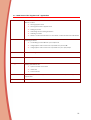
Functions
Robot moves
Motorized head
Robot sees (webcam)
iPod® control
Hands free
Light & sound effects
Pictures
Voice transformation
Nokia
BlackBerry®
Samsung
Sony Ericsson
Motorola
*
Available
* Available on most of compatible cell phones except on some cell phones with small screens.
The upper board is indicative, the characteristics of the cell phones of each brand may vary.
Screen width: below 240 pixels width, it is recommended to install the small screen Spykee Cell application.
BlackBerry®: In order to work with the Spykee Cell software, the operation system of the BlackBerry® cell phones must
be the 4.2.1 version or higher.
9