1
6 – Filer Interface User’s Guide
Introducing e-Filing
e-Filing Basics
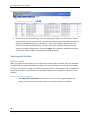
The Second Judicial District Court’s e-Filing system is designed to make the work associated with
initiating and processing a case more efficient for both filers and court personnel. Not only does the
web-based filer interface part of the software allow attorneys to create documents and submit them to
the court electronically, the filer interface also provides the means for users to view case histories, check
the status of submissions, send follow up documents, and access service lists.
For the court personnel, the software routes the filings to the appropriate personnel for review,
response, generation of additional documents, or further action. For most integrations, when
documents are filed in hard copy, once the court personnel scan the documents, the filer interface
distributes a courtesy notice to electronic participants on the case so those participants may access the
documents electronically.
This user’s guide is intended to instruct filers on the features of the eFlex system. Check the Second
Judicial District Court eFiling login page for additional information on eFiling instruction opportunities.
In order to progress through eFiling a case with the greatest ease, following the steps outlined in this
manual is highly recommended, including document preparation as discussed below. Also, for best
results, users are strongly encouraged to use only the navigation buttons that are displayed on the
eFiling interface. These will appear at the bottom of each page and will give the user options such as
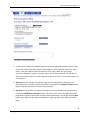
Back or Next. Additionally, the filer may use the menu bar located at the top of each screen just below
the Second Judicial District Court banner. Another navigation option is the breadcrumb trail displayed at
the top of every page. This appears just under the menu bar, and the active links show the pages the
user has visited to get to the current page. Clicking on any of these links will take the user back to the
page listed. It is important to avoid using the internet browser back arrow during the preparation and
submission of a filing.
Document Preparation Prior to Login
For most types of cases, the filer will need to attach documents with the initial filing. For the most part,
those documents and any additional documents that are submitted at a later time need to be submitted
as Adobe Acrobat PDF files (Portable Document Format), Microsoft® Word 2003 or higher, or Corel
WordPerfect® 10 or higher files. Most documents that are submitted as part of a filing will not need to
be changed, other than receiving a time stamp, during the filing or clerk approval processes. There are
some documents, such as proposed orders, that are exceptions to this rule and must be submitted only
as Microsoft® Word 2003 or higher or Corel WordPerfect® 10 or higher files so that the changes that
must be made as the proposed order becomes an order can be made on the document. It is best to have
these documents prepared before logging into Second Judicial District Court filer interface.
The requirement for submitting documents as .pdf, files also applies to paper exhibits such as copies of
contracts or copies of cancelled checks. The easiest way to prepare such exhibits is to scan and save
6
Copyright – Tybera Development Group, Inc. – Washoe – May 2011 – Rev. January 2014 – Rev. July 2014