1
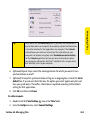
Tip:
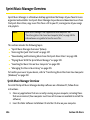
You may need to press Option to enter letters or numbers. The Option
Lock setting defaults to the setting you used the last time you addressed
a message.
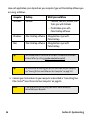
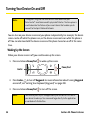
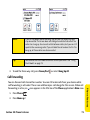
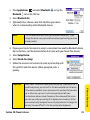
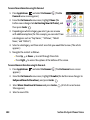
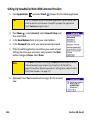
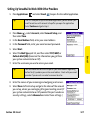
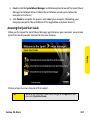
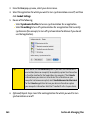
4. Select Add media.
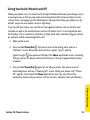
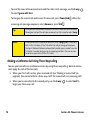
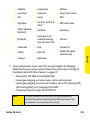
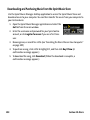
5. Select the Media icon and select one of the following:
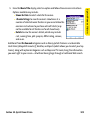
䡲 Attach from device lets you attach a picture or video from
your device.
䡲 Attach from Online lets you attach a picture or video from
your online album. See “Using Your Online Album” on
page 193 for information.
䡲 Take new picture prompts you to take a new picture with
the built-in camera and attach it to the message.
䡲 Take new video prompts you to capture a new video with the built-in camcorder
and attach it to the message.
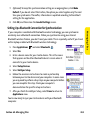
6. (Optional) Repeat step 5 for each item you want to attach.
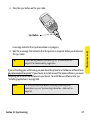
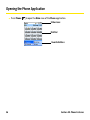
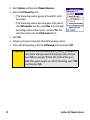
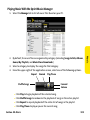
7. Enter your message or select QuickText
emoticons, select .
to insert predefined phrases. To insert
Your device uploads the pictures or videos to the Sprint Picture Mail Web site
(www.sprint.com/picturemail), creates a private Guest Book for the recipient on the Sprint
Picture Mail Web site, and sends your message to the recipient. The recipient can then use a
Web browser to access this private Guest Book to view the pictures or videos and to enter
comments. You can view the comments later from the Sprint Picture Mail Web site.
If you are outside a coverage area or if your phone is off, outgoing messages go into the
Drafts folder. When you return to a coverage area, you can open the message in the Drafts
folder and send it.
Section 3C: Messaging
145
Messaging
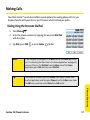
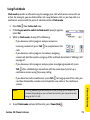
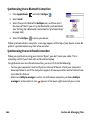
8. Select Send. If the Welcome screen appears, select Continue.