1
950-463
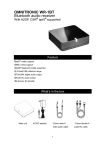
Bluetooth Audio Receiver
Imperial® BAR 1
Item-no.: 208-968
Feature
◎aptX® codec support
◎SBC codec support A2DP
◎Bluetooth profile supported
◎ 33 feet(10M) effective range TOSLINK
◎ digital audio output Audio RL
◎ audio output
◎8 devices ID storable
What’s in the box
Main unit
AC/DC adaptor
Outlook and connectors
Front Top
View
Back
Bottom
Setup your Imperial BAR 1
2
3.5mm male
male audio cable
3.5mm female
audio RL cable
Analogue connection
1. Connect one 3.5mm end of the include audio to headphone jacket
on the Imperial BAR 1
2. Connect the other end to an audio input on your home stereo
system (3.5mm or 3.5mm ➔ 3.5mmm2 RCA). Consult your
stereo user’s manual for more information on how to accomplish
this.
Digital connection
1. Connect one TOSLINK cable end to optical jacket on the
Imperial BAR 1(recommended)
2. Connect the other end to one TOSLINK input of your home
stereo system. Consult your stereo user’s manual for more
information on how to accomplish this.
3. Connect AC power adaptor cable to DC input jacket of , AC end
to any AC outlet.
4. The LED light will flash once to show the unit is powered and
ready for being paired for your devices.
Pairing your Imperial BAR 1
iPad/iPhone/iPod touch
1. Go to Bluetooth manager of your iPad/iPhone/iPod touch by the
following steps
a From your iPad/
iPhone/iPod touch
home page, tap
“setting”
b. Inside Settings
tap on “General”
c. Inside General tap
on “Bluetooth”
3
2. Turn On the
Bluetooth function
3. Your
iPod/iPhone/iPad
will auto
searching
available device.
You will see
“Music
Receiver” then
Tap on it.
5. Your iPod/iPhone/iPad connected to
Now. And You can play music from
your iPod/iPhone/iPad.
4
4. Enter “0000”
when the player
asks for PIN
code (some device
need not to input
PIN). This will
allow the
iPad/iPhone/iPod
touch to pair with
“Music Receiver”
Android Phone/Tablet (ver 4.0 as Example)
1. Go to Bluetooth manager of your smart phone by the following step
a. From your smart
phone home page,
tap on “setting”
b. Inside the
setting, turn on
The Bluetooth
c. Bluetooth is turned
on
2. Searched Bluetooth
Devices will show
up, please tap on
“Music Receiver”
3. Enter “0000”
4. Once paired, the
blue LED light on
when the player
the Imperial BAR
asks for PIN
1 will flash once.
code(some
The Blue LED will
device need not to
keep lighted when
enter the PIN)
a connection is
established And In
your Smartphone
there is showed
“connected to
media audio”
5
Note: Some devices, such as iPhone, will connect immediately after
pairing so the LED will ON. Other devices, such as notebook, may
ask you if you wish to connect and LED will go off after pairing
until a connection is established.
Although the can only play music from one device at a time, it is
capable of being paired to up to 8 devices. It means that you have to
enter the PIN code once for each device.
You can play the music now. Just play music on your device as you
normally would and the sound will come out from your stereo system.
Note: the effective range of is 33 feet(10M).
Reconnecting your device
If you move out of range or turn off the Bluetooth feature on you
iPad/iPhone/iPod touch or Smartphone, will disconnected from your
device. To reconnect, simply open the Bluetooth manager and tap on
the “Music Receiver”, then you do not need to input PIN again, the
connection will be done automatically.
Adding a new phone or tablet :
If you want to switch from one device to another, please follow these
steps
1. End the existing Bluetooth connection with connected device.
2. The Imperial BAR 1 can now be connected with another device
such as iPad/iPod/iPhone or Smartphone or tablet.
3. Follow the section “Pairing the Imperial BAR 1” to connect a new
device.
Out of range or lost signal:
When the paired phone or device away from receiver (33 feet) or there
is something blocking the Bluetooth signal. The LED light will go off,
it means the connection between device and Imperial BAR 1 is lost.
To avoid a lost connection:
1. Move the music device back into range ( within 33 feet), and make
sure there’s a clear line of sight and there are no obstructions
between Imperial BAR 1 and device.
2. Within 15 seconds, the connection will automatically be
reestablished and LED will turn on
6
3. If the connection is lost for more than 15 seconds, you need to
reconnect the device and Imperial BAR 1 again. Please follow the
“Reconnect Your Device” section.
Indication of LED
Indication
Flash once 1 sec
per 5 secs
Permanent Lighted
meaning
Power on /Pairing
Description
Waiting for connection
connected
Device and main unit
are connected
Troubleshooting
You can solve your problems from this section
No music out from my stereo speaker
◎ Make sure the is powered.
◎ Make sure an audio cable or an Optical cable is correctly and
firmly connected to Imperial BAR 1
◎ Make sure that the audio source selection of your amplifier is correct with your audio connection (analogue audio or TOSLINK)
◎ Make sure the volume of the stereo is set to a comfortable listening level
◎ Make sure you are within range.
◎ Make sure the Bluetooth function is opened on your device.
◎ Make sure you are playing the music from your device.
SAFETY WARNINGS
◎ Imperial BAR 1 requires full connection and both hands to install.
◎ Do not use Imperial BAR 1 near water(for example, a bath tub,
wash bowl, kitchen sink, laundry tub, wet basement, swimming
pool, or other areas located near water).
◎ Clean with dry cloth.
◎ Unplug the Imperial BAR 1 before cleaning.
◎ Install Imperial BAR 1 far away from heat sources.
◎ Use only the attached accessories.
◎ Unplug the Imperial BAR 1 when unused for long time.
7