1
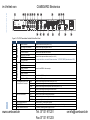
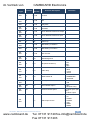
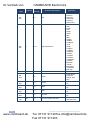
im Vertrieb von CAMBOARD Electronics 6 Figure 1: VP-437N Presentation Switcher/Scaler Front Panel # Feature 1 POWER Switch 2 IR Receiver 3 INPUT Selector Buttons 4 Function Illuminated switch for turning the unit ON or OFF Accepts IR remote commands CV Press to select the composite video input YC Press to select the s-Video input 5 COMPONENT Press to select the component video input (from 1 to 2) 6 VGA Press to select the computer graphics input 7 HDMI Press to select the HDMI input (from 1 to 2) VP-437N – Overview 8 BLANK Button Press to toggle between a blank screen (blue or black screen) and the display (can be programmed to follow MUTE) 9 MUTE Button Press to toggle between muting (blocking out the sound) and enabling the audio output 10 FREEZE Button Press to freeze/unfreeze the output video image (Can be programmed to follow MUTE) 11 MENU Button Displays the OSD menu (see Section 6.2) 12 ENTER Button Press to accept changes, change the SETUP parameters (see Section 6.2) and to auto adjust the image (when not within the OSD menu), see Section 6.1.1 13 - Button Press to decrease numerical values or select from several definitions. For convenience and speed—when not within the OSD menu mode—press to reduce volume 14 Button Press to move up the menu list values (see Section 6.2) 15 + Button Press to increase numerical values or select from several definitions. For convenience and speed— when not within the OSD menu mode—press to increase volume 16 Button Press to move down the menu list (see Section 6.2) 17 PANEL LOCK Button Press and hold for about 2 seconds to lock/unlock the front panel buttons 18 RESET TO XGA/720P Button Press to reset the video resolution to XGA or 720p Press and hold for about 2 seconds to toggle between reset to XGA and reset to 720p www.camboard.de Tel. 07131 911201 Fax 07131 911203 [email protected]