1
BMS user’s guide
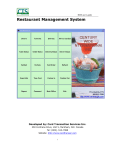
Business Management System
Developed by: Card Transaction Services Inc.
250 Cochrane Drive, Unit 5, Markham, Ont. Canada
Tel: (905) -513-7088
Website: http://www.cardtransac.com
1
BMS user’s guide
1. Install the software
1) Where to get the software
We provide a free demo version of BMS.
Go to http://bms.cardtransac.com/bms/BMSsetup.exe download it. Or contact
us to ask for an installation CD. Log on to http://easypos.life2fun.info to get
more information.
2) Installation
We provide two methods to install BMS, a) installation through a CD; b)
installation through a downloaded program BMS.EXE. Either method a) or b), it
will take two steps to complete the installation.
First, install the demo version.
Second, run the BMS, and click [Activate] button to activate it to become a full
version.
• If you install BMS from the installation CD, please follow the installation guide
README.TXT in the CD.
• If you download the software from our website, you can just simply double click
the BMSsetup.EXE you downloaded, and then follow the instruction to install it. An
installation window appears as below:
2
BMS user’s guide
3) How to get the activation code
Contact us to buy an Activation Code or buy it online at:
http://bms.cardtransac.com/BMS.htm or click the [Register] button in the
demo version of BMS as below:
[Register] button
[Activate] button
4) Activate the software
After you have bought an Activation Code, you will receive an email that
includes a file like activexxxx.zip (xxxx should be 4 digits) or an activation key.
To activate the software BMS, run the BMS demo version and simply click
[Activate] button, and then activate over Internet or provide where the
activexxxx.zip stored path. Click [ok], everything will have been done. When
you restart BMS, a new full version will appear in front of you.
5) Set up a remote environment
The BMS is designed for not only running in a single computer, but also with
multi store and multi cashier networking via Internet/Intranet. If you want BMS
to run on Internet, you have to set up a remote environment. That includes the
conditions,
3
BMS user’s guide
a) A server connecting to Internet with a static IP address or a domain name
which can be accessed over Internet, or have a hosting of SQL server.
b) Install a Database in the server, such as MySQL, MS SQL Server, Oracle, or
etc. and its ODBC interface in your client computer. For the detail of
Database server installation, please consult for the Database administrator.
c) Have a database account with the privilege to access a created database and
set up an ODBC DSN in your client computer.
(Ask the Database Administrator to prepare for all these things)
4
BMS user’s guide
2. System Functions Overview
• Getting start
• After log in
Your company’s name
5
BMS user’s guide
System Men Overview
Sales
Cashier
Start Sales
Cashier In
Cashier Out
Drawer Records
Cancel Invoices
Produce Invoices
Reprint Existing Invoices
Transaction History
Sales Analysis
Sales Report
Items Sales Report
Operator Sales Report
Location Sales Report
Period Sales Report
Sales/Purchase Report
Category Sales Report
Cashier Closing Report
Cashier Current Report
Inventory
Inventory Items Check-in
Items Check-in Revising
Show Inventory Status
Print Inventory Status
Items Coding
Items Pricing
Modify Items
Modify Category
Customers
New Customers
Customer Listings
Search Customers
Suppliers
New Suppliers
Supplier Listings
Search Suppliers
Accounting
Accounts Receivable
6
BMS user’s guide
Accounts Payable
Cust. Pymt. Pending List
Invo. Pymt. Pending List
Gift Card Issuance
Bookkeeping
Manual Bookkeeping
Batch Close
History Records
Print Statement
Tools
New/Edit Connection
Switch System
System synchronizing
User Management
Backup Database
Restore Database
Export data to Excel
Items
Customers
Suppliers
Invoices
Check for updates
Configuration
Global Parameters
Local Parameters
Change Password
Achievement
Achieve Sale Data
Retrieve Achieves
Restore to Factory Defaults
License Refresh
Exit
About
Logout
Quit
7
BMS user’s guide
3. Operation guide
1) Sales
BMS supports three kinds of interface for selling items.
• Cashier (Start Sales F1)
a) Standard
Enter a customer ID or double click or <Enter> will pop
up a window to select a customer
Enter a product code is being sold through
keyboard or barcode scanner, or double click or
<Enter> will pop up a window to select a product
The comments will appear on the invoice
Collection of credit card information if customer pays by credit card
Double click will set to 0, and double click again will restore to the original value
Click to use another price
8
BMS user’s guide
b) Touch Screen
9
BMS user’s guide
c) Supermarket (<Delete>+<Backspace>)
<Example for a Supermarket>
After log in the BMS, if the cashier hasn’t entered the opening amount, a message box pops up:
* Usually click [Yes] at the beginning of a shift for the cashier
Click [Yes] to enter the open amount. And then enter to the selling screen:
10
BMS user’s guide
Selling item
window
Current item
Quantity/Weight
Input Box
Code/Price
Input Box
1
、 Cashier operating instructions
a) F1(+01): For Help, the Help window pops up
11
BMS user’s guide
b) F2(+02): Code/Price input. Whenever press F2 on the selling screen, return to the
Code/Price input status, the Code/Price Input Box turns yellow, system waits for scanning bar
code or keying in code or price.
c) F3(+03): Quantity input. Whenever press F3 on the selling screen, return to the Quantity
input status, the Quantity/Weight Input Box turns yellow, system waits for inputting quantity.
d) F4(+04): Weight pick up/input. Whenever press F4 on the selling screen, system picks up the
weight if there is something on the scale. If nothing on the scale, return to the Weight input
status, the Quantity/Weight Input Box turns yellow, system waits for keying in weight.
e) F5(+05): Customer input. Whenever press F5 on the selling screen, return to the customer
input status, the Code/Price Input Box turns yellow, system waits for inputting customer
information. Press F5 one more time to print the last receipt.
f)
Clear the Selling Item Window. Whenever press F6 on the selling screen, the Selling Item
Window is cleared.
g) F7(+07): Pay by other credit card.
h) F8(+08): Pay by Amex credit card
i)
F9(+09): Pay by Master credit card
j)
F10(+10): Pay by Visa credit card
k) F11(+11): Pay by debit card
l)
F12(+12): Pay by cash
m) +20 to +29 set the Key Map group
n) +30 pop up a Key Map definition box
* Command can be input to the
Code/Price box directly. And also can
be assigned to a shortcut key.
Command format:<tax(1
digit)><category(sys
define)<price><Enter>
12
2
BMS user’s guide
、 Selling procedure
-- Scan to pick the item.
. When a “DU” sounds from the scanner and a “DU” sounds from the computer, that means
the item is successfully picked up to sell.
. When no “DU” sounds from the scanner or no “Du” sounds from computer, that means
could not pick up the item. Must scan again.
. When a “DU” sounds from the scanner and 3 “DU” sounds from the computer, that means
the item is not in database. Must manually input code or price to sell.
. When a “DU” sound from the scanner and 2 “DU” sounds from the computer, that means
the bar code is duplicated. An item list window pops up. Select one from them.
-- Key in the item code to sell
. Same as above except no sound from the scanner.
-- Directly input price to sell
. Press [←] to turn on PST or press [→] to turn on GST if applicable, input price, and then press
a department key ([Insert], [Home], [PageUp],[Delete], [End], or [PageDown]).
. After successfully pick up an item, if it needs weighting, press F4 to pick the weight.
. After all items are input to the Selling Item Window, press one of the function key from [F7]
to [F12] to make an assigned payment, a payment window pops up,
13
BMS user’s guide
Click [OK] to complete. The receipt is printed out and the cash drawer opened.
3
、 Change/Refund/Void an item
1) If the item is the last one on the selling lists, Press [F3] to change quantity to 0(Void) or any
other number.
2) If the item is not the last one on the selling lists, scan or key in to pick up an item on the
selling screen, press [F3] to change the quantity to a deducted number (minus).
3) Quick Refund/Void one item
Press [/] on the Code/Price Input Box, scan or key in the item code.
14
4
BMS user’s guide
、 Take a break
If the cashier wants to leave the cash drawer temporarily, press [ESC], a message box pops up:
Usually click [No] if the cashier is not off duty. And then the log in box shows up.
5
、 Re-log in
When the cashier comes back, input the User ID and Password to re-log in, it shows the system
main window,
Press [Delete][Backspace] to enter the selling screen again.
6
、 Exit System
Press [ESC] to exit the selling screen, the cashier out message box pops up. Usually press [Yes] if
off duty, and then press [ESC] again to exit to Microsoft Windows desktop.
====================================================================
15
BMS user’s guide
• Cashier In
At the beginning of daily sales, the cashier must open the drawer and enter the
amount of opening balance.
16
BMS user’s guide
• Cashier Out
At the end of day, the cashier must enter the amount of closing balance.
• Drawer Record
Display the records of the cash drawer’s open/close.
• Cancel Invoices
Double click or <Enter> to
select an invoice
which will be canceled
• Produce Invoices
Double click or <Enter> to
select a transaction which has
not been invoiced
17
BMS user’s guide
• Reprint Existing Invoices
Double click or <Enter> to select
an existed Invoice which will be
print out
• Transaction History
Display the transaction records, Click [Detail] button to display details and
can reprint the receipt.
18
BMS user’s guide
• Sales Analysis
Analyze the sales speed and the inventory situation in a specific period, and print
out the report.
• Sales Report
Enter a period to report
Items Sales Report – report the sales volumes sort by items
Operator Sales Report – report the sales volumes sort by operator
Location Sales Report - report the sales volumes sort by location
Period Sales Report – report the sales volumes ort by date
19
BMS user’s guide
2) Inventory Management
• Inventory Items Check-in
Enter data directly or double click to select a value from
the pop-up window
Double click if it is a new item, then the more products’ information can be input.
20
BMS user’s guide
• Items Check-in Revising
You may high light a record to display detail, edit, or delete.
21
BMS user’s guide
• Show Inventory Status
Choose a location of the inventory from the box as below
And then it will show you the in-stock situation as below
• Print Inventory Status
Print out the in stock situation in report format
22
BMS user’s guide
• Items Coding
Code for each item which can be entered directly or by barcode scanner
Note: In case of the prefix of Product ID is $ sign, that means this product’s
quantity is countless, for example, services, installation fee, unlimited copy of
software, and etc. Once you code it, no need to check in the product any more.
23
BMS user’s guide
• Items Pricing
You can set a unit price and PST/GST rate for each item. Also you can set them in
batch depends on you assign the rules such as setting a relation between unit price
and capital.
24
BMS user’s guide
• Modify Items
Input the barcode, product ID, and any information of an item, and find out and
display the detail.
Double to modify
the picture
• Modify Category
25
BMS user’s guide
3) Customers Management
• New Customers
26
BMS user’s guide
• Display Customers
You may high light a customer record to display detail, edit, or delete.
• Search Customers
Search a keyword from the customer database and display the details
Show more
information about the
customer as below
Show the purchase
record
customer
27
of
the
BMS user’s guide
. More customer information
Attachment can be any type of file, such as PDF, DOC, JPG and etc. Double click to
open it.
28
BMS user’s guide
4) Suppliers Management
• New Suppliers
29
BMS user’s guide
• Display Supplier
You may high light a customer record to display detail, edit, or delete.
• Search Suppliers
Search a keyword from the supplier database and display the detail
30
BMS user’s guide
5) Bill Management
• Accounts Receivable
Double click to pop up a window in which
Double click to pop up a window
displays all the customers who still have
in which display the unpaid invoices
unpaid bill.
Collection of credit card information
Here displays the unpaid invoices relevant
if the customer pays by credit card
to the customer to be selected.
• Accounts Payable
Print out all invoices we have to pay for
• Cust. Pymt. Pending Lists
Print out all customers who still have unpaid bill
• Invo. Pymt. Pending Lists
Print out all unpaid invoices from customers
• Gift Card Issuance
Type the security code or
swipe the card
31
BMS user’s guide
6)Bookkeeping
•Manual Bookkeeping
Manually input the data of deposit, withdraw, account receivable, and account
payable.
Choose a type of currency,
$ is default, stands for the
native currency.
If choose Other, it will require input a code of currency, no more than three letters,
for example, EUR.
32
BMS user’s guide
•Batch Close
System automatically does the batch close for the sales situation.
•History Records
Display the bookkeeping records.
• Print Statement
Print an account statement.
Input the period of wanted statement
to print
33
BMS user’s guide
Looks like this:
7) Tools
• Switch System
Switch the system between Remote database version and Local database version.
If switch to Remote version, system will ask the DSN (Data Source Name) as below
that is an ODBC name set up by Operating System administrator.
The default value is the last
switching name. If empty this
field, the operation system box
will appear to ask the DSN.
After click the Enter button, a box pops up as blow:
The database server’s IP/Domain
Default value of UserID, Password,
and Database is the last remote
connection, those are issued by the
database administrator.
34
BMS user’s guide
• System Synchronizing
Transfer all data between MySQL database and File database. The box will appear
as below.
• User Management
Input the privilege code here or double click to lead a box pops up as below,
35
BMS user’s guide
Click
[+]
to
expand
the
subfunctions and click the check
box to select the function. The
menu code may be generated.
• Backup Database
Back the data from the computer. If the data is in the remote server, you must
synchronize from the server in advance, and then do backup.
• Restore Database
Restore the data to the computer
• Export Data to Excel
Export Items, Customers, Suppliers, and Invoices information to an Excel file.
• Check for updates
Check the updates from the website. It will show you the current version and the
latest version. You can download the latest one to update the application.
• Configuration
Set up the basic parameter including Global Parameters and Local Parameters.
36
BMS user’s guide
Global
Parameters
It looks like this,
and the Comments
page can input the
comments that will
be printed on the
invoice and receipt
over
company-wide.
Local Parameters It
looks like this, and the
Comments page can input
the comments that will be
printed on the invoice and
receipt only in that specific
location.
37
BMS user’s guide
• Change Password
Change the password of the current user
• Achievement
Achieve Sale Data
As the time goes by for using the system, the database will grow bigger and bigger.
It costs more and more resources and slows down the performance of the system.
To achieve the sale data and save to an external storage is strongly recommended.
Retrieve Achieves
System provides a function to access the achieved data.
• Restore to Factory Defaults
All data in the system will be cleared. The system returns to the factory default.
• License Refresh
Download the license and refresh it.
8) Exit
• About
It will show as below
Click here to get the
system up to date.
Internet connection is
required.
• Logout
Log out the user
• Quit
Exit the system
38