1
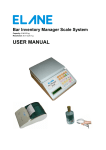
Bar Inventory Manager Scale System
Capacity: 8 lb/3.5 kg
Resolution: 0.01 oz/0.1 g
PC PROGRAM USER MANUAL
SPECIFICATIONS
Range
Accuracy
: 8 lb/3.5 kg
: 0.01 oz/0.1 g
Mechanical overload protection
Accuracy
: ± 0.1 % of reading ± 1 digit
Resolution
: 0.1g (0.01 oz)
Minimum Weight
: >1g (0.5 oz)
Min. Add-on Wt.
: >0.1g (0.01 oz)
Power Consumption : Approx 0.35W ~ 0.40W
Power
: AC Adaptor – 12V, 200mA (Supplied)
USB Power when connected to the computer via USB cable (supplied)
Can be operated on 6 x AA batteries for greater portability (not supplied)
Warm-up time
: 5 seconds or less
Display
: 2 lines with 16 characters dot matrix liquid crystal display and backlighting, with clear
protective Plastic Bezel and Yellow LED backlight when using adapter or USB power
Warm up display
: Self Test for <5 seconds
Temperature
: Good performance within 0 degree C to +40 degree C (32 degree F to 100 degree F)
Case & Platform
: Fine texture ABS plastic
With steel platform holder
Load Cell Technology : Four element single strain gage with temperature compensation and overload
protection. Material: 2024 – T4/T351 Aluminum Alloy
Memory
: 1 MB of Flash Memory
Interface Ports
: Printer Interface (RS232)
Scanner Interface (RS232)
Keg Scale Interface (RS232)
Interface Cable
: USB cable
User Calibration
: Using 50g- weight (supplied)
COPYRIGHT NOTICE
Copyright © 2006-2010 Xiamen Elane Electronics Co. Ltd.
This software is copyrighted and is protected by International Copyright laws.
Unauthorized reproduction or distribution of this program or any portion of it may result in
severe civil and criminal penalties.
DISCLAIMER
We have put our best efforts to ensure accuracy of this equipment however we will not be
liable for any lost profits, lost savings, incidental, special or indirect damages or other
economic consequential damages during the use of this equipment.
2
TABLE OF CONTENTS
SPECIFICATIONS .................................................................................................................................................. 2
COPYRIGHT NOTICE ............................................................................................................................................ 2
DISCLAIMER .......................................................................................................................................................... 2
TABLE OF CONTENTS ......................................................................................................................................... 3
BAR INVENTORY MANAGER SCALE APPLICATION PROGRAM FUNCTIONS ............................................... 4
Bar Inventory Manager Scale Application Program Main Window ............................................................... 4
A.
Detecting Bar Inventory Manager Scale Connection ............................................................................ 4
B.
Synchronization with the Bar Inventory Manager Scale....................................................................... 5
C.
Bar Database Functions .......................................................................................................................... 6
Setting up a Bar Account in the PC Program ............................................................................................. 6
Managing Records of the Bar Database ..................................................................................................... 7
Adding Records to the Bar Database .......................................................................................................... 9
Using Scanned Bar Codes from Scale as Input ....................................................................................... 13
Editing Records in the Bar Database ........................................................................................................ 14
Deleting Records in the Bar Database ...................................................................................................... 17
Searching for Records in the Bar Database ............................................................................................. 20
Bar Summary Report .................................................................................................................................. 24
Viewing Reports Generated from Bar Database ....................................................................................... 27
Exporting Generated Reports to MS Excel Files ...................................................................................... 33
Switching Weight/Volume Unit Display to Standard or Metric Systems ................................................ 36
Loading Records from Master List to Bar Database ................................................................................ 37
D.
Updating Scale Software ....................................................................................................................... 48
BAR INVENTORY MANAGER SCALE SOFTWARE UPDATES ........................................................................ 50
OPTIONAL ITEMS................................................................................................................................................ 51
WARRANTY ......................................................................................................................................................... 52
3
BAR INVENTORY MANAGER SCALE APPLICATION PROGRAM FUNCTIONS
The Bar Inventory Manager Scale Application Program is the application software to manage data from the Bar
Inventory Manager Scale. It can synchronize records back and forth to the scale. Scale software updates are also
done using the Bar Inventory Manager Scale Application Program. The following screens explain several
functions of this software.
Bar Inventory Manager Scale Application Program Main Window
Fig. 1
The main window (Fig. 1) provides access to the main functions of the application program. The status bar also
displays important messages during scale synchronization and for detecting scale connection. In the above
window, the status bar displays that the connection with the Bar Inventory Manager Scale is detected.
A. Detecting Bar Inventory Manager Scale Connection
Fig. A.1
Fig. A.2
A message on the status bar indicating that scale connection is not detected appears when the application
program starts and no scale connection is detected. Check that the USB cable is plugged to a working USB port
of the computer and that the Bar Inventory Manager Scale is turned on. Then click Refresh Scale Connection
button to detect USB connection of the Bar Inventory Manager Scale to the computer. Fig. A.1 shows that the Bar
Inventory Manager Scale is connected to the computer while Fig. A.2 shows that the Bar Inventory Manager
Scale connection to the computer is not detected. Scale connection is needed when synchronizing data and
when updating scale software.
4
B. Synchronization with the Bar Inventory Manager Scale
Fig. B.1
Fig. B.2
Fig. B.3
Fig. B.4
5
Fig. B.5
Click Synchronize PC and Scale Data button in the main window (Fig. B.1) to open the synchronization window
(Fig. B.2). Click Start Synchronization button to synchronize records between the Bar Inventory Manager Scale
and the application program. The application program will prompt for confirmation on scale synchronization with
PC. The scale serial number and bar ID will be shown (Fig. B.3). Click No or Cancel to cancel the
synchronization. Click Yes to continue with synchronization. The status bar displays the current operation of the
application program and Bar Inventory Manager Scale during synchronization (Fig. B.4). Once the process is
complete, it should prompt for “Synchronization Complete” (Fig. B.5). Restart the scale by turning it off and then
on. If the scale is not responding, unplug the USB cable and plug it back then turn it on again. Changes done in
the scale should reflect in the Bar Database of the application program as well as changes done in the Bar
Database should reflect on the scale database.
C. Bar Database Functions
Setting up a Bar Account in the PC Program
Fig. C.1
Click Bar Database button in the main window to manage records of the bar database (Fig. C.1). When a bar
account is not yet created in the application program, the following message will appear (Fig. C.2).
Fig. C.2
First, a bar account must be created to associate the bar scale and its bar ID to the correct database of scale
records. The bar ID is equivalent to the ID that will uniquely identify the records that are in the scale and in the
application program. This is helpful when using the scale for inventory of multiple bars. One bar can be assigned
with bar ID 001 while another bar can be assigned with a different bar ID (e.g. 002). The default bar ID of the
scale is 001. Bar ID can be changed in the scale to use with another bar. Please refer to the user manual of the
Bar Inventory Manager Scale on how to program the scale bar ID.
6
Fig. C.4
Fig. C.5
To create a bar account in the application program that corresponds to the bar ID of the scale, provide the correct
bar ID and scale serial number (as shown during scale startup). Enter also the name and location of the bar and
click Create button (Fig. C.4). The new bar account will be available in the selection once it is created
successfully (Fig. C.5).
Managing Records of the Bar Database
Important: Functions for managing records will only take effect on the selected bar account. For
example, adding of new records will only add to the bar database of the bar account selected. The new
record will not be added in other bar accounts and should be added separately.
Fig. C.6
Fig. C.7
7
Fig. C.8
Fig. C.9
Click Bar Database button to manage records of the bar database (Fig. C.6). Bar account selection window will
be displayed (Fig. C.7). Select the Bar Account to manage its records and click Okay button. The records window
will appear if this bar account has been synchronized with the scale (i.e. bar ID and bar scale serial number
matches the bar account). See Fig. C.8 for the records window. Otherwise, the application program will prompt
for scale synchronization (Fig. C.9).
Fig. C.9
Fig. C.9 displays the records window with some records that were already added in the bar database.
8
Adding Records to the Bar Database
Fig. C.10
Fig. C.11
Click Add New Record button to add a new record to the bar database (Fig. C.10). A new window will appear and
input all required fields for the new record (Fig. C.11). Required fields will depend on the record type selected on
the drop down menu. In Fig. C.12 below where record type selected is Liquor/Other Liquor, information for Empty
Bottle, Full bottle weights, and Specific Gravity are required to add a new record. In Fig. C.13 below where record
type selected is Other Merchandize, only selected fields are required to add a new record. Click Save button after
entering all required fields. Refer to the status bar of the window for errors or incorrect data format during entry of
required fields. Edit the incorrect entry and click Save button again to save the new record.
The application program will also create the corresponding record (when Yes is selected) for empty bottle weight
when adding a new record of type Liquor/Other Liquor provided that there is no empty bottle weight record for the
new record or bar code (Fig. C.14). A prompt will appear when new records for the bar database are successfully
added (Fig. C.15).
9
Fig. C.12
Fig. C.13
Fig. C.14
Fig. C.15
10
Fig. C.16
Fig. C.17
11
Fig. C.18
Newly added records will be reflected on the bar database. In Fig. C.16, the new record with bar code
1234567890 is added as well as the corresponding empty bottle weight record (Fig. C.17). Fig. C. 18 also shows
the new record 501072 (Souvenir Glass) with type Other Merchandize.
Fig. C.19
Fig. C.20
12
Fig. C.21
New empty bottle records can also be added to the bar database. First click Empty Bottle Records node
(highlighted in cyan color) in the left part of the bar database window. Then click Add New Record button. A new
window will appear and enter all required information (Fig. C.19) and click Save button to add the new empty
bottle record. A prompt for successful adding of new record will appear (Fig. C.20). Status bar will display errors
of incorrect data format or incorrect entries. Edit the incorrect entry and click Save button again to save the new
record.
Using Scanned Bar Codes from Scale as Input
Bar codes can be scanned in the scale and sent to the PC Program and be used as input where bar code fields
are required. Make sure that the scale is connected to the computer and the scanner is connected to the correct
RS232 port of the scale. Press Enter Barcode Manually key in the scale for 5 seconds until the display becomes
“Ready to scan barcodes.”. Check the box before „Get barcodes from scanner via scale‟ and click on the bar
code field in the PC Program and scan the bar code in the scale. The scanned bar code should appear on the
bar code field in the PC Program. Bar codes are required when adding a new record or searching for a record
using bar codes.
13
Editing Records in the Bar Database
Existing records in the bar database can be edited when needed (like record name, price, etc). Click on a record
to edit in the records window and click Edit Selected Record button (Fig. C.22 below). Change the necessary
fields and click Save button to save the changes (Fig. C.23 and Fig. C.24). A prompt of successful edit of the
record will appear (Fig. C.25). Changes will be reflected in the bar database and is shown on the records window
(Fig. C.26). Empty bottle weight records can be edited as well. Refer to Figures C.27 – C.31 for an example.
Fig. C.22
Fig. C.23
14
Fig. C.24
Fig. C.25
Fig. C.26
15
Fig. C.27
Fig. C.28
16
Fig. C.29
Fig. C.30
Fig. C.31
Deleting Records in the Bar Database
Records in the bar database can be deleted when necessary (like when this record will no longer be available in
the bar). Click on the record to delete and click Delete Selected Record button (Fig. C.32). A message to confirm
record deletion will appear and click Yes button to continue deleting the selected record (Fig. C.33). Successful
deletion will be confirmed by a message that will appear after deleting the record (Fig. C.34). The bar database
and records window display will be updated (Fig. C.35).
Empty bottle weight records can also be deleted. Refer to Figures C.36 – C.39 for an example on how to delete
an empty bottle weight record.
17
Fig. C.32
Fig. C.33
Fig. C.34
Fig. C.35
18
Fig. C.36
Fig. C.37
Fig. C.38
19
Fig. C.39
Searching for Records in the Bar Database
Records can be searched in the database according to the record‟s: 1) bar code, 2) record name 3) category
(whether Premium or Standard record). Record type is not included in the search since records by types can be
easily displayed by clicking on the corresponding node (record type) on the left part of the display (Fig. C.40).
Please refer to Figures C.40 – C.48 on the different ways to search for records in the bar database.
Fig. C.40
Fig. C.41 – Searching by bar code input (Type in first few digits of bar code)
20
Fig. C.42 – Search by bar code results
Fig. C.43 – Search by bar code input (Enter the complete bar code)
21
Fig. C.44 – Search by complete bar code results
Fig. C.45 – Search by record name (Type in first few characters of the record name)
22
Fig. C.46 – Search by record name results
Fig. C.47 – Search by record category (Standard or Premium)
23
Fig. C.48 – Search by category results
Bar Summary Report
Summary of bar information for the active bar account can be viewed by clicking the Display Bar Summary button
(Fig C.49). The summary contains information of the active bar account. It displays scale information (bar ID,
serial number, model, etc), scale settings (pourer weight, prices), summary of records, summary of consumption
(quantity and revenue generated out of the consumption, and summary of stock (quantity and revenue that can
be generated out of the total stock left in the bar (Fig. C.50 and Fig. C.51).
The bar information summary can be copied to clipboard by clicking Copy to Clipboard button. Paste the
information in applications where it is possible (ex. Notepad in Fig. C.52).
This report can also be exported to MS Excel file format by clicking Export to Excel File button. Refer to figures
C.53 to C.55 for an example of exported file.
Fig. C.49
24
Fig. C.50
Fig. C.51
25
Fig. C.52
Fig. C.53
26
Fig. C.54
Fig. C.55
Viewing Reports Generated from Bar Database
A report selection is also available to view selected or filtered records of the bar database. Select a report to view
in the drop down menu on the lower right of the records window (Fig. C.56). The records report can also be
filtered according to Record Type (Liquor, Wines, Other Merchandize, etc) or Category (Standard or Premium).
Click View Report button to view report selection on the records window. The report can be further exported to a
MS Excel file (Fig. C.57). Refer to figures C.56 to C.67 for samples of reports generated and the corresponding
exported MS Excel files.
27
Fig. C.56
Fig. C.57
28
Fig. C.58
Fig. C.59
29
Fig. C.60
Fig. C.61
30
Fig. C.62
Fig. C.63
31
Fig. C.64
Fig. C.65
32
Fig. C.66
Fig. C.67
Exporting Generated Reports to MS Excel Files
All reports generated from bar database can be further exported to MS Excel files for printing, record backup,
data review, and analysis. Export of reports is available whenever the button Export to Excel File is enabled in
the records window. Records currently displayed on this window will be the ones exported to Excel Files. Refer to
figures C.68 to C.73 for sample records and exported Excel files.
33
Fig. C.68
Fig. C.69
34
Fig. C.70
Fig. C.71
35
Fig. C.72
Fig. C.73
Switching Weight/Volume Unit Display to Standard or Metric Systems
Measurement units that are displayed can be changed to show in Metric system (grams, milliliters) or in English
system (ounce, fluid ounce). Click the radio button of the desired system to show the measurements in this unit.
Fig. C.74 shows bottle weights in grams while Fig. C.75 shows bottle weights in ounces.
36
Fig. C.74
Fig. C.75
Loading Records from Master List to Bar Database
Records that will be added to bar database for scale synchronization can be pre-created using a template list
(MS Excel file format). This allows easier input of required information for each record. Input of multiple records in
the list is also possible making it faster to load records into the bar database and later synchronize them further to
the scale. Click Load Master List button to load and import records from a master list (Fig. C.76). There are four
(4) templates of Excel files that come with the installation of the Bar Inventory Manager Scale Application
Program. These templates are as follows:
1. MasterList-EmptyBottleRecords.xls – template for input of empty bottle weight records
2. MasterList-LiquorRecords.xls – template for input of liquor/other liquor records
3. MasterList-BottleRecords.xls – template for input of bottle records (wines, alcoholic, and non-alcoholic
bottles)
4. MasterList-MerchandizeRecords.xls – template for input of other bar merchandize records
37
***Important: DO NOT CHANGE THE FILENAMES OF THE TEMPLATES. Filenames of the templates are
important so that the application program will be able to recognize what types of records are loaded for
saving into the database. It is also important to input data in the master list by following the correct
format (e.g. bar code entries should only consists of numeric digits). Refer to the comments on the cells
for advice on the format of data entry.
To load records from a master list, select the correct file template (Fig. C.77) and click Open button. The records
will be displayed in the master list window (Fig. C.78).
Fig. C.76
38
Fig. C.77
Fig. C.78
39
Fig. C.79
Fig. C.80
40
Fig. C.81
Fig. C.82
41
Fig. C.83
Fig. C.84
Fig. C.85
42
Fig. C.86
Fig. C.87
43
Fig. C.88
Fig. C.89
Input of Bar Codes from Scanner Via Scale
44
45
h. Multiple Bar Account Feature
46
Fig. 16.1
Fig. 16.2
47
The Bar Inventory Manager Scale PC Program includes feature to cater to multiple bar account
management (Fig. 16.1). Each bar account is associated with only one Bar Inventory Manager Scale and can be
setup accordingly (Fig. 16.2). This feature is an additional feature and requires purchase of an unlock code to
enable it.
D. Updating Scale Software
The scale software can be updated with the latest version using the Bar Inventory Manager Scale
Application Program. Software updates are provided by Elane when there are enhancements, updates or
improvements needed and necessary for the scale.
To update your scale software with the latest, make sure that you have the software file released by
Elane and is located in the application folder of Bar Inventory Manager Scale (by default to C:\Program Files\Bar
Inventory Manager Inventory Scale PC Program). Then run Bar Inventory Manager Scale Application Program
and click Update Scale Software button. Click Yes (Fig. 17.1) to continue with the update. A separate window will
appear for further instructions on updating your scale software (Fig. 17.2).
Fig. 17.1
Fig. 17.2
Click Update Scale Software button in this new window (Fig. 17.2) and you will be asked to confirm
updating your scale software by clicking OK button. After you have clicked OK button, your current scale
48
software will be erased and the scale will automatically turn off. If the scale fails to turn off at this point,
unplug its USB cable at the back of the scale then plug it again.
Fig. 17.3
Fig. 17.4
Then turn on scale after it has automatically turned off or after resetting its USB cable. Bar Inventory
Manager Scale should now display “Scale ready for updating from PC”. Click OK button as shown in Fig. 17.5
then it will go back to Bar Inventory Manager Scale Application Program. Now click Update Scale Software button
again and a separate window will appear. This new window will ask the user for the location of the new software
file to be updated into the scale (see Fig. 17.6). The software file will be displayed in the right frame if it has been
saved in the application folder of Bar Inventory Manager Scale (see Fig. 17.6). Select the correct software file to
load into the scale and click OK once you are sure of this version (Fig 17.7). The Bar Inventory Manager Scale
Software Update Application Program will start updating your scale software and at this point the scale should be
display “Updating software from PC….”. Do not exit the application program or turn off your scale until the update
has finished. The application program will prompt to restart your scale once the update has finished (Fig. 17.8).
The scale will also display for a while the following “Scale software update finished!”, “Turning off.. ON key to
restart..”. Now turn on your Bar Inventory Manager Scale to use the updated software. The new version of the
software should be displayed during startup.
Fig. 17.5
Fig. 17.6
49
Fig. 17.7
Fig. 17.8
*When the progress bar in Scale Update window stops, wait for the message box (Fig. 16.8) to appear and wait
for your scale to turn off automatically. Do not attempt to end the program or disconnect your scale from the
computer while it is updating.
BAR INVENTORY MANAGER SCALE SOFTWARE UPDATES
Bar Inventory Manager Scale software updates are provided to eligible customers (within warranty) so they
can update their scales with the latest software from Elane. These updates will not delete existing data that users
have stored in their Bar Inventory Manager Scale. To avail of the updates, users must first register their scales
using the registration form located at: http://www.bar-manager.com/index.php?go=registration_form.
50
OPTIONAL ITEMS
1)
Barcode Scanner
The barcode scanner is plug directly into the Bar Inventory Manager Scale and is used to instantly
identify a bottle by reading its UPC or EAN code. This shortens the time for bar code input and also
lessens errors caused by manual input of barcodes.
2)
Bar Inventory Manager Application Program
The PC Management Software is an easy to use Management program which will download the
collected data of the scale. Since the scale can be battery operated, the PC does not need to be near
the bar. The Bar Inventory Manager PC software and its database will store all data and allow editing of
data and prices. It also allows easy input of new brands, back up and maintenance of the scale‟s
internal data base. Additional reporting functions and statistical function with print out and export to
other programs make this a very cost effective and simple complete Bar Management System. The PC
program can also be updated via the internet once newer version or more UPC/EAN data are from our
data base. If the Bar Inventory Manager Application program is ordered with the scale, we will ship
along a free USB cable.
3)
Thermal Printer for Data Printing
The printer is attached directly to the scale. It is useful and practical to print the measurement
transactions as they occur, or print a complete record of the consumed drinks or a detailed report of the
consumed drinks of the scale‟s database. Other reports can be printed from the printer (refer to the
above section on Using the Print function).
SPECIFICATIONS:
Type: Thermal Printer
Paper Width: 58mm
Paper Diameter Max: 50mm
Print Speed: 40mm/s
Interface: Serial Port to connect to Bar Inventory Manager Scale
Print Head Lifetime: 50km
4)
Beer Keg Scale
The floor based beer keg scale with 100kg (220lb) capacity is connected to the Bar Inventory
Manager Scale with an interface cable which also provides power to the remote scale. Once a beer keg
is placed on the floor scale the Bar Inventory Manager Scale will automatically recognize the presence
of the beer keg and switches automatically to the “BEER KEG MODE”. The data is then added to the
drink consumption data base.
51
WARRANTY
One (1) year from date of sale to end-user against defect in manufacturing and materials
One (1) year free software updates by remote download or free download offered by ELANE for as long as
you own the product if we discover significant technical improvements
52