1
z
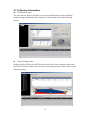
File Backup status
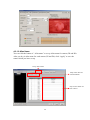
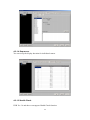
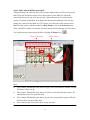
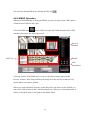
Double click the camera in the DVR list and it will list all of the dates with
recorded files. Click any date and it will list all of the backup files in this date
and the status of backup file.
Double click any file in this backup file list and you can activate DVR player to
play the file you backup directly. Click the right button of mouse on the file and
it will show the directory where the file is saved.
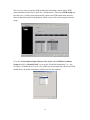
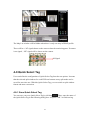
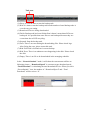
In the column of Schedule Status, you can see six types of file backup status.
(1) Complete: Complete the downloading file.
(2) Incomplete: File download is not completed.
(3) Not Found: File can’t be found in DVR.
(4) Deleted: Complete the file downloaded but file has been deleted by user.
(5) GC: File is downloaded but overwritten due to HDD recycling.
(6) Wait: File is not downloaded.
z
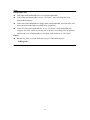
The state of DVR Backup task
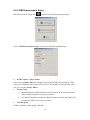
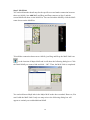
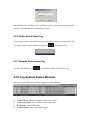
In the bottom of window, it provides the various information including Backup
Task “Current Status”, “ System Log”, “ Connection Log”, “ Storage
Information” and “Network Statistic”.
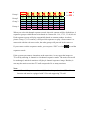
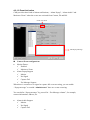
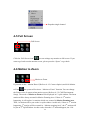
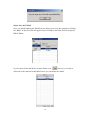
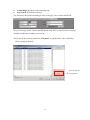
In the “ Current Status” mode, there are 9 kinds of state in the column of
“STATE” shown as following picture.
49