1
SOS 2012 Student Basics
Keyboard Shortcuts in Switched-On Schoolhouse®
Here are a few shortcuts you can use right from your keyboard. All of these shortcuts work in both SOS Teacher and SOS Student.
F1—Opens the Help? file. The Help? file appears in a separate window, so you never have to lose your place.
F2—Grades the current problem and advances you to the next problem.
F11—Sends you back to the previous problem without grading the current problem.
F12—Advances you to the next problem without grading the current problem.
Most common keyboard shortcuts that are part of the Windows® operating system also work in Switched-On Schoolhouse®. Some of
the most common ones are: Ctrl-B—Highlight your text and use these keys to make your text bold.
Ctrl-C—Highlight your text and use these keys to copy your text. (Ctrl-V pastes copied text to another location.)
Ctrl-F—Enter text you want to find and use these keys to start searching the file.
Ctrl-I—Highlight your text and use these keys to make your text italicized.
Ctrl-P—Highlight your text and use these keys to print your current lesson.
Ctrl-U—Highlight your text and use these keys to make your text underlined.
Ctrl-V—Highlight your text and use these keys to paste text that you’ve copied.
Logging In
This section helps you find your way around SOS Student. On your student schoolwork screens, you do lessons, assignments, and
activities that help you learn in new ways. When you’re not doing an assignment, visit your student message center to send notes to
your teacher, send your thoughts, ask questions, even share a joke.
Go to the Resource Center, where you can look up the meaning of that new hard-to-say vocabulary word in the dictionary, check out
the properties of an element on the periodic table, or add up the days until that fun field trip with your calculator. You can also find
that Bible verse you need using the Bible Lookup, or write down your wishes, dreams, thoughts, whatever you want in your Journal.
Logging In
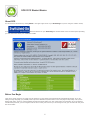
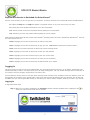
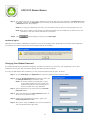
To login follow these steps:
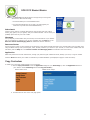
Step 1: Make sure your name is displayed in the Username: window. If another student’s name is displayed, click
select your name from the small menu of students.
7
to