1
2
Text input���������������������
2.1
Using Onscreen Keyboard
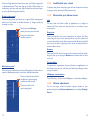
Onscreen Keyboard settings
From the home screen, select Settings\Language&input, touch
the Settings icon
on the right of Android keyboard, a series of
settings are available for your selection.
Adjust the Onscreen Keyboard orientation
Turn the phone sideways or upright to adjust the Onscreen Keyboard
orientation. You can also adjust it by changing the settings (Touch
Settings\Display\Orientation).
2.1.1
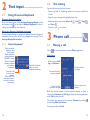
Android keyboard
Touch & hold
to show input
options;
When Wi-Fi or
data connection is
on, touch to enter
voice input.
Text editing
You can edit the text you have entered.
• Touch and hold or double-tap within the text you would like
to edit.
• Drag the tap to change the high-lighted selection.
• Following options will show: Select all
and Paste
.
• Touch the icon
, Cut
, Copy
to confirm.
3
Phone call���������������
3.1
Touch to switch
between "abc/
Abc" mode;
Touch & hold to
switch between
"abc/ABC" mode.
Touch to switch
between symbol
and numeric
keyboard.
2.2
Touch
Placing a call
on the home screen to access Phone application.
Dial screen
Touch & hold, then
select to enter
symbols/emoticons.
Slide to access Call
log and Contacts.
Touch and hold to
access voicemail
Touch to hide/
show the dial pad
Touch to delete
the digits
Touch to get more
options
Enter the desired number from the keyboard directly or select a
contact from Contacts or Call log by sliding or touching tabs, then
touch Call to place the call.
The number you entered can be saved to Contacts by touching and touching Add to Contacts.
To hang up a call, touch End .
14
15