1
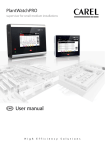
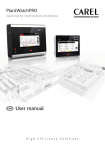
PlantWatchPRO
supervisor for small-medium installations
User manual
LEGGI E CONSERVA
QUESTE ISTRUZIONI
READ AND SAVE
THESE INSTRUCTIONS
ENG
Content
1. PRESENTATION
5
2. KEY
7
3. INSTALLATION REQUIREMENTS
7
4. ASSEMBLY PROCEDURE
8
Relays..................................................................................30
Download alarms.............................................................30
How to respond to alarm signals from PlantWatchPRO................................................................................31
12. scheduler
I/O configuration..............................................................33
Phone book.......................................................................33
Rule configuration............................................................34
I/O test................................................................................35
Guardian............................................................................35
Montaggio............................................................................8
5. BOARD AND CONNECTIONS
13
6. GRAPHIC INTERFACE
14
Display................................................................................14
Touchscreen keypad........................................................14
Navigation buttons..........................................................15
Main menu........................................................................16
7. start up
How to set scheduled rules ..............................37
How to configure the Guardian program ...41
13. USE OF THE USB MEMORY KEY
17
How to update the PlantWatchPRO software
using a USB memory key ..........................................44
18
Line configuration............................................................18
Model management........................................................19
Site information................................................................19
Users...................................................................................20
Network configuration....................................................20
System pages....................................................................20
14. NAVIGATION VIA WEB FROM A REMOTE PC
45
How to connect to PlantWatchPRO from a
remote PC via web..........................................................45
How to configure a simple line..........................23
How to differentiate a device (or a group of
devices) from the standard............................................26
9. INSTALLATION
27
10. reportS
29
42
How to download a HACCP report from PlantWatchPRO ...................................................................43
Configuration wizard....................................................... 17
8. CONFIGURATION
33
15. FUNCTION TREE
46
16. technical specifications
48
17. ANALYTICAL INDEX
49
Display log.........................................................................29
Download log...................................................................29
Download HACCP report...............................................29
11. ALARMS/EVENTS
30
Active alarms.....................................................................30
Concluded alarms............................................................30
Events..................................................................................30
+040000021 - rel. 1.1 - 14.07.2008
Before performing any operation, check that the PlantWatchPRO box
contains:
1. the device itself;
2. the two plastic front panels (top and bottom);
. a bag containing the screws for fastening the front to the rear;
4. a bag containing the required connectors;
. the user manual.
1
2
3
5
4
ENG
1. PRESENTATION
• possibility to export data (alarms, events, system
PlantWatchPRO is the new solution from CAREL for
the supervision of small-medium installations.
Complete network and alarm configuration, simple
navigation and an attractive design are some of the
features that make PlantWatchPRO the cutting edge
product in its category.
A colour LCD touchscreen, and the use of practical
menus, guide the user simply and intuitively, without
the use of a PC (however a PC can be connected if
necessary), thus providing a practical solution for
all those environments that do not have room for a
computer.
Other innovative features of PlantWatchPRO include:
• possibility to connect and control up to 100
devices;
• use of the CAREL or Modbus® protocols;
• recording of around 100 variables, sampled every
15 minutes, for more than one year;
• IP65 index of protection;
• ready for connection to the PlantVisorPRO Remote
supervisor system;
• a Guardian program that boosts and improves
system reliability;
• 3 output relays, for alarm signals or activating
lights and defrosts;
•
•
•
•
•
•
•
•
•
and model configurations and variable reports)
using a USB memory key (the data are downloaded
in a format that is compatible with Microsoft®
Excel and Microsoft® Word);
import new standard or custom devices;
display graphs;
proximity sensor that activates the display without
the user needing to open the cover;
external buzzer management;
complete alarm configuration;
phone book for SMS contacts, fax numbers, e-mail
addresses;
active defrost management;
possibility for multiple users to access the system,
with different privileges (administrator, normal
user, user with privileges);
instrument suitable for technical environments,
no moving parts.
Key:
1 touch screen
2 proximity sensor
3 alarm light
4 device on light
5 USB port
6 transparent cover
1
2
3
4
5
6
+040000021 - rel. 1.1 - 14.07.2008
ENG
1. PRESENTATION
General PlantWatchPRO connection
diagram
1
9
2
PSTN
10
GSM/GPRS
3
4
5
LAN
6
7
Remote
- Internet Explorer
- FireFox
Key and product codes:
1
2
3
PlantWatchPRO (code PWPRO00000)
printer (not in the first version)
PSTN analogue modem (version code
PWPROM0000 only)
4 USB memory key
5 PC (via LAN)
6 3 relay outputs (low, medium, high alarm)
2 digital inputs (can be configured, not in the
first version)
7 Modbus® RTU
8 CAREL plant
9 GSM/GPRS modem connection kit
(code PWOPMD0000)
10 optional GSM/GPRS modem
(code PLWOPGSM00)
required to be able to use all the SMS
functions.
+040000021 - rel. 1.1 - 14.07.2008
6
8
ENG
2. KEY
note
highlights an important point; in particular as regards the practical use of the
various product functions
warning
warns the user of critical areas for the use and safety of PlantWatchPRO
USB key
indicates that the function can only be accessed directly from PlantWatchPRO
(not via web) and using a USB memory key
tutorial
offers the user some simple configuration examples of the most common
settings for the supervision of an installation
3. INSTALLATION REQUIREMENTS
The following are required to install PlantWatchPRO:
o two screwdrivers, one Phillips-head and the other flat-head;
o a drill to make the holes required on the chassis of PlantWatchPRO;
o screws for mounting the unit on the wall;
o step bit max. dia. 32 mm.
In addition
Before performing any operation, check that the PlantWatchPRO box contains:
o the device itself;
o the two plastic front panels (top and bottom);
o a bag containing the screws for fastening the front to the rear;
o a bag containing the required connectors;
o the user manual.
+040000021 - rel. 1.1 - 14.07.2008
ENG
4. ASSEMBLY PROCEDURE
Montaggio
ç
Open PlantWatchPRO from right to left (side hinged
by the yellow clamps), making sure not to disconnect
the ribbon cable from the display and the other cable
that connects to the board from the front panel.
Warning:
• the electrical connections must only be performed
by a qualified electrician;
• all the connections must be made with
PlantWatchPRO disconnected from the power
supply;
• power supply not to specifications may seriously
damage the system;
• avoid direct contact with internal electronic
components;
• connection errors (and connections other than
those specified in this manual) may endanger
the safety of the users and cause faults to the
instruments and the components connected;
• install all electromechanical safety devices required
to guarantee correct operation and the complete
safety of the user.
å
Remove PlantWatchPRO from the plastic bag it is
wrapped in and place it on the bench.
a. display ribbon cable
b. board-front panel connection cable
+040000021 - rel. 1.1 - 14.07.2008
ENG
4. ASSEMBLY PROCEDURE
é
è
Remove the board using a flat-head screwdriver,
levering the two tabs (3a e 3b) on the grill that
secures it in place; then fully place the board on the
front part of PlantWatchPRO (3c).
Now drill the plastic chassis of PlantWatchPRO
to make the opening for the connection cables,
holding it firmly by hand, as shown in the figure; the
holes can be made either on the right-hand side or
the top, according to needs and the layout of the site
where it is installed.
Warning: to avoid the risk of damaging the board,
drill PlantWatchPRO only on the right-hand side
of the chassis, as shown on the inside label, and
with a step bit max diameter 32 mm.
3a
3b
3c
+040000021 - rel. 1.1 - 14.07.2008
ENG
4. ASSEMBLY PROCEDURE
ê
ë
Then place the board in its housing, aligning the hole
on the board (
) the corresponding protrusion
on the grill; then press terminals JP6 and JP22 at the
same time until the locking tabs on the grill click into
place.
Using the drilling template (provided on the box),
drill the wall where PlantWatchPRO is to be mounted,
and then fasten it to the wall using four screws.
218.5
www.carel.com
162.5
1
www.carel.com
2
Warning: to ensure IP65 index of protection, the
screws used to fasten PlantWatchPRO to the wall
must only pass through the four existing holes in
the four corners of the chassis.
+040000021 - rel. 1.1 - 14.07.2008
10
ENG
4. ASSEMBLY PROCEDURE
í
ì
Once PlantWatchPRO has been fastened to the wall,
and the cables have been run through the holes in
the chassis, the wiring can be completed, as follows:
• plug the telephone line into connector JP15;
• connect the lines for the devices in the installation
to terminals JP11 and JP12 (line 1 to JP11 and line
2 to JP12) (RS485serial interface);
• connect the 3 relays to terminals JP3, JP5 & JP6;
• any digital inputs should be connected to terminal
JP4;
Once wiring has been completed, close
PlantWatchPRO again, making sure the two yellow
tabs click into the corresponding slots.
function not available in the first version.
• JP13 is the terminal for the RS232 serial interface,
used for service connections;
• JP14 is the terminal for the RS232 serial interface,
used to connect a GSM/GPRS modem (optional);
• plug the network cable (for LAN connection) into
the Ethernet connector JP22.
• finally connect the power cable to terminal JP10.
JP15
JZIF1
î
Then fasten the front to the rear using the four screws
supplied.
Warning: to ensure the IP65 index of protection,
the rubber gasket must be correctly positioned
between the two parts of the PlantWatchPRO
chassis.
JP10
JP6
JP5
JP3
JP4
JP12
JP11
JP14
JP13
JP22
JP20
11
+040000021 - rel. 1.1 - 14.07.2008
ENG
4. ASSEMBLY PROCEDURE
ï
Warning: if during the assembly operations the
display cable is detached from terminal JZIF1,
proceed as follows to connect it again:
• lift the “clip-clap” tab on the terminal;
• connect the display cable, holding it in place
with two fingers;
• finally lower the tab on the terminal until it clicks
into place, thus securing the cable.
Finally, fit the top and bottom plastic front panels, by
lightly pressing them into place.
+040000021 - rel. 1.1 - 14.07.2008
12
N.O.
90 V ~ 50 Hz
240 V ~ 60 Hz Relay
COM
K2
5. BOARD AND CONNECTIONS
JP3
N
N.O.
not
used
JP15 telephone line for PSTN modem
JZIF1 display
JP10 power supply
JP6
relay K3
JP5
relay K2
JP3
relay K1
Configurazione
JP4
1 Digital input 1
corretta
2 Digital input 2
3Correct
GND terminal (negative power supply
terminal)
configuration
JP12 RS485 (field - line 2)
JP11 RS485 (field - line 1)
JP14 RS232 (optional modem)
JP13 RS232
JP22 Ethernet (LAN)
JP20 USB
Relay
K1
1234
JP11
N.O.
Linea
telefonica
Phone line
K2
Relay
K1
JP4
Digital
Input
RS
ON
COM
COM
D. I. 1
D. I. 2
GND
JP12
+
GND
JP11
+
GND
RS485
(Linea 2
Line 2)
RS485
(Linea 1
Line 1)
JP14
RS232
(Modem)
JP13
RS232
JP22
RS232
JP20
(Modem)
JP14
COM
JP3
+
JP15
GND
RS485
(Linea 1
Line 1)
N.O.
N.O.
JZIF1
+
Display
GND
RS485
(Linea
Warning: never change the dipswitches
from2the
JZIF1configuration shown in the figureLine 2)
N.C.
Alimentazione
Power Supply
JP5
90 V ~ 50 Hz
240 V ~ 60 Hz Relay
Configurazione
corretta
Correct
configuration
JP12
RS
Relay
K3
D. I. 1
D. I. 2
GND
Digital
Input
ON
JP6
COMJP10
JP4
Display
L
1234
Terminali e collegamenti:
ENG
Ethernet
(LAN)
USB
JP15
Linea
telefonica
Phone line
JP13
RS232
13
+040000021 - rel. 1.1 - 14.07.2008
ENG
6. GRAPHIC INTERFACE
Display
Touchscreen keypad
The foll owing keypad will be made available on
the touchscreen display whenever data needs to be
entered (letters, numbers or symbols):
One of the main features of PlantWatchPRO is the
user interface. Web navigation also uses the same
graphic interface, identical to the touchscreen except
for some functions that can only be accessed directly
from PlantWatchPRO using a USB memory key (these
are highlighted in the text by
).
To switch from the main keypad (upper case) to the
other keypads, use the following buttons:
to shift to lower case
for the numeric keypad
for symbols and punctuation
+040000021 - rel. 1.1 - 14.07.2008
14
ENG
6. GRAPHIC INTERFACE
Navigation buttons
BACK button: used to return to the previous screen. If pressed on the home page, automatically
returns to the login screen
HOME button: returns to the home page
SILENCE button: used to mute the alarm generated by the buzzer (or the additional siren, if
installed)
HELP button: pressing the Help button displays a brief explanation of the functions available
in the current screen
To exit the Help screen, press
displays the list of the devices in the installation and the corresponding alarms. When a device
generates an alarm, this button turns red (
) until the alarm is acknowledged PV-, cancelled -Canc.- or removed -Rem.- by the user (see chapter dedicated).
restarts the system software, loading the changes made to the configuration; if the changes
require the new configuration to be loaded, the button is red (
) until it is pressed
to make the changes active. The reload operation may take a few seconds.
To make the changes to the system configuration effective, the software needs to be reloaded
(using
), after having confirmed the changes
opens the window for setting the “Guardian” program; the notification channels specified will
be used by the “Guardian” to send any PlantWatchPRO malfunction warnings to the specific
technical personnel. This button, like the previous two, turns red (
) when the
program is activated
CONFIRM button: confirms the changes made to the screen
scrolls the list upwards
scrolls the list downwards
scrolls the list to the previous device
scrolls the list to the next device
used to access the key to the graph of the variables on the corresponding screen
add
remove
To remove an object (device, time band, action, …), first press
and then select the object to remove
15
+040000021 - rel. 1.1 - 14.07.2008
ENG
6. GRAPHIC INTERFACE
Main menu
The PlantWatchPRO main menu features the clock,
the navigation buttons, the information on the name
of the site, and five icons: Installation, Configuration,
Reports, Alarms/events and Scheduler; pressing each
of these accesses other secondary menus with the
lists of corresponding functions.
+040000021 - rel. 1.1 - 14.07.2008
16
ENG
7. START UP
Configuration wizard
é
å
Now enter the date and time by selecting the
corresponding fields.
When PlantWatchPRO is first started, the
following presentation screen will be displayed
The date format is “yyyy/mm/dd” and the time
format is “hh/mm”.
Pressing
accesses the page for selecting the
LANGUAGE and the TIMEZONE.
è
As the final phase in the program initialisation
process, the previous selections need to be confirmed
by pressing the
button or going back (with the
button) and changing the settings.
ç
Press the corresponding fields to select the
desired items from the lists. The selection is confirmed
by moving to the following screen (
button)
Warning: check the settings carefully before
pressing
as once confirmed, the other
languages and time zones can no longer be
recovered.
A confirmation message then notifies the user that
the settings have been saved and, once the system
has been rebooted, the PlantWatchPRO main menu
will be accessed.
1
+040000021 - rel. 1.1 - 14.07.2008
ENG
8. CONFIGURATION
Line configuration
Line 1 and Line 2
(these are the two lines that can be configured for
the installation: choose “line 1” and then proceed in
the same way for the second line, if used).
Devices
To add
(or where necessary remove
) devices to/from the installation, choose the
type (from those available in the PlantWatchPRO
archive), then assign a short custom description and
assign the address (this must be different for each
device on the same line, otherwise the program
will display an error message); a group can also
be assigned (up to 5 groups are available), used to
apply specific rules and enable or disable the device
according to special needs.
Disabling a device means that any alarms it
generates will not be managed.
Device customization
List of devices configured on the line; this is used
to display the variables and if necessary change the
description.
Connection
To set the connection type (CAREL-RS485 or
Modbus®-RS485) and the speed (baud rate).
+040000021 - rel. 1.1 - 14.07.2008
1
ENG
8. CONFIGURATION
Model management
Remove model
To remove a model that is not used by the installation
and thus free up part of the PlantWatchPRO
memory.
Model configuration
Function used to configure the models corresponding
to the instruments, that is: Alarms (priority and
enable/disable), the variables to be sampled (and
corresponding sample time), displayed on the graph
and logged (Log/graph/report menu), above all the
variables required for the HACCP system; in addition,
a custom description and a different unit of measure
from the original can be entered (Description/unit of
measure menu).
Site information
This is used to enter the information relating to the
site where PlantWatchPRO is installed, plus some
information on technical service for support in the
event of problems.
The PASSWORD and CONFIRM (password) fields
must be completed if a password needs to be set
for the remote connection to PlantWatchPRO.
The text entered in the MAINTENANCE and
TELEPHONE fields will be displayed when pressing
the
button from the login screen, so as
to indicate who to contact in the event of need.
Import standard models
To import other models of devices from the standard
libraries
.
Import from device creator
For custom models created using the special device
creator program
.
Copy models
Used to create new models based on an existing
model, then making the desired changes.
Updating the model used as the basis for others
also changes all the models derived using the
copy function.
1
+040000021 - rel. 1.1 - 14.07.2008
ENG
8. CONFIGURATION
Users
System pages
Administrator
Reload configuration
Used to modify the settings of the administrator
user.
This is the function that makes the changes made to
the previous configuration effective.
No changes to the system will be active unless the
button is pressed, which remains
red (
) as a reminder, while the
system is still in the previous configuration. Only
after having confirmed the changes on the reload
page will the system be updated..
Remote user
Used a configure the remote user.
Normal user
Used to create new users and assign them different
privileges (site configuration/change parameters/
alarm management).
Backup/Restore
Export site configuration
Once an installation has been configured, the
configuration can be saved and exported and then
used to configure another PlantWatchPRO.
Operation also available via web
Restore site configuration
Import the system configuration from a USB key
.
Export logs
Export the system data log files (variables).
Operation also available via web.
Network configuration
Configure the settings for the connection to a local
network.
+040000021 - rel. 1.1 - 14.07.2008
20
ENG
8. CONFIGURATION
Update software
To download new versions of the PlantWatchPRO
software
.
Display/Clock
Control panel for the date/time and display settings.
21
+040000021 - rel. 1.1 - 14.07.2008
ENG
8. CONFIGURATION
Tree of the “Configuration” menu functions
Line config.
Line 1/2
List of devices
Device details
Custom devices
List of
variables
Variabile
details
Connection
Model
manag.
Site info
Configure
models
Alarms
List of device
models
List of
alarms
Import standard
models
Log/graph/
report
List of device
models
List of
variables
Import from
device creator
Description/
unit of measure
List of device
models
List of
variables
List of normal
users
Normal user
details
Copy model
Remove model
Users
Admin
Network
config.
Remote user
Normal user
System
pages
Reload config.
Backup/restore
Export site
config.
Update
software
Restore site
config.
Display/ clock
Export logs
Restore logs
+040000021 - rel. 1.1 - 14.07.2008
22
ENG
8. CONFIGURATION
How to configure a simple line
First of all, the user needs to configure PlantWatchPRO in relation to the devices in the specific installation.
å
From the home page access CONFIGURATION
LINE CONFIGURATION
LINE 1
DEVICES. Progressively add all the devices
featured in the installation and connected
to line 1, assigning a specific description, an
address and if necessary add the device to
a group (up to five groups are available) for
applying one or more rules (see the part of
the manual corresponding to the SCHEDULER
menu).
Each device on the same line must have a
different address from the others, otherwise,
if the same address is assigned twice, an
error message will be displayed.
ç
After having entered the devices, go back and
press the LINE 1
DEVICE CUSTOMIZATION
item. Here the name of each individual device
and each related variable can be customized.
é
Go back and choose the type of CONNECTION,
from the standard protocols proposed.
è
Repeat 1, 2 & 3 for LINE 2 (if featured).
2
+040000021 - rel. 1.1 - 14.07.2008
ENG
8. CONFIGURATION
ê
Entering MODEL MANAGEMENT
MODEL
CONFIGURATION
ALARMS and choosing
the devices on the two lines from the list, one
at a time, the alarms can be enabled or disabled
and the priority set (the priority of an alarm will
be indicated in the list with a different colour,
depending on the level).
ë
Then return to the previous menu and enter
LOG/GRAPH/REPORT
DEVICE DETAILS
VARIABLE DETAILS
a screen will be
displayed for selecting: the frequency for
recording the value of the variable, the colour
used to draw the curve showing the trend
of this variable on the graph, and if required
include the variable in the report and/or in the
graphic.
In the list of variables logged, the columns
have the following meanings:
Freq: sampling frequency.
G: variable displayed on the graph.
P: variable included in the HACCP report.
M: variable included in the main list of
devices in the installation (INSTALLATION
menu).
í
DESCRIPTION/UNIT OF MEASURE is used to
change the name and unit of measure of the
variables.
ì
Access CONFIGURATION
SITE INFORMATION to enter the information
on the site required for the synchronisation
of PlantWatchPRO and the information on
technical service.
+040000021 - rel. 1.1 - 14.07.2008
24
ENG
8. CONFIGURATION
î
Enter the connection data in CONFIGURATION
NETWORK CONFIGURATION
The data for connecting PlantWatchPRO to the
LAN is required.
ï
Reload
the
configuration, using the
button and the dedicated
screen.
The line is thus configured, and from
the INSTALLATION menu all the settings
defined thus far can be displayed under
CONFIGURATION.
2
+040000021 - rel. 1.1 - 14.07.2008
ENG
8. CONFIGURATION
How to differentiate a device (or a group of devices) from the standard
An example of how to create another model of device with other features starting from the IR33
å
From the home page, enter the
CONFIGURATION
MODEL MANAGEMENT
COPY MODELS
menu, from the
ORIGINAL MODEL list choose the standard
model to start from (in the example, “IR33”)
and in the field TARGET MODEL field enter
the name to be given to the new model (in
the example, the new model has been called
“IR33modified”)
The model created is now identical to the
one used as the starting point.
ç
Return to the MODEL MANAGEMENT
MODEL CONFIGURATION
menu to
customize the new devices created, changing
the settings relating to:
• ALARMS;
• LOG/GRAPH/REPORT;
• DESCRIPTION/UNIT OF MEASURE.
A model can thus be created that is different
from the one used as the starting point, based
on specific needs.
After having created the new model with
different features from the standard IR33,
these types of devices can be installed,
following the first steps in the sequence of
operations presented in the TUTORIAL on
the configuration of a simple line.
+040000021 - rel. 1.1 - 14.07.2008
26
ENG
9. INSTALLATION
When entering this menu a list is displayed showing
all the devices available in the installation and their
status: the graphic LEDs next to the names of the
devices have the following meanings:
• green - everything is working correctly.
• red - the device has an alarm.
• blue - device disabled.
• grey - device off-line.
In addition, the main variables previously selected to
be displayed (from the CONFIGURATION
MODEL
MANAGEMENT
MODEL CONFIGURATION
LOG/GRAPH/REPORT
DEVICE DETAILS menu) are
shown, or alternatively the default variables and the
corresponding values.
Accessing the detail of each device, the alarms can
be acknowledged (both concluded and active) and
the graph of the trend of the variables displayed.
Write parameters
This lists the parameters that can be modified; to
change the value of a parameter, select it by pressing
the corresponding row.
Graph
Graph of the variables. The horizontal axis shows the
time scale, while the vertical axis shows the values of
the variable. (The colours have been set previously
by the user in the CONFIGURATION menu).
use the
and
buttons to scroll the time
axis and the
and
buttons to move
from one device to another.
PlantWatchPRO can plot up to five values at the
same time.
2
+040000021 - rel. 1.1 - 14.07.2008
ENG
9. INSTALLATION
Tree of the “Installation” menu functions
List of
devices
Main variables
Details of
parameter
Write
parameters
Details of
parameter
Active alarms
Details of alarm
Concl. alarms
Graph
+040000021 - rel. 1.1 - 14.07.2008
Graph settings
28
Graph key
ENG
10. REPORTS
Display log
Download HACCP report
Displays the values of the logged variables.
Directly prints the report of HACCP variables.
Via web, PlantWatchPRO opens a dialogue box for
entering the directory where the HACCP report (“.
rtf” format, compatible with Microsoft® Word) or
the log will be saved (“.csv” format, compatible
with Microsoft® Excel).
Download log
Saves the values of the logged variables.
After having entered in one of the first two menus
(either DISPLAY LOG or DOWNLOAD LOG), select the
date for the logged data to be downloaded and/or
displayed.
From PlantWatchPRO, on the other hand the data,
both the log and the HACCP report are saved to the
USB memory key (in the directory G:\export\name_
site\report.)
Tree of the “Report” menu functions
Display log
Report
Download log
Download
HACCP report
2
+040000021 - rel. 1.1 - 14.07.2008
ENG
11. ALARMS/EVENTS
Active alarms
If the message in the EVENT column is too long to
be displayed in full, to read it select the
corresponding row and open the details
Displays the active alarms on the system;
key to alarm colours:
• red - highest priority;
• orange - high priority;
• yellow - medium priority;
• white - low priority.
Relays
Used to disable the relays activated by
PlantWatchPRO.
Pressing the corresponding fields and confirming
(
) disables the relay.
Concluded alarms
Shows the list of concluded alarms.
Download alarms
Events
This saves the list of active alarms from a certain date
onwards; the data is saved to a file in “.csv” format
(compatible with Microsoft® Excel).
List of the events saved by the system. The icons
have the following meanings:
information event
error event
warning event
Tree of the “Alarms/Events” menu
functions
Active alarms
Conc. alarms
Events
Relays
Downld. alarms
+040000021 - rel. 1.1 - 14.07.2008
0
Details of
alarm
Details of
event
ENG
11. ALARMS/EVENTS
How to respond to alarm signals from PlantWatchPRO
Below is a description of how alarms are shown on the PlantWatchPRO display and how to respond.
å
If
the
ALARM
button
turns
red
(
) an alarm is active on one of the
field devices.
Enter ALARMS/EVENTS
ACTIVE ALARMS
to display the list of active alarms in the
entire installation, highlighted in four different
colours depending on the level of priority:
• red - highest;
• orange - high;
• yellow - medium;
• white - low.
In the example, a low priority alarm called
“Al. timeout defrost evap2” is activated on
the device called “IR33 #1”.
ç
From the list of active alarms, pressing the
row showing the alarm in question accesses
the page with the details of the alarm. This
highlights the date and the time when the
alarm was activated, plus three fields (PV,
CANC. and REM.) that are empty if the page is
being accessed for the first time.
Abbreviations:
PV - PV - acknowledge alarm;
Canc. - cancel alarm, that is, all the actions
relating to the alarm are cancelled (e.g.
send SMS, fax,…) before being undertaken
by PlantWatchPRO;
Rem. - remove alarm from the list of active
alarms.
é
Pressing the
button PlantWatchPRO
records the user who performed the operation
as the person acknowledging the alarm; in
addition, the date and the time when the
operation was performed are also recorded.
1
+040000021 - rel. 1.1 - 14.07.2008
ENG
11. ALARMS/EVENTS
è
Pressing the
button again records the
time and date the alarm was cancelled and
who performed the operation; this may be a
different user from the one who previously
acknowledged the alarm.
ê
Pressing
a third time records the identity
of the user who removed the alarm on
PlantWatchPRO.
ë
Once the alarm has been removed, it no
longer appears in the list of ACTIVE ALARMS,
but rather can be seen in another screen with
the list of CONCLUDED ALARMS.
Once the alarm has been cancelled, the
button turns blue again.
í
Pressing the row with the desired alarm again
opens the detail screen, showing the date, time
and name of the user who acknowledged,
cancelled and removed the alarm.
+040000021 - rel. 1.1 - 14.07.2008
2
ENG
12. SCHEDULER
I/O configuration
Phone book
This menu is used to configure the number of
attempts at an alarm signal (if the previous was
not successful) and the interval between the one
attempt and the next at the following signals:
• fax;
• SMS;
• e-mail;
• RAS (Remote Access Service).
Up to five fax recipients, five SMS numbers, five email addresses and one remote access connection
can be configured.
Each recipient may have more than one number
or address, separated by semi-colons (;),as in the
most commonly used e-mail programs.
What is a rule? For each alarm or group of alarms
(including from different devices), a series of rules
can be defined, which may be:
As regards the e-mail addresses, the data relating
to the server and the Dial-Up connection can be
simply and intuitively configured on
PlantWatchPRO.
In addition, the procedure and time for resetting the
buzzer and the three relays can also be set.
•
•
•
a set of actions (fax, SMS, e-mail, print, activate
relay, buzzer, remote access);
a time band;
a delay.
If an alarm goes off, the actions are performed.
If a delay is set, the actions are performed after
having waited the time set for the delay. If the
time band is set, the actions are only performed if
the alarm is activated within the time band.
+040000021 - rel. 1.1 - 14.07.2008
ENG
12. SCHEDULER
Rule configuration
Scheduled activities
List of the scheduled activities; the parameters
controlling the various activities can be set, where
necessary assigning them to a certain group of
devices (set during the configuration procedure).
Time bands
Used to enter time bands for implementing the rules;
the DAILY/WEEKLY/SPECIAL EVENT submenu can
be used to add or remove time bands of different
durations that can be completely customized by the
user.
Rules
Display the list of rules for notifying the alarms; rules
can be added/removed or edited, pressing the detail
of the rule to open the special menu for setting the
configuration parameters.
For correct data entry, first create the time bands
and the actions.
Actions
Notifications
Configuration of the parameters for the notifications
and the activation of the alarm channels.
+040000021 - rel. 1.1 - 14.07.2008
4
ENG
12. SCHEDULER
Scheduled rules
Display the list of scheduled rules; scheduled rules
can be added/removed or edited, pressing the detail
of the rule to open the special menu for setting the
configuration parameters.
I/O test
Test the correct operation of the Input/Output
channels.
Guardian
Notifications
Configuration of the notification parameters for the
“Guardian” program; the channels set are used by the
“Guardian” to send notifications of any malfunctions
on PlantWatchPRO to the technical personnel
indicated.
Alarm priority
Used to configure the priority of the alarms, entering
the settings in the respective fields.
If the type of the alarm is selected, the “Guardian”
program checks that the alarm is managed within
the maximum time specified in the field. If this is
not the case, notification is sent via the channels
configured in the NOTIFICATIONS menu.
+040000021 - rel. 1.1 - 14.07.2008
ENG
12. scheduler
Tree of the “Scheduler” menu functions
I/O config.
Fax config.
SMS config.
Phone book
e-mail config.
e-mail
Remote config.
Dial-up
Relay config.
Relay details
Fax
Sms
E-mail
Rule config.
Remote access
service
Daily
Daily details
Time bands
Weekly
Weekly details
Special event
Special event
details
Notifications
Notification
details
Scheduled
activities
Scheduled
activity details
Actions
Rules
Rule details
Scheduled rules
Scheduled
rule details
I/O test
Guardian
Notifications
Priority
+040000021 - rel. 1.1 - 14.07.2008
36
ENG
12. SCHEDULER
How to set scheduled rules
Below is a step-by-step description of how to turn off the lights at 20:00 each working day and turn them on
again in the morning at 9:00.
å
From the home page access SCHEDULER
RULE CONFIGURATION
TIME BANDS
DAILY
: enter the daily time bands for
switching the light off or on; in the example
two time bands have been created, called
“working day” “(09:00-20:00)“ and “working
night” “(20:01-08:59)”.
To set the night-time band “21:00-06:00”, it
must be divided into two bands: “21:0023:59” and “00:00-06:00”.
ç
Go to TIME BANDS
WEEKLY
: now create the weekly light On/Off
time bands; in the example two bands have
been created relating to day and night (day=
lights on, night= lights off ), called “working
week day” and “working week night”, entering
first the daily time bands created previously
on the days from Monday to Friday (premises
considered closed Saturday & Sunday).
+040000021 - rel. 1.1 - 14.07.2008
ENG
12. SCHEDULER
é
Return to RULE CONFIGURATION
ACTIONS
SCHEDULED ACTIVITIES
: enter
the desired actions (on the entire installation
or just on some devices, using the option for
assigning the actions to the GROUPS). Two
actions have been created, “lights ON” and
“lights OFF”, turning the lights on and off
respectively.
è
Then go to RULE CONFIGURATION
SCHEDULED RULES
: enter the new
scheduled rules, that is, one that acts in the
time band when the lights should be on,
activating the action that switches the lights
on (this rule will be called “lights on (day)”)
together with another rule that switches the
lights off, thus activating the “lights OFF” action
(this rule has been called “lights off (night)”.
In four steps, a planned activity has been set that
automatically switches the lights on and off ; the
same procedure can be used to create other rules
acting on the installation (entire installation or just
some devices).
+040000021 - rel. 1.1 - 14.07.2008
ENG
12. SCHEDULER
How to set the rules
Below is a description of how to set PlantWatchPRO to notify a highest priority alarm activated in the night-time
time band (21:00-08:00) via SMS).
å
From the home page access SCHEDULER
RULE CONFIGURATION
TIME BANDS
DAILY
: create a time band that goes
from 21:00 to 08:00; in the example this has
been called “night”.
Remember that to set the night-time band
“21:00-08:00” it must be divided into “21:0023:59” and “00:00-08:00”.
ç
Return to TIME BANDS
WEEKLY
:
create a weekly time band in which the “night”
daily band is applied every day of the week;
this weekly time band has been called “every
night”.
é
Return to RULE CONFIGURATION
ACTIONS
NOTIFICATIONS
: enter the
notification action “send SMS”, selecting
from the SMS list the telephone number of
“maintenance tech. X” to send the SMS to as
the only notification channel.
+040000021 - rel. 1.1 - 14.07.2008
ENG
12. SCHEDULER
è
Return to RULE CONFIGURATION
RULES
: now create a rule (called “night
SMS”), applying a DELAY of one minute (enter
“1” in the corresponding field); from ALARM
PRIORITY choose “Highest”, from TIME BANDS,
“every night” (band previously created in the
corresponding menu) and finally, from ACTION
“send SMS”.
With these settings, as soon as a highest priority
alarm is activated, on any night of the week,
PlantWatchPRO waits one minute and, if within
this time interval the alarm has not concluded,
notification of a highest priority alarm will be sent
via SMS to “maintenance tech. X”.
+040000021 - rel. 1.1 - 14.07.2008
40
ENG
12. SCHEDULER
How to configure the Guardian program
Below is a description of how to sent a fax to a certain number if a highest priority alarm is activated on a field
device.
å
From the home page access SCHEDULER
PHONE BOOK
FAX
and enter the fax
number to send the notification to, with a
short description.
ç
Return to the SCHEDULER menu and access
GUARDIAN
NOTIFICATIONS
choose the
fax number set previously in the PHONE BOOK
from the list.
é
Return to the GUARDIAN menu and access
ALARM PRIORITY
select the type of alarm
to be managed using the Guardian program;
in this case select “Highest”, to have the alarms
with the highest priority signalled via fax if the
system does not manages them within 30
minutes (“30 min” is the time set by the user).
41
+040000021 - rel. 1.1 - 14.07.2008
ENG
13. USE OF THE USB MEMORY KEY
PlantWatchPRO can transfer data to/from a USB
memory key; specifically, some functions are not
accessible via web, but only using PlantWatchPRO.
the corresponding addresses), as well as the format
the file is downloaded in.
Function
Address where files are
saved
EXPORT LOGS
G:\export\site_name\
histor
DOWNLOAD
G:\export\site_name\
HACCP REPORT report
EXPORT SITE
G:\export\site_name\
CONFIGURATION config
DOWNLOAD
G:\export\site_name\
LOGS
report
DOWNLOAD
G:\export\site_name\
ALARMS
alarms
In fact, the user can download the logged values
of the selected variables, the HACCP report, the
configuration of the complete site, the changes
made to various models (to be then exported to
others sites for reuse) and the list of alarms activated
in the installation.
The USB memory key can also be used to load new
data to the PlantWatchPRO memory; this is useful,
for example, for importing the configuration of a
previously configured site, models created based on
the default models or those available in the standard
libraries, or those created using the special Device
Creator (IDE package).
The following functions are only accessible directly
on PlantWatchPRO and only using the USB memory
):
Other functions that require the USB memory key,
if using PlantWatchPRO, yet are also accessible via
web, are:
• EXPORT LOG;
• DOWNLOAD HACCP REPORT;
• EXPORT CONFIGURATION SITE;
• DOWNLOAD LOG;
• DOWNLOAD ALARMS.
Warning: do not confuse the EXPORT LOG and
DOWNLOAD LOG functions: the former saves a
database (.db3 file format) of the variable log,
while the DOWNLOAD LOG function is used to
download a file of the logged values as a
Microsoft® Excel table.
The table below shows a list of the functions that
use the USB memory key to save data; the names
of the directories (created automatically by the
software) where the data are saved are listed (with
+040000021 - rel. 1.1 - 14.07.2008
.rtf
.db3
.csv
.csv
“G:\” is the name that usually denotes the
removable memory drive on the PC, in this case,
the USB memory key;
“site_name” is the name that assigned to the
directory where the files will be saved and is the
name that the user has assigned to the site under
CONFIGURATION
SITE INFORMATION.
A USB memory key can also be used to install new
updated versions of the PlantWatchPRO software.
key (highlighted in the manual by
• IMPORT STANDARD MODELS;
• IMPORT FROM DEVICE CREATOR;
• RESTORE SITE CONFIGURATION;
• UPDATE SOFTWARE.
File
format
.db3
42
ENG
13. USE OF THE USB MEMORY KEY
How to download a HACCP report from PlantWatchPRO
Below is a description of the operations to be performed by the user to download a HACCP report from
PlantWatchPRO using the USB memory key, and then transfer the data to a PC. For example, download the
daily report, with the data shown every 30 minutes, relating to 19 July 2007.
å
From the home page access REPORT
DOWNLOAD HACCP REPORT.
ç
As the DATE enter the day the report should
start, therefore “2007/07/19”.
é
Select “Daily” as the TYPE (the other type of
report that can be downloaded is “Weekly”).
è
Choose “30 minutes” as the INTERVAL (the
other option for displaying the values of the
HACCP variables is “12 hours”).
ê
ë
Insert the USB pendrive in the port.
Finally press the
button and the OK
button on the Warning message that appears
to start the data transfer from PlantWatchPRO
to the memory key.
After a short while a message box is shown
confirming the operation, or alternatively an
error message if the memory key does not have
enough space or has not been inserted correctly.
4
+040000021 - rel. 1.1 - 14.07.2008
ENG
www.carel.com
13. USE OF THE USB MEMORY KEY
How to update the PlantWatchPRO software using a USB memory key
How to update the PlantWatchPRO software with new versions released by CAREL.
å
Download the new software version from
www.carel.com to a PC.
ç
The file downloaded will be a compressed file
such as “patch_1.0.zip”.
é
Unzip the file, creating a directory called
“patch”.
è
Copy the “patch” directory (with all the
contents) to the USB memory key.
ê
From the PlantWatchPRO home page access
CONFIGURATION
SYSTEM PAGES
UPDATE SOFTWARE.
ë
Insert the memory key and press the
button and the OK button on the Warning
message that appears.
í
From the list that will be displayed on the
new screen, select the “patch” directory as the
source for updating the software version.
ì
Press the
button and the OK button on
the Warning message that appears to start the
software update operation.
USB
After this operation, as highlighted by the
Warning message, PlantWatchPRO will be
rebooted to make the software update effective.
This operation may take a few minutes.
Warning:
• Never remove the USB memory key until the
software update has been completed and the
system has been rebooted, as both PlantWatchPRO
and the key may be seriously damaged;
• Power must be available throughout the entire
software update operation.
+040000021 - rel. 1.1 - 14.07.2008
44
ENG
14. NAVIGATION VIA WEB FROM A REMOTE PC
PlantWatchPRO installed in any location can be
monitored via an internet connection, as long as it
is connected to the telephone line and the PC being
used is fitted with a modem.
This function can be used to display on the PC’s
screen the exact same data that appears on the
PlantWatchPRO touchscreen display and access
almost all the PlantWatchPRO functions.
How to connect to PlantWatchPRO from a remote PC via web
Once at the PC, in Microsoft Windows (any version), from the Control panel create a new Internet connection,
as follows:
å
Access CONTROL PANEL
INTERNET CONNECTIONS.
ç
Then choose CREATE A NEW CONNECTION
CONNECT TO THE INTERNET
SET UP
MY CONNECTION MANUALLY
CONNECT
USING DIAL-UP MODEM.
é
è
Enter the name of the connection.
ê
Choose from the options that allow the
connection to be available to all users or only
this specific user.
ë
Enter “PVRemote” as the USER NAME and
“PD35010” as the PASSWORD.
í
The connection has been created; now open
a web browser (for example Windows Internet
Explorer®
or Mozilla Firefox™
) and
enter the following IP address: 192.1.1.2.
ì
The window of the browser will automatically
show the PlantWatchPRO screen, allowing
access in the same way as for the touchscreen
version.
NETWORK AND
Enter the telephone number of the telephone
line that PlantWatchPRO which is connected to.
4
+040000021 - rel. 1.1 - 14.07.2008
ENG
15. FUNCTION TREE
+040000021 - rel. 1.1 - 14.07.2008
46
ENG
4
+040000021 - rel. 1.1 - 14.07.2008
ENG
16. technical specifications
Power supply
Power input
Operating conditions
Storage conditions
Index of protection
Risoluzione display
Type of LCD
Other functions of the board
Digital outputs
Serial ports
Digital inputs
Backlighting
Buzzer
USB ports
Internal modem
Electromagnetic compatibility
Environmental pollution
Cover material
Chassis material
90-240 V, 50-60 Hz
6.7 W (typ), 9 W (max)
5T50 °C, 20 to 80 % rH
-20T60 °C, 20 to 80 % rH
IP65 (with cover closed)
240 x 320 pixels
5.7” TFT, (12 o’clock), 262144 colori
RTC, Watchdog (1000 ms), JTAG
2 N.O. relays, 5 A 30 Vdc / 250 Vac,
1 N.O. relay, 6 A 250 Vac,
2 RS232 serial ports on RJ45 connector
1 RS485 serial port, master, hd, opto-isolated, 19200 bps
1 RS485 serial port, master, hd, opto-isolated, 19200 bps, Modbus® RTU
2 opto-isolated inputs at max. 300 baud
White LEDs
Max 80 dB at 10 cm
2 standard HOST ports, type A connector, on front
1 standard HOST port, type A connector, internal
Socket Modem, PSTN V.34/33.6K data rate
IEC EN 55022 (1999)
IEC EN 55022/A1 (2001)
IEC EN 55022/A2 (2003)
IEC EN 55024 (1999)
IEC EN 55024/A1 (2002)
IEC EN 55024/A2 (2003)
Conforms to RoHS directive
Transparent polycarbonate
Plastic
Dimensions (mm)
wall mounting
max PG
ø2 mm
240
1
200
+040000021 - rel. 1.1 - 14.07.2008
,
48
ENG
17. ANALYTICAL INDEX
A
alarm 18,19,30,31,32,41.
assembly 8,9,10,11,12.
M
main menu 16.
Modbus (protocol) 18,23.
model management 19.
models 19,26.
B
brightness (display) 21.
buttons 14,15.
N
network 20.
notifications 34,35,39,40,41.
C
CAREL (protocol) 18, 23.
clock 17,21.
configuration 18,19,20,21,22,23,24,25,26.
connection 18.
connection protocol 18.
P
phone book 33.
R
relay 13,30,33.
reload 15,20.
remote 33,45.
report 19,24,29,42,43.
rules 33,34,39.
D
data transfer 19,20,21,29,30,42,43,44.
device creator 19.
display 14,21.
E
e-mail 33,34.
electronic board (diagram) 11,13.
events 30.
S
scheduled rules 35,37.
scheduler 33,34,35,36,37,38,39,40,41.
site information 19,24,42.
software 21,44.
standard models 19.
system pages 20,44.
F
fax 33.
file format 29,42.
function (tree) 46.
T
time bands 34,37.
time zone 17.
tutorial 23,24,25,26,31,32,37,38,39,40,41,43,44,45.
G
graph 19,24,27.
guardian 35, 41.
H
HACCP 19,29,42,43.
U
unit of measure 19.
update software 21,44.
USB (memory key) 7,14,19,20,21,42,43,44.
users 20.
I
installation (setup) 8,9,10,11,12,13.
installation (site) 23,27.
internet 45.
W
web 45.
wiring 11,12,13.
K
keypad 14.
L
language 17.
line 18,23,24,25.
log 19,29,42.
49
+040000021 - rel. 1.1 - 14.07.2008
Note:
CAREL S.p.A.
Via dell’Industria, 11 - 35020 Brugine - Padova (Italy)
Tel. (+39) 049.9716611 - Fax (+39) 049.9716600
e-mail: [email protected] - www.CAREL.com
+040000021 - rel. 1.1 - 14.07.2008
Agenzia / Agency: