1
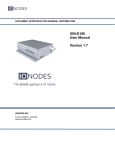
DOCUMENT APPROVED FOR GENERAL DISTRIBUTION ION-E100-HD User Manual Version 1.0 IONODES INC. Laval, Québec, Canada www.ionodes.com Table of Contents 1 2 BEFORE YOU BEGIN ............................................................................................................................... 3 1.1 ABOUT THE ION-E100-HD ................................................................................................................... 3 1.2 PARTS LIST ............................................................................................................................................ 4 HARDWARE INSTALLATION ............................................................................................................... 5 2.1 3 EQUIPMENT INSTALLATION.................................................................................................................... 5 CONNECTIONS ......................................................................................................................................... 6 3.1 FRONT PANEL ........................................................................................................................................ 6 3.2 REAR PANEL .......................................................................................................................................... 7 4 SERIAL PORT CONNECTIVITY ............................................................................................................ 9 5 UNDERSTANDING LED STATUS ........................................................................................................ 11 Normal Operation: ...................................................................................................................................... 11 Special Operations: ..................................................................................................................................... 11 6 INITIAL SYSTEM CONFIGURATION ................................................................................................ 12 6.1 NETWORK CONFIGURATION ................................................................................................................. 12 6.2 USING THE ION-E100-HD WEB APPLICATION .................................................................................... 16 Setting up the NTP server ............................................................................................................................ 17 Configuring Video Parameters .................................................................................................................... 17 7 PERFORMING A FIRMWARE UPDATE ............................................................................................ 19 7.1 8 BATCH FIRMWARE UPDATE ................................................................................................................. 20 POINT TO POINT CONNECTIONS ..................................................................................................... 23 ANNEX A – CONFIGURATION PARAMETER REFERENCE ................................................................. 24 ANNEX B – TROUBLESHOOTING GUIDE ................................................................................................ 27 ANNEX C – STATEMENT LIMITED WARRANTY ................................................................................... 28 ION-E100-HD – User manual 1 Before you begin 1.1 About the ION-E100-HD The ION-E100-HD single port encoder delivers high quality H.264 video encoding to the video surveillance market. It is an embedded, high-performance digital video encoder, capable of encoding an analog camera input using multiple profiles at a combined 90 images per second (NTSC/PAL) at 4CIF resolution. Embedding support for networked API’s, the ION-E100-HD can be integrated into a networked video management system allowing for centralized monitoring and management in a scalable and expandable IP surveillance system. Contact IONODES for a list of supported VMS systems. The high-performance encoding capability of the ION-E100-HD offers a cost-effective way to service existing analog cameras while providing the benefits of video over IP networks. The ION-E100-HD provides innovative configuration options and tools that can significantly decrease the amount of time and effort required to deploy a unit. Using web-based configuration tools, users can easily and remotely manage all aspects of the appliance. To support high-performance encoding, while keeping the total cost of ownership within budget constraints, the ION-E100-HD uses highly efficient dual stream H.264 compression and supports an optional third MJPEG stream. Advanced features, such as “edge-recording” and “video analytics” allow you to extend usage of the ION-E100-HD well into the future. Page 3 of 28 ION-E100-HD – User manual 1.2 Parts List Qty Description 1 ION-E100-HD appliance 1 Terminal block socket (P/N Weidmuller 1727660000 or 1727580000) Note: When unpacking, inspect the shipment box and appliance to identify any possible damages due to shipping. Make sure all items have been delivered and that no items are missing. Contact your Ionodes representative should you find any damages or defects. Note: The product serial number label helps the Ionodes product support team identify your device and its factory configuration in the event that your ION-E100-HD or its components require service. The label is attached on the underside of the enclosure. . Page 4 of 28 ION-E100-HD – User manual 2 Hardware Installation 2.1 Equipment Installation The ION-E100-HD can be placed on a flat surface, such as a desktop, or mounted via the available mounting holes. When installing the ION-E100-HD, position the unit to allow for cable clearance at the front and rear of the unit. Make sure that minimal air flow is provided to the unit. The ION-E100-HD can be mounted to various mounting structures via the available mounting holes. Note that mounting screws are not shipped with the device. Warning: Be careful not to damage the enclosure when using mounting screws. Page 5 of 28 ION-E100-HD – User manual 3 Connections Familiarize yourself with the ION-E100-HD front and rear panels before connecting any equipment to the unit. The ION-E100-HD offers a single analog video input and associated I/Os and audio connections. 3.1 Front Panel VIDEO IN HDMI connector interface for video input source (720p). MICRO SD (optional) Micro SD connector available for edge recording capability. Please insert a formatted (FAT) micro SD card to enable associated functionality. Note: A micro SD card is not provided with the device. Page 6 of 28 ION-E100-HD – User manual 3.2 Rear Panel Terminal Bloc Header Terminal Bloc Header This header connector is used to connect the supplied Terminal Bloc Socket which provides the interface to serial port, I/O and power connections. Below is a detailed view of this Terminal Bloc Socket: Relay Output Digital Input Pins #1 & #2 Receiver pair for serial communication (4 wire RS-422 or RS-485) Transmitter pair for serial communication (4 wire RS-422 or RS-485) 12V power source RL I1 Rx+ Tx+ 12v RL I2 Rx- Tx- GND Page 7 of 28 ION-E100-HD – User manual The pin out description of the Terminal Bloc Socket is as follows: Number Description Direction 1 RL (Relay) Out 2 RL (Relay) Out 3 I1 (Digital Input 1) In 4 I2 (Digital Input 2) In 5 RX+ In 6 RX- In 7 TX+ Out 8 TX- Out 9 12V supply In 10 Ground - AUDIO IN / OUT 3.5 mm jack which can be used to connect both an audio input and an audio output source. The stereo channel provided by this connector exposes one channel for the audio input and the other for the audio output. STATUS The system status LED is a bi-color (Yellow - Orange) LED providing detailed information on the current state of the device. ETHERNET / PoE This is the ION-E100-HD network port. Please use a straight RJ45 (cat. 5 or 6) network cable. The ION-E100-HD accepts a Power-Over-Ethernet (PoE) compliant power source if needed. RESET The reset button can be used to perform a hardware reset, or to perform a complete reset to default settings of the device’s configuration parameters. Page 8 of 28 ION-E100-HD – User manual 4 Serial Port Connectivity Many devices (PTZ keyboards, PTZ cameras, etc.) use RS-422/485 protocols for communicating with other equipment. These protocols are standards for binary data exchange between DTE and DCE equipments. To connect serial equipment to an ION-E100-HD using RS-422/485 4-wire configuration, use the following steps: 1. Connect twisted pair cables to the Terminal Bloc Socket located on the front panel of the device. Connect to Tx+, Tx-, Rx+, Rx- and GND. 2. Select the desired operation mode (RS-422 4-wire, RS-485 2-wire or RS-485 4-wire) using the devices web interface or external VMS interface. 3. To ensure proper connection between RS-422 4-wire or RS-485 4-wire serial equipment and the ION-E100-HD, use the following scheme: Equipment Serial Port ION-E100-HD Serial Port TX+ RX+ TX- RX- RX+ TX+ RX- TX- GND GND To connect serial equipment to an ION-E100-HD using RS-485 2-wire configuration, use the following steps: Page 9 of 28 ION-E100-HD – User manual 1. To create the negative data signal, please connect Rx- and Tx- pins together on the Terminal Bloc Socket. 2. To create the positive data signal, please connect Rx+ and Tx+ pins together on the Terminal Bloc Socket. 3. To ensure proper connection between RS-485 2-wire serial equipment and the IONE100-HD, use the following scheme: Equipment Serial Port ION-E100-HD Serial Port Data + Data + Data - Data - GND GND Page 10 of 28 ION-E100-HD – User manual 5 Understanding LED Status The following describes the system status LED mappings of the ION-E100-HD: Normal Operation: Operating system boot up – LED is steady orange (max. 30 seconds) Internal application startup – LED is flashing orange (2 second interval) ION-E100-HD system ready – LED is steady yellow Media streaming – LED is flashing yellow (1/2 second interval) Special Operations: Identify command received – LED is flashing orange/yellow Hardware reload default settings – LED is flashing rapidly red/yellow Software watchdog is rebooting the appliance – LED is flashing rapidly red Firmware update in progress – LED is flashing slowly red/yellow Note: Under normal operation, the ION-E100-HD takes up to 1-2 minutes to boot up. Page 11 of 28 ION-E100-HD – User manual 6 Initial System Configuration For initial set-up, the ION-E100-HD needs to be configured prior to using it with your network video management system. In most cases, only network configuration will be required. Since not all ION-E100-HD parameters can be controlled via networked video management systems, advanced parameters may need to be set-up as well through the ION specific software tools. The initial configuration can be done locally on the ION-E100-HD using a laptop directly connected to the device’s network port, or remotely over the network. 6.1 Network Configuration By factory default, the ION-E100-HD is configured in DHCP. If you are not using a DHCP server it will automatically allocate itself an APIPA (Automatic Private IP Addressing) address in the range 169.254.0.1 to 169.254.255.254 with subnet mask 255.255.0.0. Initial device network configuration is done via the IonConfigTool (ICT), a tool provided by IONODES and that can be found on the company’s web site. The ICT plays 5 important roles: 1. Discovery of all ION-E100-HD and other ION devices on the network 2. Remote configuration of the IP address and subnet mask 3. Identify an ION device by flashing the LED (orange/yellow) 4. Batch firmware upgrade of all common ION devices 5. Access to the web based ION management application Page 12 of 28 ION-E100-HD – User manual Once your device is installed on your network and powered up, launch ICT from any computer on the network and the following window will be displayed: The ICT supports 2 ways to discover a device. The first way doesn’t need any configuration and uses the Bonjour discovery protocol. In order to be able to discover a device via Bonjour, the network must support multicast delivery. If it is not the case, you can use the second way, which is the Unicast Discovery. The Unicast Discovery can be configured by using the “Unicast Discovery” configuration form. This configuration form is available via the Admin / Unicast Discovery menu option. Page 13 of 28 ION-E100-HD – User manual To configure the Unicast Discovery, add one or more IP address ranges. The Unicast Discovery tries to reach a device at a specific IP address in the configured ranges. The discovery can be a long process if the range of IP addresses is huge and the device is at the end of the range. To accelerate the discovery, add several small ranges of IP addresses. The ping timeout option can be increased for a high latency network. The ICT will display as many devices as it discovers on the network. Page 14 of 28 ION-E100-HD – User manual If no DHCP server was able to assign an IP address to an ION-E100-HD, it will appear in the ICT device list with an APIPA address (169.254.*.*). If an ION-E100-HD displays an APIPA address it must be configured with a valid IP address before it can be remotely configured by selecting the ‘’Assign IP address’’ from the selection list and configuring the TCP/IP settings. Page 15 of 28 ION-E100-HD – User manual Once the IP information is set, the Silverlight web application served by the ION-E100-HD can be launched from the ICT or directly in your web browser by typing the device’s IP address in the address bar. You can start to use your networked video management system for final system configuration or you can configure advanced parameters using the ION-E100-HD’s web based management. 6.2 Using the ION-E100-HD Web Application When entering the Web Application, you will be asked a username and password. The default user name and password is ‘admin’. The following window will be displayed: The following parameters may need to be programmed before using the unit: 1. An NTP time server address 2. Video encoder streams Page 16 of 28 ION-E100-HD – User manual Setting up the NTP server Under the Configuration section, select the Network tab and set the proper NTP server address under the NTP Configuration header. Configuring Video Parameters You may disable any of the three (3) video encoder streams (H.264-1, H.264-2 and JPEG). All other video parameters should be configured within your NVM system. Note: We recommend disabling the MJPEG codec if you do not intend on using this codec within your application. This will avoid turning on this stream by inadvertence and possibly affecting the performance of the H.264 codecs. Page 17 of 28 ION-E100-HD – User manual Page 18 of 28 ION-E100-HD – User manual 7 Performing a Firmware Update This section describes how to update your ION-E100-HD to newer firmware versions from the web application. 1. Navigate to your device’s web application using your favorite web browser. 2. Click on the Maintenance tab. 3. Click on the Update button. You will be asked for the firmware update file; please select the .iof file which was provided by IONODES. 4. You will see the following messages indicating the status of the update: o Firmware upload in progress... (100%) Lasts around 95 seconds. Status LED is green. o Firmware uploaded. Saving to internal storage... (0%) Lasts around 45 seconds. Status LED is flashing red-green. o Validating and decompressing firmware... (0%) Lasts around 105 seconds. Status LED is flashing red-green. o Firmware ready for installation. Rebooting device... (0%) Web page will disconnect from device until device has rebooted. You will be prompted for login once the device is up again. Lasts around 110 seconds. Status LED is orange. o Testing firmware stability... (26%) Lasts 120 seconds. Status LED is flashing red-green. o Firmware update complete. (100%) Page 19 of 28 ION-E100-HD – User manual 7.1 Batch Firmware Update This section describes how to perform a batch update of multiple ION-E100-HD devices to newer firmware versions from the ICT. The batch firmware update works by starting a firmware update session. Only one session at time is allowed and only 20 devices can be selected by session. From the ICT, select one or more devices of the same type. By using the right mouse button on the selected devices, choose the “Firmware Update” menu option. Page 20 of 28 ION-E100-HD – User manual To start a firmware update session, choose the “.iof” file corresponding to the new firmware by clicking to the “Select File …” button. Once selected, click to the “Start” button. Once started, the “Firmware Update Session” window shows the progress of the firmware update. This window can be closed at any moment without losing the current session. Page 21 of 28 ION-E100-HD – User manual If closed, the progress of the current session can be followed by reopening the “Firmware Update Session” window by clicking the button from the “Tools” toolbar. Once done, clear the current session from the “Firmware Update Session” window and restart a new session if needed. Page 22 of 28 ION-E100-HD – User manual 8 Point to Point Connections Point-to-point connections between an ION-E100-HD and an ION-R100 can be configured using the device’s web application. In the ION-E100-HD’s web application, in the Configuration section, go to the Video In tab and select «video input 1». Scroll down all the way to the bottom of the configuration page. The last 3 sections are named Point to Point 1, 2 and 3. Here’s a quick overview of the settings available for a connection: Enabled: Indicates whether this connection is to be used. Description: Free-form user description of the connection, not used by the device. Encoder: Indicates which video feed is to be sent over the point-to-point connection. Possible values include «H.264 High-Quality» and «H.264 Low-Quality». These values refer to the encoders configured in previous sections of the same web page. Destination IP: Address where to send the video. This is usually the address of an IONR100. The destination can also be a multicast group address. DNS names are not yet supported, only IP addresses. Destination Port: Network port where to send the video. This value must match the port value in the ION-R100. Once all the settings have been set, click on Save at the bottom of the page to apply them. The ION-E100-HD then creates or updates the connection as needed. Page 23 of 28 ION-E100-HD – User manual Annex A – Configuration Parameter Reference 1. Video Input Configuration Audio Association – This parameter allows you to associate a specific audio input with this video input. Enabled – This parameter allows you to enable or disable a video input. Wide Conversion – This parameter tell what to do when passing from a resolution with an aspect ration of 16:9 to a resolution with an aspect ration of 4:3. It can be set to “stretch”, to rescale the image to the new resolution without loosing any part of the image. It can also be set to “crop”, where the aspect ration of the image if keep, droping pixels at each side or at the top and bottom. 2. Video Codec Configuration (H.264 & JPEG) Enabled – This parameter allows you to enable or disable a video codec. Resolution – Allows you to select the video resolution of encoded images. Target Bit Rate – Allows you to select the target bit rate to be used by the codec. Enabled – This parameter allows you to enable or disable a video codec. 3. JPEG Specific Codec Configuration Frame Rate – Allows you to specify the frame rate to be used by the codec. In JPEG, this frame rate will be guaranteed regardless of the rate control setting. Quality – Allows you to select a value for quality of JPEG compression from 0 to 100. The higher the value, the better the quality. This setting is only applicable if the Rate Control parameter is set to Fixed Quality. Page 24 of 28 ION-E100-HD – User manual Rate Control – Allows you to choose between Variable Bit Rate and Fixed Quality. The first option will instruct the JPEG codec to prioritize bit rate over quality. The second option will instruct the JPEG codec to use the specified quality setting and vary bit rate accordingly. 4. H.264 Specific Codec Configuration Profile – Allows you to select the H.264 codec profile from Baseline, Main and High profiles. Baseline: does not contain all the optimization that enhances the visual quality of the video. This profile is the one requiring the least video processing power. Main: Adds in-loop deblocking filter and CABAC encoding. Requires more processing power to encode and decode. High: Adaptive 8x8 or 4x4 transforms on the image. The visual difference is much greater between baseline and main then between main and high. Also, the differences appear only when the visual quality begins to degrade (ex: when the quality begins to degrade on baseline profile, switching to main profile will restore some of the image quality). Frame Rate – Allows you to specify the frame rate to be used by the codec. Rate Control – Allows you to choose between Variable Bit Rate and Constant Bit Rate. The first option will instruct the H.264 codec to dynamically adjust the bit rate in order to meet both the target quality (QP) and frame rate settings. The second option will instruct the H.264 codec to prioritize target bit rate and vary quality (QP) first and frame rate as a last resort. Min/Max QP – This parameter allows you to specify the compression range that the codec will use to determine image quality during compression. In order to force a specific quality setting, you can set the minimum and maximum to the same value. The lower the value, the better the quality will be. VBR Aggressiveness – This parameter allows you to specify if the codec should take into account the level of motion in the image for bit rate calculations. You can select from Conservative, Moderate and Aggressive options for this setting. Using the first option, the codec will allow bit rate to drop up to ¾ of the Page 25 of 28 ION-E100-HD – User manual configured target bit rate when no motion is detected in the image. Using the second option, the codec will allow bit rate to drop up to ½ of the configured target bit rate when no motion is detected in the image. Using the first option, the codec will allow bit rate to drop up to ¼ of the configured target bit rate when no motion is detected in the image. You can disable this feature by selecting the disabled option. Page 26 of 28 ION-E100-HD – User manual Annex B – Troubleshooting Guide Device does not seem to boot-up o Verify that a 12V (40W) power supply is connected to the device. o If using PoE, verify that the RJ45 network link is properly providing power. o When a valid power source is detected, the status LED will light up. o Verify the status of the system status LED to determine the state of the device as it powers up. Cannot discover the device or communicate via the network o Before the device can be discovered, the status LED must be lit YELLOW as this indicates ready state of the device. o Make sure you have connected the device to your network. o Make sure the GREEN LED on the RJ45 connector is lit. If it is not lit, verify the network connectivity with the network switch. o Dynamic discovery of the ION-E100-HD requires multicast networking to be supported by your network and switch equipment. (Bonjour protocol) Page 27 of 28 Annex B Annex C – Statement Limited Warranty The warranties provided by Ionodes Inc. (Ionodes) in this Statement of Limited Warranty apply only to ION-E100-HD products purchased from an authorized Ionodes Inc. (Ionodes) Reseller, Integrator or Distributor and returned from European, Asian or North American countries, and excludes all Latin American countries. The term "ION-E100-HD" means an ION-E100-HD module, any module upgrade, or accessories, or any combination of them. The term "ION-E100-HD" does not include any software programs, whether pre–loaded with the ION-E100-HD, installed subsequently or otherwise, and any installed Micro SD Card, which are covered by a separate Limited Warranty. Nothing in this Statement of Warranty affects any statutory rights of purchaser that cannot be waived or limited by contract. If you have any questions regarding this Limited Warranty, contact Ionodes Inc. and its resellers. The Warranty period for the ION-E100-HD is 2 years from date of billing for the ION-E100HD product. The Ionodes Warranty for ION-E100-HD Ionodes warrants that each ION-E100-HD is free from defects in materials and workmanship, and conforms to the ION-E100-HD Official Published Specifications (See http://www.ionodes.com for details). The warranty period for an ION-E100-HD is a specified, fixed period commencing on date of billing by Ionodes for the Product. If a valid proof of billing cannot be found, the warranty may be void by Ionodes Inc. or measured from the date the ION-E100-HD has shipped from a Ionodes Depot center based on its serial number. If, during the warranty period, the ION-E100-HD is not in good working order, Ionodes will, at its option, repair or replace it at no additional charge, except as is set forth below. In some cases, the replacement product may not be new and may have been previously installed. Regardless of the replacement product used, Ionodes’ appropriate warranty terms apply. In case Ionodes or your reseller are unable to repair an Ionodes ION-E100-HD, you can alternatively ask for a partial refund as far as justified by the reduced value of the unrepaired ION-E100-HD or ask for a cancellation of the respective agreement for such ION-E100-HD and get your money refunded. Extent of Warranty The warranty does not cover the repair or exchange of an ION-E100-HD resulting from misuse, accident, modification, unsuitable physical or operating environment, improper maintenance by the end user, or failure caused by a product for which Ionodes is not responsible. The warranty is voided by removal or alteration of ION-E100-HD or parts identification labels, but not by the installation or replacement of Micro SD medium. THESE WARRANTIES ARE YOUR EXCLUSIVE WARRANTIES AND REPLACE ALL OTHER WARRANTIES OR CONDITIONS, EXPRESS OR IMPLIED, INCLUDING, BUT NOT LIMITED TO, THE IMPLIED WARRANTIES OR CONDITIONS OF MERCHANTABILITY AND FITNESS FOR A PARTICULAR PURPOSE. Items Not Covered by Warranty Ionodes does not warrant uninterrupted or error–free operation of an ION-E100-HD. Any technical or other support provided for an ION-E100-HD under warranty, such as assistance via telephone with "how–to" questions and those regarding ION-E100-HD set–up and installation, will be provided WITHOUT WARRANTIES OF ANY KIND.