1
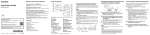
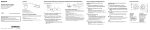
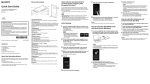
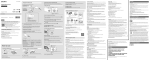
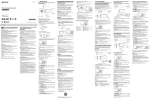
Main Functions of Your Walkman Parts and Controls About volume operation (Only for countries/areas complying with European and Korean Directives) Listening to music on your Walkman Quick Start Guide Enjoy music transferred to your Walkman by operating the buttons on the Walkman. The voice guidance “Check the volume level” is meant to protect your ears when you turn the volume up to a level that is harmful for your ears for the first time. You can cancel the alarm and warning by pressing any button. Operating your Walkman by remote NWZ-WS613/WS615 Just turn the Remote Commander on and you can operate your Walkman by remote. ˎˎYou can turn up the volume after canceling the alarm and warning. ˎˎAfter the initial warning, the alarm and warning repeat every 20 cumulative hours that the volume is set to a level that is harmful for your ears. When this happens, the volume is turned down automatically. ˎˎIf the volume is set to a level that is harmful for your ears and you turn off the Walkman, the volume is turned down to a level that is safe for your ears automatically. Connect your smartphone and your Walkman via a Bluetooth connection so you can listen to music stored on your smartphone using the Walkman or answer incoming calls to the smartphone. Mix mode allows you to listen to sounds from a smartphone application and the Walkman at the same time. You can also use SongPal, a smartphone application that allows you to operate the Walkman using your smartphone. About the manuals To see the detailed information about WALKMAN®, access to Help Guide on the internet. Contents http://rd1.sony.net/help/dmp/nwzws610/h_ww/ Please check the items in the package. ÿÿWalkman (1) ÿÿRemote Commander (1) ÿÿUSB cradle (1) ÿÿEarbuds (1 set) ÿÿSwimming earbuds (1 set) ÿÿAdjustment band (1) ÿÿHolder (1) ÿÿQuick Start Guide (this manual) ÿÿUsing your Walkman while Swimming While browsing is free, you may be charged a communication fee according to your carrier contract. Regarding the basic operations, the customer support website URL and Important Information, refer to “How to Install and Read the Help Guide” section on this manual. How to install the earbuds The illustrations shown are for reference only and may differ from the actual product. Tactile dot Neckband Earbud Headphone section Bluetooth lamp (Bluetooth) button VOL (Volume) +*1/– button Press the VOL + button to turn up and the VOL – button to turn down the volume. MODE button ©2014 Sony Corporation Printed in Malaysia 4-536-905-13(1) Terminals (Play) button*1 RESET button OPR (Operation) lamp (Power) button (Previous) button (Next) button Built-in Bluetooth antenna N-mark Built-in microphone *1 There are tactile dots. Use them to help with button operations. To enjoy better sound quality, or to fit your ears, change the size of the earbuds or adjust the earbud position to fit comfortably and snugly in your left and right ears separately. Optional replacement earbuds can be ordered from your nearest Sony dealer. ˎˎInstall the earbuds onto the headphones so that the tip of the inner part of the earbuds fits into the position on the projection of the headphones. ˎˎMake sure that the earbuds fit straight on, not at an angle, to prevent the earbuds from detaching and remaining in your ears. Install the “Help Guide” on your computer. This contains basic operations of your Walkman, the customer support website URL, and how to transfer content such as music to the Walkman. computer. 2 Open the following folders and double-click 1 Dry and clean the terminals of your Walkman () using a soft dry cloth, if the terminal is wet or dirty. 2 Attach your Walkman to the USB cradle in the order of the left () part first, then the right () part. Make sure that the terminals of your Walkman () and the USB cradle () are in contact with each other. 3 Connect your Walkman to an operating computer using the USB cradle. It takes about 1.5 hours to fully charge the battery. Note ˎˎTo prevent battery deterioration, charge the battery at least once every six months or every year. ¼¼Hint Tip of the inner part How to Install and Read the Help Guide 1 Connect your Walkman to a running Note Using your Walkman with your smartphone Refer to the Help Guide installed on your computer or at the URL mentioned in the “About the manuals” section on the cover page of this manual for details. Attaching Your Walkman to the USB Cradle (Supplied) and Charging the Battery ˎˎThe Remote Commander cannot be charged because a lithium coin cell battery is used in it. If the remaining battery power is low or insufficient, replace the battery of the Remote Commander. For details on how to replace the battery of the Remote Commander, refer to the Help Guide installed on your computer or at the URL mentioned in the “About the manuals” section on the cover page of this manual. the executable file on your Walkman. ˎˎ Windows 7 or earlier: [Start] – [Computer] – [WALKMAN] – [FOR_WINDOWS] – [Help_Guide_Installer(.exe)]. ˎˎ Windows 8: [Start screen] – [Desktop] – [File Explorer] – [Computer] – [WALKMAN] – [FOR_WINDOWS] – [Help_ Guide_Installer(.exe)]. ˎˎ Windows 8.1: [Desktop] – [File Explorer] – [This PC] – [WALKMAN] – [FOR_WINDOWS] – [Help_Guide_Installer (.exe)]. ˎˎ Mac: [Finder] – [WALKMAN] – [FOR_MAC] – [Help_Guide_ Installer_for_mac]. 3 Follow the on-screen instructions to complete the installation. 4 To read the Help Guide, double-click the shortcut or the alias icon generated on your computer. How to Place Your Walkman on Your Ears 1 Playing Music 1 Check the left () and right () parts of your Walkman. 2 Press and hold the button located button button 2 Hang the neckband over the top of your ears and on the right () part for 3 seconds to turn on your Walkman. The OPR lamp turns green after blinking in orange. 3 Press the button located on the right () part. behind your head. 3 Place the headphone sections into your ears. 4 Adjust your Walkman so it feels comfortable. Connect your Walkman to a running computer via the USB cradle and transfer music to the Walkman. ¼¼Hint ˎˎFor detailed instructions for transferring music to your Walkman and listening to music stored on your smartphone, refer to the Help Guide. ˎˎTo turn off your Walkman, press and hold the button for 3 seconds. Using the Remote Commander (Supplied) button Lamp button VOL +/– button Antenna button 1 Turn your Walkman on. 2 Turn the Remote Commander on. The Remote Commander is turned on by pressing and holding the button for 2 seconds, and the lamp starts blinking. When the Remote Commander is connected to your Walkman, the lamp goes off. 3 Press the desired button to operate your Walkman. Pairing and Connecting to Your Smartphone Pairing can be started only when the Bluetooth mode of your Walkman is off. 1 Put your Walkman in pairing mode. Press and hold the button located on the left () part for 7 seconds. The Bluetooth lamp located on the left () part blinks in blue and red quickly alternately. When connecting your Walkman and smartphone from the second time onwards, press and hold the button for 2 seconds. Troubleshooting If your Walkman does not function as expected, try the following steps to resolve the issue. 1 Find the symptoms of the issue in “Troubleshooting” in the Help Guide (HTML document), and try any corrective actions listed. 2 Connect your Walkman to your computer to charge the battery. 3 Press the RESET button with a pen button or paper clip, etc. RESET button Symptom & Remedy The model and serial numbers are located on the back of the player. Record them in the space provided below. Refer to these numbers in the spaces whenever you call upon your Sony dealer regarding this product. Model No. ________________________ Serial No._________________________ You cannot operate your Walkman by the Remote Commander (supplied). ˎˎMake sure that the Remote Commander is turned on. ˎˎMake sure that your Walkman is turned on. ˎˎReset the Remote Commander and your Walkman. For more information, refer to the “You cannot operate your Walkman by the Remote Commander.” section on the Help Guide. ˎˎYou cannot use the Remote Commander when it is wet. Dry the Remote Commander using a dry cloth. ˎˎReplace the battery of the Remote Commander. For more information, refer to the “Replacing the battery of the Remote Commander” section on the Help Guide. REGISTERED No: ER34837/14 DEALER No: DA0096946/12 Symptom & Remedy 2 On your smartphone, turn on the Bluetooth function, and find your Walkman on the Bluetooth settings screen. Follow the on-screen instructions to complete the settings. When the list of detected devices appears, select [NWZ-WS613] or [NWZ-WS615]. If passkey input is required, input “0000.” Your Walkman and the smartphone are registered to each other and a connection is made. ¼¼Hint ˎˎYou can pair your Walkman and smartphone using the one-touch (NFC) function. Refer to the Help Guide installed on your computer or at the URL mentioned in the “About the manuals” section on the cover page of this manual for details. The computer does not recognize your Walkman. ˎˎAttach your Walkman to the USB cradle (supplied) properly and firmly. Charging will start (the OPR lamp lights up in orange) even if the connection was not made properly, but there is a possibility that the computer has not recognized the Walkman. In such a case, remove the Walkman from the USB cradle and then attach to the USB cradle again. ˎˎIf the remaining battery power is low or insufficient, charge the battery. ˎˎWhen you use your Walkman for the first time, or if you have not used the Walkman for a long time, it may take a few minutes to be recognized by the computer, even if charging has already started (the OPR lamp lights up in orange). Check that the computer recognizes the Walkman after you have connected it to the computer for about 10 minutes. You cannot register (pair) to a Bluetooth device. ˎˎIf the support profiles are different, your Walkman and Bluetooth device cannot be paired. For more information, refer to the “Specification” section on the Help Guide. Owner’s Record You cannot connect using the Bluetooth function. ˎˎCheck that the Bluetooth function is activated on the smartphone and your Walkman. ˎˎCheck that the model name of your Walkman is shown as being connected on the [Settings] - [Bluetooth] screen of the smartphone. If the Walkman is not connected, tap the model name. Precautions About the in-ear headphones The earbuds seal your ears. Therefore, be aware that there is a risk of damage to your ears or eardrums if strong pressure is applied to the earbuds or the earbuds are suddenly removed from your ears. After use, be sure to take the earbuds off your ears gently. TRA License and Trademark Notice ˎˎFor information on laws, regulations and trademark rights, refer to “Important Information” contained in the supplied software. To read it, install the supplied software on your computer. ˎˎApple, the Apple logo, iPhone, iPod, iPod touch, iTunes, Mac, iOS and OS X are trademarks of Apple Inc., registered in the U.S. and other countries. App Store is a service mark of Apple Inc. ˎˎ“Made for iPod,”and“Made for iPhone,” mean that an electronic accessory has been designed to connect specifically to iPod, or iPhone, respectively, and has been certified by the developer to meet Apple performance standards. Apple is not responsible for the operation of this device or its compliance with safety and regulatory standards. Please note that the use of this accessory with iPod, or iPhone may affect wireless performance. ˎˎCompatible iPhone/iPod models Bluetooth technology works with iPhone 5s, iPhone 5c, iPhone 5, iPhone 4s, iPhone 4, iPhone 3GS, and iPod touch (4th and 5th generation). About the headphones ˎˎAvoid playing the unit at so loud a volume that extended play might affect your hearing. ˎˎAt a high volume outside sounds may become inaudible. Avoid listening to the unit in situations where hearing must not be impaired, for example, while driving or cycling. ˎˎAs the headphones are of open-air design, sounds go out through the headphones. Remember not to disturb those close to you. If tanning oil or sunscreen gets onto your Walkman or the Remote Commander, wash it off using lukewarm water. Otherwise, it may cause discoloration or damage such as cracks to occur. Design and specifications are subject to change without notice.