1
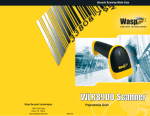
WLR8950
User Manual
Table of Contents
Chapter 1.
Introduction
Chapter 2. Barcode Symbologies
Chapter 3. Installation
Chapter 4.
Quick Start
Chapter 5.
Setup & Configuration
Factory Default
Auto-Sense Stand Mode
Keyboard Connection
Interface Selections
Beep Settings
Beep and Delay
Interblock Delay
Upper/Lower Case
Keyboard Language
Preamble/Postamble
Terminator
Label Type Positive/Negative
Code ID
Bi-color light source settings Enable/Disable Barcode Symbologies
Code 39 Settings
Interleaved 2 of 5 and Code 93 settings
Code 128 and UCC/EAN 128 Settings
MSI Plessey Settings
Codabar Settings
UPC-A and UPC-A Supplement Settings
UPC-E and UPC-E Supplement Settings
EAN-8 and EAN-8 Supplement Settings
EAN-13 and EAN-13 Supplement Settings
Appendix A
Barcode Test Symbols
Appendix B
ASCII Table
Appendix C
Function Codes for PC
Appendix D
Technical Specifications
Warranty Information
FAQ
Product Support
1
2
3
4
5
5
6
6
6
7
7
8
9
9
10
10
11
11
12
13
14
15
16
17
18
19
20
21
22
23
25
29
30
31
32
33
Rev. 5/09/2012
Chapter 1
Introduction
Barcoding is the most common Automated Data Collection (ADC) technology providing timely, error-free information that can be
used to increase productivity, accuracy, and efficiency in the workplace. Virtually every type of industry is using barcodes to replace
keyboard data entry. Studies have shown that a proficient data entry operator will make one error for every 300 characters that are
manually entered. The error rate using barcodes is almost negligible and can be error-free using barcode symbologies with the check
digit enabled.
The Wasp Charged Coupled Device (CCD) technology is a technique whereby a barcode is photographed, digitized, and electronically
sampled by built-in photodetectors. The detectors process the measurement of every bar and space using the number of adjacent
photodetectors which contrast a black mark and a white space. Wasp WLR8950 series scanners are extremely rugged since they have
no moving parts. Wasp WLR8950 series scanners support PS/2 or USB keyboard interfaces and easily wedges between the computer
and keyboard. Barcode data is passed directly into the keyboard buffer as if it had been typed in by hand by a data entry operator.
Of all the hand held barcode scanning devices on the market, the CCD reader is the easiest to use and most cost effective for the
typical business user. The Wasp WLR8950 series scanners are extended distance scanners with a depth of reading of up to one foot
depending on the mil size of the barcode. To activate the scanner, the user simply points the scanning aperture towards the barcode,
pulls the trigger, and aims the red LED beam across the barcode.
1
Chapter 2
Barcode Symbologies
Barcodes are symbols consisting of a series of bars and spaces which can be applied to packages, cartons, bottles, and other
commercial products. The bars and spaces in each symbol are grouped in such a way to represent a specific ASCII character or
function. The interpretation of these groups is based on a particular set of rules called symbologies. Various symbologies have been
developed for particular applications. Some examples are shipping and receiving, manufacturing, retail, healthcare, transportation,
document processing and tracking, and libraries.
The resolution of a barcode is dependent on the narrowest element of a barcode (X dimension), and can vary from high density
(nominally less than 0.009 in./0.23 mm), medium density (between 0.009 in./0.23 mm and 0.020 in./0.50 mm), and low density
(greater than 0.020 in./0.50 mm). Medium and low densities are the most common since these are the easiest to read (scan) with
nearly all scanning devices. Wasp WLR8950 Scanners can read barcodes with X-dimensions as low as 5 mils (0.005 in/0.13mm).
Wasp WLR8950 Scanners can read the most popular barcode symbologies including Code 39, Code 93, Code 128, Interleaved 2 of 5,
UPC-A, UPC-E, EAN/JAN-8, EAN/JAN-13, Codabar, and MSI/Plessey.
Please see test chart on pages 25-26.
2
Chapter 3
Installation
WLR8950 PS2 Scanner
Trigger
Scanning Aperture
Din-6M
Din-6F
1.Turn off your computer.
2.Unplug your PC keyboard cable and plug the male end (Din 6) of the WLR8950 Scanner directly into your PC keyboard port. Plug your keyboard cable into the other end (female Din 6) of the the scanner.
3.Turn your computer on.
WLR8950 USB Scanner
Trigger
USB Port
Scanning Aperture
1. Plug the USB of the WLR8950 Scanner directly into your PC’s USB port.
3
Chapter 4
Quick Start
Your Wasp WLR8950 Scanners are ready for use. The default settings of the scanners have been pre-programmed for the most
common barcode configurations. Use the “WLR8950 Setup & Configuration” sections only to customize the scanners settings. Please
review the “Enable Barcode Symbologies” configuration beginning on page 15 to see the list of barcode symbologies which are enabled
by default.
Tip:
PC
• Use the pre-printed “Barcode Test Symbols” in Appendix A on pages 25-26 BACK
as aOF test
chart to practice scanning.
WLR 8900
PS2 Scanner
PS2 Connection
BACK OFKEYBOARD
PC
MOUSE
DO NOT PLUG
IN MOUSE PORT!
WLR 8900
PS2 Scanner
KEYBOARD
Y-CABLE
KEYBOARD
KEYBOARD MOUSE
DO NOT PLUG
IN MOUSE PORT!
USB Connection
KEYBOARD
Y-CABLE
KEYBOARD
WLR 8905
USB Scanner
USB Connector
WLR 8905
USB Scanner
USB Connector
4
Chapter 5
Setup & Configuration
In order to configure Wasp WLR8950 Scanners, you must familiarize yourself with the setup procedures on the following pages.
The default settings of the Wasp WLR8950 Scanners are identified on each page and clearly marked using an asterisk (*). The
default settings have been preprogrammed for the most common barcode configurations. Use the Setup & Configuration only to
customize the Wasp WLR8950 Scanners settings. If you need to configure the scanner, the default settings will be overwritten. All
the programmed settings are stored permanently in non-volatile memory; therefore, your configuration will be maintained even if the
keyboard power to Wasp WLR8950 Scanners is removed by turning off your PC.
In order to configure Wasp WLR8950 Series Scanners, two basic steps need to be followed:
(1) Locate the group that contains the options to be changed.
(2) Scan the barcode representing the option to be changed.
The scanner will sound two beeps.
To change Minimum/Maximum Length:
(1) Scan the Minimum or Maximum Length barcode.
(2) Scan a 2 digit value from the ASCII table on pages 27-30.
(3) Scan the Minimum or Maximum Length barcode again.
Example: To have a minimum length barcode of 1, you must scan a 0 then 1, then scan the minimum barcode again. To have a
maximum length barcode of 10, you must scan a 1 then 0, then scan the maximum barcode again.
Factory Default
Use the Factory Default barcode to reset the scanner to the Default settings.
Factory Default
5
FACTORY DEFAULT, KEYBOARD CONNECTION AND INTERFACE SELECTIONS
Chapter 5
Auto-Sense Stand Mode
Scan the Auto-Sense Stand Mode barcode to enable the hands-free autosense feature of the WLR8950 Scanners. If you desire to turn
this mode “off,” scan the Trigger Only barcode.
Auto-Sense Mode Enable
Trigger Only
Magnetic Switch is available after activating Auto-Sense Stand Mode.
• The Magnetic Switch is automatically activated when Auto-Sensing Mode is on.
• To enable Magnetic Switch, the scanner should be paired with an Auto-Sense Stand to perform the Auto-Sensing function.
• When Magnetic Switch is disabled, the scanner will perform the Auto-Sensing function without an Auto-Sense Stand.
Magnetic Switch On
Magnetic Switch Off
Keyboard Connection
The Keyboard Connection is used to program the Wasp WLR8950 Scanners for the type of computer to which it is attached.
Notebook
PC (USB or PS/2) *
Interface Selections
The Interface Selections barcodes allow you to switch interfaces based on your connection type.
The scanner is designed to switch easily between interface options. To switch from one interface to another, the appropriate cable must
be installed. After changing to a new cable, be sure to reset the interface setting.
USB KB
PS2
*Default
6
Chapter 5
BEEP AND DELAY
The ‘Beep and Delay’ configuration supports the general control options for the Wasp WLR8950 Scanners. These options include the
tone, intercharacter delay, and interblock delay. The High, Low and Med settings refer to the tone of the beep, not the volume.
Interblock delay is the minimum time interval between two adjacent scans. If the processing speed of your host device is slower than
your scanning speed, a longer interblock delay may ensure the data integrity.
Intercharacter delay is the time period that the scanner will wait before transmitting the next character. If data sent by the scanner has
incorrect or missing characters, a longer intercharacter delay may solve the problem. The intercharacter delay should be changed only
if the transfer rate cannot be maintained between the scanner and the keyboard buffer of the computer.
Note: The default for the intercharacter delay is set to ‘140us’ and is the most common configuration; however, your PC may be
different. When you scan a barcode, if some stray or scrambled characters appear, increase the intercharacter delay to slow down the
transfer rate.
Beep Settings
Beep Off
Beep High
Beep Med*
Beep Low
*Default
7
BEEP AND DELAY
Interblock Delay
Intercharacter Delay
0ms *
140us *
10ms
500us
50ms
1ms
100ms
4ms
200ms
16ms
Chapter 5
500ms
*Default
8
Chapter 5
UPPER/LOWER CASE AND KEYBOARD LANGUAGE
Upper/Lower Case
• Caps Lock Auto (For PC XT/AT only):
In Auto Trace mode, the scanner will keep track of the Caps Lock status automatically. For some PCs, the scanning
performance may be compromised because of the auto tracing. If the scanning performance is poor (or cannot scan) or the
scanner cannot output the upper/lower case characters correctly, try to select one of the next two choices instead of auto
tracing.
• Caps Lock Off:
When the keyboard is in the unshifted state (Caps Lock is not pressed), select “Lower Case.”
• Caps Lock On:
When the keyboard is in the shifted state (Caps Lock is on),
select “Upper Case.”
Caps Lock On
Caps Lock Auto
Caps Lock Off *
Keyboard Language
The ‘Keyboard Language’ setting controls the key codes for your keyboard’s language.
U.S.*
English UK
French
German
Italian
Czech (QWERTY)
Japan (106 Key Only)
Spanish
Swiss
Universal Code
*Default
9
PREAMBLE/POSTAMBLE , TERMINATOR AND LABEL TYPE
Chapter 5
Preamble/Postamble
The ‘Preamble/Postamble’ configuration is used to add a prefix or suffix set of characters to the barcode value. Up to 8 characters
may be added for each option separately. Preamble and postamble characters can function concurrently, but need to be configured
separately.
To add preamble or postamble characters, follow the steps below:
1)Scan the ‘Clear Pre/Postamble’ barcode on this page.
2)Scan the ‘Preamble’ or ‘Postamble’ barcode.
3)Use Appendix B on pages 27-30 to locate the characters you want to add as preamble or postamble characters. Make sure that you scan the barcode associated with each letter before preceding to the next character. For example, to add the letter “A,” scan the barcode corresponding to the letter “A”. The letter “A” will always appear in your data as prefix or suffix to the barcode value.
4)Scan the corresponding ‘Pre/Postamble’ barcode on this page to exit this setting.
Clear Pre/Postamble
Postamble
Preamble
Terminator
The ‘Terminator’ option is used to specify the end-of-text message and is primarily used to denote the end of the barcode value.
CR *
Tab
Space
None
LF
ESC
CR + LF
*Default
10
Chapter 5
LABEL TYPE POSITIVE/NEGATIVE AND CODE ID
Label Type Positive/Negative
Enable Negative Label
(Positive & Negative Enable)
Disable Negative Label
(Positive Label Enable)
Code ID
The ‘Code ID’ option sends a specific value when a particular barcode symbology is scanned. For example, if ‘Code ID’ is enabled and
Code 39 is scanned, an “M” will appear in the data stream in front of the barcode value.
Code ID On
O - MSI/PlesseyT - EAN 128
S - EAN 8
K - Code 128
E - UPC E
N - Codabar
A - UPC A
D - Full ASCII Code 39
F - EAN 13
M - Std. Code 39
L - Code 93
I - Interleaved 2 of 5
Code ID Off *
*Default
11
BI-COLOR LIGHT SOURCE SETTINGS
Chapter 5
Cycle Mode
The following settings are supported by bi-color models.
GREEN > RED
RED > GREEN
GREEN > BI-COLOR
RED > BI-COLOR
NOTES:
1. Illumination color will switch back and forth from one to the other when a good read does not occur.
2. Illumination color will remain as the one used at the last good read.
Single Mode
BI-COLOR
GREEN
RED
NOTE: Illumination color will remain single.
*Default
12
Chapter 5
ENABLE/DISABLE BARCODE SYMBOLOGIES
Enable
Disable
Enable All
Disable All
MSI Plessey
MSI Plessey *
Interleaved 2 of 5 *
Interleaved 2 of 5
Code 128 *
Code 128
Codabar *
Codabar
Code 39 *
Code 39
UPC A *
UPC A
UPC E *
UPC E
EAN 8 *
EAN 8
EAN 13 *
EAN 13
Code 93
Code 93 *
*Default
13
CODE 39 SETTINGS
Chapter 5
Code 39 is variable length and is the most frequently used symbology in industrial barcode systems today. It is extensively used within
the Department of Defense (DOD). The principal feature is to encode messages using the full alphanumeric character set. Standard
Code 39 contains only 43 characters (0-9, A-Z, $, /, %, +, -, ., SPACE) and can be extended to a 128 character symbology (full ASCII)
by combining one of the special characters (S, /, %, +) with a letter (A-Z) to form the characters that are not present in the standard
Code 39 symbology.
See page 7 for information on setting the minimum and maximum lengths.
Enable Code 39 *
Disable Code 39
Enable Code 39
Full ASCII *
Disable Code 39
Full ASCII
Check Digit Do
Not Calculate *
Check Digit Calculate
And Send
Check Digit Calculate
But Do Not Send *
Maximum Length (48 *)
Minimum Length (1 *)
*Default
14
Chapter 5
INTERLEAVED 2 OF 5 AND CODE 93 SETTINGS
Interleaved 2 of 5 is a variable length, even numbered, numeric barcode.
It is typically used in industrial and master carton labeling and also in the automobile industry. The symbology uses bars to represent
the first digit of a pair and the interleaved (white) spaces to represent the second digit of a character pair.
See page 7 for information on setting the minimum and maximum lengths.
Enable Interleaved
2 of 5 *
Disable Interleaved
2 of 5
Check Digit Do
Not Calculate *
Check Digit Calculate
And Send
Check Digit Calculate
But Do Not Send
Minimum Length (6*)
Maximum Length (48 *)
Code 93 encodes the full 128 ASCII character set using 9 modules arranged into 3 bars with adjacent spaces. Two of the characters are
check characters. Code 93 is similar to Code 39 but encodes more characters per inch.
Enable Code 93
Disable Code 93 *
Minimum Length (6 *)
Maximum Length (48 *)
*Default
15
CODE 128 AND UCC/EAN 128 SETTINGS
Chapter 5
Code 128 is the most flexible of all the common linear symbologies. It supports alpha and numeric characters easily, has the highest
number of characters per inch, and is variable length.
See page 7 for information on setting the minimum and maximum lengths.
Enable Code 128 *
Minimum Length (5 *)
Disable Code 128
Maximum Length (48
*)
UCC/EAN 128
Enable *
UCC/EAN 128
Disable
UCC/EAN 128
Code ID Enable
UCC/EAN 128
Code ID Disable *
Function 1
Character Send
Function 1
Character Do Not Send *
To Define UCC/EAN 128 Group Separator:
Define UCC/EAN 128
Group Separator
1. Scan Define UCC/EAN 128 Group Separator
2. Scan ASCII code from pages 27-30
3. Scan Define UCC/EAN 128 Group Separator
Note: Default Group Separator is GS
*Default
16
Chapter 5
MSI PLESSEY SETTINGS
MSI Plessey is a variable length numeric symbology and is primarily used in marking retail shelves. Each character consists of four
bars with intervening spaces for each encoded digit, one or two symbol check digits, and a reverse start code.
See page 7 for information on setting the minimum and maximum lengths.
Enable
Disable *
Check Digit Verify
And Send *
Check Digit Verify
And Do Not Send
Check Digit Double
MOD 10
Check Digit Double 11
Plus MOD 10
Check Digit Single
MOD 10
Minimum Length (6 *)
Maximum Length (48 *)
*Default
17
CODABAR SETTINGS
Chapter 5
Codabar is a variable length symbology capable of encoding six special alphanumeric characters, capital letters A through D, T, N, *, E,
and all numeric digits. Codabar is one of the oldest barcode symbologies and is still used in some library applications. It should not be
considered for new applications except under unusual circumstances.
See page 7 for information on setting the minimum and maximum lengths.
Codabar Enable *
Codabar Disable
Send Start/Stop *
Do Not Send
Start/Stop
Check Digit
Do Not Verify *
Check Digit
Verify And Send
Check Digit Verify
And Do Not Send
Minimum Length (6 *)
Maximum Length (48 *)
*Default
18
Chapter 5
UPC-A AND UPC-A SUPPLEMENT SETTINGS
UPC-A (Universal Product Code-A) is fixed length and is the most common UPC barcode for retail product labeling. It is seen in most
grocery stores across the United States. The symbology encodes a 12-digit number. The first six digits are assigned from the Uniform
Code Council (UCC). The next five digits are assigned by the manufacturer, and the final digit is a modulo 10 check digit. The nominal
height for the UPC-A barcode is one inch. The reduced size is 80% of the nominal size.
UPC-A Enable *
UPC-A Disable
Send Leading Digit *
Do Not Send
Leading Digit
Send Check Digit *
Do Not Send
Check Digit
UPC-A Supplement
This option enables the two and five digit supplements for the UPC and EAN/JAN barcode symbologies.
5 Digit Supplement
Enable
5 Digit Supplement
Disable *
2 Digit Supplement
Enable
2 Digit Supplement
Disable *
Transmit if Present
Must Be Present *
*Default
19
UPC-E AND UPC-E SUPPLEMENT SETTINGS
Chapter 5
UPC-E (Universal Product Code-E) is fixed length and is a compressed six digit code used for marking small packages, including
magazines and paperback books. UPC-E symbols are UPC-A symbols that have been zero suppressed (i.e. consecutive zeros are not
included in the symbol).
The printed value of the UPC-E code is a twelve digit code. The nominal height for the UPC-E barcode is one inch. The reduced size is
80% of the nominal size.
UPC-E Enable *
UPC-E Disable
Send Leading Digit *
Do Not Send
Leading Digit
Send Check Digit *
Do Not Send
Check Digit
Expand to UPC-A
On
Expand to UPC-A
Off *
UPC-E Supplement
This option enables the two and five digit supplements for the UPC and EAN/JAN barcode symbologies.
5 Digit Supplement
Enable
5 Digit Supplement
Disable *
2 Digit Supplement
Enable
2 Digit Supplement
Disable *
Transmit if Present
Must Be Present *
*Default
20
Chapter 5
EAN-8 AND EAN-8 SUPPLEMENT SETTINGS
The EAN/JAN-8 is fixed length and is similar to the UPC-E code, but includes two more digits for the country code. The nominal height for
the EAN/JAN-8 barcode is one inch. The reduced size is 80% of the nominal size.
EAN-8 Enable *
EAN-8 Disable
Send Leading Digit *
Do Not Send
Leading Digit
Send Check Digit *
Do Not Send
Check Digit
EAN-8 Supplement
This option enables the two and five digit supplements for the UPC and EAN/JAN barcode symbologies.
5 Digit Supplement
Enable
5 Digit Supplement
Disable *
2 Digit Supplement
Enable
2 Digit Supplement
Disable *
Transmit if Present
Must Be Present *
*Default
21
EAN-13 AND EAN-13 SUPPLEMENT SETTINGS
Chapter 5
The EAN/JAN-13 (European Article Number/Japanese Article Number) is fixed length and is similar to the UPC-A symbology, but
encodes a 13th digit. The nominal height for the EAN/JAN-8 barcode is one inch.
The reduced size is 80% of the nominal size.
EAN-13 Enable *
EAN-13 Disable
Send Leading Digit *
Do Not Send
Leading Digit
Send Check Digit *
Do Not Send
Check Digit
ISBN Enable
ISBN Disable *
ISSN Enable
ISSN Disable *
EAN-13 Supplement
This option enables the two and five digit supplements for the UPC and EAN/JAN barcode symbologies.
5 Digit Supplement
Enable
5 Digit Supplement
Disable *
2 Digit Supplement
Enable
2 Digit Supplement
Disable *
Transmit if Present
Must Be Present *
*Default
22
Appendix A
BARCODE TEST SYMBOLS
Note: Make sure that the appropriate barcode symbology is configured properly and enabled before trying to scan. Use the ‘Barcode
Symbologies’ configuration beginning on page 15 to enable specific symbologies.
Code 39*
Code 93
Interleaved 2 of 5 *
Codabar *
Code 128*
MSI/Plessey
UPC-A*
UPC-A
w/5 digit supplement
UPC-A
w/2 digit supplement
*Default
23
BARCODE TEST SYMBOLS
Appendix A
UPC-E*
UPC-E
w/5 digit supplement
UPC-E
w/2 digit supplement
EAN/JAN-13*
EAN/JAN-13
w/5 digit supplement
EAN/JAN-13
w/2 digit supplement
EAN/JAN-8*
EAN/JAN-8
w/5 digit supplement
EAN/JAN-8
w/2 digit supplement
*Default
24
Appendix B
ASCII TABLE
Use this ASCII Table to add preamble and postamble characters to your barcode value. Please refer to the appropriate configuration
section for the number of characters that can be configured.
NUL
LF
DC4
SOH
VT
NAK
STX
FF
SYN
ETX
CR
ETB
EOT
SO
CAN
ENQ
SI
EM
ACK
DLE
SUB
BEL
DC1
ESC
BS
DC2
FS
HT
DC3
GS
25
ASCII TABLE
RS
)
4
US
*
5
SP
+
6
!
,
7
“
-
8
#
.
9
$
/
:
%
0
;
&
1
<
‘
2
=
(
3
>
26
Appendix B
Appendix B
ASCII TABLE
?
J
U
@
K
V
A
L
W
B
M
X
C
N
Y
D
O
Z
E
P
[
F
Q
\
G
R
]
H
S
^
I
T
_
27
ASCII TABLE
`
k
v
a
l
w
b
m
x
c
n
y
d
o
z
e
p
{
f
q
|
g
r
}
h
s
~
i
t
DEL
j
u
28
Appendix B
Appendix C
FUNCTION CODES FOR PC
F10
Cursor Right
F2
F11
Cursor Up
F3
F12
Cursor Left
F4
Tab
Cursor Down
F5
Back Tab
Page Up
F6
Esc
Page Down
F7
End
Ins
F8
Home
Enter
F9
Back Space
Del
F1
29
TECHNICAL SPECIFICATIONS
MODEL
PERFORMANCE
Sensor
Depth of Field
Best Resolution
Scan Rate
Decoding Rate
Scanning Width
Sunlight
MECHANICAL
Dimensions
Weight
Cable
Appendix D
WLR8950
2660 pixels CCD linear imager sensor
30mm to 330mm (40 mil) ± 20mm
0.127mm ( 5mil).
45 scan / sec
100 scan / sec ( 10m / sec)
120mm (1 mm barcode)
5000 Lux / Max ( Flourescent Light)
106 (L) x 62 (W) x 160 (H) mm
Approximately 160g (without cable)
210 cm in length (Interchangeable cable)
ELECTRICAL
Operating Voltage
+ 5 VDC ± 10%
POWER CONSUMPTION
Standby
Working
Surge
ENVIRONMENTAL
Operating Temperature
Storage Temperature
Relative Humidity
Mechanical Shock
Conformance
<100mA
<220mA
<1000mA
0˚C to 50˚C
-20˚C to 60˚C
0% to 95% non-condensing
1.5m drop onto concrete
FCC class A and CE approval in progress
SYMBOLOGIES
UPC-E, UPC-A, EAN-8, EAN13, UCC/EAN128, JAN, ISBN, ISSN, Code 39, Code 93, Code 128, Interleave 2 of 5, Industrial 2 of 5, Matrix 2 of 5, IATA 2 of 5, China Post Code (Toshiba Code), MSI, Codabar, ABC Codabar, CX Codabar, Code 11, UK Plessey, Telepen, Code 128, RSS
30
Warranty Information
Wasp Barcode Technologies products are warranted against defects in workmanship and materials for a period of one year from the
date of shipment, provided that the product remains unmodified and is operated under normal and proper conditions.
This warranty is limited to repair or replacement at Wasp Barcode Technologies option, with reasonable promptness after being
notified. These provisions do not prolong the original warranty term for any product which has been repaired or replaced by Wasp
Barcode Technologies.
This warranty applies to the original owner and does not extend to any product which has been subject to misuse, neglect,
accidental damage, unauthorized repair, or tampering.
No other express warranty is given. The replacement or repair of a product is your exclusive remedy. Any other implied warranty of
merchantability or fitness is limited to the duration of this written warranty. Some states, provinces, and countries do not allow limits
on how long an implied warranty lasts, so the above limitation may not apply to you.
In no event shall Wasp Barcode Technologies be liable for consequential damages. Some states, provinces, and countries do not allow
the exclusion or limitation of incidental or consequential damages, so the above limitations may not apply to you.
31
FAQ
Q:How do I configure the scanner for a notebook (or laptop) computer?
A: Scan the “Notebook” barcode on page 8.
Q: How do I change the terminator to a Tab?
A: Scan the “Tab” barcode on page 12.
Q: How do I remove the terminator?
A: Scan the “None” barcode on page 12.
Q:How do I enable the Full ASCII character set for the Code 39 barcode symbology?
A:
Scan the following “Enable Code 39 Full ASCII” bar code on page 15.
32
Product Support
If you experience any problems with the Wasp WLR8950 Series Scanners that you are unable to resolve, call for technical assistance
at (214) 547-4100 ext 2, Monday through Friday, 8:00 AM - 5:00 PM Central Standard Time. Visit www.waspbarcode.com/support
anytime.
33
Wasp Barcode Technologies
1400 10th Street
Plano, TX 75074
www.waspbarcode.com