1
Contents
Overview ............................................................................................................ 4
NB9/NB9W Package Contents ........................................................................... 5
Selected terminology used in this manual .......................................................... 6
Minimum System Requirements: ...................................................................... 7
Do I need a micro filter? .................................................................................. 8
Filters and Multi-purpose Gateways ................................................................... 8
Getting to Know the NB9/NB9W ............................................................................ 9
LED Indicators ............................................................................................... 9
Default Settings ........................................................................................... 11
Restore Factory Default Setting ...................................................................... 12
Connecting the NB9/NB9W ................................................................................ 13
1. Connecting the Cables ............................................................................... 14
2. Establishing an ADSL connection via PPPoE................................................... 15
3. Establishing your Wireless Connection (for NB9W only) .................................. 17
4. Setting up your VoIP account...................................................................... 18
Computer Hardware Configuration ....................................................................... 21
Windows® XP PCs ........................................................................................ 21
Windows 2000 PCs ....................................................................................... 21
Windows Me PCs .......................................................................................... 21
Digging Deeper – Advanced Settings .................................................................... 23
Basic ............................................................................................................. 24
Basic>Home ................................................................................................. 24
Basic>ADSL Quick Setup ................................................................................ 25
Voice ............................................................................................................. 26
About SIP & VoIP .......................................................................................... 26
Voice Menu 1 ............................................................................................... 27
Voice Menu 2 ............................................................................................... 28
Wireless (NB9W only) ........................................................................................ 30
Wireless Setup ............................................................................................. 30
Wireless Security Quick Setup ........................................................................ 31
Wireless Security in Detail ............................................................................. 34
Wireless Configuration................................................................................... 38
Wireless > Mac Filter ...................................................................................... 41
Wireless > Bridge .......................................................................................... 42
Wireless > Station Info ................................................................................... 43
Management ..................................................................................................... 44
Management > Device Settings > Backup .......................................................... 44
Management > Device Settings > Update ........................................................... 44
Management > Device Settings > Restore Default ............................................... 44
Management > Device Settings > Update Firmware ............................................. 45
Management > SNMP ..................................................................................... 46
Management > SNTP ...................................................................................... 47
Access Control > Services ............................................................................... 47
2
YML790 Rev1
NB9/NB9W ADSL2+ VoIP Router
Access Control > IP Addresses ......................................................................... 48
Save & Reboot ............................................................................................. 48
Advanced ......................................................................................................... 49
Advanced > WAN ........................................................................................... 49
Advanced > LAN ............................................................................................ 51
Advanced > NAT > Explanation .......................................................................... 54
Advanced > NAT > Port Forwarding .................................................................... 55
Advanced > NAT > Port Triggering ..................................................................... 57
Advanced > NAT > DMZ ................................................................................... 58
Advanced > Security > IP Filtering ..................................................................... 59
Advanced > Security > Parental Control .............................................................. 60
Advanced > QoS ............................................................................................ 61
Advanced > Routing > Default Gateway .............................................................. 62
Advanced > Routing > Static Route .................................................................... 63
Advanced > Routing > Dynamic Route ................................................................ 64
Status ............................................................................................................. 65
Status > Diagnostics ...................................................................................... 65
Status > System Log ...................................................................................... 66
Status > WAN ................................................................................................ 67
Status > Route .............................................................................................. 68
Status > DHCP .............................................................................................. 69
Appendix A: Glossary ......................................................................................... 70
Appendix B: Cable Information ............................................................................ 78
Appendix C: Registration and Warranty Information .............................................. 80
VERY IMPORTANT NOTE:
The NB9/NB9W is equipped with an automatic ‘back-up’ telephone line
which will connect you to the emergency operator when 000 is dialled on
the handset. For this feature to function correctly, you need a functioning
telephone line and that line needs to be correctly connected to the
NB9/NB9W’s line port. NetComm will not be liable to any person for any
expenses, losses, damages or costs if the emergency operator cannot
be reached for any reason beyond NetComm’s control, including but not
limited to the non-existent or incorrect connection of the telephone line
to the NB9/NB9W; faults in line cords, plugs or other cabling/exchange
faults; lightning strikes disabling the NB9/NB9W line circuits; the user
disabling the LifeLine support in the NB9/NB9W advanced features;
problems with the user’s handset or damage caused to the NB9/NB9W
by it; the user not having a valid account with the telephone service
providers for a regular telephone service; and the ‘000’ service being
congested or not operational.
NB9/NB9W ADSL2+ VoIP Router
YML790 Rev1
3
Overview
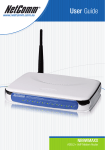
Thank you for purchasing the NetComm NB9/NB9W ADSL2+ VoIP Router. NetComm is proud to
introduce this entirely new class of all-in-one device incorporating ADSL2+, VoIP and Wireless in
a single compact unit. The NB9/NB9W is truly a ‘broadband communications gateway’ that, when
attached to the appropriate ISP services, will enable multiple broadband communications streams to
run concurrently into your home or office. Data and voice services can be delivered and distributed
to multiple PCs at the same time, while the gateway can be managed via ‘Quality of Service’ (QoS)
controls to ensure that priority is given to voice traffic, or to the traffic of your choice.
The VoIP ‘terminal adaptor’ capability enables you to connect existing telephones to the device
to make inexpensive or free VoIP phone calls to any destination, while simultaneously providing
internet connectivity for multiple computers.
Let’s look at some of the capabilities offered by the NB9/NB9W in brief:
ADSL Broadband
The NB9/NB9W offers the next generation of
broadband ADSL technology with ADSL2/2+, which
boosts ADSL’s performance significantly, improves
interoperability, and supports new applications,
services and deployment conditions.
VoIP
The NB9/NB9W connects one or two analogue
telephones to a VoIP service as well as providing a
through connection for your existing landline. The
two Phone (FXS) ports even allow two separate VoIP
numbers with a VoIP Service Provider (VSP). The
PSTN Line (FXO) port provides telephone back-up
should your VSP or ADSL services or power to the
NB9/NB9W fail.
Wireless (NBW only)
In addition to fast, standard 802.11g-based wireless,
the NB9W incorporates Broadcom’s state-of-theart XPress and Afterburner technology to radically
improve the performance of wirelessly-connected
devices.
QoS
With the addition of bandwidth-hungry applications
to the SOHO/Home network the NB9/NB9W has
not overlooked one of the most important features
for a home Internet gateway – Quality of Service
(QoS) The QoS implementation in the NB9/NB9W
is extremely sophisticated allowing you to prioritise
data on your network according to rules you make.
4
YML790 Rev1
NB9/NB9W ADSL2+ VoIP Router
NB9/NB9W Package Contents
Your NB9/NB9W contains the following items:
•
NB9 OR NB9W Broadband Communications
Gateway (both models shown)
•
Power Supply
•
2 x RJ11 ADSL Line Connection Cable
•
RJ4 Cat 5 Ethernet cable
•
Installation CD
•
Package Contents List and Quick Start Guide
NB9/NB9W ADSL2+ VoIP Router
YML790 Rev1
5
Selected terminology used in this manual
POTS
A telephone line used for a standard phone-line and service will be
referred to as POTS (=Plain Old Telephone Service)
Pass-through Line
The line that connects the NB9/NB9W to a POTS line may be
referred to as a pass-through line
RJ11
Telephone cables may be referred to as RJ11 which is the format of
the connection plug used for telephones
Ethernet
Local area network traffic will be carried by standard Category 5
cable referred to as Ethernet
RJ45
Ethernet cables may also be referred to as ‘RJ45’ which is the format
of the connection plug used for network devices
LAN
Local Area Network
WLAN
Wireless Local Area Network
VSP
VoIP Service provider
For further terminology, see the Glossary appendix.
6
YML790 Rev1
NB9/NB9W ADSL2+ VoIP Router
Minimum System Requirements:
Different aspects of the NB9/NB9W have different requirements, so let’s look at them in turn. We’ll
start with your computer, which ought to match the following requirements if you are to enjoy the
benefits of a high-speed ADSL connection and use of VoIP and Wireless Networking.
PC Requirements:
•
Any computer running Windows 98/2000/Me/XP or Macintosh OSX
•
Ethernet or Wireless Network card
•
CD-ROM drive
•
Web browser e.g.
•
Internet Explorer 5.1 (or better)
•
Netscape Navigator
•
Mozilla FireFox 1.0.4
ADSL Requirement:
•
ADSL broadband connection to an ISP (Internet Service Provider)
•
ADSL Splitter/Filter (see below for details)
Note:
Connection at ADSL2 or 2+ rate depends on the service offered by your
ISP; the device will operate at standard ADSL rates in the absence of the
2 or 2+ service. Consult your ISP for details.
VoIP Requirements:
•
One or two telephone handsets for VoIP service
Note:
•
The NB9/NB9W serves as an Analogue Terminal Adaptor so any touchtone phone may be used for VoIP services
Account with a VoIP Service Provider (VSP) including relevant account details
Wireless Requirements (for NB9W only):
•
Wireless Network Interface Card (NIC) for each intended computer
NB9/NB9W ADSL2+ VoIP Router
YML790 Rev1
7
Do I need a micro filter?
Micro filters are used to prevent interference between phones and fax machines, and your ADSL
service. If your ADSL-enabled phone line is being used with any equipment other than your ADSL
Modem then you will need to use one Micro filter for each phone device in use. Telephones and/or
facsimiles in other rooms that are using the same line will also require Microfilters. The following
diagram gives an example of connecting your ADSL Modem/ Router using a Microfilter. A suitable
Microfilter can be purchased from NetComm or your Service Provider, if required.
A central splitter may be installed with your ADSL service or when your current phone line is
upgraded to ADSL. If your telephone line is already split you will not need to use a Microfilter on
each device.- Check with your ADSL or phone service provider if you are unsure as to whether a
splitter is installed at your premises.
Filters and Multi-purpose Gateways
The multi-purpose ADSL/VoIP gateway uses a different filter configuration to an ADSL modem/
router. With the NB9/NB9W, an in-line splitter is placed between a non-filtered telephone outlet
and the NB9/NB9W. One RJ11 cable is then connected from the splitter’s ‘Line’ port TO the NB9/
NB9W LINE port. Another is connected from the splitters ‘ADSL’ port to the NB9/NB9W ADSL
port. This is to allow the ‘pass-through’ line to connect via the POTS if necessary.
If the premises into which the NB9/NB9W is to be used already has a central line-splitter installed,
then one line should be connected from the LINE port of the NB9/NB9W to an unfiltered, POTS
telephone point, and another line should be connected from the ADSL port to and ADSL-ready
telephone point.
8
YML790 Rev1
NB9/NB9W ADSL2+ VoIP Router
Getting to Know the NB9/NB9W
It is recommended that you take a moment to acquaint yourself with
the indicator lights, ports and default settings of the
NB9/NB9W prior to commencing
with installation.
LED Indicators
LED
Colour
Mode
Function
POWER
Green
ADSL
Green
On
Off
On
Off
The router is powered up
The router is powered down
The ADSL Link is established
The ADSL Link is not
established
The ADSL line is training or
traffic is passing through
FXO (Pass through) Line is off
hook
FXO Line is on hook
FXS (VoIP) Phone 1 is off hook
FXS Phone 1 is on hook
FXS Phone 2 is off hook
FXS Phone 2 is on hook
Ethernet link is established
Ethernet link is not established
Data transmitting/receiving over
Ethernet
Green
Blink
LINE
Green
On
PHONE1
Green
PHONE2
Green
Green
Off
On
Off
On
Off
On
Off
Blink
Green
On
Wireless module is ready
Off
Wireless module is not installed
Blink
Data transmitting/receiving over
Wireless
Available in a future release
LAN 1x ~4x Green
NB9W only
WLAN
Green
WLAN ACC Not currently operational
NB9/NB9W ADSL2+ VoIP Router
YML790 Rev1
9
Back Panel Ports
Port Name
Function
WLAN ACC (for NB9W only)
Not operational. Will be available in a future release.
Antenna (for NB9W only)
Wireless LAN antenna.
4 x LAN
4 x 10/100 Base-T Ethernet jack (RJ-45) to connect
to your Ethernet Network card or Ethernet Hub /
Switch.
ADSL
Telephone jack (RJ-11) to connect to your Telephone
Wall Socket (ADSL line).
Line
Telephone jack (RJ-11) to connect to your Telephone
Wall Socket (note you will require an in-line splitter
to split your telephone line if one wall point is used
for both your ADSL and telephone service).
Power
Connect the power adaptor that comes with your
NB9/NB9W.
Reset
Reset button. Depress for 10 seconds to return your
NB9/NB9W to its default settings.
On / Off
Switch to power on / off your NB9/NB9W
10
YML790 Rev1
NB9/NB9W ADSL2+ VoIP Router
Default Settings
The following are the default LAN (Local Area Network), WAN (Wide Area Network) and WLAN
(Wireless LAN) settings.
LAN (Management)
•
Static IP Address: 192.168.1.1;
•
Subnet Mask: 255.255.255.0;
•
Default Gateway: blank;
WAN (Internet)
•
Empty: Once you have run through ‘ADSL Quick Setup’ you will have a saved WAN
connection;
•
Default connection type: PPPoE (most common for Australian ISPs);
•
VPI / VCI: 8 / 35;
Modem Access
•
Username: admin
•
Password: admin
NB9/NB9W ADSL2+ VoIP Router
YML790 Rev1
11
Restore Factory Default Setting
Restore Factory Defaults will reset the NB9/NB9W to its factory default configuration. Occasions
may present themselves where you need to restore the factory defaults on your NB9/NB9W such as:
•
You have lost your username and password and are unable to login to your NB9/
NB9W’s web configuration page;
•
You have purchased your NB9/NB9W from someone else and need to reconfigure the
device to work with your ISP;
•
You are asked to perform a factory reset by NetComm Support staff
In order to restore your NB9/NB9W to its factory default settings, please follow these steps:
•
Ensure that your NB9/NB9W is powered on (for at least 10 seconds);
•
Use a paper clip or a pencil tip to depress the reset button for ten seconds and release. At
this point, the reset is in progress. Do not power off the unit at this point;
•
When indicator lights return to steady green, reset is complete. The default settings are
now restored. The entire process takes about 45 seconds to complete;
•
Once you have reset your NB9/NB9W to its default settings you will be able to access
the device’s configuration web interface using http://192.168.1.1 with username ‘admin’
and password ‘admin’;
12
YML790 Rev1
NB9/NB9W ADSL2+ VoIP Router
Connecting the NB9/NB9W
The diagram below shows you how to connect the NB9/NB9W to your PC, ADSL and POTS
service.
The initial set-up is required regardless of whether you wish to use ADSL, VoIP, Wireless, only one,
or any combination of these.
The order in which set-up will be explained is:
1. Connecting the cables between NB9/NB9W, PC and telephone(s) and power on
2. Establish ADSL connection
3. Set up Wireless (for NB9W only)
4. Set up VoIP
NB9/NB9W ADSL2+ VoIP Router
YML790 Rev1
13
1. Connecting the Cables
Note:
If you wish to link to the NB9W wirelessly at the outset, see Establishing
a Wireless Connection below.
1. Connect your PC using Ethernet cable to one of the LAN ports of your NB9/NB9W;
2. Connect the POTS pass-through line ;
i. Connect POTS telephone line FROM telephone wall-socket TO rear port on splitter
called LINE;
ii. Connect one end of the NB9/NB9W’s RJ11 (telephone) cable to PHONE port of the
splitter;
iii. Connect the other end to the LINE port on NB9/NB9W;
3. Connect the ADLS service - connect one end of the second accompanying RJ11 cable to
the ADSL port of the splitter and connect the other end to the ADSL port of the NB9/
NB9W;
4. Connect the power cable to the Power socket and plug into a power source;
5. Switch your NB9/NB9W on using the switch on the rear of the device;
6. Switch on your PC.
Make sure the LAN LED (light) on your NB9/NB9W is on, which indicates that network function is
active.
Note that the pass-through service is provided as a back-up and that calls made through this line are
not the same VoIP calls and will be subject to normal telecommunications charges.
The next section explains how to establish your ADSL connection to the Internet.
14
YML790 Rev1
NB9/NB9W ADSL2+ VoIP Router
2. Establishing an ADSL connection via PPPoE
Having physically connected your NB9/NB9W, the next step is to establish your ADSL connection
to the Internet, via your ISP.
Nearly all Australian ISPs connect their clients via a standard method called PPPoE (Point-to-Point
Protocol over Ethernet). Your NB9/NB9W has a ‘Quick Setup’ page configured for easy access via
PPPoE, so all you need do is enter the Username and Password issued by your ISP, click the ‘Save
& Connect’ button and connection will follow. This sequence will be explained here.
Note:
If you are not using a PPPoE connection type, then consult the section
under Advanced>WAN for details of choosing another connection type
(e.g. PPPoA, Static, Bridge, etc.). If unsure, follow the steps in this
section first.
At this point you must have your NB9/NB9W connected according to Section 1, above, with your
PC connected to the NB9/NB9W via Ethernet cable (or wireless link for NB9W only). You must
also have your ISP-supplied username and password on hand.
1. For Windows users, insert the accompanying CD into your CD-ROM drive. An autorun
screen should appear. Click the ‘Configure NB9/NB9W’ button;
Note:
If you do not have a CD-ROM or are running a non-Windows OS, you
can access the NB9/NB9W Configuration page by opening a web
browser and entering http://192.168.1.1 into the Address / Location field.
If you are not able to access the login screen by this means, go to the
section titled ‘Computer Hardware Configuration’ for instructions and
come back here when this is completed. Otherwise, proceed to next.
2. Enter the username ‘admin’ and password ‘admin’ and click ‘OK’;
3. The following web page is displayed:
4. Enter your PPPoE Username and PPPoE Password and click the Save & Connect. The
NB9/NB9W will apply all of the settings in approximately 2 minutes.
NB9/NB9W ADSL2+ VoIP Router
YML790 Rev1
15
5. After trying to connect the WAN Setup Summary screen appears:
6. Click on Save/Reboot and close browser window;
7. After Save/Reboot, close Browser Window and wait for several minutes. Then re-open
Browser Window and log in to the NB9/NB9W again following steps 1-2 above. You
will then see the Basic>Home page indicating your ADSL service is connected. Proceed
to cofigure VoIP and Wireless, if required.
16
YML790 Rev1
NB9/NB9W ADSL2+ VoIP Router
3. Establishing your Wireless Connection (for NB9W only)
Wireless networking provides an alternative connection to using Ethernet cable. Wireless access is
enabled by default on your NB9W with the following default settings:
•
Wireless network name (SSID):
•
Security: WEP (64-bit) HEX key: ‘a1b2c3d4e5’;
Note:
‘wireless’;
For advanced wireless settings of your NB9W refer to the section entitled
“Digging Deeper - Advanced Settings” in this User Guide.
If you have a wireless Ethernet card on your PC, you can connect to your NB9W by following these
steps:
1. Connect the NB9W as in the diagram above, except for Point 1;
2. Enable the wireless connectivity of your PC;
3. Search for available wireless networks;
4. The default name (SSID) of the NB9W’s wireless network, ‘wireless’, will appear;
5. Connect to the SSID ‘wireless’ and when prompted, enter the default HEX password
which is A1B2C3D4E5;
6. Proceed with ‘Establishing an ADSL link via PPPoE’ above.
NB9/NB9W ADSL2+ VoIP Router
YML790 Rev1
17
4. Setting up your VoIP account
Once you have successfully connected to the Internet you are ready to setup your VoIP account to
start making telephone calls over the Internet. This section will deal with setting up a single VoIP
account with standard settings.
Note:
Make sure you get all your necessary VoIP account details from your
VSP (VoIP Service Provider) before you begin. These details are not
your ADSL User Name and Password.
Your VoIP checklist includes:
•
VoIP account username (known as ‘Auth. ID’ in your NB9/NB9W);
•
VoIP account password (known as ‘Auth. Password’ in your NB9/NB9W);
•
SIP Proxy Server IP address;
•
SIP Proxy Port;
•
SIP Proxy Domain;
•
Register Expire Time.
Once you have the above settings (crucial ones being Auth. ID, Auth. Password and SIP proxy) you
are ready to start setting up your VoIP service on your NB9/NB9W.
1. If you are not already logged into your NB9/NB9W, open a web browser and navigate
to http://192.168.1.1 and login with the NB9/NB9W username & password (admin /
admin);
18
YML790 Rev1
NB9/NB9W ADSL2+ VoIP Router
2. Click on ‘Voice’ to access the VoIP setup page;
3. Interface Name: Don’t change the ‘Interface name’ setting;
4. Preferred codec: The preferred codec is set to ‘none’ which means your NB9/NB9W
will choose the correct codec when communicating with your SIP proxy from your VSP
(VoIP Service Provider);
5. Preferred ptime: The ‘Preferred ptime’ is the time delay (milliseconds) between voice
packets sent. Do not change this value unless your VSP has asked you to;
6. SIP Proxy: Enter the SIP Proxy IP address (issued by your VSP);
7. SIP Proxy Port: The default is port 5060, but your VSP may ask you to change this;
8. SIP Proxy Domain: In most cases this is the same value as the SIP Proxy IP address
(check with your VSP if unsure);
9. Register Expire Time: Default is 180 seconds. Don’t change this value unless your VSP
instructs you to;
NB9/NB9W ADSL2+ VoIP Router
YML790 Rev1
19
10. DispName: This is the user-defined ‘extension number’ that will display on the other
phone connected to the NB9/NB9W;
11. VoIP Phone Number: issued by VSP
12. AuthID: same as above
13. Auth. Password: VoIP password issued by VSP
14. Once VoIP settings have been entered, click on Apply and Save all VoIP Parameters.
15. Once your SIP client has started, click on the ‘Basic > Home’ to see what the status of
your Voice service is:
16. Pick up your telephone, make sure you have dial tone and can make a call.
Note:
20
YML790 Rev1
If you experience any failure in setting up your VoIP, please refer to the
section entitled “Digging Deeper - Advanced Settings” in this User Guide
for more information.
NB9/NB9W ADSL2+ VoIP Router
Computer Hardware Configuration
This section provides instructions for configuring the TCP/IP (Network) settings on your computer
to work with your Modem. These steps are only required if you are having trouble accessing your
Modem.
Windows® XP PCs
In the Windows task bar, click the Start button, and then click Control Panel.
Click on Network & Internet Connections icon. (Category mode only).
Click the Network Connections icon.
In the LAN or High-Speed Internet window, right-click on the icon corresponding to
your network interface card (NIC) and select Properties. (Often, this icon is labelled
Local Area Connection).
5. The Local Area Connection dialog box displays with a list of currently installed network
items. Ensure that the check box to the left of the item labelled Internet Protocol (TCP/
IP) is checked. Select Internet Protocol TCP/IP and click on Properties.
6. In the Internet Protocol (TCP/IP) Properties dialog box, click the radio button labelled
Obtain an IP address automatically. Also click the radio button labelled Obtain DNS
server address automatically.
7. Click OK twice to confirm your changes, and close the Control Panel.
1.
2.
3.
4.
Windows 2000 PCs
First, check for the IP protocol and, if necessary, install it:
1. In the Windows task bar, click the Start button, point to Settings, and then click
Control Panel.
2. Double-click the Network and Dial-up Connections icon.
3. In the Network and Dial-up Connections window, right-click the Local Area
Connection icon, and then select Properties.
4. In the Local Area Connection Properties dialog box, select Internet Protocol (TCP/IP),
and then click Properties
5. In the Internet Protocol (TCP/IP) Properties dialog box, click the radio button
labelled Obtain an IP address automatically. Also click the radio button labelled Obtain
DNS server address automatically.
6. Click OK twice to confirm and save your changes, and then close the Control Panel.
Windows Me PCs
1. In the Windows task bar, click the Start button, point to Settings, and then click
Control Panel.
2. Click on View All Control Panel Options.
3. Double-click the Network icon.
4. The Network Properties dialog box displays with a list of currently installed network
components. If the list includes Internet Protocol (TCP/IP), then the protocol has already
been enabled. Skip to step 10.
5. If Internet Protocol (TCP/IP) does not display as an installed component, click Add…
6. In the Select Network Component Type dialog box, select Protocol, and then click
Add…
NB9/NB9W ADSL2+ VoIP Router
YML790 Rev1
21
7. Select Microsoft in the Manufacturers box.
8. Select Internet Protocol (TCP/IP) in the Network Protocols list, and then click OK.
You may be prompted to install files from your Windows ME installation CD or other
media. Follow the instructions to install the files. If prompted, click OK to restart your
computer with the new settings.
Next, configure the PC to accept IP information assigned by the modem:
9. Follow steps 1 – 4 above..
10. In the Network Properties dialog box, select TCP/IP, and then click Properties.
If you have multiple TCP/IP listings, select the listing associated with your network card
or adapter.
11. In the TCP/IP Settings dialog box, click the radio button labelled Obtain an IP address
automatically.
12. Click OK twice to confirm and save your changes, and then close the Control Panel.
Windows 95, 98 PCs
First, check for the IP protocol and, if necessary, install it:
1. In the Windows task bar, click the Start button, point to Settings, and then click
Control Panel.
2. Double-click the Network icon.
3. The Network dialog box displays with a list of currently installed network components.
If the list includes TCP/IP, and then the protocol has already been enabled. Skip to step
9.
4. If TCP/IP does not display as an installed component, click Add… The Select Network
Component Type dialog box displays.
5. Select Protocol, and then click Add… The Select Network Protocol dialog box
displays.
6. Click on Microsoft in the Manufacturers list box, and then click TCP/IP in the
Network Protocols list box.
7. Click OK to return to the Network dialog box, and then click OK again. You may
be prompted to install files from your Windows 95/98 installation CD. Follow the
instructions to install the files.
8. Click OK to restart the PC and complete the TCP/IP installation.
Next, configure the PCs to accept IP information assigned by the Modem:
9. Follow steps 1 – 3 above.
10. Select the network component labelled TCP/IP, and then click Properties. If you have
multiple TCP/IP listings, select the listing associated with your network card or adapter.
11. In the TCP/IP Properties dialog box, click the IP Address tab.
12. Click the radio button labelled Obtain an IP address automatically.
13. Click OK twice to confirm and save your changes. You will be prompted to restart
Windows.
14. Click Yes.
Note:
22
YML790 Rev1
For detailed information regarding the advanced features of this product,
refer to the Advanced Settings sections.
NB9/NB9W ADSL2+ VoIP Router
Digging Deeper – Advanced Settings
Your NB9/NB9W has many advanced features that you may want or need to use in the future. Let’s
start by taking a look at the menus in the web interface.
1. Login to the NB9/NB9W web interface (http://192.168.1.1);
2. Enter your username & password (default is ‘admin’ / ‘admin’);
The NB9/NB9W has the following main menu items:
•
Basic
•
Voice
•
Wireless (NB9W only)
•
Management
•
Advanced
•
Status
Let’s explore these menus in detail.
NB9/NB9W ADSL2+ VoIP Router
YML790 Rev1
23
Basic
Basic>Home
The first page you see after you have successfully setup your NB9/NB9W is the Basic > Home
which provides a summary of the status of your NB9/NB9W:
Field
Description
Board ID
The ID of the board being used by your NB9/NB9W
Software Version
The current version of software (firmware) loaded
into your NB9/NB9W
Bootloader (CPE) Version
The version of the bootloader
Wireless Driver Version
The version of the wireless driver
Line Rate – Upstream
The upstream line rate in Kbps (e.g. 256Kbps)
Line Rate – Downstream
The downstream line rate in Kbps. (e.g. 1500 Kbps)
LAN IP Address
The IP address to access the NB9/NB9W on the LAN
side
Default Gateway
The default gateway that your NB9/NB9W
communicates with
Primary DNS Server
The primary DNS server IP address
Secondary DNS Server
The secondary DNS server IP address
VoIP Current Status
The status of your VoIP service
24
YML790 Rev1
NB9/NB9W ADSL2+ VoIP Router
Basic>ADSL Quick Setup
The NB9/NB9W can be opened in a Web Browser window of a computer attached to the device by
entering the Web address http://192.168.1.1. Enter User ID: admin and password: admin.
The ‘ADSL Quick Setup’ page will then be displayed when the device is first started, or if you have
deleted your WAN connection settings or reset the NB9/NB9W to factory defaults. The ‘ADSL
Quick Setup’ screen appears as follows:
Field
Description
PPPoE Username
The PPPoE username issued by your ISP (e.g.
[email protected])
PPPoE Password
The PPPoE password issued by your ISP
Save & Connect
This button saves your settings, reboots the NB9/
NB9W and connects to the Internet. Once completed
you will be returned to the ‘Status > Diagnostics’
page
Click on Save/Reboot, close the browser window and wait several minutes. Then re-open browser
window and log into NB9/NB9W again following steps above. You will then see the Basic>Home
page indicating your ADSL service is connected. Proceed to configure VoIP and Wireless, if
required.
NOTES:
*
PPPoE (Point to Point Protocol over Ethernet) is the standard connection
method for Australian ISPs.
**
ADSL is ‘UP’: this means the ADSL Synch Light must be steady green
If you do not have a PPPoE connection you can click on the link ‘Click
Here for Other Connection Types...’ which will take you to the page from
where you can select a different connection type.
NB9/NB9W ADSL2+ VoIP Router
YML790 Rev1
25
Voice
About SIP & VoIP
Voice Settings
The NB9/NB9W has the ability to connect two regular telephones via the Phone1 and Phone2 ports
on the rear of the unit and provides a number of sophisticated call-management functions such as
call forward, call waiting, call transfer and so on. The following section provides further details of
how to set up VoIP services, and then how to use the advanced telephony functions offered by the
NB9/NB9W.
Note:
You can use separate VoIP accounts from your VoIP Service Provider
but not separate accounts with different VSPs. This means that you can
configure your NB9/NB9W to provide two telephone extensions.
VoIP services are usually provided through a standard technology called SIP, briefly described as
follows.
About SIP
SIP, the Session Initiation Protocol, is a signalling protocol for Internet conferencing, telephony,
presence, events notification and instant messaging. SIP is the Internet Engineering Task Force
standard for multimedia conferencing over the Internet. SIP is designed to address the functions
of signalling and session management within a packet-switched network. Signalling allows call
information to be carried across network boundaries while session management provides the ability
to control the qualities and attributes of an end-to-end call.
The Session Initiation Protocol is a peer-to-peer protocol. There are four components in the SIP
standard:
•
User Agent (UA)
•
Proxy Server
•
Registrar Server
•
Redirect Server
In effect, this means that when you sign up for a VoIP account based on a SIP server, your ‘VoIP’
number and account details are managed by the SIP server at the VoIP Service Provider premises; by
entering your SIP details (e.g. ‘sip.serviceprovider.com’) along with your VoIP/SIP account number
and your account password, you are ‘registered’ with the service and able to make VoIP calls in
practically the same way as with a traditional phone service (but for a much smaller cost.)
26
YML790 Rev1
NB9/NB9W ADSL2+ VoIP Router
Voice Menu 1
Enter your VoIP details in the NB9/NB9W through the Voice menu.
Clicking on the Voice Menu will retrieve the following screen:
Entries in these fields are as follows:
Field
Value
Interface name
Current WAN connection; if you have set up your
PPPoE connection to your ISP, this will display the
current WAN connection.
Preferred codec
Value recommended by your VSP; default is G.729.
Preferred ptime
Value recommended by your VSP; default is 20.
Use SIP proxy
This box must be checked to activate the SIP
registration process.
SIP Proxy
Enter SIP proxy IP address provided by your VSP.
SIP proxy port
Default is 5060. Leave as default unless directed to
enter another value by VSP.
SIP proxy Domain
Set SIP proxy domain name; usually the same as SIP
Proxy unless directed otherwise by VSP.
Register Expire Time
Value recommended by your VSP; default is 60
(seconds).
NB9/NB9W ADSL2+ VoIP Router
YML790 Rev1
27
Voice Menu 2
The lower part of the Voice entries screen provides fields in which details of your VoIP telephone
number(s) are entered, along with several other VoIP parameters.
The NB9/NB9W provides for two telephone ‘extensions’. If you have one VoIP number and one
telephone handset, plug this phone into Port 1 and enter the VoIP details in fields labelled with 1… .
If you have two handsets and one VoIP number then enter the same details in fields 1. and 2., above.
In this configuration, both handsets will operate in tandem in the same way as two handsets on an
ordinary POTS line.
If you have two different VoIP numbers from the same VSP a separate ‘extension number’ may be
entered for each handset and calls
Field
Means
DispName
Will appear in telephone LCD display (if present)
Extension
Same as below
AuthName
VoIP account ID, a.k.a. SIP ID or VoIP Phone
Number
Password
Account password
Emergency Call Number
In Australia, enter ‘000’
Max Digits
Leave as default – refers to maximum length of digit
string
28
YML790 Rev1
NB9/NB9W ADSL2+ VoIP Router
RFC2833 Outband DTMF
Value recommended by your VSP; default is Auto
Negotiation
RTP Payload Type for RFC2833
Value recommended by your VSP; default is 96
Enable FXS Hotline (1&2)
Hotline function will automatically connect to a
stipulated VoIP or PSTN phone number; if the box
is checked and a number is entered, the nominated
phone will ring as soon as the handset is lifted.
Enable Trusted IP for SIP servers [Not implemented in this product version]
Remote Server for SIP Message
Once you have input these settings, click Apply and Save VoIP Parameters which will save your
settings and attempt to register the NB9/NB9W with your VSP.
Click on Basic>Home to check the status of your VoIP service. In the Basic-Status window, you will
see the following status indicators:
VoIP Status Indicator
Means
Direct Mode
VoIP is available but you are not connected to a SIP
service. You are only able to make VoIP calls by
entering IP details of remote device.
SIP Registration Fail
Usually indicates Invalid VoIP/SIP User ID and
Password (= VoIP phone number and Authorisation
Code). Check VoIP entries and try again.
SIP Registration Success
Connected to VSP; ready for VoIP phone calls. In this
case you will hear a normal dial-tone.
NB9/NB9W ADSL2+ VoIP Router
YML790 Rev1
29
Wireless (NB9W only)
Wireless Setup
The NB9W serves as an 802.11g Wireless Access Point, with enhanced capabilities provided by
Broadcom’s XPressTM technology. The first screen in the Wireless menus is as follows:
Field
Enter
Enable Wireless
Check Enable Wireless to turn on wireless
transmission
If this is checked, wireless clients will need to know
the SSID (=wireless network name) if they wish to
join the network. If Hide Access point is unchecked,
the SSID will be broadcast to any wireless client in
range
‘Station Set Identifier’, or network name; replace
with name of your choice. All stations must be
configured with the correct SSID to access the
WLAN. If the SSID does not match, the wireless
client will not be able to join the network. Min one
character, max 32.
The BSSID is a 48-bit identity used to identify a
particular BSS (Basic Service Set) within an area. In
Infrastructure BSS networks, the BSSID is the MAC
(Media Access Control) address of the AP (Access
Point) and in Independent BSS or ad-hoc networks,
the BSSID is generated randomly.
Defaults to Australia
[Not implemented in this product version]
Hide Access Point
SSID
BSSID
Country
Association Button Enable
When settings are entered, click Save/Apply
30
YML790 Rev1
NB9/NB9W ADSL2+ VoIP Router
Wireless Security Quick Setup
Security settings are used to prevent unauthorised connection to your network. This can be as basic
as a neighbouring user who detects and is able to connect through your wireless network, right
through to actual malicious interference or ‘hacking’. Whatever the case, it is a good practise to be
aware of and to use wireless network security to safeguard your data and your network
Prior to considering the details of wireless security – provided later – the Quick Security Setup
explains how to implement basic security on your NB9W wireless network.
Quick Security Setup 1: WEP Security
Your NB9W has WEP (Wired Equivalent Privacy) encryption enabled by default. Your
network will not be available to passer-by or non-authorised users, and any workstation
wishing to connect to your NB9W must know the SSID (wireless network name) and WEP
key values.
Turn on wireless, and set the SSID or wireless network name in the Wireless Setup Screen:
Default SSID: wireless. This can continue to be used or changed to the name of your choice.
Next, click on Wireless>Security. You should see that WEP encryption is enabled by
default.
Click on Set Encryption Key button to either check, or change, the WEP encryption key:
Default WEP Key: A1B2C3D4E5
NB9/NB9W ADSL2+ VoIP Router
YML790 Rev1
31
You are able to change these values however it is strongly recommended that security is
not turned off. It is also recommended that your SSID or network name not advertise your
actual name but be kept ‘generic’ or anonymous.
Note:
32
YML790 Rev1
WEP Security is the appropriate choice if the network clients that wish to
connect include 802.11b standard NICs.
NB9/NB9W ADSL2+ VoIP Router
Quick Security Setup 2 – WPA-PSK
If an stronger network security setting is required, go to Wireless>Security and select WPAPSK from the drop-down menu. Enter a Network Key of your own choice; this can be from
8 to 63 characters and contain special characters and spaces.
Select TKIP from WPA encryption
Leave WEP as disabled.
Users wishing to connect to your network will need to know the SSID name and the WPA
Pre-Shared Key.
Note:
Wireless client network cards must be WPA-compliant to connect
to your network; if in doubt check the wireless client network card
documentation, or use WEP security (above).
NB9/NB9W ADSL2+ VoIP Router
YML790 Rev1
33
Wireless Security in Detail
The following provides a detailed summary of wireless terms and acronyms and more in-depth
explanations of the topic. It assumes little prior knowledge of wireless networking and is aimed at
providing background for the terminology used in the NB9W Wireless Security screens.
Warning: Wireless Networking is a technically challenging subject!
Authentication and Encryption
The two major aims of wireless network security are:
(1)
to prevent unauthorised persons from joining the network and
(2)
to prevent interception of network data or ‘eavesdropping’. These aims are
accomplished by:
•
Authentication: establishes the identity of those seeking to join the network
•
Encryption: ensures that data is protected in such a way that those outside the
network cannot access it.
Network Keys
The term ‘network key’ is often used in the context of wireless networking. The Network Key can
be a text string, although in some systems network keys are generated from a ‘pass-phrase’ which is
entered in one field from which up to four keys are derived in fields underneath the entry field.
In all cases, the Wireless Router/Access Point and the workstations wishing to connect must use the
same Network Key which needs to be communicated to clients prior to connection.
‘Re-keying’ refers to the frequency with which network keys are changed; for security purposes,
they need to be changed frequently in case they re-occur frequently enough to identify them.
In some wireless systems, network keys are entered by a variety of means including:
•
ASCII – any letter, number, or punctuation mark but no special characters
•
Hex – Letters A-F, Numbers 0-9 only
•
Pass phrase – enter a phrase in the top field of a set of fields, an algorithm then generates
a series of keys based on the entered values.
These methods have been standardised in the later implementations of Wireless Security and are
easier to use in WPA.
WEP and WPA
‘WEP’ stands for Wireless Equivalent Privacy and was the original wireless security method. Over
time it was found to be vulnerable to attacks based on de-coding the ‘keys’ used to encrypt the
data. While no longer recommended for enterprise-level security, WEP is certainly secure from
casual interception and will repel any non-specialised attempt to join the network or intercept data;
it can be penetrated with various kinds of software tools and techniques but these are beyond the
capability of the average computer user.
‘WPA’ stands for Wi-Fi Protected Access and is an improvement on WEP. WPA2 offers further
refinements to WPA.
34
YML790 Rev1
NB9/NB9W ADSL2+ VoIP Router
WPA and WPA2 both comprise a number of different wireless security elements and methods that
can be adapted to a variety of situations depending on the requirements. A lot of what is provided is
applicable to enterprise-level wireless networking, in other words, suitable for businesses who wish
to deploy strict security methods and policies for their employees. Accordingly, these technologies
will exceed the requirements of home users.
An important element of WPA security is a RADIUS server (stands for Remote Access Dial-in User
Service). The RADIUS server typically sits in the server room of a business or department and
authenticates and manages user requests for connection. Home users will generally never have to
bother about RADIUS server details.
In nearly all cases, the default security method, which is WEP, or WPA-PSK will provide adequate
security for home wireless networks.
Other wireless security elements shall be explained in context below.
Network Authentication
Network Authentication specifies the type of network authentication. The default value is ‘Open’.
Open:
Under Open System authentication, any wireless
station can request authentication.
Shared:
Under Shared Key authentication, each wireless
station is assumed to have received a secret shared
key over a secure channel that is independent from
the 802.11 wireless network communications channel
(i.e. verbally). To use Shared Key authentication,
you must have a network key assigned to the clients
trying to connect to your NB9W.
802.1X
802.1X security requires the presence of a RADIUS server, and specification of the IP address of a
RADIUS server, the port on which to connect to it, and the Shared Key used to authenticate with it.
Disregard this security setting unless you are setting up or connecting to a RADIUS server.
NB9/NB9W ADSL2+ VoIP Router
YML790 Rev1
35
WPA
WPA also requires a RADIUS server to provide client authentication. 802.1X also requires
specification of the ‘WPA Group Rekey Interval’ which is the rate that the RADIUS server sends
a new Group Key out to all clients. The Re-Keying process is part of WPA’s enhanced security.
This method also requires specification of the IP address of a RADIUS server, the port on which to
connect to the RADIUS server, and the shared key used to authenticate with the RADIUS server.
WPA-PSK
WPA-PSK is a special mode of WPA providing strong encryption without access to a RADIUS
server.
In this mode encryption keys are automatically changed (rekeyed) and authentication re-established
between devices after a specified period referred to as the ‘WPA Group Rekey Interval’.
WPA-PSK is far superior to WEP and provides stronger protection for the home/SOHO user for
two reasons: first, the process used to generate the encryption key is very rigorous and second, the
rekeying (or key changing) is done very quickly. This stops even the most determined hacker from
gathering enough data to identify the key and so break the encryption.
WEP is confusing because of the various types of ‘network keys’ vendors use (HEX, ASCII, or
passphrase) and because home users mix and match equipment from multiple vendors, all using
different types of keys. But WPA-PSK employs a consistent, easy to use method to secure your
network. This method uses a passphrase (also called a shared secret) that must be entered in both
the NB9W and the wireless clients. This shared secret can be between 8 and 63 characters and can
include special characters and spaces. The ‘WPA Pre-Shared Key’ should be a random sequence
of either keyboard characters (upper and lowercase letters, numbers, and punctuation) at least 20
characters long, or hexadecimal digits (numbers 0-9 and letters A-F) at least 24 hexadecimal digits
long.
Note:
The less obvious, longer and more ‘random’ your ‘WPA Pre-Shared Key’,
the more secure your network.
Note the following ‘WPA Encryption’ options:
TKIP:
The Temporal Key Integrity Protocol (TKIP) takes
over after the initial shared secret is entered in your
wireless devices and handles the encryption and
automatic rekeying.
AES:
WPA defines the use of Advanced Encryption
Standard (AES) as an additional replacement for
WEP encryption. Because you may not be able to
add AES support through a firmware update to your
existing wireless clients / equipment, support for
AES is optional and is dependent on vendor driver
support.
TKIP+AES:
This will allow either TKIP or AES wireless clients
to connect to your NB9W.
36
YML790 Rev1
NB9/NB9W ADSL2+ VoIP Router
WPA2
‘WPA Pre-authentication’ support in WPA2 allows a client to pre-authenticate with the NB9W
toward which it is moving, while maintaining a connection to the access point it’s moving away
from. This new capability allows the roaming to occur in less than 1/10th of a second while a
traditional roam without PMK caching and pre-authentication would take more than one second.
Time-sensitive applications like Citrix, video, or VoIP will all break without fast roaming.
‘Network Re-Auth Interval’ is the interval specified (seconds) that the wireless client needs to reauthenticate with the NB9W.
For the remainder of the fields required, see above.
WPA2-PSK:
Same as WPA-PSK, but you can only use AES with
WPA2 and not WPA.
Mixed WPA2/WPA:
Enables WPA2 or WPA wireless clients to connect
to the NB9W. Requires a RADIUS server to
authenticate the wireless clients.
Mixed WPA2/WPA-PSK:
Enables WPA2 and WPA clients to authenticate using
a PSK (Pre-Shared Key) instead of a RADIUS server.
NB9/NB9W ADSL2+ VoIP Router
YML790 Rev1
37
Wireless Configuration
To enter advanced settings for the wireless network hosted by the NB9W, click on Wireless >
Configuration:
Many of these fields may not need to be altered and may require interpretation by a network
engineer.
Field Name
About
AP Isolation
‘On’: ’wireless clients associated with the access
point will only be able to communicate with the
Access Point
‘Off’: wireless clients associated with the Access
Point will be able to connect to each other ‘peer-topeer
Band
[Not alterable by end-user]
Channel
The default channel is 11. The 802.11b/g network is
divided into 14 channels in Australia. Each channel
broadcasts on a slightly different frequency; if you
are getting interference from adjacent wireless
networks, make a note of the channels that these are
operating on and change your channel accordingly.
Rate
Default rate is ‘Auto’ and operates at the 54 Mbps
data rate when possible but drops to lower rates
when necessary, dependent on signal strength and the
capacity of the client stations.
Multicast Rate
Leave at default setting ‘Auto’ unless there is a
specific requirement for multicast.
38
YML790 Rev1
NB9/NB9W ADSL2+ VoIP Router
Basic Rate
Leave as default
Fragmentation Threshold
Enter a value between 256 (min) and 2346 (max).
A threshold, specified in bytes, that determines
whether packets will be fragmented and at what
size. On an 802.11 WLAN, packets that exceed the
fragmentation threshold are fragmented, i.e., split
into smaller units suitable for the circuit size. Packets
smaller than the specified fragmentation threshold
value are not fragmented.
If you experience a high packet error rate, try to
slightly increase your ‘Fragmentation Threshold’.
The value should remain at its default setting of 2346
unless you are troubleshooting wireless network
issues. Setting the ‘Fragmentation Threshold’ too low
may result in poor performance.
RTS Threshold
Request To Send, set in bytes, specifies the packet
size beyond which the WLAN Card invokes its
RTS/CTS (Clear To Send) mechanism. Packets that
exceed the specified RTS threshold trigger the RTS/
CTS mechanism. The NIC (Network Interface Card)
transmits smaller packet without using RTS/CTS.
The default setting of 2347 (maximum length)
disables RTS Threshold.
DTIM Interval
Delivery Traffic Indication Message (DTIM), also
known as Beacon Rate. The entry range is a value
between 1 and 65535. A DTIM is a countdown
informing clients of the next window for listening to
broadcast and multicast messages. When the NB9W
has buffered broadcast or multicast messages for
associated clients, it sends the next DTIM with a
DTIM Interval value. AP Clients hear the beacons
and awaken to receive the broadcast and multicast
messages. The default is 1.
Beacon Interval
The amount of time between beacon transmissions.
Each beacon transmission identifies the presence
of an wireless client (or access point). By default,
WLAN passively scan all RF channels and listen for
beacons coming from access points to find a suitable
access point.
Before a station (wireless client) enters power save
mode, the station needs the beacon interval to know
when to wake up to receive the beacon (and learn
whether there are buffered frames at the access
point).
NB9/NB9W ADSL2+ VoIP Router
YML790 Rev1
39
The entered value is represented in ms. Default is
100. Acceptable entry range is 1 to 0xffff (65535).
1.
XpressTM Technology
Select ‘enable’ to activate in-built XpressTM
Technology 1
54gTM Mode
Select the mode to ‘54g Auto’ for the widest
compatibility. Select the mode to ‘54g Performance’
for the fastest performance with 54g certified
equipment. Set the mode to ‘54g LRS’ if you are
experiencing difficulty communicating with legacy
802.11b equipment.
54g Protection
In ‘Auto’ mode the NB9W will use RTS/CTS to
improve 802.11g performance in mixed 802.11g/
802.11b networks. Turn protection ‘Off’ to maximize
802.11g throughput under most conditions.
WMM (Wi-Fi Multimedia)
WMM stands for Wi-Fi Multimedia, that provides
features that improve the user experience for audio,
video and voice applications over a Wi-Fi networks.
About XpressTM Technology
XpressTM Technology is a Broadcom innovation that dramatically improves wireless performance for suitably
equipped client workstations while ensuring compatibility with 802.11b and 802.11g devices. Basically,
XpressTM will communicate at the maximum rate sustainable for each class of device, and also provide very fast
data transfer rates with other XpressTM-compatible network devices allowing a total theoretical bandwidth of
108Mbps.
If you are communicating with XpressTM-equipped wireless network client machines, enable XpressTM ;
otherwise, don’t enable.
40
YML790 Rev1
NB9/NB9W ADSL2+ VoIP Router
Wireless > Mac Filter
The Wireless > MAC Filter page displays the following:
This function allows wireless access to be restricted or allowed based on the MAC address of the
client device. When MAC address filtering is enabled, access is restricted to the clients that are
listed as allowing to connect to the NB9W.
Note:
PROCEED CAREFULLY with this feature because if you deny or exclude
your own MAC address you will lose contact with the device and need to
re-set the device and restore your details.
MAC filtering is enabled for a list of specific MAC addresses and can be set to Deny or Allow.
Field Name
Comment
MAC Restrict Mode
Off – disables MAC filtering.
Allow – permits access for the specified MAC
address.
Deny – Rejects access for specified MAC address.
Click the ‘Set’ button when done.
Add / Remove
To Add or Remove a MAC address use these buttons.
How to find your MAC address
Go to Start>Run. Enter CMD and press enter. At the command prompt, type IPCONFIG/ALL.
The MAC address is referred to as a ‘physical address’ by Windows. It is always in the format of
six groups of two characters separated by a hyphen. If the NB9W does not recognise the address as
valid, enter the values separated by a colon : instead of a hyphen.
NB9/NB9W ADSL2+ VoIP Router
YML790 Rev1
41
Wireless > Bridge
Wireless bridge mode is used to provide a wireless link between WLAN segments to provide greater
coverage or to extend network size and reach. If a wireless router is used in bridge mode, then
Access Point functionality is disabled. Network Bridges operate to ‘bridge’ two network segments
on the ‘physical’ or MAC link layer. This section describes how to configure the NB9W in bridge
mode.
To access the Wireless Bridge feature click on Wireless> Wireless Bridge:
Above, default setting for NB9W to act as Access Point.
Field Name
Comment
AP Mode
Allows you to choose between Access Point or
Wireless Bridge mode.
Bridge Restrict
If AP Mode is set to Bridge, and this field set to
Enabled, it allows you to specify from choice of
available bridge(s).
Bridge Restrict disabled
Any wireless bridge within range may connect.
Enabled (Scan)
Scans for available wireless bridges and displays
MAC address of any that it has found. Click
‘Refresh’ to initiate scan if required, then select
bridge of choice.
42
YML790 Rev1
NB9/NB9W ADSL2+ VoIP Router
Wireless > Station Info
This page shows the MAC address of authenticated wireless stations that are connected to the
NB9W and their status. In the example below there is one workstation attached to the wireless
network.
NB9/NB9W ADSL2+ VoIP Router
YML790 Rev1
43
Management
Management > Device Settings > Backup
Backup enables you to save a copy of the NB9/NB9W configuration file. This can be re-loaded to
restore your settings should you need to reset the device to its factory defaults.
The default file name is backupsettings.conf, or give it an explanatory name (e.g. NB9WHome.conf)
and save it to somewhere safe on your computer.
Management > Device Settings > Update
The Update option under ‘Management > Device Settings’ enables you to load a previously saved
configuration file. Click on browse, navigate to the .config file and then click on update settings to
restore settings.
Management > Device Settings > Restore Default
Clicking the ‘Restore Default Configuration’ button in the Management > Restore Settings screen
will restore the original factory default settings on your NB9/NB9W.
Note 1:
This entry has the same effect as the hardware reset-to-default button
on the rear of the NB9/NB9W. The NB9/NB9W hardware and the
boot loader support the reset to default button. If the reset button is
continuously pushed for more than 5 seconds, the boot loader will erase
the entire configuration data saved on the flash memory.
Note 2:
Restoring system settings requires a system reboot. This necessitates
that the current Web UI session be closed and restarted.
44
YML790 Rev1
NB9/NB9W ADSL2+ VoIP Router
Management > Device Settings > Update Firmware
The ‘Update Firmware’ screen allows you to obtain an updated firmware image file from NetComm.
Manual software upgrades from a locally stored file can be uploaded using this screen by selecting a
firmware file saved to your hard-disk and clicking the ‘Update Firmware’ button.
NB9/NB9W ADSL2+ VoIP Router
YML790 Rev1
45
Management > SNMP
The Simple Network Management Protocol (SNMP) allows a network administrator to monitor a
network by retrieving settings on remote network devices. To do this, the administrator typically
runs an SNMP management station program such as MIB browser on a local host to obtain
information from the SNMP agent, in this case the NB9/NB9W (if SNMP enabled). An SNMP
‘community’ performs the function of authenticating SNMP traffic. A ‘community name’ acts as a
password that is typically shared among SNMP agents and managers.
The ‘System Log’ option under the Status menu allows you to view the system event log, or to
configure the ‘System Log’ options.
Field
Means
Read Community
Read device settings.
Set Community
Read and change device settings.
System Name
Default = NB9/NB9W.
System Location
User-defined value.
System Contact
User-defined value.
Trap Manager IP
IP Address of admin machine.
46
YML790 Rev1
NB9/NB9W ADSL2+ VoIP Router
Management > SNTP
The SNTP option under Management menu configures the NB9/NB9W’s time automatically by
synchronizing with Internet time servers.
Note:
The NB9/NB9W is configured to Australian EST by default.
Tick the corresponding box displayed on the screen. Then click Save/Apply.
Access Control > Services
The Services Option limits or enables selective access via the LAN or WAN via the following
services:
Enable the service by checking the corresponding box and clicking SAVE/APPLY. You will note
that all services are enabled for LAN clients and disabled for WAN clients by default.
CAUTION: If you disable HTTP access from the LAN then you may not be able to
open the NB9/NB9W in your Web Browser!
EXAMPLE 1:
You need to access your NB9/NB9W via the Internet from a remote
location through a Web browser. Method: enable WAN access for HTTP
and click Save and Apply. Then enter the address http://[WAN_IP_NB9/
NB9W] in the browser address bar of the remote machine.
EXAMPLE 2:
Assume that you already have a web server on your LAN behind the
NB9W that people connect to from the Internet. You have entered a ‘Port
Forwarding’ entry that forwards incoming traffic on the WAN on port 80
to the LAN IP of the web server on port 80 (default for HTTP traffic). If
you enable HTTP WAN access to the NB9/NB9W you will be notified
that the default port to access the NB9/NB9W has been updated to port
8080. Therefore, your web server will not need to be reconfigured, and
you can access your NB9/NB9W on the WAN side using address http://
WAN_IP_OF_NB9/NB9W:8080. The same applies for other services
that use conflicting ports setup in your NB9/NB9W.
NB9/NB9W ADSL2+ VoIP Router
YML790 Rev1
47
Access Control > IP Addresses
The IP Addresses option limits the Access>Services by IP address. If the Access Control Mode is
enabled, only the listed IP addresses can access the NB9/NB9W for the specified services. Before
the service is enabled, specify the IP addresses by clicking the Add button and entering the address
details. Enter the IP address and click Apply to allow access.
Save & Reboot
The Save/Reboot option saves the current configuration and reboots the NB9/NB9W. Close the
NB9/NB9W’s Configuration window and wait for 2 minutes before reopening your web browser. If
necessary, reconfigure your PC’s IP address to match your new configuration if you have disabled
the DHCP server running in your NB9/NB9W (see Computer Hardware Configuration).
48
YML790 Rev1
NB9/NB9W ADSL2+ VoIP Router
Advanced
Advanced > WAN
Clicking on the ‘Advanced’ menu displays the following:
This screen provides a summary of the current WAN interfaces you have configured. If you
have connected the NB9/NB9W to ADSL through the ADSL Quick Setup interface, details of the
connection will be summarised here.
Setting up a WAN profile goes through a set of steps which establishes connection parameters
covering the following:
Field
Means
VPI/VCI
Always 8/35 in Australia
Con. ID
Sequence number of connection (e.g. 1,2…)
Category
ATM Service Category; leave as default
Service
Name of connection: give this a name you will
recognise (e.g. ISP name)
Interface
Current WAN interface name
Protocol
Bridge or Router Mode
IGMP
Enable/Disable IGMP proxy
NAT
Enable/Disable NAT (leave enabled unless advised
otherwise by tech support)
Firewall
Enable/Disable Firewall (leave enabled unless
advised otherwise by tech support)
QoS
Enable/Disable QoS; enable if VoIP services are
being used.
State
Enable/Disable this WAN connection
Once settings are entered, click Save. Connection status can be checked under Status>Diagnostics.
Choosing a WAN Profile
In the event that you wish to set up several connection profiles on your NB9/NB9W for use in
different locations OR with different ADSL services
•
click ‘Add’ to add the next connection profile
•
Repeat set up steps above
You are able to cycle through connection profiles in the Status>Diagnostics window; if more than
one WAN profile exists, a button will displayed for Next Connection in the sequence.
NB9/NB9W ADSL2+ VoIP Router
YML790 Rev1
49
Alternative Connection Types (Inc PPPoA)
In the event that you wish to set up an alternative connection type, for example a PPPoA connection
rather than the more common PPPoE type, this is done in the following screen which is accessed
from Advanced>WAN>New. Select required connection type, click on Next and follow the
prompts.
50
YML790 Rev1
NB9/NB9W ADSL2+ VoIP Router
Advanced > LAN
Configure the NB9/NB9W’s LAN IP address and subnet mask. Save button only saves the LAN
configuration data. Save/Reboot button saves the LAN configuration data and reboots the NB9/
NB9W to make the new configuration effective.
Field
Means
LAN IP Address
Default: 192.168.1.1. The LAN IP address of your
NB9/NB9W.
LAN Subnet Mask
Default: 255.255.255.0. The subnet mask of your
NB9/NB9W. A subnet mask is used to determine
what subnet an IP address belongs to. For more
information on subnetting see http://www.ralphb.
net/IPSubnet/.
Loopback IP Address
The Loopback address is a special IP number
(127.0.0.1) that is designated for the software
loopback interface of a machine. The loopback
interface has no hardware associated with it, and it
is not physically connected to a network. It is purely
there for test purposes.
Loopback Subnet Mask
Default: 255.0.0.0. The subnet mask for the loopback
address.
NB9/NB9W ADSL2+ VoIP Router
YML790 Rev1
51
Field
Means
Enable UPnP
Universal plug and play (UPnP) allows traffic to pass
through the NB9/NB9W for applications using the
UPnP protocol. This feature requires one active WAN
connection. In addition, the client connecting to the
NB9/NB9W should support this feature.
UPnP also supports NAT Traversal which
can automatically solve many NAT-related
communications problems. UPnP enables
applications to assign dynamic port mappings to the
NB9/NB9W and delete them when connections are
complete.
A typical example is the MSN Messenger application
that runs on Windows. Instead of manually setting up
the port mappings UPnP enables MSN Messenger to
make the request to the NB9/NB9W which will setup
these ports dynamically. When MSN Messenger is
closed the port openings will be removed from the
NB9/NB9W’s configuration.
Configure the second IP address and subnet mask for
LAN interface. It is possible to configure a second IP
address to access the NB9/NB9W on. Once this box
is checked you are able to enter the IP address and
subnet mask.
Disable DHCP Server
Disables the DHCP server. Only to be done if Static
IP address is set up.
Enable DHCP Server
Default: Enabled.
Start IP Address
Default: 192.168.1.2. The first IP address that will
be issued to the first DHCP client connecting to the
NB9/NB9W using Ethernet cable or wirelessly.
End IP Address
Default: 192.168.1.254. The last IP address in the
DHCP pool to be issued to DHCP clients connecting
to the NB9/NB9W.
Lease Time
Default: 24 hours. The time an IP address is assigned
to a client before behind renewed.
Enable IGMP Snooping
IGMP specifies how a host can register a router in
order to receive specific multicast traffic. IGMP
Snooping allows the NB9/NB9W to capture IGMP
frames. When your NB9/NB9W hears an IGMP
report from a host for a given multicast group it adds
the host’s port number for that group. When the NB9/
NB9W hears an IGMP Leave, it removes the host’s
port from the table entry.
52
YML790 Rev1
NB9/NB9W ADSL2+ VoIP Router
Field
Means
Without IGMP snooping, multicast traffic is treated
in the same manner as broadcast traffic - that is, it
is forwarded to all ports. With IGMP snooping,
multicast traffic of a group is only forwarded to ports
that have members of that group. IGMP Snooping
generates no additional network traffic, allowing
you to significantly reduce multicast traffic passing
through your NB9/NB9W.
Save
Save the settings.
Save / Reboot
Save and reboot with the settings applied.
NB9/NB9W ADSL2+ VoIP Router
YML790 Rev1
53
Advanced > NAT > Explanation
NAT stands for Network Address Translation, a process which converts private IP addresses of a
computer on the internal private network to one or more public IP addresses for the Internet. NAT
changes the packet headers to the new address and keeps track of each session; when packets come
back from the Internet, it performs the reverse conversion to the IP address of the client machine.
Web applications operate through ‘open ports’ on devices attached to the Internet by initiating a
query which opens a ‘communication session’ with the host through the open port. The presence of
the NAT device prevents this process from occurring, as the NAT only admits incoming packets that
have been elicited by an outgoing request; other packets are discarded.
However this causes connectivity problems, as any requests originating from applications on the
other side of the NAT device - such as requests generated by network gaming and conferencing
applications - will not be able to locate a port, and therefore a host, with which to communicate, as
their requests are discarded by the NAT. Hence the terms ‘opening’, ‘forwarding’ and ‘mapping’
ports: these processes add information to the NAT table which allows the NAT router to direct
incoming requests from selected applications to the appropriate port.
So Port Mapping tells the NAT router: ‘when a request arrives which is intended for TCP port 1357,
don’t discard it, but direct it to such-and-such a port’. The port-mapping process invokes advanced
routing functionality to ‘bind’ the Port Mapping request to the LAN client from which it originated.
A basic NAT operation is depicted in this illustration:
54
YML790 Rev1
NB9/NB9W ADSL2+ VoIP Router
Advanced > NAT > Port Forwarding
Note:
This option is not available if your NB9/NB9W is in Bridge mode.
To display the NAT function, you need to have enabled the NAT feature in the WAN Setup. By
default, NAT is enabled on your NB9/NB9W
Clicking on Advanced > NAT displays the following:
The Port Forwarding feature allows you to direct incoming traffic from WAN side (identified by
Protocol and External port) to the Internal server with private IP address on the LAN side. The
Internal port is required only if the external port needs to be converted to a different port number
used by the server on the LAN side. A maximum of 32 entries can be configured.
For example, you may want to setup an FTP server with IP address 192.168.1.110 on your LAN for
people to connect to. The default port that an FTP server listens on is port 21. So, to this set this up
you would do the following:
Click on ‘Add’ .
If you are setting up a common server (e.g FTP) you can select the type of server from the
dropdown list. Selecting the server will automatically configure the necessary ports:
Enter the Server’s IP address (e.g. 192.168.1.110)
Click ‘Save / Apply’
Let’s take a look at the fields on this page.
Field
Means
Select a Service
Select a type of service you wish to host on your
LAN.
Custom Server
Input the name for the custom server.
Server IP address
The IP address of the server on your LAN. You
will notice that the first 3 octets of the address are
automatically input. (e.g. 192.168.1)
NB9/NB9W ADSL2+ VoIP Router
YML790 Rev1
55
Field
Means
External Port Start
The external port on the WAN side of your NB9/
NB9W that clients try to connect to. (e.g. port 80 on
the WAN side for clients trying to connect to a web
server).
External Port End
The external port end on the WAN side of your NB9/
NB9W that clients try to connect to. (e.g. if you are
running a service that requires a range of ports to be
open you would enter the last port in the range here).
Protocol
Select the protocol from the dropdown list. (e.g. if
you were hosting a video service you would select
UDP).
Internal Port Start
The internal port refers to the port on the server that
clients try to connect to. (e.g. port 80 on the WAN
side for clients trying to connect to a web server).
Internal Port End
The internal port end on the server that clients try
to connect to. (e.g. if you are running a service that
requires a range of ports to be open you would enter
the last port in the range here).
Save / Apply
Save and Apply the settings.
56
YML790 Rev1
NB9/NB9W ADSL2+ VoIP Router
Advanced > NAT > Port Triggering
Port triggering is similar to Port Forwarding however where port forwarding is tied to a specific
IP address, Port triggering is dynamic and is tied to a particular application event request. The
‘Custom Application’ settings, or the pre-sets that are provided by the application names in the
drop-down menu, allows specific ports to be opened by the named applications. The ‘trigger’ is the
outgoing request, which then ‘opens’ the ports specified in the Open Port Start-End range to enable
the application to reply.
For this to work, you need to know the Outgoing Port(s) which the application uses to Send
requests, and then specify the Open Port range for the reply. Some typical port ranges are as follows;
for other applications, check the vendor websites.
Application
Outgoing Port
Reply Port
Battle.net
6112
6112
DialPad
7175
51200, 51201,51210
ICQ
4000
4000
ICU II
2019
2000-2038, 2050-2051, 2069,
IRC
6667
531, 6666, 6667
MSN Gaming Zone
47624
2300-2400, 28800-29000
PC to Phone
12053
12120,12122, 24150-24220
Quick Time4
554
6970-6999
wowcall
8000
4000-4020
2085,3010-3030
NB9/NB9W ADSL2+ VoIP Router
YML790 Rev1
57
Advanced > NAT > DMZ
A DMZ Host PC is set up ‘between’ your (private) LAN and the (public) WAN to allow access from
the outside world to a specified and isolated zone on your network. It is most commonly used to
provide access to a Web server or Game server without exposing the rest of your computers to the
Internet. Enter the IP address of the DMZ computer and click ‘Save/Apply’. The computer with that
IP address can then serve web pages or games to the outside world, while the rest of your network
remains private.
58
YML790 Rev1
NB9/NB9W ADSL2+ VoIP Router
Advanced > Security > IP Filtering
Outgoing or Ingoing IP filtering can restrict IP traffic based on various criteria.
Field Name
Comment
Filter Name
Enter name for this filter/rule
Protocol
Choose UDP/TCP or both
Source IP address
Source Subnet Mask
Source Port
Either port or port range
Destination IP address
Destination Subnet Mask
Destination Port
NB9/NB9W ADSL2+ VoIP Router
YML790 Rev1
Either port or port range
59
Advanced > Security > Parental Control
Parental Control allows NB9/NB9W administrator to restrict access according to hours of the day.
Enter target machine’s MAC address and create a Rule Name (called ‘User Name’) and a time
range. If you wish to restrict access from, say, 10:00pm until 6:30 in the morning, create two rules
to cover the period 10:00-Midnight and midnight – 6:30
Parental Control: here the PC with MAC address 00:13:D3:06:DE:9B cannot access the NB9/
NB9W between 10:00pm and 07:30am.
60
YML790 Rev1
NB9/NB9W ADSL2+ VoIP Router
Advanced > QoS
Quality of Service offers a defined level of performance in a data communications system - for
example the ability to guarantee that voice traffic is given priority over other network traffic to
ensure that conversations are not disrupted by other network requirements. This means that should
you be talking via the VoIP facility and someone else in the house starts downloading a big file, the
download won’t disrupt the flow of voice data.
QoS controls allow you to assign priority to different data types according to their TOS flag.
Field
Enter
Traffic Class Name
Priority
IP Precedence
Create a descriptive Rule Name i.e. ‘VoIP’
Assign High Priority to VoIP
Leave blank unless advised by VSP or Network
Administrator
Leave blank unless advised by VSP or Network
Administrator
UDP
LAN IP address of NB9/NB9W i.e. 192.168.1.1
Source Subnet Mask of same i.e. 255.255.255.0
Leave blank unless advised by VSP or Network
Administrator
Leave blank unless advised by VSP or Network
Administrator
Leave blank unless advised by VSP or Network
Administrator
Leave blank unless advised by VSP or Network
Administrator
Leave blank unless advised by VSP or Network
Administrator
IP Type of Service
Protocol
Source IP Address
Source Subnet Mask
Source Port
Destination IP Address
Destination Subnet Mask
Destination Port
802.1p Priority
NB9/NB9W ADSL2+ VoIP Router
YML790 Rev1
61
Advanced > Routing > Default Gateway
Default Gateway is checked by default and ensures that the NB9/NB9W will accept the first
received IP address assigned to it by the DHCP server to which it connects. This will generally be
the ISP’s server. You would only uncheck this if the NB9/NB9W was being used in Static Routing
mode (see below).
62
YML790 Rev1
NB9/NB9W ADSL2+ VoIP Router
Advanced > Routing > Static Route
Static routing allows computers that are connected to the NB9/NB9W to communicate with
computers on another LAN segment which are connected to the NB9/NB9W via another router. See
diagram below for example setup:
To set a static route, click add and enter the relevant details in the fields e.g. 192.168.1.2
Field
Entry
Destination Network Address
LAN IP of destination address
Subnet Mask
Enter Subnet Mask for same
Use Gateway IP Address
Remote router gateway address
NB9/NB9W ADSL2+ VoIP Router
YML790 Rev1
63
Advanced > Routing > Dynamic Route
Dynamic routing makes use of the RIP protocol to allow the NB9/NB9W to adapt to changes in the
network. RIP enables the device to determine the best route for each packet based on the ‘hop count’
or number of hops between Source and Destination.
64
YML790 Rev1
NB9/NB9W ADSL2+ VoIP Router
Status
Status > Diagnostics
Self explanatory. A series of indicators about various parameters of your broadband connection.
Use to troubleshoot connection problems; in event of a fail signifier, click on fail and follow
troubleshooting instructions. Note the Ping Default Gateway is an optional parameter and fail may
not affect connection.
NB9/NB9W ADSL2+ VoIP Router
YML790 Rev1
65
Status > System Log
Click on View System Log to view entries or on Configure to set parameters for log entries.
Applicable to network or device engineers and administrators.
Field
Description
Configure>Log Level
Select level of application event to log
Display Level
Select level of application event to display
Mode
Remote admin, local admin or both
66
YML790 Rev1
NB9/NB9W ADSL2+ VoIP Router
Status > WAN
Displays summary of current WAN connection including your ‘Public’ WAN IP (last cell in display).
NB9/NB9W ADSL2+ VoIP Router
YML790 Rev1
67
Status > Route
Summarises parameters of IP route for device.
68
YML790 Rev1
NB9/NB9W ADSL2+ VoIP Router
Status > DHCP
Provides summary of DHCP leases provisioned by NB9/NB9W. Useful source to find client
machine MAC addresses.
NB9/NB9W ADSL2+ VoIP Router
YML790 Rev1
69
Appendix A: Glossary
10BASE-T
A designation for the type of wiring used by Ethernet
networks with a data rate of 10 Mbps. Also known as
Category 3 (CAT 3) wiring. See also data rate, Ethernet.
100BASE-T
A designation for the type of wiring used by Ethernet
networks with a data rate of 100 Mbps. Also known as
Category 5 (CAT 5) wiring. See also data rate, Ethernet.
ADSL
Asymmetric Digital Subscriber Line. The most commonly
deployed type of DSL for home users. The term asymmetrical refers to its unequal data rates for downloading and uploading (the download rate is higher than the
upload rate). The asymmetrical rates benefit home users
because they typically download much more data from
the Internet than they upload.
analog
Of data, having a form is analogous to the data’s original waveform. The voice component in DSL is an analog
signal. See also digital.
ATM
Asynchronous Transfer Mode A standard for high-speed
transmission of data, text, voice, and video, widely used
within the Internet. ATM data rates range from 45 Mbps
to 2.5 Gbps. See also data rate.
authenticate
To verify a user’s identity, such as by prompting for a
password.
binary
The “base two” system of numbers, that uses only two
digits, 0 and 1, to represent all numbers. In binary, the
number 1 is written as 1, 2 as 10, 3 as 11, 4 as 100, etc.
Although expressed as decimal numbers for convenience,
IP addresses in actual use are binary numbers; e.g., the
IP address 209.191.4.240 is 11010001.10111111.000001
00.11110000 in binary. See also bit, IP address, network
mask.
bit
Short for “binary digit,” a bit is a number that can have
two values, 0 or 1. See also binary.
bps
bits per second
bridging
Passing data from your network to your ISP and vice
versa using the hardware addresses of the devices at
each location. Bridging contrasts with routing, which can
add more intelligence to data transfers by using network
addresses instead. The My ADSL Modem can perform
both routing and bridging. Typically, when both functions
are enabled, the device routes IP data and bridges all
other types of data. See also routing.
broadband
A telecommunications technology that can send different
types of data over the same medium. DSL is a broadband
technology.
Broadcast
To send data to all computers on a network.
70
YML790 Rev1
NB9/NB9W ADSL2+ VoIP Router
CO
Central Office A circuit switch that terminates all the local
access lines in a particular geographic serving area; a
physical building where the local switching equipment is
found. xDSL lines running from a subscriber’s home connect at their serving central office.
DHCP
Dynamic Host Configuration Protocol
DHCP automates
address assignment and management. When a computer
connects to the LAN, DHCP assigns it an IP address from
a shared pool of IP addresses; after a specified time limit,
DHCP returns the address to the pool.
DHCP relay
Dynamic Host Configuration Protocol relay. A DHCP relay
is a computer that forwards DHCP data between computers that request IP addresses and the DHCP server that
assigns the addresses. Each of the My ADSL Modem’s
interfaces can be configured as a DHCP relay. See DHCP.
DHCP server
Dynamic Host Configuration Protocol server. A DHCP
server is a computer that is responsible for assigning IP
addresses to the computers on a LAN. See DHCP.
digital
Of data, having a form based on discrete values expressed as binary numbers (0’s and 1’s). The data component in DSL is a digital signal. See also analog.
DNS
Domain Name System. The DNS maps domain names
into IP addresses. DNS information is distributed hierarchically throughout the Internet among computers called
DNS servers. When you start to access a web site, a DNS
server looks up the requested domain name to find its
corresponding IP address. If the DNS server cannot find
the IP address, it communicates with higher-level DNS
servers to determine the IP address. See also domain
name.
domain name
A domain name is a user-friendly name used in place of
its associated IP address. For example, www.globespan.
net is the domain name associated with IP address
209.191.4.240. Domain names must be unique; their
assignment is controlled by the Internet Corporation for
Assigned Names and Numbers (ICANN). Domain names
are a key element of URLs, which identify a specific file at
a web site, e.g., http://www.globespan.net/index.html.
See also DNS.
download
To transfer data in the downstream direction, i.e., from
the Internet to the user.
DSL
Digital Subscriber Line A technology that allows both digital data and analog voice signals to travel over existing
copper telephone lines.
Ethernet
The most commonly installed computer network technology, usually using twisted pair wiring. Ethernet data rates
are 10 Mbps and 100 Mbps. See also BASE-T,100BASE-T,
twisted pair.
NB9/NB9W ADSL2+ VoIP Router
YML790 Rev1
71
Filtering
To screen out selected types of data, based on filtering
rules. Filtering can be applied in one direction (upstream
or downstream), or in both directions.
filtering rule
A rule that specifies what kinds of data a routing device
will accept and/or reject. Filtering rules are defined to
operate on an interface (or multiple interfaces) and in a
particular direction (upstream, downstream, or both).
Firewall
Any method of protecting a computer or LAN connected
to the Internet from intrusion or attack from the outside.
Some firewall protection can be provided by packet filtering and Network Address Translation services.
FTP
File Transfer Protocol - A program used to transfer files
between computers connected to the Internet. Common
uses include uploading new or updated files to a web
server, and downloading files from a web server.
GGP
Gateway to Gateway Protocol. An Internet protocol that
specifies how gateway routers communicate with each
other.
Gbps
Abbreviation for Gigabits (GIG-uh-bits) per second, or
one billion bits per second. Internet data rates are often
expressed in Gbps.
GRE
Generic Routing Encapsulation. TCP/IP protocol suite,
transport layer encapsulation protocol.
hop
When you send data through the Internet, it is sent first
from your computer to a router, and then from one router
to another until it finally reaches a router that is directly
connected to the recipient. Each individual “leg” of the
data’s journey is called a hop.
hop count
The number of hops that data has taken on its route to its
destination. Alternatively, the maximum number of hops
that a packet is allowed to take before being discarded ,
See also TTL.
host
A device (usually a computer) connected to a network.
HTTP
Hyper-Text Transfer Protocol HTTP is the main protocol
used to transfer data from web sites so that it can be
displayed by web browsers. See also web browser
ICMP
Internet Control Message Protocol An Internet protocol
used to report errors and other network-related information. The ping command makes use of ICMP.
IGMP
Internet Group Management Protocol An Internet protocol
that enables a computer to share information about its
membership in multicast groups with adjacent routers.
A multicast group of computers is one whose members
have designated as interested in receiving specific content from the others. Multicasting to an IGMP group can
be used to simultaneously update the address books of
a group of mobile computer users or to send company
newsletters to a distribution list.
72
YML790 Rev1
NB9/NB9W ADSL2+ VoIP Router
in-line filter
See Microfilter
Internet
The global collection of interconnected networks used for
both private and business communications.
intranet
A private, company-internal network that looks like part
of the Internet (users access information using web
browsers), but is accessible only by employees.
IP
See TCP/IP.
IP address
Internet Protocol address The address of a host (computer) on the Internet, consisting of four numbers, each
from 0 to 255, separated by periods, e.g., 209.191.4.240.
An IP address consists of a network ID that identifies
the particular network the host belongs to, and a host
ID uniquely identifying the host itself on that network. A
network mask is used to define the network ID and the
host ID. Because IP addresses are difficult to remember,
they usually have an associated domain name that can be
specified instead. See also domain name, network mask.
ISP
Internet Service Provider A company that provides Internet access to its customers, usually for a fee.
LAN
Local Area Network A network limited to a small geographic area, such as a home, office, or small building.
LED
Light Emitting Diode An electronic light-emitting device.
The indicator lights on the front of the My ADSL Modem
are LEDs.
MAC address
Media Access Control address The permanent hardware
address of a device, assigned by its manufacturer. MAC
addresses are expressed as six pairs of characters.
mask
See network mask.
Mbps
Abbreviation for Megabits per second, or one million bits
per second. Network data rates are often expressed in
Mbps.
Microfilter
In splitterless deployments, a microfilter is a device that
removes the data frequencies in the DSL signal, so that
telephone users do not experience interference (noise)
from the data signals. Microfilter types include in-line (installs between phone and jack) and wall-mount (telephone jack with built-in microfilter). See also splitterless.
NAT
Network Address Translation A service performed by
many routers that translates your network’s publicly
known IP address into a Private IP address for each computer on your LAN. Only your router and your LAN know
these addresses; the outside world sees only the public IP
address when talking to a computer on your LAN.
NAT rule
A defined method for translating between public and private IP addresses on your LAN.
NB9/NB9W ADSL2+ VoIP Router
YML790 Rev1
73
network
A group of computers that are connected together, allowing them to communicate with each other and share
resources, such as software, files, etc.A network can be
small, such as a LAN, or very large, such as the Internet.
network mask
A network mask is a sequence of bits applied to an IP
address to select the network ID while ignoring the host
ID. Bits set to 1 mean “select this bit” while bits set to 0
mean “ignore this bit.” For example, if the network mask
255.255.255.0 is applied to the IP address 100.10.50.1,
the network ID is 100.10.50, and the host ID is 1. See
also binary, IP address, subnet
NIC
Network Interface Card An adapter card that plugs into
your computer and provides the physical interface to your
network cabling, which for Ethernet NICs is typically an
RJ-45 connector. See Ethernet, RJ-45.
packet
Data transmitted on a network consists of units called
packets. Each packet contains a payload (the data), plus
overhead information such as where it came from (source
address) and where it should go (destination address).
ping
Packet Internet (or Inter-Network) Groper A program
used to verify whether the host associated with an IP
address is online. It can also be used to reveal the IP address for a given domain name.
port
A physical access point to a device such as a computer
or router, through which data flows into and out of the
device.
POTS
Plain Old Telephone Service Traditional analog telephone
service using copper telephone lines. Pronounced pots.
See also PSTN.
POTS splitter
See splitter.
PPP
Point-to-Point Protocol A protocol for serial data transmission that is used to carry IP (and other protocol) data
between your ISP and your computer. The WAN interface
on the My ADSL Modem uses two forms of PPP called PPPoA and PPPoE. See also PPPoA, PPPoE.
PPPoA
Point-to-Point Protocol over ATM One of the two types of
PPP interfaces you can define for a Virtual Circuit (VC),
the other type being PPPoE. You can define only one PPPoA interface per VC.
PPPoE
Point-to-Point Protocol over Ethernet One of the two
types of PPP interfaces you can define for a Virtual Circuit
(VC),the other type being PPPoA. You can define one or
more PPPoE interfaces per VC.
protocol
A set of rules governing the transmission of data. In order
for a data transmission to work, both ends of the connection have to follow the rules of the protocol.
74
YML790 Rev1
NB9/NB9W ADSL2+ VoIP Router
remote
In a physically separate location. For example, an
employee away on travel who logs in to the company’s
intranet is a remote user.
RIP
Routing Information Protocol The original TCP/IP routing
protocol. There are two versions of RIP: version and version II.
RJ-11
Registered Jack Standard-11 The standard plug used to
connect telephones, fax machines, modems, etc. to a
telephone jack. It is a 6-pin connector usually containing
four wires.
RJ-45
Registered Jack Standard-45 The 8-pin plug used in
transmitting data over phone lines. Ethernet cabling usually uses this type of connector.
routing
Forwarding data between your network and the Internet
on the most efficient route, based on the data’s destination IP address and current network conditions. A device
that performs routing is called a router.
rule
See filtering rule, NAT rule.
SDNS
Secondary Domain Name System (server) A DNS server
that can be used if the primary DSN server is not available. See DNS.
SNMP
Simple Network Management Protocol The TCP/IP protocol used for network management.
splitter
A device that splits off the voice component of the DSL
signal to a separate line, so that data and telephone
service each have their own wiring and jacks. The splitter
is installed by your telephone company where the DSL
line enters your home. The CO also contains splitters that
separate the voice and data signals, sending voice to the
PSTN and data on high-speed lines to the Internet. See
also CO, PSTN, splitterless, microfilter.
splitterless
A type of DSL installation where no splitter is installed,
saving the cost of a service call by the telephone company. Instead, each jack in the home carries both voice and
data, requiring a microfilter for each telephone to prevent
interference from the data signal. ADSL is usually splitterless; if you are unsure if your installation has a splitter,
ask your DSL provider. See also splitter, microfilter.
subnet
A subnet is a portion of a network. The subnet is distinguished from the larger network by a subnet mask
which selects some of the computers of the network
and excludes all others. The subnet’s computers remain
physically connected to the rest of the parent network,
but they are treated as though they were on a separate
network. See also network mask.
subnet mask
A mask that defines a subnet. See also network mask.
TCP
See TCP/IP.
NB9/NB9W ADSL2+ VoIP Router
YML790 Rev1
75
TCP/IP
Transmission Control Protocol/Internet Protocol The basic
protocols used on the Internet. TCP is responsible for dividing data up into packets for delivery and reassembling
them at the destination, while IP is responsible for delivering the packets from source to destination. When TCP
and IP are bundled with higher-level applications such as
HTTP, FTP, Telnet, etc., TCP/IP refers to this whole suite of
protocols.
Telnet
An interactive, character-based program used to access a
remote computer. While HTTP (the web protocol) and FTP
only allow you to download files from a remote computer,
Telnet allows you to log into and use a computer from a
remote location.
TFTP
Trivial File Transfer Protocol. A protocol for file transfers,
TFTP is easier to use than File Transfer Protocol (FTP) but
not as capable or secure.
TTL
Time To Live A field in an IP packet that limits the life
span of that packet. Originally meant as a time duration,
the TTL is usually represented instead as a maximum hop
count; each router that receives a packet decrements this
field by one. When the TTL reaches zero, the packet is
discarded.
twisted pair
The ordinary copper telephone wiring long used by telephone companies. It contains one or more wire pairs
twisted together to reduce inductance and noise. Each
telephone line uses one pair. In homes, it is most often
installed with two pairs. For Ethernet LANs, a higher
grade called Category 3 (CAT 3) is used for 10BASET networks, and an even higher grade called Category
5 (CAT 5) is used for 100BASE-T networks. See also
10BASE-T, 100BASE-T, Ethernet.
upstream
The direction of data transmission from the user to the
Internet.
USB
Universal Serial Bus A serial interface that lets you connect devices such as printers, scanners, etc. to your computer by simply plugging them in. The My ADSL Modem is
equipped with a USB interface for connecting to a standalone PC.
VC
Virtual Circuit A connection from your ADSL router to your
ISP.
VCI
Virtual Circuit Identifier Together with the Virtual Path
Identifier (VPI), the VCI uniquely identifies a VC. Your
ISP will tell you the VCI for each VC they provide. See
also VC.
VPI
Virtual Path Identifier Together with the Virtual Circuit
Identifier (VCI), the VPI uniquely identifies a VC. Your ISP
will tell you the VPI for each VC they provide. See also
VC.
76
YML790 Rev1
NB9/NB9W ADSL2+ VoIP Router
WAN
Wide Area Network Any network spread over a large geographical area, such as a country or continent. With respect to the My ADSL Modem, WAN refers to the Internet.
Web browser
A software program that uses Hyper-Text Transfer Protocol (HTTP) to download information from (and upload
to) web sites, and displays the information, which may
consist of text, graphic images, audio, or video, to the
user. Web browsers use Hyper-Text Transfer Protocol
(HTTP). Popular web browsers include Netscape Navigator
and Microsoft Internet Explorer. See also HTTP, web site,
WWW.
Web page
A web site file typically containing text, graphics and
hyperlinks (cross-references) to the other pages on that
web site, as well as to pages on other web sites. When a
user accesses a web site, the first page that is displayed
is called the Home page. See also hyperlink, web site.
Web site
A computer on the Internet that distributes information
to (and gets information from) remote users through web
browsers. A web site typically consists of web pages that
contain text, graphics, and hyperlinks. See also hyperlink,
web page.
WWW
World Wide Web Also called (the) Web. Collective term for
all web sites anywhere in the world that can be accessed
via the Internet.
NB9/NB9W ADSL2+ VoIP Router
YML790 Rev1
77
Appendix B: Cable Information
This cable information is provided for your reference only. Please ensure you only connect the
appropriate cable into the correct socket on either this product or your computer.
If you are unsure about which cable to use or which socket to connect it to, please refer to the
hardware installation section in this manual. If you are still not sure about cable connections, please
contact a professional computer technician or NetComm for further advice.
RJ-45 Network Ports
RJ-45 Network Ports can connect any networking devices that use a standard LAN interface, such as
a Hub/Switch Hub or Router. Use unshielded twisted-pair (UTP) or shield twisted-pair (STP) cable
to connect the networking device to the RJ-45 Ethernet port. Depending on the type of connection,
10Mbps or 100Mbps, use the following Ethernet cable, as prescribed.
10Mbps:
Use EIA/TIA-568-100-Category 3, 4 or 5 cable.
100Mbps:
Use EIA/TIA-568-100-Category 5 cable.
Note:
To prevent loss of signal, make sure that the length of any twisted-pair
connection does not exceed 100 metres.
RJ-45 Connector
Pin Assignment
1
2
3
6
4,5,7,8
Normal Assignment
Input Receive Data +
Input Receive Data Output Transmit Data +
Output Transmit Data Not used
Figure 1
RJ-45 plug
attached to cable
Figure 2
78
YML790 Rev1
NB9/NB9W ADSL2+ VoIP Router
Straight and crossover cable configuration
There are two types of the wiring: Straight-Through Cables and Crossover Cables. Category 5 UTP/
STP cable has eight wires inside the sheath. The wires form four pairs. Straight-Through Cables has
same pinouts at both ends while Crossover Cables has a different pin arrangement at each end.
In a straight-through cable, wires 1,2,3,4,5,6,7 and 8 at one end of the cable are still wires 1~8 at the
other end. In a crossover cable, the wires of 1,2,3,6 are reversed so that wire 1 become 3 at the other
end of the cable, 2 becomes 6, and so forth.
To determine which wire is wire 1, hold the RJ-45 cable tip with the spring clip facing towards the
ground and the end pointing away from you. The copper wires exposed upwards to your view. The
first wire on the far left is wire 1. You can also refer to the illustrations and charts of the internal
wiring on the following page.
Straight-Through Cabling
Figure 3
Wire
1
2
3
6
Becomes
1
2
3
6
Cross-Over Cabling
Figure 4
Wire
1
2
3
6
Note:
Becomes
3
6
1
2
To prevent loss of signal, make sure that the length of any twisted-pair
connection does not exceed 100 metres.
NB9/NB9W ADSL2+ VoIP Router
YML790 Rev1
79
Appendix C: Registration and Warranty Information
All NetComm Limited (“NetComm”) products have a standard 12 month warranty from date of purchase against
defects in manufacturing and that the products will operate in accordance with the specifications outlined in the User
Guide. However some products have an extended warranty option (please refer to your packaging). To be eligible
for the extended warranty you must supply the requested warranty information to NetComm within 30 days of the
original purchase by registering on-line via the NetComm web site at:
www.netcomm.com.au
Contact Information
If you have any technical difficulties with your product, please do not hesitate to contact NetComm’s Customer
Support Department.
Email:
[email protected]
Fax:
(+612) 9424-2010
Web:
www.netcomm.com.au
Copyright Information
This manual is copyright. Apart from any fair dealing for the purposes of private study, research, criticism or review,
as permitted under the Copyright Act, no part may be reproduced, stored in a retrieval system or transmitted in any
form, by any means, be it electronic, mechanical, recording or otherwise, without the prior written permission of
NetComm Limited. NetComm Limited accepts no liability or responsibility, for consequences arising from the use of
this product. Please note that the images used in this document may vary slightly from those of the actual product.
Specifications are accurate at the time of the preparation of this document but are subject to change without notice.
NetComm Limited reserves the right to change the specifications and operating details of this product without notice.
NetComm is a registered trademark of NetComm Limited. All other trademarks are acknowledged the property of
their respective owners.
80
YML790 Rev1
NB9/NB9W ADSL2+ VoIP Router
Customer Information
ACA (Australian Communications Authority) requires you to be aware of the following information and warnings:
(1) This unit shall be connected to the Telecommunication Network through a line cord which meets the
requirements of the ACA TS008 Standard.
(2) This equipment has been tested and found to comply with the Standards for C-Tick and or A-Tick as set
by the ACA. These standards are designed to provide reasonable protection against harmful interference in a residential installation. This equipment generates, uses, and can radiate radio noise and,
if not installed and used in accordance with the instructions detailed within this manual, may cause
interference to radio communications. However, there is no guarantee that interference will not occur
with the installation of this product in your home or office. If this equipment does cause some degree of
interference to radio or television reception, which can be determined by turning the equipment off and
on, we encourage the user to try to correct the interference by one or more of the following measures:
• Change the direction or relocate the receiving antenna.
• Increase the separation between this equipment and the receiver.
• Connect the equipment to an alternate power outlet on a different power circuit from that to which
the receiver/TV is connected.
• Consult an experienced radio/TV technician for help.
(3) The power supply that is provided with this unit is only intended for use with this product. Do not use
this power supply with any other product or do not use any other power supply that is not approved for
use with this product by NetComm. Failure to do so may cause damage to this product, fire or result in
personal injury.
NB9/NB9W ADSL2+ VoIP Router
YML790 Rev1
81
Product Warranty
The warranty is granted on the following conditions:
1. This warranty extends to the original purchaser (you) and is not transferable;
2. This warranty shall not apply to software programs, batteries, power supplies, cables or other accessories supplied in or with the product;
3. The customer complies with all of the terms of any relevant agreement with NetComm and any other
reasonable requirements of NetComm including producing such evidence of purchase as NetComm
may require;
4. The cost of transporting product to and from NetComm’s nominated premises is your responsibility;
and,
5. NetComm does not have any liability or responsibility under this warranty where any cost, loss, injury
or damage of any kind, whether direct, indirect, consequential, incidental or otherwise arises out of
events beyond NetComm’s reasonable control. This includes but is not limited to: acts of God, war, riot,
embargoes, acts of civil or military authorities, fire, floods, electricity outages, lightning, power surges,
or shortages of materials or labour.
6. The customer is responsible for the security of their computer and network at all times. Security features may be disabled within the factory default settings. NetComm recommends that you enable these
features to enhance your security.
The warranty is automatically voided if:
1. You, or someone else, use the product, or attempts to use it, other than as specified by NetComm;
2. The fault or defect in your product is the result of a voltage surge subjected to the product either by
the way of power supply or communication line, whether caused by thunderstorm activity or any other
cause(s);
3. The fault is the result of accidental damage or damage in transit, including but not limited to liquid spillage;
4. Your product has been used for any purposes other than that for which it is sold, or in any way other
than in strict accordance with the user manual supplied;
5. Your product has been repaired or modified or attempted to be repaired or modified, other than by a
qualified person at a service centre authorised by NetComm; and,
6. The serial number has been defaced or altered in any way or if the serial number plate has been
removed.
Limitations of Warranty
The Trade Practices Act 1974 and corresponding State and Territory Fair Trading Acts or legalisation of another
Government (“the relevant acts”) in certain circumstances imply mandatory conditions and warranties which cannot
be excluded. This warranty is in addition to and not in replacement for such conditions and warranties.
To the extent permitted by the Relevant Acts, in relation to your product and any other materials provided with the
product (“the Goods”) the liability of NetComm under the Relevant Acts is limited at the option of NetComm to:
• Replacement of the Goods; or
• Repair of the Goods; or
• Payment of the cost of replacing the Goods; or
• Payment of the cost of having the Goods repaired.
82
YML790 Rev1
NB9/NB9W ADSL2+ VoIP Router