1
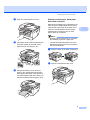
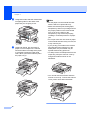
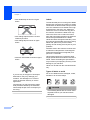
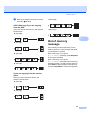
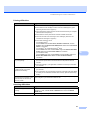
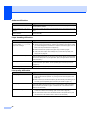
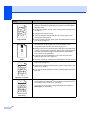
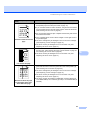
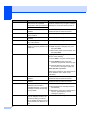
Examples of poor print quality FGH ABCDE ijk h fg e d abc ABCD abcde 01234 Page skewed Recommendation Make sure that the paper or other print media is loaded properly in the paper tray and that the guides are not too tight or too loose against the paper stack. Set the paper guides correctly. (See Loading paper in the paper tray on page 7.) The paper tray may be too full. If you are using the manual feed slot, see Loading paper in the manual feed slot on page 8. Check the paper type and quality. (See Acceptable paper and other print media on page 12.) Make sure that you use paper that meets our specifications. Roughsurfaced paper or thick paper may cause the problem. (See Acceptable paper and other print media on page 12.) Make sure that you choose the proper media type in the printer driver or in the machine’s Paper Type menu setting. (See Acceptable paper and other print media on page 12 and Basic tab in the Software User’s Guide on the CD-ROM.) The drum unit may be damaged. Put in a new drum unit. (See Replacing the drum unit on page 74.) Ghost The fuser unit may be contaminated. Call Brother Customer Service. Check the paper type and quality. (See Acceptable paper and other print media on page 12.) B DEFGH abc efghijk Make sure that paper is loaded properly. (See Loading paper in the paper tray on page 7.) A CD bcde 1 34 Turn over the stack of paper in the tray or rotate the paper 180° in the input tray. Wrinkles or creases ABCDEFGH abcdefghijk ABCD abcde 01234 Poor fixing 50 Choose Improve Toner Fixing mode in the printer driver. (See Device Options (For Windows®) or Print Settings (For Macintosh®) in the software User’s Guide on the CD-ROM.) If you print only a few pages, change the printer driver setting in Media Type to a thin setting.