1
Getting Started cont.
Getting Started cont.
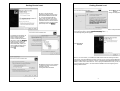
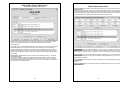
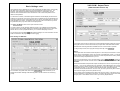
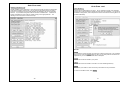
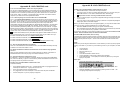
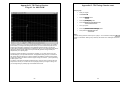
IClick [Next >] and this
dialog should appear:
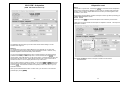
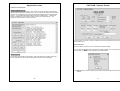
I Click on the Found New
Hardware message and the Found
New Hardware Wizard should start
up. If you are prompted with the
choice, pick “Not This Time” when
asked if you want to connect to the
Internet to search for drivers. Select
"Install from a list or specific location
(Advanced)" then click [Next >]
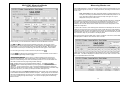
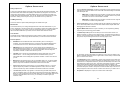
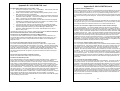
This dialog warns you that we haven't paid Microsoft a pound of flesh to certify the driver.
You're going to have to click the [Continue Anyway] button..:-)
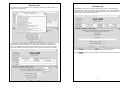
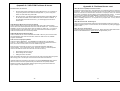
The following dialog should appear:
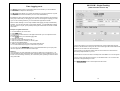
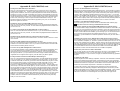
This dialog should appear. H
Select "Search for the best
driver in these locations"
Check "Include this location in
the search:" Use the [Browse]
button to find the VAG-COM
folder (Usually C:\Program
Files\VAG-COM\, unless you
chose a different folder when
you installed the software)
Click [OK]
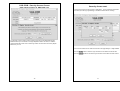
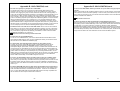
Click [Finish] H
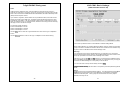
I Make sure that you have checked
“Include this location in the search:”
and that it points to
C:\Program Files\VAG-COM.
4
Note: If, for some reason, you installed the USB Interface without following the above
instructions, and VAG-COM does not work correctly, go into your PC’s Device Manager
while the USB Interface is connected. Find the “VAG-COM Compatible USB Interface” and
delete it. Check under “Other Devices”. Then, unplug the USB Interface from your PC, wait
5 seconds and plug it back in. Proceed with the installation from the beginning of the
Getting Started section.
5