1
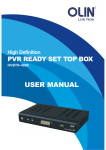
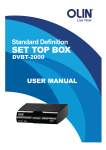
High Definition SET TOP BOX HVBT-5200 High Definition Terrestrial Receiver HVBT-5200USER MANUAL User Manual Please read carefully before use TABLE OF CONTENTS HVBT‐5200 USER MANUAL Table of Contents IMPORTANT SAFETY INSTRUCTIONS AND PRECAUTIONS .............................................................................................................................3 WHATS IN THE BOX......................................................................................................................4 INSTALLING THE BATTERIES......................................................................................................... 4 SET TOP BOX ............................................................................................................................... 5 Front Panel...........................................................................................................................................5 Real Panel ............................................................................................................................................5 REMOTE CONTROL ......................................................................................................................6 Key Function ........................................................................................................................................7 CONNECTING TO A TELEVISION ...................................................................................................8 Video and Audio Connection ..............................................................................................................9 Connection Method A: Composite......................................................................................................9 Connection Method B: Component (Y, Pb, Pr) ...................................................................................9 Connection Method C: HDMI .............................................................................................................9 Audio Connection ...............................................................................................................................9 FIRST TIME INSTALLATION ..........................................................................................................11 OSD Language ....................................................................................................................................11 Channel Search ..................................................................................................................................11 BASIC OPERATION.......................................................................................................................12 Channel Selection ..............................................................................................................................12 Volume Control..................................................................................................................................12 Channel Information ..........................................................................................................................12 MAIN MENU...............................................................................................................................13 Program ............................................................................................................................................13 Program Edit.......................................................................................................................…………....13 EPG & Scheduling .............................................................................................................................14 Sort ...................................................................................................................................................16 LCN....................................................................................................................................................16 Picture...............................................................................................................................................16 Channel Search .................................................................................................................................17 Auto Search........................................................................................................................................17 Manual Search ............................................................................................................ …………………..17 Antenna Power.................................................................................................................................17 Time .................................................................................................................................................18 Time Offset .....................................................................................................................................18 Time Zone .......................................................................................................................................18 Sleep ................................................................................................................................……………..18 HVBT‐5200_User_Manual_V1 -1- HVBT‐5200 USER MANUAL Option ............................................................................................................................…………..…..18 OSD Language ...................................................................................................................................18 Subtitle Language ..............................................................................................................................18 Audio Language .................................................................................................................................18 Digital Audio ......................................................................................................................................19 System Setting ..................................................................................................................................19 Parental Guidance .............................................................................................................................19 Set Password...............................................................................................................……..…………....19 Restore Factory Defaults ...................................................................................................................19 Information .......................................................................................................................................19 USB ...................................................................................................................................................20 MULITMEDIA PLAYBACK.............................................................................................................21 Music .................................................................................................................................................21 Photo .................................................................................................................................................21 GENERAL INFORMAITON…………………………………………………………………………………………………..….....22 TROUBLE SHOOTING..................................................................................................................22 SPECIFICATIONS.........................................................................................................................23 HVBT‐5200_User_Manual_V1 -2- HVBT‐5200 USER MANUAL IMPORTANT SAFETY INSTRUCTIONS AND PRECAUTIONS Read all instructions carefully before use. Retain manuals for future reference. Use this product only in the manner described. Only use a water‐dampened soft‐cloth to clean the surface of this product. Use electronic devices in well ventilated areas & not exposed to excess vibration. The following will damage this product: any liquid such as water or moisture, extreme heat, cold, humidity, dusty or sandy environments. Disconnect this product from mains power and antenna during lightning storms. Only place this device on stable surfaces and ensure that any attached cables are secure and will not cause the device to fall. There are no user serviceable parts in this product. Un‐authorized attempts to dismantle or repair this product will void product warranty and may result in dangerous electric shock. Remove any power or data cords by pulling them from the plug and not the cord. Using this device near other electronic devices may cause interference. When recording images or video using this product please be respectful or the Copyright requirements and restrictions as they apply to each program in your area. Images shown in this document are for references only and there may be differences between images and actual products. Do not mix old and new batteries in the remote. We reserve the right to change the products and or documentation without notice. HVBT‐5200_User_Manual_V1 -3- HVBT‐5200 USER MANUAL WHATS IN THE BOX HVBT ‐ 5200 HD Set Top Box 1 x Remote control 2 x AAA Battery for remote control 1x User Manual (This Document) 1X Quick Guide 1X Warranty Card 1 x RCA AV Cable INSTALLING THE BATTERIES 1. Remove the battery compartment cover on the rear of the Remote Control. 2. Insert the 2 X AAA batteries (supplied) in to the compartment being sure to match the polarities with the markings in the compartment. 3. Fit the cover back on the remote control and make sure that it locks in place. Note: Please do not mix old and new batteries in this remote. Remove batteries if remote is not going to be used for long periods. -4- WHATS IN THE BOX HVBT‐5200_User_Manual_V1 HVBT‐5200 USER MANUAL HVBT‐5200 PVR READY SET TOP BOX Front Panel Item 1 2 3 Description CH‐ CH+ STANDBY Rear Panel Item Description Item Description 1 Antenna IN socket 6 USB 2 RF Loop Out Socket. 7 HDMI Output 3 Y/PB/PR Video Output 8 SPDIF: Coaxial Digital Audio Out 4 Audio Left/Right output 9 Main ON/OFF Switch 5 CBVS Composite Video Out 10 AC Power Cord HVBT‐5200_User_Manual_V1 -5- HVBT‐5200 USER MANUAL REMOTE CONTROL REMOTE CONTROL Item Function 1、POWER 2、TV/RADIO 3、NUMERIC BUTTON (0~9) 4、FAV 5、INFO 6、MENU 7、UP/DOWN 8、CH+/CH‐ 9、PREV 10、BACKWORD 11、PLAY 12、STOP 13、SUB /CC 14、TEXT 15、FUNCTION KEY 16、MUTE 17、RECALL 18、EPG 19、EXIT 20、OK 21、LEFT/RIGHT 22、VOL+/VOL‐ 23、NEXT 24、FORWARD 25、USB 26、PAUSE 27、HDMI 28、AUDIO NOTE: To use the Remote Control, point it towards the front of the Digital Set Top Box. The Remote Control has a range of up to 7 meters from the Set Top Box at an angle of up to 60 degrees. -6- HVBT‐5200_User_Manual_V1 HVBT‐5200 USER MANUAL REMOTE CONTROL Key Function 1 POWER 4 NUMERIC BUTTON (0~9) FAV 5 INFO 6 7 8 9 10 11 MENU UP/DOWN CH+/CHPREV BACKWORD PLAY 12 STOP 13 14 15 16 17 SUB /CC TEXT FUNCTION KEY MUTE RECALL Press POWER key to ON / OFF the machine Press TV/RADIO key to switch between TV program and Radio program 0-9 numeral buttons, for input of numbers or for selecting a TV channel Display favorites channel Press INFO. Key to display the information bar during watch program. Display menu, press again to exit current menu Move selection up/down within menus and lists Select next/previous channel SWITCH TO LAST PROGRAMME Reverse fast when playing program Playing the program during watch PVR program Press STOP key to stop recording program or stop program during watch PVR program. Switch between different subtitles TELETEXT function key FUNCTION KEY Disable Audio output Recall last channel while watching digital TV or listening to radio 18 EPG Press EPG key to display 7 days EPG information 19 20 EXIT OK 21 LEFT/RIGHT 22 23 24 VOL+/VOLNEXT FORWARD Back to previous menu without saving To confirm your choice The LEFT/RIGHT buttons increases or decreases the audio output volume Within a menu, press the LEFT button to return to previous menu and the RIGHT button to enter a sub-menu Increase or decrease the audio output volume Switch to next program Fast forward when playing program 25 USB Access to external hard drive and firmware upgrade 2 3 TV/RADIO 26 PAUSE Pause the program during watch program 27 HDMI Change output picture resolution 28 AUDIO Press AUDIO key to set the audio track and audio mode NOTE: Some features on this remote rely on the feature being available during the broadcast. Button may not respond if function is not available. HVBT‐5200_User_Manual_V1 -7- HVBT‐5200 USER MANUAL HVBT‐5200 PVR READY SET TOP BOX CONNECTING TO A TELEVISION 1. Turn the TV off at the main power outlet. 2. Check the Main Power switch on the rear of HVBT ‐ 5200 HD Set Top Box and the mains outlet to be connected to is in the off position. 3. Connect the Antenna cable to the ANT In socket. 4. Choose the best connection method for your Equipment. There are 3 possible connection methods and the type that you choose may depend on the type of TV that you have. HVBT‐5200_User_Manual_V1 -8- HVBT‐5200 USER MANUAL Video and Audio Connection CONNECTING HVBT‐5200 PVR READY SET TOP BOX Connection Method A: Composite Quality = Fair to Good The composite cable (supplied) comprises of 1 x Video Cable (yellow) , 1 x Left Channel Audio (White) cable and 1 x Right Channel Audio (Red) cable. Best Used for: Older CRT Type televisions or other displays with only a standard AV input. Connection Method B: Component (Y, PbPr) Quality = Good to Very Good The component cables (not supplied) comprise of 3 x Video cable each carrying different signals. Separate Audio cables are also required to carry the audio signal to the TV. Best Used for: Any TV that has matching inputs that does not have HDMI inputs. Connection Method C: HDMI Quality = Best HDMI (High‐Definition Multimedia Interface) is the preferred connection method as the HDMI cable (not supplied) allows full HD Digital signal transmission to the TV. Best Used For: Any TV that has an HDMI input. Audio Connection Audio can be connected to an external amplifier. 1. Connect the Stereo Left and Right channels (White & Red) to the back of the Set Top Box and the corresponding inputs on the back the audio device. 2. Connect a SPDIF Coaxial Audio Cable (not supplied) to the rear of the Set Top Box and the corresponding inputs on the back the audio device for full surround sound. HVBT‐5200_User_Manual_V1 -9- HVBT‐5200 USER MANUAL CONNECTING HVBTR‐5200 PVR READY SET TOP BOX Once the HVBTR‐4800 HD Set Top Box has been connected to the power and to the TV After all connections have been made properly, switch on TV and make sure the unit is connected to the Main Power. HVBT‐5200_User_Manual_V1 -10- HVBT‐5200 USER MANUAL FIRST TIME INSTALLATION FIRST TIME INSTALLATION Press Power button to switch the unit on. If you are using the unit for the first time or have restored the unit to Factory Default, the Installation Guide Menu will appear on your TV screen. OSD Language To set the OSD (On Screen Display) Language press the LEFT/RIGHT buttons on the remote until the desired Language is displayed and then press the DOWN button. Channel Search Press OK to start the Channel Search. The System will now scan for the available channel in your area. Found DVB‐T Channels are shown in the left window and DVB‐R stations are displayed in the right. Total progress is displayed in the bar below. Press the EXIT or Menu Button to stop the scan at Any time. Once the Scan is complete the first Station is shown. If you are having problems picking up any channel or some of the channels are missing etc, refer to the Troubleshooting at the back of this manual. HVBT‐5200_User_Manual_V1 -11- HVBT‐5200 USER MANUAL BASIC OPERATION BASIC OPERATION Channel Selection A. Use the UP or Down Buttons to go up or down through the channels individually or B. Press the OK button to display the Channel list. I. Use the UP/DOWN buttons to select a channel and the press the OK button to confirm selection. I. Press the LEFT/RIGHT button to Change to DVB‐R radio channel List. I. Press the EXIT button to close the channel list and return to TV viewing. If you know the channel number it can be entered in directly using the Numeric Key Pad. Volume Control Press the LEFT (VOL‐) button to decrease the volume Press the Right (VOL +) button to increase the volume Press the MUTE button to mute the audio output. Press again to restore audio. Channel Information Press the INFO button on the remote control to display the current channel and program information including: z Current channel name, number and current time. z Current and Next program name, start and finish time Press the INFO Button again to see more detailed information about the channel and program as well as signal strength. HVBT‐5200_User_Manual_V1 -12- HVBT‐5200 USER MANUAL MAIN MENU MAIN MENU Press the MENU button to access the main system menu. Use the LEFT and RIGHT buttons to scroll across to select the Menu Section that you require and then press the OK or DOWN button to access the required Menu Section. Press the OK button to confirm any selection or changes made in the Menu or press the EXIT button to return to the previous screen. Press the MENU button to close the menu button and return the TV screen. Program Program Edit To edit your program preferences (lock, skip, favorite, move or delete), you will need to enter the Program Edit Menu. This Menu requires a password to access. Default Password is 000000 Press the LEFT/RIGH button to Change to DVB/R radio channel List. Action Button Description MOVE RED Select the channel to move and press the RED button. Use the UP and Down Button to move the channel and then press the OK button to confirm SKIP GREEN LOCK YELLOW Use the UP and DOWN buttons to select the channel to LOCK and then press the YELLOW button. Press again to unlock LOCKED channels will require the password to be viewed. DELETE BLUE FAVOURITE FAV Use the UP and DOWN buttons to select the channel to DELETE and then press the BLUE button. Press OK to confirm or EXIT to cancel. Use the UP and DOWN buttons to select the channel to add as a FAVOURITE and then press the FAV button. Use the UP and Down button to select the category to save the channel as and press the OK button to confirm. Multiple categories are possible. channel to be skipped. Press GREEN again to stop the SKIP HVBT‐5200_User_Manual_V1 -13- HVBT‐5200 USER MANUAL MAIN MENU Note: Please see “System Setting” section later in this manual for more information on password protection. EPG & Scheduling The EPG is an on‐screen TV guide that shows scheduled programs up to seven days in advance for every tuned channel. Press the EPG button on the Remote Control to access the guide. Use the LEFT and RIGHT buttons to change the channel. Use the UP and DOWN button to scroll through the EPG and highlight the program you are interested in. The program information is displayed on the right hand side of the window. If more than one page of information is available use the YELLOW or BLUE buttons to display the different pages. Use the RED or GREEN buttons to display through the days. EPG can display up to 7 days. Once you have found a program that you are interested in you can set a schedule to view the program . Use the UP or DOWN key to highlight the program from the list, then Press the OK button to enter the Event Add window, Use the UP and DOWN buttons to select the option, use the LEFT or RIGHT button to change the setting if you want, press OK button to confirm All fields will default to the details of the program that you have selected. HVBT‐5200_User_Manual_V1 -14- HVBT‐5200 USER MANUAL MAIN MENU To accept all details as displayed please use the OK button on the remote. Or change the options as described below. SELECTION OPTION DESCRIPTION CHANNEL TYPE TV Choose between TV and Radio RADIO CHANNEL NO. Available Channels Change the channel to book CHANNEL NAME Default As per Broadcast or edited. START DATE Set the date of the booking to Use the LEFT/RIGHT Button to commence (MM/DD/YY) select the field to change and use the numeric pad to enter the new number START TIME Set the Start Time Use the LEFT/RIGHT Button to select the field to change and use the numeric pad to enter the new number END TIME Set the End Time Use the LEFT/RIGHT Button to select the field to change and use the numeric pad to enter the new number REPEAT ONCE Select whether you wish to DAILY have the booking repeat every WEEKLY day, every week on the same day or just once. MODE VIEW VIEW Select to View the program Once a Booking has been made the Schedule screen will be shown with all bookings displayed. The Status icons: z Green = Booked for Viewing Programs are also marked as booked in the EPG. HVBT‐5200_User_Manual_V1 -15- HVBT‐5200 USER MANUAL MAIN MENU Schedule buttons Action Button Description ADD RED Press the RED button to Add a booking manually EDIT GREEN Press the GREEN button to edit the selected booking DELETE BLUE Delete the selected booking EXIT EXIT Press the EXIT button to return to the EPG screen Sort Sort your channels from the following options: Sort type Description LCN Sort the channels in ascending order. (LOGICAL CHANNEL NAME) ONID Sort the channels according to ONID SERVICE NAME Sort the channels in alphabetical order. SERVICE ID Sort the channels according to the station. LCN Set LCN to ON or OFF Picture The Picture menu allows you to alter the way the display is shown on you TV from the Aspect Ratio to the resolution. SELECTION OPTIONS DESCRIPTION ASPECT 16:9 Wide Screen Auto Set the best aspect ratio that RATIO 4:3 Full 4:3 Pan & Scan suits you TV and or picture 4:3 Letter Box being displayed. RESOLUTION 480P for NTSC TV system. Change the output resolution 480i for PAL TV system. to suit your TV. 720P for NTSC or PAL TV system. Not for Composite output. 1080i for NTSC or PAL TV system. TV FORMAT PAL NTSC Set the color system used by your TV. If in doubt use the Auto option. HVBT‐5200_User_Manual_V1 -16- HVBT‐5200 USER MANUAL MAIN MENU Channel Search This Menu provides options to adjust the Search Channel settings. Auto Search Use the RIGHT button or the OK button to start the full Auto search of all channels for both DVB‐T and DVB‐R. This option will delete all previously scanned channels A full scan can take several minutes. Manual Search This option allows you to scan for new channels without deleting previously saved channels and settings. Use the LEFT or RIGHT button to select the frequency channel to scan and then press the OK button to start the search. The quality status bar will indicate the quality of the signal. HVBT‐5200_User_Manual_V1 -17- HVBT‐5200 USER MANUAL MAIN MENU Country ‐ Australia. Cannot be changed. Antenna Power ‐ Select ON only if an external active antenna is connected. Can be useful with internal antenna. External rooftop antennas are recommended. Time ‐ Set the times zone for your area. Time Offset AUTO ‐ Sets GMT Offset based on Country Region. Sets time from broadcasters EPG. MANUAL ‐ Requires the GMT offset to be set manually and disables the Country Region option Country Region – choose your state Time Zone ‐ Set the GMT offset when Time Offset option is set to manual. Use the Left and Right buttons to select the Offset for your region. Power Down ‐ allows you to set a time that the STB will automatically turn off from the last input from the remote control. Options are 1 to 12 hours set in 1 hour increments. OFF disables the feature. Option OSD Language ‐ English only. Subtitle Language – Off or English. Note: Only available if chosen subtitle language is being transmitted. Audio Language ‐ English only. Note: Only available if chosen Audio language is being transmitted. HVBT‐5200_User_Manual_V1 -18- HVBT‐5200 USER MANUAL MAIN MENU Digital Audio Set the Digital audio output of the HVBT ‐ 5200 HD Set Top Box Options are: PCM, RAW or OFF. Please refer to your Audio equipment documentation for the best setting for your equipment. System Setting The menu provides options to adjust the system settings. Parental Guidance Select the parental control level you desire for TV program with lock‐out function or multiple rating levels. They are listed in different levels according to Australian standards. Note: This feature requires a password to access and allows viewing to be restricted via password for programs that are outside the restrictions. The Default password is “000000” Set Password Set or change the password for locked programs. Input Old Password: Use the Numeric keypad to enter the old password. Input New Password: Use the Numeric keypad to enter the New password. Confirm Password: Use the Numeric keypad to enter the New password to confirm. Note: The Default password is “000000” Restore Factory Defaults *WARNING* Restoring Factory Defaults will remove all saved channel information and settings. All Scheduled recordings will be deleted. Please use with care. Press the OK button to confirm or press the EXIT button to return to the previous screen without Restoring Defaults. Information Displays the current information about Model, Software and Hardware version numbers. HVBT‐5200_User_Manual_V1 -19- HVBT‐5200 USER MANUAL MAIN MENU USB ‐ The USB settings menu allows you to change the way the STB displays multimedia from USB devices as well as managing the device itself. Multimedia ‐ When a USB device is attached you can select from the Music and Photo options, in this menu using the RIGHT/LEFT keys and OK to select. If a USB device is not connected, the warning message "Not Find Any USB Device" will appear. Photo Configure ‐ Use the Right button to enter the Photo configuration menu. SELECTION OPTIONS DESCRIPTION Slide Time 1 to 8 seconds Set the number of seconds to display each picture. Slide Show 1 to 59 Random Set the Slide Show Effect to a fixed type or set to Random effects. Aspect Ratio KEEP Use KEEP to show picture in DISCARD original format or DISCARD to have images Fit the Screen. HVBT‐5200_User_Manual_V1 -20- HVBT‐5200 USER MANUAL MAIN MENU USB Software Update For updating firmware on the device. Refer to www.olinlivenow.com.au for details of any available firmware updates and instructions. MULITMEDIA PLAYBACK To play back record programs or view media from USB drives press the USB button on the remote control. Use the LEFT or RIGHT button to select the type of media to access am then press the OK button to select. Music In the MUSIC Menu use the LEFT and RIGHT buttons to navigate to the folder on the USB device that contains the music files to play. Select the file and press the OK button to begin playback. Track and playback information are displayed on the right hand window. Photo In the Photo Menu use the LEFT and RIGHT buttons to navigate to the folder on the USB device that contains the picture files to view. Select the file and press the OK button to view an individual image or press the PLAY button to begin a Slide Show of all images in the current folder. Press the MENU button to display the images in a grid. Use the LEFT and RIGHT buttons to scroll through and select the image to view and press the OK button. HVBT‐5200_User_Manual_V1 -21- HVBT‐5200 USER MANUAL GENERAL INFORMATION TROUBLE SHOOTING Problem No Picture Screen Shows “No Signal” No sound Possible Cause Power is not connected Antenna cable is not connected No or incorrect audio cable connections No picture but sound OK Sound is muted No or incorrect Video cable connections Remote Control is not responding Picture is breaking up Batteries are flat Signal is too weak USB device is not detected Not powered correctly Movie Payback out of sync Faulty file File to large for STB Solution Connect the power and make sure unit is turned on. Check the antenna connection to the rear of the STB (see note below) Check connections of audio Cables Un‐Mute audio Make sure cables are connected correctly. Replace. Check antenna connection. (see note below) Check power source (if fitted) or reconnect. Check file to ensure not encoding issue Re‐encode file at lower resolution and/or data rate The HVBT – 5200 is only as good as the signal it gets. For further information about signal coverage and strength refer to the document Reception Issues – Antenna, cabling and the Set Top Box on the HVBT ‐ 5200 Technical Support pages at www.olinlivenow.com.au or Call our toll free Customer Helpline 1800656630. Also refer to the website www.digitalready.gov.au HVBT‐5200_User_Manual_V1 -22- HVBT‐5200 USER MANUAL SPECIFICATIONS TECHNICAL SPECIFICATIONS TUNER AUDIO OUTPUT PORT DECODER FORMAT USB 2.0 AUDIO OUTPUT SUPPORTED MEDIA 170~230MHz 471~860MHZ ‐25~‐82Db 7MHz & 8MHz QPSK, 16QAMM 64QAM MPEG4 AVC/H.264 HP@L4 MPEG2 [email protected] 576p, 720p, 1080i, 4:3 & 16:9 HDMI , YPbPr, CVBS MPEG‐1 (layer 1&2&3) WMA, AC3 2 X RCA (L/R), COAXIAL SPDIF MP3, WMA, JPEG, BMP. SUPPLY VOLTAGE MAXIMUM POWER CONSUMPTION STANDBY POWER CONSUMPTION 100~240VAC 50/60Hz 8W < 1W VIDEO POWER INPUT FREQUENCY RF INPUT LEVEL IF BANDWITCH MODULATION DECODER FORMAT OUTPUT FORMAT Copyright This manual contains information protected by copyright law. No part of this document may be used or reproduced in any form or by any means, or stored in a database/ retrieval system without prior written permission from us. The information of this manual is based on the current version of the product. We reserve the right to alter the content without prior notice. All brand names in this manual are the property of their respective owners. HVBT‐5200_User_Manual_V1 -23- www.olinlivenow.com.au Westwell Australia Pty Ltd Westwell and its stylised logo are registered with the Australian IP office. OLIN is a registered trademark of Westwell Australia Pty Ltd. All rights reserved. All promotional materials offered for reference only. Actual may vary.