1
Specifications
Model
6.4 inch XGA TFTLCD Monitor
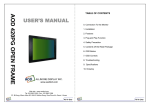
AOD 064 OPEN FRAME
Display
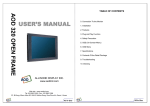
USER’S MANUAL
Type
Color
Pixel
Screen Size
Resolution (Max)
Contrast Ratio
300:1
Brightness
6.4”Color Active Matrix TFT LCD
262,144 Color
0.204 x 0.204 mm
246 (H) x 184.5 (V) mm
640 x 480 at 60 to 75Hz
Frequency
Horizontal: 56 ~ 75KHz
Vertical: 31.5 ~ 80Hz
250 cd/m2
Video
Compatibility
Plug and Play
Compatibility
Power
Operation Environment
Power Consumption
Temperature
Humidity
User’s Mode
OSD Key
VESA DDC 1/2B
VESA / IBM / MAC
VESA Standard, DPMS
Operation Mode: 35 watt max.
Stand-by: 4 watt max.
Operation Mode : 0 ºC ~ 40 ºC
Stand-by: -20 ºC ~ 60 ºC
Operation Mode: 10% ~ 85% R.H.
Stand-by: 90% R.H. Max.
Auto / Menu / Down / Up / Enter / Power
ALLINONE DISPLAY INC.
www.aodlcd.com
Web site : www.aodlcd.com
Tel :02-3283-7495 / Fax : 02-3283-7498
3F, B-Dong, Micro office B.D 554-2 GaSan-Dong, GumChun-Ku, Seoul , Korea
All In One
All In One
OSD (On-Screen-Menu)
menu
Button
select
OSD Controls
down
Function
up
power
Status
Power ON or OFF
ON/OFF
LED
Indicate working status
Green : On
Red : Stand-by
Orange : No signal
UP
Launch OSD Menu or
Add Value
Move to OSD Menu
Launch OSD Menu or
Down value
Move to OSD Menu
POWER
DOWN
SELECT
MENU
Select OSD Menu
On / Off OSD Menu
All In One
BRIGHTNESS : Adjust brightness
CONTRAST : Adjust contrast
COLOR CONTROL : Adjust color to user,9300K,6500K
Adjust RED,GREEN,BLUE when selecting User
MISCELLANEOUS - Initialize : Make all setting value as initialization.
- OSD Timer : Adjust the time displayed on the menu box
from 5sec to 100sec optionally.
- OSD Position : Adjust the position of the menu box
optionally.
SOUND : -Volume : Adjust AMP volume
- Mute : Speaker on/off
- Treble : Adjust optionally
- Base : Adjust optionally
AUTO(AUTO ADJUST) : Adjust the status of monitor automatically to high quality
Language : Available for 10 foreign language(English, France, Dutch, Italiano,
Espano, Deutch, Svenska,Suomi, Dansk, Portuglues)
H-B PPOSITION -H. Position : Adjust horizontality
- V. Position : Adjust verticality
Frequency/Clock: - Phase : Adjust noise, overlapping display
- Clock : Adjust a number of pixel of horizontal plane
Input : RGB - Select VGA signal of computer
SVHS – Select super video signal
Composite Video – Select video signal
TV- Select TV signal when choosing TV option
All In One
Contents Of the Retail Package
Troubleshooting
TO REDUCE THE RISK OF ELECTRIC SHOCK, DO NOT REMOVE
COVER.
NO USER-SERVICEABLE PARTS INSIDE.
REFER SERVICING TO QUALIFIED SERVICE PERSONNEL.
The monitor does not respond after you turn on the system.
Make sure that the monitor is turned on.
Turn off the power and check the monitor’s power cord, AC adapter,
and signal cable for proper connection.
Appear the “ No Input the Signal"
Check the connecting of the audio cable between the monitor and the computer.
Appear the “ Input Not the Supported"
Input signal are insuperable, reset the video mode.
The appearance is not at the screen center.
Use “AUTO ADJUST”, refer to the Controls section.
The characters on the screen are too dim or too bright
Choose fit color temperature, use “AUTO COLOUR ADJUST or manually adjust
“RGB ADJUSTMENT, refer to the Control section.
Monitor
User’s Manual
Audio Cable
AC/DC Adaptor
Touch Driver (Option)
Power Cord
Composite
Cable (Option)
VGA Cable
S-video Cable
(Option)
All In One
All In One
Drawing
(OPTION)
Front view
Side view
Bottom view
All In One
All In One
All In One
All In One
(OPTION)
All In One
All In One
All In One
All In One