1
Content
Introduction
3
I.
User Login
4
II.
Operation
6
1.
Demography
1.1. Basic Information
1.2. Life Style Questionnaire
6
7
8
2.
Anthropometry
2.1. Disease and Injury Record
2.2. Health Assessment
2.2.1. Video Conferencing
2.2.2. Blood Pressure
2.2.3. Heart Sound
2.2.4. Breathing Sound
2.2.5. Blood Oxygen Saturation
2.2.6. Weight and Body Fat Percentage
2.2.7. Skin Image
2.3. Injury Survey
9
10
11
12
13
14
15
17
18
19
21
3.
Nutrition
3.1. Diet Record
3.2. Add Food
22
23
24
4.
Conditioning
4.1. Body Measurement
4.2. NSCA measure
4.3. Physiotherapy examination
4.4 NSCA basic
4.5. Flexibility
25
26
27
28
29
30
5.
Report
5.1. Diet Report
5.2. Physical Training Report
5.2.1. Body Measurement Report
5.2.2. NSCA measure Report
5.2.3. Physiotherapy examination Report
5.2.4. NSCA basic Report
5.2.5. Flexibility Report
5.3. Injury Survey Report
31
32
33
34
36
37
38
39
40
1
III.
Account Management
41
1.
Create User
42
2.
Change Login Name
43
3.
Change Password
44
2
Introduction
Welcome for using this Tele-Sports-Health system. Use this guide to find out about the
health check empowerment and health record retrieval on this system and to learn more
about how they work.
This system is a convenient tool enabling users to conduct their own health assessment
and vital signs monitoring. Since it is a light and highly portable box, it is easy for storage
and users can carry it anywhere for measuring vital signs such as heart rate, pulse, blood
pressure and body mass index (BMI) in comfort, without embarrassment and at their own
pace. The data can be stored, thus helping users to better monitor and manage their own
health.
This system includes three main components:
1) Tele-Sports-Health box case
2) System Database
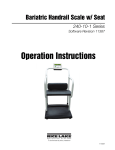
3) Scale
(1)
(2)
3
(3)
I.
User Login
1. Click “Start” on the screen.
2. Login the system with User ID and Password.
4
3. Main Menu is accessed.
5
II.
Operation
1. Demography
Click “Demography” in the Main Menu.
Two items, Basic Information and Questionnaire, are displayed.
6
1.1. Basic Information
Click “Basic Information”.
Fill in the form and click “Send”.
7
1.2. Questionnaire
Click “Life Style Questionnaire”.
Fill in the form and click “Send”.
8
2. Anthropometry
Click “Anthropometry” in the Main Menu.
Three items, Disease and Injury Record, Health Assessment and Injury Survey, are
displayed.
9
2.1. Disease and Injury Record
Click “Disease and Injury Record” for inputting information on illness history and
injury surveillance.
Fill in the form and click “Send”.
10
2.2. Health Assessment
Click “Health Assessment”.
Seven items, Video Conferencing, Blood Pressure, Health Sound, Breathing
Sound, Blood Oxygen Saturation, Weight and Body Fat Percentage and Skin
Image, are displayed.
11
2.2.1. Video Conferencing
The purpose of Video Conferencing is to provide the platform for interactive
communication between the practitioner and patients.
a) Click “Video Conference” on the screen
b) The system will connect to the designated practitioner or expert station in
School of Nursing, The Hong Kong Polytechnic University, so you can
have discussion or consultation at different locations.
c) You can see the video displaying the image from the side of practitioner.
At the same time, your image will also be transmitted to the practitioner’s
side through the camera attached on the Tele-Sports-Health box case.
d) You can talk to the practitioner by using the microphone provided and you
can hear the practitioner’s voice from the speaker.
12
2.2.2. Blood Pressure
The purpose of blood pressure assessment is to determine whether the blood
pressure is within an acceptable range
a) Click “Blood Pressure” on the screen.
b) Subject should sit down and rest his/her arm on a table such that the
brachial artery is level with the heart.
c) Wrap the sphygmomanometer cuff around the subject’s upper arm, just
above the elbow and place a stethoscope on the hollow of the elbow, over
the artery.
d) When you are ready for the test, click “Start” on the screen.
e) Wait until the record end.
f) After the completion of the test, your systolic blood pressure, diastolic
blood pressure and pulse rate will be shown on the screen.
13
2.2.3. Heart Sound
The purpose of recording heart sound is to indicate blood flow turbulence.
a) Click “Heart Sound” on the screen.
b) Press the button with “Heart” icon on the electronic stethoscope and a red
light can be seen.
c) Put the electronic stethoscope on the left side of the chest, between the 4th
and 6th ribs, almost directly under the breast.
d) You can hear a series of magnified “lub-dub” sounds representing each
contraction of the heart.
14
e) Click “Record” on the screen to start recording.
2.2.4. Breathing Sound
The purpose of recording breathing sound is to indicate pneumonia or
pulmonary edema.
a) Click “Breathing Sound” on the screen.
15
b) Press the button with “Lung” icon on the electronic stethoscope and a blue
light will be seen.
c)
d)
e)
f)
Put the electronic stethoscope on the chest.
Subject is asked to breath in and out deeply and slowly.
Normal magnified “hollow” sound will be heard.
Click “Record” on the screen to start recording.
16
2.2.5. Blood Oxygen Saturation
The purpose of pulse oximetry is to provide estimates of hemoglobin
saturated by oxygen and you can have early sign of lung disease or heart
disease.
a) Click “Blood Oxygen Saturation” on the main page.
b) Put a subject’s finger into the non-invasive sensor clip.
c) When you are ready for the test, click “Start” on the screen.
d) Wait until the record end.
*Note: Do not remove the finger from clip during measurement.
e) After the completion of the test, your assessment results will be shown on
the screen.
17
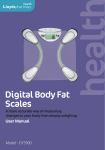
2.2.6. Weight and Body Fat Percentage
The purpose of measuring the weight is to calculate the body mass index
(BMI) which indicating whether your weight is underweight, normal,
overweight or even obese.
a) Users are required to connect the “USB to Pin Socket Cable” to the
computer and the electronic scale. Once connected, the control will be
handled automatically by the system and the application.
b) Click “Weight” on the screen.
c) Subject is asked to step on the scale machine without wearing shoes and
shocks.
d) Readings will be directly transferred to the system for monitoring.
e) Height of the subject is loaded if the “Basic Information” in the
Demography has been filled in previously.
f) After the completion of the test, your body weight, BMI and body fat
percentage will be shown on the screen.
18
2.2.7. Skin Image
The purpose of capturing skin images is to detect skin lesions or to record
wounds.
a) Click “Skin Image” on the screen.
b) Pick up the skin image camera and turn it on.
19
c) When the light comes on, locate the skin image camera on the site of mole
or any wounds on the skin.
d) Frame the subject to be photographed in the screen.
e) Click “Capture” to capture the image.
f) The captured image is photographed on the right frame.
g) The other capturing image is framed on the left frame.
20
2.3. Injury Survey
Click “Injury Survey” on the screen for inputting information on injury.
Click on the region of body that is injured, and type in a value representing the level
of pain.
21
3. Nutrition
Click “Nutrition” on the Main Menu.
Two items, Diet Record and Add Food, are displayed.
22
3.1. Diet Record
Click “Diet Record” for inputting information on diet.
Fill in the form and click “Send”.
23
3.2. Add Food
Click “Add Food” to add new food information in the system database.
Browse a picture of food that you want to add into the system.
Fill in the nutrient profiles regarding to one portion of your added food in the form
above.
Click “Send” and then this food item will be shown in the “Diet record”
automatically.
If you do not have nutrient profiles of the food, you could send the food photo to
Expert Station in School of Nursing, The Hong Kong Polytechnic University for
help.
24
25
4. Conditioning
Click “Conditioning” on the Main Menu.
Five items, Body measure, NSCA measure, Physiotherapy examination, NSCA
basic and Flexibility, are displayed.
26
4.1. Body Measurement
Click “Body Measurement”
Fill in the form and click “Send”.
27
4.2. NSCA measure
Click “NSCA measure”
Fill in the form and click “Send”.
28
4.3. Physiotherapy examination
Click “Physiotherapy examination”
Fill in the form and click “Send”.
29
4.4. NSCA basic
Click “NSCA basic”
Fill in the form and click “Send”.
30
4.5. Flexibility
Click “Flexibility”
Fill in the form and click “Send”.
31
5. Report
Click “Report” on the Main Menu.
Three items, Diet Report, Physical Training Report and Injury Survey Report, are
displayed.
32
5.1. Diet Report
Click “Diet Report ”.
Daily diet record and nutrient profiles can be shown.
33
5.2. Physical Training Report
Click “Physical Training Report”.
Five Conditioning reports can be chosen.
34
5.2.1. Body Measurement Report
Click “Body Measurement”.
Click on the hyperlinks for reports you would like to read.
35
A report is shown.
Select a parameter first.
Click the calendar icons and select a “Starting Date” and a “Finishing Date”
to indicate the period you would like the information generated in your report.
A graph showing the selected parameter in different episodes will be
generated.
36
5.2.2. NSCA measure Report
Click “NSCA measure”
Click on the hyperlinks for reports you would like to read.
When a table is shown, select a parameter first.
Click the calendar icons and select a “Starting Date” and a “Finishing Date”
to indicate the period you would like the information generated in your report.
37
A graph showing the selected parameter in different episodes will be
generated.
5.2.3. Physiotherapy examination Report
Click “Physiotherapy examination”
Click on the hyperlinks for reports you would like to read.
When a table is shown, select a parameter first.
38
Click the calendar icons and select a “Starting Date” and a “Finishing Date”
to indicate the period you would like the information generated in your report.
A graph showing the selected parameter in different episodes will be
generated.
39
5.2.4. NSCA basic Report
Click “NSCA basic”
Click on the hyperlinks for reports you would like to read.
When a table is shown, select a parameter first.
Click the calendar icons and select a “Starting Date” and a “Finishing Date”
to indicate the period you would like the information generated in your report.
40
A graph showing the selected parameter in different episodes will be
generated.
5.2.5. Flexibility Report
Click “Flexibility”
Click on the hyperlinks for reports you would like to read.
When a table is shown, select a parameter first.
41
Click the calendar icons and select a “Starting Date” and a “Finishing Date”
to indicate the period you would like the information generated in your report.
A graph showing the selected parameter in different episodes will be
generated.
5.3. Injury Survey Report
Click “Injury Survey Report”.
Detail information on injury can be shown.
42
43
III.
Account Management
Click “Account Management” for personal account setting.
Three items, Create User, Change Login Name and Change Password, can be
displayed.
44
1. Create User
Click “Create User”
Fill in the form and click “Confirm”.
45
2. Change Login Name
Click “Change Login Name”
Fill in the form and click “Send”.
46
3. Change Password
Click “Change Password”
Fill in the old password, the new password, and reconfirm the new password.
47