1
CHAPTER
FIVE
INSTALLATION
5.1 Install Software
The IMP Software Suite is installed with a standard installer. When you install the software, you agree to the
terms of the IMP license. The IMP software Suite can be run on the same computer as the host AFM, or on a
separate computer. It is advantageous to run the IMP Suite on a modern computer with a multi-core processor,
especially when analyzing full images to make Parameter Maps.
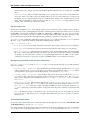
If the IMP Suite does not detect the The Multifrequency Lockin Analyzer™ (MLA™) upon starting, it will open
up in analysis mode. In analysis mode you can plot and analyze data taken previously, but you can not take data.
You are free to install the software on as many seperate computers needed to analyze your data. To take data you
mast start the IMP Suite when connected to the MLA™ and a host AFM, as described below.
5.2 Install Hardware
Connecting the hardware the first time requires some effort. However, if things are configured nicely, one or two
hardware switches is all that is needed to switch between the normal configuration of your host AFM and the
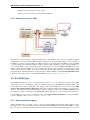
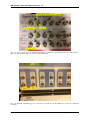
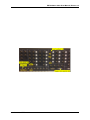
ImAFM™ configuration. The MLA™ is connected to the host AFM via a signal access module (SAM) provide
by Intermodulation Products or your AFM supplier. The MLA™ is connected to a computer running the IMP
Suite via Ethernet, either the same computer used by the host AFM, or a seperate computer.
5.2.1 Connection to computer
The IMP Suite will open analysis mode when it does not detect an MLA™ connected to the computer. To establish
the connection between the computer and the MLA™ you must first perform the steps below. After this procedure
the detection will be automatic. The instructions given below are for Windows 7.
1. Connect a standard Ethernet cable between the MLA™ and the computer.
2. Go to Control Panel -> Network and Internet -> Network and Sharing Center.
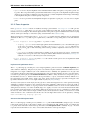
3. Locate the network adapter: In the left panel choose Change adapter settings. To identify
which adapter corresponds to the Ethernet card connected to the MLA™, turn off the MLA™. There should
be a red cross on the adapter icon with the text Network cable unplugged. About one minute after
the MLA™ is turned on the red cross will disappear and the text changes to Unidentified network.
4. Configure the MLA adapter: Right click again on the MLA adapter and choose Properties. Select Internet Protocol Version 4 (TCP/IPV4) and click Properties. Click Use the
following IP address and fill in the following
IP address: 192.168.42.1
Subnet mask: 255.255.255.0
5. Check the adapter: At this point the internet connection between the MLA™ and the computer should be
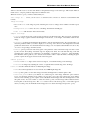
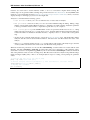
established. To test the connection you can ping the MLA™. In a Windows terminal window type ping
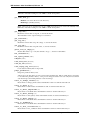
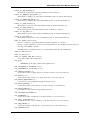
192.168.42.50. The MLA™ should respond with something like:
47