1
Send a secured document to your mailbox
Send a secured document to your mailbox
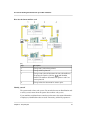
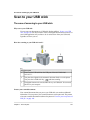
Introduction
When you want to print a document that is for your eyes only, you are advised to start
a secured print job. Especially when your mailbox is not protected with a PIN, secured
printing can be very useful for confidential information. You can only print a secured
document if you know the security code that has been attached to the print job in the
printer driver. You must enter the security code again if you want to print the document
from the mailbox.
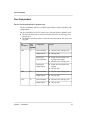
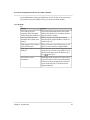
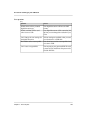
Remember the following security guidelines to start a secured print job:
■ Use at least 4 digits to define the security code in the printer driver.
■ Print the secured document from your mailbox as soon as possible. Do not wait
longer than one hour.
■ Delete the document immediately after you have printed it.
If you often start secured print jobs, use the same security code for these print jobs.
All documents in the mailbox secured with the same security code can be printed with
only one entry of that security code.
Before you begin
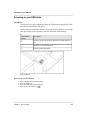
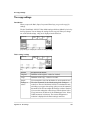
Open the printer driver ‘The printer driver’ on page 51.
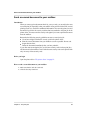
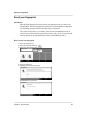
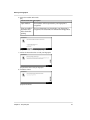
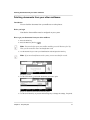
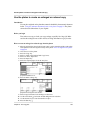
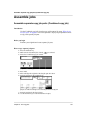
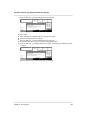
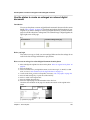
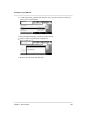
How to send a secured document to your mailbox
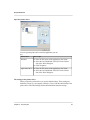
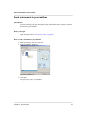
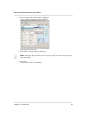
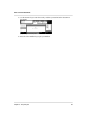
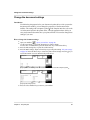
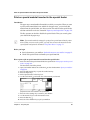
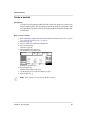
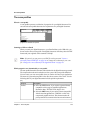
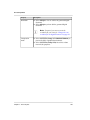
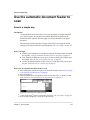
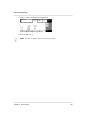
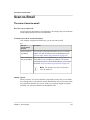
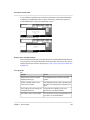
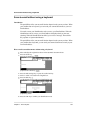
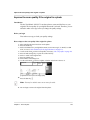
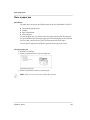
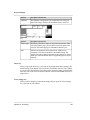
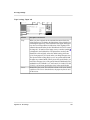
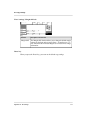
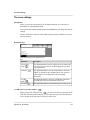
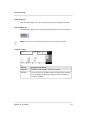
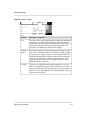
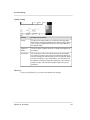
1. Make sure that the 'Job' tab is selected.
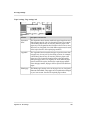
2. Click the 'Security' check box.
Chapter 5 - The print jobs
58