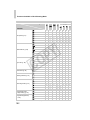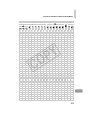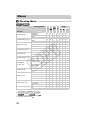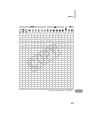
1
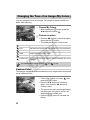
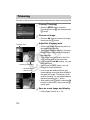
Changing the Tone of an Image (My Colors)
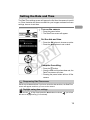
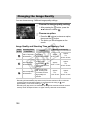
You can change the tone of an image, for example to sepia or black and
white, when shooting.
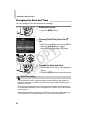
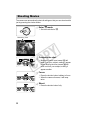
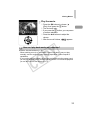
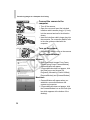
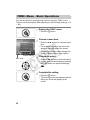
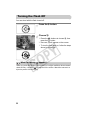
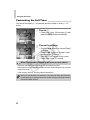
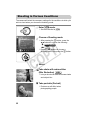
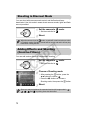
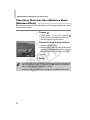
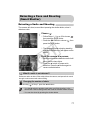
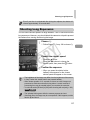
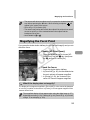
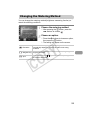
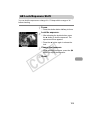
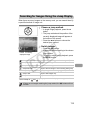
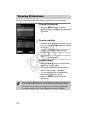
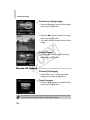
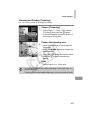
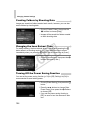
Choose My Colors.
z After pressing the m button, press the
op buttons to choose
.
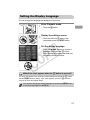
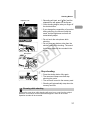
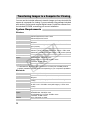
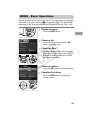
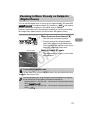
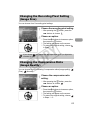
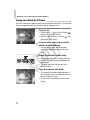
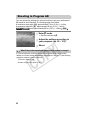
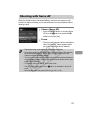
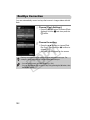
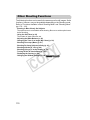
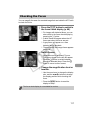
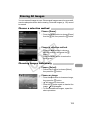
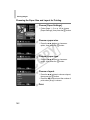
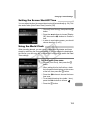
Choose an option.
z Press the qr buttons to choose an option,
then press the m button.
X The setting will appear on the screen.
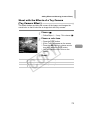
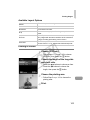
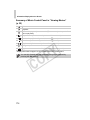
My Colors Off
—
Y
P
O
C
Vivid
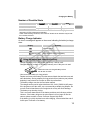
Emphasizes the contrast and color saturation for a vivid impression.
Neutral
Tones down the contrast and color saturation for neutral hues.
Sepia
Changes the image to sepia tones.
B/W
Changes the image to black and white.
You can adjust contrast, sharpness, and color saturation etc. to your
Custom Color
preference.
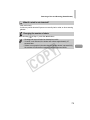
The white balance cannot be set in
Custom Color
and
(p. 86).
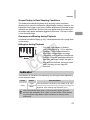
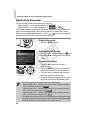
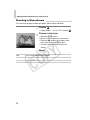
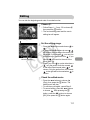
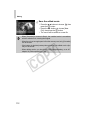
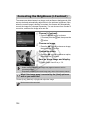
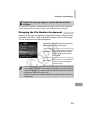
The contrast, sharpness, and color saturation in an image can be chosen and
set at 5 different levels.
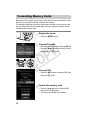
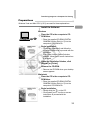
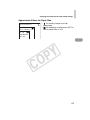
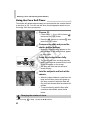
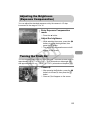
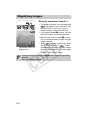
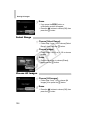
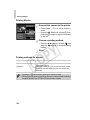
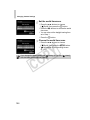
z Follow Step 2 above to choose
, then
press the l button.
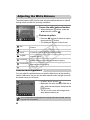
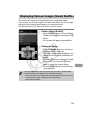
z Press the op buttons to choose an
option, then press the qr buttons to
choose a value.
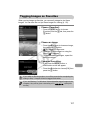
z The more to the right, the stronger/deeper
the effect gets, the more to the left, the
weaker/lighter the effect gets.
z Press the l button to complete the
setting.
90