1
2. Getting Started
2
2.1 Charging the battery
Prestigio MultiPad comes with a built-in polymer rechargeable battery and is designed to use only
manufacture-specified original batteries and accessories. You can see battery status on status bar of
MultiPad in the lower right corner of the home screen. Android OS has battery charge detection system
and notify user if battery charge is low and device need to be connected to AC adapter. If you will see
such message, or your device couldn’t power on, connect original AC power adapter to charge your
device. Plug one end of the adapter into the power jack of the device, and the other to the power
socket. To extend the battery operation life, wait for finish of charge process.
Please, fully charge your new device after unpacking.
[Note]: it is normal if the device is warm or hot during charging, you can use it as usual, just follow the
respective security precautions.
2.2 Using the storage card
Your new Prestigio MultiPad PMP7100D3G Tablet PC is equipped with Micro SD card slot to extend
available device memory. It is compatible with Micro SD/ Micro SDHC/ TF-Flash card formats of size up to
32Gb. Proper functioning of larger capacity cards is not guaranteed.
Insert the storage card
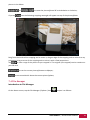
The storage card slot is on the left side of the back panel of device. To insert a
card, place the card as shown on the picture (left) and press it in card slot until click.
Card must be inserted effortlessly. DO NOT push the card too strong, it could damage
the card slot or storage card.
Browse files in the storage card
To browse the files you should do one of the following:
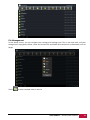
● Select “Explorer” icon to view files in the storage card;
● You can also install and run any other third party file browser applications.
Remove the storage card
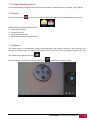
To avoid data loss or damage, please stop using files/programs in the storage card, and then tap
Settings> Storage> Unmount SD card to remove it safely.
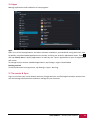
To remove the storage card, gently press the edge of the card to release the safety lock and pull the
card out of the slot.
[Note]:
1. Make sure the location and direction of the storage card is correct when inserting.
2. To avoid possible issues or incompatibility of the storage card with your MultiPad, major brands of
storage card are recommended.
USER MANUAL | MultiPad PMP7100D3G
6