1
Drivers & Utilities
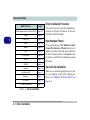
Service Packs
Check the warnings on the following pages regarding installation of the appropriate Service Pack for
your Windows OS. Make sure you have installed
the appropriate Service Pack before installing all
the drivers.
Service Pack Installed
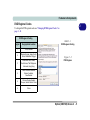
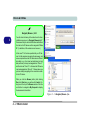
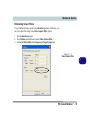
To see which Service Pack is currently installed on
your computer go to the General tab of the System
control panel. Right-click the My Computer icon on
the desktop or in the Start menu and select Properties. The Service Pack currently installed on your system will be listed under the “System:” heading. (If no
Service Pack information is listed, then no Service
Pack is installed.)
Windows XP Service Pack 2
Make sure you install Windows XP Service Pack 2
(or a Windows XP version which includes Service
Pack 2) before installing any drivers. Service
Pack 2 includes support for USB 2.0.
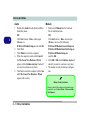
If you have upgraded the system by installing Service Pack 2 (i.e. your Windows XP version does not
include Service Pack 2) then follow these instructions:
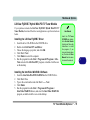
1.Click Start (menu), point to Settings and click
Control Panel (or click Control Panel).
2.Double-click System (icon); System (icon) is in
Performance and Maintenance (category).
3.Click the Hardware (tab) > Device Manager (button).
4.Click “+” next to Other Devices (if its sub-items
are not shown).
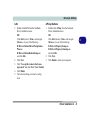
5.Right-click Universal Serial Bus (USB) Controller and select Uninstall > OK (if you don’t see the
item then there is no need to take any further action).
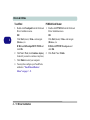
6.Restart the computer and it will find the USB 2.0
controller.
What to Install 4 - 3
4