1
Manual
MacFinish 2D 100
Version: 2012v1
Table of Contents
PREFACE......................................................................................................5
1. HARDWARE SETUP..................................................................................6
1.1. Basic MacFinish Configuration (with 5-wire cabling on the track).......................................6
1.2. Extended MacFinish Configuration (with 12-wire cabling).................................................7
2. MACFINISH: STEP BY STEP.....................................................................8
3. HOW DO WE CONNECT ALL CABLES?.......................................................9
3.1. Camera-connections....................................................................................................9
3.2. Mounting the camera on the tripod and lens on the camera..............................................9
3.3. Start Detection..........................................................................................................10
3.3.1. Classic starting Pistol..........................................................................................10
3.3.2. Electronic pistol start (OPTION)............................................................................11
3.3.3. Manual Start Push Button....................................................................................11
3.3.4. Cable to switch of starting gate............................................................................11
3.4. Finish Detection........................................................................................................11
3.4.1. Photocells..........................................................................................................11
3.4.2 Manual Finish Push Button....................................................................................12
3.5. Arrival Remote Control Box.....................................................................................12
3.6. Serial port for Scoreboard (OPTION)............................................................................13
3.7. Serial port for WindSpeed (OPTION)............................................................................13
3.8. Serial port for FieldTerminal (OPTION).........................................................................13
3.9. 12Vdc battery Power + charger...................................................................................13
4. SOFTWARE INSTALLATION ...................................................................14
4.1.
4.2.
4.3.
4.4.
4.5.
General....................................................................................................................14
Installation of the MacFinish Software..........................................................................14
Important note for windows XP users!!.........................................................................17
Getting familiar with the MacFinish windows.................................................................17
Entering Your Registration Key....................................................................................19
5. ALIGNING THE CAMERA AND ADJUSTING THE LENS.............................20
5.1. Camera adjustments, using the Camera window............................................................22
5.1.1. Mounting the camera..........................................................................................23
5.1.2. Checking the Spirit Level on the Camera................................................................23
5.1.3. In Extension of the Finish line...............................................................................23
5.1.4. Camera's Vertical Direction (TILT), and lens zoom...................................................24
5.1.5. Camera's Horizontal Direction...............................................................................24
5.1.6. Adjusting the Lens iris.........................................................................................25
5.1.7. Adjusting the Lens focus......................................................................................26
5.1.8. Infrared filter.....................................................................................................26
5.1.9. Steamy lenses....................................................................................................26
5.1.10. Black Blocks on the Finish line (only Athletics T&F)................................................27
5.2. Verification of camera and lens settings, using the Scrolling camera view window..............27
5.3. Checklist to align the camera and adjust the lens..........................................................28
www.timetronics.be
TimeTronics NV
Lammerdries-Oost 23B
B-2250, Belgium
Tel +32 (0)14 23 19 11
Fax +32 (0)14 23 20 24
VAT BE0440 224 404
HR Turnhout 64540
KBC Bank 414-4191871-52
SWIFT : KREDBE22
IBAN : BE64 4144 1918 7152
2012v1 Manual MacFinish 2D 100
6. MACFINISH PREFERENCES....................................................................29
6.1. Document Preferences...............................................................................................29
6.1.1. Photo Direction...................................................................................................29
6.1.2. Display Resolution..............................................................................................29
6.1.3. Lane order.........................................................................................................29
6.1.4. Automatic import participant list and export results................................................30
6.1.5. Automatic export MacFinish photo image as '.jpg'file...............................................30
6.1.6. Time Lines.........................................................................................................30
6.2. Scoreboards Preferences............................................................................................31
6.3. General Preferences...................................................................................................31
6.3.1. Number (Time rounding).....................................................................................32
6.3.2. Maximize when zoom..........................................................................................32
6.3.3. Enable Function Keys..........................................................................................32
6.4. MacFinish Preferences................................................................................................33
6.5. Preferences.............................................................................................................34
6.6. Port Manager............................................................................................................35
6.7. Key Registration Preferences.......................................................................................35
6.8. MacFinish photo 'Window' Preferences..........................................................................35
6.9. Result-'Table'Preferences............................................................................................35
6.10. Closing the Preferences Window................................................................................35
7. RECORDING A RACE..............................................................................36
7.1. Selecting the recording speed.....................................................................................36
7.2. Single race recording (one race at a time)....................................................................38
7.2.1 Recording multiple start signals.............................................................................39
7.2.2. Selecting after the race another line for the finish position.......................................41
7.2.3. Recording extra participants after you saved the MacFinish file.................................42
7.2.4. Recording of Electronic Split Times by means of the Finish Photocells.......................42
7.2.5. Non-electronic split times registration (manual, without photocells!).........................43
7.2.6 WindSpeed User Mode..........................................................................................44
7.2.7 Running Time on Scoreboard After Arrival of First Athlete.........................................44
7.3. Multiple races recording (multiple races possible at a time).............................................44
7.4. Testing the Starting System........................................................................................46
8. READING THE RACE RESULTS................................................................47
How is the photo window structured?.................................................................................47
8.1. Zooming...................................................................................................................48
8.2. Filling the 'Results table'.............................................................................................48
8.2.1. Races Finishing in Lanes......................................................................................49
8.2.2. Races Not Finishing in Lanes................................................................................50
8.2.3. Time Lines When Filling In Results........................................................................51
8.2.4. Absolute or Relative times in the 'Result table'........................................................51
8.3. Using the Video-ID system (option).............................................................................52
8.4. Using the 'Overview' window.......................................................................................52
9. PRINTING THE PHOTO OR RACE RESULTS.............................................53
9.1. Printing directly to the printer.....................................................................................53
9.2. Manually creating a .jpg file that you can use and print later...........................................54
9.3. Automatic creating a .jpg file that you can use and print later.........................................55
2
2012v1 Manual MacFinish 2D 100
10. USING A LINK WITH A MEETMANAGER DATABASE..............................56
10.1. One-directional data transfer to AthleticsManager........................................................56
10.2. Two-directional data communication with AthleticsManager...........................................57
10.2.1. Installation of the AthleticsManager function........................................................57
10.2.2. Import AthleticsManager data.............................................................................57
10.2.3. Filling in Results when Linked to AthleticsManager.................................................58
10.2.4. Export AthleticsManager data.............................................................................59
11. OVERVIEW OF THE MACFINISH MENUS...............................................60
11.1. Help Menu..............................................................................................................60
11.2. File Menu................................................................................................................60
11.3. Document Menu......................................................................................................61
11.3.1 Import, Export, Show Competitors.......................................................................61
11.3.2 Send Results, Export Results to File......................................................................61
11.3.3 Flip Image.........................................................................................................61
11.3.4 Flip Lanes.........................................................................................................62
11.3.5 Crop.................................................................................................................62
11.3.6. Hide table and Show table..................................................................................62
11.3.7. Hide Overview and Show Overview.....................................................................62
11.3.8. Time Lines.......................................................................................................83
11.3.9 Time correction..................................................................................................83
11.3.10 Presentation....................................................................................................83
11.4. Camera Menu..........................................................................................................86
11.4.1. Connect camera................................................................................................86
11.5. Windows Menu........................................................................................................86
11.5.1. Tools Window with color calibration.....................................................................86
11.5.2. Camera Control Window.....................................................................................89
11.6. Shortcuts................................................................................................................90
12. FREQUENTLY ASKED QUESTIONS........................................................90
13. TROUBLESHOOTING............................................................................91
APPENDIX A: “SEND RESULTS” FORMAT...................................................92
APPENDIX B: “IE 1.0.1.” SB PROTOCOL....................................................93
APPENDIX C: “IE EXTENDED” SB PROTOCOL.............................................94
APPENDIX D: EXPLANATION OF WORDS...................................................95
APPENDIX E: PIN CONNECTIONS..............................................................96
APPENDIX F: WHAT IS THE CORRECT TIME?.............................................97
3
2012v1 Manual MacFinish 2D 100
APPENDIX G: WORKING WITH “.PAR” (PARTICIPANT) FILES...................98
G.1. Link MacFinish files – text files....................................................................................98
G.1.1. Manual link with .par files....................................................................................98
G.1.2. Automatically link with .par files...........................................................................99
G.2. Syntax (=format) of a *.par file................................................................................100
APPENDIX H: EXPORTING RESULTS TO TEXT FILES................................101
H.1. Link MacFinish files – text files..................................................................................101
H.1.1. Manual export text files.....................................................................................101
H.1.2. Automatically export text files............................................................................101
H.2. Syntax (=format) of a results text file........................................................................102
APPENDIX I: Connection Drawings.........................................................103
--------------------------
4
2012v1 Manual MacFinish 2D 100
PREFACE
MacFinish Photo-finish: Concept-Idea
The idea of photo-finish is, as the name indicates, to take pictures of
the finish line when an athlete or object arrives. Contrary to
ordinary ‘still’ pictures taken with your camera, the MacFinish system
records only the finish line. With a range from about 100 to 2400
times per second, the MacFinish sends the resulting picture to the
MacFinish PC. This allows the operator to read times with an
accuracy of up to 0.5 thousandth of a second.
Welcome to the "MacFinish 2D 100" user manual.
The manual is primarily written for the use of our MacFinish 2D-100 type of photo finish system for athletics (Track&Field),
but where necessary the interfacing and differences are explained for other sports. In this manual, we will dilate upon the
handling of MacFinish in an operational environment, in other words, on the track itself. Of course you can start setting up the
system and software in your office or at home, but keep in mind that we will refer in the text to the track or race conditions
and environment.
Please note that all pictures are examples, the delivered version can be different than the showed in this manual please
inform before purchase.
May we recommend you to gently leaf through the entire manual first, just to have an initial idea of how the book is
structured. As we cannot possibly explain all details simultaneously, this might help you a bit in understanding and tracing
things back. Of course, the table of contents will also help you in doing so.
If you, after reading this document, have any further question regarding the operation or service of this or any other
TimeTronics equipment, please contact your local distributor or TimeTronics directly, by email: [email protected], or call us
at +32 (0) 14 23.19.11.
Please also contact us if you have any remarks or advise regarding this user manual: [email protected].
Good luck with MacFinish and thank you for your confidence in the TimeTronics products and services.
The editors.
© Copyright 2012 TimeTronics. All rights reserved.
TimeTronics
Lammerdries 23b
B-2250 Olen
Belgium
Tel.: +32 (0) 14 23.19.11
Disclaimer
Under no circumstances shall TimeTronics be liable for any loss, damage or expense suffered or incurred with respect to
any defective product. In no event shall TimeTronics be liable for any incidental or consequential damages that you may
suffer directly or indirectly from use of any product. Windows, Windows XP and Windows VISTA are registered trademarks
of Microsoft Corporation.
5
2012v1 Manual MacFinish 2D 100
1. HARDWARE SETUP
When opening the MacFinish carrying case for the first time, you will notice that a variety of products are included.
Besides the main MacFinish camera plus lens and the supplied MacFinish interface box, a number of cables and
accessories are supplied, to make up a complete configuration. We will first try to explain how such a complete
configuration look likes, and how each component is interconnected with the other elements.
1.1. Basic MacFinish Configuration (with 5-wire cabling on the track)
Photo of cable reel with 50m (P063) or 100m (P064) cable of 5 wires and 5-pins
connectors, to connect the start detector and the photocell receiver to the MF interface
box.
As you can see on the schematic drawing above, with only a few connections you can start with photo finish timing.
Also an optional timing scoreboard can be connected to the serial port of your pc with a serial Interface cable (P244) and
a 5-wire cable reel as above, but if you think you will connect in the future also other optional interfaces like:
•
an ultrasonic WindSpeed anemometer
•
one or more FieldTerminals with corresponding FieldScoreboard(s), WindSpeed and Laser Distance
Measurements
then it is wiser to immediately purchase the 12-wire cable system, that is explained in the next chapter.
6
2012v1 Manual MacFinish 2D 100
1.2. Extended MacFinish Configuration (with 12-wire cabling)
As an alternative to the above shown 5-wire extension cables, you can choose to use the TimeTronics 12-wire cabling
system. The advantage is that with such a 12-wire system ALL the mentioned optional elements (scoreboards,
WindSpeed, FieldTerminals, etc.) can be connected, all around the track, just with one loop of cables around your 200m
(indoor) or 400m (outdoor) track. Please notice already that you can further choose between the 12-wire "mobile" cable
reels (each 80m long), and the 12-wire "fixed" underground solution, with removable connection boxes (to store these
away during night and/or winter periods). Both the 12wire cable reels and the connection boxes have the same 5-pins
connectors for (1) Start signal, (2) Photocell, (3) WindSpeed, (4) Timing Scoreboard, and (5) FieldTerminals, and are thus
fully compatible.
Cable reel with 80m cable of 12 wires + connector panel.
12 wire cable for underground use +
removable connection box.
The schematic drawing above shows the mobile configuration with cable reels. With these 5 reels, you have ALL
connections available at the 5 most important locations around the track. Similarly a fixed configuration can be made, if
you replace the 5 cable reels with 12-wire underground cables and 5 removable connection boxes.
7
2012v1 Manual MacFinish 2D 100
2. MACFINISH: STEP BY STEP
1.
The user sets up the complete configuration; hardware, software, cables, camera adjustment,... In the next chapters
we will explain how to do this.
2.
The user prepares MacFinish for recording a race by choosing the settings and putting the MacFinish "Ready".
3.
The starter gives the starting signal with the starting pistol (or for some sports with a pushbutton) and the start
detector (on the barrel of the pistol) renders a start signal to the MacFinish.
4.
At the finish line, recording of the arrival is performed automatically (via photocells) or manually (via the arrival
remote control push button). The usage hereof is explained later in this manual.
5.
During the arrival of the athletes, canoes, etc. the MacFinish camera sends the image and the corresponding times
to the PC, which will store it into his memory.
6.
As soon as all competitors have finished the race, the operator stops the recording.
7.
The operator commands the MacFinish software to permanently save the complete image to a file on the computers
hard disk. Subsequently, the image appears on your computer screen, with corresponding times.
8.
The operator sets the MacFinish system ready for the next race. Before the start of, or during the next race, the
operator can already read the competitors’ places and times, draw up a result table, print out the picture and the
results of that previous race. If you want, this reading of the official results can be done on a second computer to
divide the photo finish task and responsibility over two or more persons, each with their own computer. In that case
you will connect all pc's in an Ethernet computer network, and share the recorded photo finish files with any number
of network users.
9.
We will later explain how it is (optionally) possible to connect the MacFinish PC with a "AthleticsManager" PC which is
running a database program containing all race data, participating athlete information, time schedule, etc. By means
of a simple serial cable or network connection (Ethernet) between the two PC's, the MF-pc automatically gets all
race and athlete information from the AM-pc, and the AM-pc receives all race results from the MF-pc. This way the
MF system can show the live results (running time and unofficial finish time from the first athlete) on the timing
scoreboard(s), and the MM system can show the official results to the public (on stadium scoreboards, television
screens, HTML screens, paper printouts, website,..)
8
2012v1 Manual MacFinish 2D 100
3. HOW DO WE CONNECT ALL CABLES?
Note in advance:
•
Please first install the software, otherwise the USB driver for you camera will not be found!
•
In Addendum I you can find connection schedules
In this chapter we will explain the connections of the MacFinish system. We trust that you have an USB 2.0 interface on
your pc. A suitable USB (2.0) -cable is included in the delivery of each complete MacFinish configuration. Longer lengths
of such an USB cable, up to 5m, can be delivered by TimeTronics, or your local computer shop. Make sure that it is a fully
2.0 compliant version. Be sure that your computer is switched OFF, and that the battery for the MacFinish Interface Box is
NOT YET plugged in!
Let us first take a look at the back panel of the "MacFinish Interface Box",
and you see on the left the cable to the camera (with 8pins round metal
connector, carrying power supply and start and finish signals), and on the
right the optional 12-pin connector with signals to and from the track.
3.1. Camera-connections
First you connect the camera cable with the 8pins round metal connector to the rear of the
(MacFinish 2D-100) camera (top-right position “C”; see picture below).
The next step is to connect the camera USB connector (top-left position “A” of the previous
picture) with a USB connector of your PC, by means of the USB cable that we supplied with
the system.
NOTE: Preferably ALWAYS USE THE SAME USB CONNECTION ON YOUR PC.
3.2. Mounting the camera on the tripod and lens on the camera
Now attach the camera head on the tripod or camera pole.
Then attach the camera on the camera head.
Manual C-mount lens
Motorized C-mount lens
9
2012v1 Manual MacFinish 2D 100
FOR MacFinish 2D-100 with manual lens:
Attach the C-mount (=1” screw tread mount) lens to the camera. After you strongly turned the lens fully clockwise to the
end, you can turn the lens back so that the text indicators on the lens (zoom + focus + iris) are facing upward. An
internal lens mechanism will prevent that the lens will come out of the camera, but of course, do not turn back too far
(maximum 330 degrees). The lens is now fixed to the camera. Completely open the lens diaphragm (= iris) (on the
smallest number, for example "F1.2"). Adjust the focus between 10 meters and “infinite“ and zoom out (if you use a zoom
lens).
FOR MacFinish 2D-100 with motorised lens:
Attach the C-mount (=1” screw tread mount) lens to the camera. After you strongly turned the lens fully clockwise to the
end, you can turn the lens back so that the lens comes to a ‘normal’ position (text not upside down). An internal lens
mechanism will prevent that the lens will come out of the camera, but of course, do not turn back too far (maximum 330
degrees). The lens is now fixed to the camera. You can now connect the lens control cable to the camera (7-pins
connector on bottom-left position “B” on the camera). We will soon control the initial lens settings from the computer
screen, after we made all the cable connections, and installed the computer software.
Let us now take a look at the front panel of the "MacFinish Interface
Box", for the connections from left to right; (1) the start detector, (2)
the finish detector, (3) the arrival remote control, (4,5,6) serial ports of
your pc, and (7) the battery for power supply.
Note: In older versions, you could see at the left side two red Leds, to
test the two channels of the NEW double channel start detector
(explained later). In the latest versions, these Leds have been removed,
and mounted in an external module.
3.3. Start Detection
The system can use different start signal sources, depending on the sport for which the system is being used:
• Classic starting pistol, for example with athletics
• Electronic start pistol.
• Manual start push button, for example with cycling road races of many hours.
• Cable to be connected to a starting switch of the race track, for example at
greyhound races.
Plug the cable of the chosen start-sensor into “Start “ = leftmost connector on the front of the "MacFinish Interface Box",
OR in the start connector of the 12-wire cabling system (cable-reel or Connection-box).
3.3.1. Classic starting Pistol
The start detector (as shown below) is a little blue aluminum box, which
should be attached to the barrel of the starting pistol (STARTING PISTOL
NOT INCLUDED !). If the detector cannot be attached to the barrel, it must
be positioned at a maximum distance of 10 cm from the pistol’s barrel. The
start detector’s sensitivity is later discussed in this manual.
Note: TimeTronics now offers their customers a DOUBLE CHANNEL start detector, which is completely compatible with the
(older, not in production any more) single channel start detector. This double channel version has TWO build-in start
sensors, and two electronic circuits, to avoid a timing problem if suddenly their would be a breakdown of a sensor. If one
or both of these sensors detect a starting shot, a start signal is given to the MacFinish system. But how can YOU test that
both sensors and corresponding circuits are still working correctly, even after a number of years? If you plug such a
double channel start detector DIRECTLY IN THE START CONNECTOR OF THE MACFINISH INTERFACE (so not in the 12wire cable reel or connection box on the track !), and you give it a large shock to simulate a start, you should see that
both red test-leds (on the MacFinish interface or on the external testmodule) will light up during a few seconds. If only
one of the leds flash, then one of the sensors inside the start detector is damaged. Note; If you smoothly knock on one
side of the start detector, for example with a finger, then only ONE of the leds will illuminate. You can even test which
sensor is mounted on the top of the start detector, and which one is mounted on the opposite side of the detector.
10
2012v1 Manual MacFinish 2D 100
3.3.2. Electronic pistol start (OPTION)
If an electronic starting pistol is available (= OPTION) , an audio output can send a start sound to an external amplifier
and (one or more) loudspeaker(s) (both not included) , and the internal start switch can give the start signal to the
MacFinish. Some electronic pistols will give only a beep, other have a user selectable sound (beep, shot, bell,…).
or
+
or
3.3.3. Manual Start Push Button
If no starting pistol is used, a manual start push button can initiate the timing
process, however without correct "electronic timing", but only with "manual
timing accuracy".
3.3.4. Cable to switch of starting gate
It is also possible to use your own switch (a normally open-contact, with a closing contact when the race is started) to get
the MacFinish system started. Please look for the correct pin-connections in the appendix of this manual. Do NOT worry if
other people tell you that a normally closed contact is much better, to be able to test the start cable BEFORE the start of
the race. This is because we have included a 2K2 resistor in parallel to the start switch, so that the MacFinish system can
also test the start cable, and give a warning beep if the cable is BROKEN or if the cable is SHORT CIRCUITED. Our method
is therefore better than a start switch with normally closed contact, which can only test a broken cable...!
3.4. Finish Detection
The system can use different finish signal sources, depending on the sport for which the system is being used:
•
photocells, for example with athletics
•
manual finish push button, for example with cycling road races of many hours.
Plug the cable of the chosen finish sensor into “Arrival“ on the front of the "MacFinish Interface Box", OR in the finish
connector of the 12-wire cabling system (cable-reel or Connection-box).
3.4.1. Photocells
Photocells are used to give an arrival signal to the MacFinish Interface Box, so that the recording of photo and time could
take place automatically. The photocells consist of an infrared light transmitter and receiver module, which should be
installed close to the finish line, on the left and right side of the track. Mount them at a suitable height (between athlete
chest and hip height), depending on the age of the athletes that you want to record. Make sure that you do not mount
them too high, as (small) athletes who do not interrupt the photocells will not be recorded automatically. The schematic
representation may give you an idea.
finish-line
photocells
height H
distance X
11
2012v1 Manual MacFinish 2D 100
Try to position the photocells as close as possible to the finish line, but make sure that they do not obscure the view of
your camera(s) !
•
The photocell transmitter is simply connected to a battery pack (12Vdc), to receive power.
•
The photocell receiver is connected to the MacFinish system (interface box or 12-wire cabling).
You can identify the transmitter and receiver by the following:
•
On the photocell transmitter you see an arrow (-->) pointing AWAY from the photocell.
•
On the photocell receiver you see an arrow (<--) pointing TO the photocell.
You can fix your photocells easily with Velcro strips on the L-shaped metal plate, which can be screwed on top of the
included tripods. Of course, they can also be fixed more permanently by means of the screws.
When the IR light beam is interrupted between the transmitter and receiver, a signal is sent to the MacFinish Interface
Box, indicating that a competitor is finishing, or just has finished.
You may wonder how images are correctly being recorded when the photocells are placed just behind the finish line! Well,
further in this manual (see Parameter Setup window), we will see how we can determine the amount of photo, which is
digitally recorded before and after the beam is interrupted.
Make sure that both photocell modules are correctly pointed towards each other, enabling the receiver to correctly receive
the infrared light from the transmitter. You can later verify this, when you have powered the MacFinish system with a
battery: the led on the arrival remote control box (see chapter 3.5) should be out.
Note: TimeTronics also offers their customers a DOUBLE CHANNEL
photocell pole, which is completely compatible with the (older)
single channel (=standard) finish detector. This double channel
version is a blue lacquered aluminum bar with TWO build-in
photocell beams, and an electronic circuit, to give the MacFinish an
arrival signal only when BOTH parallel beams are broken. The
purpose of the two beams is that the scoreboard can now be
stopped (showing the UNOFFICIAL time of the first competitor)
when the body or torso of an athlete is passing the finish line, and
not yet when a hand of a competitor is blocking a single infra-red
beam ! The result is a (statistically) more correct (unofficial) time
on the scoreboard, and on television ! We can not GUARANTEE that
it will always be correct, because it could still be possible that the
hand of one athlete is blocking the upper beam, and the hand of
another athlete
is blocking the lower beam...! But as said,
statistically the scoreboard time will be MUCH MORE CORRECT.
3.4.2 Manual Finish Push Button
MacFinish can also be used without the use of photocells. In that case, recording of a photo-finish
picture will be done manually by operating the 'Manual Arrival' Button. This button is normally
delivered in configurations for cycling, horse races, etc. For other configurations it is an option.
3.5. Arrival Remote Control Box
The use of any finish detector can be combined with an 'Arrival Remote Control box', equipped with
an 'Off/Auto/Manual switch' plus a 'led' which indicates the status of the finish detector:
Connect the plug of the 'Arrival Remote Control box' to 'Arrival Remote Control' at the front panel of
the 'MacFinish Interface Box'. The switch on the control box makes it possible for the operator to
disable ('off' position) or enable ('auto' position) the finish detector (photocells), for example if some
athletes are passing the finish line, but you do not want to take a picture, if they still have to run
one or more laps. The third position of the remote control switch (press completely down) is to
manually generate an arrival signal if:
•
there is no finish detector (photocells) connected.
•
there is no finish detector signal; for example; athlete diving under the photocell beam.
12
2012v1 Manual MacFinish 2D 100
3.6. Serial port for Scoreboard (OPTION)
This connector should be connected by means of a TimeTronics serial cable with product number 'P244' to a RS232 serial
port (“Comx”) of your MacFinish computer, if you want to drive a timing scoreboard (of any brand of type). The
scoreboard(s) itself should be connected to a cable reel (mobile 12-wire cables) OR connection box (underground 12-wire
cables), by means of the 12m cable (P229) that is supplied with the scoreboard, or any compatible 5-wire extension cable
P063 (=50m) or P064 (=100m).
3.7. Serial port for WindSpeed (OPTION)
This connector should be connected by means of a TimeTronics serial cable with product number 'P244' to a RS232 serial port
(“Comx”) of your MacFinish computer, if you want to use an (optional) ultrasonic "WindSpeed" anemometer. The WindSpeed
itself should be connected by means of the ‘P532’ serial cable to a 12-wire cable reel, or a 12-wire connection box on the
track.
3.8. Serial port for FieldTerminal (OPTION)
This connector should be connected by means of a TimeTronics serial cable with product number "P244" to a RS232 serial
port (“Comx”) of your AthleticsManager computer, if you want to use one or more FieldTerminal(s). The FieldTerminal (s) itself
should be connected to a cable reel (mobile 12-wire cables) OR connection box (underground 12-wire cables), by means of
the 50m cable (P063) that is supplied with the FieldTerminal, or any compatible 5-wire extension cable P229 (=12m) or P064
(=100m).
3.9. 12Vdc battery Power + charger
You can now power-up the MacFinish system, by connecting a fully charged 12Vdc battery pack (P041) to the rightmost
connector on the front of the MF Interface Box, marked with "12VDC Power supply". If you think that you will need to use
the MacFinish for several hours, you better immediately connect a battery charger to the battery pack, so that the battery
remains fully charged.
Warning:
Be sure to protect the battery charger for rain or other water sources, as it has an open structure and it is not
protected against water! This could be dangerous!
If photocells are being used, check whether the led on the arrival remote control box is out.
Note:
This led is only out if nobody stands between the detectors, if both detectors are correctly pointed towards
each other and if the photocell transmitter is powered with a battery!
NOTE:
From a distance it is easier to verify the adjustment of the photocell transmitter and receiver than from a short distance,
in other words; stand a few meters behind and besides the photocells to check the direction of the photocell transmitter
and receiver modules.
You may now switch on your computer and your computer screen. We take it for granted that the computer system
software has already been installed. If not: please consult your computer manual! The hardware configuration has now
been installed; we will explain in the next chapter how you can install the (MacFinish) software.
13
2012v1 Manual MacFinish 2D 100
4. SOFTWARE INSTALLATION
4.1. General
It will quickly become clear that operating a PC is quite simple and straightforward; once you are used to the ‘pull-down’
menus and handling of the mouse, as most programs can be operated in the same way, including MF7.x.
A shortcut is also available for some MacFinish menu-functions by means of the "control" key + another key!
Consult your computer manual for more information on the basic computer operation (Microsoft windows).
4.2. Installation of the MacFinish Software
The MacFinish software “MacFinish2D 8.x” is delivered on a CD. If you
insert the CD, the installation will start automatically. Before continuing
the installation, read trough this chapter.
Note: It is strongly recommended to preserve the original CD as
a backup. Before going to an event, we would advise you to take
a backup of the software and take the registration key with you.
We strongly advise you to first copy the complete CD contents onto your
computer hard disk, to have a backup of the software, user manual,
user keys, etc.
In the picture on the left, you can see the content of the CD. Your
registration key(s) is (are) stored in the folder “Keys”. When installation
does not start automatically, double click TT_INSTALLER.exe to launch
the installation.
What follows is a list of the screens that appear:
First the prerequisites will be installed. A prerequisite is a software component that has to be installed before MacFinish
can run. For MacFinish2D version 8.0.x the only prerequisite is Microsoft Visual C++ 2005 Redistributable. If it is already
present on your computer, it will be grayed (like in the image above).
14
2012v1 Manual MacFinish 2D 100
Click Next and Install to start the actual installation.
Accept the terms in the License Agreement and click Next.
Choose the location for installation, default it is
C:\Program Files\TimeTronics\MacFinish 2D. Click Next and Install.
15
2012v1 Manual MacFinish 2D 100
The installation is successfully completed. The new MacFinish folder on your hard disk contains at least the following
items:
Starting the MacFinish 8.x photo-finish program is done by double clicking its icon (see
above), or by means of the Windows START menu.
The MFsoftware will now show a list with one or more MFcameras that it has found. Select the MFcamera that you want
to use (by checking the serial number of your camera, and the
items in the list), and press “Connect”.
A warning message could appear on your computer
screen:
This message simply means that no userauthorization-key has been entered yet. Just click
‘OK’ to proceed now! We will explain in chapter 4.5
how you can enter your key, to enable (the entitled)
functions of the software.
16
2012v1 Manual MacFinish 2D 100
4.3. Important note for windows XP users!!
Windows XP users will notice that the first time you would plug in the USB-cable from
the MF-camera into another USB connector on your PC, XP will need to install a driver
for the MacFinish for that connector. It is possible the following 'problem' window will
appear:
This means that you need to help XP to find the driver file
“WinUSBCoInstallers”. You normally can find this find on the location
“C:\WINDOWS\system32”.
Point
to
this
folder,
select
the
file
“WinUSBCoInstallers”, and click the button “Open”.
Therefore we advise you to always use the same USB connector on your pc,
to connect the MF-2D camera.
4.4. Getting familiar with the MacFinish windows
When you have started the MacFinish 8.x software, you can
notice one or more of the following MacFinish windows;
1.
General box window (window title
"Actions"); to control the race recording.
is
2.
"Tools" window; to control the light intensity
and contrast of every photo window (plus
Scrolling camera view window).
3.
"Parameters"
window;
to
check
the
MacFinish recording speed, and WindSpeed
anemometer parameters.
4.
"Scrolling camera view" window; to verify
the correct adjustment of the camera and
lens settings, even during the race !
5.
"Camera" window; to digitally control the
recording speed, red+green+blue sensitivity
of the camera, the motorized lens, etc.
If you do not see the “Actions” window, try to (re-)connect the MacFinish camera by the menu-selection “Camera/Connect
camera..”. You should then get the “Connect” window, informing you about the “camera-ID” (=serial number of your
camera(s)) that were found over the USB connection. Select the camera of your choice, and press the ‘Connect’ button.
17
2012v1 Manual MacFinish 2D 100
If this does not works, check the USB connection again !
You can check at any time, now and in the future, if your connection with the MacFinish camera is working, and read the
identification of the MacFinish camera, by using the menu-selection “Help/About MacFinish…”
You will then see the following window, with serial number, Calibration number,.… of your MF-system.
If you continue to have problems with the connection of MacFinish to your pc, completely restart your pc. If your
connection is ok, but you do not see the “Scrolling camera view”, “Parameters”, “Tools” or “Camera control” window, you
can invoke these by the MacFinish menu-selection “Window/…”
4.5. Entering Your Registration Key
When starting up the program for the very first time, you should not
forget to enter your registration key.
Your key (code) can be found on a simple .txt type of text file, which
is delivered together with the MacFinish system on a cd with the
software. Please look at the example file (MF2Dkey_4-4-6_PRO.txt)
here below:
Note: Do not forget that the MacFinish camera should be
connected to your pc (by means of the USB cable) and
powered (by battery and optional battery charger) before
you start the MF-software!
18
2012v1 Manual MacFinish 2D 100
To enter your key, select ‘Preferences’ under the ‘File’ menu, and the following window will appear:
If necessary, click the ‘Registration key’ tab and fill in the key (by typing or 'copy' from the .txt file + 'paste'). Press “Add”
to add this key to your list. This was not possible with earlier versions of the MFsoftware, but you can now have a list of
multiple keys, for multiple cameras, to be able to switch from one camera to another. If you entered the right key, you
can click on the number of your camera (004-004-006 in the example below), and see all options of this key. Some
features can be enabled, some could be disabled, depending on the options ordered.
Click ‘Ok to leave ‘Preferences’ and to return to the main screen.
Remember that:
•
a key is made specifically for a certain serial number of MacFinish camera (in the example above "4/4/6"; check
your camera number and the number in your key code file !)
•
the character "0" in a key code is always the number 0 and not the character O (for example from the name
"Oscar").
If one or more features shows the status "Disabled", then that means that you are not authorized to use that (optional)
function. For example, if the feature ‘Presentation mode is 'Disabled', then the menu selection ‘Document/Presentation…’
will be shown in grey color = disabled. You can order a new key, which can be send to you by fax, mail, email, sms, or
even by telephone.
When you stop the MacFinish software in a normal way ('File' menu, 'Quit' selection, or 'Ctrl+Q' on the keyboard), then
the software will save most settings, including the MacFinish key code, so that you can immediately start the next time
with the real work; recording photo finish during the races.
19
2012v1 Manual MacFinish 2D 100
5. ALIGNING THE CAMERA AND ADJUSTING THE LENS
If you have read trough chapters 1...4 and completely installed the hardware and software (including the user-key), you
already have familiarized yourself with the different MacFinish windows (chapter 4.3). In this chapter we will explain how
we will use the ‘scrolling’ mode in the 'Scrolling camera view' window or the ‘2D-view’ in the “Camera” window to
adjust the lens and to align the camera exactly on the finish line.
These two windows, and their corresponding methods for camera adjustments are explained in the following chapters 5.1
and 5.2. But what are the differences or individual advantages of the two methods for camera adjustments ?
•
The Camera window can show a 2-dimensional (2D) view of the finish line, which makes it much easier to make
adjustments. But this wide '2D-view' can only be used before the races, or in between two races, when you have
enough time to switch from the 1D-view (photofinish mode) to 2D-view (camera adjustment mode), make the
adjustments, and switch back to photofinish mode.
•
The Scrolling camera view window can be used during the race.
TimeTronics believes that you now can have 'the best of both worlds' = use the camera window for initial lens and camera
adjustments, and use the Scrolling camera view window for REGULAR verification, even DURING the races, of these
adjustments.
These individual advantages also lead to the following warnings , never to be forgotten !
WARNING for chapter 5.1 :
To COMPLETELY ‘open’ the ‘Camera’ window, (to see a ‘2D’-view of the finish line, to
change the recording speed, change vertical resolution,... ) you first have to press the ‘Stop’ button. In other words, the
“hand” icon should be visible in RED color.
WARNING for chapter 5.2 :
To use the ‘scrolling’ mode in the ‘Scrolling camera view’ window, the camera has to be
‘active’, this means that the 'Actions' window has to show a 'Ready' status (=before the race), or a 'Running' status
(=during the race). In other words, the “lamp” icon should be visible in YELLOW color.
To record a "normal" image (not too dark or too light), we will need to give the MacFinish a "good" recording speed, for
example 400 frames/second. If a lot of light is available; you can use more frames/sec, if it is very dark; use less. We will
explain now how you can change the recording speed, and then further step by step how the camera direction can be
corrected, and how the zoom, iris and focus of the lens can be adjusted.
20
2012v1 Manual MacFinish 2D 100
5.1. Camera adjustments, using the Camera window
NOTE: The camera window can be opened at any time (also during the race), for example to change the camera
sensitivity, or to control a motorized lens.
But as mentioned on previous page, if you want to further open this camera window in 2D-view, you first need to 'STOP'
the camera function.
Click on the small arrow, to the left of the word “2D”, and the camera window will further 'open' to show
the 2D-view.
If the light settings are reasonable (influenced by camera recording speed + lens iris + digital camera sensitivity), you will
already see a two-dimentional view (= like live video) of your finish line. Three parts of this 2D-view (top-middle, center
and bottom-middle) are also zoomed out, to make your adjustments even more easy.
Focus adjustment display; higher is better.
Auto align to finish line (option).
Vertical resolution + Position .
# lines in recording frame (8...24)
This zoom can be moved by clicking in total image.
4 Buttons to move the recording frame;
Move left (fast) / move left (slow) / move right(slow) / move
right(fast)
The ‘2D-view’ of the finish line is a NEW function of
MacFinish, which makes it much easier to adjust :
1.
Align the camera perfectly vertical.
2.
Align the camera in extension of the FRONT of the finish line.
3.
Adjust the camera sensitivity.
4.
Adjust the camera color calibration (manually or automatically).
5.
Adjust the recording speed (Frame rate in frames/sec).
6.
Adjust the vertical size (resolution in # pixels) of the recorded picture.
7.
Adjust the vertical position of the recorded picture.
8.
Adjust a manual lens (Zoom + Focus + Iris).
9.
Adjust a motorized lens manually (Z+F+I) or select ‘Auto’ function(s) of a motorized lens.
In the following chapters (5.1.1 and later) we will explain how you can make these adjustments.
We will especially make use of the zoomed part(s), like on the picture above, to fine tune the camera position to the
FRONT of the finish line ! You see a (narrow vertical) GREEN RECTANGLE which indicates which (8 … 24) vertical lines will
be recorded on disk. These 8...24 lines will also be called the 'frame' that we record, when we speak about the recording
speed, expressed in 'frames/sec'. Only one (=1) of these lines will be used for the actual PHOTOFINISH timing. The small
red line (see left) indicates which line will be used for the photofinish timing result. You will be able to select another
position for this red line, in other words, to move the red line more to the left or right. The reason that we record frames
(8 or more lines) on hard disk is that it will be possible to choose another line for the photofinish timing, EVEN A LONG
TIME AFTER THE RACE !!!!!
21
2012v1 Manual MacFinish 2D 100
5.1.1. Mounting the camera
There are different types of camera heads, and depending on the distance from the camera to the closest edge of the
finish line, you can work with a simple camera head like on the left photo (small distance; 3...15m) or you will need a
professional camera head like on the right photo (long distance; 20...100m).
mounting of camera
lever to adjust the
camera’s inclination
angle
lever to adjust the
camera’s spirit level
lever to turn the camera
horizontally (left - right)
mounting of geared
head on tripod or
pole
This camera head can be mounted on:
•
a tripod ; most common used, for any sport, very flexible and practical for mobile use.
•
a construction that is fixed on the floor, wall or ceiling (see 2 middle photos); most practical for fixed installation.
•
a camera pole (three pieces; mobile or fixed) ; used on inside of athletic track.
5.1.2. Checking the Spirit Level on the Camera
Use the spirit level mounted underneath the camera to position the camera
PERFECTLY horizontally. If the camera is tilted to the left or right, you will
have a lot of problems in the next chapters to record the FULL finish line, in
other words, the line that you will record will cross the finish line, and not
overlap it.
IMPORTANT; If you later move the camera to the left or right (finding the
extension of the finish line), or up and down (tilt adjustment), then first
check again that the camera is still perfectly horizontal (check spirit level). If
not, re-adjust it before continuing.
5.1.3. In Extension of the Finish line
For every sport, it is very important that
the camera is set up exactly in the
extension of the finish line and that the
camera’s range of vision covers the entire
finish line (all lanes).
NOTE: For athletics T&F, the exact finish
position is the FRONT of the finish line
( line is 5 cm wide) !
camera
BAD
8 7 6 5 4 3 2 1
OK
BAD
22
2012v1 Manual MacFinish 2D 100
TIP: Should your camera be mounted on a pole, here’s a trick
to exactly position the camera in the extension of the finish
line: Extend the finish line, for example with a rope, by holding
one end of the rope stable at the furthest front of the finish
line, then pulling the rope and moving until the (strait) rope is
hanging exactly above the closest front of the finish line. Now
hang a plumb line from the centre of the camera and smoothly
move the pole with the camera until the plumb line is hanging
exactly above the rope (=extension of finish line). Continuously
check that the pole is perfectly vertical (=camera horizontal;
look at spirit level).
Camera with
plumb line
4
3
2
1
Plumb line
string
finish-line
5.1.4. Camera's Vertical Direction (TILT), and lens zoom
You will have to adjust the camera so that all athletes (in any lane 1...8) or horses or bicycles, or ... are completely
visible, from top to bottom. You can do this by looking to the 2D-view and having two athletes standing near the finish
line. One should stand in the first lane and the other in the last lane; both athletes must come into the camera’s range of
vision so that afterwards times can be read off properly. This means that you will now have to adjust the vertical direction
of the camera (='tilt') AND the zoom of the lens (of course, if your lens has a zoom function).
camera
camera
OK
camera
Bad
Bad
NOTE: For long-distance races in Track & Field, you can 'zoom in' on lane 1 and 2, to have a more detailed picture of these
races, but this will give you more work, and always a risk of problems if an athlete would finish in lane 5 or 6... Be careful
with this, we do not advise you to do this if you are not yet very experienced with photo finish.
5.1.5. Camera's Horizontal Direction
camera
Bad
OK
Bad
The next job is to direct the camera horizontally on the front of the
finish line.
The camera is positioned correctly (for athletics T&F) when the image in the
'Scrolling camera view' window is white with black horizontal lines.
TIP: A smooth and accurate horizontal adjustment of the camera can be done by a
small movement (a few mm) of one leg of the camera tripod, in a direction so that
the tripod and camera 'turns' a little bit. This is sometimes much easier than turning
the camera head to the perfect direction, and then loosing that direction if you turn
the screws of the head, to lock the head.
GOOD
BAD
23
2012v1 Manual MacFinish 2D 100
finish-line
start-line
For the optimal direction, in the interest of the athletes, move one
tripod leg until you see the red/orange color of the track before
the finish, and slightly turn right until the white finish line
becomes again visible in your scrolling window from top to
bottom. Now you are aligned with the front edge of the finish line
= finish point.
100 m
camera
tripod
5.1.6. Adjusting the Lens iris
By means of the iris on the lens, you can determine the amount of light reaching the electronic camera sensor. The (Fstop) numbers on the iris of the lens may vary from for example 1.4 to 22.
Small numbers = iris open (a lot of light entering the CCD), for example F1.2
Large numbers = iris closed (limited or no light entering the CCD), for example F22
Reduce or increase the aperture of the lens depending on the amount of light that is available.
NOTE, if the camera is equipped with a MANUAL lens:
Of course, if during the race, or during your camera and lens adjustment, the picture in the Camera or the Scrolling
camera view window is too dark, open the lens iris (= lower F-stop number), or lower the MacFinish recording speed in
the 'Camera' or the 'Parameters' window. If the picture is too light, close the lens iris (= larger F-stop number), or
increase the recording speed in the 'Parameters' window. Of course, changing the recording speed is only possible for the
NEXT race! Do NOT press the 'stop' button during a race, as you would loose a correct time recording for that race!
NOTE, if the camera is equipped with a MOTORIZED lens:
If during the race, or during your camera and lens adjustment, the picture in the Camera or
the Scrolling camera view window is too dark, open the lens iris (= lower F-stop number),
by means of the ‘Top-left’ button in the ‘Lens’ group of the ‘Camera’ control window. The
longer you press the button with the mouse, the more the iris of the motorised lens will
open ! The bottom-left button is to close the lens. The two buttons in the middle
(magnifying glasses with + and – sign) are used to zoom in and out, and the two buttons on
the right are used to focus at a large and short distance. The “A” button can be used to put
the light control (iris setting of the motorized lens) in AUTOMATIC MODE. The “|<->|”
button can be used to put the focus control in AUTOMATIC MODE.
IMPORTANT NOTICE:
If during a future race the picture in the 'Camera' or in the 'Scrolling camera
view' window is too dark or too light, you can and should also control the
digitally programmable camera gain by means of the ‘Gain’ slider(s). Try it out
for yourself ! In the example below the gain is set for 3,094, and the gain range
is from 1 (min) to 3,1 (max).
24
2012v1 Manual MacFinish 2D 100
5.1.7. Adjusting the Lens focus
Focus on the appropriate distance (camera <-> track). Adjust the focus of the lens (0.1m .... infinite) so that the image in
the “Camera 2-D view” or the ”Scrolling camera view” window is as sharp as possible. Example of two scrolling camera
windows:
Black markers (pict left) between each lane should be sharp.
But the best focus is found when not only very thick lines like lane markers (5 cm wide !) , but also very small objects like
2 or 3mm thick components of the granular synthetic track are clearly visible (see right picture).
For this, we recommend you to use the zoomed areas of the 2Dview in the camera window, or to zoom in the scrolling Scrolling
camera view window.
For sprint races (races that finish in all lanes), we recommend to
focus on a distance of 1/3 of the finish line; see picture on left.
For long distance races, we recommend you to focus on lane 1.
5.1.8. Infrared filter
With earlier versions of MacFinish, an infrared lens filter was delivered with your MacFinish configuration. It is now BUILD
IN your camera, so that you do not have a choice any more to use it or not. The advantage of using this infrared filter is
that you will record CORRECT COLORS and SHARPER PICTURES, by reducing the spectral range of the light that enters the
lens.
5.1.9. Steamy lenses
You could sometimes struggle with a steamy lens in hot and moist countries. When having stored the equipment in a cool
or air-conditioned room, the wet air from outdoor may start condensing on the cold lens glass during the first quarter of
an hour when exposed to this ‘tropical’ weather. Water may start dropping from the lens. In this case, we recommend you
to just wait for a quarter of an hour to have the equipment adapted to this new temperature. Subsequently, you should
dry both the lens glass with a dry and clean tissue.
25
2012v1 Manual MacFinish 2D 100
5.1.10. Black Blocks on the Finish line (only Athletics T&F)
In this manual, we have already repeatedly given
instructions on how to correctly direct the camera
on the finish line. Well, here’s a new tip, which will
prevent the athletes from running one centimetre
too much! For that, the camera should be aimed at
the very front side of the finish line. To have this
accomplished in the easiest way, the intersection
of the white finish line and the white lane marker
should NOT be painted completely black, but only
half or even smaller. We will only paint the front
side (for example 2cm) of the finish line with black
and the rear will remain white. This way we can
easily identify on our computer screen if the
camera is directed to the front of the finish line
(white background with black horizontal lines) or
the rear of the finish line (completely white). The
schematic drawing will clarify what we mean:
finish-line
BC
starting
line
1
A
Preview Scrolling
D
10-25 mm
2
A
3
B
C
D
bad
bad
perfect
still
5 0 mm
homologated
Now aim the camera at position B to get the best
100.00 m
camera position! Use the '2D-view' mode in the
Starting point
arrival point
camera window, or the 'Scrolling' mode in the
Scrolling camera view window to find the correct
camera position. A completely white background on a photo finish picture is also officially approved (for example for World
Record) as the athlete then has run a few cm too much, but it is far less recommended in the interest of the athlete!
NOTE: The material used to color the black dots is mat black paint. Never use tape or reflective paint!! Why? When there
is a lot of backlight from the sun, reflective black paint will turn grey or even white on your screen.
5.2. Verification of camera and lens settings, using the Scrolling camera view window
'Scroller' button
= double arrow
Selection which line of the
narrow frame is used
Lane
markers
'X/Y scale'
Vertical
elevator
selector
'Zoom'
selector
The Scrolling camera view-window is a window that can be used to LIVE display the camera image (= series of
successive lines registered by the camera). In this so called 'scrolling mode' the live recorded lines will be moving over
your screen from left to right (or from right to left, depending on the camera direction in your ‘Preferences’ settings). In
other words, if we would turn the camera or change the lens settings, we can immediately verify this on the computer
screen! And this can be done BEFORE or AFTER the start of the race. Its like looking trough the lens, but not with an
internal prism system (old fashion photo camera), but by means of the digital recording of MacFinish camera and a display
on your computer screen. Press the ‘Scroller’ button (double arrow) to start the ‘scrolling’ function.
Now check the live camera data in the ‘Scrolling camera view’ window, when you turn your camera over the finish line. If
your recording speed, lens settings AND digitally programmable camera gain is set correctly, you could see
something like the picture below. The white part, with the black horizontal lines IS THE FINISH LINE in athletics T&F. To
the left of that you see the white lane numbers, painted on the red track. The distortion on the numbers comes from the
fact that the camera is manually moved, and the speed is therefore not constant !
26
2012v1 Manual MacFinish 2D 100
To stop the 'scrolling' mode, simply click again on the 'scrolling' button (=double arrow). The 'scrolling' will also stop
whenever a start signal is given or an arrival is detected.
Note: Remember that we have explained that it is easier to adjust the lens settings and the camera angles by means of
the “2D-view” in the “Camera window”, so think twice before you move the camera, or change the lens settings, using this
“Scrolling camera view window”. Try it out for your self, but we believe the camera window is the best to MAKE the camera
and lens settings, and the Scrolling camera view window to regularly VERIFY these settings, even during the race.
5.3. Checklist to align the camera and adjust the lens
NOTE:
The order in which you try to adjust the camera and lens settings is important ! Although you cannot verify the
camera direction if the iris of the lens is completely closed (= you have to start with reasonable settings) you
should not adjust the vert.+ hor. direction of the camera first and later adjust the spirit level because you will
then have to start all over again from the beginning!
Camera Direction Control
1. Camera has to be 'horizontal' ; adjust the spirit level of the camera (and check regularly during the next steps !).
2.
Position the camera in the extension of the finish line.
camera
BAD
8 7 6 5
4 3 2 1
OK
BAD
3.
Adjust vertical angle of the camera + zoom of the lens.
camera
camera
OK
4.
Bad
camera
Bad
Adjust horizontal direction of the camera.
camera
Bad
OK
Bad
Lens Control
1. Adjust iris for optimal light setting; possibly adjust digital camera ‘gain' control in the ‘Camera’ window.
2.
Adjust focus for sharpest image possible.
27
2012v1 Manual MacFinish 2D 100
6. MACFINISH PREFERENCES
The 'preference settings' of the MacFinish program define the preferential way how YOU would
like the program to behave, during the hundreds of races that you will record. This contains the
way how the program will automatically display the photo, show the time results, adjust the
colors etc.etc. This does NOT mean that you cannot change a setting any more after the race,
but if you would have to do that same manipulation on dozens or hundreds of photos every day,
you would preferred to have it correct from the first time. That's why we developed the "Program
Preferences". So before recording real races with any version of MacFinish system, it is wise to
first determine your program preferences, to gain a lot of time later on, and they will be
automatically saved when you close the ‘Preferences’ window.
To change or verify the
'Preferences setting', select ‘Preferences’ under the File menu:
6.1. Document Preferences
Document preferences are the settings given to a new document when an image is read
from the MacFinish-camera. If not yet selected, click on the document tab (= the label
on top of the window, with the name 'Document').
Let’s have a look at the various items listed in this window:
6.1.1. Photo Direction
Select the desired photo direction by clicking the corresponding radio button once.
6.1.2. Display Resolution
Choose between a display resolution of 1/10, 1/100 or 1/1000 (of a second). This simply
means that the times underneath your photo-finish photo will automatically be displayed as
such (see later). The accuracy of timing will NEVER change, you will always record pictures
with the maximum timing resolution.
6.1.3. Lane order
Here you can define the number of lanes on the track and
the order (up or down). To increase the number of lanes,
click the upper small arrow. Select the lane order (counting
downwards or upwards) by clicking the bigger arrows.
These selections will determine the lane fields in your
Scrolling camera view window, which are used for all later
recorded photo-finish pictures. Further up in this manual
we will see how to align these fields with the track lanes as
visible on your photo.
28
2012v1 Manual MacFinish 2D 100
6.1.4. Automatic import participant list and export results
With two separate checkboxes you can have an automatic import of a participant
list and export of result list (= result table "Place+ID+Time") Such an automatic
import is done when you read the MF-photo from the camera, and the export is
done when you save the file again, after you have read the results
(rank+ID+time). You can specify which folder will be used for such an import
and export, if you leave the folder
field
empty, the folder with the MacFinish files will be used.
6.1.5. Automatic export MacFinish photo image as '.jpg'file
With two separate checkboxes you can have an automatic export of the
recorded photo as a '.jpg' file, when you want it. Such an automatic export is
done when you open a MacFinish file, and/or when you save a MacFinish file.
You can specify which folder will be used for such an export, if you leave the
folder field empty, the folder with the MacFinish files will be used.
See also chapter 9.3 for more details on how to add a logo to this .jpg, or
chapter 9.2 how you can manually make customized .jpg- or .png-file(s).
6.1.6. Time Lines
With the "Screen" checkbox you can determine whether or not vertical time lines should be shown on the photo-finish
picture whenever times are read in the result table (see example above). If you also select the ‘Printer’ checkbox, these
vertical time lines will also be printed on paper. By clicking on the little arrow (to the right side of the red colored
rectangle), the 'color selection' window will appear in which you can determine the color of the time lines.
By clicking on 'Other', you have the choice between any possible color that you select or choose by RGB values.
You can also change the thickness of these lines by modifying ‘1’ to ‘2’ or ‘3’....;
Note: A thickness larger than '1' will only be visible in the ‘Presentation mode’, see later.
‘Apply’ makes changes active while the ‘Preferences’ window stays open.
‘OK’ = Apply + ‘Preferences’ window will be closed.
29
2012v1 Manual MacFinish 2D 100
6.2. Scoreboards Preferences
This window can be used to change the settings for a timing scoreboard
that is connected to one of the (RS232 or RS422) serial ports of your
computer. This can be a TimeTronics scoreboard, or a board from another
manufacturer.
Select the type of scoreboard driver that corresponds to the scoreboard
that you are using, by clicking on the little arrow under 'select
scoreboard', for example:
•
Select "Scoreboard IE 101" if you use a TimeTronics timing
scoreboard.
•
Select "Scoreboard IE Extended" for sending a ‘running time’ to
television.
Which scoreboard drivers you can select from the pop-up list depends on the contents of the "Plug-Ins" folder. This "PlugIns" folder should be present in the folder of your MacFinish program.
Do NOT forget to select the “Running Time“ check box, to display the running time (during the race) on your board !
When the ‘Result table’ checkbox is marked (currently always), then the software supports the ‘send result’ command
(see later), to send the "Place+ID+Time" results on the stadium scoreboard, over the same serial port!
Baud rate, databits, parity and stop bits shouldn’t normally be touched, as they are normally correct by default. Next to
‘Lap Display Time’, you can select the amount of seconds during which the display of split times will be shown (frozen) on
the scoreboard. Next to ‘Running Time', you determine how many times pro second the scoreboard should be updated;
for TimeTronics (electromagnetic type of) scoreboards 1 tps, for running time on television 10 tps.....
6.3. General Preferences
In this window you can find a number of general settings.
30
2012v1 Manual MacFinish 2D 100
6.3.1. Number (Time rounding)
You can select the parameters for rounding of manual and automatic
times in the 'Result table'. Just click in the pop up field and select
the required item. For example; round up, round down or round.
Precision of 1/10, 1/100 or 1/1000 of a second.
EXAMPLE:
Round up:
Round down:
Round:
.350 -> .35
.350 -> .350
.350 -> .35
.351 -> .36
.351 -> .350
.351 -> .35
.352 -> .36
.352 -> .350
.352 -> .35
.353 -> .36
.353 -> .350
.353 -> .35
.354 -> .36
.354 -> .350
.354 -> .35
.355 -> .36
.355 -> .350
.355 -> .36
.356 -> .36
.356 -> .350
.356 -> .36
.357 -> .36
.357 -> .350
.357 -> .36
.358 -> .36
.358 -> .350
.358 -> .36
.359 -> .36
.359 -> .350
.359 -> .36
You could also select a predefined standard rounding. For example: none, athletics, regatta,...
For athletic events under IAAF rules, select ‘athletics’:
When selecting ‘Athletics’ or ‘Regatta’ or ..., the manual and automatic parameter rounding are disabled (= grey). Yet they
show the standard parameter settings for either Athletics or Regatta. When printing the result table, these rounding
parameters will be printed on the right bottom of the paper.
When selecting 'Precision Linked' (marked with 'v'), the times in the 'Result Table' will NOT be rounded, but will be shown
with a resolution identically to the time resolution underneath the photo-finish photo: for example; 1/10 sec on photo ->
1/10 sec in result table. For athletics we advise to disable the 'Precision Linked' feature, and to display + print an (IAAF)
rounded time result.
6.3.2. Maximize when zoom
If you select 'Maximize when zoom', your photos will be extended over your entire screen when zooming in.
6.3.3. Enable Function Keys
Select this function if you would like to use function keys ‘F4...F11’ of your keyboard during a race.
F4 = Participant import from AthleticsManager, BEFORE the race.
F5 = Set MacFinish in 'Ready' mode.
F6 = Give an 'operator' start signal, as reference in case of multiple starts recorded from start pistol (see later)
F7 = Manual arrival signal.
F9 = Record a split time
F11=Save MacFinish data to a file on disk (in a new file, or merge to existing file already created).
F12=Start manual WindSpeed (if selected in parameters window to use
manual WindSpeed mode)
31
2012v1 Manual MacFinish 2D 100
6.4. MacFinish Preferences
In the MacFinish Preferences window, you can make a list for every kind of race
with the corresponding recording settings. You can give each element from this
list an appropriate name, for example "Sprint" , "Long Distance" or "1500m".....
By now defining for each element (race type) the desired recording speed, lines
before +lines after, and 'WindSpeed' measurement, you can later gain a lot of
time, and avoid errors, during the races, when everything has to go very quickly.
The list already contains the first item; "Default", and these settings will be used
'by default' whenever the MacFinish operator starts up the system, and not yet
selected another race setting.
Add Element
•
You can add an element to the list, by clicking on the
button. Now the word ‘empty’ will appear.
•
Point with the mouse and click ‘empty’ twice and type a new name, for example "Sprint". If you click the
button again, you can type the next item, for example "Hurdle races". Continue like this for all required race types.
Delete Element
•
To delete an item from the list, just click it once (highlighted) and press the
button.
•
•
Click on the
button in case you want a dotted line between two items in the list.
Now you can start to specify the required settings for each item from the list, first for "Default", then for "Sprint"...
Please click on each item in the list, and control all its settings !
•
The recording speed is expressed in "Frames Per Sec", which means that the camera will record so many times the
second the photographic image of the finish line, and of course also registers the corresponding time for each frame.
Remember:
•
The faster the race, the more frames pro sec you will need to show a good picture.
•
The higher the vertical resolution you choose, the more frames pro sec you need to show a normal picture (f.e.
bicycle wheel round and not oval).
•
The more light there is available, the more frames you can record pro second.
Guidelines for min & max recording speed, depending on race type
1.
Athletics T&F
->
800-1200 l/s (Sprint races)
->
600-1000 l/s (400-1500m)
->
400-800 l/s (Long distance)
2.
Horse races
->
800-1200 l/s
3.
Greyhound races ->
1000-1400 l/s
4.
Cycling
->
1400-2000 l/s
5.
Canoe & Kayak ->
200-500 l/s
To change the ‘Lines Before’ and ‘Lines After’, (= the amount of lines recorded before and after interruption
of the photocells) click on the number and enter the new amount. By typing here the desired numbers
(1...100) YOU can define how wide the photo is recorded around each athlete, to be sure that not only the
body of the athlete is visible on the photo, but also the arms and legs.
32
2012v1 Manual MacFinish 2D 100
•
To select the mode of WindSpeed recording, click ‘None’ and select the required WS-measurement:
Used as:
5s
10s
10/10s
13s
Manual
User Mode
→ 60m race (national rule for Germany and …)
→ 100m race
→ 200m race (automatic WS start 10 sec after race start)
→ 110m hurdles race + 100 meters hurdles race
→ 200m race WindSpeed measurement started by dedicated operator
→ 200m race WindSpeed measurement started by MF operator
(see later)
Click the 'Apply' and 'OK' buttons to save the modified parameters:
You can later use this list of recording settings for the recording of real races, by selection
in the 'Parameters' window OR in the 'Scrolling camera view' window.
6.5. Preferences
MacFinish is able to communicate with a
AthleticsManager database system, and it does
the communication via a serial RS232 or over an
Ethernet network connection. In that case you
need to know the 'TCP-IP' address of the
AthleticsManager PC, and the port number that is
used by the MM.
The concept is that the MacFinish (MF) requests
the AthleticsManager (AM) database for the
complete list of races, and after the MF operator
has selected the race from a list, the MF will
request the MM for the names, team, lane # etc
of all the participants of that race.
After the race the MF will send (on command of
the MF-operator) the result data (Place+ID+Time) over the same serial cable (or Ethernet connection) to the AM
database, which can print it out, send it to the stadium scoreboard, send the results to television, etc.
If you want to use the AthleticsManager communication (and it is enabled by your ‘user-key’) please select “Hytek
compatible” by means of the list under ‘Select AthleticsManager’.
Next to ‘Precision’, you can select to which time resolution you would like to send the
results to the AthleticsManager computer, the choices are; ‘General Prefs’, or rounding
to one tenth, one hundredth or one thousandth of a second.
The ‘Mode’ radio button defines how the ‘Read Image’ command will work. With the "Mode" set to "Automatic", the
AthleticsManager list of races will automatically be shown to the user when the photo is transferred from the MacFinish
box to the computer, by the ‘Read Image’ command (see chapter 7.2).
If not automatic, the (later) import of AthleticsManager data can be executed manually (under the ‘Document’ menu). A
possible reason for not selecting ‘automatic’ may be that the AthleticsManager - link is temporarily not available. The
operator can then manually import the MM-data later on (for example after the races).
33
2012v1 Manual MacFinish 2D 100
Note: If you “manually” import AthleticsManager data by using the “F4” key on your keyboard (=before the race), the
MacFinish will NOT ask again after the race which race this was, as he already knows it.
6.6. Port Manager
Here, both the Scoreboard serial port number (Com 'x') , the AthleticsManager (serial or
Ethernet) port, the WindSpeed serial port, and the Video (serial or Ethernet) port number
can be chosen. Do bear in mind that all ports should be different, and available (=not yet
used by another program !) on your computer !
If you do not need or want to use a serially driven timing scoreboard, or the
AthleticsManager connection, or the WindSpeed, select ‘none’ for that feature.
In case you want to use the Ethernet network as connection between your MacFinish PC and
the AthleticsManager and/or Video Identification system, select “TCP-IP”, and type the TCPIP number + the port number of the respectively connection on the other side (MM and/or
Video-ID systems).
6.7. Key Registration Preferences
See ‘Entering your Registration Key’, in chapter 4.4.
6.8. MacFinish photo 'Window' Preferences
The settings in this window make it possible to choose with what and how your photo
window will be shown:
•
If and where (top/bottom/left/right) you would like to show the ‘ResultTable’.
•
If and where (top/bottom/left/right) you would like to show the ‘Video-ID’.
•
If and where (top/bottom) you would like to show the ‘Overview’.
•
Also the size (in pixels on screen) of these windows can be adjusted.
•
Also the split position (in pixels on screen) of these windows can be adjusted.
The schematic representation below the settings gives you a live idea how the MacFinish window will be visible later.
6.9. Result-'Table'Preferences
The settings in this window make it possible to choose;
-
If and how large you would like to show the ‘Competitors Table’.
-
Which column you want to work with to identify the participants.
-
How large each of the columns preferable should be.
6.10. Closing the Preferences Window
Close the Preferences window by clicking the ‘OK‘ button. The (modified) parameters are automatically saved when
quitting the program or closing the Preferences window.
34
2012v1 Manual MacFinish 2D 100
7. RECORDING A RACE
In the previous chapters we have familiarized ourselves with the different MacFinish
windows, the adjustment of the camera and lens, and the preferential settings of
serial ports, recording speed,.. etc (chapter 6). This means that we now can start
with the real thing: recording a race !
For most sports (except regatta = canoe / kayak / rowing) there will only be one
race at a time. This means that we put the MF-system ready to detect the start,
have a race, record the finish, transfer the data to the PC, put the MF-system ready
for the next race, and while we are waiting for the next start, we can read the
results of the previous race.
At regatta events it is common to have multiple races at the same time, to prevent too much delays and time loss.
Therefore a start is given for example every five minutes, but the races themselves take 8 to ... minutes, so there can be
2 or 3 races going on simultaneously.
Therefore we have developed two versions of the MacFinish software: a 'standard'
version and a 'regatta' version.
Note from the editor; At this time (march 2009), there is NOT YET a 'regatta' version
of the MacFinish 8.x software !!
The first one has a simple 'Action' window, which controls 1 timer and the image
memory for the 'Single' races.
The second has an extended 'Action' window, which controls the 4 timers and the
image memory for the 'Multiple' races. This software has a suffix '-r' in its name (for
example MF6.2.7r) and can only be used if the registration key is made for this kind
of regatta races ; see 'Multi-race' in chapter 4.4.
7.1. Selecting the recording speed
If you know which is the next race to run, you can choose the desired recording speed in the camera window, and the
number of lines before & after and the required type of WindSpeed measurement in the 'Parameters' window. But if you
have predefined all the recording settings for all types of races in the 'Preferences' window (See chapter 6.4), you can
now simply choose from the list of race types! Select it in the 'Parameters' window or in the 'Scrolling camera view'
window. This is much easier and faster!
35
2012v1 Manual MacFinish 2D 100
7.2. Single race recording (one race at a time)
Action Window
The 'Action' window as shown below will always be visible on your computer screen for as long as the program is activated
and the MacFinish 2D-100 camera is connected. It is used to control the race recording, and displays the timer.
•
•
•
Top row, from L to R
Buttons on middle, from L to R
Arrow button on bottom right
: Start list / Split timing / Time display / Continue time on SB
: Ready / Start / Finish / Stop / Save / Empty trash
: Further open actions window.
Before the start of a race, the operator presses the lamp-icon to put the MacFinish in 'ready' mode.
It is also possible to switch to 'Ready mode' by the 'F5' key of the keyboard, if 'functions keys' are enabled in the
preferences.
Automatically, the lamp-icon will turn 'yellow', meaning that the system is ready to register the start of the race.
If you use a start detector on a start pistol, the red led on the start detector will be on now !
At the same time the 'hand' icon (Stop button) has turned grey! As soon as the starting shot is fired or the start push
button is pressed, the timer starts running, the light on the start detector goes out, the pistol-icon rotates to a horizontal
position, its red 'dot' turns green and a starting shot is heard through the computer speaker(s).
The operator himself can also manually give a start by clicking the pistol-icon, for example if the automatic start detector
did not function. He will always hear a superficial starting shot from the computer speakers. In that case all timing results
for that race will indicate a prefix ‘M’, indicating that the start was given manually.
This new version of MacFinish also has the capability to record ALL start signals, not just the first start after the 'ready'
position. It is also possible to give a manual start signal by the 'F6' key of the keyboard, if 'functions keys' are enabled in
the preferences. We will explain these functions in detail in chapter 7.2.1
Remote Arrival Control
When the athletes, horses, cyclists,... are crossing the finish line, the arrival detector (photocells
or manual push button) will give an arrival signal to the MacFinish system. At that moment, the
switch of the 'arrival remote control box' (see picture below) decides whether or not a photo and
time is recorded in memory.
•
•
•
Off position
: no images will be recorded, even when a finish detector gives a signal.
Auto position,
: an image will automatically be recorded if the finish detector gives a signal.
Manual position : lines are recorded (independent from finish detector signal) , until the memory is full.
It is also possible to give an arrival signal by the 'F7' key of the keyboard, if 'functions keys' are enabled in the
preferences.
During the period that the MacFinish is storing image lines in its memory, the 'Memory Usage' bar in your box-window will
gradually be filled (= will turn grey), and the flag-icon will quickly flip over showing ‘A’ (arrival), as if a real flag was being
waved at the finish of each competitor.
36
2012v1 Manual MacFinish 2D 100
The easiest recording of photo finish pictures is in automatic mode, with photocell detectors. But practice has shown
that it may sometimes (very exceptionally) occur that a hurdle-runner stumbles just before the finish line and crosses the
finish below photocell height. If you do not react, the athlete will not appear on the photo-finish photo. To avoid this kind
of a situation, you should switch immediately to manual recording just before the athlete in question would cross the
finish line. Of course, here the operator must be capable to react in a fraction of a second !
As soon as all competitors have finished, the operator must click the 'hand'-icon (= 'Stop' button).
The hand-icon will turn red and the pistol will again turn to the initial vertical position. The trash-icon turns grey and
cannot be clicked upon. Now, we can transfer the recorded photo-finish photo from the memory to the hard disk of the
computer by clicking the disk icon in your 'Action' window, or press the key F11 (if enabled) :
The program will ask you to immediately save the document (now as type “.MF4”) under a given name:
Type in a filename, select the map in which to store the image and click ‘Save’. If you select ‘Cancel’, the reading function
will not be executed.
This new version of MacFinish also has the capability to record participants, even AFTER you have saved the image to a
file on disk. We will explain these functions in detail in chapter 7.2.3
The trash-icon can only be clicked during a race to delete an image recorded by mistake (for example a photographer
walking over the finish line, or a recording of (an) athlete(s) that still had to run a number of laps). Do NOT first press the
'Stop' button of the 'Actions' window, as this would also stop the timer ! After you clicked the trash-icon, a message will
appear;
Click OK to delete the COMPLETE image, and ‘Cancel’ to preserve the recorded image.
The same dialogue-box will appear after having clicked the ‘ready’ icon (which will always delete the recorded image) or
after having changed any recording parameters (recording speed, line before or after, WindSpeed settings,...).
Note: In case of a false start, click the 'Stop' button followed by the 'Ready' button.
7.2.1 Recording multiple start signals
This new version of MacFinish also has the capability to record ALL start signals, not just the FIRST start after the 'ready'
position, but also multiple later signals from the start pistol, AND all manually given start signals (mouse click on start
pistol icon or 'F6' function key). In the past it could happen that an accidental shock was given to the start pistol, only one
or two seconds before the REAL start shot, which resulted in an 'early start' of the photofinish, with incorrect race times.
Only when the operator was very concentrated (and fast enough) to press the 'stop' button, and 'ready' again, such a
problem could be avoided. This is not a problem any more, as ALL start signals are recorded! But we also provided a
solution to be able to know WHICH of the multiple start signals is the correct one! We will show you that the operator can
LIVE press a keyboard button, or a real button on a plastic box, to indicate the MacFinish system immediately that he
heard the real starting shot. This will provide an extra timing indication in the 'start timing list', so that the correct start
time can be chosen from that list (during or after the race !!!). We will demonstrate this now.
F6
Make sure that are cables are connected, the MF-software is
started, and put the MF in 'Ready mode'. Now ask somebody to
give a start signal with the start detector and you should react
IMMEDIATELY by pressing the 'F6' function key. If you now click
with the mouse on the 'up-arrow' button above the start pistol,
you can see the 'start times list'. In the example below our
operator reacted in 0.152849 seconds , which is VERY fast. Most of
the time, this reaction will be about 0.1 to 0.25 seconds, at least,
when you are a trained and concentrated operator, which did not
fall asleep, or forgot to press the function key ! So this is an
example of a 'Normal start', with only ONE start signal from the
pistol (see pistol icon) and one 'F6' timing record.
37
2012v1 Manual MacFinish 2D 100
Multiple starts
In the following example we show you that there were 3 (three) start
signals (of the start detector on the pistol) recorded, and one timing record
'F6' from the keyboard. The BLUE color indicates the ORIGINAL start of the
MacFinish timing system. The 'F6' record is recorded about 0.15 sec after
the SECOND start signal (+1.860596), which means that not the first, or
the third, but the 2nd pistol signal was the REAL starting shot. That will also
mean that the running time in the actions window and on the timing
scoreboards (and perhaps even on TV) is NOT correct.
But if you now use the mouse to point to that second record (+1.860596,
and release the mouse button, the 'running time' on the scoreboards will
be corrected IMMEDIATELY. If you click again on the arrow, the list is
updated with the new relative times, and the GREEN color will now
indicate the CURRENT start moment of the MacFinish timing system.
Note;
The BLUE color still indicates the ORIGINAL start of the MacFinish timing
system.
You can always switch back to the original start record, or to another start record.
Correction after the race
We will now show you that a correction of the start moment is also possible AFTER the
race. Open the MacFinish file from which you want to verify or change the 'start times
list', and select 'Properties from the 'Document' menu.
You can now see the list with start time records. This example shows the
same 4 relative start times as shown on the previous page.
Note:
There is also a second 'Tab' field on top of the window, which allows you to
see a '2-D' view of the finish line. This allows you to verify the alignment of
the camera on the finish line. See chapter 7.2.2 for this feature.
Also on this window you can select the second start, as the real start. Then
you will see that the list is updated with the new relative times, and the
GREEN color will now indicate the CURRENT start moment of the MacFinish
timing system.
Note:
The BLUE color still indicates the ORIGINAL start of the MacFinish timing
system.
Of course, if you select another timing record as being the start moment, all
times in the photo and in the result table are recalculated. If your new start
record is an electronically recorded start the time in the result table wil only
show the prefix “C” (from 'Corrected'), if the new start record is a manual
start, then the prefix will be “C M” from 'Corrected + Manual'. In that last
case, the result times will of course be displayed up to 1/10 of a second
resolution.
38
2012v1 Manual MacFinish 2D 100
7.2.2. Selecting after the race another line for the finish position
Like we explained in the previous chapter 7.2.1, you can open the 'Properties window' of any earlier recorded MacFinish
file, and click on the “2D” 'TAB' field. You now see the following window, which allows you to show the '2D-view' of the
finish line , or a window with the (8 or 16 or 24..) different lines of each frame that was recorded .
Press the escape key ('Esc') to close the 2D-view. Here below you see a MacFinish photo + the “Possible lines” window
from the 'Properties' menu selection. The bottom half of the photo shows a white finish line with the black lane markers,
but on the top half of the photo you can recognize the red color of the synthetic track, in front of the finish line. This
means that the camera was not perfectly aligned ON the finish line. If you study the 7 different rectangles on the front
window named “Possible lines”, you see that the leftmost rectangle has a RED contour. The RED color means it is the
ACTUAL selected line for photofinish.
If you double-click on the third or fourth rectangle, which contains only a white background (finish line) and black
horizontal lines (black markers on each lane boundary), you choose another line for the photofinish picture. Note; The
MacFinish photo will be automatically updated, but not the result table (because all lines of a frame are recorded at the
same time). This means that if you already made up results in the 'result table', you need to check them again, and
correct these readings if necessary.
39
2012v1 Manual MacFinish 2D 100
7.2.3. Recording extra participants after you saved the MacFinish file
Sometimes you want to read the photofinish results IMMEDIATELY after one or two or ... athletes crossed the finish line, if
you want to announce the OFFICIAL (=photofinish) results asap to the media (TV, radio and press). You could already do
this, but to create one MacFinish file with ALL results, you needed to create the 'Result table' twice (once with the first two
or three participants, and once with all participants). It is now possible to let the MacFinish software 'MERGE' the two
parts together to one file, even if you already read some results in the 'results table'.
WARNING: Never press the 'stop' button of the 'action' window, if there are still athletes running ! Otherwise
you will loose the timing information for these athletes.
Procedure to follow:
1.
Record the start of the race, and the finish of the first 'x' athletes, but do NOT press the 'stop' button.
2.
Press the 'save' button (or F11 if the function keys are enabled). Give a filename, and save the file on disk.
3.
If you want, you can create a partial official result by filling the result table.
4.
At the same time you can continuously record extra athletes that are finishing.
5.
After the finish of the last athletes you can merge (add to the same file) the photo and time recording of these
participants, by pressing the 'save' button (or F11 if the function keys are enabled) again. You will then see the
following window on your screen.
This window indicates that the MacFinish software already has a filename, and request you to confirm to merge the two
data packets. The text message on that window informs you that an update on screen (of the result table) will only be
done if you first have saved and closed the photo window, and then pressed the save button in the actions window.
7.2.4. Recording of Electronic Split Times by means of the Finish Photocells
By means of the small arrow pointing down in the Actions-window (bottom-right),
you can 'open' the actions window, to be able to electronically record a split time
using the photocells. As you can see, the box-window has now a 'Split timing' flag
(disabled, this means inclusive a red cross), but is still in 'Arrival mode' (check box
'ON', see picture below). There is NO difference with this condition and the previous
situation, before you further opened the actions window, or after you close the
window again.
Arrival mode, image recording, SPLIT timing disabled
If you disable the arrival check box, no finish time can be displayed on a timing
scoreboard, but a photo could be recorded ('Record' check box is still ON) .
Split mode, image recording, SPLIT timing disabled
If you now click on the 'split flag', the red cross is gone (left picture), to indicate
that split timing is now enabled. During split timing mode, there can be no 'finish
timing' mode, so the 'arrival' check box is out. The next signal of the photocells will
initiate a split timing (time paused on the scoreboard for a predefined time), IF your
arrival remote control box is set in “auto” position. For split timing you can choose
to enable or disable the photo recording (see 2 pictures below).
40
2012v1 Manual MacFinish 2D 100
Split mode, image recording, SPLIT timing Enabled
Split mode, NO image recording, SPLIT timing Enabled
When the photocells are now interrupted by the leading athlete, (or you press 'F7'
and the function keys are enabled in the preferences), the MacFinish system will
register a split time which is displayed on your 'Actions' box-window (in the example
below 51.44 sec) and on your scoreboards for a number of seconds (period is
adjustable in the scoreboard 'Preferences'). The 'Split flag' automatically is disabled
again (+ red cross), until YOU enable it for the NEXT split time (probably the next
lap or the next kilometer, or the next mile).
DO NOT FORGET:
Before the finish of the first athlete, activate recording of a photo-finish photo plus a
final time by enabling the ‘Arrival’ check box !!! You will notice that automatically
the ‘Record’ check box is selected as well. Of course the switch on the 'Arrival
Remote Control box' should be set on ‘AUTO’ position for a finish of a race.
Note: When closing the ‘split times’ extension again, ‘Arrival’ and ‘Record’ will be automatically ON:
7.2.5. Non-electronic split times registration (manual, without photocells!)
For a manual (non-electronic) registration of split times, you can use any of the following methods;
1.
Open the 'actions window' (see 7.2.3) and use the Function key 'F7'.
2.
Open the 'actions window' (see 7.2.3) and push the switch on the 'Arrival Remote Control box' to ‘Manual’ position.
3.
Leave the 'actions window' closed, and use the Function key 'F9'.
4.
Leave the 'actions window' closed, and click with the mouse in the 'split time' button (button on the left of the
running time indicator, with two vertical lines).
Time will be paused in your 'Actions' window and on your scoreboards for a number of seconds as adjusted in your
‘Scoreboard Preferences'. After that period, the running time display will start again.
WARNING:
Be VERY CAREFULL that you do NOT press the STOP button (hand icon) inside the ‘Actions’ window, as this would STOP
the timing of your race !!!!!!!
41
2012v1 Manual MacFinish 2D 100
7.2.6 WindSpeed User Mode
When having selected the WindSpeed ‘User Mode’ (see Preferences and Parameter
setup window), an air sock icon will appear on the 'Actions' window enabling the
MacFinish operator to manually give a start to the WindSpeed measurement for a
200m race. According to the IAAF rules, this should be done "as soon as the FIRST
runner enters the straight". Please notice that the icon will remain grey for as long as
a start hasn’t been given!
If a start signal is given, the air sock icon becomes highlighted and the MacFinish operator can now click it in order to
start a 10 seconds wind measurement. The shortcut to do this is the "F12" key on the keyboard (if enabled).
On the photo-finish window itself you will find ‘??’ in front of the WindSpeed indication, telling you that the ‘user mode’
was applied in this race.
7.2.7 Running Time on Scoreboard After Arrival of First Athlete
At arrival of the first athlete, the unofficial time of that first athlete will be displayed on
the scoreboard and in your 'Actions' window. Now suppose that we are dealing with a
1500m race in athletics. Wouldn’t it be interesting for the other runners that they could
still keep an eye on their running time? Indeed, that is possible. After arrival of the first
athlete, your box window might look like:
The time as portrayed in your 'Actions' window (and on your scoreboard) is halted. To
display the running time for the other athletes, simply click the small button in the topright corner, showing a small arrow to the right. As you will notice, now the real time
display starts running again:
Keep recording the photo-finish photos for as long as athletes are arriving. When the
last athlete has crossed the finish line, click the STOP-button in your 'Actions' window
and read the photo-finish photo.
7.3. Multiple races recording (multiple races possible at a time)
Note from the editor; At this time (march 2009), there is NOT YET a 'regatta' version of the MacFinish 8.x software !!
Let’s have a closer look at the 'actions' window and its operation method.
As you can see, there are 4 chronometers available on the box-window, enabling the
operator to register and record four races simultaneously. Each chronometer has got six
different buttons, a WindSpeed indicator and its timer:
Each time a race is about to start, the operator presses the grey arrow on the left-hand
side of the next available chronometer.
The grey arrow will now turn green, meaning that the operator has denominated the
selected chronometer to record the race. In fact by clicking a specific ‘on air’ arrow, the
running time of that particular race will be shown on the scoreboard (of course if
connected and appropriate protocol selected).
Subsequently the operator clicks the ‘ready’ icon (lamp button), to put the MacFinish
'ready' to record the start time. The lamp icon will turn yellow, and the ‘Ready’ modes of
the other races are disabled = turn grey.
As soon as the start signal is given (starting pistol or manual push button), the timer starts running, the pistol-icon
rotates to a horizontal position and its red led turns green. Also notice that the air shaft-icon is highlighted whenever a
'WindSpeed' apparatus is connected and if the wind speed measurement is selected (see parameter window). The wind
speed can only be measured after the race has been started.
Pay attention:
always read the WindSpeed measurement result (by clicking the air-shaft icon) before putting another race
into the ‘Ready’ mode! The air-shaft icon becomes highlighted! If not, the result will have vanished!
42
2012v1 Manual MacFinish 2D 100
Note:
Manual start by clicking the pistol-icon!Lets imagine that the second race starts about one minute after the first race. No
problem for the operator; again he should set the second chronometer bar in ‘ready’ mode and have the race started. You
will notice that the timer of the second race indicates a time difference of about 1 minute compared to timer 1: You can do
the same for the chronometer 3 and 4.
Warning:
If you already recorded something in the 'image memory', BEFORE the finish of the first competitor, (look in the
'Memory Usage bar' = top part of the 'Actions' window), clear that unwanted photo by clicking in the 'Trash' icon !
As soon as any competitor is about to arrive, the operator should press the 'Arrival Remote Control' switch (no photocells
are used). Then a photo-finish photo is manually being recorded. Naturally the operator needs to be sharp-eyed and alert!
Each time the Arrival Remote Control button is pressed, the flag-icon will quickly flip over showing ‘A’ (arrival), as if a real
flag was being waved at the finish of each competitor:
Do notice that for as long as the Arrival Remote Control push button is pressed (= as long as recording is going on), the
'Memory Usage bar' on top will gradually be filled with grey, marking the amount of box memory that has been used so
far.
So each time the Remote Arrival button is pressed, we are recording a part of a photo-finish photo.
In order to have a look at what we have recorded so far (even if not all of the competitors have finished yet), you should
click the eye-icon in the Scrolling camera view-window:
The recorded image will be shown in your 'Scrolling camera view' window.
As soon as all competitors have finished and the photo-finish photo has fully been recorded, the operator will click the
Stop-icon (hand) of that race;
Next, we can read the recorded photo-finish photo by clicking the disk-icon of that race in the 'Actions' window:
The program will now ask you to save the document (now as type “.MF4”) under a given name:
Now type a filename and click ‘SAVE’. In case you would select ‘CANCEL’, the reading function will not be executed.
The chronometer automatically jumps back to 00:00:00. This means that the race photo has been read and saved to disk.
WARNING:
After the document has been saved on disk, click the trash-icon: That way you can clear the used image memory.
The 'Memory Usage bar' will then become empty, to record the next finish :
In case you would forget to do this, the memory used to record the last race will be adhered to the memory used to
record the next race. As a consequence, the photo-finish picture of the next recorded race will be attached to the photofinish photo of the race as previously recorded. This would make everything very complicated, and possibly prevent you of
recording all competitors if the memory gets 100% filled up!
After having clicked the trash-icon, the following message will appear: Click OK to delete or CANCEL to preserve the
recorded image.
43
2012v1 Manual MacFinish 2D 100
7.4. Testing the Starting System
The test can be performed when the starter makes use of a starting pistol, on which we attach an electronic start detector.
The test is merely meant to verify whether the 'start detection' timing is functioning well. It should be executed before the
start of an important (international) meet or championship.
The starter should put the barrel of the pistol on top of the finish line, and fire the gun.
Before that shot the MacFinish operator should click the 'Ready' button in the 'Actions' window, and continuously press
the “F7” function key (and function keys should be enabled) until he hears the starting shot. That way the camera
will take an image of the flash from the starting pistol.
start detector
finish-line
flash from the gun on top
of the finish-line.
As soon as the sensor(s) inside the start detector register the explosion, time will start running within 0.5 microseconds
after the starting shot. This should coincide with the camera registration of the flash from the starting pistol:
Picture of the flash from the
gun on the finish-line.
First vertical marker at
0.01 = one hundred of a
second after the
starting shot
Test OK; time
started running
immediately
after the shot
had been fired.
0.1 = one tenth of a
second after the starting
shot.
This time bar below the
image can be made
visible (on paper) by
selecting Print Window.
As you can see from the picture taken, a number of lines before and after the starting shot are recorded.
Note: Be sure that the starter or any other person or object is not hiding the flash of the pistol for the camera.
44
2012v1 Manual MacFinish 2D 100
8. READING THE RACE RESULTS
How is the photo window structured?
1. Optional
indication of wind
speed (type of
measurement
and result (m/s))
2. Amount of
3. Recording
speed
MacFinish
memory that has
been used for the
picture
Table of results: places, lanes (explanation see
further up in the manual), times (rounding
according to predefined parameters)
‘Lane indication fields’.
Tip: first acknowledge
the size of all lanes
(first lane 1).
Adaptation is valid for
all images which are
used from that moment
on.
‘Lane separation line’.
Pinpoint the cursor
exactly to this location.
The cursor’s arrow will
be converted into a
small cross, indicating
that you’re right on top
of the separation line.
Press mouse button and
drag the lane separation
line to correct position.
4. Date and hour 5. Titling pop-up menu
of recording
(see Preferences):
predefined titles can be
selected by clicking and
dragging
Scroll bars; by clicking the grey bars or arrows,
you can both horizontally and vertically ‘walk’
through the photo-finish picture
Pinpoint the cursor
(vertical time line)
and read the
corresponding time.
Times can be
rendered in one
thousandth, one
hundredth or one
tenth of a second.
Simply click this field
again and again.
Zooming field: click and drag
towards the required
zooming scale. Zoom selection
field: click to
select horizontal, vertical or
horizontal and vertical
zooming.
Horizontal line moving simultaneously with the cursor.
This line helps you to identify and determine the lanes.
45
2012v1 Manual MacFinish 2D 100
8.1. Zooming
You can make your selection by simply clicking the particular zooming fields underneath the photofinish photo. The first thing what you can do is change the vertical to horizontal relationship, to make
an object (athlete / horse / bicycle) look wider or taller. In other words, to make it look more natural or
realistic.
•
If the picture of a bicycle would look like this: then we could change the
vert:hor relationship to 1:2 to make the bicycle look ‘normal’.
•
The result would be
•
Now we can start zooming in or out.
Notice that when zooming out to a line-width on screen that is smaller than 1/100 sec, a ‘±’ is put before the times
corresponding with your cursor on the picture. The reason for this is that when zooming out so much, the times as shown
will no longer be accurate enough for an 'official' time reading.
The maximum zooming scale is 600%.
8.2. Filling the 'Results table'
Lane Popup Menu
The second column we call the "Identification" column, where we need to fill in the identification of the athlete. Normally
you will use lane numbers for 'sprint' races that are run in lanes, and ID's or HIP numbers for 'long distance' races , in
which the competitors do not finish in separate lanes, but normally all in lane 1.
Click the small vertical arrow in the 'Lane' column, which will reveal a 'Lane/Hip/ID' popup menu. Select the item that you
wish to use to fill in the result table, using the RIGHT MOUSE BUTTON.
• Lane = lane number.
• Hip = hip number, usually coinciding with the lane number.
• ID = a registration / identification number (might be the chest number or a fixed ID federation number of the athlete).
• ID+Lane = Will show both the athlete ID and the lane number.
46
2012v1 Manual MacFinish 2D 100
8.2.1. Races Finishing in Lanes
Note:
Before you start filling in the results, make sure that the lane indication fields in the photo are
correctly positioned! Do remember that it is the best to align these 'lane indicators' in the
'Scrolling camera view' window, BEFORE the race. This way you will have to do this only
once, as these alignments will then be used for all the next photo recordings also!
To select a random field in the result table, just click in it! The field is
now highlighted ( = selected). The 'fill' color will depend on your
system settings (Windows. First click in the field which is to be
entered under “Lane“:
Next, press the 'Control'-key and click the mouse in the correct
'Lane'-field, lane 5 in the example on the right: the number of the
lane will now appear in the previously selected field under “Lane“.
'Control'-key + click in ‘Lane’ field
The following field is automatically selected. Notice that the corresponding lane indication field
has turned black meaning that it has already been used! Follow the same procedures for ALL
the lanes where a competitor has run or should have run.
To fill in the corresponding times, you should follow subsequent procedure: move the cursor
to the field which is to be selected under “Time“ and click. The field is now being selected:
Next, drag the vertical line on your image (cursor) to the front (torso) of the athlete (wheel,
horse,..) (for athletics see APPENDIX F) in question (e.g. winning competitor in lane 1),
pinpoint the cursor correctly, press the 'Control'-key and click the mouse button. The
corresponding time (rounded according to predefined parameters) will now appear under
“Time“. The field underneath is automatically selected. Follow the same procedure for all
lanes.
In case there is an ‘M’ positioned in front of the times, the start has been given manually (thus by clicking the pistol-icon
on the operator’s 'Actions' window). If the start is given by pressing the Remote Control Start button or by the starting
pistol itself, there will be no ‘M’ in front of the times (as in the example above).
To select multiple fields (e.g. to copy them or to erase a number of fields), you should select
a first field by clicking in it, then press the 'Shift' button on the keyboard and click in the
second field, in the opposite corner. The result:
A much faster way = to simultaneously fill in the lane numbers + corresponding times ; select
the next lane field:
then move your cursor in the photo-finish photo, press the ‘Control’ key
(keep it pressed) and click the cursor after having positioned the mouse so
that the VERTICAL line is positioned on the torso, wheels,.... and the
HORIZONTAL line is positioned in the correct lane field (lane 7 in the
example below):
47
2012v1 Manual MacFinish 2D 100
Now, both lane numbers and corresponding times are simultaneously being
filled! Automatically the following field underneath ‘Lane’ is selected. Follow
the same procedure for all competitors.
In the time fields, you can also enter the following options:
•
•
•
•
DNF: Did not finish
DNS: Did not start
DIS: Disqualified
NR: No result.
To do that, press the 'Control'-key on the keyboard and click in a random time field and drag towards the required option:
8.2.2. Races Not Finishing in Lanes
For races not finishing in lanes (e.g. a 1500m or 5000m race), select ‘ID’ in the ‘Lane Popup Menu’, WITH THE RIGHT
MOUSE BUTTON DOWN ! Now click the first field under ‘ID’ to select it.
Now you can manually type the ID-number of each corresponding athlete. Press the ‘Return’ key to jump to the following
field under ‘ID’. Follow the same procedure for all competitors. As soon as all ID-numbers have been completed, you can
again enter the times in the way as explained above.
48
2012v1 Manual MacFinish 2D 100
8.2.3. Time Lines When Filling In Results
As we have already explained before, you can attach vertical time lines to your photo-finish picture when completing
results. To do so, select ‘Time Lines’ under the ‘Document’ menu. Select either ‘Screen’ or ‘Printer’ or both and finally
select the color of the time lines. This can look like this:
In the example above you can see that time lines can be helpful to distinguish the athletes that finished from the ones
that were lapped, and still had to run one or more laps! The lapped athletes are on the photo, but do not show a time line,
as they were not read out (on that position of the photo).
Note:
You can also enable the automatic display of 'Time Lines' in the 'Preferences' (see chapter 6.1.5).
8.2.4. Absolute or Relative times in the 'Result table'
Lets look at the following (theoretical) example of a cycling race, where the times have a prefix ‘C’ for ‘Corrected’ (we
have typed a time of 5:26:47 for the winner and the other times are calculated by the pc). There is also a prefix ‘M’ as the
start was given ‘Manually’ by the mouse button instead of by the start pistol or push button.
If you would like to know the difference time between each participant, you can select the mode ‘Relative to Previous’ in
the TOP OF THE ‘Time column’, WITH THE RIGHT MOUSE BUTTON DOWN! Very useful for most cycling races, because then
the participants will get the same time (group time) if there is LESS THAN 1 second between two successive participants.
You can also display the time difference between each participant and the winner, by selecting “Relative to First’ (not
shown).
49
2012v1 Manual MacFinish 2D 100
8.3. Using the Video-ID system (option)
The (optional) Video-ID system of TimeTronics makes it much easier,
faster, and with less errors, to identify the participants (athletes in
a long distance race or the participants in a BMX cycling race or...).
You can “play” the finish video file in a separate window (see picture),
or just point in the MF-photo-window to any participant, and see
automatically that athlete finishing in the video window (video-ID
system will search the corresponding point in the video file, select it,
and show a static picture).
You can modify a time offset between the MF-photo and the Video
window, but you can also modify the light intensity and contrast of the
video window. Use the 3 controls on top of the video window.
Last but not least, you can zoom the video window, just by clicking !
In the example on the right you see that the next finishing athlete is
ID=46. To fill the identification column for place = 4 of the 'result
table' you simply press the control key on the keyboard and click on
the number '46' in the ID column.
Of course, the Video-identification system can also be used in
combination with the the pop-up list (see chapter 10.2.3).
8.4. Using the 'Overview' window
The overview window, which is placed by most
operators on top of the actual picture window
shows the complete race, and can sometimes
very practically be used to select the next
competitor. As you can see on the photo above,
the competitor nr 33 has won the race, because
we selected the first part of the race (see small
rectangle in the ‘Overview’ window on the top of
the picture, representing the large zoomed
window with cyclist 33 and the others).
By simply clicking somewhere in the overview
window, we can ‘jump’ from one part of the
photo to another part, for example the end of
the group of cyclists. Notice the small rectangle,
on the top right corner of the picture.
50
2012v1 Manual MacFinish 2D 100
9. PRINTING THE PHOTO OR RACE RESULTS
9.1. Printing directly to the printer
The 'File' menu contains 3 menu items, to control the printing of the MacFinish photo and/or the 'Result table'.
These selections are; Print Setup..., Print preview and Print....
'Print setup' enables you to adjust your page (size, orientation, ...) for the printer.
When selecting ‘Print Preview’, an example of how the photo will eventually be printed on paper will be shown on
screen. You can then make selections (Image/Result table/Both, Photo/Window, Image lines or not) and when approved,
you can give the printer the assignment to print the portrayed example. You can also cancel the printing process.
If you want to print out a selected image, select Print... under the File menu.
If you want to print the WHOLE PHOTO (possible more than visible on screen), click the 'Photo' radio button. Now
the entire picture which is recorded will be printed (for example the red rectangle):
If you only want to print the window = ONLY THE VISIBLE part , click the 'Window' radio button.
Now you will get a print out of that part of the image that is visible on your MacFinish window, and in the very same
condition (for example zoomed in or out,...). In case you (also) want a printout of the place and time results, select ‘Print
Results’
Note that the 'Result Table' will be printed on a separate page than the MacFinish photo printout! If you want to print the
photo and the result table on ONE page (optional with extra logo), you can do this by first creating a .jpg-file : see next
chapter.
51
2012v1 Manual MacFinish 2D 100
9.2. Manually creating a .jpg file that you can use and print later
If you want to print the photo and the result table on ONE page (optional with
extra logo), you can do this by first creating a .jpg-file, which you could use to
print on paper, to include in a report, to put on a website, or .... Select 'Export
image to jpeg', or press the 'Alt +R' keys on the keyboard.
When you see the preview of the export window (see picture below) , you can
first select which part of this photo you want to export (click on mouse, move
mouse and release, you will see a blue rectangle). Double click to take the full
image.
You have the possibility to add one or
two logos, to position them, to show
the timescale or not, to show the
time lines or not, to show the result
table or not, to choose where you put
this result table, etc.
Press the button “Make jpeg” to go to
the next screen. There you can give
the file a name, and choose which
TYPE of file you want to make; a .JPG
file or a .PNG file.
This photo on disk could look like:
52
2012v1 Manual MacFinish 2D 100
9.3. Automatic creating a .jpg file that you can use and print later
In chapter 6.1.5. we already have explained that you can program the 'Preferences' to have the MacFinish program
automatically make a .jpg file, when the software is opening and/or saving the MacFinish data file.
You can leave the folder address field empty, so that the file will be save in the folder where the original MacFinish file is
saved, or you specify another folder (use the “...” button to point to the desired folder).
The filename of the automatically created .jpg file will be the same as the filename of the MacFinish file that you opened,
but of course of the type .jpg.
If you have a logo picture file saved in the folder “Graphics” (this folder should be present next to the MacFinish software),
and this picture file is named “logo.jpg” or “logo.bmp” or “logo.gif” then this logo wil be automatically included in the
created .jpg files, on the fixed position : “bottom-right” of the created picture.
53
2012v1 Manual MacFinish 2D 100
10. USING A LINK WITH A MEETMANAGER DATABASE
If you have a separate PC running some kind of database program with the list of events (athletic or other sports), the
time schedule, the names of athletes, teams, etc.. you can make a 'link' between that AthleticsManager computer and the
MacFinish computer to exchange information.
Such a link can be different in;
A) Type of connection:
- Serial connection (cable or wireless, RS232 or RS422)
- Network connection (ethernet TCP-IP)
- File transfer (USB-memory key, USB-harddisk, network,
...)
B) One or Two-directional
- One directional: MacFinish results are send to AthleticsManager
–
Two directional: MM data is send to MF and later the MF results are send to MM.
The top three menu selections of the “Document” menu are for the most
interesting type; the two-directional data communication with a ‘real’
AthleticsManager. The following two items (‘Send Results’ and ‘Export to
File’) are used for the ‘simpler’ one-directional transmission of data to a
‘simpler’ database program.
Note:
The reason that such a AthleticsManager program should run on a separate
computer is NOT due to computer limitations, but due to human limitations!
It is not possible for the photo finish operator to do other jobs during his
photo finish recording activities! If he also should take care of participant
lists, printing jobs, sending data to scoreboards, television, etc, that would
create a disaster! Let him concentrate on one of the most difficult jobs there
are; perform a perfect timing, and remember; he only gets ONE chance, you
can not re-run the race!
10.1. One-directional data transfer to AthleticsManager
There are NO limitations on the use of a one-directional link. In other words; you can use the following menu-commands
without any special registration key or license code:
- “Send Results” to send the results out over a serial port (scoreboard port).
- “Export Results to File” where the results are written in a .TXT file on your
PC.
Of course, you will need to make the correct setting of serial port, baud rate speed, etc before you can use the ‘Send
Results’ feature.
The feature ‘Export Results to File’ can be set to be manually activated or automatically when you close the MacFinish
photo file. See your ‘Preferences, explained in chapter 6.1.4.
54
2012v1 Manual MacFinish 2D 100
10.2. Two-directional data communication with AthleticsManager
The use of a two-directional ‘link’ with a AthleticsManager requires that you have a valid key code (also called registration
key) to perform such a data exchange. This is explained in the following chapter. The large advantage of such method is
that the MacFinish can LIVE use the event list and participants data of the AthleticsManager database, and similar the
AthleticsManager can LIVE receive and process the MacFinish race data.
10.2.1. Installation of the AthleticsManager function
The installation of the AM function with MacFinish takes the following two steps;
A)
Entering the valid registration key; see chapter 4.5
B)
Enabling the AthleticsManager function and selecting an
automatic or manual import of AM data: see chapter 6.5
10.2.2. Import AthleticsManager data
A) If you selected “Automatic” import of data:
Then you will get automatically when you started a “Read Image” command (by 'save' button
= 'diskette' icon or by pressing the 'F11' key if function keys are enabled) the
“AthleticsManager Link” window, where you see a list of races. Automatically the next race is
selected, but you can always change the order, and select the corresponding race. Then press
the ‘Select’ button.
B) If you selected “Manual” import of data:
You simply first read the Photo finish data, and later you can manually add competitor data
from the MM by the ‘Import’ menu selection.
But even if you enabled the ‘automatic’ import, you can ‘re-import’ new MM-data by the ‘Import’ menu selection!
If a communication error occurred, the following (alert and reconnection) windows can appear:
Press the ‘Link’ button to try to (re-)establish a link with the MM-computer, and then select the race in question.
55
2012v1 Manual MacFinish 2D 100
10.2.3. Filling in Results when Linked to AthleticsManager
If you have recorded a
photo with a link to a
'AthleticsManager', you can
choose to display the
competitor list in the
‘Result table’, and you can
choose how to display it
(width of column, ID or
lane,..).
For the identification of athletes (second
column in the 'Result table'), you can now
also use this competitor list. Simply Press
the control key and click in the line of the
competitor (click on the ID or the athlete
name field) to automatically fill it into the
'Result table' (at cursor position).
You can also pinpoint your cursor in your photo-finish photo, on the chest of the first athlete to identify his time, press the
‘Control’-key, click your mouse button and drag towards the correct ID-number of the athlete in question. Loosen your
mouse button again:
That way, both ID-numbers and times are filled in simultaneously in
the 'Result' table: Follow the same procedure for all other
competitors.You can consult your competitor list to verify whether all
competitors have received a result.
If you have to wait (probably the case) for the finish line judges for
the finish order of the athletes, you can already enter the times first
and later add the identification by clicking in the 'competitor list' in the
correct order.
56
2012v1 Manual MacFinish 2D 100
The (optional) Video-ID system of TimeTronics makes it of course
much easier, and faster, to identify the participants (athletes in a
long distance race or the participants in a BMX cycling race or...).
See also chapter 8.3. You can “play” the finish video file in a
separate window (see picture), or just point in the MF-photowindow to any participant, and see automatically that athlete
finishing in the video window (video-ID system will search the
corresponding point in the video file, select it, and show a static
picture). In the example on the right you see that the next finishing
athlete is ID=46. So to fill the identification column for place = 4 in
of the 'result table' you simply press the control key on the
keyboard and click on the number '46' in the ID column.
Of course, the Video-identification system can also be used in
combination with the the pop-up list (see top of this page).
10.2.4. Export AthleticsManager data
The “Rank and ID and Time and Wind and ...” results for the active MacFinish document are exported to the
AthleticsManager PC through selection of ‘Export...” under the ‘Document’ menu.
57
2012v1 Manual MacFinish 2D 100
11. OVERVIEW OF THE MACFINISH MENUS
We would like to repeat that the MacFinish program is structured similarly to most programs on your PC, as it contains the
usual ‘pull-down’ menus. Only those commands, which are shown in black, can be executed. Commands in grey cannot be
executed at that particular moment. A command followed by three dots (for example "Print...") evokes a new selection
window. Some commands can be called up by means of a shortcut (shortcut = control key + character, for example
"control-C" for Copy).
There are currently 5 different menus in the MacFinish program: although
most menu-selections already have been explained in the previous
chapters, we would like to give here an overview of the different MacFinish
menus.
11.1. Help Menu
The Help menu contains general information about the MacFinish program. Select ‘About MacFinish’ and a window similar
to the one as portrayed below will appear rendering more information about your system:
11.2. File Menu
•
Open:
By selecting Open, a MacFinish file from disk (your hard-disk, or anywhere on the network) can be opened. These
files can be closed using the close box (='X' in the upper right corner of the window) or the Close command. As
soon as they are all closed, the close command turns grey and can no longer be selected.
•
Save
Is used to write the image onto the disk under a given name.
•
Save as
Is used to write an existing active image onto the disk under a new name. In this case, a dialogue box appears on
the screen enabling you to give the image a new name. You can also select the disk and folder on which to save the
image.
•
Print setup
For the Printing menu items: see chapter 9; Printing the Photo or Race Results.
•
File
The File menu can contain a list (of up to ten) previously opened MacFinish documents. If you select any of them,
that document will be opened on top.
•
Preferences
For the 'Preferences' menu item; see chapter 6; MacFinish Preferences.
•
Quit
The Quit menu item will close all open documents, after asking the operator if he wants to save any unsaved
documents, and will then end the MacFinish program.
58
2012v1 Manual MacFinish 2D 100
11.3. Document Menu
11.3.1 Import, Export, Show Competitors
The upper part of the Document menu covers the interaction with the AthleticsManager database.
Obviously you should first connect to a AthleticsManager program in order to activate these menu selections.
For more details regarding the use of a two-directional link with a 'AthleticsManager', see chapter 10.2.
11.3.2 Send Results, Export Results to File...
By selecting ‘Send Result’, you can send the results from the result table to another computer, for example to show it on
a stadium scoreboard. This is done via the same port as selected for the scoreboard and with a well-determined protocol,
described in the appendix A of this manual.
By selecting ‘Export Results to File...’, you can create a ".TXT' file on disk with the results from the result table. The
format of this file is described in the “Appendix H” of this manual.
For more details regarding the transmission of MacFinish results to a 'AthleticsManager', see chapter 10.1
For more details regarding the “Import Competitors from File...”', see “Appendix G”.
11.3.3 Flip Image
By selecting ‘Flip Image’, you can switch the direction in which the photo-finish image is displayed (to the left or to the
right).
59
2012v1 Manual MacFinish 2D 100
11.3.4 Flip Lanes
Determines the order of lanes (1 to 25 / 25 to 1) in the vertical direction. This menu selection is only enabled (shown in
black) for images, which have already been saved on disk.
11.3.5 Crop
You can cut certain pieces of the
MacFinish image through the
'Crop' function. Example:
We have selected a part that we
wish to cut (between the two
vertical lines) by pointing with the
mouse, press the mouse button,
move the mouse and release the
mouse button. Now we select
‘Crop’ under the ‘Document’ menu. It will remove the part that we wanted to cut out, but this will have no influence
however on the time display for the participants.
NEW FEATURE:
If you have cropped a photo, and save the result, you can revert this back to the original (uncropped) photo, by pressing
the “shift” button on the keyboard, while you are opening that file!
11.3.6. Hide table and Show table
When selecting ‘Table’ from the ‘Document’ menu, the table of results will disappear or appear. The picture on the left
shows no ‘Table’, and the picture on the right includes a ‘Table’.
11.3.7. Hide Overview and Show Overview
When selecting ‘Overview’ from the ‘Document’ menu, the ‘Overview’ window will disappear or appear.
60
2012v1 Manual MacFinish 2D 100
11.3.8. Time Lines
By means of this menu selection, you can attach vertical time lines to the
torsos on your photo-finish picture. In fact you are making an imprint of your
cursor.
Select ‘Screen’ and/or ‘Printer’ depending on the fact whether you want time
lines only on your screen or printed on the photo as well. Now you can also
select the color of the respective time lines:
Following window appears in which you
can randomly select the color. You will
only see these vertical time lines on
your photo-finish photo when you have
read the times in the result table.
11.3.9 Time correction...
The ‘Time correction’ mode is a software feature to recalculate all participant times, after you typed the real time of the
first competitor. If you did not register the real start of the race (for example if you were not present a the start of a
cycling race), you can simply let the pc calculate all relative times.
11.3.10 Presentation
The presentation mode is a software feature to display a photo finish picture 'Full screen' on
your PC, in other words, without any window header or the windows menus. The purpose is
to have a nice looking photo for a live display on local or national television, without
disturbing elements.
It is possible to show or hide the 'Time Lines', even with a selectable line width, and it is
further possible to display your own '.BMP. type' of images (made for example with 'Paint'
software) on top of the photo finish picture.
Note:
To use this feature, you need a suitable 'registration key', see chapter 4.4, as the
'presentation' feature is optional.
After the selection of the 'Presentation' menu item, you will see the following window:
61
2012v1 Manual MacFinish 2D 100
For the example above, we have created a folder named "Graphics" that SHOULD BE PLACED inside the MacFinish folder
where you have your MacFinish software !!! Inside this folder you should place the .BMP bitmap files of the images that
you would like to display; see picture below. In the 'Presentation' window (see above) you can select which image you
want to display (2 out of 4 in the example). When you select an image from the list, it will first be shown on the top-left
corner of the photo. With the mouse you can then click and drag the image to any desired position inside the visible part
of the MacFinish photo (bottom-left in the example).
You can further select the 'Time Line Size' from a pull-down choice list, and when you click in the 'OK' button, your
MacFinish photo will be 'Presented' in 'Full screen mode'. Just click with the mouse button to end the 'Presentation mode'.
Note:
Most of the time, a photo finish operator does not have enough time to wait until the Television crew had the chance to
broadcast the race finish photo, but this should not be a problem, as most or probably all external professional video
converters ( to convert your RGB computer video signal to NTSC or PAL television video format) have a 'freeze' function to
memorize a screen. This means that the photo finish operator only has to use the 'Presentation mode' for a second, just
enough time to press the 'freeze' button on the video converter, and he can continue his normal photo finish job.
62
2012v1 Manual MacFinish 2D 100
11.4. Camera Menu
11.4.1. Connect camera
If the MacFinish 2D-100 camera has not been
connected or powered on at the start of the
program, supply power to the interface-box,
connect the camera and select ‘Connect Camera’
under the 'Camera' menu.
Should the
camera and
example due
you can use
link.
connection between the MacFinish
the PC fail during operation, for
to a disconnection of the USB-cable,
‘Connect camera’ to re-establish the
Now the program will start looking for the camera.
Subsequent window will appear. Select the camera
number that you want to use, and click 'Connect.'
11.5. Windows Menu
For the use of the ‘Scrolling camera view’ window; see chapter 5.1.
For the use of the ‘Parameters’ window; see chapter 7.1.
11.5.1. Tools Window with color calibration
When selecting ‘Tools’, the window as shown below appears:
Image Intensity and Contrast
With the top part of the 'Tools' window, you can adjust the intensity and the contrast of any photo window or the 'Scrolling
camera view' window.
Note; Remember that any modification of the 'Tools' settings for a photo window is ONLY valid for that window, where a
modification for the 'Scrolling camera view' window will be valid for the 'Scrolling camera view' window AND all following
recorded photos.
Just move the slider in the upper bar to the right or to the left and the image will become respectively lighter or darker.
The image contrast is increased if the slider in the lower bar is moved to the right, and the contrast is reduced if the slider
is moved to the left. Both actions will be applied to all the colors present in the picture.
By clicking the small arrows on top of each bar (arrows facing down), it is also possible to return to the default (=
original) settings.
Here is an example of how you can manipulate a picture by means of the Tools window:
63
2012v1 Manual MacFinish 2D 100
In the above series, the left picture was set to its default color intensity and contrast setting. By sliding the lower bar to
the right, we have increased the contrast of the picture in the middle. In the right photo we made the picture lighter, by
sliding the upper bar (a little bit) to the right.
Click the tiny arrows on top of each bar to return to default settings.
Tip:
We recommend to use the standard setting (both sliders as close as possible to the middle position) for the 'Scrolling
camera view' window, for the recording of new races!
RGB Color Calibration
The Red, Green and Blue on screen color calibration is a tool for color fine-tuning of the photo-finish picture.
To select the RGB color calibration function, click the little arrow facing down in the tools window, and the extension in the
tools window will appear (see right):
As you have noticed, the RGB color calibration is divided in both 'Offset'
Offset can in fact be compared with the 'Intensity' function, be it that
now you can adjust the intensity per separate color. You can enter a value
between -31 and +31 (decreasing or increasing the color components).
Gain(in %) adjusts the color contrast per color. It is an amplification or
attenuation of each separate color. It is valid for the entire picture. The
100% gain is a default setting.
Suppose we would get the following photo-finish picture on our screen
after recording and for example, we amplify the red color contrast by
265%, the green color contrast by 150% and leave the blue untouched.
Just fill in these values in the rectangles under Gain%:
Not exactly a pretty sight, is it? But of course this example was only to demonstrate what the Gain function is all about.
To return to the default ‘Offset’ and ‘Gain’ settings, click the button covering the two green arrows:
64
2012v1 Manual MacFinish 2D 100
Obviously the idea is to look for the ideal combination so as to become the perfect color proportions.
The most important (and therefore first step) is to 'calibrate' the colors so that a white object becomes really white on
your computer screen.
We all know that for athletics T&F the finish line is (or should be) perfectly white, so that we should also become a more
or less white background (being the finish line) in our picture. In the default picture of our previous example, this is not
the case. The background shows a slightly yellow undertone, due to:
–
The uncalibrated RGB sensitivity of the CCD (camera sensor).
–
The use or absence of the IR-filter.
–
The illumination by non-white light (artificial light or even sunlight)
To change this 'yellow' into a more or less white finish
line, select a part of the photo-finish picture that
represents that finish line. To do so, point, press the
mouse button, move to another point, and release the
mouse button. As you can see, that part of the picture
is selected. Then click the white rectangle in your RGB
color calibration window:
The result of this is visible here below; you can see that
the following RGB factors (100,109,167%) are much
better than the standard numbers (100,100,100%), in
case you recorded the photo with sun light and used
the IR-filter in front of the lens.
Now you can also calibrate the 'black offset'. Select a 'black' part on the photo and
click the black rectangle on the bottom of the 'Tools' window. After you have done
this, the new values under ‘Gain’ and ‘Offset’ will be automatically displayed.
The RGB color calibration is also applicable to the Scrolling camera view window!
We recommend you to use this feature because this color calibration will be valid for
all the following recorded pictures ! When saving this picture after you changed the
color-calibration numbers, these new adjustments will be saved as well.
The original data are always preserved meaning that you can always return to the original recording if desired.
65
2012v1 Manual MacFinish 2D 100
11.5.2. Camera Control Window
The picture right shows the basic “Camera control window”, not yet
further opened.
It can be used to live control the camera sensitivity and the camera
color calibration, but also to live control the (optional) motorized lens.
Such a motorized lens has 3 motors for iris (light control), zoom, and
focus (to record sharp pictures). You also choose to press the “auto-iris”
button and/or the “auto-focus” button.
Note:
The “auto-iris” button will make the MacFinish camera permanently
control the motorized iris of the lens to let the photo have an average
intensity equal to the moment that you pressed the button. When you
switch the “auto-iris” function ON, the manual iris control buttons are
made invisible. Of course it is possible to switch this auto-iris function
OFF again.
If we press the “2-D” button, the camera control window opens up to
the full control, with a 2-dimensional view of the finish line.
Warning:
This is only possible if the 'Actions' window is stopped! (chapter 5).
You can see that you can here control the :
1.
Camera recording speed = amount of FRAMES recorded pro second.
2.
Height of frame = Vertical resolution of each recorded frame.
3.
Lines (8,16 or 24) = amount of vertical lines recorded for each frame.
4.
Vertical position of the recorded frame (if height is set to 1000pixels or less).
5.
Horizontal position of the recorded frame (use arrows to move the GREEN rectangle L and R).
6.
Horizontal position of the PHOTOFINISH position (use arrows to move the RED line L and R).
7.
Vertical position of the upper zoomed window (yellow) ; click in live window.
The window on the top-right shows a live chart how good or how bad the actual focus control of the lens is. If you are
doing the focus control manually (using manual lens or using a motorized lens controlled manually by pressing the
buttons on the screen), find the MAXIMUM (highest) value in this chart curve.
66
2012v1 Manual MacFinish 2D 100
11.6. Shortcuts
In the MacFinish software there are some menu commands which are used more frequently than others, such as Read
Image, Save, etc. Every user who has mastered a program knows that it is faster to take a shortcut (= 'control' key +
character), than to select a command in the menu bar by means of the mouse .
The following table shows the most relevant shortcuts for MacFinish:
Shortcut
Control +
Control +
Control +
Control +
Control +
Control +
Control +
Control +
Control +
Control +
Control +
Control +
Alt + R
Alt + Del
Alt + M
Alt + N
Alt + I
Alt + T
Alt + E
Alt + S
Alt + C
Alt + P
O
S
P
Q
Z
X
C
V
W
I
T
R
Command
Open
Save
Print
Quit
Undo
Cut
Copy
Paste
Close
Read Image
Show / Hide Table
Show competitors
Export image to .jpg
Crop
Import from MM
Export to MM
Import competitors from file
Import Transponderdata from file
Export results to file
Send results (serial out)
Open timecorrection dialog
Presentation mode
Standard Command in Windows
Yes
Yes
Yes
Yes
Yes
Yes
Yes
Yes
No
Only MacFinish
Only MacFinish
Only MacFinish
Only MacFinish
Only MacFinish
Only MacFinish
Only MacFinish
Only MacFinish
Only MacFinish
Only MacFinish
Only MacFinish
Only MacFinish
Only MacFinish
12. FREQUENTLY ASKED QUESTIONS
Why are there no official times after a manual start (= not electronically detected)?
Because the manual start does not exactly coincide with the starting shot or signal, these times may not be officially
acknowledged. The times in the result table are showed with a ‘M’ prefix. The images however can be used at championships
to determine the competitors’ places.
How much light is required on the finish line to obtain a good image quality?
You
must
obtain
a
clear
image
which
can
possibly
be
adjusted
by
the
iris
(on
your
lens).
We advise you to have 300 lux on the finish line if you would like to record up to 1000 lines per second and if you have a lens
of F 1.4.
Other examples:
2400 lux / 1000 lines per second / F 4
600 lux / 500 lines per second / F 2.8
1200 lux / 1000 lines per second / F 2.8
REMEMBER: the more light you dispose of, the better image quality.
Especially the depth of field is better when you have more light because you can further close the iris of your lens.
Can I change the sensitivity of the start detector?
This item is actually meant for operator using a starting pistol.
From experience, the manufacturer knows how to perfectly balance and adjust the start detection device (with click system)
for a common starting pistol. As such, it is delivered with a factory adjustment that we think is the best. TimeTronics can
change the sensitivity, but the customer should not try to do this.
Why is it important that the start detection is adjusted well?
•If the start detection is too sensitive, the MacFinish box may register starts, which haven’t actually been given; fixing the
pistol’s fuse pin causes a click on the pistol and may thus be interpreted by the start detection as being the starting signal.
For this, starters should bear in mind to fix the fuse pin with great caution!
•If the start detection is not sensitive enough, it may occur that the start detection does not “see“ or register certain starts,
which have indeed been given.
For example, a wet bullet may cause the start detection to “skip“ the start.
How many serial ports on your PC are needed?
It is possible that you need one or more (RS232) serial ports on your (desktop or portable) PC, for example to drive the
(timing) scoreboard, for a serial link with the AthleticsManager, for a connection with the WindSpeed (only for MacFinish II or
III ETHERNET).
67
2012v1 Manual MacFinish 2D 100
What to do if you do not have (enough) serial ports on your PC ?
You can plug in extra PCI serial interface card(s) if you have a desktop PC, or you can connect an USB to serial converter (for
desktop or portable PC’s). We advise the Keyspan 4-port adapter, to immediately have enough serial ports available.
When do i need to have my MacFinish system recalibrated?
We advise our customers to send their MacFinish system each 3 years to TimeTronics, for regular check-up, and timing
verification and (re-)calibration procedure. This period is agreed with some national athletic federations, and has nothing to
do with the stability of the timing reference of the MacFinish (which is much better), but is proposed by the federations to all
photo finish manufacturers to avoid technical problems if photo finish systems would never be checked.
13. TROUBLESHOOTING
Note: Following actions are DANGEROUS and can harm your computer if you do not follow the right steps. We advise to
contact a computer specialist if you need to follow these steps.
If due to any wrong operation or computer crash, one of the MacFinish windows (e.g. actions, tools, parameters) is INVISIBLE
or out of reach, for example: on a second or third unused computer screen, follow next steps.
Solution:
First of all, close the MacFinish software.
Make sure that you have somewhere a copy of your registration ‘key’ because these steps will delete all the MacFinish
preferences and you will have to specify all settings in the preferences window again.
Click then on the ‘Start’ button at the bottom of your computer screen in the left-hand corner and select ‘Run’.
Type ‘regedit’ and click ‘OK’
•
Click respectively on the ‘plus’ sign of ‘Current User’, ‘Software’ and ‘TimeTronics’.
•
Click once on the folder MacFinish 2D 100 and delete it.
•
Now you can again start up the MacFinish software. You need to specify all the preferences and keys again.
68
2012v1 Manual MacFinish 2D 100
APPENDIX A: “SEND RESULTS” FORMAT
In the MacFinish program it is possible to send the result table via the same serial port which is used for the scoreboard.
This means that during the race we CAN send the running time trough this serial port (depending on the scoreboard
settings, see chapter 6.2) and after the race, when the result table contains the Place+ID+Time results, we can send
these results over the same serial port. You just have to select “Send Result” from the document menu. Underneath the
‘Send Result’ protocol:
Format
Header+Data+Endofdata
Header=
[SOH] @ [STX]
Data=
<File name> [TAB] <Wind result> [CR]
<place> [TAB] <Lane> [TAB] <Time> [CR]
'n times for n participants’
Endofdata= [ETX]
Definitions:
[SOH]
= 01 Hex
[STX]
= 02 Hex
[ETX]
= 03 Hex
[TAB]
= 09 Hex
[CR]
= 13 Hex
@
= 40 Hex
= name of the document in ASCII
10_:_ {-}x.x
_ = space
13_:_ {-}x.x
{} = optional
10*:_ {-}x.x
Man:_ {-}x.x
N/A
N/A = not available
= 1 up to 225
= Lane number 1 up to 32
OR
= Athlete ID 1 up 99 999
= {M}{HH:}{MM:}{S}S.T{H} M = Manual Start Time
OR
“DNF” -Did Not Finish“DNS” -Did Not Start“DIS” -Disqualified”
“NR”
-No Results-
<File name>
<Wind result>
<Place>
<Lane>
< Time>
EXAMPLE: (Note:The characters between brackets are ‘not printable’ characters)
100 m Boys Series 1[TAB]10 : -1.3[CR]
1[TAB]3[TAB]11.21[CR]
2[TAB]4[TAB]11.37[CR]
3[TAB]6[TAB]12.36[CR]
69
2012v1 Manual MacFinish 2D 100
APPENDIX B: “IE 1.0.1.” SB PROTOCOL
The serial string that is send to the SB is 'ASCII' and the string length = 8 Chars
Structure of the string: [D]MMSShh[CR]
MM: minutes (with leading spaces)
SS : seconds (with leading spaces)
hh: hundredths of a second (with leading zero)
[D] : ASCII “D”
[ ] : space
[CR] : carriage return (0D Hex)
Update
period
=
0.1
or
1
second
(see
SB
preferences
in
Lap display time = 5 , 10, 15,... seconds
MacFinish ready:
The system will send : [D][ ][ ][ ]000[CR]
Running time:
Every ‘update period’ the system sends: [D]MMSS[ ][ ][CR]
Split time :
The system sends a split time record : [D]MMSShh[CR]
The system will wait for ‘Lap display time’ seconds
Arrival time :
The system sends the arrival time record : [D]MMSShh[CR]
the
MacFinish
program)
Example, with standard update period of 1 second, and lap time period of 5 sec :
D 000
MacFinish ready
D 1
After 1 second
D 2
After 2 seconds
.....
D 9
After 9 seconds
D 997
Split time 9”97
D 15
After 15 seconds
.....
D 19
After 19 seconds
D 20
After 20 seconds
D 2082
Split time 20”82
D 26
After 26 seconds
.....
D 59
After 59 seconds
D 100
After 1 minute
D 101
After 1 minute 1 second
D 10107
Split time 1’01”07
D 107
After 1 minute 7 seconds
.....
D 139
After 1 minute 39 seconds
D 13975
Arrival time 1’39”75
70
2012v1 Manual MacFinish 2D 100
APPENDIX C: “IE EXTENDED” SB PROTOCOL
The serial string that is send to the SB is 'ASCII' and the string length = 11 Chars
Structure of the string : [STX][Mode]HHMMSShh[CR]
[STX] = 02 Hex
= Start of text
Mode= 05 Hex -> Clock has stopped
Mode= 00 Hex -> Clock is running
Mode= 04 Hex -> Split time
[CR] = 0D Hex = carriage return
HH : hours (with leading zeros)
MM : minutes (with leading spaces)
SS : seconds (with leading spaces)
hh : hundredths of a second (with leading zero)
[ ] : ASCII space character
Update
period
=
0.1
or
1
second
Lap display time = 5, 10, 15,... seconds
(see
SB
preferences
in
the
MacFinish ready :
Running time:
The system will send : [STX][05Hex]00000000[CR]
Every ‘Update period’ seconds the system sends :
Split time:
The system sends a split time record : [STX][04Hex]HHMMSShh[CR]
The system will wait for ‘Lap display time’ seconds.
The system sends the arrival time record :
[STX][05Hex]HHMMSShh[CR]
MacFinish
program)
[STX][ 00Hex]HHMMSShh[CR]
Arrival time:
Example: Update =0.1 sec and lap display = 5 sec, Start of text and Mode are not printable chars.
00000000
MacFinish ready
00000010
After 0.1 sec
00000020
After 0.2 sec
.....
00000100
After 1 sec
00000110
After 1.1 sec
00000120
After 1.2 sec
.....
00000980
After 9.8 sec
00000990
After 9.9 sec
00000997
Split time 9”97
00001500
After 15 seconds
00001510
After 15.1 seconds
.....
00013960
After 1 min 39.6 seconds
00013970
After 1 min 39.7 seconds
00013975
Arrival time 1’39”75
71
2012v1 Manual MacFinish 2D 100
APPENDIX D: EXPLANATION OF WORDS
•
•
•
•
•
Baud
◦ 1) The signaling rate of a line. It’s the switching speed, number of transitions that are made per second. Only at
low speeds are bauds equal to bits per second; for example: 300 baud is equal to 300 bps. However, one baud
can be made to represent more than one bit per second. For example, the V.22bis modem generates 1200 bps
at 600 baud.
◦ 2) Commonly (and erroneously) used to specify bits per second for modem speed. For example: 1200 baud
means 1200 bps. See previous paragraph.
Baud Rate
◦ A redundant reference to baud. Baud is a rate.
Parity bit
◦ An extra bit attached to the byte, character or word used to detect errors in transmission.
Parity Checking
◦ An error detection technique that tests the integrity of digital data within the computer system or over a
network. Parity checking uses an extra ninth bit that holds a 0 or 1 depending on the data content of the byte.
Each time a byte is transferred or transmitted, the parity bit is tested.
◦ Even parity systems make the parity bit 1 when there is an even number of 1 bits in the byte. Odd parity
systems make it 1 when there is an odd number of 1 bits.
Stop Bit
◦ In asynchronous communications, a bit transmitted after each character.
72
2012v1 Manual MacFinish 2D 100
APPENDIX E: PIN CONNECTIONS
NC means “Not Connected”.
Pin connections on front panel MacFinish interfacebox
Start detection :
1:
+12VDC (not used)
Same pin connection on cable reels
2:
Ground
3:
Ready led (connect to anode of led, connect cathode of Led to ground)
4:
Start signal (not connected=+12V, start det. conn.=+6v, start=<+1V)
5:
NC
Simulate start signal
2
by connecting pin 4 Resistor
2K2
to 2
4
Arrival detection :
1
2
3
4
5
:
:
:
:
:
+12VDC
Same pin connection on cable reels
Ground
Arrival Signal (of photocells; 0V= no arrival, +12V=arrival)
NC
NC
Simulate arrival signal
by connecting pin 3 to
pin 1
Battery power supply:
1
3
1 : +12VDC
2 : Ground
3 : NC
4 : NC
5 : NC
Pin connections of back panel MacFinish interfacebox
12wire cable to track :
1 : GROUND (for start detector)
2 : Ready Led (for start detector)
3 : Start Signal (of start detector)
4 : +12Vdc (for Arrival detection = photocells)
5 : GROUND (for ScoreBoard, WindSpeed and Arrival Dection )
6 : Arrival Signal (of photocells; 0V= no arrival, +12V=arrival)
7 : Scoreboard serial data (RS232 data from PC to scoreboard)
8 : WindSpeed serial command (signal to WindSpeed)
9 : WindSpeed serial result (signal from WindSpeed)
10 : GROUND (for Field Terminal)
11 : FieldTerminal serial command (RS232 data from MM-PC to FT)
12 : FieldTerminal serial result (RS232 data from FT to MM-PC)
Pin connections on cable reels or connection boxes in the field
Anemometer :
1 : +12VDC
2 : Ground
3 : WindSpeed serial command (signal to WindSpeed)
4 : WindSpeed serial result (signal from WindSpeed)
5 : NC
73
2012v1 Manual MacFinish 2D 100
APPENDIX F: WHAT IS THE CORRECT TIME?
The following is an extract from the IAAF rulebook (edition 2006-2007)
The pictures below give you 3 examples how to read the athletes’ correct and official photofinish time.
Correct reading for picture 1 = T1
Correct reading for picture 2 = T3
Correct reading for picture 3 = T6
74
2012v1 Manual MacFinish 2D 100
APPENDIX G: WORKING WITH “.PAR” (PARTICIPANT) FILES
This document describes a way to import competitor’s data into MacFinish files by using simple text files.
As you may know, there are two methods of importing competitor’s data (name, team, id, lane, info, ...) into the
MacFinish software. One method is by using a LIVE serial or ethernet BIDIRECTIONAL link to a MeetManager (especially
useful for athletics), the other method is by using “.par” text files. The syntax (format) of such .par files will be described
later in this document.
G.1. Link MacFinish files – text files
There are two methods to import data from a text file into a MacFinish file: manual and automatic.
G.1.1. Manual link with .par files
Click in MacFinish on menu “Document -> Import Competitors from File”, or by shortcut key ALT+I and select the *.par
file in the browser (notice the “All Files” selection).
Picture 1
Picture 2
75
2012v1 Manual MacFinish 2D 100
G.1.2. Automatically link with .par files
Select in the preferences (menu “File -> Preferences...) the tab
“Document”. There are two check boxes, one for automatically
importing competitor’s data (at each open and at each new file that is
read from the camera) and one for automatically exporting result data
to the result file.
Under the check boxes, there is a field that can contain a folder. The
software will check for the file to load in this specific folder. If it is left
empty, the software will check the same folder as the MacFinish file
(*.mf3).
A MacFinish file and a *.par file are linked by file name, this means that
e.g 902261.par will hold the data for 902261.mf3.
Picture 3
In the two pictures below, you can find two examples of settings, one for an empty folder (Picture 4) and one where the
*.par files are in a separate folder (Picture 5).
Picture 4: MacFinish file and *.par file in the same folder
Picture 5: MacFinish files and *.par files in different folder
76
2012v1 Manual MacFinish 2D 100
G.2. Syntax (=format) of a *.par file
It is important that the syntax of a *.par file is followed very punctually as described below, otherwise the software can
give unexpected results.
A *.par file can begin with lines of comment, starting with the # character (see example below, picture 6).
After that, every line represents a competitor. You have the possibility to define 4 fields of data for each competitor. The
fields are separated by a TAB character (hex 09).
The first field is the ID, the second the lane, the third the name and the last extra info.
Here is an example of a *.par file and how it looks in MacFinish.
Picture 6
You can use the 'name' and 'info' field theoretically for whatever purpose you want! Some customers put in the name field a
name of a competitor, other use it for the name of a team, other put the 'athlete name + his/her team name' in it. Also the
info field is sometimes used for special purposes, like for example the category or the class of the competitors, the handicap
of the horse or the owners name, the country name, ...etc.
77
2012v1 Manual MacFinish 2D 100
APPENDIX H: EXPORTING RESULTS TO TEXT FILES
This document describes a way to export results from MacFinish files by using simple text files.
Together with importing competitor's data from *.par files, this creates an alternative for a database connection.
H.1. Link MacFinish files – text files
There are two methods to export the results from a MacFinish file to a text file: manual and automatic.
H.1.1. Manual export text files
Click in MacFinish on menu “Document -> Export Results to File”, or by shortcut
key ALT+E and select a folder and file name in the browser.
Picture 7
H.1.2. Automatically export text files
Select in the preferences (menu “File -> Preferences...) the tab “Document”. There are two checkboxes, one for
automatically importing competitor’s data and one for automatically exporting result data to the text file (after each time
you save the MacFinish file).
Under the check boxes, there is a field that can contain a folder. The software will save the results text file in this specific
folder. If it is left empty, the software will save in the same folder as the MacFinish file (*.mf4).
Picture 8
78
2012v1 Manual MacFinish 2D 100
H.2. Syntax (=format) of a results text file
A results text file starts with one line of information concerning the image, it contains the file name, wind result, file size,
lines per second of the recording and the time and date of the recording.
The second line is the header for the table below.
After that, every line represents a competitor/result. There are at most 6 fields of data for each competitor. The fields are
separated
by
a
TAB
character
(hex
09).
The first field is the place, the second the lane, the third the time and the fourth the ID. After that, you can have the
name and extra info (this is only present when using *.par files or AthleticsManager to gather competitors information).
Here is an example of a results text file and how it looks in MacFinish.
Picture 9
79
2012v1 Manual MacFinish 2D 100
APPENDIX I: Connection Drawings
80
2012v1 Manual MacFinish 2D 100
81
2012v1 Manual MacFinish 2D 100
© Copyright 2012 TimeTronics. All rights reserved.
TimeTronics
Lammerdries 23b
B-2250 Olen
Belgium
Tel. : +32 (0) 14 23 19 11
Fax : +32 (0) 14 23 20 24
82



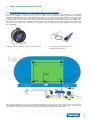
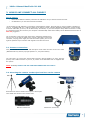
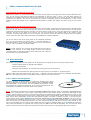
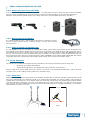
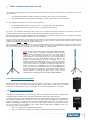
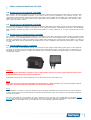
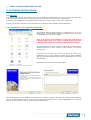


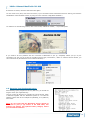
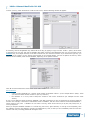
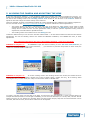
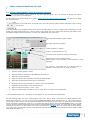

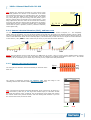
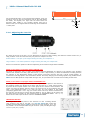
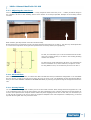
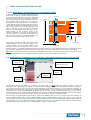

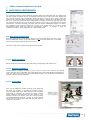
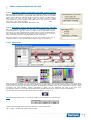
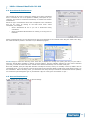


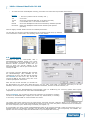

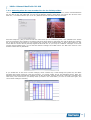

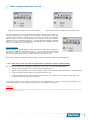
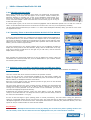

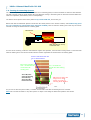
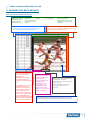

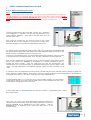
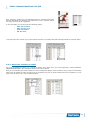
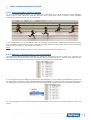

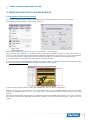

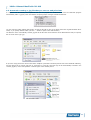
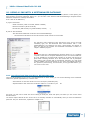
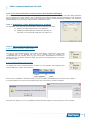
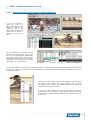
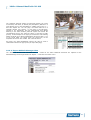

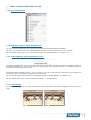
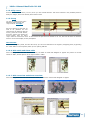


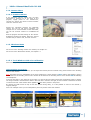

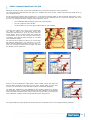

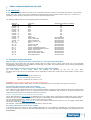
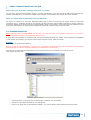



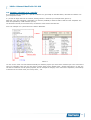
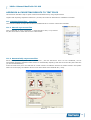
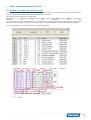
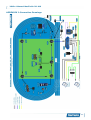
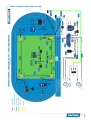

![English [2015v1]](http://vs1.manualzilla.com/store/data/005829431_1-1fdc30543d444fb0915a40c3aab945a8-150x150.png)
![English [2012v1]](http://vs1.manualzilla.com/store/data/005994732_1-5b50c16b769d7d14a751f578cdbfd574-150x150.png)


![English [2012v1]](http://vs1.manualzilla.com/store/data/005947215_1-83afe423bc1815c8427a220bc0eb1bc7-150x150.png)
![English [2012v1]](http://vs1.manualzilla.com/store/data/005770981_1-8c196de42073f8db3e58cd387e9490be-150x150.png)
![English [2012v1]](http://vs1.manualzilla.com/store/data/005857990_1-ba5aca9850e0a37c2eb2dd5a5d355973-150x150.png)

![English [2012v1]](http://vs1.manualzilla.com/store/data/005666127_1-015c2c1b906ab908850f1f1f8721a849-150x150.png)