1
Table of Contents:
SmartGuard
E300CA-1/E150CA-1
SmartGuard Overview .......................................................... 2
Definition of View Parts......................................................... 3
Installation............................................................................. 4
Step 1 Insert/remove SD card......................................... 4
Step 2 Bulb Installation ................................................... 4
Step 3 Install Back Up Batteries ..................................... 5
Step 4 Local Time Setting ............................................... 5
Step 5 Function Setting................................................... 6
Step 6 Adjusting the Control Knobs ................................ 9
Step 7 Mounting SmartGuard ......................................... 9
How to View the Video ........................................................ 12
Test SmartGuard................................................................. 12
Troubleshooting .................................................................. 13
Specification........................................................................ 13
Contents of Package:
User’s Manual
No.
1
2
3
4
5
6
Item
Base Unit (E300CA-1/E150CA-1)
AA Size 1.5V Alkaline Battery
2GB SD Card
Screw Pack
Halogen Bulb
Operating Instruction Manual
1
Qty
1
4
1
1
1
1
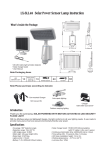
SmartGuard Overview
Side View
Features
z
z
z
z
z
z
z
Crystal Clear Color Video Camera (640*480)
Motion Activated Security Light
Capture 20sec/1min/5mins video when motion detected
SD card memory slot, 2GB SD card included
4 Alert Sounds for selection (2 are recordable)
4 Scenes satisfy various using scenario
Weather proof, easy to install
Front View
Battery Cover
SD Slot
Floodlight Cover
Definition of View Parts
Floodlight Screw
Front View
Lampshade
Microphone
Floodlight Cover:
Lampshade:
Floodlight Screw:
Microphone:
Cam Lens:
PIR Lens:
Mounting Hole:
Cover Plate:
Mounting hole
Cover Plate
Cam Lens
PIR Lens
Open to replace/change lamp.
Glass for lamp protection.
Use to open/close the floodlight case.
Takes record of your voice/sound.
This is a digital camera lens.
Passive Infrared movement sensor
For fixing SmartGuard on the wall.
For mounting SmartGuard & wire covering.
Bottom & Side View
Bottom View
Speaker:
Lux Control Knob:
Speaker
Time Control Knob:
Lux Control
Knob
Time Control
Knob
2
LCD Control
Display & Set
Buttons
Plays recorded/preset sounds
For adjusting the ambient lighting level at which the
floodlight will turn on automatically
For adjusting the time that the halogen floodlight will stay
on for.
LCD Control Display
& Set Buttons:
Icon display showing settings. Refer to Step 4 for more
instructions on function setting.
Battery Cover:
For inserting batteries.
SD Slot:
For inserting a SD memory card.
3
Installation
Step 1
z
z
z
Insert/remove SD card
Unscrew the cover using provided Allen key (FIG. 1a)
Insert provided 2GB SD card or SD card with memory up to 32GB by your choice
into the card slot (FIG. 1b).
Refit the cover, and fasten the screw clockwise (FIG. 1c).
2
1
CAUTION:
(1) Always handle quartz halogen bulb with a soft cloth. Do not touch the bulb with
your bare hand as it will shorten the bulb life.
(2) Do not touch the light while it is in use or still hot. Cool off (about 5 minutes)
before touching it.
Step 3
z
z
0.
8
z
3
2
SCREW HEAD DIMENSION
UNIT:MM
FIG. 1a
1
FIG. 1b
FIG. 1c
Note: If SD card is not inserted properly or not found, SmartGuard will beep 10
seconds once an hour as indication after powering up.
CAUTION:
For security reason, please do not remove the SD card frequently unless an
irregular condition has occurred (e.g. detection of an intruder or breaking attempts).
To view video, please refer to “Viewing Video” at p12.
z
Install Back Up Batteries
Unscrew and remove the screw of Battery
Cover.
Press and release the cover of battery
compartment
Insert 4 AA size 1.5V alkaline batteries to
the battery spring and make sure polarity (+) is aligned correctly.
Refit the battery cover.
Note: The batteries power supports most
functions of SmartGuard except lighting.
Step 4
Local Time Setting
The SmartGuard has a LCD panel with three control knobs: Set, Up and Down.
Step 2
Once SmartGuard is powered up, it enters PIR warm up time. After 3 seconds, the
unit enters standby mode. It implies the unit is ready for function setting.
Bulb Installation
z
z
z
z
Disconnect the power cord or wall switch
Remove floodlight cover by unscrewing the screw at the
bottom edge of the front surround (FIG. 2a) using Phillips
head screw driver.
z Take off the front surround, install a
150/300 watts bulb (please refer to
FIG. 2a
Specification on p.13 for correct halogen
bulb for E150CA-1/E300CA-1).
Rotate halogen bulb to assure proper seating.
Refit the front surround in place and fasten the screw (FIG. 2b).
Warm Up
Standby Mode
FIG. 2b
4
5
Year
z
z
Under standby mode, press Set for 3
seconds.
After
displays on LCD, press Up or
Down to select correct year. Year range
is between 2010 ~ 2099.
Date & Time
z
z
z
z
z
z
z
After year setting, press Set to enter
month & date.
displays on LCD, press Up or Down
to select month from Jan to Dec.
Press Set again to adjust date.
Press Up or Down to adjust date from
1st to 31st.
Press Set again to enter time setting.
Hour ranges from 00 to 23, press Up or
Down to set hour.
Press Set again to adjust minute, and
press Up or Down to adjust minute from 00 to 59.
Note: If no action is taken within 12 seconds, the LCD returns back to standby mode.
Setting is not saved.
Step 5
Scene Mode
Four scene modes are available for selection.
Please base on different conditions to select an
ideal scene mode.
z
z
Scene 1
Scene 2
Scene 3
Scene 4
Day
Night
Day
Night
Day
Night
Day
Night
Camera
√
√
√
√
√
√
Speaker
√
√
√
Light
√
√
√
√
√
√
Note: The symbol √ implies the function is ON. The cutting point between day and
night is the LUX level you set. For example, if LUX level is set at 150 LUX, day is
defined when the ambient light is brighter than 150 LUX whereas night is defined when
the ambient light falls below 150 LUX. Please refer to p.9 for LUX adjustment.
Audio Warning
Function Setting
Please make sure the SmartGuard is in standby mode before continuing the following
procedures.
z
Scene 1: Ideal for away from home (all day detection)
No matter it’s day or night, camera, speaker and light are all in operation.
Scene 2: Ideal for day to day use
Light isn’t operating in daytime while speaker isn’t operating at night.
Scene 3: Ideal for a place of business
All functions are operating at night while only camera is operating in the
daytime.
Scene 4: Ideal for using as a working light
All functions are off except lighting is operating at night. The light turns on
if PIR sensor detects a motion.
Four warning sounds are available for selection.
z
z
z
Under scene mode, press Set once to enter audio warning 1 (preset mode).
The light turns on indicating SmartGuard is ready for setting.
Press Up or Down to change audio warning.
Audio warning 1: Alarm Sound
Audio warning 3 & 4: Empty (for user recording)
Audio warning 2: Dog Sound
Audio warning 5: Mute Mode
8
Press Set to enter scene 1 (preset mode). The light turns on indicating
SmartGuard is ready for setting.
Press Up or Down to change scene.
To save the setting, keep press Set until it returns to standby mode.
6
Audio Warning 1
7
Mute Mode
To record your own sound/voice:
z
z
z
z
Step 6
Select audio warning 3 or 4.
Press Set for 3 seconds, the light flashes
once implies the SmartGuard is ready for
recording.
Wait for 5 seconds, LCD occurs with
REC, the recording starts.
After that, LCD returns back to audio
warning 3 or 4. The recorded sound
will be played for verification.
Note: The recording time is 10 seconds. If video is in the middle of recording, the
setting of audio warning will not be available until video recording is finished.
Adjusting the Control Knobs
Time Control
The TIME adjustment controls the video recording time and
amount of TIME light stays on after the motion is detected.
z
Set the amount of TIME by sliding the knob to 20sec, 1
or 5 minutes.
Note: Light stays on time might be extended as long as a
motion is detected.
Lux Adjustment
The LUX adjustment determines at what light level the light starts
operating.
PIR Sensitivity
Four levels of PIR sensitivities are available
for selection to achieve an optimal
performance of PIR detection.
z
z
z
Under audio warning mode, press Set
once to enter PIR sensitivity 1 (preset mode).
The light turns on indicating SmartGuard is ready for setting.
Press Up or Down to change PIR sensitivity.
z
Set the LUX control knob to any position between sun
z
z
z
(200LUX) and moon
(20LUX).
Set scene mode to Scene 2 (refer to p.6 for scene setting).
If ambient light falls below the set LUX level, the light will start operating.
Adjust LUX control knob slightly until desired LUX level is found.
Step 7
Mounting SmartGuard
Note: PIR sensitivity 1 is the highest sensitivity level while PIR sensitivity 4 is the
lowest sensitivity level.
Safety Precautions
z
ID Code Learning (for remote
controller only)
z
This setting is equipped for remote controller.
Please note the remote controller is sold
separately.
z
Do not install SmartGuard when it is
raining.
Be sure to switch off power source
before installing.
When mounting on the wall, it can
be installed only vertically, not
horizontally.
VERTICAL
8
9
HORIZONTAL
Wire SmartGuard
IMPORTANT
Some local building codes may require installation of this product by a qualified
electrician.
Mounting Straps
z
z
Check your local codes as they apply to your situation. If the house wiring is of
aluminum, consult with an electrician about proper wiring methods.
z
Maintenance or repairing work such as replacing current fuse shall be done by a
qualified electrician or technician.
Before proceeding with the installation, TURN OFF THE POWER TO THE
LIGHTING CIRCUIT AT THE CIRCUIT BREAKER OR FUSE BOX TO AVOID
ELECTRICAL SHOCK.
Switch off the power source or wall switch.
Align the mounting straps to the junction box with
the holes. Secure with mounting screws.
Twist the junction box wires with fixture wires
together as shown below. Secure with provided
wire nuts.
Yellow/Green to
Yellow/Green (earth)
Wire Nuts
Junction Box
Choose a Location
12
Before mounting the SmartGuard, please consider and
select a location for the unit based on the coverage
angles as shown on the right and the following conditions:
4
z
0
z
z
z
z
8
110°
For the best results, fix the unit on a solid surface,
2~2.5m above the ground.
Avoid aiming the unit at pools, heating vents, air
conditioners or objects which may change
temperature rapidly.
Do not allow sunlight to fall directly on the front of
unit.
Try to avoid pointing the unit at trees or shrubs or
where the motion of pets may be detected.
Prior to mounting the unit, remember to position the
motion sensor so that a moving object cuts “across”
its beams, not directly towards them. (FIG. 3a, p.10).
TOP VIEW
Brown to Brown (live)
4
Blue to Blue (neutral)
8
12
z
2
UNIT:m
0
4
8
12
z
Align the mounting holes to the mounting
straps, secure with two provided screws.
Switch on the power source or wall switch.
SIDE VIEW
N
AC
POWER
L
SENSOR
LESS SENSITIVE
SENSOR
MORE SENSITIVE
WALL
SWITCH
SENSITIVITY TO MOTION
FIG. 3a
FIG. 3b
Install a wall switch adjacent to the power source (FIG. 3b). This will help you operate
SmartGuard with ease.
10
CAUTION:
THIS EQUIPMENT MUST NOT BE MOUNTED ON AN OUTLET BOX
WHICH IS SUPPORTED BY A BAR HANGER or equivalent (NE PAS
MONTER CET ÉQUIPEMENT SUR UNE BOÎTE DE SORTIE FIXÉE À UNE
BARRE DE SUSPENSION or equivalent).
11
How to View the Video
z
z
z
Troubleshooting
Open the cover of SD slot.
Push in the SD memory card and it will spring out, carefully
remove it from your SmartGuard.
The recorded file will be saved in .asf format under the
path LIGHT\YMD\time+serial no.asf.
Below is an
example of a self generated file name:
17075600
Hour
Minute Seconds Serial no.
Note: Oldest images are deleted and overwritten as the card reaches capacity to
ensure records of recent events are always available.
Test SmartGuard
It is recommended to test the SmartGuard after the above steps are completed to
ensure your SmartGuard can reach its optimal performance. The following test is
based upon setting of Scene 1 with time control set in 20 seconds and Lux control
switched to the dusk position.
z
z
z
Either day or night, walk into and move slowly around the protected area. Once
the PIR detector senses movements, alert sound is on with the light turn on and
camera records for 20 seconds.
Check the video record. The length of playing time is 20 seconds after the
camera detects a movement plus approx. 4 to 12 seconds of pre-record time
( pre-record image allows you to trace what’s happening before a movement has
been detected).
If recorded images are blurred at night, check the position of camera lens. Turn
the lens down to avoid taking sky as background. Check if floodlight is spotting
on reflective objects. Move reflective objects or adjust mounting position of the
SmartGuard if it is required.
Light does not turn on:
z
Confirm that you have made a correct “wiring connection”.
z
Make sure that the bulb has not burned out and is installed correctly.
Warning Sound is on after powering up:
z
SD card is not inserted.
PIR and LUX is not working:
z
Do not allow sunlight to fall directly on to the front of the unit.
Warning sound and video recording is not on:
z
They are on only when the unit is triggered.
z
Make sure the unit is not on Scene 4.
z
Please re-power the unit
Filmed videos can’t be saved into SD card:
z
Damage of the videos might be caused by inappropriate retrieval/insertion of
SD card; ensure the unit is powered off before the action is taken.
No action is taken after scene changing:
z
Under video recording mode, the scene changing will not happen until PIR
triggering time is finished (e.g. if PIR triggering time is set to 5 mins, the scene
changing will be taken 5 mins later).
Video and sound recording is not executing:
z
The function is disabled if the unit is set to scene 4.
The taken images of people are blurred during the night:
z
Avoid taking images with sky as background; turn the camera lens down if it is
the case.
z
Try not to spot the light on reflective objects; the reflection of light could cause
blurred images.
Specification
120V~ 60Hz for USA or 220-240V~ 50Hz for EU or
1.5V AA alkaline battery x 4 (for SD card & camera only)
Max. 300W Halogen Bulb (E300CA-1) or Max. 150W
Lighting Load
Halogen Bulb (E150CA-1)
Up to 150°
PIR Detection Angle
PIR Detection Distance Up to 12M under 28°C
Protection Class
I
Protection Degree
IP54 for Europe. Suitable for wet locations for USA
Sensor Part: Horizontal 90° (45° left, right), Vertical 30°
Swiveling Angle
(downward)
Mounting Height
2 to 2.5M
Time Adjustment
20 secs/1 min /5 mins
Lux Adjustment
Yes
Warm Up Time
About 60 second
Operating Temperature
-10°C ~ 40°C. 20~85% relative humidity, non-condensation.
Range
Power Requirement
*Specifications are subject to change without prior notice.
12
13
Federal Communication Commission Interference Statement
This equipment has been tested and found to comply with the limits for a Class B digital device,
pursuant to Part 15 of the FCC Rules. These limits are designed to provide reasonable
protection against harmful interference in a residential installation. This equipment generates,
uses and can radiate radio frequency energy and, if not installed and used in accordance with
the instructions, may cause harmful interference to radio communications. However, there is
no guarantee that interference will not occur in a particular installation. If this equipment does
cause harmful interference to radio or television reception, which can be determined by turning
the equipment off and on, the user is encouraged to try to correct the interference by one of the
following measures:
- Reorient or relocate the receiving antenna.
- Increase the separation between the equipment and receiver.
- Connect the equipment into an outlet on a circuit different from that to which the receiver is
connected.
- Consult the dealer or an experienced radio/TV technician for help.
This device complies with part 15 of the FCC rules. Operation is subject to the following two
conditions.
1)
2)
This device may not cause harmful interference, and
This device must accept any interference received, including interference that may cause
undesired operation.
Per FCC 15.21, you are cautioned that changes or modifications not expressly approved by the
part responsible for compliance could void the user’s authority to operate the equipment.
IMPORTANT NOTE:
FCC Radiation Exposure Statement:
This equipment complies with FCC radiation exposure limits set forth for an uncontrolled
environment. End users must follow the specific operating instructions for satisfying RF
exposure compliance.
This transmitter must not be co-located or operating in conjunction with any other antenna or
transmitter.
Do not dispose of electrical appliances as unsorted municipal waste, use separate collection
facilities.
Contact your local government for information regarding the collection systems available.
If electrical appliances are disposed of in landfills or dumps, hazardous substances can leak into
the groundwater and get into the food chain, damaging your health and well-being.
When replacing old appliances with new once, the retailer is legally obligated to take back your
old appliance for disposal at least for free of charge.
14