1
A.2 Batch Input Data Format
A.2
85
Batch Input Data Format
The Diana batch input data file is subdivided vertically in an optional title
section followed by tables, and horizontally in fields. See also § A.1 on page 77
for general rules of syntax and notation.
A.2.1
Title
Before the actual input data, a title can be placed as an identification for the
analysis. This title may consist of an arbitrary number of lines of text, for
example, the name of the project, the principal, the date, etc.
The title is printed at the beginning of every Diana output file. The first
line of the title has a special status, it will be printed above every page of tabular
output.
A.2.2
Tables
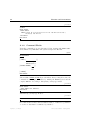
Each table has a name of which only the first six letters are significant. For
example: COORDI and COORDINATES are both correct names for a table with
nodal coordinates. The name of the table is given between single quotes and on
a separate line, the heading line. The first quote must be in column one of the
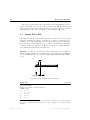
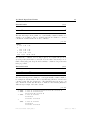
input file. An example of a heading line is:
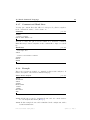
file .dat
’COORDI’
The heading line precedes the actual data. Sometimes one or more parameters
can follow the name of the table. These consist of two letters, followed by an =
sign, after which the value of the parameter must follow. A typical example of
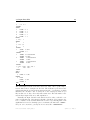
a parameter is the specification of the dimensions of a table such as:
file .dat
’COORDI’ DI=2
This indicates that these are coordinates in a two-dimensional coordinate system. Most of the parameters for tables are optional, if they are left out, Diana
will assume a reasonable default value. This default value is indicated in the
explanation following the formal syntax description of the table.
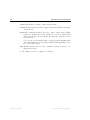
Tables may be in the input file in a random order; however, the last table
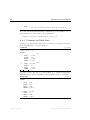
should be closed with the line:
syntax
’END’
This line also indicates the end of the applicable input. After this ’END’-line,
parts of input which are no longer or not yet applicable can be ‘parked’.
Diana-9.3 User’s Manual – Getting Started
April 25, 2008 – First ed.