1
user manual
Last updated on 01/14/2015
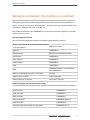
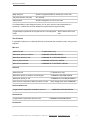
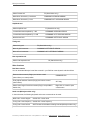
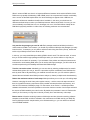
Melodyne assistant
The Melodyne online manual and this PDF document
This PDF document was generated automatically from the contents of the Melodyne online manual. It
contains what was the latest version of text and images at the time indicated on the front page.
We are regularly adding to and updating the online edition of the manual, which is accompanied by
numerous films and inspiring tutorials. You will find these as well as the latest version of this PDF
document on our web site. Why not take a look now?
The Melodyne online manual: http://www.celemony.com/id/helpcenter
Introduction
Installation and Activation
Installation and Terminology • Melodyne "singletrack" – and what that means •
Important Information Regarding Activation • The iLok Alternative • Where can I find my
Melodyne serial number?
Welcome!
What Melodyne is and what it's for
Quick Start Guide
Stand-Alone or Plugin • Transfers and replace ranges • Note detection and algorithm
selection • Navigation, playback functions and cycle mode • Note selection and copying
• Macros and tools • The pitch grid and scale functions • Tempo functions • Saving
your work and file management
Melodyne condensed : the interface in a nutshell
General program functions • Navigation, selection and playback • Tool functions •
Other functions
© Celemony Software GmbH 2015 • Last updated on 14.01.2015 • Online Manual • www.celemony.com
2
Melodyne assistant
Strategies for optimizing performance and stability
Tip 1: The size of your DAW's buffer • Tip 2: Avoid running short of RAM • Tip 3: The
correct DAW settings • Tip 4: Always use the latest version of Melodyne • Tip 5: Use
the correct audio driver format • Tip 6: Use the latest version of the audio driver • If our
tips are of no help
Preferences
Melodyne Plugin's preferences property sheet • Melodyne Stand-Alone's preferences
property sheet
Melodyne and your DAW
Melodyne in Pro Tools
Current issues: Tips on switching from Pro Tools 10 to 11 • Loading the Melodyne
plug-in • Backing up and exchanging projects • Duplicating tracks • Saving plug-in
settings for Melodyne • Bouncing/printing Melodyne edits • Rewire • Miscellaneous
notes • Notes regarding earlier versions
Melodyne in Logic Pro
Loading the Melodyne plug-in • Backing up and exchanging projects • Duplicating
tracks • Saving plug-in settings for Melodyne • Bouncing/printing Melodyne edits •
Rewire • Miscellaneous notes • Notes regarding older versions
Melodyne in Cubase/Nuendo
Loading the Melodyne plug-in • Backing up and exchanging projects • Duplicating
tracks • Saving plug-in settings for Melodyne • Exporting/printing Melodyne edits (audio
mixdown) • Rewire • Miscellaneous notes
Melodyne in Presonus Studio One using ARA
Loading and installing Melodyne • Editing an audio event with Melodyne and ARA •
Operating procedures no longer necessary thanks to ARA • Changes to audio events
that Melodyne follows automatically • The time stretching behavior of Studio One and
Melodyne • Inserting Melodyne into a channel strip: no ARA • Bypassing or removing
Melodyne from an audio event • Tips & Tricks
Melodyne in Cakewalk Sonar X3 with ARA
Installing Melodyne • Editing of an audio region or a clip with Melodyne and ARA •
Procedures that are no longer necessary thanks to ARA • Changes to audio clips that
Melodyne follows automatically • The time-stretching behavior of Sonar and Melodyne •
Inserting Melodyne into a channel strip: no ARA • Bypassing Melodyne or removing it
from a clip • Other things you should know about the use of Sonar
© Celemony Software GmbH 2015 • Last updated on 14.01.2015 • Online Manual • www.celemony.com
3
Melodyne assistant
Melodyne in Live
Loading the Melodyne plug-in • Melodyne in Live's Session View • Backing up and
exchanging projects • Duplicating tracks • Saving plug-in settings for Melodyne •
Bouncing/printing Melodyne edits (freezing/flattening) • Rewire • Miscellaneous notes
Loading, transferring and saving
Transferring audio material to Melodyne Plugin
Transferring audio • Replace Ranges
Loading and saving audio in Melodyne Stand-Alone
Opening files from the File menu • Opening files by drag-and-drop • Saving your work •
Save as Melodyne Project Document
Recording audio in Melodyne Stand-Alone
Audio settings • Tempo and metronome • Starting and stopping the recording
Saving as MIDI
Audio-to-MIDI • Saving as MIDI • Save all notes or only those in the cycle zone
Managing audio files and assigning missing files
Melodyne Plugin's transfer files • Melodyne Plugin's file manager • Deleting unwanted
files in the plug-in • The assignment of missing files in the plug-in • Assigning missing
files in the Stand-Alone implementation
Operating Melodyne with Rewire
Rewire and Melodyne • Activating Rewire in Melodyne Stand-Alone • Activating Rewire
in your DAW and establishing the link • Selecting Rewire channels in Melodyne •
Synchronization and tempo behavior
Checking and editing the note detection
Choosing the algorithm
The detection process • Melodic • Percussive • Polyphonic • Switching algorithms •
Setting a default algorithm (Melodyne editor only)
© Celemony Software GmbH 2015 • Last updated on 14.01.2015 • Online Manual • www.celemony.com
4
Melodyne assistant
Checking and editing the note detection within melodic material
The procedure • The Monitoring Synthesizer • Note separation • Quitting note
assignment mode
Checking and editing the note detection within rhythmic material
The procedure • Leaving note assignment mode
Displaying, navigating and playing back audio
Playback, navigation and zooming
Resizing the window • Controlling playback using the keyboard and transport bar •
Controlling playback, scrubbing and zooming using the bar ruler • Scrolling and
zooming in the edit pane • Playback functions in Melodyne Stand-Alone and Plugin
(when the DAW is stopped) • Navigation and zoom functions
Activating and setting a cycle range
The procedure
Select display options
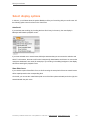
Auto Scroll • Show Pitch Curve • Show Note Separations • Show Blob Info • Show
Intended Notes • Show Notation • Show Replace Ranges (Plugin only) • Show
real-time controls (Plugin only)
Selecting notes
Standard selection techniques • Snake selection • Selection using the pitch ruler •
Selection commands in the menu
Copying notes
Inserting one note • Replacing a note • Copying and pasting multiple notes
The real-time controls
The real-time pitch, formant and volume knobs
Setting the Time Grid and the Pitch Grid
© Celemony Software GmbH 2015 • Last updated on 14.01.2015 • Online Manual • www.celemony.com
5
Melodyne assistant
Time grid selection
The procedure
Matching Melodyne Stand-Alone's time grid to the audio
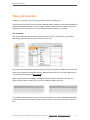
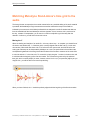
Moving the '1' • Correcting the tempo interpretation • Specifying a fixed tempo • Set
Bar 1 to Start of File • Redetecting the tempo
Adjusting to tempo variation in the DAW
A new constant tempo • A progressive tempo change • Important when working with
variable tempo
The pitch grid and scales
Melodyne's scale functions • Choosing the pitch grid • The scale and reference pitch
rulers • Adjusting the master tuning • Selecting the tonic and scale variety • The Open
Scale window
Editing notes using the Macros and Tools
Correcting intonation by macro
The procedure
Correcting timing using the macro
Correcting timing: the 'what' and 'where' of it • Use of the quantize time macro
Working with the main tool
Modifying pitch and timing • Modifying note lengths • Editing note separations
Editing pitch
The pitch tool • Monitoring • The inspector • Quantizing pitch to the semitone • Pitch
transitions • Resetting specific edits and introducing random deviations
© Celemony Software GmbH 2015 • Last updated on 14.01.2015 • Online Manual • www.celemony.com
6
Melodyne assistant
Editing pitch modulation and drift
The tools • The inspector • The Reset commands
Shifting formants
Editing formants • The inspector • Formant transitions • The Reset commands
Editing amplitude and muting notes
Adjusting the amplitude • The inspector • Amplitude transitions • Muting and unmuting
notes • The Reset commands
Editing timing
Modifying position and length • Correcting timing with a double-click • Adding random
deviations
Editing note separations
Inserting, moving and removing note separations
© Celemony Software GmbH 2015 • Last updated on 14.01.2015 • Online Manual • www.celemony.com
7
Melodyne assistant
Installation and Activation
In the following, you will learn how to install and activate Melodyne.
Installation and Terminology
Melodyne is extremely easy to install: just launch the installation program (either from the program CD
or the download) and follow the onscreen instructions. The whole installation takes, at most, a few
minutes. Before using the program, however, you must register and activate Melodyne. Here is a brief
explanation of the terminology:
Serial number: Your serial number represents your license for Melodyne and determines which
Melodyne edition you possess and to which functions you are entitled.
Registration: Registration involves the creation of a myCelemony account linked to your serial number.
To register you must enter certain personal details and state whether you wish to receive a newsletter
from Celemony and, if so, what type. If you purchased Melodyne from our web shop, the registration is
already complete.
Activation: Once registered, Melodyne must be activated before it will run. We offer, as standard, a
computer-based activation for two computers, and, as an alternative, the transfer of your license to an
iLok.
Before we come to the details of the activation procedure, we should take a quick look at the installed
software and its characteristics.
Melodyne "singletrack" – and what that means
In the course of the installation, Melodyne is copied as a plug-in into the relevant plug-in folders and
as a stand-alone program into your program folder. The plug-ins are called, quite simply, “Melodyne”,
and the stand-alone implementation: “Melodyne singletrack”. You may be puzzled by this name – after
all, your edition of Melodyne has a different one: “Melodyne editor”, “Melodyne assistant” or “Melodyne
essential”.
These three editions of Melodyne are delivered as a single program package. It is only your serial
number (your license) and the activation triggered by it that determine which edition in fact runs from
the installed program. Since the identity of this is not known prior to the activation, and since it is not
possible to change the program name subsequently, all the plug-ins bear the name “Melodyne” and all
the stand-alone editions “Melodyne singletrack” (to distinguish them from the multi-track ‘Melodyne
studio’).
The name of the current edition is displayed between the tools and the macros in the user interface.
You may need to increase the size of the Melodyne window to see it.
© Celemony Software GmbH 2015 • Last updated on 14.01.2015 • Online Manual • www.celemony.com
8
Melodyne assistant
The common program code primarily serves to make full compatibility between the Melodyne editions
editor, assistant and essential possible. It is no problem to open in Melodyne assistant or Melodyne
editor a project begun in Melodyne essential, and work thereafter with the expanded function set of
the larger edition. It works the other way round as well: a project begun in Melodyne editor can be
loaded into one of the smaller editions, played back and edited using the functions available there. It is
only when Melodyne editor’s DNA functions for the editing of polyphonic material have been used that
the document created can merely be played back but not edited in a smaller edition. When this
occurs, we say Melodyne is running in ‘Playback Mode’.
Melodyne also runs in Playback Mode when it has been installed but not activated. It is still possible to
open and play back all existing documents in such cases, but you cannot edit them. Playback Mode
can be very useful when you want to pass on a project, as it allows you to play back tracks edited in
Melodyne – without having to bounce them first – on a computer on which Melodyne has either never
been activated or has subsequently been deactivated. Playback Mode can be used at any time –
without registration, activation or even an Internet connection.
The common program code also allows you, when working with a smaller edition of Melodyne or an
installation that has not been activated, to switch to Melodyne editor’s Trial Mode. In Trial Mode, you
can use Melodyne editor’s entire function set for a limited amount of time. When this trial period
expires, Melodyne reverts to the original license or switches to Playback Mode. You can only take
advantage of the free trial period once on a given computer. To register, and each time you launch
Melodyne editor during the trial period, you will need an Internet connection.
© Celemony Software GmbH 2015 • Last updated on 14.01.2015 • Online Manual • www.celemony.com
9
Melodyne assistant
The common program code also makes it possible to upgrade at any time, and without a fresh
installation, from Melodyne assistant or Melodyne essential to Melodyne editor. It is enough for this
purpose simply to purchase a license for Melodyne editor and then activate it – all of which can be
done with a few clicks in our Web Shop.
Important Information Regarding Activation
The first time you launch Melodyne, the Activation Assistant appears. If you purchased your Melodyne
from our Web Shop, a single click in the Assistant is all that is required and your Melodyne will be
activated and ready to use. If your Melodyne came in a box, the Assistant will guide you through all
the steps that are necessary for registration and activation. The activation is performed on line. If your
computer is not connected to the Internet, the Assistant will propose a method of activating the
program offline.
You can reach the Activation Assistant whenever you need to via “License ...” in Melodyne’s Help
menu. All the options offered by the Assistant are explained in the Assistant itself. The following
sections explain how these options relate to one another as well as providing important background
information regarding activation. Please read them through carefully as they are concerned directly
with such questions as when, why and how often you can install and use Melodyne on computers.
Two computer-based activations: Melodyne activation is, by default, computer-based; in other
words, the activation is tied to the computer upon which it is performed. A Melodyne license
entitles you to activate and use Melodyne on two different computers simultaneously, such as
your studio computer and your laptop. The activations are managed and granted by our server.
You will see how many activation credits you have at any given moment in your myCelemony
account as soon as you log in.
Deactivating a computer: We allow you complete control over the allocation of your activation
rights by allowing you the option also of deactivating computers. Suppose, for example, that
you have already activated Melodyne on two computers but wish to use a third one temporarily.
No problem: all you have to do is deactivate one of the computers currently activated. This will
free up one activation credit, which will then be transferred to our server. You can use this then
to activate the third computer. If, later, you wish to go back to your original pairing, just
deactivate the third computer and reactivate the one you deactivated earlier.
So our server provides you with two activations that you can share freely between your various
computers. This makes it very simple, for example, to switch to a new music computer. Instead of
having to worry about whether or not you will be entitled to activate Melodyne on the new computer,
you just deactivate the old one, thereby automatically freeing up an activation credit for the new one.
This possibility also means, however, that you need to act in a carefully considered way! The
activations are intended exclusively for you and are tied to your customer account. Do not, therefore,
give away an activation to a third party. Please bear in mind also that the procedure for removing an
activation from a computer can only be performed on that computer. If you no longer have access to
© Celemony Software GmbH 2015 • Last updated on 14.01.2015 • Online Manual • www.celemony.com
10
Melodyne assistant
an activated computer, the activation, as far as you are concerned, is lost. This is something you need
to bear in mind, for example, before selling or throwing away a computer upon which Melodyne is
active. Be sure to deactivate Melodyne first!
You have nothing to worry about, on the other hand, if all you are doing is changing or formatting your
hard disk in order to reinstall the operating system. Your activation in this case will not be lost. The
first time you launch Melodyne after doing either of these things, it will contact the Celemony server,
which will recognize the computer at once and reactivate it—without this costing you an activation
credit.
The iLok Alternative
Melodyne editor and Melodyne assistant (but not Melodyne essential) can, as an alternative to the
computer-based activation system described above, be activated using an iLok copy-protection dongle
(for more information, visit www.ilok.com). This procedure involves transferring your Melodyne license
to your iLok account, from which you can then download it to your iLok copy-protection dongle. With
the iLok dongle, you will then be able to activate and operate Melodyne on any number of different
computers, but only on one at a time: that is to say, only on the computer in which the dongle is
inserted.
However, before opting for iLok activation, please bear the following in mind: the iLok system can be
used as an alternative to (but not parallel with) computer-based activation. Once you have switched to
the iLok system, you will not be able to obtain any further computer-based activations. It is not
possible, in other words, to go back to computer-based activation once you have made the switch to
iLok. If you do opt for iLok activation, you will obtain one Melodyne license for one iLok dongle that
can be used at any given time on one computer only – whereas the computer-based activation
method affords you the possibility of running Melodyne on two computers at once.
One further point: if you are selling Melodyne, you cannot just transfer the license to the iLok account
of the purchaser; instead you must contact our support. Besides saving you money, as you normally
would have to pay to transfer a license from one iLok account to another, this system allows us to
create a myCelemony account for the purchaser, which we would otherwise be unable to do. If you
were to perform the transfer yourself, the license would remain tied to your own myCelemony account.
© Celemony Software GmbH 2015 • Last updated on 14.01.2015 • Online Manual • www.celemony.com
11
Melodyne assistant
Where can I find my Melodyne serial number?
Here we explain where you can find your new serial number after purchasing a full version, upgrade or
update of Melodyne and where to enter it. Serial numbers form the basis for the registration and
activation – and therefore also the use – of Melodyne.
Full version purchased through a dealer: You will find your serial number in the user manual, which
is in the box. When you install and launch Melodyne for the first time, an activation assistant will
appear. This will ask you for your serial number and guide you through the remaining steps of the
registration and activation procedure.
Full version purchased in the web shop: Since you already registered Melodyne and received a
personalized installation program when you made your purchase in the web shop, you don’t need at
this time to enter a serial number. The first time you launch the program after the installation, our
server will recognize your copy and activate it. If you do need your serial number, however, you will
find it at the top of the activation assistant window, which opens when you choose License from the
Help menu.
Upgrade or update purchased through a dealer: If you buy an upgrade to a more powerful edition,
or else an update to a newer version, of Melodyne in a retail outlet, you will find a new serial number
in the pack. When you first launch the program after installing your upgrade or update, the activation
assistant will appear. This will ask you for your serial number and guide you through the remaining
steps.
Upgrade or update purchased in the web shop: Since you have to log in to purchase an upgrade
or update in the web shop, your new serial number will be added automatically to your customer
account data. When you launch your new edition or version of the program for the first time after the
installation, our server will recognize and activate your copy automatically. If you do need your serial
number, however, you will find it at the top of the activation assistant window, which opens when you
choose License from the Help menu.
New serial numbers and the iLok: Whenever you purchase an upgrade or update, or download a
major free update (such as from Version 1.x to Version 2.x), of Melodyne, you will be issued with a
new serial number. Our server will then send automatically a new license to your iLok account. Just
log in at www.iLok.com and download the new license to your dongle, so that you can use your new
edition or version of Melodyne in the same way as the previous one.
Melodyne essential bundled with Studio One: In the “Studio One Installation ...” window, click
“Download content from Presonus User Account” and scroll down to the entry “Melodyne essential”.
From there, you can copy the serial number and download the installation program directly. Please
note that only Studio One Professional comes with a Melodyne serial number, but if you are using one
of the other editions, you can still download the installation program and run Melodyne in trial mode.
© Celemony Software GmbH 2015 • Last updated on 14.01.2015 • Online Manual • www.celemony.com
12
Melodyne assistant
Related topics
Welcome!
© Celemony Software GmbH 2015 • Last updated on 14.01.2015 • Online Manual • www.celemony.com
13
Melodyne assistant
Welcome!
Many thanks for your interest in Melodyne and a warm welcome to the circle of Melodyne users!
Melodyne is at home in all the great studios of the world and has for years been prized for its intuitive
editing functions and the high quality of its sound. As a Melodyne user, you are in the finest – we
could even say ‘the most illustrious’ - company!
Here at Celemony, we have worked hard to make Melodyne as pleasant to use, as powerful, and as
useful, as possible. We really hope that Melodyne will make your life in the studio easier, be a delight
to use, and inspire you to greater heights of creativity. Let us know how you like it. And don’t hesitate
to contact us if anything doesn’t work quite the way it should – at www.celemony.com, we’re always
here for you.
We hope your work with Melodyne will be productive and that it will bring you a great deal of
satisfaction and pleasure!
Kindest regards,
all at Celemony
© Celemony Software GmbH 2015 • Last updated on 14.01.2015 • Online Manual • www.celemony.com
14
Melodyne assistant
What Melodyne is and what it's for
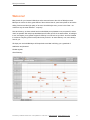
Melodyne allows you edit and display audio material in a highly musical way. What’s remarkable about
it is that Melodyne recognizes the notes in the audio data and displays them on pitch and time grids.
This is far more informative than the kind of display of amplitude values along a time axis offered by
typical sample editors and audio sequencers. With Melodyne, you don’t just see which parts of a
recording are loud and which quiet; you see where notes begin and end, as well as the pitch of each.
That (obviously!) makes a huge difference.
And naturally it is possible not simply to observe but also to seize hold of and modify the notes
displayed. If a tone is flat, for example, you can simply drag it to the correct pitch; if it’s too short, you
can make it longer.
Melodyne’s note-based approach not only makes it a highly sensitive tool for correcting and optimizing
your recordings but also offers you the possibility of making profound changes to your audio material,
restructuring it, and creating from it something altogether new.
Melodyne has for years enjoyed an outstanding reputation for the editing of lead vocals, as it allows
you to make corrections in a musical and intuitive manner that are virtually undetectable by ear. But
what works for this most critical of disciplines works wonders too with other sources, such as musical
instruments. And once you’ve worked for a while with Melodyne, you’ll realize that aside from the
correction of errors there’s a wealth of other valuable applications for you to explore. A few examples:
The creation of second voices or entire ensembles from copies of the original track
The introduction of melodic or harmonic variations when phrases are repeated
Correcting and reconciling the timing of drums and bass
Tidying-up rhythms or using quantization techniques to alter them
Creating breaks and variations in drum loops
and standard disciplines like pitch-shifting and time-stretching, too, of which Melodyne editor
offers complete mastery, delivering outstanding sound quality into the bargain.
Melodyne editor offers you the possibility of intervening in the harmonies of polyphonic audio material
in order, for example, to change a single note within a chord from a major to a minor third – this is
something unprecedented in the history of audio processing and introduces a wholly new dimension of
creative freedom.
With Melodyne assistant and essential, you can edit monophonic sound sources (lead vocals,
saxophone, bass, flute, etc.) as well as rhythmic or unpitched audio material (such as drum loops,
percussion, ambient sounds and noise).
© Celemony Software GmbH 2015 • Last updated on 14.01.2015 • Online Manual • www.celemony.com
15
Melodyne assistant
Download demo arrangements
For Mac OS X (dmg, 44,1 MB)
For Windows (exe, 42,8 MB)
Quick Start Guide
The following guide explains in a nutshell everything you need to know in order to make successful
use of Melodyne.
To get you started, we recommend in addition to this tour the multilingual First Steps film, which you
will find at the top of this page and in which the most important points are clearly demonstrated. You
can also try out the things shown in the film, as all the audio files used in the film are available for
download, ready-packed in arrangements for the most common DAWs.
In the case of keyboard shortcuts, where here we refer to the ‘Command’ key, we mean the key on
the Mac described as either the ‘Command’ or the ‘Apple’ key; on a PC it is marked ‘Ctrl’. The other
keys referred to have the same names on the Mac as the PC.
Stand-Alone or Plugin
You can use Melodyne as either a stand-alone application or a plug-in with any compatible DAW, in
which case you will find Melodyne among the audio-effect plug-ins (not the instrument plug-ins);
Melodyne is used in the same way as an audio insert effect not an instrument plug-in. The plug-in runs
in step with your DAW, which is ideal if you want to perform and check your editing within the context
of a song; for this purpose you can open as many instances of Melodyne simultaneously as the
memory and processing power of your computer will permit.
You will find the stand-alone implementation in your computer’s Programs folder after the installation.
Use this version just like a sample editor: launch the application, open your audio files, edit them, then
save them at the end. The stand-alone implementation is easily to hand when you want to edit
samples independently of a song project. Thanks to ReWire support, however, it can also be
connected to a DAW, which provides an alternative to running Melodyne as a plug-in. You should take
advantage of this possibility if your DAW has no plug-in interface or is incompatible with Melodyne but
does support ReWire.
In terms of core functions, there is no difference between the plug-in and stand-alone implementations
of Melodyne; both offer the same possibilities for editing your audio material.
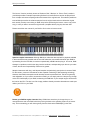
Areas of the user interface and their functions
1.
© Celemony Software GmbH 2015 • Last updated on 14.01.2015 • Online Manual • www.celemony.com
16
Melodyne assistant
1. Editing pane and notes
2. toolbox and inspector
3. Transfer button (Plugin) or transport bar (Stand-Alone)
4. Pitch ruler and scale area
5. Macros for pitch and time correction
6. Real-time volume (Stand-Alone), pitch and formant (Plugin only) controls
7. Zoom and scroll bars
© Celemony Software GmbH 2015 • Last updated on 14.01.2015 • Online Manual • www.celemony.com
17
Melodyne assistant
© Celemony Software GmbH 2015 • Last updated on 14.01.2015 • Online Manual • www.celemony.com
18
Melodyne assistant
Transfers and replace ranges
Whereas with Melodyne Stand-Alone you load the material to be edited by opening the relevant audio
file, with Melodyne Plugin you do this by performing a ‘transfer’. This means that once you have
opened the plug-in in the relevant track, you must transfer to it the passages that need to be worked
on, so that you can see and edit them within Melodyne. When you transfer passages to Plugin, it is as
though it were recording them. Later, during playback, the passages transferred will be played back by
Melodyne whilst the passages that precede and follow them will come as before from the original
audio track – i.e. from your DAW.
Transfers are essential to the use of Melodyne Plugin; it does not operate as a real-time insert effect
in the normal sense.
Having said that, if your DAW supports ‘ARA’, a Celemony extension for widely used plug-in
interfaces, transfers are not necessary. With ARA, you can open in Melodyne an audio region from the
DAW track without having to perform a transfer beforehand.
Activate Melodyne’s Transfer key; from the DAW, play the part of the track you wish to transfer,
and when you get to the end of it, stop the playback in the DAW. You can transfer to Melodyne
passages taken from different parts of the same DAW track.
Once you have finished editing a track, you can save your work using your DAW’s ‘render’ or ‘bounce’
function, insert the resulting audio file into the original track, and remove Melodyne from the track.
During playback after one or several transfers, those passages that have been transferred to
Melodyne will be played back by Melodyne; all other parts of the original track will be played back by
the DAW.
From the View menu, choose ‘Show Replace Ranges’. All sections or regions that will be played back
by Melodyne (as opposed to the DAW) will now be marked. Such regions can be extended simply by
dragging their borders with the mouse. To shorten a playback region, delete a few blobs and select
‘Set Replace Ranges to Notes’ from the context menu of the bar ruler.
© Celemony Software GmbH 2015 • Last updated on 14.01.2015 • Online Manual • www.celemony.com
19
Melodyne assistant
Note detection and algorithm selection
The audio material must first of all be analyzed by Melodyne so that notes within it can be detected
and later edited. The need for this preliminary analysis explains why Melodyne cannot be used as a
real-time effect like a reverb or an echo. Only after the material has been analyzed can the notes be
displayed and Melodyne’s unique functions brought into play. These, of course, do then operate in
real time: every change you make within Melodyne to the audio notes takes effect immediately and
can be heard without delay.
With Melodyne, you can edit monophonic (melodic) and rhythmic/unpitched material. It is Melodyne
itself that decides, based on its own analysis, what type of material it is dealing with. You can,
however, force it to adopt a different interpretation - if, say, the material is not displayed in the way
best suited to the type of editing you have in mind.
When the detection process is complete, select a different algorithm from the Algorithm menu
to force a reinterpretation of the material.
Depending upon the material, it can be necessary to edit the detection manually and reassign
detected notes. With melodic material, a note may occasionally be confused with the same note an
octave higher or lower. Before editing such material, you need to reassign these notes to their correct
pitches; otherwise tonal artifacts could be produced when the material comes to be edited. The aim is
to ensure that the notes you see in Melodyne correspond as closely as possible to the notes actually
played.
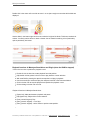
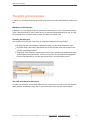
Select the Note Assignment tool, which is set slightly apart from the others, to switch to Note
Assignment mode.
You can leave Note Assignment mode at any time simply by selecting another tool.
© Celemony Software GmbH 2015 • Last updated on 14.01.2015 • Online Manual • www.celemony.com
20
Melodyne assistant
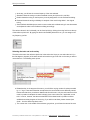
If a note is displayed at the wrong octave, drag it towards the correct one and Melodyne will
intensify its search in the area indicated and relocate it; alternatively, if a ‘hollow’ note is already
displayed at the correct octave, just double-click on it.
The waveform icon beside it switches from the original sound to the monitoring synthesizer, of
which it is also the volume control. The monitoring synthesizer plays only the visible notes and
therefore makes it easier to discern whether or not these correspond to those actually played.
In Melodyne Stand-Alone, [Shift]+[space bar] switches the playback between the original sound
and the monitoring synthesizer. In Plugin, [Shift]-double-click in the bar ruler has the same
effect.
Navigation, playback functions and cycle mode
All the detected tones are displayed as blobs in the editing area. The size of the editing area can be
altered and the blob display zoomed and scrolled.
To resize the window (also in Plugin), drag the bottom right corner
Hold down the [Command] key and drag the editing background to move the area displayed
Use the mouse wheel to scroll up and down or else (holding the [Shift] key) left and right
© Celemony Software GmbH 2015 • Last updated on 14.01.2015 • Online Manual • www.celemony.com
21
Melodyne assistant
Press [Command]+[Alt] and drag in the editing area to zoom the display horizontally and/or
vertically
Press [Command]+[Alt] and use the mouse wheel to zoom both axes simultaneously
Press [Command] and double-click to zoom in on a blob or the current selection
Press [Command} and double-click in the editing background to zoom back
Drag the scrollers to move the display horizontally or vertically
Drag the ends of the slider to zoom horizontally or vertically
Pull one end of the horizontal or vertical slider as far as it will go and hold it to increase the size
of the section displayed (important in the plug-in e.g. when you have only transferred the first
four bars and wish to confine navigation to this area but wish to insert something at Bar 20)
Double-click the scrollers to zoom horizontally or vertically on all notes
The slider in the bottom right corner governs the size of the blob display
In Melodyne Stand-Alone, the usual transport keys are at the top left of the window. You can scrub
through the material in the bar ruler and start the playback by double-clicking on the bar ruler in the
desired place. The same is possible, provided the DAW is stopped, in Melodyne Plugin. It is not
possible to control the DAW’s playback functions from within Melodyne Plugin.
Playback functions in Melodyne Stand-Alone and Plugin (when the DAW is stopped):
Click in the bar ruler to position the playback cursor
Double-click in the bar ruler to start playback from the place where you click
[Alt]-double-click anywhere in the bar ruler to play back the current selection
With most DAWs, pressing the space bar stops the local Plugin playback
Use the arrow keys to select and play the next/previous blob or the blob above/below.
Click in the bar ruler to stop the playback and position the playback cursor
Click and drag in the bar ruler to begin scrubbing
Playback functions in Melodyne Stand-Alone:
[Space bar]: Play/Pause
[Alt]+[space bar]: Play the current selection
[Numeric keypad Enter]: Play
[Numeric keypad “0”] x 1: Stop
[Numeric keypad “0”] x 2: Return to previous start position
[Numeric keypad “0”] x 3: Return to the beginning of the file
Tempo box: Drag the old or type in a new value to alter the tempo and stretch the audio. You
can also type in percentage values in this box
© Celemony Software GmbH 2015 • Last updated on 14.01.2015 • Online Manual • www.celemony.com
22
Melodyne assistant
Melodyne Stand-Alone and Melodyne Plugin both offer a cycle mode. With the plug-in, you can only
activate cycle mode when the DAW is stopped.
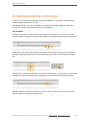
Drag horizontally in the lower part of the bar ruler to define the cycle zone
Double-click in the cycle zone to toggle cycle mode on and off
To move either of the cycle locators, simply click on it and drag
Drag the center of the cycle zone to move the entire zone to the left or right
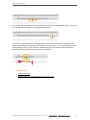
If active, the selected time grid influences the position of the cycle locators
Holding the [Alt] key as you drag the cycle locators causes the time grid to be ignored
[Shift]+clicking near a cycle locator moves it to the designated position
[Shift]double-clicking anywhere in the cycle zone moves the locators to the first and last
selected blob. [Shift][Alt]-double-clicking sets them exactly to the selected notes
Keyboard shortcuts not displayed in the menus of Melodyne Stand-Alone:
Stop: [numeric keypad “0”]
Play: [numeric keypad Enter]
Main tool: [F1]
Pitch tool: [F2]
Formant tool: [F3]
Amplitude tool: [F4]
Time tool: [F5]
Note separation tool: [F6]
Open correct pitch macro: [Command][Shift][P]
Open quantize time macro: [Command][Shift][T]
Note selection and copying
Blobs in the editing area can be selected using all the standard techniques: clicking, [Shift]-clicking,
marquee/lasso/rubber-band selection, etc. In addition, the edit menu offers a sub-menu with a variety
of selection commands.
Standard techniques such as clicking, [Shift]-clicking and lassoing to select and deselect notes
[Shift]-click and then drag the mouse to enter Snake Selection mode
Select notes by clicking or dragging in the pitch ruler; double-clicking selects notes with the
same name in all octaves rather than simply at the pitch clicked
In the pitch ruler also, you can [Shift]-click or [Shift]-drag to add or remove notes from the
selection
© Celemony Software GmbH 2015 • Last updated on 14.01.2015 • Online Manual • www.celemony.com
23
Melodyne assistant
In the Edit menu, you will find the usual Select All command but also a sub-menu with special
selection commands
Melodyne allows you to cut, copy and paste blobs. If prior to pasting a blob (the ‘source’ blob) you
select another (the ‘target’ blob), when you paste, the former will replace the latter. If no blob is
selected at the time of pasting, the source blob will be pasted at the cursor position. If, however, the
blob was offset from the grid prior to copying, it will be offset from the playback cursor after pasting
and by the same amount; if you want the insert point and the cursor position to coincide exactly, set
the time grid to Seconds prior to pasting.
Macros and tools
The pitch and time correction macros (reached via the buttons in the top right corner) can be applied
to a selection. If no tones are selected, the macro in question operates on all the notes.
Manual editing is performed using the tools in the toolbox. The tools are in some cases
context-sensitive, offering different functions when moved over different parts of a blob. For finer
adjustment, hold the [Alt] key when changing parameters. You can also open the toolbox by
right-clicking in the editing area.
The shortcut [Command]+[up/down arrow] applies the main function of the selected tool to the
selected blob. Hold the [Alt] key to change the values by finer increments.
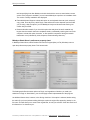
The following chart provides an overview of the functions of the various tools, indicating how these
vary depending upon which part of the blob is clicked or dragged and upon whether you single- or
double-click. The shape of the mouse pointer provides a further indication of the function a given tool
will perform in a given context.
© Celemony Software GmbH 2015 • Last updated on 14.01.2015 • Online Manual • www.celemony.com
24
Melodyne assistant
The pitch grid and scale functions
In Melodyne, you can change the pitch of notes either continuously or in such a way that they snap to
a grid. If the snap function is active, notes can only be moved to pitches allowed by the grid. The grid
can be based on the chromatic scale, the scale of C Major or any other scale.
With a right click on the pitch ruler you open a context menu from which you can select at the top
between No Snap, Chromatic Snap and Scale Snap.
© Celemony Software GmbH 2015 • Last updated on 14.01.2015 • Online Manual • www.celemony.com
25
Melodyne assistant
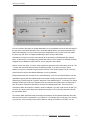
“Selection / Master Tuning” shows the areas that allow you to select a scale and set the overall tuning.
Click on the wide ruler to select a scale.
If you would like more detailed information about editing with the scale functions, please consult the
relevant tours of the Melodyne user manual.
Tempo functions
Next to the tempo box, there is a button that opens a tempo dialog. Both the box and the dialog have
distinct functions in Melodyne Stand-Alone and Melodyne Plugin.
In Plugin, the tempo in the box is merely a display; it cannot be adjusted because the tempo is
determined by the DAW. When the tempo in the DAW changes, you should open the dialog and
inform Melodyne Plugin of the nature and intent of the change: Have you simply selected a new
constant tempo or is a tempo progression (a gradual tempo change) intended? In the latter case, you
should play back the entire song so that Melodyne can ‘learn’ the tempo progression – do this prior to
the first transfer. When working with tempo or time signature changes, please consult the tour entitled
‘Adjusting to Variable Tempo in the DAW’ in the Melodyne user manual. In the tempo dialog, you can
also select whether or not time-stretching and time-compression should be applied to the audio to take
account of any tempo changes.
In Stand-Alone, dragging the value in the tempo box or typing in a new one alters the tempo and the
audio is time-stretched or -compressed accordingly. If, instead of this, you simply wish the grid
beneath the blobs to change (without influencing the audio tempo), use the tempo dialog. Usually if
you want to change the grid resolution, it will be because the tempo detected is either twice as fast or
half the speed of the tempo you prefer; or because slight variations in tempo by the performer have
led to a varying tempo being detected, when a strict tempo was intended.
© Celemony Software GmbH 2015 • Last updated on 14.01.2015 • Online Manual • www.celemony.com
26
Melodyne assistant
Saving your work and file management
In Melodyne Stand-Alone, you save your edits in the standard manner, as a new audio file with the
same format as the original file. The original file is retained as a backup.
If you want to continue editing a file at a later date, you should choose Save As from the File menu
and the format Melodyne Project Document. This format saves the editing separately from the original
audio file, so there is no need for a fresh analysis to be conducted each time you resume work. Only
when you have completely finished editing should you save the results as an audio file.
In Melodyne Plugin, it is not necessary to save your work manually, as this is done automatically by
the DAW project. If you want to save the contents of Melodyne Plugin as an audio file, you must use
the bounce/render function of your DAW.
Each time audio material is transferred, Melodyne Plugin makes a copy of the new segment. These
files are stored by default in the folder indicated by Settings > File Manager > Path for Transfers.
Please note that if you are passing on a project to someone else, you must also include the files
transferred with Melodyne, otherwise Melodyne will not be able to play back the transferred passages.
For this reason, you can select a different destination for each project – the project folder, for example
– so as to ensure that the transfer files are archived and transferred along with the project.
In Melodyne Stand-Alone, you can select under Preferences > Audio > Recording Folder the location
in which the recordings created by Melodyne Stand-Alone are stored temporarily.
© Celemony Software GmbH 2015 • Last updated on 14.01.2015 • Online Manual • www.celemony.com
27
Melodyne assistant
Melodyne condensed : the interface in a nutshell
Keyboard shortcuts allow you to work more swiftly by eliminating mouse movements. Furthermore,
holding down particular keys whilst working with the mouse often gives you access to additional
options. You will find all such techniques listed here – as well as all the most important operations you
can perform in Melodyne with a click or double-click.
Note: where we refer here to the ‘COMMAND’ key, we mean the command or Apple key on the Mac
and the Ctrl key on the PC.
General program functions
Here you will find the keyboard and mouse commands for basic Melodyne functions
Open context menu for blobs and various other objects
in the user interface
Right-click on object
Select all
COMMAND+A
Delete selection
DELETE (PC) BACKSPACE (Mac)
Cut selection
COMMAND+X
Copy selection
COMMAND+C
Paste selection
COMMAND+V
Undo
COMMAND+Z
Redo
COMMAND+SHIFT+Z, under Windows
also COMMAND+Y
Make fine adjustments with tools or value fields
ALT-drag
Select value in inspector
Double-click value
Select entire entry in inspector
Triple-click in inspector
Additional program functions (Stand-Alone only)
The following addiitonal commands are only available in the stand-alone implementation of Melodyne.
New document
COMMAND+N
Open document
COMMAND+O
Save document
COMMAND+S
Save document as
COMMAND+SHIFT+S
Close document
COMMAND+W
Scroll the display automatically during playback
COMMAND+ALT+F
© Celemony Software GmbH 2015 • Last updated on 14.01.2015 • Online Manual • www.celemony.com
28
Melodyne assistant
Activate/deactivate time grid
COMMAND+ALT+T
Open ‘correct pitch’ macro
COMMAND+SHIFT+P
Open ‘quantize time’ macro
COMMAND+SHIFT+T
Navigation, selection and playback
Here you will find all the commands required for navigation, zooming, selection, playback and working
with the cycle function.
Navigation
Position playback cursor
Click in the time ruler
Position playback cursor and
scrub
Drag horizontally in the time ruler (drag vertically to zoom)
Position playback cursor at last
starting point
Press (keypad) 0 once when stopped, twice during playback
(Stand-Alone only)
Position playback cursor at start
Press (keypad) 0 twice when stopped, three times during
playback (Stand-Alone only)
Move editing area (scroll tool)
COMMAND-drag in editing pane
Zooming
Zoom in time
Drag vertically in time ruler (drag horizontally to scrub)
Zoom horizontally/vertically (zoom
COMMAND+ALT-drag horizontally/vertically in the editing
tool)
pane
Zoom on a blob (or selection)
COMMAND-double-click on the blob (or any blob selected)
Zoom out
COMMAND-double-click in editing background
Zoom horizontally/vertically on all
blobs
Double-click horizontal/vertical scroll/zoom slider
Cycle editing
Activate/deactivate cycle
Double-click on cycle beam
Define cycle range (snap to grid)
Drag in cycle ruler
Define cycle range (snap deactivated)
ALT-drag in cycle ruler
Match cycle range to current selection
SHIFT-double-click on cycle ruler
Move cycle beam or cycle borders (snap to grid)
Drag cycle beam or borders
© Celemony Software GmbH 2015 • Last updated on 14.01.2015 • Online Manual • www.celemony.com
29
Melodyne assistant
Move cycle beam or cycle borders (snap deactivated)
ALT-drag cycle beam or borders
Reposition cycle border
SHIFT-click near border in cycle ruler
Reposition cycle border (snap deactivated)
SHIFT+ALT-click near border in cycle ruler
Selection
Select blob
Click on blob
Add/remove blob(s) to/from selection
SHIFT-click on blob(s) or use
lasso
Add/remove notes to/from selection using the pitch ruler (only
within cycle range when cycling)
SHIFT-click or drag in the pitch
ruler
Add/remove notes (in all octaves) to/from selection using the
pitch ruler (only within cycle range when cycling)
SHIFT-double-click
Select adjacent blob
ARROW KEYS
Add adjacent blob to selection
SHIFT+ARROW KEYS
Snake selection
SHIFT-click on a blob and drag to
others
Rotate and select hidden blobs
COMMAND+SHIFT+R (Melodyne
editor Stand-Alone only)
Select all
COMMAND+A
Playback (Plugin)
In the plug-in implementation of Melodyne, you can begin playback independently of the DAW in order
to hear only Melodyne. This is only possible when playback in the DAW is stopped. We call it ‘local
playback’.
Start local playback
Double-click on time ruler with playback in the DAW stopped
Start local playback (selected notes
ALT-double-click on time ruler with playback in the DAW
only)
stopped
Stop local playback
SPACE or click on time ruler
To facilitate editing in note assignment mode, you can opt to hear the notes played back by a
synthesizer, or switch back and forth between the synthesized and original sounds.
Toggle between synthensizer and original sound in note assignment
mode
SHIFT-double-click on time
ruler
Playback (Stand-Alone)
© Celemony Software GmbH 2015 • Last updated on 14.01.2015 • Online Manual • www.celemony.com
30
Melodyne assistant
Begin playback
SPACE or (keypad) ENTER or double-click on time ruler
Play back selection, then stop
ALT+SPACE
Stop playback
SPACE or (keypad) 0 or click on time ruler
To facilitate editing in note assignment mode, you can opt to hear the notes played back by a
synthesizer, or switch back and forth between the synthesized and original sounds.
Toggle between synthensizer and original sound in note assignment
mode
SHIFT-double-click on time
ruler
Tool functions
It is possible to select tools, modify their behavior, and execute their principal functions, using only the
keyboard.
Main tool
Select main tool
F1 (Stand-Alone only)
Raise/lower pitch by a semitone
COMMAND+UP/DOWN ARROW
Raise/lower pitch by a cent
COMMAND+ALT+UP/DOWN ARROW
Move in grid increments
COMMAND+LEFT/RIGHT ARROW
Move in fine increments
COMMAND+ALT+LEFT/RIGHT ARROW
Pitch tool
Select pitch tool
F2 (Stand-Alone only)
Raise/lower pitch by a semitone or scale degree
COMMAND+UP/DOWN ARROW
Raise/lower pitch by a cent
COMMAND+ALT+UP/DOWN ARROW
Hear harmonic context when shifting the pitch of a note
Begin dragging then press COMMAND
Pitch modulation tool
Toggle between original pitch modulation and none
COMMAND+UP/DOWN ARROW
Pitch drift tool
Toggle between original pitch drift and none
COMMAND+UP/DOWN ARROW
Formant tool
© Celemony Software GmbH 2015 • Last updated on 14.01.2015 • Online Manual • www.celemony.com
31
Melodyne assistant
Select formant tool
F3 (Stand-Alone only)
Raise/lower formants by a semitone
COMMAND+UP/DOWN ARROW
Raise/lower formants by a cent
COMMAND+ALT+UP/DOWN ARROW
Amplitude tool
Select amplitude tool
F4 (Stand-Alone only)
Increase/decrease amplitude by 1 dB
COMMAND+UP/DOWN ARROW
Increase/decrease amplitude by 0.1 dB
COMMAND+ALT+UP/DOWN ARROW
Mute/unmute blob
COMMAND+LEFT/RIGHT ARROW
Timing tool
Select timing tool
F5 (Stand-Alone only)
Move in grid increments
COMMAND+LEFT/RIGHT ARROW
Move in fine increments
COMMAND+ALT+LEFT/RIGHT ARROW
Note separation tool
Select note separation tool
F6 (Stand-Alone only)
Other functions
Real-time controls
You can automate Melodyne’s real-time controls in your DAW to create dynamic real-time effects.
Reset real-time controls (Plugin) and volume control
(Stand-Alone) to neutral position
COMMAND-click
Finely adjust real-time controls (Plugin) and volume control
(Stand-Alone)
ALT-drag
Select value range of real-time controls (Plugin, except ARA in
Studio One)
Right-click on control to open
context menu
Scale area (Melodyne editor only)
In the scale area, the following keyboard and mouse commands can be used:
Mode ruler: rename degree
double-click current name
Tuning ruler: enter frequency double-click current frequency
Tuning ruler: insert interval
SHIFT-double-click between existing intervals (Melodyne editor only)
© Celemony Software GmbH 2015 • Last updated on 14.01.2015 • Online Manual • www.celemony.com
32
Melodyne assistant
Tuning ruler: remove interval
SHIFT-double-click on unwanted interval (Melodyne editor only)
Related topics
Installation and Activation
Strategies for optimizing performance and stability
© Celemony Software GmbH 2015 • Last updated on 14.01.2015 • Online Manual • www.celemony.com
33
Melodyne assistant
Strategies for optimizing performance and stability
Melodyne offers unique possibilities at the very frontiers of what is technically possible, but it does
make certain demands on your computer in return. These can prove particularly exacting when you
have multiple instances of Melodyne and other processor-intensive plug-ins loaded into your DAW at
the same time. Knowing how to make the most of the resources available at such times is of crucial
importance to the smooth operation and stability of the overall system. In this tour, therefore, we will
show you how to get the best out of Melodyne and your working environment.
Tip 1: The size of your DAW's buffer
Somewhere among the audio settings or general preferences of your DAW, you will find one that
allows you to adjust the size of the buffer. The buffer size is given in samples, often accompanied by a
display in milliseconds. In simple language, the buffer size determines the size of the ‘chunks’ of audio
data the computer receives from the DAW and processes.
For Melodyne to function reliably, the size of the DAW’s buffer must be at least 512 samples,
but we recommend a buffer size of 1,024 samples.
If the buffer is any smaller, the load on the CPU is increased considerably, quickly leading to dropouts
and artifacts in the audio reproduction. Having a sufficiently large buffer is not only important for the
use of Melodyne but also of advantage to other plug-ins as well as the DAW itself.
Of course, there are also situations in which a larger buffer can be a disadvantage. When monitoring
through the computer or playing software instruments, for example, the larger the buffer, the greater
the delay (latency), and this can prove distracting. If possible, therefore, you should use the
latency-free direct monitoring function in the channel strip of your mixer or audio interface.
If during recording, however, you are obliged to monitor via the computer or need a smaller buffer to
avoid latency whilst playing a software instrument, you should temporarily deactivate (bypass)
Melodyne and reduce the buffer size. Later, when you have restored the buffer to its original size, you
can switch Melodyne back on.
Please consult the user manual of your DAW to find out how to adjust the buffer size.
© Celemony Software GmbH 2015 • Last updated on 14.01.2015 • Online Manual • www.celemony.com
34
Melodyne assistant
Tip 2: Avoid running short of RAM
When RAM becomes scarce, problems occur almost automatically and these may even include
crashing. If you are using your computer for music production, as a general rule, the more RAM you
have, the better; but even when vast amounts of RAM have been installed, if it is not used efficiently, it
can still become scarce. We therefore recommend the following strategies for optimizing RAM
management.
Realizing when RAM is scarce: The first thing is to establish whether or not you are running short of
RAM. If you are using Windows, open the Task Manager (shortcut [Ctrl][Alt][Del]) or if using a Mac,
open the Activity Monitor (Applications>Utilities) and you will see how much RAM is being used by
each application. Of particular interest here is the amount of RAM being used by your DAW, as this
figure includes the RAM used by all the plug-ins loaded.
© Celemony Software GmbH 2015 • Last updated on 14.01.2015 • Online Manual • www.celemony.com
35
Melodyne assistant
When it comes to RAM use, there is an important difference between 32-bit and 64-bit DAWs: 32-bit
DAWs are only capable of addressing 2 GB of RAM, even if the computer itself contains considerably
more. As soon as the RAM requirements of a 32-bit DAW begin to approach this 2 GB limit, the
application will become unstable and malfunctions inevitable. In this case, you should use the
measures outlined below to reduce your RAM requirements. With a 64-bit DAW, of course, you can
use considerably more RAM, but here, too, shortages can occur, if the DAW claims virtually all the
RAM that is physically available. In either case, the following measures are recommended.
Only transfer the passages you need to edit: Each passage transferred to Melodyne claims a
certain amount of RAM. For this reason, you should only transfer to Melodyne the passages you really
intend to edit. If, for example, you only want to edit the vocals during the refrain (chorus), transfer the
refrain only to Melodyne and not the verse as well.
In this way, you can prevent Melodyne claiming RAM it doesn’t need. This does not mean, of course,
that you cannot transfer longer passages to Melodyne when you need to edit them. Only that you
should not do so unless it is necessary. If you are aware of the problem and adopt the measures we
recommend to avoid wasting RAM, when you do need to edit longer passages, you will be able to do
so without experiencing the instability associated with RAM shortage.
Transfer one track at a time: Admittedly you can save time by selecting multiple tracks for transfer
and transferring them all in one go, but such a procedure requires considerably more RAM than the
track-by-track method. By transferring your material one track at a time, you can avoid the spikes in
demand that are inevitable when Melodyne has to analyze (or ‘detect’) multiple tracks simultaneously.
Reduce the maximum number of undo steps: Melodyne allows you to undo up to 100 editing steps.
However, managing the undo history also requires memory – and the more undo steps are stored
there, the greater the memory requirement. Each possible undo step therefore costs memory, and
does so in all instances of Melodyne plugin. For this reason, since version 2.1 of Melodyne editor,
assistant and essential, it has been possible to reduce the maximum number of undo steps and with it
the amount of RAM needed by the undo function. By default, the parameter is set to 25. Reduce this
value if you find memory running short or decide you really don’t need that many undo steps.
Bounce tracks: All tracks containing instances of Melodyne and also all tracks containing software
samplers consume RAM, and this is reflected in the overall amount of RAM used by your DAW. By
bouncing Melodyne and/or sampler tracks you’ve finished working on, you can make more efficient
use of the RAM available.
© Celemony Software GmbH 2015 • Last updated on 14.01.2015 • Online Manual • www.celemony.com
36
Melodyne assistant
The ‘bounce’ function (variously known as ‘Render to Disk’, ‘Mixdown’ or ‘Print to Track’) results in
your Melodyne edits or sampler output being finalized in an audio file that can then be played back
from a simple and resource-sparing audio track instead of the original track. This makes it possible to
remove Melodyne and/or the software sampler from the original track and even delete the original
track entirely, thereby economizing on RAM. A tip: before performing the bounce, save a copy of the
song, in case you want to access the original track (complete with the plug-ins) at a later date.
Please consult the user manual of your DAW to find out how to bounce tracks.
Optimize sampler instruments: Although Melodyne makes the data required for playback available
in the most efficient way possible and the one that makes the most modest demands upon RAM i.e.
by streaming from the hard disk, it remains unquestionably a RAM-intensive plug-in. Of course, RAM
shortage is a problem to which other plug-ins also contribute, and depending upon the use you make
of them, their share of responsibility could even be greater.
Sampler instruments with long, multi-layered samples are particularly greedy when it comes to RAM.
For this reason, most such instruments are also capable of switching to disk streaming technology
whenever their RAM consumption would otherwise exceed a prescribed limit. This limit is generally
user-adjustable, so if you need to economize on RAM, you can simply reduce it. Keep an eye, though,
on the CPU load display of your DAW, as lowering the RAM limit of your sampler engine will increase
the load on the CPU. The aim is to find a happy medium whereby excessive demands are made upon
neither your CPU nor your RAM.
Restart your DAW at regular intervals: Many DAWs have a tendency, the longer they run, to
monopolize more and more RAM, which they fail to give back to the operating system in the correct
way. This is something you will notice typically from the fact that the RAM display (in the Task
© Celemony Software GmbH 2015 • Last updated on 14.01.2015 • Online Manual • www.celemony.com
37
Melodyne assistant
Manager under Windows or the Activity Monitor on the Mac) will show less and less free RAM
available even though you haven’t performed any additional editing in Melodyne or added new
sampler instruments. Restarting your DAW at regular intervals, you will find, works wonders in such
cases. As a rule of thumb, we recommend the following: each time you leave off editing one (fairly
long) track with Melodyne, before you begin work on the next, you should save the song and restart
your DAW. Only then should you perform the next transfer and resume editing.
Reboot your computer: It is less often necessary but can still do no harm to reboot your computer
from time to time, thereby defragmenting the RAM. Severely fragmented RAM can sometimes be
responsible for your DAW becoming unstable — even when, at first sight, the level of RAM
consumption is far from critical. Even though the total quantity of RAM available may seem sufficient, if
it is fragmented (i.e. if no large blocks are available but only a multitude of fragments scattered all over
the place), hiccups can be experienced in the communication between the operating system and the
DAW or between the DAW and the plug-in. You can solve such problems at a stroke simply by
rebooting the computer.
Tip 3: The correct DAW settings
We try to ensure Melodyne functions flawlessly in as many DAWs as possible. Each DAW, however,
has its own specific characteristics and setting options that can influence the operation of Melodyne.
The number of so-called ‘render threads’, for example, can have a direct influence on Melodyne and it
can be useful to reduce these progressively to see whether any problems you are experiencing can be
eliminated in that way.
We have documented a variety of points such as these that can affect the operation of Melodyne in
the various DAWs we have tested. You will find the relevant information on the Compatibility page on
our web site
Tip 4: Always use the latest version of Melodyne
We are constantly improving our products through regular updates. It may be that you are
experiencing a problem that has been eliminated in the latest version. We therefore recommend you
to use at all times the latest version of the software. You can easily discover whether a newer version
is available using the ‘Check for Updates’ function on the Settings tab of the Preferences property
sheet of Melodyne editor, assistant and essential or, in the case of Melodyne studio, in the Help menu.
If a newer version does exist, you can then download it immediately.
© Celemony Software GmbH 2015 • Last updated on 14.01.2015 • Online Manual • www.celemony.com
38
Melodyne assistant
Tip 5: Use the correct audio driver format
Melodyne requires one of the professional audio driver formats ASIO (Windows), Core Audio (Mac) or,
if using Pro Tools, direct integration with a proprietary audio interface. We recommend the use of
high-quality audio hardware that supports one of these driver formats.
If you are working under Windows and your sound card does not offer an ASIO driver, you can use
ASIO4ALL as a temporary workaround. Bear in mind, however, that a software solution such as this
will not transform your sound card into a professional audio interface for music production. If possible,
therefore, you should use ASIO-compatible audio hardware. Furthermore, we specifically recommend
you to avoid DirectX or MME drivers under Windows.
Under Mac OS X, you can use the integrated audio output of your Mac with a clear conscience for
audio reproduction. Depending upon the DAW you are using, however, it may be that recording via the
integrated input is only possible using a workaround (the creation of an aggregate audio device in the
utility program ‘Audio-MIDI Setup’).
Tip 6: Use the latest version of the audio driver
Problems with audio drivers often occur after a music application has been updated. In some cases,
the problem manifests itself in a dramatic way: the computer crashes. At other times, however, the
symptoms can be less obvious, taking the form of subtle and hard-to-explain malfunctions. Whatever
form they take, when you do encounter problems you should check the manufacturer’s web site to see
whether new drivers are available for your audio interface. This is particularly important in the case of
newly purchased hardware. A newly purchased device will often have been manufactured, packaged
and shipped some time ago, having spent months in the warehouse of the distributor or dealer. The
drivers contained on the CD supplied with such a device may well be out of date and you will find the
latest ones online.
© Celemony Software GmbH 2015 • Last updated on 14.01.2015 • Online Manual • www.celemony.com
39
Melodyne assistant
If our tips are of no help
If you encounter problems when using Melodyne and the troubleshooting techniques outlined here fail
to help, please send an e-mail to our support team: [email protected]
Related topics
Managing audio files and assigning missing files
Transferring audio material to Melodyne Plugin
Installation and Activation
© Celemony Software GmbH 2015 • Last updated on 14.01.2015 • Online Manual • www.celemony.com
40
Melodyne assistant
Preferences
This tour looks at Melodyne’s preferences property sheet, which governs fundamental aspects of the
way the program operates.
Melodyne Plugin's preferences property sheet
In Melodyne Plugin, select Preferences from the Settings menu.
Language: determines the language of the user interface.
Pitch Names: determines whether notes on the pitch ruler are identified using their English,
Latin or German designations.
A =: defines the frequency of the reference pitch A4 (the A above Middle C).
Look: allows you to select the brightness and contrast levels of the Melodyne interface.
Maximum number of undo steps: Melodyne allows you to undo up to 100 editing steps. Here
you can limit the number of possible undo steps and thereby reduce your RAM consumption.
Reduce the value if you find memory running short or decide you really don’t need that many
undo steps.
The entries in the following pane are designed to help you keep your software up to date. As
© Celemony Software GmbH 2015 • Last updated on 14.01.2015 • Online Manual • www.celemony.com
41
Melodyne assistant
well as specifying how often Melodyne should check with the server to see whether a newer
version of the program is available, you can instruct Melodyne to perform an immediate check.
The version currently installed is also displayed.
Extended Keyboard Support: activate this option to use keyboard shortcuts (undo, select all,
copy, paste, arrow keys etc.) within Plugin. How well these function depends upon the DAW
you are using; clear the option if you find Melodyne’s keyboard shortcuts are entering into
conflict with your DAW.
Detect audio after transfer: if you check this option the analysis of the audio material only
begins when the transfer has been completed, thereby considerably reducing the load on the
computer. Activate this option, therefore, on less powerful computers if during the transfer
bottlenecks occur (indicated by clicks, dropouts, extreme slowing-down etc.).
Melodyne Stand-Alone's preferences property sheet
In Melodyne Stand-Alone, select Preferences from the Program (Mac) or File (Windows) menu to
open the preferences property sheet. This has two tabs.
The Settings tab offers the same options as Plugin, and regardless of whether you make your
selections in Plugin or Stand-Alone, your choices apply to both implementations of the program.
An additional feature here, however, is the Saving check box: if the option is selected, before saving
the audio file you have just been editing, Melodyne copies the original file, appending ‘backup’ to its
file name. This will allow you to revert to the original later, should you so desire. Clear the check box if
this feature is of no interest to you.
© Celemony Software GmbH 2015 • Last updated on 14.01.2015 • Online Manual • www.celemony.com
42
Melodyne assistant
The Audio tab contains the following additional options:
Upper pane
Audio Device: allows you to select an audio driver or the audio hardware driven by it.
Sample Rate: determines the sample rate used by Melodyne.
Buffer Size: determines the size of the buffer used for audio editing. The smaller the value, the
lower the latency but the greater the load on the CPU.
Output: allows you to select the output of the audio hardware used by Melodyne Stand-Alone in
case your hardware offers multiple outputs.
Ignore buffer underruns: if Melodyne Stand-Alone is running on a slow computer where the
possibility of an overload (and an ensuing click or dropout) exists, by checking this box, you
inform Melodyne that you consider the former to be the lesser of the two evils – the point being
that audio hardware is often very sensitive to dropouts and can even in such cases cause the
entire computer to crash. Check the box if ever this happens. Such occurrences are very rare,
however, and most users can safely ignore this option.
Lower pane
Input: allows you to select the input of the audio hardware used by Melodyne Stand-Alone in
case your hardware offers multiple inputs.
Resolution: determines the bit resolution for recordings made by Melodyne Stand-Alone.
Recording Folder: specifies the folder in which new recordings should be saved.
Related topics
Operating Melodyne with Rewire
Recording audio in Melodyne Stand-Alone
© Celemony Software GmbH 2015 • Last updated on 14.01.2015 • Online Manual • www.celemony.com
43
Melodyne assistant
Melodyne in Pro Tools
On this tour, you will learn how to make efficient use of Melodyne within Pro Tools. This tour relates to
Pro Tools 11.2.
Please take note also of the information regarding the compatibility of Melodyne with Pro Tools on our
website.
Current issues: Tips on switching from Pro Tools 10 to 11
Running Pro Tools 10 and 11 simultaneously: Melodyne is integrated into Pro Tools 11 as a 64-bit
AAX plug-in but into Pro Tools 10 as a 32-bit RTAS plug-in. Version 2.1.2 of the Melodyne installation
program installs both formats, RTAS und AAX, side by side. Under OS X, you can run both Pro Tools
10 and Pro Tools 11 on the same computer. Please note, however, that, according to Avid, Pro Tools
11 can only be co-installed with Pro Tools 10.3.7 or higher (under Mac OS X 10.8).
Session compatibility between Pro Tools 10 and 11: Older sessions using Melodyne can be
opened in both Pro Tools 10 and Pro Tools 11, regardless of whether they were saved by Pro Tools
10 or Pro Tools 11. Putting it another way, a “10” session can be imported into Pro Tools 11 and an
“11” session into Pro Tools 10. This bidirectional compatibility is subject, however, to one condition:
the same version of Melodyne (v.2.1.2) must be installed on both systems (Pro Tools 10 and 11).
Transfer path for sessions: In Pro Tools 11.2, you do not need to worry about the transfer path for
your Melodyne files. These are automatically stored within the session hierarchy in a sub-folder within
the Plugin Settings folder. (In Pro Tools 11.0 you had to set this path for each new session manually.)
Loading the Melodyne plug-in
Insert Melodyne into one of the plug-in slots of the desired track. You will find Melodyne Plugin in the
“Other” category. This is not to be confused with the category “Instrument”, from which the Rewire
device (described below) can be loaded.
© Celemony Software GmbH 2015 • Last updated on 14.01.2015 • Online Manual • www.celemony.com
44
Melodyne assistant
You are advised, as a rule, to insert Melodyne in the first plug-in slot – before the compressor, EQ or
other effects. The reason is this: during the transfer, Melodyne records the input signal you intend to
edit – and with it all effects ahead of it in the signal chain, which are then frozen into the signal and
can no longer be adjusted. In order to use your compressor, EQ and other effects in the usual way,
you need therefore to make sure they come after Melodyne Plugin in the signal chain.
Backing up and exchanging projects
Under Pro Tools 11, Melodyne’s transfer files are stored within the session structure. This means that
if you want to be sure, when archiving your project or passing it on to others, that all instances of
Melodyne will be able to find the audio files they need, the only thing you need to archive or pass on is
the session folder.
When archiving and passing on projects, you do not need to worry about Melodyne’s audio cache, the
size and location of which can be selected from Melodyne’s Preferences dialog. Melodyne will
automatically restore the parameters found there, so there is no need to archive or copy them
separately.
Duplicating tracks
Sometimes you may want to copy a track including its Melodyne instance and Melodyne editing – in
order, for instance, to generate a second voice. To do this, use the “Duplicate …” command in Pro
Tools' Track menu.
© Celemony Software GmbH 2015 • Last updated on 14.01.2015 • Online Manual • www.celemony.com
45
Melodyne assistant
To ensure that not only the track itself but also Melodyne and all the editing you have performed with it
are also duplicated, check the “Inserts” box in the “Data to duplicate” section of the “Duplicate Tracks”
dialog.
Saving plug-in settings for Melodyne
Just as with an effects plug-in you can store different settings as presets, in Melodyne you can save
different edits. You may wish to do this in order, for example, to allow a performer or artist to hear and
choose between different edits of the same take. To save and reload Melodyne settings, follow the
same procedures as for all other plug-ins.
Click in the upper part of the current Melodyne Plugin window on “Preset” and select “Save Settings
As …”. Then assign a name to the current Melodyne edit. You can store alternative edits as additional
presets and switch between them using the preset selector.
Bouncing/printing Melodyne edits
When you are using Melodyne in a project and have finished editing, you have two choices:
You can allow the Melodyne instance(s) to remain active until the final mixdown. If you do this, you will
© Celemony Software GmbH 2015 • Last updated on 14.01.2015 • Online Manual • www.celemony.com
46
Melodyne assistant
retain access to your Melodyne editing and will be able to make further refinements until the very last
moment. This is convenient, but as long as the plug-in remains active it is draining the resources of
your system.
You can make your Melodyne editing permanent by recording the edited track (or edited passages) to
a new audio file (or files). This will deprive you of further access to your Melodyne editing but allow
you to deactivate the plug-in and thereby free up resources. Recording your Melodyne edits as audio
tracks has the further advantage of allowing you to pass projects on to colleagues who don’t have
Melodyne.
To render (i.e. make permanent) your Melodyne editing on a Pro Tools track, proceed as follows:
Using the bypass function in the mixer or insert area of the track, deactivate the affects you do not
wish to be included in the recording on the new track. The EQ and compression, for example, are
things you will also wish to adjust on the new track, so these should not be included.
Automation is a similar case: decide whether it should be included in the transfer or whether you
would prefer to copy the existing automation to the new track later, in order to retain access to it there.
If that is the case, deactivate beforehand the automation in the left-hand track area of the edit window.
To begin the procedure, choose “New Track” from the track’s Output menu. Then decide whether you
wish to record a mono or a stereo track and assign a name to it. Pro Tools creates a new track,
routing to its input the output signal from the Melodyne track.
© Celemony Software GmbH 2015 • Last updated on 14.01.2015 • Online Manual • www.celemony.com
47
Melodyne assistant
You have the option of recording either the entire Melodyne track or merely passages from it. If you
wish, you can record multiple tracks simultaneously in this way to new audio tracks.
Once you have created the desired re-recordings, copy the deactivated effects by dragging them to
the new track(s) whilst holding down the ALT key; then reactivate them. Via Pro Tools' Edit menu, you
can also copy the automation data from the original Melodyne tracks to the new tracks.
All that remains then is to decide what to do with the original Melodyne tracks. You can either delete
these or choose “Hide and Make Inactive” from the Track menu so that they no longer appear in the
track list. If you adopt the latter course, you will retain access to your original Melodyne editing and be
able to make further refinements later simply by reactivating the tracks.
As an alternative to re-recording, you can render the Melodyne editing within a session using the
Bounce function:
Select “Bounce to Disk” from the File menu. Now switch your Melodyne track to solo. Deactivate as
necessary the other plug-ins and/or the automation of this track.
In the Bounce dialog, choose the desired Bounce Source and assign a name and directory to the new
file. Be sure to check the option “Import After Bounce” to ensure that the file created by the bounce
appears immediately in your session.
© Celemony Software GmbH 2015 • Last updated on 14.01.2015 • Online Manual • www.celemony.com
48
Melodyne assistant
When the bounce is complete, choose New Track from the menu that follows. A new track will then be
created containing the bounced material. You can now deactivate the original track with Melodyne.
With the arrival of Pro Tools 11, it is now possible to implement the bounce swiftly offline. To do this,
check the corresponding box in the Bounce dialog.
Rewire
Generally you will want to use Melodyne as a plug-in in Pro Tools. This is the most convenient way of
working and means, moreover, that all Melodyne data is stored within your session structure, making
archiving and passing on projects easier. Occasionally, however, you may wish to integrate the
stand-alone version of Melodyne into Pro Tools as a Rewire client.
This can be useful if, for example, you wish to adjust samples quickly to the project tempo. When the
program is integrated via Rewire, this happens automatically as soon as you drag a sample from the
finder or explorer and drop it in the Melodyne window. You can then play back the samples at the
correct tempo via Rewire and make further use of them in Pro Tools, enhancing them there perhaps
through the application of additional plug-ins.
To integrate Melodyne Stand-Alone into Pro Tools as a Rewire client, proceed as follows:
© Celemony Software GmbH 2015 • Last updated on 14.01.2015 • Online Manual • www.celemony.com
49
Melodyne assistant
First launch Pro Tools; then create an aux track and choose “Melodyne” from the “Instrument”
category. This will launch Melodyne not as a plug-in but as a stand-alone application integrated via
Rewire. The transport functions and tempo of the two programs will also be synchronized.
Now launch Melodyne and select from the Rewire pane in the Melodyne user interface the pair of
outputs you wish to use for the audio transfer of this Melodyne document to Pro Tools. If you are
working with a single Melodyne document, select within Melodyne “1-2”.
From the Pro Tools Rewire window, select “Left - Right”. You can, if you wish, open multiple Melodyne
documents and transfer their audio to separate aux tracks in Pro Tools via multiple channels.
Now load or else drag & drop the desired samples into Melodyne. These will then be analyzed and
adapted to the project tempo. When you have finished editing the sample(s) in Melodyne, you can
transfer the corresponding audio signals via Rewire from Melodyne to Pro Tools and record them
there. Route the aux track via the Output menu to a new track and record the audio signal on it.
Please note that data from Melodyne is not automatically saved along with your Pro Tools session
when the two programs are linked via Rewire. To make it possible to recreate an earlier work situation,
you must save the Melodyne document manually in the form of an MPD file – ideally in the session
folder of your Pro Tools project. When saving, activate the option “Save Audio File(s) in Copy” to
ensure Melodyne saves a copy of the sample in the session folder.
Miscellaneous notes
H/W Buffer Size
Under “Setup > Playback Engine” set the H/W buffer size to 1,024 samples. Smaller values lead to a
significant increase in the CPU load.
Should you require a smaller buffer, e.g. when adjusting the headphone mix directly in your computer
and not via an external channel strip or mixer, switch all instances of Melodyne during the recording to
bypass Reactivate Melodyne as soon as you begin editing your new track.
© Celemony Software GmbH 2015 • Last updated on 14.01.2015 • Online Manual • www.celemony.com
50
Melodyne assistant
Keyboard shortcuts
If you are running Pro Tools under Windows, certain keyboard shortcuts within Melodyne do not work,
unfortunately, as they affect Pro Tools itself and not Melodyne:
CTRL+X
CTRL+C
CTRL+V
CTRL+Z
CTRL+Shift+Z
Delete
All shortcuts using the ALT-command, such as ALT+mouse-drag (blob fine adjustment)
Instead of these shortcuts, please use the corresponding commands in Melodyne’s menus or the
Melodyne user interface.
Exporting as MP3
Exporting audio as MP3 can lead to a crash accompanied by the error message “Set ENV Var
KMP_Duplicate_Lib_ok = True”. If this happens, proceed as follows:
Right-click “My Computer” and choose “Properties” from the context menu.
In the System Properties window, click the Advanced tab and select “Environment Variables”.
From the User Variables section, select “New”.
Enter “KMP_DUPLICATE_LIB_OK” in the Variable Name field.
Enter “TRUE” in the Variable Value field.
Click “OK” to close the New User Variable window.
Exit successively the Environment Variables and System Properties pages with “OK”.
Restart Pro Tools
Notes regarding earlier versions
Pro Tools 10: Changing the size of the window
You can increase or decrease the size of the Melodyne window by dragging the bottom-right hand
corner of the window with the mouse. In the RTAS plug-in version, the window only assumes the new
size when you release the mouse button.
Related topics
Strategies for optimizing performance and stability
Melodyne condensed : the interface in a nutshell
© Celemony Software GmbH 2015 • Last updated on 14.01.2015 • Online Manual • www.celemony.com
51
Melodyne assistant
Melodyne in Logic Pro
On this tour, you will learn how to make efficient use of Melodyne within Logic Pro. This tour relates to
Logic Pro X.
Please take note also of the information regarding the compatibility of Melodyne with Logic Pro on our
website.
Loading the Melodyne plug-in
Insert Melodyne into one of the plug-in slots of the desired track. You will find Melodyne Plugin under
Audio Units/Celemony Melodyne.
You are advised to insert Melodyne in the first plug-in slot – before the compressor, EQ or other
effects. The reason is this: during the transfer, Melodyne records the input signal you intend to edit –
and with it all effects ahead of it in the signal chain, which are then frozen into the signal and can no
longer be adjusted. In order to use your compressor, EQ and other effects in the usual way, you need
therefore to make sure they come after Melodyne Plugin in the signal chain.
© Celemony Software GmbH 2015 • Last updated on 14.01.2015 • Online Manual • www.celemony.com
52
Melodyne assistant
Backing up and exchanging projects
During transfers, Melodyne records the track’s signal, making a copy of the passages transferred. The
resulting audio files are stored in a folder named “Transfers”, which you create in Melodyne under
Settings > File Manager. Ideally you should create a subfolder called “Transfers” for your current Logic
Pro project within the project folder belonging to it. Now assign your transfers to this folder in the first
instance of Melodyne you create by choosing Settings > File Manager > “Store transfers to” and
navigating to it. To do this, click on the ellipsis (“…”) icon.
Now if you want to be sure, when archiving your project or passing it on to others, that all instances of
Melodyne will be able subsequently to find the audio files they need, the only thing you need to
archive or pass on is the project folder.
If you are making a copy of your project using the “Save Copy As ...” command, don’t forget to make a
manual copy of the Transfers folder as well. As soon as you have done this, open the copy of your
project.
Choose Settings > File Manager > “Store transfers to” and navigate as before to the newly copied
Transfers folder to assign the path.
When archiving and passing on projects, you do not need to worry about Melodyne’s audio cache, the
size and location of which can be selected from Melodyne’s Preferences dialog. Melodyne will
automatically restore the parameters found there, so there is no need to archive or copy them
separately.
Duplicating tracks
Sometimes you may want to copy a track including its Melodyne instance and Melodyne editing – in
order, for instance, to generate a second voice. To do this, use either the “New Track with Duplicate
Setting” icon or the keyboard shortcut CMD-D. Drag the audio material belonging to the original track
into the new track in order to duplicate it.
© Celemony Software GmbH 2015 • Last updated on 14.01.2015 • Online Manual • www.celemony.com
53
Melodyne assistant
Saving plug-in settings for Melodyne
Just as with an effects plug-in you can store different settings as presets, in Melodyne you can save
different edits. You may wish to do this in order, for example, to allow a performer or artist to hear and
choose between different edits of the same take. To save and reload Melodyne settings, follow the
same procedures as for all other plug-ins.
Just click on the name of the current preset in the Melodyne Plugin window and select “Save As…”
Then assign a name to the current Melodyne edit. You can store alternative edits as additional presets
and switch between them using the preset selector.
Bouncing/printing Melodyne edits
When you are using Melodyne in a project and have finished editing, you have two choices:
You can allow the Melodyne instance(s) to remain active until the final mixdown. If you do this, you will
retain access to your Melodyne editing and will be able to make further refinements until the very last
moment. This is convenient, but as long as the plug-in remains active it is draining the resources of
your system.
You can make your Melodyne editing permanent by ‘bouncing’ it – i.e. recording the edited track(s) or
passage(s) to a new audio file (or files). This will deprive you of further access to your Melodyne
editing but allow you to deactivate the plug-in and thereby free up resources. Bouncing your Melodyne
edits has the further advantage of allowing you to pass the project on to colleagues who don’t have
Melodyne.
To bounce the track containing Melodyne in Logic Pro and make your editing permanent, proceed as
follows:
Deactivate the effects you do not wish the new track to contain by ALT-clicking on the corresponding
plug-ins. The EQ and compression, for example, are things you will also wish to adjust on the new
track, so these should not be included.
Automation is a similar case: decide whether it should be included in the transfer or whether you
would prefer to copy the existing automation to the new track later, in order to retain access to it there.
In that case, deactivate the automation in the left-hand track area of the edit window or in the mixer
prior to the bounce. You can also deactivate automation when bouncing tracks (see below).
© Celemony Software GmbH 2015 • Last updated on 14.01.2015 • Online Manual • www.celemony.com
54
Melodyne assistant
We recommend the following bounce procedure:
Select one or several regions. Right-click on the title bar of a region and select “Bounce to hard disk”.
Now enter a name followed by the audio resolution parameters.
Under no circumstances check “Bypass Effect Plug-ins” as this would cause your Melodyne editing to
be ignored.
Since Logic will automatically create a new track for the bounced material, you can decide now what
you wish to do with the original track. If you select “Mute”, the old track will be retained but simply
muted.
© Celemony Software GmbH 2015 • Last updated on 14.01.2015 • Online Manual • www.celemony.com
55
Melodyne assistant
Once the bounce has been performed, to copy the automation data to the newly created track hold
down the SHIFT key as you drag a selection within the automation data. Then choose Edit > Copy or
use the shortcut CMD+C to copy the automation data onto the clipboard. After selecting the track with
the bounced material, insert the data by choosing Edit > Paste (or the shortcut CMD+V). Now all that
remains is to reactivate the automation in the channel.
To copy the plug-ins from the original track to the newly created one, drag them from the former to the
latter, holding down the ALT key as you do so.
All that remains is to decide what to do with the original Melodyne tracks. You can either delete or else
mute them, deactivating with the ALT key their Melodyne instances in order to spare resources. If you
adopt the latter course, you will retain access to your original Melodyne editing and be able to make
further refinements later simply by reactivating the tracks.
Rewire
Generally you will want to use Melodyne as a plug-in in Logic Pro. This is the most convenient way of
working; it means, moreover, that all Melodyne data is stored within your project structure, making
archiving and passing on your project easier. Occasionally, however, you may wish to integrate the
stand-alone version of Melodyne into Logic Pro as a Rewire client.
This can be useful if, for example, you wish to adjust audio files swiftly to the project tempo. When the
program is integrated via Rewire, this happens automatically as soon as you drag an audio file from
the finder or explorer and drop it in the Melodyne window. You can then play back the audio files at
the correct tempo via Rewire and make further use of them in Logic Pro, enhancing them there
perhaps through the application of additional plug-ins.
To integrate Melodyne Stand-Alone into Logic Pro as a Rewire client, proceed as follows:
First launch Logic Pro. Then choose from the “Options” menu the command “Create New Auxiliary
Channel Strip”.
A dedicated channel strip will be created automatically in the Logic Pro mixer. Now, from the input
section of this channel strip, select as input “Melodyne singletrack > RW:Left/Right”.
You can open multiple Melodyne documents in this way and assign their audio output via separate
© Celemony Software GmbH 2015 • Last updated on 14.01.2015 • Online Manual • www.celemony.com
56
Melodyne assistant
channels to separate aux tracks in Logic Pro.
Now open Melodyne. This will launch Melodyne not as a plug-in but as a stand-alone application
integrated via Rewire. The transport functions and tempo of the two programs will also be
synchronized. The presence of an active Rewire connection is indicated by the fact that the two
Rewire output channels can be selected from within the Melodyne user interface. If you are working
with a single Melodyne document, select under Rewire “1-2”.
Now load or else drag & drop the desired audio files into Melodyne. These will then be analyzed and
adapted to the project tempo. When you have finished editing the sample(s) in Melodyne, you can
transfer the corresponding audio signals via Rewire from Melodyne to Logic Pro and record them
there.
Please note that data from Melodyne is not automatically saved along with your Logic Pro project
when the two programs are linked via Rewire. To make it possible to recreate an earlier work situation,
you must save the Melodyne document manually in the form of an MPD file – ideally in your Logic Pro
project folder. When saving, activate the option “Save Audio File(s)in Copy” to ensure Melodyne saves
a copy of the sample in the session folder.
Miscellaneous notes
Buffer Size
Under Settings > Audio, we suggest an I/O buffer size of 1,024 samples Smaller values lead to a
marked increase in the CPU load.
Should you require a smaller buffer, e.g. when adjusting the headphone mix directly in your computer
and not via an external channel strip or mixer, switch all instances of Melodyne during the recording to
bypass Reactivate Melodyne as soon as you begin editing your new track.
© Celemony Software GmbH 2015 • Last updated on 14.01.2015 • Online Manual • www.celemony.com
57
Melodyne assistant
Mute and Solo
Melodyne continues to play back its audio signal even when the audio region in the same part of the
arrangement has been muted. Whilst this is the behavior it exhibits in all other commonly used hosts,
to users of older versions of Logic it will at first seem strange. Moreover it has other side effects: you
hear the audio signals of all the Melodyne instances you are using regardless of whether particular
regions were recorded in Solo (or Global Solo) modes. If you do, however, wish to mute Melodyne or
solo it, use the appropriate buttons in the channel strip.
As an alternative to the channel strip buttons, you can also use the buttons in the track list, though
they need, of course, to be configured in advance for the purpose:
Choose Preferences > Audio > General. In the Track Mute/Solo section, two options are available:
CPU-saving (Slow Response): if this option is selected, the Mute/Solo buttons act simultaneously on
all regions within the track. Neither Melodyne editor nor Melodyne assistant are influenced by this.
Fast (Remote Channel Strips): if this option is selected, the Mute/Solo keys have exactly the same
effect as the corresponding buttons in the channel strip; they therefore do affect Melodyne.
Notes regarding older versions
Bounce
If you are using Logic 8 or earlier, we recommend the following bounce procedure: create a new track
using the shortcut ALT+CMD+N or choose Track > New from the menu.
In the following window, under “Input” select a free bus e.g. “Bus 64”. Assign a name to the track and
confirm with “Create”. Next record-enable the new track by clicking the “R” button in the channel strip.
Then set the output of the track containing the Melodyne changes to “Bus 64”. Then, with recording
© Celemony Software GmbH 2015 • Last updated on 14.01.2015 • Online Manual • www.celemony.com
58
Melodyne assistant
enabled, you can record the entire track or isolated passages within it.
Next mute the original track with the Mute button, copy the plug-ins to the track containing the
bounced material, and reactivate them by deactivating the bypass function.
Normal bounce procedure with older versions of Logic
Thus procedure is much used but we do not recommend it. We prefer the greater flexibility and
convenience of bus routing. Since this method is so widespread in its use, however, we will describe it
here:
To commence the bounce process, choose File > Bounce from the menu bar. Now enter a name
followed by the requisite audio resolution parameters along with the bar coordinates of the beginning
and end of the passage you wish to bounce. You can also decide whether the bounce should be
performed offline or in realtime.
Under no circumstances check “Bypass Effect Plug-Ins” as this would cause your Melodyne editing to
© Celemony Software GmbH 2015 • Last updated on 14.01.2015 • Online Manual • www.celemony.com
59
Melodyne assistant
be ignored. Check the option "Add to Audio Bin"
Now click on Bounce. Logic Pro will perform the bounce and create a new track containing your
Melodyne edits. You will find this file in the Logic Audio Bin (CMD-9).
Once you have performed the desired bounces, create a new track in Logic Pro and place the file
there in the correct position. Drag the deactivated effects into the new track, holding down the CMD
key as you do so, and reactivate them. You can transfer the automation data from the original
Melodyne tracks to your new tracks using the copy and paste functions.
All that remains is to decide what to do with the original Melodyne tracks. You can either delete them
or mute them, deactivating Melodyne as an effect with the ALT key. If you adopt the latter course, you
will retain access to your original Melodyne editing and be able to make further refinements later
simply by reactivating the tracks.
© Celemony Software GmbH 2015 • Last updated on 14.01.2015 • Online Manual • www.celemony.com
60
Melodyne assistant
Related topics
Strategies for optimizing performance and stability
Melodyne condensed : the interface in a nutshell
© Celemony Software GmbH 2015 • Last updated on 14.01.2015 • Online Manual • www.celemony.com
61
Melodyne assistant
Melodyne in Cubase/Nuendo
On this tour, you will learn how to make efficient use of Melodyne within Cubase and Nuendo. This
tour relates to Cubase 8/Nuendo 6.
Please take note also of the information regarding the compatibility of Melodyne with Cubase/Nuendo on
our website.
Loading the Melodyne plug-in
Insert Melodyne into one of the plug-in slots of the desired track. You will find Melodyne Plugin in the
‘Plug-Ins’ folder, where it is listed as ‘Celemony Melodyne’.
You are advised to insert Melodyne in the first plug-in slot – before the compressor, EQ or other
effects. The reason is this: during the transfer, Melodyne records the input signal you intend to edit –
and with it all effects ahead of it in the signal chain, which are then frozen into the signal and can no
longer be adjusted. In order to use your compressor, EQ and other effects in the usual way, you need
therefore to make sure they come after Melodyne Plugin in the signal chain.
Backing up and exchanging projects
During transfers, Melodyne records the track’s signal, making a copy of the passages transferred.
Within the Cubase/Nuendo project structure, the resulting audio files are stored inside the specially
created “Melodyne” folder in a sub-folder called “Transfers”. This means that if you want to be sure,
when archiving your project or passing it on to others, that all instances of Melodyne will be able
subsequently to find the audio files they need, the only thing you need to archive or pass on is the
project folder.
© Celemony Software GmbH 2015 • Last updated on 14.01.2015 • Online Manual • www.celemony.com
62
Melodyne assistant
If you are making a copy of your project using the “Back-up Project” command, please be sure to open
the back-up project immediately one time. Only then will the “Melodyne” folder be included in the
back-up.
When archiving and passing on projects, you do not need to worry about Melodyne’s audio cache, the
size and location of which can be selected from Melodyne’s Preferences dialog. Melodyne will
automatically restore the parameters found there, so there is no need to archive or copy them
separately.
Duplicating tracks
Sometimes you may want to copy a track including its Melodyne instance and Melodyne editing – in
order, for instance, to generate a second voice. To do this, use the Duplicate Tracks command in
Cubase/Nuendo’s Project menu.
Saving plug-in settings for Melodyne
Just as with an effects plug-in you can store different settings as presets, in Melodyne you can save
different edits. You may wish to do this in order, for example, to allow a performer or artist to hear and
choose between different edits of the same take. To save and reload Melodyne settings, follow the
same procedures as for all other plug-ins.
Click in the upper part of the current Melodyne Plugin window on Manage Presets and select “Save
Preset …”. Then assign a name to the current Melodyne edit. You can store alternative edits as
additional presets and switch between them using the preset selector.
Exporting/printing Melodyne edits (audio mixdown)
When you are using Melodyne in a project and have finished editing, you have two choices:
You can allow the Melodyne instance(s) to remain active until the final mixdown. If you do this, you will
retain access to your Melodyne editing and will be able to make further refinements until the very last
moment. This is convenient, but as long as the plug-in remains active it is draining the resources of
your system.
You can make your Melodyne editing permanent by ‘exporting’ it – i.e. recording the edited track(s) or
passage(s) to a new audio file (or files). This will deprive you of further access to your Melodyne
© Celemony Software GmbH 2015 • Last updated on 14.01.2015 • Online Manual • www.celemony.com
63
Melodyne assistant
editing but allow you to deactivate the plug-in and thereby free up resources. Exporting your Melodyne
edits has the further advantage of allowing you to pass the project on to colleagues who don’t have
Melodyne.
To export the track containing Melodyne in Cubase/Nuendo and make your editing permanent,
proceed as follows:
Specify the desired range within the Cubase/Nuendo timeline; you can record either the entire
Melodyne track or simply a passage (or passages) within it.
Using the bypass function in the mixer or insert area of the track, deactivate the effects you do not
wish to be included in the recording on the new track. The EQ and compression, for example, are
things you will also wish to adjust on the new track, so these should not be included.
Automation is a similar case: decide whether it should be included in the transfer or whether you
would prefer to copy the existing automation to the new track later, in order to retain access to it there.
In that case, deactivate the automation in the left-hand track area of the edit window prior to the
export. You can do this for all the automation (en bloc) or else for those control elements individually
that you wish to deactivate.
© Celemony Software GmbH 2015 • Last updated on 14.01.2015 • Online Manual • www.celemony.com
64
Melodyne assistant
To commence the export process, choose File > Export > Audio Mixdown from the menu bar. Now
enter a name followed by the requisite audio resolution parameters.
In the section “Import into Project” be sure to activate the Audio Track option.
Now specify in the left-hand side of the window the track you wish to export.
Tip: the Realtime Export option delivers the most reliable results.
© Celemony Software GmbH 2015 • Last updated on 14.01.2015 • Online Manual • www.celemony.com
65
Melodyne assistant
Now click on Export. Cubase/Nuendo will perform the audio mixdown and create a new track
containing your Melodyne edits. If you wish, you can export multiple tracks simultaneously by selecting
them in the “Channel Selection” pane on the left-hand side of the window prior to the mixdown.
Once you have performed the desired exports, in the Cubase/Nuendo mixer copy the deactivated
effects by dragging them to the new track whilst holding down the ALT key; then reactivate them. You
can transfer the automation data from the original Melodyne tracks to your new tracks using the copy
and paste functions.
All that remains is to decide what to do with the original Melodyne tracks. You can either delete them
or deactivate them by right-clicking in the track panel and choosing Disable Track. If you adopt the
latter course, you will retain access to your original Melodyne editing and be able to make further
refinements later simply by reactivating the tracks.
Note: the Channel Batch Export function, which you can activate in the same window, offers you the
possibility of exporting multiple tracks simultaneously. The use of this function eliminates the risk of
© Celemony Software GmbH 2015 • Last updated on 14.01.2015 • Online Manual • www.celemony.com
66
Melodyne assistant
including unwanted send effects in the export.
Rewire
Generally you will want to use Melodyne as a plug-in in Cubase or Nuendo. This is the most
convenient way of working; it means, moreover, that all Melodyne data is stored within your session
structure, making archiving and passing on your project easier. Occasionally, however, you may wish
to integrate the stand-alone version of Melodyne into Cubase/Nuendo as a Rewire client.
This can be useful if, for example, you wish to adjust samples quickly to the project tempo. When the
program is integrated via Rewire, this happens automatically as soon as you drag a sample from the
finder or explorer and drop it in the Melodyne window. You can then play back the samples at the
correct tempo via Rewire and make further use of them in Cubase/Nuendo, enhancing them there
perhaps through the application of additional plug-ins.
To integrate Melodyne Stand-Alone into Cubase/Nuendo as a Rewire client, proceed as follows:
Launch Cubase/Nuendo first and choose Melodyne Singletrack Rewire from the Devices menu.
A window will open from which you can select the pair of outputs to be used for the audio transfer of
the Melodyne document to Cubase/Nuendo. If you are working with a single Melodyne document,
activate the Left and Right fields. The corresponding tracks will appear automatically in your project
window. You can open multiple Melodyne documents and transfer their audio via separate channels to
separate aux tracks in Cubase/Nuendo.
© Celemony Software GmbH 2015 • Last updated on 14.01.2015 • Online Manual • www.celemony.com
67
Melodyne assistant
Now open Melodyne. This will launch Melodyne not as a plug-in but as a stand-alone application
integrated via Rewire. The transport functions and tempo of the two programs will also be
synchronized. The presence of an active Rewire connection is indicated by the fact that the two
Rewire output channels can be selected from within the Melodyne user interface. If you are working
with a single Melodyne document, select under Rewire: “1-2”.
Now load or else drag & drop the desired samples into Melodyne. These will then be analyzed and
adapted to the project tempo. When you have finished editing the sample(s) in Melodyne, you can
transfer the corresponding audio signals via Rewire from Melodyne to Cubase/Nuendo and record
them there. To do this, use Cubase/Nuendo’s Audio Mixdown function, which is described above
under “Exporting/printing Melodyne edits”.
Please note that data from Melodyne is not automatically saved along with your Cubase/Nuendo
project when the two programs are linked via Rewire. To make it possible to recreate a work situation
later, you must save the Melodyne document manually in the form of an MPD file – ideally in your
Cubase/Nuendo project folder. When saving, activate the option “Save Audio File(s) in Copy” to
ensure Melodyne saves a copy of the sample in the session folder.
Miscellaneous notes
Buffer Size
Please set the I/O buffer size of your audio driver to 1,024 samples. Smaller values lead to a marked
increase in the CPU load.
To alter the buffer size in Cubase or Nuendo, choose Device > Device Setup from the menu bar. From
© Celemony Software GmbH 2015 • Last updated on 14.01.2015 • Online Manual • www.celemony.com
68
Melodyne assistant
the left-hand side of the window, select your audio device under “VST Audio System” From the
content that appears on the right-hand side of the window, select Control Panel. In the next window,
set the buffer size.
Should you require a smaller buffer, e.g. when adjusting the headphone mix directly in your computer
and not via an external channel strip or mixer, switch all instances of Melodyne during the recording to
bypass Reactivate Melodyne as soon as you begin editing your new track.
32-/64-bit
If you are running a 64-bit version of Cubase/Nuendo, do not use the Bit Bridge to link with the 32-bit
version of Melodyne. Instead use the 64-bit version of Melodyne, which is far more powerful.
Synchronization out by cycle length
If you activate Cubase/Nuendo’s cycle function but commence playback at a point after the cycle
range, Melodyne will be noticeably out of sync.
Workaround: if you wish to play back the song from a later position, deactivate the Cubase/Nuendo
cycle function.
Local playback and blob monitoring
To ensure blob monitoring and Melodyne’s local playback function remain activated, deselect the
following option:
"Preferences > VST > Plug-Ins > Suspend VST3 plug-in processing when no audio signals are
received”.
Related topics
Melodyne condensed : the interface in a nutshell
Strategies for optimizing performance and stability
© Celemony Software GmbH 2015 • Last updated on 14.01.2015 • Online Manual • www.celemony.com
69
Melodyne assistant
Melodyne in Presonus Studio One using ARA
As an extension of the VST interface, ARA allows a close integration of Melodyne editor, assistant or
essential into Presonus Studio One, making your Melodyne experience even more enjoyable. In this
short introduction, you will learn everything you need to know to use Melodyne in Studio One. This
guide complements the normal Melodyne user manual.
Please take note also of the information regarding the compatibility of Melodyne with Studio One on our
website.
Loading and installing Melodyne
Studio One Professional comes with a license for Melodyne essential. With Studio One Artist or
Producer, you receive a trial version of our top-of-the-line Melodyne editor.
If Melodyne has not yet been installed, please open the “Studio One Installation” window.
Click on “Download Contents from PreSonus User Account”. There you will find the Melodyne
installation program in the “My Software” section. Download the program, launch it and follow
the onscreen instructions. If you purchased Studio One in a box, select the second option in the
installation window to install Melodyne from the Studio One DVD.
Before you can use Melodyne, you have to register and activate it. When you launch Melodyne
for the first time, an activation assistant will guide you through the necessary steps.
© Celemony Software GmbH 2015 • Last updated on 14.01.2015 • Online Manual • www.celemony.com
70
Melodyne assistant
You will find the serial number of your Melodyne essential in the “About Studio One” dialog
when you click on the “Details” button.
Editing an audio event with Melodyne and ARA
In Studio One, select an audio event and choose “Edit with Melodyne” from the Audio menu. You can
also use the keyboard shortcut Cmd-M (Mac) or Ctrl-M (Windows). Melodyne is launched
automatically, analyzes the audio event and displays its notes. Melodyne is now embedded in the
lower pane of the Studio One window just like Studio One’s audio or MIDI editors. Any time you wish
to access this audio event again, simply double-click on it and the notes will immediately be displayed
in Melodyne.
© Celemony Software GmbH 2015 • Last updated on 14.01.2015 • Online Manual • www.celemony.com
71
Melodyne assistant
Operating procedures no longer necessary thanks to ARA
To get to know Melodyne, we recommend the normal Melodyne User Manual or the User Manual
Videos. These describe the use of Melodyne without ARA. Since ARA introduces considerable
improvements in the use of Melodyne, certain themes mentioned in the manual are no longer of
relevance:
Transfers: In the absence of ARA, you have to play through to Melodyne in real time the audio
segments from the DAW that you wish to edit – a recording process known as a “transfer”. With ARA,
transfers are no longer necessary; it is enough to choose “Edit with Melodyne” and the desired audio
event will open in Melodyne. For this reason, when you are using ARA, the “Transfer” button is no
longer visible in the Melodyne user interface.
File management: Since ARA eliminates the need for transfers, the associated file management work
is also a thing of the past. For this reason, there is no “File Manager” … dialog in Melodyne Plugin.
When you wish to save and later restore your work or hand it on to someone else, all you need is the
Studio One song. All the data required by Melodyne is saved along with the song.
Tempo and time signature changes: With ARA, Melodyne follows all changes in tempo and time
signature in Studio One automatically. Without ARA, such changes have to be played through to
Melodyne in real-time.
MIDI export: With ARA, there still is a command for exporting MIDI in the “Settings” menus of
Melodyne editor and assistant (though not in that of Melodyne essential). However, ARA makes
exporting MIDI to a DAW track considerably easier: just drag an audio event that you have previously
opened in Melodyne to an instrument track.
Changes to audio events that Melodyne follows automatically
When you change the arrangement of audio events in Studio One, Melodyne, when integrated with
ARA, follows automatically. Without ARA, every change made to the DAW track has to be reproduced
manually in Melodyne. Changes to audio events that Melodyne with ARA follows automatically include
the following:
muting,
shortening,
moving,
copying,
changes in gain and fades,
stretching of events with Studio One’s Time Tool (Alt + drag end) and
changes to the “Follow Tempo” settings in the Inspector (see following paragraph).
© Celemony Software GmbH 2015 • Last updated on 14.01.2015 • Online Manual • www.celemony.com
72
Melodyne assistant
The time stretching behavior of Studio One and Melodyne
In Studio One’s Inspector (just to the left of the track list and accessible by clicking on the i button
above the track list) you can select for each track between the options “Follow Tempo” and
“Timestretch”. With regard to the option selected, Melodyne conforms with Studio One. All the
following examples apply only when Timestretch has been selected for the track in question. If “Follow
Tempo” or “Do Not Follow Tempo” are selected, no time stretching occurs.
Select the option “Timestretch” if you want an audio file to adjust automatically to the prevailing tempo
when you drag it into a song. Studio One can perform this adjustment correctly for some files without
Melodyne’s help, but for others it does need Melodyne. If an audio event is opened with Melodyne, it
is always Melodyne that performs the time stretching.
From a technical standpoint, time stretching is based upon a prior determination of the tempo, as both
Studio One and Melodyne need to know the tempo of the file before they can decide whether to
stretch or squeeze it, and by how much, to conform to the tempo of the song. The manner in which the
tempo is determined varies depending on the origin of the file. Suppose, for example, the tempo of
your song is 100 BPM:
If the audio file was recorded or bounced within the current Studio One song, one can safely assume it
is intended to play back at the song tempo (i.e. 100 BPM). In this case, no tempo detection takes
place. If you increase the song tempo to 120 BPM, the tempo of the audio file will also increase from
100 to 120 BPM.
If the origin of the file is another song, with a tempo of 125 BPM, for example, Studio One can’t know
this and offers you two options:
You can enter the value 125 in the “File Tempo” field in the Event Inspector. Melodyne, which has
access to this field, will take 125 BPM to be the tempo of the file and stretch or squeeze the audio
accordingly to make it match your song tempo.
© Celemony Software GmbH 2015 • Last updated on 14.01.2015 • Online Manual • www.celemony.com
73
Melodyne assistant
If you do not know the original tempo of the file, you can leave the tempo detection to Melodyne. Open
Melodyne’s Tempo dialog by clicking on the “...” icon next to the Tempo field.
Select “Redetect Tempo” and click “OK” to exit the dialog. Melodyne detects the tempo of the file,
enters it into the File Tempo field in the Inspector and knows by how much to stretch or squeeze the
file.
If the file contains a gradual tempo change, e.g. a ritardando, you obviously can’t type in the tempo.
But if the option Redetect Tempo is selected, Melodyne will recognize the tempo variation and stretch
or squeeze the file during playback to ensure that it conforms at all times to the tempo of the song.
The result is a more linear tempo of the file. Naturally you can also create any tempo progression you
like in Studio One and Melodyne will adjust the file tempo accordingly.
© Celemony Software GmbH 2015 • Last updated on 14.01.2015 • Online Manual • www.celemony.com
74
Melodyne assistant
Inserting Melodyne into a channel strip: no ARA
To benefit from ARA, you have to insert Melodyne as an Event FX (which is what happens
automatically if you use the Edit with Melodyne command). It is also possible to insert Melodyne into a
channel strip, but in this case no ARA integration takes place. This means you will have to perform
transfers and also that Melodyne will no longer follow automatically any tempo changes or changes
made to the audio events on the track in Studio One.
Bypassing or removing Melodyne from an audio event
To switch Melodyne to bypass or remove it from an audio event, deactivate or delete Melodyne in the
Event FX inspector of the audio event. Of course, if you switch Melodyne to bypass, time-stretching
will no longer be performed by Melodyne but by Studio One.
If, however, you use the Compare button, Melodyne’s time-stretching will remain active but all
changes to notes will be temporarily reversed, a fact indicated by grayed out blobs.
© Celemony Software GmbH 2015 • Last updated on 14.01.2015 • Online Manual • www.celemony.com
75
Melodyne assistant
Tips & Tricks
Buffer Size
We recommend that you set your audio buffer size to 1,024 samples. Smaller values lead to a
significantly higher CPU load. Should you need to set smaller values, e.g. when doing the headphone
mix directly in your computer and not via an external channel strip or mixer, deactivate all Melodyne
instances while tracking. Switch Melodyne back on when you start editing your new tracks.
Related topics
Strategies for optimizing performance and stability
Melodyne condensed : the interface in a nutshell
© Celemony Software GmbH 2015 • Last updated on 14.01.2015 • Online Manual • www.celemony.com
76
Melodyne assistant
Melodyne in Cakewalk Sonar X3 with ARA
As an extension of the VST interface, ARA provides for a particularly close integration of Melodyne
into Cakewalk Sonar X3, thereby making for a very user-friendly Melodyne experience. In this short
guide, you will find all you need to know in order to use Melodyne in Sonar with ARA. This guide
complements the normal Melodyne User Manual.
Please take note also of the information regarding the compatibility of Melodyne with Sonar on our website.
Installing Melodyne
Melodyne essential is bundled with Sonar X3 Producer and Sonar X3 Studio and installed along with
them. If you have unintentionally interrupted the installation of Melodyne and only succeeded in
installing Sonar X3, all you need do is run the Sonar installation program a second time, this time
remembering to install Melodyne.
When you launch Melodyne for the first time, the Activation Assistant will ask you for your Melodyne
serial number. If you already owned Melodyne prior to the Sonar update, your serial number will be
entered automatically, so you need only confirm it. If you did not already own Melodyne, the Serial
Number field will be empty. In this case, enter the Melodyne serial number that came with the Sonar
bundle. You will find this either in the Sonar packaging or, if you purchased Sonar X3 as a download,
© Celemony Software GmbH 2015 • Last updated on 14.01.2015 • Online Manual • www.celemony.com
77
Melodyne assistant
in your Cakewalk user account; in this case, upon completion of the download, you should also have
received an e-mail from Cakewalk containing your Melodyne serial number. After entering your serial
number, follow the instructions provided by the Activation Assistant.
When you have completed the installation and activated the program, you will be able to use
Melodyne as before as a plug-in. This ensures compatibility with songs previously edited with Sonar
X2. When editing other audio clips, however, or beginning new projects, we recommend the far more
user-friendly ARA integration of Melodyne as a Region FX.
Editing of an audio region or a clip with Melodyne and ARA
Select within Sonar an audio clip or make a selection within an audio track. Now right-click within the
selected area and choose “Region FX > Melodyne > Create Region FX”. Melodyne will launch
immediately, analyze the clip, and display the notes contained within it. Melodyne is now embedded in
the lower area of the Sonar window just like the audio editor or mixer of Sonar. If you wish to access
this clip again later, just double-click on it and the notes will be displayed immediately in Melodyne.
Tip: you can also apply this procedure to the selected clip or the current selection using the keyboard
shortcut “CTRL+M”.
Procedures that are no longer necessary thanks to ARA
To get to know Melodyne, we recommend the normal Melodyne User Manual or the handbook films in
the English language. Each of these describes the use of Melodyne without ARA. Since ARA brings
considerable improvements in the use of Melodyne, some of the subjects dealt with in the User
Manual are no longer of relevance:
Transfers: In the absence of ARA, before you can begin editing an audio segment you must first
transfer it from the DAW to Melodyne in real time, in what is essentially a recording process. With
ARA, no such transfers are necessary. It suffices to open Melodyne as a Region FX and the desired
clip will automatically be displayed in Melodyne. So when ARA is operative, the “Transfer” button is no
longer displayed in the Melodyne user interface.
© Celemony Software GmbH 2015 • Last updated on 14.01.2015 • Online Manual • www.celemony.com
78
Melodyne assistant
File management: Since there are no more transfers with ARA, you no longer need to concern
yourself with the management of transfer files. Melodyne Plugin therefore no longer has a File
Management dialog. This means that all you have to worry about now, when saving and restoring your
work or passing it on to other users, is your Sonar project. All the data required by Melodyne is stored
along with the Sonar project.
Tempo and time signature changes: With ARA, Melodyne follows automatically any changes in
tempo or time signature in Sonar provided the option “Follow Host Tempo” is checked in the local
Region FX menu. Without ARA, all such changes must first be played through to Melodyne in real
time.
MIDI export Even with ARA, a command is provided in the “Settings” menu of Melodyne editor and
Melodyne assistant (but not Melodyne essential) for the exporting of MIDI. But ARA makes exporting
MIDI to a Sonar track far simpler: if you have previously opened a clip in Melodyne, all you need to do
is drag it by its upper handle to a MIDI or instrument track within your Sonar arrangement. Note that
the polyphonic conversion of audio to MIDI is only possible with Melodyne editor or the trial version
when activated. Otherwise the conversion of audio to MIDI is always monophonic, and also functions
in Melodyne’s playback mode.
Tip: it is not, in fact, necessary to create a Region FX with Melodyne in order to convert audio to MIDI.
It suffices to drag it to a MIDI or instrument track in the manner already described. The requisite
exchange of information with Melodyne is performed by Sonar in the background using the ARA
protocol.
Changes to audio clips that Melodyne follows automatically
If you change the arrangement of audio clips in Sonar, Melodyne, when connected using ARA, follows
automatically, as long as the function “Follow Host Tempo” is checked in the local Region FX menu. In
the absence of ARA, every change to the DAW track has to be repeated manually in Melodyne. The
changes to audio events automatically followed by Melodyne with ARA include:
© Celemony Software GmbH 2015 • Last updated on 14.01.2015 • Online Manual • www.celemony.com
79
Melodyne assistant
muting,
shortening,
moving,
copying,
alteration of the volume and of fades,
time-stretching of the event with Sonar’s Slip Stretch function (by CTRL-dragging the end of the
clip).
Note: even when Melodyne is running in playback or trial mode, Melodyne will follow the tempo of the
sequencer through time-stretching, provided the “Follow Host Tempo” option is checked. Most of the
ARA functions mentioned are also active; it is only editing within Melodyne that is impossible.
The time-stretching behavior of Sonar and Melodyne
In Sonar, simply by holding down the CTRL key as you drag the right-hand edge of a clip, you can
stretch or squeeze the corresponding audio material (Slip Stretch). The resulting stretch factor is
displayed at the top of the clip.
As long as Melodyne is inserted into the clip as a Region FX, it is Melodyne’s algorithms that will be
used for the stretching of the audio material. In this case, the Time ruler in the Melodyne display will
adjust automatically.
Inserting Melodyne into a channel strip: no ARA
To profit from ARA, Melodyne must be loaded as a Region FX. It is also possible, however, to load
Melodyne as an insert into a channel strip (“Track Effect Bin”) though in this case no ARA integration
takes effect. This means you do have to perform transfers, and Melodyne will no longer follow tempo
changes and changes to the audio events on the track in Sonar automatically.
© Celemony Software GmbH 2015 • Last updated on 14.01.2015 • Online Manual • www.celemony.com
80
Melodyne assistant
Bypassing Melodyne or removing it from a clip
You have several ways of removing Melodyne as a Region FX from the signal path. For temporary
comparisons between the edited and unedited clip, you can use the “Compare” function in the
Melodyne user interface. With this function, Melodyne’s time-stretching remains active, but all changes
to the notes are temporarily undone, a fact indicated by the fact that the affected blobs are displayed
in gray.
It is also possible, however, to switch Melodyne to Bypass in the Region FX menu, so that the CPU no
longer needs to process it. In this case, any time-stretching will no longer be performed by Melodyne
but by Sonar.
The final option is to remove Melodyne permanently by removing the corresponding Region FX from
the clip.
© Celemony Software GmbH 2015 • Last updated on 14.01.2015 • Online Manual • www.celemony.com
81
Melodyne assistant
Other things you should know about the use of Sonar
Buffer size We recommend an audio buffer size of 1,024 samples. Smaller values lead to a marked
increase in the CPU load. Should you require a smaller buffer, e.g. when you are performing the
headphone mix directly in your computer and not monitoring via an external channel strip or mixer,
switch all instances of Melodyne during the recording to bypass Reactivate Melodyne as soon as you
begin editing your new track.
Related topics
Strategies for optimizing performance and stability
Melodyne condensed : the interface in a nutshell
© Celemony Software GmbH 2015 • Last updated on 14.01.2015 • Online Manual • www.celemony.com
82
Melodyne assistant
Melodyne in Live
From this tour, you will learn how to make efficient use of Melodyne within Ableton Live. This tour
relates to Live 9.
Please take note also of the information regarding the compatibility of Melodyne with Live on our website.
Loading the Melodyne plug-in
Load Melodyne as an insert effect into one of the audio tracks of the Live mixer. You will find the
Melodyne Plugin in the Live browser under ‘Plug-Ins’ in the Melodyne folder.
You are advised, as a rule, to use Melodyne as the first plug-in in a track – i.e. before the compressor,
EQ or other effects. The reason is this: during the transfer, Melodyne records the input signal you
intend to edit – and with it all effects ahead of it in the signal chain, which are then frozen into the
signal and can no longer be adjusted. In order to use your compressor, EQ and other effects in the
usual way, you therefore need to make sure they are inserted after the Melodyne Plugin in the signal
chain.
Melodyne in Live's Session View
If you are using Melodyne in Live’s Arrangement View, you can transfer audio to Melodyne, edit it and
playback the results using exactly the same procedures as with any other DAW, all of which are
described in our online user manual. However, Live also offers a Session View, and if you wish to use
Melodyne in it, you should bear the following points in mind:
In Session view, Melodyne can sometimes be heard in the wrong places or not at all. Furthermore,
Melodyne ignores clip changes in Session View and does not record transfers in the correct places.
© Celemony Software GmbH 2015 • Last updated on 14.01.2015 • Online Manual • www.celemony.com
83
Melodyne assistant
All these phenomena stem from the principles upon which Live operates and its special way of
handling time. The clips in Session View represent small loops within the linear running time of the
Arrangement in Live. It is from this Arrangement time that Melodyne derives its timing information;
Melodyne is not informed about loops hidden within clips. Schematically, the picture looks like this:
Whilst the clip is still cycling within in the loop, Melodyne has long since moved on. If you nonetheless
do wish to use Melodyne with clips in the Session View, you should activate Live’s global
(Arrangement-) loop and set it to the length of the clip that you wish to edit with the plug-in in Session
View. Then the loop of the linear time (and therefore also of Melodyne’s time) will correspond to the
loop of the clip to be edited:
Given all this, it follows that it is impossible to record and subsequently play back the switching of clips
on a track in Melodyne in any sensible way: if you switch clips during the transfer, Melodyne will still
record the contents, but do so along the linear time axis that is determined by the arrangement. And
the contents will be played back accordingly. It is therefore not possible to reproduce in Melodyne clip
changes implemented in Live’s Session View, as Melodyne is always guided by Live’s linear
Arrangement Time rather by that of individual clips.
You are therefore recommended to use Melodyne only when working in Live’s Arrangement View. But
you would presumably do this anyway when editing vocals or other instruments. Besides which, Live
offers user-friendly functions for transforming clips into building blocks of the arrangement, editing
them there in Melodyne and then rendering them once more as clips.
© Celemony Software GmbH 2015 • Last updated on 14.01.2015 • Online Manual • www.celemony.com
84
Melodyne assistant
Backing up and exchanging projects
During the transfer, Melodyne captures the track’s signal, creating recordings of the corresponding
passages. The resulting audio files are stored in a folder of their own that you create in Melodyne via
Settings/File Manager. It makes sense to create a subfolder like this within the project folder of each
Live project. Then assign your transfers to this folder in the first instance of Melodyne you create. To
do this, choose within Melodyne “Settings > File Manager > Store Transfers to ...” and then navigate
to the folder in question by clicking on the ellipsis (“…”) icon.
Following this procedure ensures that when archiving or passing on your work, all the files you need
will be in your project folder and not elsewhere on your computer.
If you are copying your project to another location, you should then immediately open the copy
followed by an instance of Melodyne within it. Next choose “Settings > File Manager > Store Transfers
To” and navigate as before to the newly copied Transfers folder to assign the path. Click for the
purpose on the ellipsis icon (“…”).
If you didn’t set the transfer path prior to the first transfer, you can do so at any time later. Melodyne
will automatically gather the data for the tracks already edited and move it to the storage location you
have chosen as soon as you assign a path to it using the “Store Transfers To” command in the file
manager.
When archiving and passing on projects, you do not need to worry about Melodyne’s audio cache, the
size and location of which can be selected from Melodyne’s Preferences dialog. Melodyne will
automatically restore the parameters found there, so there is no need to archive or copy them
separately.
Duplicating tracks
Sometimes you may want to copy a track including its Melodyne instance and Melodyne editing – in
order, for instance, to generate a second voice. To do this, right-click on the “Duplicate” command in
the mixer or audio track area.
Saving plug-in settings for Melodyne
Just as with an effects plug-in you can store different settings as presets, in Melodyne you can save
different edits. You may wish to do this in order, for example, to allow a performer or artist to hear and
choose between different edits of the same take. To save and reload Melodyne settings, follow the
same procedures as for all other plug-ins.
© Celemony Software GmbH 2015 • Last updated on 14.01.2015 • Online Manual • www.celemony.com
85
Melodyne assistant
Use for the purpose within the relevant effects chain the preset manager for the Melodyne plug-in.
Save your current settings using the corresponding symbol and assign a name. You can store
alternative edits as additional presets and switch between them using the preset selector.
Bouncing/printing Melodyne edits (freezing/flattening)
When you are using Melodyne in a project and have finished editing, you have two choices:
i) You can allow the Melodyne instance(s) to remain active until the final mixdown. If you do this, you
will retain access to your Melodyne editing and will be able to make further refinements until the very
last moment. This is convenient, but as long as the plug-in remains active it is draining the resources
of your system.
ii) You can transform your Melodyne edits into new audio files. This will deprive you of further access
to your Melodyne editing but free up resources, as the plug-in will no longer be in use. Turning your
Melodyne edits into new audio files has the further advantage of allowing you to pass projects on to
colleagues who don’t have Melodyne.
To transform a clip edited using Melodyne into a new audio file in Live, either of two techniques
suggest themselves: one is simply to ‘freeze’ the track in question and the other to ‘freeze’ and then
‘flatten’ it.
"Freeze Track": With this option, which you will find in the track’s context menu, you can transform
temporarily your Melodyne editing and any subsequent insert effects into audio. The advantage? The
track is now a pure audio track and Melodyne is inactive, freeing up resources. Furthermore, you can
unfreeze the track (also from the context menu) at any time in order to modify your Melodyne editing.
The disadvantage? Any additional insert effects are also frozen and cannot therefore be modified
either without unfreezing the track. Similarly, it is impossible to add new effects to the track while it is
frozen. Freezing a track is best used, therefore, as a quick temporary measure designed to economize
on resources rather than as a permanent solution.
© Celemony Software GmbH 2015 • Last updated on 14.01.2015 • Online Manual • www.celemony.com
86
Melodyne assistant
"Flatten": If, rather than merely freezing a Melodyne track temporarily, you wish to transform it
permanently into a new audio file, after freezing it you should select ‘Flatten’ from the track’s context
menu. This command transforms the frozen track into a normal audio track reflecting permanently the
result not only of your Melodyne editing but also of any effects that follow it in the signal chain. To
avoid these insert effects being flattened along with your Melodyne editing and to make it possible to
modify them later, before freezing and flattening the track, you should remove from it the insert effects
in question (e.g. by dragging them to an empty track). Once the flattening process is complete, you
can drag the effects back onto the Melodyne track and use them as freely as before.
Rewire
Generally you will want to use Melodyne as a plug-in in Live. This is the most convenient way of
working and means, moreover, that all Melodyne data is stored within your project structure, making
archiving and passing on projects easier. Occasionally, however, you may wish to link the stand-alone
version of Melodyne to Live as a Rewire client.
This can be useful if, for example, you wish to adjust samples quickly to the project tempo. When the
program is integrated via Rewire, this happens automatically as soon as you drag a sample from the
finder or explorer and drop it in the Melodyne window. You can then play back the samples at the
correct tempo via Rewire and make further use of them in Live, enhancing them there perhaps
through the application of additional plug-ins.
To link Melodyne Stand-Alone with Live as a Rewire client, proceed as follows:
First launch Live and within it create an audio track. In the Inputs/Outputs area, select as an input
“Melodyne singletrack”. When you later launch Melodyne, a Rewire connection will be established
automatically. The transport functions and tempo of the two programs will also be synchronized.
© Celemony Software GmbH 2015 • Last updated on 14.01.2015 • Online Manual • www.celemony.com
87
Melodyne assistant
Now, from the Rewire pane in the Melodyne user interface, select the pair of outputs you wish to use
for the audio transfer of this Melodyne document to Live. If you are working with a single Melodyne
document, select within Melodyne “1-2”.
In the input area of the corresponding Live track, select also beneath “Melodyne singletrack” the
corresponding pair of inputs. So as to be able to hear the signal permanently, activate input monitoring
for the corresponding track.
You can, if you wish, open multiple Melodyne documents and transfer their audio via separate
channels to separate audio tracks within Live.
Now load or else drag and drop the desired samples into Melodyne. These will then be analyzed and
adapted to the project tempo. When you have finished editing the sample(s) in Melodyne, you can
transfer the corresponding audio signals via Rewire from Melodyne to Live and record them there.
Please note that data from Melodyne is not automatically saved along with your Live project when the
two programs are linked via Rewire. To make it possible to recreate an earlier work situation, you must
save the Melodyne document manually in the form of an MPD file – ideally in the project folder of your
Live project. When saving, activate the option “Save Copy of Audio File(s)” to ensure Melodyne saves
a copy of the sample in the project folder.
Miscellaneous notes
Buffer size
We recommend an audio buffer size of 1,024 samples. Smaller values lead to a marked increase in
the CPU load.
© Celemony Software GmbH 2015 • Last updated on 14.01.2015 • Online Manual • www.celemony.com
88
Melodyne assistant
Should you require a smaller buffer, e.g. when adjusting the headphone mix directly in your computer
and not via an external channel strip or mixer, switch all instances of Melodyne during the recording to
bypass Reactivate Melodyne as soon as you begin editing your new track.
Plug-in format under OS X
Under OS X, you can in principle use Melodyne in Ableton Live either as a VST 2 (32-bit) or as an AU
(32-/64-bit) plug-in. We recommend use of the AU version.
Time signature changes
Melodyne not only follows the time, as described above, but also the timeline of the Live arrangement.
If you are working on the clip level, however, with different time signatures and insert these clips into
the arrangement, discrepancies can arise between what is heard and the time signatures displayed.
The problem here, however, is purely a visual one; the correctness of the audio output and editing
functions of Melodyne, including the quantization, are in no way compromised by it.
Tempo automation
If you automate the song tempo in the master track within Live’s Arrangement View, Melodyne and
Live no longer run in sync or lead to a premature break off of a transfer. One workaround for this
consists in transferring all tracks without any tempo changes to Melodyne first and then rendering the
tracks edited with Melodyne, before using the tempo automation.
You can also, however, alter the tempo in Live manually by setting a new constant song tempo in the
Tempo Field. If you then use the Tempo dialog in Melodyne (reached via the broken chain symbol),
Melodyne will ‘learn’ the new tempo.
Related topics
Strategies for optimizing performance and stability
Melodyne condensed : the interface in a nutshell
© Celemony Software GmbH 2015 • Last updated on 14.01.2015 • Online Manual • www.celemony.com
89
Melodyne assistant
Transferring audio material to Melodyne Plugin
In this tour, you will learn how to transfer audio material to Melodyne Plugin as well as the
fundamentals of its use.
Transferring audio
Open in your DAW the project you wish to edit.
Load Melodyne Plugin as an audio insert effect in the audio track containing the material you wish to
edit. Position Melodyne Plugin above any insert effects you may be using in the track – if in doubt, put
it in the first insert slot. For the analysis (or ‘detection’) to achieve the best possible results, Melodyne
needs to be given as dry and clean an input signal as possible.
Move the playback cursor in the DAW to a point before the beginning of the passage you wish to edit
with Melodyne.
Click the ‘Transfer’ button at the top left of the Melodyne window to prepare it to accept the transfer.
Press Play in the DAW to transfer the material, which Melodyne will import automatically. Press Stop
when the end of the passage you wish to edit is reached. Stopping the DAW playback automatically
brings to an end Melodyne’s transfer readiness. You can also interrupt a transfer in progress at any
time by clicking the Transfer button.
If you wish, you can transfer to Melodyne further passages from different parts of the DAW track.
Clicking the Transfer button during playback by the DAW toggles Melodyne’s ‘enable transfer’ function
on and off, allowing you to punch in and out as the playback proceeds. Alternatively, as you reach the
end of each of the passages you wish to transfer you can stop playback by the DAW, find the start of
the next passage, transfer-enable Melodyne again, restart playback by the DAW, stop it again, and so
on. If you wish, you can just transfer the entire track or even several tracks simultaneously to multiple
instances of Melodyne.
Important: If your DAW project contains changes of tempo or time signature, please consult the tour
entitled “Adjusting to tempo variations in the DAW”.
Tip: Initialize the key prior to the transfer/load: In the case of monophonic or polyphonic audio
material, Melodyne also recognizes the key of the music. With short melodic phrases, however, the
key chosen is often not the one intended, simply because too few notes are available for a correct
© Celemony Software GmbH 2015 • Last updated on 14.01.2015 • Online Manual • www.celemony.com
90
Melodyne assistant
appraisal. To prevent this happening, you can set the key using the Scale ruler of an empty instance
of the plug-in or an empty document (if using the stand-alone implementation of the program) before
the transfer or loading of an audio file. To do this, simply click on the desired keynote in the scale ruler
and select the desired scale from the context menu. Melodyne will then retain this initialized value,
regardless of its own subsequent analysis.
Replace Ranges
During playback, those passages that have been transferred to Melodyne will be played back by
Melodyne; all others by the DAW. In other words, wherever it has material to play back, Melodyne’s
signal replaces that of the original track.
From the View menu, choose ‘Show Replace Ranges’. All the passages that will be played back by
Melodyne (as opposed to the DAW) will now be marked. Such regions can be extended simply by
dragging their borders with the mouse.
To shorten a playback region, delete a few blobs and select ‘Set Replace Ranges to Notes’ from the
context menu of the Bar Ruler.
© Celemony Software GmbH 2015 • Last updated on 14.01.2015 • Online Manual • www.celemony.com
91
Melodyne assistant
Related topics
Loading and saving audio in Melodyne Stand-Alone
Recording audio in Melodyne Stand-Alone
Managing audio files and assigning missing files
Adjusting to tempo variation in the DAW
© Celemony Software GmbH 2015 • Last updated on 14.01.2015 • Online Manual • www.celemony.com
92
Melodyne assistant
Loading and saving audio in Melodyne
Stand-Alone
In this tour, you will learn how to open and save audio files in Melodyne Stand-alone and which file
formats are used.
Opening files from the File menu
Choose ‘Open’ from the File menu of Melodyne Stand-Alone and navigate in the file selection box to
the desired audio file. Select this, confirm your intention to load it, and the file will open.
The ‘Open Recent’ submenu offers direct access to the last twenty documents loaded. Simply select
the desired entry and the corresponding document will open (provided it has not been deleted from
the hard disk or moved to another location in the meantime).
If you have already saved an edited document, you can revert at any time to the most recently saved
version by selecting ‘Revert to Saved’, in this way discarding any changes you have made since the
file was last saved.
Opening files by drag-and-drop
If Melodyne Stand-Alone is already open, you can drag an audio file into the empty window Melodyne
displays when first launched (or that you yourself have created by choosing ‘New’ from the File menu).
An outline will appear, allowing you to drag the file to exactly the desired position in the time ruler.
© Celemony Software GmbH 2015 • Last updated on 14.01.2015 • Online Manual • www.celemony.com
93
Melodyne assistant
As soon as you release the file, it is analyzed and the notes detected are displayed in the editing area.
In this way you can also drag multiple files into the window, positioning them wherever you like, in
order, for example, to compose a new sample from multiple takes. The tempo of the document is
derived from the first file loaded, though it can naturally be altered at any time.
Saving your work
When, after editing a file, you choose ‘Save’ from the File menu, the ‘Save As ...’ dialog opens,
allowing you to select a format for the new file.
By default, the name and format of the original file will appear there; if you now click ‘OK’, the original
version of the file will be replaced by the edited version. Don’t worry: the original file is still there; it is
stored alongside the new file but now has an ‘.orig’ in its name. The saving of such backups is the
default behavior of Melodyne Stand-Alone. If this is not what you want, clear the option ‘Backup
existing file before saving’ in the Preferences dialog.
© Celemony Software GmbH 2015 • Last updated on 14.01.2015 • Online Manual • www.celemony.com
94
Melodyne assistant
Once you have chosen a file format and saved the file for the first time, you will no longer see this
dialog when saving subsequently. Each time you use the ‘Save’ command, the previous file will be
replaced by a new file in the same format.
In the ‘Save As ...’ dialog, either the first time you save or at any time subsequently, you can select
another format and assign a new name to the file. You can choose between the commonest audio file
formats as well as ‘Melodyne Project Document’.
Save as Melodyne Project Document
The Melodyne Project Document offers a non-destructive means of saving your work provisionally and
is comparable with the ‘One-Track-Song-File’ of a DAW.
What does that mean? Suppose you save your work as an audio file. In that case, your edits will be
‘burned in’ to the new file. If you later wish to change something, you will have to load the file again,
which means a new analysis of the file will have to be conducted, which in turn you may have to check
through and edit once more before you can begin working on the audio file. Since your earlier work is
burnt into the audio data, there is no way to undo your actions. Saving your work in the form of an
audio file is therefore the preferred choice only when you have really finished working on a file and
wish to use the edited file in another software application.
The format ‘Melodyne Project Document’, on the other hand, saves your edits separately from the
audio data. In the resulting ‘.MPD’ document, Melodyne saves not only data based upon its earlier
analysis (or ‘detection’) but also a record of your editing. The audio file does not, therefore, when
edited subsequently have to be analyzed a second time, and you can continue with your editing
exactly where you left off. The audio file itself has still not been changed, since your edits are always
© Celemony Software GmbH 2015 • Last updated on 14.01.2015 • Online Manual • www.celemony.com
95
Melodyne assistant
implemented by Melodyne in real time. If you want to continue your work later, you should save the
document in MPD format and only save it as an audio file when you are sure you have finished
working on it.
One further note: a file in MPD format does not integrate the audio file(s) it uses but merely refers to
them. If you want to move your work to another computer or pass it on to someone else, you have to
transfer not only the MPD file but also the audio files involved. To facilitate this, Melodyne’s Save
window includes the option, “Save Audio File(s) in Copy”. If this option is selected, the audio files used
will be copied to a subfolder in the same location as the MPD file.
Related topics
Transferring audio material to Melodyne Plugin
Recording audio in Melodyne Stand-Alone
Managing audio files and assigning missing files
© Celemony Software GmbH 2015 • Last updated on 14.01.2015 • Online Manual • www.celemony.com
96
Melodyne assistant
Recording audio in Melodyne Stand-Alone
In this tour you will learn how to record audio with Melodyne Stand-Alone and what you need to bear
in mind when doing so.
Audio settings
Before you record anything for the first time with Melodyne Stand-Alone, you should take a look at the
Audio tab of the Preferences property sheet to check the settings.
In the upper pane, you will see the general audio settings. If you have already loaded, played back
and edited files with Melodyne and everything functioned, you can just leave the existing settings. (On
the Mac, the internal Core Audio hardware is used by default; on the PC, the ASIO driver of your
audio hardware should be selected).
© Celemony Software GmbH 2015 • Last updated on 14.01.2015 • Online Manual • www.celemony.com
97
Melodyne assistant
In the lower pane, you can select the audio inputs of the audio hardware you wish to use. This
parameter is naturally only relevant if your audio hardware actually has multiple inputs. From the list
box, you can select the bit-resolution for recording, popular choices here being 16- and 24-bit linear.
Below you can select the folder in which your recordings will be saved.
We recommend you to select a general ‘Temp’ folder, as the recording folder referred to here simply
serves as a buffer for your work until you save it. There is no reason yet to choose a dedicated
destination for your recording session; you decide the final destination of a recording when you come
to save it.
Tempo and metronome
Before you begin recording in Melodyne, you should think about the tempo. There are two possible
modi operandi: either the grid follows the music (in which case Melodyne interprets variations in tempo
as evidence that the song tempo varies and stretches and/or compresses the grid accordingly); or the
music follows the grid, which in this case will be uniform, so where deviations occur notes will lie
sometimes to the left, sometimes to the right, of the gridlines nearest them.
When you create a new empty document (File > New) in Melodyne, the default tempo is 120 BPM. If
you now, without changing the Tempo parameter and without switching on the metronome, begin
recording and then stop the recording at some point, in the course of the ensuing analysis, the tempo
throughout the recording will be detected. This option functions well and reliably as a general rule, but
will usually lead to tempo fluctuations in your performance being interpreted as changes in tempo. In
consequence, the Tempo display will change in the course of playback and the grid in the editing area
will also expand or contract in response to tempo fluctuations in the recording.
If you would rather use a fixed tempo and uniformly spaced gridlines as the basis of your recording,
simply set the desired tempo manually prior to recording and/or activate the metronome. As soon as
you do either or both of these things, Melodyne will conclude that you want a uniform tempo. In this
case, the Tempo display will not change during the recording and the grid will remain rigid; any tempo
fluctuations in your performance will be revealed, when the analysis is complete, by the fact that
certain notes are offset from – i.e. lie between, or not precisely on – the gridlines.
© Celemony Software GmbH 2015 • Last updated on 14.01.2015 • Online Manual • www.celemony.com
98
Melodyne assistant
To activate the metronome, click the combination control shown below. By dragging it with the mouse,
you can set the volume of the metronome.
Starting and stopping the recording
Move the playback cursor (or recording cursor in this case) to a position slightly to the left of the place
you wish to begin recording. Since there’s no count-in, this will give you an aural cue and the tempo
prior to your entry as you record. Now click the record enable button in the transport pane.
The record button will light up and the meter beneath the transport keys will indicate the level of the
incoming audio signal. Adjust the output of your mixer or playback device until the maximum level is
reached before the onset of clipping.
To begin the actual recording, click the play button.
You can stop the recording at any time by clicking the record enable button a second time and resume
by clicking it yet again; it’s a toggle, in other words, that allows you to punch in and out at will during
the performance. Clicking the stop button also ends the recording, stopping the cursor at the same
time.
A recording can begin and end in the same places as a previous recording, in which case the earlier
recording will be erased – unless, that is, after a bad performance you use the Undo command to roll
back to the previous take.
© Celemony Software GmbH 2015 • Last updated on 14.01.2015 • Online Manual • www.celemony.com
99
Melodyne assistant
You can listen to a recording even when the detection analysis is still underway and undo it in the
same way.
Related topics
Transferring audio material to Melodyne Plugin
Managing audio files and assigning missing files
Loading and saving audio in Melodyne Stand-Alone
© Celemony Software GmbH 2015 • Last updated on 14.01.2015 • Online Manual • www.celemony.com
100
Melodyne assistant
Saving as MIDI
From this tour, you will learn to save audio notes in Melodyne as MIDI notes.
Audio-to-MIDI
Melodyne allows you to export audio notes as MIDI notes. When this is done, a file in Standard MIDI
file format is created and saved to your hard disk. This file can then, for example, be loaded into your
DAW so you can use it to double your vocals with a sound from a software synthesizer.
The MIDI notes are an exact representaion of the audio notes in Melodyne. For each audio note, a
MIDI note is created with the same position, length and pitch. The velocity of each MIDI note is
derived from the amplitude of the audio note it represents.
When you save rhythmic material as MIDI, all the MIDI notes will share the same pitch but take their
position, length and amplitude from their audio equivalents in the rhythm track. You can use this
technique, for example, to derive from a drum loop a quantization reference for other MIDI tracks in
your DAW.
The generation of MIDI notes from audio material offers a wealth of different creative possibilities. Try
it out for yourself!
Saving as MIDI
The Save as MIDI option is reached from the Settings menu, in the case of the plug-in, and, in the
case of the stand-alone implementation of the program, from the Save As... option in the File menu.
When you select “Save As...” in the stand-alone implementation of the program, a dialog box appears
with a drop-down menu containing the option “MIDI File”.
© Celemony Software GmbH 2015 • Last updated on 14.01.2015 • Online Manual • www.celemony.com
101
Melodyne assistant
Save all notes or only those in the cycle zone
When saving as MIDI, you can choose whether you wish to export all the notes or only those lying
within Melodyne’s cycle zone. For the latter option, whether you are using the stand-alone application
or the plug-in, you should check the ‘Cycle only’ box in the Save dialog.
If you choose to save all the notes (i.e. you clear the ‘Cycle only’ checkbox), the export begins
invariably from the start of bar one. This is true even if the first notes do not appear until some later
bar. When exporting MIDI from the plug-in, this ensures that the MIDI notes when loaded back into
your DAW can be synchronized easily with the audio notes from which they were derived. To do this,
simply drag the MIDI file to a track in such a way that it begins at bar one.
If you save as MIDI with the ‘Cycle only’ option checked, only notes lying within the cycle zone are
exported. This is useful, for example, when you want to save a precise phrase or single bar in MIDI
format.
Please note that the ‘Cycle only’ option in the plug-in refers to Melodyne’s cycle range – not to that of
your DAW! You can define the cycle range in Melodyne while playback in the DAW is halted. By
default, the cycle range in Melodyne is the range occupied by the first transfer. If the cycle is left
unchanged with this setting, when you are exporting MIDI the start and end of the cycle range, if not
there already, will snap outwards to the nearest bar lines, in order to make it easier for you to position
the MIDI file later.
The MIDI file exported by Melodyne also contains tempo information. Most DAWs offer you the choice
of either adopting the tempo defined in the file or else ignoring it and allowing the current tempo of the
DAW to prevail.
Related topics
Loading and saving audio in Melodyne Stand-Alone
Transferring audio material to Melodyne Plugin
Choosing the algorithm
© Celemony Software GmbH 2015 • Last updated on 14.01.2015 • Online Manual • www.celemony.com
102
Melodyne assistant
Managing audio files and assigning missing files
In this tour, you will learn what management functions exist for the audio files with which Melodyne
operates.
Melodyne Plugin's transfer files
During transfers, Melodyne Plugin records the audio material from the DAW track; in doing so, it
creates its own audio files, which it stores on your hard disk. For playback and editing in Melodyne to
be possible, it is therefore not enough simply for the original audio files in the DAW project to be
accessible: Melodyne needs also the files it created itself during the transfer.
It is important to bear this in mind when, for example, you want to archive or pass on to someone else
a project together with the editing you have done on it in Melodyne. Care must then be taken that not
only the DAW project, with all its audio and other files, are passed on but also the transfer files created
by Melodyne. Without these, it will be impossible to play back the transferred passages and the edited
material in the project you have passed on.
The question, then, is: where does Melodyne store the files it creates itself and how can you attach
them to your project? The answer is to be found in the file manager window, which helps you manage
transfer files and also search for lost ones.
Melodyne Plugin's file manager
You reach the file manager via Plugin’s Settings menu.
In the central area of the window, you will see a list of all the transferred audio extracts belonging to
the instance that is open. Each entry in the list represents an audio file that Melodyne has stored on
the hard disk and that it requires for this instance to operate correctly.
Above the list, you will see the storage path of the folder in which Melodyne is currently storing these
transfer files. By default, this is a folder in your Music directory, which is therefore the storage location
for all new projects. (Certain DAWs, however, use a different path for each new project and behave
also in other respects differently to the manner we are about to describe; for these, please read the
note entitled Exceptions below.)
© Celemony Software GmbH 2015 • Last updated on 14.01.2015 • Online Manual • www.celemony.com
103
Melodyne assistant
When you click the button next to where the current path is displayed, a file selection box opens to
allow you to select a different folder as a storage location. The choice you make applies to the current
project only. If, from one instance of Melodyne, you choose a new storage path for the project, the
choice applies then to all instances within that project. All the transfer files already created will be
moved to the new storage location. If this is on a different volume, such as an external hard disk, they
will be copied to it. Whenever you change the storage path, therefore, Melodyne will ask you to save
your project, so that the updated file references can be saved too.
When subsequently you transfer passages to any instances of Melodyne within the same project, the
transfer files thus created will be saved in the new location.
During work on a project or at the latest when it is complete, you should select the project folder of
your DAW as the storage location for these transfer files. In this way, you can be sure that all the files
Melodyne requires are stored along with the project and don’t get left behind when you pass the
project on to someone else.
Exceptions: some DAWs are capable of telling Melodyne where the project folder for the current
project is to be found. In these DAWs there is no way of selecting a storage path manually; instead,
Melodyne will always use the current project folder as a storage location, in this way ensuring that
your transfer files remain part of the project and do not get lost. So please don’t be surprised if in your
DAW there is no browse button for selecting the path; if that is the case, Melodyne will store the files
for you automatically in the correct location. To find out with which DAWs this occurs, please consult
our FAQ on the Internet.
Deleting unwanted files in the plug-in
The list in the file manager shows you the audio files of all segments that have been transferred to the
relevant instance of Melodyne Plugin. The entries for those segments all the notes of which have been
deleted in Melodyne – that are unused, in other words – are displayed in grey, whereas those in use
are displayed in black. The audio files appertaining to no longer used segments are retained and not
automatically deleted so that you can, should you wish, recover them using the undo function, which
would not be possible if the files in question had been deleted immediately. If you are sure that you
will no longer be needing the unused files, you can delete them (according to choice) either for the
current instance only, or for all instances, of the project, in order to free up storage space.
Once you have finished editing in an instance of Melodyne Plugin and saved the results as an audio
file by bouncing or rendering, you should delete all files pertaining to the instance using the button
provided at the bottom of the window in order to free up storage space before closing and removing
© Celemony Software GmbH 2015 • Last updated on 14.01.2015 • Online Manual • www.celemony.com
104
Melodyne assistant
Melodyne from the DAW track.
The assignment of missing files in the plug-in
If Melodyne Plugin cannot find the transferred files when it opens a project – either because they have
been deleted, moved or not transferred when the project was moved to a different computer – it will
grey them out in the editing area and they will remain mute during playback. In the file manager, they
will be listed in red:
If you know in which folder the missing files are to be found, you can use the Find File drop down
menu in the file manager. Select the entry Find Missing Files ….
Navigate then in the file selection box to the folder containing the missing files and exit with OK. The
missing files in the folder will then be reassigned. Be careful, though: for this assignment, you do not
have to select the files themselves (which would in any case be somewhat tricky given their
automatically generated and less than intuitive names) but simply the folder in which they are located.
Its contents will then be searched automatically for the missing files. Bear in mind, however, that
sub-folders will not be searched – only files found directly in the folder selected. For any sub-folders
containing missing files, you will have to go through the same procedure, in order that they, too, can
be searched.
What if you have received a project with missing files from someone else and want to inform them, by
e-mail for example, of the names of the missing files? Here the command Copy Selected Filenames
comes in useful. This copies the names of all files selected in the list (multiple selection with [Shift]) to
the clipboard.
Assigning missing files in the Stand-Alone implementation
In Melodyne Plugin, you can save your editing either as an audio file or as an MPD file. An MPD file is
a project file containing only your editing not the audio material itself, for which it has to refer to the
audio file in question.
© Celemony Software GmbH 2015 • Last updated on 14.01.2015 • Online Manual • www.celemony.com
105
Melodyne assistant
If Melodyne, when opening an MPD file, cannot find the audio file it references, a file selection box will
open to help you find and reassign the missing file. Once you have done this, save the MPD file to
update the path of the audio file.
If an audio file is not found and reassigned, the corresponding blobs in the Melodyne document will be
greyed out and mute.
Related topics
Loading and saving audio in Melodyne Stand-Alone
Transferring audio material to Melodyne Plugin
© Celemony Software GmbH 2015 • Last updated on 14.01.2015 • Online Manual • www.celemony.com
106
Melodyne assistant
Operating Melodyne with Rewire
In this tour, you will discover how to connect Melodyne via Rewire to a compatible DAW and run the
two programs in tandem.
Rewire and Melodyne
Stand-Alone’s support for the Rewire protocol provides an alternative to running Melodyne as a
plug-in. This will be of particular interest to users whose DAWs either have no plug-in interface or
were previously incompatible with Melodyne. Thanks to Rewire, you can now overcome such
shortcomings and run Melodyne in tandem with your DAW with much the same ease as that afforded
by the plug-in implementation. For this to be possible, of course, your DAW must support Rewire; but
the overwhelming majority of DAWs do.
When Rewire is active, the transport functions and tempo of Melodyne and the DAW are coupled:
commence playback in one and the other starts too, with both running automatically in sync. In
addition, multiple audio signals can be transferred from Melodyne (the Rewire slave) to the DAW (the
Rewire master) where they will then be available on separate channels of the DAW mixer.
Activating Rewire in Melodyne Stand-Alone
To use Rewire with Melodyne, you must launch your DAW first and Melodyne Stand-Alone
subsequently. Melodyne will detect the presence of a Rewire master (your DAW) and thereupon
activate a device called ‘Rewire’ in the preferences property sheet. If, on the other hand, you launch
Melodyne when the DAW is not running, Melodyne will revert as normal to the audio device last used.
You cannot change the sampling rate or size of buffer used by Melodyne in Rewire mode, as the
former is dictated by your DAW and the latter fixed.
© Celemony Software GmbH 2015 • Last updated on 14.01.2015 • Online Manual • www.celemony.com
107
Melodyne assistant
Activating Rewire in your DAW and establishing the link
Please read the documentation of your DAW to discover how to arm its tracks for Rewire – the
procedure varies from DAW to DAW. Regardless of the exact procedure, however, you must select
‘Melodyne singletrack’ as the Rewire device and one of the maximum of four stereo channels
available as the input to the track.
Selecting Rewire channels in Melodyne
You can tell Melodyne is in Rewire mode from the presence in the interface of an additional Rewire
frame complete with drop-down menu.
You can open multiple documents in Melodyne and route their signals to up to four different stereo
channels in your DAW. The menu allows you to select the stereo channel to which the signal of each
document is routed, whereby multiple documents can be assigned to the same stereo output.
Synchronization and tempo behavior
All documents loaded in Melodyne start in sync with the DAW whether you activate playback there or
in Melodyne. By the same token, you can halt the playback either from Melodyne or the DAW.
Melodyne adopts the tempo of the DAW and speeds up, or slows down, the playback of the opened
documents so as to ensure they match the tempo of the DAW. In Melodyne’s tempo display, you will
see first the current DAW tempo followed (in brackets) by the original tempo of the current document
as detected by Melodyne.
For the document in question to maintain perfect synchronicity with the DAW, Melodyne must have
detected its correct tempo, as only then can it speed up, or slow down, the playback of the document
to match the tempo set by the DAW. Since tempo is a matter of interpretation, however, it can happen
© Celemony Software GmbH 2015 • Last updated on 14.01.2015 • Online Manual • www.celemony.com
108
Melodyne assistant
that Melodyne’s tempo is double (or half) the tempo intended and consequently that the document will
play back at twice (or half) the intended speed. To remedy this, click the ‘...’ button next to the tempo
display.
When the define tempo dialog opens, select ‘Multiply tempo by... ’ and, if for example you want to
halve the tempo, select the option beginning ‘1/2 =’ from the drop-down menu.
This dialog also allows you to set a particular tempo or cause Melodyne to redetect the tempo of the
document by conducting a fresh analysis.
Related topics
Loading and saving audio in Melodyne Stand-Alone
Recording audio in Melodyne Stand-Alone
© Celemony Software GmbH 2015 • Last updated on 14.01.2015 • Online Manual • www.celemony.com
109
Melodyne assistant
Choosing the algorithm
In this tour, you will find out how you can select the algorithm used by Melodyne for the display and
editing of notes.
The detection process
Any audio material you transfer to, or open in, Melodyne is subjected to an analysis designed to
identify the notes of which it is constituted, so that Melodyne can make them available to you for
editing. We call this process ‘detection’.
Notes can be detected and edited in monophonic (melodic) material, rhythmic/noise-based material
and with Melodyne editor – thanks to its patented DNA Direct Note Access technology – even
polyphonic material.
Please note that DNA is designed for tracks containing a single polyphonic instrument (a guitar, a
piano, ...) and that it divides the material up according to pitch – not instrument. If two instruments play
the same note at the same time, what is available for editing is a single note comprising the combined
sound of both instruments.
In the course of the detection process, Melodyne itself takes a view as to what kind of material it is
confronted with and decides which algorithm to use for the display and playback of the notes. The
algorithm currently selected is indicated by a check mark or ‘tick’ in the Algorithm menu as well as by
the blobs in the editing pane.
In Melodyne Plugin, a separate algorithm can be chosen for each transfer; in Melodyne Stand-Alone,
for each audio file in the document being edited. Before you can change the algorithm applied to a
particular transfer or audio file, you must first select one or more notes belonging exclusively to it. If
you select notes belonging to more than one transfer or audio file, you will find when you try to change
the algorithm that the requisite menu has been greyed out. In such cases, reduce your selection to
notes belonging to a single transfer or audio file and it will be possible once again to switch algorithms.
Melodic
Melodic material is monophonic, which means that only one note is ever sounding at any given
instant. Please bear in mind, however, that reverberation can cause notes to overlap even in
monophonic material, creating, in effect, a kind of polyphony. If melodic material is to be edited in
Melodyne, therefore, you should aim for as clean and ‘dry’ (reverberation-free) a recording as
possible.
The blobs representing notes in melodic material are displayed at different pitches. Whether the blobs
are isolated or joined to other blobs depends on the way they were played or sung: staccato or legato.
© Celemony Software GmbH 2015 • Last updated on 14.01.2015 • Online Manual • www.celemony.com
110
Melodyne assistant
Percussive
This category includes not only recordings of drums and other percussion instruments but also noise
and atmospheric effects as well as other material in which Melodyne cannot detect any clear pitch in
the sounds. When the percussive algorithm is selected, successive drum strokes (for example) are
distinguished, but they are all displayed at the same pitch. The blobs can still be raised or lowered in
pitch, but the pitch ruler does not display the names of any notes but simply relative values in
semitones. The scale functions are deactivated.
In Melodyne assistant and essential, polyphonic material is also assigned to the category
‘rhythmic/noise-based’ because neither of these editions is equipped with an algorithm for polyphonic
material and such material cannot be displayed using the melodic algorithm.
Polyphonic
Thanks to its DNA Direct Note Access technology, Melodyne editor is even capable of detecting, and
allowing you to edit, notes played on polyphonic instruments such as the piano or guitar – including
the individual notes that make up chords. When the polyphonic algorithm is used, the blobs are
displayed in a similar manner to those of monophonic material, with the obvious difference that the
blobs are stacked vertically (at their respective pitches) whenever a chord or harmonic interval
sounds.
© Celemony Software GmbH 2015 • Last updated on 14.01.2015 • Online Manual • www.celemony.com
111
Melodyne assistant
In Melodyne assistant and essential, the algorithm for polyphonic material is present but greyed out in
the Algorithm menu. This is because in these editions you can still open and play back documents that
were created by Melodyne editor and contain polyphonic material, and in such cases, Melodyne
automatically selects the polyphonic algorithm. These editions do not, however, permit you to edit
polyphonic material nor to select the polyphonic algorithm manually.
Switching algorithms
You can at any time select a different algorithm to that chosen automatically for you by Melodyne. You
might want to do this, for example, if you find that the material has not been interpreted in a way that
suits your editing needs. To do this, while playback is halted, select the algorithm you prefer from the
Algorithm menu, whereupon Melodyne will reinterpret the material in the light of your choice and
adjust the display accordingly. Note: when you do this, any editing you have already performed prior
to switching algorithms will be lost. The right time to decide which algorithm you wish to use, therefore,
is before you begin editing.
If in Melodyne editor you have selected the polyphonic algorithm manually but no pitches can be
identified in the material, Melodyne will switch automatically to the percussive algorithm, since
otherwise no notes at all would be available for editing.
Setting a default algorithm (Melodyne editor only)
In Melodyne editor, you can prevent Melodyne automatically selecting an algorithm during the
detection process by setting a default, thereby stipulating in advance which algorithm you wish it to
use. This can be useful if, for example, you regularly want to edit particular files using the percussive
algorithm but Melodyne, each time they are opened, is interpreting the material as polyphonic. By
preselecting the percussive algorithm in such cases you can save time, as you will no longer have to
wait needlessly as Melodyne performs its polyphonic analysis, only to discard the results moments
later when you manually select the percussive algorithm.
© Celemony Software GmbH 2015 • Last updated on 14.01.2015 • Online Manual • www.celemony.com
112
Melodyne assistant
Do not forget, however, when you no longer need to impose your choice of algorithm on Melodyne, to
check Automatic in the Algorithm > Set as Default sub-menu. Otherwise, since Melodyne remembers
your default selection even when you quit the program, you might be surprised to discover when the
program is next launched that your vocals have been interpreted as percussive ...
Related topics
Checking and editing the note detection within melodic material
Checking and editing the note detection within rhythmic material
© Celemony Software GmbH 2015 • Last updated on 14.01.2015 • Online Manual • www.celemony.com
113
Melodyne assistant
Checking and editing the note detection within
melodic material
In this tour, you will learn how to check the note detection in monophonic material and how to reassign
notes.
Occasionally the pitch of a note may, on account of its pronounced overtone content, be displayed an
octave too high or there may be a note separation too many or too few among the detected notes.
You can correct these things very easily.
The procedure
After transferring or loading audio, select the note assignment tool, which is set slightly apart from the
others, to change to note assignment mode.
In the stand-alone implementation, note assignment mode only ever applies to one of the audio files in
your project at a time; in the Melodyne plug-in, it applies to a single transfer. This means that in note
assignment mode you cannot always see all the notes belonging to a given track simultaneously; only
those derived from a single file or transfer. Click therefore on a note belonging to the first file or
transfer you wish to work on, and then switch to note assignment mode to see the notes in question.
When you have finished correcting the note assignments within this file or transfer, quit note
assignment mode before selecting a note belonging to the next file or transfer you wish to work on and
repeating the process. In this way, you can edit the note assignments of each file or transfer in turn.
Please note that for technical reasons, when you switch to this mode, the undo history will be deleted,
so any actions taken prior to the mode change cannot subsequently be undone.
The editing background is indicated by different coloring to remind you that in note assignment mode
no audible editing of the notes takes place. In this mode, you check through and alter Melodyne’s
interpretation of the notes in the audio material. You assign falsely interpreted notes to the correct
pitches in order to achieve perfect agreement between the displayed notes – and to create the
essential foundation for subsequent editing with the other tools.
Against the editing background, you see in this mode solid (active) and hollow (potential) notes.
© Celemony Software GmbH 2015 • Last updated on 14.01.2015 • Online Manual • www.celemony.com
114
Melodyne assistant
The active notes are those to which Melodyne in the course of the detection process has assigned the
highest level of plausibility. Melodyne proceeds on the assumption that these are the notes that were
actually played. The hollow potential notes represent alternative notes with the next highest level of
plausibility. It might also be these notes that are heard in the material, although the probability is
greater that the active notes are the right ones. Although Melodyne has a high quota of hits, its
conclusions can sometimes be wrong.
In the illustration above, for example, you will see, an octave beneath the active detected notes, the
same notes again but this time as hollow potential notes. The reason? Melodyne cannot be sure
whether the sound of the recorded instrument might not have a pronounced overtone an octave above
the fundamental. If it has such an overtone, it could be that the entire melody has been detected an
octave too high. The octave beneath the detected notes, in other words, is the next most plausible
location for the notes of the melody, which is why these notes are offered here as potential
alternatives to the detected notes.
Now, it can happen that one note in a melody, because of the way it was played or sung, has a
different overtone structure and is for that reason detected an octave too low. A telltale indicator of
such an error is often the presence of a steep notch in the path traced by the melody.
© Celemony Software GmbH 2015 • Last updated on 14.01.2015 • Online Manual • www.celemony.com
115
Melodyne assistant
One way to correct this error of interpretation is to double-click the potential note at the correct pitch. If
you do this, the potential note will be activated and the falsely assigned note deactivated. Alternatively
you can simply drag the falsely assigned note towards the correct pitch (in this case upwards); it is not
necessary to drop the note exactly on the correct pitch.
© Celemony Software GmbH 2015 • Last updated on 14.01.2015 • Online Manual • www.celemony.com
116
Melodyne assistant
The dragging triggers a new search for the note with the hint: ‘Look for the correct pitch higher up’.
When you then release the note, it jumps to the next most plausible higher pitch, which in all likelihood
will be the correct one.
The Monitoring Synthesizer
A considerable aid when checking and correcting note assignments is proposed by the sine wave
icon, which you will see beneath the toolbar. This is both a switch and a rotary control. When
activated, it causes the sound of a synthesizer to replace the normal sound of each blob. To turn the
knob, click on it and drag the mouse pointer to the right or left, thereby increasing or decreasing,
respectively, the volume of the synthesized sound.
But why should you do this? Simple. The monitoring synthesizer allows you to hear the notes that you
can see and that are currently active, making it easy to check whether these notes correspond to
those that can be heard in the material.
Think of the solid blobs as representing a transcription of the music in the audio file. The synthesizer
© Celemony Software GmbH 2015 • Last updated on 14.01.2015 • Online Manual • www.celemony.com
117
Melodyne assistant
allows you now to check this transcription with a MIDI tone generator and therefore easily determine
whether all the notes are at the right octave. You can carry on reassigning notes as described above
and arrive more swiftly at the ideal: where the solid blobs displayed represent all, and only, the notes
actually played.
Note separation
When you place the mouse pointer somewhat above a blob, the arrow turns into the note separation
tool. With this, in note assignment mode as well as in normal editing mode, you can separate notes or
remove separations.
Quitting note assignment mode
To quit note assignment mode, simply select one of the other tools. As you leave the mode, Melodyne
will perform a fresh analysis of the material based upon the changes you have made. This could take
a few moments.
Related topics
Choosing the algorithm
Checking and editing the note detection within rhythmic material
© Celemony Software GmbH 2015 • Last updated on 14.01.2015 • Online Manual • www.celemony.com
118
Melodyne assistant
Checking and editing the note detection within
rhythmic material
In this tour, you will learn how to check the note detection in rhythmic material and reassign notes.
Since in the case of rhythmic material there are no tonal assignments to be performed, it is only the
checking and correction of note separations that need concern us.
The procedure
After transferring or loading audio, select the note assignment tool, which is set slightly apart from the
others, to change to note assignment mode.
In the stand-alone implementation, note assignment mode only ever applies to one of the audio files in
your project at a time; in the Melodyne plug-in, it applies to a single transfer. This means that in note
assignment mode you cannot always see all the notes belonging to a given track simultaneously; only
those derived from a single file or transfer. Click therefore on a note belonging to the first file or
transfer you wish to work on, and then switch to note assignment mode to see the notes in question.
When you have finished correcting the note assignments within this file or transfer, quit note
assignment mode before selecting a note belonging to the next file or transfer you wish to work on and
repeating the process. In this way, you can edit the note assignments of each file or transfer in turn.
Please note that for technical reasons, when you switch to this mode, the undo history will be deleted,
so any actions taken prior to the mode change cannot be undone.
In note assignment mode, no audible editing of the notes takes place. In this mode, you check through
and alter Melodyne’s interpretation of the notes in the audio material. In the case of rhythmic material,
it is simply a case here of remedying any excess or shortage of note separations in the detected
material. The note separations must be correct if you want to achieve optimal results from any
subsequent editing of the material – such as, for example, the application of time-stretching.
© Celemony Software GmbH 2015 • Last updated on 14.01.2015 • Online Manual • www.celemony.com
119
Melodyne assistant
The simplest way now of checking the note separations is to select the first of the blobs and step
forwards and backwards through them using the arrow keys. If a blob contains two drum strokes,
double-click in the upper part of the blob (at the point at which you wish the second stroke to begin) in
order to introduce a note separation.
If, on the other hand, a single stroke has wrongly been split by a note separation, double-click the
dividing line to remove the note separation.
If ever a note separation is wrongly situated, you can simply drag it horizontally to the correct place.
© Celemony Software GmbH 2015 • Last updated on 14.01.2015 • Online Manual • www.celemony.com
120
Melodyne assistant
Leaving note assignment mode
To quit note assignment mode, simply select one of the other tools. As you leave the mode, Melodyne
will perform a fresh analysis based on the changes you have made. This could take a few moments.
Related topics
Choosing the algorithm
Checking and editing the note detection within melodic material
© Celemony Software GmbH 2015 • Last updated on 14.01.2015 • Online Manual • www.celemony.com
121
Melodyne assistant
Playback, navigation and zooming
In this tour, you will learn how to navigate through Melodyne’s blobs, play them back, and zoom the
display to suit your wishes.
Resizing the window
To change the size of the window, click and drag the bottom right-hand corner. The procedure is the
same for both Melodyne Stand-Alone and Plugin.
Controlling playback using the keyboard and transport bar
Melodyne Plugin is integrated into the DAW and keeps perfectly in step with its playback. When you
reposition the DAW, this information is conveyed to Melodyne, which mirrors the new position. As
soon as the DAW starts, Melodyne also starts. The Melodyne plug-in is, so to speak, forever the ‘slave
’ of your DAW. It is not possible to start, stop or reposition the DAW’s playback cursor from within
Melodyne.
With Melodyne Stand-Alone, you start and stop the playback using the transport keys at the top left of
the window or by pressing the space bar. If you hold the [Alt] key at the same time, playback will be
confined to the current selection.
You can also, however, control the playback of Melodyne Stand-Alone using your keyboard’s number
keypad: [Enter] to begin playback; [Zero] to stop it. Pressing [Zero] twice returns the playback cursor
to the last start position. Pressing [Zero] three times positions the cursor at the start of the file.
© Celemony Software GmbH 2015 • Last updated on 14.01.2015 • Online Manual • www.celemony.com
122
Melodyne assistant
With both Melodyne Stand-Alone and Plugin, you can select successive blobs by stepping through
them with the arrow keys. When the playback is stopped, as each blob is selected, the tone it
represents will sound.
Controlling playback, scrubbing and zooming using the bar ruler
These playback functions are available in both Melodyne Stand-Alone and Plugin. In Plugin, however,
only when the DAW is stopped. As soon as it starts again, Melodyne Plugin reverts to the ‘slave’
status described above and resumes its shadowing of the DAW.
Double-click in the bar ruler (or alternatively directly on the editing background) to commence
playback from the position in question. If you hold down the [Alt] key as you double-click, playback will
be confined to the current selection.
Click somewhere in the bar ruler to move the playback cursor to the position in question, at the same
time halting the playback.
Click and drag in the bar ruler to scrub through the audio material.
By dragging upwards/downwards, you can zoom the display at the current position. Scrubbing and
zooming can be used in combination, allowing you to navigate and position the cursor intuitively whilst
© Celemony Software GmbH 2015 • Last updated on 14.01.2015 • Online Manual • www.celemony.com
123
Melodyne assistant
setting the zoom factor at the same time.
Scrolling and zooming in the edit pane
Select the scroll tool (the hand icon) from beneath the main tool or hold down the [Command] key to
move the display area with the mouse.
Select the zoom tool (the magnifying glass) or press [Command]+[Alt] to zoom the display with the
mouse. You can zoom horizontally or vertically – in each case, though, with different levels of
intensity.
[Command]+double-click zooms in on one blob, or several (if several are selected). Double-click in the
editing background to return to the previous zoom level.
© Celemony Software GmbH 2015 • Last updated on 14.01.2015 • Online Manual • www.celemony.com
124
Melodyne assistant
Drag the horizontal or vertical scrollers (i.e. the scroll boxes or ‘thumbs’) to move the display. The
horizontal scroller contains a miniaturized image of the contents as an orientation aid.
Drag the ends of the scroller to zoom the display.
If you are editing a particularly long audio file, you may find the reduced size of the scroller makes it
difficult to achieve the desired zoom resolution. In that case, you can zoom in further by holding down
the [Ctrl] and [Alt] keys whilst dragging in the edit pane or else by dragging vertically in the bar ruler.
If you pull one end of the horizontal or vertical slider as far as it will go and hold it, you can increase
the vertical or horizontal size of the area displayed. This can be useful in the plug-in, for example,
when you have only transferred the first three bars (measures) of your material but wish to insert
something at bar 20.
© Celemony Software GmbH 2015 • Last updated on 14.01.2015 • Online Manual • www.celemony.com
125
Melodyne assistant
Double-click in the center of the scroller to zoom in or out just enough to ensure that all the blobs are
displayed.
Use the slider in the bottom right-hand corner to alter the height of the blobs. This does not alter their
volume. Your likely motive will be to obtain a clearer view of material containing a lot of particularly
quiet or particularly loud notes.
Playback functions in Melodyne Stand-Alone and Plugin (when the DAW is stopped)
* Click in the bar ruler to position the playback cursor.
Double-click in the bar ruler to start playback from that position.
[Alt]+double-click anywhere in the bar ruler to play back the current selection.
With most DAWs, pressing the space bar stops the local plug-in playback.
Use the arrow keys to select and play the next/previous blob or the blob above/below.
Click in the bar ruler to stop the playback and position the playback cursor.
Click and drag in the bar ruler to scrub.
Playback functions in Melodyne Stand-Alone:
[Space bar]: Alternates between playback and pause.
[Alt]+[space bar]: Playback the current selection.
Enter (numeric keypad): Play.
[Zero] (numeric keypad) – once: Stop.
[Zero] (numeric keypad) – twice: Return to previous start position.
© Celemony Software GmbH 2015 • Last updated on 14.01.2015 • Online Manual • www.celemony.com
126
Melodyne assistant
[Zero] (numeric keypad) – three times: Return to the beginning of the file.
Navigation and zoom functions
To resize the window (also in Plugin), drag the bottom right corner
Hold down the [Command] key and drag the editing background to move the area displayed
Use the mouse wheel to scroll up and down or else (holding the [Shift] key) left and right
[Command]+[Alt]+drag in the editing area to zoom the display horizontally and/or vertically
Drag vertically in the bar ruler to zoom in on the area indicated
Press [Command]+[Alt] and use the mouse wheel to zoom both axes simultaneously
Press [Command] and double-click to zoom in on a blob or the current selection of blobs
[Command]+double-click in the editing background to restore the previous zoom setting
Drag the scrollers to move the display horizontally or vertically
Drag the ends of the scroller to zoom the display horizontally or vertically
Pull the left- or right-hand ends of the horizontal slider as far as they will go to increase the
length of the section displayed (important in the plug-in e.g. when you have only transferred the
first four bars and are able to navigate only in this area but wish to insert something at bar 20)
Double-click the scrollers to zoom horizontally or vertically on all notes
The slider in the bottom right-hand corner governs the height of the blobs
© Celemony Software GmbH 2015 • Last updated on 14.01.2015 • Online Manual • www.celemony.com
127
Melodyne assistant
Activating and setting a cycle range
In this tour, you will learn how to perform cycling using Melodyne. “Cycling” here means playing a
selected passage repeatedly (in a ‘loop’).
With Melodyne Plugin, you can only activate cycle mode when the DAW is stopped. If the DAW is
running, any cycling – like the playback itself – is controlled by it.
The procedure
To define a cycle range, click and drag in the lower part of the bar ruler. If, as you do so, you hold
down the [Alt] key, the time grid will be ignored, allowing you to position the start and end points freely.
Double-click on the cycle range to toggle cycle mode on and off. When inactive, the cycle range is
light grey. In Melodyne Stand-Alone, you can also switch cycle mode on and off from the transport
bar.
Drag the right- or left-hand borders of the cycle zone to alter its length. If, as you do so, you hold down
the [Alt] key, the time grid will be ignored, allowing you to position the start and end points freely.
Drag the middle of the cycle zone to move it ‘en bloc’ to the left or right. If, as you do so, you hold
down the [Alt] key, the time grid will be ignored.
© Celemony Software GmbH 2015 • Last updated on 14.01.2015 • Online Manual • www.celemony.com
128
Melodyne assistant
If you [Shift]+click near either of the cycle borders, it will move to the designated position. If, as you do
so, you hold down the [Alt] key, the time grid will be ignored.
To move the cycle locators to the beginning and end of the current blob selection (snapping to the
grid) hold the [Shift] key and double-click anywhere in the cycle zone. If you hold the [Alt] key as well
as the [Shift] key as you do this, instead of snapping to the grid, the locators will be placed at the
beginning of the first, and end of the last, blob in the selection.
Related topics
Time grid selection
Matching Melodyne Stand-Alone's time grid to the audio
© Celemony Software GmbH 2015 • Last updated on 14.01.2015 • Online Manual • www.celemony.com
129
Melodyne assistant
Select display options
In this tour, you will learn about the options Melodyne offers you for working with your audio notes. All
the following options are to be found in the View menu.
Auto Scroll
If you activate auto scrolling (by checking the Auto Scroll entry in the menu), the note display in
Melodyne will follow the playback cursor.
If you have selected one or several notes, Melodyne assumes that you want to see the selection and
edit it. For this reason, the auto scroll function is temporarily deactivated at such times. As soon as the
note(s) are deselected, as a result (for example) of your clicking in the editing background, the display
will resume tracking the playback cursor.
Show Pitch Curve
If you check the option Show Pitch Curve, a thin line tracing the exact pitch of the tone at each instant
will be superimposed on the corresponding blob.
On the left, you can see the ‘naked’ blobs (with none of the View options selected) and to the right, the
same blobs with the pitch curve.
© Celemony Software GmbH 2015 • Last updated on 14.01.2015 • Online Manual • www.celemony.com
130
Melodyne assistant
Regardless of whether or not this entry is checked, the pitch curve will be displayed whenever the
pitch tool is selected.
Show Note Separations
If you select the option Show Note Separations, gray vertical lines appear at the beginning and end of
each note marking its boundaries.
With notes that are fully or semi-detached, the note separation lines are replaced by somewhat bolder
brackets.
Note separations are always displayed when the independent note separation tool is in use,
regardless of whether or not the menu entry is checked.
Show Blob Info
With the option Show Blob Info, you can elect to show or hide a variety of display elements designed
to facilitate working with individual tones.
The most striking of these elements is an additional pitch ruler that appears directly in front of any note
over which you move the mouse pointer. Within the blob itself, thin red lines mark the drag zones of
the context-sensitive tools.
© Celemony Software GmbH 2015 • Last updated on 14.01.2015 • Online Manual • www.celemony.com
131
Melodyne assistant
If you drag a blob when the Show Blob Info option is checked, a vertical line also appears in the bar
ruler aligned with the exact start of the note. This makes more precise positioning possible.
Show Intended Notes
If you check the option Show Intended Notes, gray frames appear around each blob.
These invariably lie directly on the semitone and coincide exactly with a gridline. They represent, in
other words, Melodyne’s assumptions (based on its own analysis of the audio) as to the intended pitch
of the note and its intended position within the measure or bar. These assumptions generally turn out
to be correct, but are not inevitably so. They are to be thought of as suggestions.
The frames also display the positions in pitch and time towards which the notes in question will
gravitate if partial quantization is applied to them with the macros, which are also the positions they
will snap to if you double-click on them with the timing or pitch tools.
© Celemony Software GmbH 2015 • Last updated on 14.01.2015 • Online Manual • www.celemony.com
132
Melodyne assistant
Show Notation
If you check the option Show Notation, a staff will appear just below the ruler displaying information
about the pitch (though not the rhythm) of the notes in the form of conventional musical notation.
This offers you a further insight into what is going on musically, though no editing can be performed on
the notes on the staff.
Show Replace Ranges (Plugin only)
If you check this option, those passages will be indicated that have been transferred to Melodyne
Plugin from your host and for the playback of which, in consequence, the plug-in rather than the host
is responsible.
This information is conveyed by the fact that the ruler is shaded more palely for the duration of all such
passages.
© Celemony Software GmbH 2015 • Last updated on 14.01.2015 • Online Manual • www.celemony.com
133
Melodyne assistant
Show real-time controls (Plugin only)
Here, in Plugin, you can show the real-time controls that influence the pitch, formants and volume.
These controls can be automated via your DAW. The control ranges for the pitch and formants can be
selected from the context menu that opens when you right-click the control in question.
[Command]+click resets the control to its neutral starting value. Please note that a change of pitch
effected with the real-time control does not sound as good as one effected with the pitch tool. Do not
therefore use the pitch control for normal transposition but only when you wish to use your DAW’s
automation for special effects.
Related topics
Choosing the algorithm
Time grid selection
© Celemony Software GmbH 2015 • Last updated on 14.01.2015 • Online Manual • www.celemony.com
134
Melodyne assistant
Selecting notes
In this tour, you will learn which techniques you can use to select notes in Melodyne prior to editing
them.
Standard selection techniques
Click a note in the editing area to select it. Selected notes are more boldly colored.
[Shift]-click additional notes to add them to the selection.
[Shift]-clicking a selected note removes it from the selection.
Another way of selecting multiple blobs is to lasso them by clicking in the editing background in one
corner of the desired selection and then dragging the pointer to the corner diagonally opposite. This is
sometimes called rubber-banding.
© Celemony Software GmbH 2015 • Last updated on 14.01.2015 • Online Manual • www.celemony.com
135
Melodyne assistant
Snake selection
If you press the [Shift] key, click a note and then move the mouse pointer away, Melodyne’s snake
selection mode is activated. You can now add notes to the selection by painting over them with the
snake.
If you move the mouse (and thereby the snake) backwards again, you can remove notes previously
painted over from the selection.
© Celemony Software GmbH 2015 • Last updated on 14.01.2015 • Online Manual • www.celemony.com
136
Melodyne assistant
Selection using the pitch ruler
Click a note in the pitch ruler to select notes of the corresponding pitch.
If cycle mode is active, the selection only affects such notes if they lie within the cycle range.
By [Shift]-clicking other notes in the pitch ruler, you can add them to the selection and later remove
them by the same means.
If you double-click, as opposed to single-clicking, a note in the pitch ruler, you will select the same
© Celemony Software GmbH 2015 • Last updated on 14.01.2015 • Online Manual • www.celemony.com
137
Melodyne assistant
note in all octaves rather than simply that single instance of the note.
Click and drag in the pitch ruler to select a range of notes.
By using the [Shift] key in the pitch ruler, you can remove from the selection a range of notes or
individual notes. Here too, if a cycle is active, only notes within the cycle range will be selected.
Selection commands in the menu
In the Edit menu, you will see the command Select All and the Select Special sub-menu with a few
additional selection commands.
The command Restore Last Selection reverses the last selection step, thereby restoring the selection
that was active beforehand. This is useful if you are in the process of performing a complex selection
and accidentally shoot astray, causing the selection to disappear. By clicking Restore Last Selection,
you can retrieve it.
The command Invert Note Selection deselects all selected notes and selects all notes that were
previously not selected. The commands that follow are similarly self-explanatory, allowing you to
select all the notes that follow, all notes of the same pitch, all notes of the same pitch in all octaves,
and so on.
Related topics
Matching Melodyne Stand-Alone's time grid to the audio
Time grid selection
Copying notes
© Celemony Software GmbH 2015 • Last updated on 14.01.2015 • Online Manual • www.celemony.com
138
Melodyne assistant
Copying notes
In this tour, you will learn how to use Melodyne’s command set for the copying and pasting of notes.
Inserting one note
Let’s begin by copying a single note: select a note followed by Copy from the Edit menu or the context
menu.
Move the playback cursor to the destination by clicking/dragging in the bar ruler.
Select Paste from the Edit menu or the context menu. If the time grid is active, the note is inserted on
the quarter note closest to the playback cursor. If the original note was slightly offset from the nearest
quarter note, the same offset will be preserved. The length of the note will remain unchanged.
If, however, the time grid has been deactivated or set to Seconds, the beginning of the note will be
perfectly aligned with the playback cursor. Again, its length will remain unchanged.
© Celemony Software GmbH 2015 • Last updated on 14.01.2015 • Online Manual • www.celemony.com
139
Melodyne assistant
Replacing a note
If, after copying a note, you select another note prior to pasting, the selected note will be replaced. In
the context of adjacent notes, the pasted note will be time-stretched or -compressed until its length is
the same as that of the note it is replacing. The note pasted will, however, retain its original pitch.
Here, for example, if you were to copy the selected note, select a second note…
… and then paste, the second note would disappear. The note copied would occupy the same space
in time, beginning at the same instant and lasting the same amount of time as the vanished note, but
would sound at the same pitch as it did before. Of course, you will be able to drag the new note
subsequently to any pitch you like, including that of the note replaced. When replacing notes in this
way, the time grid settings are of no relevance.
© Celemony Software GmbH 2015 • Last updated on 14.01.2015 • Online Manual • www.celemony.com
140
Melodyne assistant
Copying and pasting multiple notes
If several notes are copied and pasted simultaneously, the following rules apply: If we begin with these
notes and copy them…
… if no other notes are selected and the time grid activated, when pasted both notes (as we saw
earlier with an individual note) will be inserted at positions beginning with the quarter-note grid line
closest to the playback cursor. The length of the notes will remain unchanged; the existing offset from
the quarter note will be retained and the result will look like this:
© Celemony Software GmbH 2015 • Last updated on 14.01.2015 • Online Manual • www.celemony.com
141
Melodyne assistant
If the time grid is not active or is set to Seconds, the beginning of the first pasted note will coincide
exactly with the playback cursor. Again, the original length of the notes will be preserved:
If, prior to pasting, another note is selected, it will be deleted when pasting occurs and the pasted
notes will be stretched or squeezed to fill the space it has left. Again, the copied notes will retain their
original pitches.
© Celemony Software GmbH 2015 • Last updated on 14.01.2015 • Online Manual • www.celemony.com
142
Melodyne assistant
If, prior to pasting, multiple adjacent notes are selected, these will be deleted in the same way, and the
pasted notes stretched or squeezed to occupy the same time interval as the deleted selection. If, for
example, these are the notes selected:
© Celemony Software GmbH 2015 • Last updated on 14.01.2015 • Online Manual • www.celemony.com
143
Melodyne assistant
… the result after pasting will look like this:
Related topics
Matching Melodyne Stand-Alone's time grid to the audio
Time grid selection
© Celemony Software GmbH 2015 • Last updated on 14.01.2015 • Online Manual • www.celemony.com
144
Melodyne assistant
The real-time controls
The real-time controls in Melodyne Plugin govern the pitch, formants and volume, in each case of all
notes. You can automate these controls in your DAW to produce special progressions and effects. If
you cannot see the controls, check Show Real-time Controls in the View menu.
Please note: changes of pitch produced using the real-time rotary control (the pitch knob) do not
sound as good as those produced with the pitch tool. So please do not use the pitch knob for normal
transposition but only when you wish to use the automation of your DAW for special effects.
The difference in sound stems from the fact that the pitch tool employs a high-tech algorithm that
makes use of knowledge of the surrounding notes (and note transitions), whilst the rotary control has
to make do without such knowledge.
The real-time pitch, formant and volume knobs
With these three knobs you can influence in real time (from left to right) pitch, formants and volume.
All three parameters appear as automation-capable plug-in parameters in your DAW. You can draw
automation curves, for example, in order to ‘drive’ these parameters. Please consult the user manual
of your DAW to discover what possibilities are available to you in connection with automation-capable
parameters and how these are handled.
All three knobs influence their parameters in both directions, with a neutral central position as their
starting point. Leftward (anti-clockwise) rotation reduces the pitch, formants and volume parameters;
rightward rotation increases them.
The pitch knob displays its values in semitones by means of a tool tip. You can adjust the control
range to suit your requirements using the context menu.
© Celemony Software GmbH 2015 • Last updated on 14.01.2015 • Online Manual • www.celemony.com
145
Melodyne assistant
The formant knob also displays its values in semitones; its control range, too, can be selected from
the context menu.
The volume knob has a fixed control range from - to 6 dB, with 0 dB in the center.
[Command]-clicking any of these knobs returns it instantly to its neutral central position.
Related topics
Editing pitch
Shifting formants
Editing amplitude and muting notes
© Celemony Software GmbH 2015 • Last updated on 14.01.2015 • Online Manual • www.celemony.com
146
Melodyne assistant
Time grid selection
In this tour, you will learn how to set and use the time grid in the editing area.
The grid serves to provide a clearer overview of the audio data by displaying in the editing background
vertical lines representing either seconds or beats. If desired, notes can also be made to snap to the
nearest grid line as you drop them, in which case they will sound precisely on the beat.
The procedure
Click at the intersection between the time and pitch rulers to open a context menu of grid options.
Alternatively, open the menu by right-clicking on the time ruler.
As you move the mouse pointer over the first entry in the list, Time Grid, a cascading menu opens with
which you can activate or deactivate the grid. In Melodyne Stand-Alone, you can also toggle the grid
on and off using the shortcut [Alt][Command][T].
When the grid is active, the calibration markers extend from the top to the bottom of the bar ruler.
When the grid is inactive, these shrink to around a quarter the height of the ruler.
If you select the option Dynamic from the cascading Time Grid menu, the grid will adjust automatically
to the current horizontal zoom level: in other words, the further in you zoom, the finer the mesh of the
grid.
© Celemony Software GmbH 2015 • Last updated on 14.01.2015 • Online Manual • www.celemony.com
147
Melodyne assistant
The entries below Dynamic allow you to base the coarseness or fineness of the grid on note values.
The current setting at any given time is reflected in the spacing of the vertical lines in the background
of the editing pane. Select Triplets if your material is in triple time.
If you select Seconds, the ruler will display the elapsed time from the effective starting point. In this
case, even if the option Activate Grid is selected, the ruler will have no influence on the position of any
notes you choose to move.
You will notice that note values are also selectable if you have set the grid to Dynamic. This should
make sensible working with triplets possible even when using the dynamic grid: Since there are not
just “triplets in themselves” but eighth-note (quaver) triplets, quarter- note (crotchet) triplets etc. you
can select the desired note value so that the dynamic grid is drawn and behaves correctly.
When the time grid is active and Seconds is not checked, notes moved from one beat to another will
end up the same distance from the new beat as they were from the old one. In other words, whilst the
grid does influence their position, they don’t snap exactly to the nearest grid line unless they were on a
grid line to begin with. The note depicted below, for example, sounds slightly after the first beat of the
bar.
If, while the grid is active, this is moved to the second beat, there, too, it will sound slightly after the
beat – the offset in the two cases being identical.
Even if the grid is active, you can still adjust the position of a note (or a selection of notes)
independently of the grid by holding down the [Alt] key as you move them.
Related topics
Adjusting to tempo variation in the DAW
Matching Melodyne Stand-Alone's time grid to the audio
© Celemony Software GmbH 2015 • Last updated on 14.01.2015 • Online Manual • www.celemony.com
148
Melodyne assistant
Matching Melodyne Stand-Alone's time grid to the
audio
The time grid must correspond to the musical content before any sensible editing of the audio material
is possible. Whilst Melodyne Plugin assumes that a transfer matches the tempo of the DAW as
indicated by its metronome click, Melodyne Stand-Alone analyzes the audio file loaded and deduces
from the material itself the intended tempo and time signature. Since, however, this is, at the end of
the day, a matter of interpretation, you do need on occasion to adjust the grid manually after the
detection. In this tour, you will find out how this is done.
Moving the '1'
When the loading and analysis of an audio file – let’s say a drum loop – is complete, you should first of
all check to see whether the ‘1’ of the time grid is correctly aligned with the first note (or, in this case,
drum stroke). Often audio files have a bit of ‘air’ before the first note sounds, and this lull before the
action gets underway can be interpreted by Melodyne as a rest. The upshot then is that all the notes
are displaced rightwards in the time grid and the first beat of the first bar or measure of the music fails
to coincide with the ‘1’ in the time ruler. To correct this, simply drag the ‘1’ marker in the time ruler until
it coincides with the beginning of the first drum stroke. The movement is governed by the selected
time grid, which is usually helpful; in cases, however, where it is is not, if you press the [Alt] key as you
drag the icon, you will be able to fine-tune its positioning.
When you have finished, the ‘1’ should be perfectly aligned with the beginning of the first drum stroke.
© Celemony Software GmbH 2015 • Last updated on 14.01.2015 • Online Manual • www.celemony.com
149
Melodyne assistant
Correcting the tempo interpretation
Once the ‘1’ is correctly positioned, the detected tempo should be checked. Melodyne’s algorithms
usually determine the tempo as well as the presence and nature of any tempo fluctuations with a high
degree of accuracy; since the tempo is always a matter of interpretation, however, it can happen that
the tempo displayed is in fact double the intended or notional tempo. This will have no adverse effect
on the actual sound, of course, but could make editing the material confusing. Even with our one-bar
(singe measure) loop, the detected tempo is double the notional one, so what is intended to be a
one-bar loop extends over two measures of the grid.
Entering a new value in the tempo box would be no help here, because it would cause the audio
material to be stretched or compressed; the loop might run more rapidly, or more slowly, than before,
but it would still extend over two bars of the grid.
Fortunately, correcting the displayed tempo is very simple: Just click the ‘...’ button next to the tempo
box and the define tempo dialog will open.
With it, you can choose between two ways of defining the tempo. Since in this case, we want to halve
© Celemony Software GmbH 2015 • Last updated on 14.01.2015 • Online Manual • www.celemony.com
150
Melodyne assistant
the current tempo, we check the option ‘Multiply tempo by:’ and select the entry beginning ‘1/2 =’ from
the list box to the right.
When we now exit with OK, we will find that the one-bar loop extends over one bar (only) in the grid,
and that the value in the tempo box has been halved. Problem solved.
Specifying a fixed tempo
If you choose the option ‘Specify fixed tempo’, you can enter in the box provided a new value for the
tempo.
© Celemony Software GmbH 2015 • Last updated on 14.01.2015 • Online Manual • www.celemony.com
151
Melodyne assistant
When might you want to do this? There is one case in particular where it might be desirable to specify
a fixed tempo: Suppose you are editing a guitar track recorded in time with a playback running at 120
BPM and the player has introduced slight tempo variations into his or her performance. When you now
open the recording in Melodyne Stand-Alone, you will see that these tempo variations have been
detected and are preserved in the playback. If you watch the tempo display during playback, you will
notice it constantly changing, with the values hovering around 120.
Here, however, the tail is wagging the dog. The basic tempo of the project is intended to be fixed – a
steady 120 BPM – and not to fluctuate whenever the guitarist essays a little artistry. The solution is to
select ‘Specify fixed tempo’, type the value ‘120’ into the box provided and exit with OK. Then the grid
will reflect the reality, and the tempo displayed will be 120 throughout. The guitarist’s performance, of
course, will remain unchanged, with all the slight tempo variations preserved; you’ll see this reflected
in the fact that certain notes will be offset slightly from the grid lines nearest to them. If you wish, of
course, you can iron out all such irregularities by quantizing, so that the guitar part adheres strictly to
the 120 BPM tempo throughout.
Set Bar 1 to Start of File
This option appears both in the define tempo dialog and in the ‘1’ icon’s context menu in the time ruler.
Normally Melodyne Stand-Alone aligns the ‘1’ with the beginning of the first note it detects in the audio
file. In most cases that makes musical sense, but not in all. Take the following case: you are editing a
track from a DAW that you intend later to reintegrate into the DAW project. Although the track was
recorded from the start of the song, no notes sound until later. Here, if Melodyne were to align the ‘1’
with the first note played rather than with the start of the file, when you tried later to reintegrate the
track into the original project, you’d discover the synchronicity had been lost. To avoid this, check ‘Set
© Celemony Software GmbH 2015 • Last updated on 14.01.2015 • Online Manual • www.celemony.com
152
Melodyne assistant
Bar 1 to start of file’. Melodyne will now align the ruler’s Bar One (‘1’) with the first sample word in the
audio file; and the track, when restored to the original project, will be perfectly in sync.
Redetecting the tempo
With the option Redetect tempo in the define tempo dialog, you can force Melodyne to conduct a fresh
analysis of the tempo of the document being edited. This can be useful, for example, when you have
entered the tempo manually, messed things up, and want now to return to the status quo immediately
after the initial detection. Select the option and exit the define tempo window with OK to trigger a fresh
analysis.
Related topics
Time grid selection
Adjusting to tempo variation in the DAW
© Celemony Software GmbH 2015 • Last updated on 14.01.2015 • Online Manual • www.celemony.com
153
Melodyne assistant
Adjusting to tempo variation in the DAW
Normally Melodyne Plugin keeps step with your DAW, and the bar rulers and tempo displays of the
DAW and Plugin show the same things. If, however, you have a tempo change in your DAW between
two sections you have transferred to Melodyne or have altered the overall tempo in your DAW
subsequently, you must inform Melodyne of such changes so that synchronicity between the bar
rulers of the two applications can be restored. In this tour, you will find out how to do it.
A new constant tempo
Whenever Melodyne registers a tempo change in the DAW, the chain icon near the tempo display will
flash orange to indicate that a matter requires your attention. If you do nothing, you resign yourself to
a discrepancy between the bar ruler in the DAW and that of Melodyne Plugin.
Click the chain icon to open the tempo window. Here you can inform Melodyne of the nature of the
tempo change it has detected, in order to ensure that the two bar rulers remain in step.
If you have simply changed the overall tempo and there are no tempo changes within the song itself,
select Constant Tempo. This tells Melodyne that the new tempo registered applies to the entire song
and that it should adjust its own bar ruler accordingly.
If you want Melodyne to stretch or compress the audio material to reflect the new tempo, check the
box below.
If you select this option, Melodyne will employ time-stretching (or -compression) to adjust the material
© Celemony Software GmbH 2015 • Last updated on 14.01.2015 • Online Manual • www.celemony.com
154
Melodyne assistant
already transferred to the new tempo. If your DAW employs Elastic Audio and performs
time-stretching on its own audio material, Melodyne will behave exactly the same way whenever this
box is checked, so the audio material in the DAW and the plug-in will remain in sync.
If your DAW does not employ time-stretching and merely changes the grid beneath the audio material
when tempo changes occur, to ensure identical behavior in Melodyne clear the check box in question.
Of course, even in this case you may prefer to check the box, in order to achieve through Melodyne
what with your DAW you cannot, namely an adjustment of the audio material to the new tempo by
means of time-stretching.
A progressive tempo change
If you have not selected a new constant tempo in your DAW but introduced a progressive change of
tempo, select the option Tempo Variation in the Tempo window.
Melodyne is perfectly capable of registering tempo changes and implementing them correctly without
any assistance, but it can only do so if they occur within a passage that has been transferred to it. If a
variation in tempo occurs between two transferred passages, Melodyne is obviously in the dark. For
this reason, prior to the transfer, you should play through to Melodyne all passages containing
progressive or sudden changes of tempo so that Melodyne can “learn” about them and ensure that the
rulers remain in sync. To do this, proceed as follows; and bear in mind, please, the rules set out in the
following section.
While the tempo dialog is open, stop the playback in the DAW and move its playback cursor to a
position prior to the variation in tempo. Now, for the benefit of Melodyne, play through the entire
passage containing the tempo change (or changes) until a point is reached beyond which no further
variations in tempo occur. Stop the playback. In the tempo window, you will see indicated the range of
the tempo variation within the passage covered.
Specify once more whether you want the audio material itself or only the grid to be stretched or
compressed to reflect the tempo variation.
© Celemony Software GmbH 2015 • Last updated on 14.01.2015 • Online Manual • www.celemony.com
155
Melodyne assistant
Exit with OK to apply your settings or Cancel to discard them. The OK button will remain greyed out
until you have started your DAW to play the tempo change through to Melodyne and then stopped it
again.
Important when working with variable tempo
If Melodyne has not been fully informed of changes in the tempo or time signature, the time rulers of
the DAW and Melodyne can get out of sync and transfers will sound at the wrong time or be recorded
in the wrong place.
The handling of variable tempo is unfortunately not self-explanatory. It would be far simpler if DAWs
transmitted all information about changes in the tempo or type of bar to plug-ins, but, sadly, the plug-in
interface at the moment does not provide for this. Melodyne is therefore obliged to learn all the
relevant information during the transfer. However, since transfers as a rule do not extend the full
length of the song, the tempo window makes it possible for Melodyne to learn about changes in the
tempo or time signature during pure playback – in other words, without any transfer being necessary.
With respect to tempo learning, if the following rules are observed, everything should go as expected
and there is no reason why you should not be able work successfully with variable tempo.
Prior to the first transfer, with the tempo window open, play through to all instances of
Melodyne the entire song including all passages in which the tempo accelerates, decelerates
or changes abruptly or there is a change of time signature.
Tip: if you wish to work with multiple instances of Melodyne, here’s a trick that should save you time:
once the first instance has learned the tempo, save in that instance a plug-in preset called, for
example, “tempo for Song X”. Then open the other instances you plan to use and load this preset into
each of them. In that way, all the instances will acquire the requisite tempo information, without
needing to go through the same learning process as the first.
If you have changed any tempo progressions in the DAW, play through once again to all
Melodyne instances in the tempo window the entire song. This will allow Melodyne to register
all the tempo changes and preserve the synchronism of the bar ruler.
* If, prior to changing tempo progressions in your DAW you have already transferred material to
Melodyne, then once Melodyne has learned about the changes, before closing the tempo window
check the Audio Stretching option. This is the only way of ensuring that the material already
transferred can adapt to the new tempo environment.
Related topics
Matching Melodyne Stand-Alone's time grid to the audio
Time grid selection
© Celemony Software GmbH 2015 • Last updated on 14.01.2015 • Online Manual • www.celemony.com
156
Melodyne assistant
The pitch grid and scales
In this tour, you will learn about Melodyne’s pitch grid and find out how to select different scales for the
grid.
Melodyne's scale functions
In Melodyne, you can change the pitch of notes either continuously or in such a way that they snap to
a grid. If the snap function is active, notes can only be moved to pitches allowed by the grid. The grid
can be based on the chromatic scale, the scale of C Major or any other scale.
Choosing the pitch grid
The context menu on the pitch ruler offers you three basic settings for the snap function:
No Snap: the pitch ruler displays for purposes of clarity only faint lines between the notes.
Chromatic Snap: notes snap to the nearest point on the chromatic scale and the lines on the
ruler are more boldly displayed.
Scale Snap: uses initially the nearest major or minor scale, as determined by Melodyne based
on its analysis of the audio material. The tonic (or ‘keynote’) thus ascertained is highlighted in
the pitch ruler. Naturally you can alter the scale and tonic, as we will explain shortly.
The scale and reference pitch rulers
To select and use scales, choose Scale Editor from the context menu of the pitch ruler and check the
option Selection and Master Tuning. Now, to the left of the pitch ruler, two new columns appear.
© Celemony Software GmbH 2015 • Last updated on 14.01.2015 • Online Manual • www.celemony.com
157
Melodyne assistant
Adjusting the master tuning
The narrow column on the very left is the reference pitch ruler. Drag up and down the mark alongside
any note – A4, for example. A frequency ruler appears for you to consult as you fine-tune the note in
question – and with it, of course, all the other notes of the scale. What you are doing here is adjusting
the master tuning for the entire pitch grid. A tip: increase the vertical zoom factor, as this will make it
easier for you to locate the value you want.
By right-clicking any of the marks on the ruler, you can open a small context menu. This offers a
number of pointers to help you bring the pitch grid swifly into line with a particular tuning:
© Celemony Software GmbH 2015 • Last updated on 14.01.2015 • Online Manual • www.celemony.com
158
Melodyne assistant
At the top, you will see the current frequency of the note selected.
Standard: bases the tuning on modern standard concert pitch (where A4 = 440 Hz).
Default: bases the tuning on the frequency currently assigned to A in the Preferences dialog.
Detected: bases the tuning on Melodyne’s analysis of the music being edited – the original
tuning.
Set as Default: tells Melodyne to use the current value as the default tuning for new documents
and adjusts the value in the Preferences dialog accordingly.
The various values for A4, incidentally, can be found quickly by clicking the tuning fork icon at the top
of the reference pitch ruler. By typing into the box immediately below this icon, you can assign to A4
any frequency you like.
Selecting the tonic and scale variety
The wider ruler next to the reference pitch ruler is the scale ruler. Here you can select the ‘tonic’ (i.e.
the first degree or keynote) of the scale as well as its mode or type. First click on the note you wish to
use as the tonic. The following menu opens:
Related scales: in the top part of the menu, you will find a varying number of scales preceded
by a “=” sign. These are scales that correspond to the current scale but are differently named.
Please note that when you select a related scale from this menu, only the main structure of the
mode in question is adopted: the scale is simply given a new name and, if applicable, a new
tonic. It can be, however, that the exact definition of the related scale in question contains
additional secondary degrees or fine-tuning. If you wish to use these, please choose Open
Scale... from the Scale drop-down menu.
The current note: in the middle of the submenu, grayed out, you will see the name of the note
© Celemony Software GmbH 2015 • Last updated on 14.01.2015 • Online Manual • www.celemony.com
159
Melodyne assistant
you have clicked on and which you can now make the tonic.
Major / Minor: Allows you to select a major or minor scale with the note selected as tonic. To
select C Major, for example, click ‘C’ in the ruler, followed by ‘C Major’ from the submenu.
Open Scale... : opens Melodyne’s open scale dialog and, with it, access to a large collection of
additional scales.
Notes Reflect Scale Changes: normally when you change the scale, Melodyne adjusts the pitch
grid but does not change the notes themselves unless you double-click on them first, in which
case they will snap to the grid. If, however, you wish the notes to adjust automatically to any
change of scale, check this option. Any changes in the scale will then take effect immediately
and you will hear them at once during playback.
Play Scale: plays the current scale.
Tip: Initialize the key prior to the transfer/load: In the case of monophonic or polyphonic audio
material, Melodyne also recognizes the key of the music. With short melodic phrases, however, the
key chosen is often not the one intended, simply because too few notes are available for a correct
appraisal. To prevent this happening, you can set the key using the Scale ruler of an empty instance
of the plug-in or an empty document (if using the stand-alone implementation of the program) before
the transfer or loading of an audio file. To do this, simply click on the desired keynote in the scale ruler
and select the desired scale from the context menu. Melodyne will then retain this initialized value,
regardless of its own subsequent analysis.
The Open Scale window
Melodyne’s open scale dialog offers a variety of scales you can select, listen to, and use.
Just click on the desired scale to select it and on the loudspeaker icon if you wish to hear it played
through.
If you have activated the option Notes Follow Scale Changes, during playback you will hear
immediately the effect of applying the scale selected to your audio material. The window allows you to
© Celemony Software GmbH 2015 • Last updated on 14.01.2015 • Online Manual • www.celemony.com
160
Melodyne assistant
try out (or ‘audition’) different scales quickly and easily. If you wish to adopt the changes, exit the
window with OK; otherwise click Cancel.
Related topics
Correcting intonation by macro
Time grid selection
© Celemony Software GmbH 2015 • Last updated on 14.01.2015 • Online Manual • www.celemony.com
161
Melodyne assistant
Correcting intonation by macro
In this tour, you will learn how to correct out of tune notes or unwanted wavering in pitch quickly and
easily with the correct pitch macro.
The procedure
Select the notes you wish to edit. If no notes are selected, macro editing will by default affect all notes.
To open the macro, click on the Correct Pitch button in the top right-hand corner of the window.
Here, with the upper slider, you can apply a degree of correction ranging from 0% (no influence) and
100% to the pitch center of the note (or notes) selected. By default, such notes are moved towards, or
to, the nearest semitone, but if you check the option “Snap to (the selected scale)”, notes foreign to
the scale will be ignored, and, depending upon the setting of the intensity slider, notes will move a
certain distance towards, or all the way to, the nearest degree of the scale in question.
A word of caution here: notes often fluctuate slightly in pitch, so their position is based on a mean
pitch that Melodyne has to calculate. This mean pitch, or pitch center, forms the basis for pitch
correction. If a note wavers slightly in pitch, it cannot be guaranteed that after 100% correction has
been applied it will sound right at the new pitch – especially since what is the correct pitch at any given
moment depends upon the musical context. The processes involved are no different in principle
whether intonation is corrected automatically with the correct pitch macro or by hand with the pitch
tool.
© Celemony Software GmbH 2015 • Last updated on 14.01.2015 • Online Manual • www.celemony.com
162
Melodyne assistant
With the lower slider, you can progressively reduce the amount of pitch drift exhibited by the notes in
question. By pitch drift, we mean the kind of slow wavering in pitch that is symptomatic of poor
technique. More rapid fluctuations in pitch, such as pitch modulation or vibrato, remain unaffected.
You can modify both correction parameters in real time as the audio plays back; and hear, but also
see (by the movement of the blobs in the editing area), the effect of different settings.
If you have already fine-tuned notes using the pitch tool, Melodyne will assume you are satisfied with
the results; this means that, by default, if you now open the correct pitch macro with no notes selected
and begin making changes, all notes will be affected except these. By default, notes that have been
tuned manually are not affected by the macro. If you wish the pitch of these also to be affected by the
macro, check ‘Include notes already edited manually’. The option is grayed out, of course, as being of
no relevance, if no manual editing of intonation has been performed.
Exit with OK to keep your changes or Cancel to discard them. Naturally the fact that you have used
the correct pitch macro in no way precludes your fine-tuning notes at any time subsequently by hand.
If you select a note that has already been edited using the macro and then open the macro again, the
settings previously applied to it will be displayed; the macro remembers, in other words, the
© Celemony Software GmbH 2015 • Last updated on 14.01.2015 • Online Manual • www.celemony.com
163
Melodyne assistant
parameters previously applied to each note. If the current selection includes notes to which different
settings have been applied, a mean value for each parameter will be displayed.
Even after exiting with OK, you can still reverse the effects of the macro editing by using the Undo
function.
Related topics
Checking and editing the note detection within melodic material
© Celemony Software GmbH 2015 • Last updated on 14.01.2015 • Online Manual • www.celemony.com
164
Melodyne assistant
Correcting timing using the macro
In this tour, you will learn how to work with the quantize time macro in order to correct the timing of
notes swiftly and easily.
Correcting timing: the 'what' and 'where' of it
Before examining the operation of the quantize time macro, we should clarify a few basic concepts
and relationships. To understand these better, let’s begin by selecting the timing tool.
When the timing tool is active, a position anchor (in the shape of a vertical red line) appears near the
start of each blob.
Now check the ‘Show Intended Notes’ option in the View menu.
Grey boxes enclose each blob.
When it first analyzes the material, Melodyne calculates for each note two parameters of relevance to
the process of time correction. The first is the intended musical beat of the note; this is indicated by
the start of the grey frame enclosing the blob. As you can see, the start of the frame invariably
coincides with a grid line.
The second is the actual starting position of each note, which is indicated by the position anchor. This
will not necessarily be aligned with the left-hand extremity of the blob. Think of a brass instrument, for
example, where each actual note is often heralded by a certain amount of wind noise. Admittedly this
© Celemony Software GmbH 2015 • Last updated on 14.01.2015 • Online Manual • www.celemony.com
165
Melodyne assistant
noise belongs to the note, but from the standpoint of timing what is of relevance is the moment the
sound really unfolds and the pitch first becomes discernible; that is the timing-critical moment.
If you quantize notes with the quantize time macro, the starting point of each note will move towards
the left-hand side of its grey frame, with the intensity slider determining whether it goes all of the way,
or only part of the way, there – that is to say: to the beat assigned it.
Use of the quantize time macro
Select the notes you wish to edit. If no notes are selected, macro editing will by default affect all
notes.
To open the quantize time macro, click on the Quantize Time button in the top right corner of the
window.
First, the groove reference (if any) that will govern the time correction must be selected.
© Celemony Software GmbH 2015 • Last updated on 14.01.2015 • Online Manual • www.celemony.com
166
Melodyne assistant
If None is selected, the target (or ultimate destination) of any quantization will be the left-hand edge of
the grey frame, as already described. This is invariably aligned with the grid line that represents the
beat to which Melodyne, in the course of its analysis, assigned the note. (On the whole, the system
functions very well; but it can happen that Melodyne gets it wrong, and that after
quantization you have to move the note manually to the preceding or following beat.) By selecting
None, in other words, you are telling the quantize time macro to move notes to (or towards) the beats
assigned them by Melodyne editor based on its own analysis of the material.
None is not the only option, of course, which explains the presence of the radio buttons to its left. The
‘T’ next to the note values stands for the corresponding triplet. If you select 1/4 as the groove
reference, to give one example, the grey frames will move to the nearest quarter-note (or ‘crotchet’)
and this will then become the ultimate destination for any quantization.
Please note that the time correction macro works differently, and in a more musical fashion, than the
quantization typically offered by MIDI sequencers. Instead of simply causing all notes to snap to the
selected grid, it edits the points of rhythmic emphasis of the selected notes. If, for example, you take a
passage containing successions of sixteenth notes and quantize it to quarter notes, the beginning of
each succession of sixteenth notes will be moved to the nearest quarter note. The timing of the
semiquavers within the sequence, however, remains unaltered. If you wish to tidy that up as well, you
can do so in a second pass, taking each semiquaver sequence in turn and using sixteenth notes as
the quantization factor.
The intensity slider determines what percentage of the distance to this ultimate destination the notes
will travel in the course of quantization. If you select 0%, for example, they’ll not budge; 50%, and they
’ll go half way; 100%, and they’ll travel the full distance, ending up precisely on the beat. You can
© Celemony Software GmbH 2015 • Last updated on 14.01.2015 • Online Manual • www.celemony.com
167
Melodyne assistant
modify both the groove reference and the intensity of the quantization in real time as the audio plays
back; and hear, but also see (from the movement of the blobs in the editing area), the effect of
different settings.
If you have already finely adjusted the position of notes using the timing tool, Melodyne will assume
you are satisfied with the results; this means that, by default, if you now open the quantize time macro
with no notes selected and begin making changes, all notes will be affected except these. If you wish
the position of these too to be affected by the macro, check ‘Include notes already edited manually’.
The option is grayed out, of course, as being of no relevance, if no manual editing of note positions
has been performed.
Exit with OK to keep your changes or Cancel to discard them. Naturally, the fact that you have used
the quantize time macro in no way precludes your moving notes at any time subsequently by hand.
If you select a note that has already been edited using the macro and then open the macro again, the
settings previously applied to it will be displayed; the macro remembers, in other words, the
parameters previously applied to each note. If the current selection includes notes to which different
settings have been applied, a mean value for each parameter will be displayed.
Even after exiting with OK, you can still reverse the effects of the macro editing by using the undo
function.
Related topics
Matching Melodyne Stand-Alone's time grid to the audio
Time grid selection
Correcting intonation by macro
Editing timing
© Celemony Software GmbH 2015 • Last updated on 14.01.2015 • Online Manual • www.celemony.com
168
Melodyne assistant
Working with the main tool
In this tour, you will learn how to work with Melodyne’s main tool: the tool with the arrow symbol.
Like most of the other tools, the main tool is context-sensitive and therefore exercises different
functions depending upon its position relative to the blob. It has no unique functions but simply offers a
different means of access to functions it shares with the more specialized tools, combining them in
such a way that you can perform the most essential editing tasks without ever having to change tools.
Modifying pitch and timing
Select the main tool from the toolbar. You’ll find this beneath the Help item in the menu or in the
context menu that opens when you right-click in the editing area.
With the main tool, move the arrow to a point near the center of a blob and press and hold the mouse
button as you drag it upwards or downwards (to alter its pitch) or left or right (to move it forwards or
backwards in time). It is the initial movement (whether vertical or horizontal) that decides whether the
pitch or timing of the note is altered. Before changing axis, you must first release the note. If you hold
down the [Alt] key as you drag the note, the pitch or time grid, even if active, will temporarily be
ignored, allowing you to position the note exactly where you want it.
While you are dragging a note up or down, you will hear the frozen sound of the note at the point
where you clicked. If, whilst dragging, you move the mouse to the right or left, you can put other parts
of the note under the acoustic microscope.
© Celemony Software GmbH 2015 • Last updated on 14.01.2015 • Online Manual • www.celemony.com
169
Melodyne assistant
Modifying note lengths
In the View menu, check the option Show Blob Info. Zoom in on a few individual blobs, so that you can
study them more closely. Now, as you move the mouse pointer over a blob, thin lines appear
indicating the zones in which the main tool performs particular functions. For illustrative purposes, the
lines here have been drawn more boldly than in the program itself. The central area you already know
about. This has to be distinguished from the front, back and upper regions of the blob. As you move
the mouse pointer from one of these regions to another, it changes its appearance to emulate
whichever of the more specialized tools is most appropriate to that zone – adopting its functions at the
same time.
Drag the front part of the note to the right or left. Hold down the [Alt] key as you do so if you wish to
override an active time grid. Now only the beginning of the note moves; the end remains anchored, so
the note is either being stretched or compressed.
In the same way, you can move only the rightmost part of the blob (corresponding to the end of the
note).
© Celemony Software GmbH 2015 • Last updated on 14.01.2015 • Online Manual • www.celemony.com
170
Melodyne assistant
Notice that as you move the beginning or end of a note in this way, the preceding or following note, if
adjacent, is also either stretched or compressed by the same amount to avoid either the two notes
overlapping or white space (silence) appearing between them. This happens whenever a pitch
transition between two notes has been detected. By moving the adjacent note as well, Melodyne
ensures that discontinuities are avoided and the musicality of the phrasing is preserved.
You can if you wish deactivate this pitch transition and, with it, the mutual interdependence of the two
notes by cutting one of the notes and then pasting it back, for example, or by dragging either note to a
new location. When you do this, a bracket is displayed at the point of rupture as illustrated below; this
indicates that the two notes are now fully independent.
© Celemony Software GmbH 2015 • Last updated on 14.01.2015 • Online Manual • www.celemony.com
171
Melodyne assistant
Editing note separations
If you move the mouse pointer to the upper part of a note (above the horizontal line), the main tool
adopts the appearance, and emulates the functions, of the note separation tool. If you double-click
now, you can create a note separation – i.e. slice the note in two.
Don’t be surprised if the two notes that result move apart in pitch: this is because a new tonal center is
calculated for each of the newly created notes, and that may differ from the tonal center they shared
when they were one note. In such cases, each therefore moves to a new vertical position based on its
newly calculated pitch center.
You can move an existing note separation horizontally with the note separation tool. For this purpose,
check Show Note Separations in the View menu.
You can double-click a note separation to remove it.
If you select several notes and move a note separation, the note separations of the other selected
notes will also be moved. If you double-click one of the note separations to remove it, those of the
other selected notes will also be removed.
If you have selected several notes that overlap, you can simultaneously insert a note separation at the
same point in all of them, as well as move or remove one.
© Celemony Software GmbH 2015 • Last updated on 14.01.2015 • Online Manual • www.celemony.com
172
Melodyne assistant
Related topics
Correcting intonation by macro
Editing pitch
Time grid selection
© Celemony Software GmbH 2015 • Last updated on 14.01.2015 • Online Manual • www.celemony.com
173
Melodyne assistant
Editing pitch
In this tour, you will learn how to work with Melodyne’s pitch tool.
The pitch tool
Choose the pitch tool from the toolbar or the context menu in the editing area.
Drag a note up or down to alter its pitch. If the note is one of several selected, all the notes in the
selection will move up or down en bloc.
Depending upon which of the options No Snap, Chromatic Snap and Scale Snap in the pitch grid
menu is selected, notes can either be moved freely or will snap to the nearest semitone or note of the
selected scale.
Hold down the [Alt] key as you move notes if you wish the selected grid to be ignored; this will allow
you to position the note freely.
Monitoring
As you move a note in pitch, you will hear the ‘frozen’ sound of the note at the position clicked. By
moving the mouse to the left or right whilst doing so, you can put other parts of the note under the
acoustic microscope.
If several notes sound simultaneously at the time, you can hear not only the note being moved but
also its harmonic context, which is very useful if, for example, you wish to construct chords. To do this,
press and hold the [Command] key once you have begun to move the note and you will hear the
frozen sound of all the notes of the chord at the position in question.
© Celemony Software GmbH 2015 • Last updated on 14.01.2015 • Online Manual • www.celemony.com
174
Melodyne assistant
The inspector
As an alternative to editing a selected note with the tool, you can enter the desired value in the
inspector beneath the toolbar. Drag the existing value to change it or double-click the box and type in
a new value.
In the case of the pitch tool, you can enter the pitch in semitones in the left-hand box and in cents in
the box on the right. If you have selected several notes that differ in pitch, three hyphens are displayed
in the boxes – followed, as you click in the box and drag, by values describing the extent of the
relative change.
When typing values into the semitone field, you can enter either absolute values (C3, D4 etc.) or
relative ones (+2, -1, etc.).
Quantizing pitch to the semitone
You can see that a note is sharp or flat from the fact that it doesn’t lie plumb in the middle of any of the
horizontal lanes in the editing display. These represent the notes of the chromatic scale, the note in
question, in each case, being indicated by the vertical pitch ruler to the left of the editing area. If, with
the pitch tool selected, you now double-click the offending note, it – and any other notes selected at
the same time – will ‘snap to the grid’, which means each will move instantly to the very center of the
lane representing the semitone nearest to it in pitch.
A word of caution here: notes often fluctuate slightly in pitch, so their position is based on a mean
© Celemony Software GmbH 2015 • Last updated on 14.01.2015 • Online Manual • www.celemony.com
175
Melodyne assistant
pitch that Melodyne has to calculate. This value, which we call their pitch center, forms the basis for
any pitch quantization. If a note fluctuates slightly in pitch, it cannot be guaranteed that after snapping
directly to the nearest semitone during quantization it will sound ‘right’ at the new pitch – especially
since ‘correct pitch’ is not an absolute but something that depends at all times upon the musical
context.
Pitch transitions
When one note follows another and a tonal relationship between the pair has been detected, the pitch
curve is drawn through them, and in the area between them a thick orange line is displayed that
represents the pitch transition.
If you position the pitch tool over the rear part of a note, click and drag vertically, you can make the
pitch transition steeper or less steep.
If, with the pitch tool selected, you double-click on the end of a note, you will switch off the pitch
transition between it and the note that follows; the orange line will disappear. If you double-click a
second time, you will switch the transition back on again.
© Celemony Software GmbH 2015 • Last updated on 14.01.2015 • Online Manual • www.celemony.com
176
Melodyne assistant
Resetting specific edits and introducing random deviations
In the Edit > Reset Specific Edits > Pitch cascading menu, you will find a variety of commands that
can be used to reverse the effects of particular types of pitch editing, thereby restoring specific
aspects of the notes selected to their original state. The commands apply only to the current selection
and are grayed out whenever no editing of the type in question has yet been applied to the notes
concerned. Note that these commands operate entirely independently of the normal undo function!
With the commands in the Edit > Add Random Deviation sub-menu, you can randomly alter the pitch
of the notes currently selected – introducing either slight, moderate or drastic deviations from the
original intonation. You can also employ the commands several times in succession to intensify the
effect. These commands are useful when, for example, you’ve doubled a track in order to obtain a
fuller or ‘fatter’ sound. By introducing random deviations, so that the copy is no longer identical to the
original, you can simulate more realistically the effect of two performers playing or singing in unison.
All these commands affect only the selected notes and are therefore greyed out if no notes are
selected.
Related topics
Editing pitch modulation and drift
Checking and editing the note detection within melodic material
Correcting intonation by macro
© Celemony Software GmbH 2015 • Last updated on 14.01.2015 • Online Manual • www.celemony.com
177
Melodyne assistant
Editing pitch modulation and drift
In this tour, you will learn how to use the sub-tools or assistants of the pitch tool to edit pitch
modulation and pitch drift.
The term ‘pitch modulation’ covers rapid and usually intentional variations in pitch such as trills or
vibrato. ‘Pitch drift’ is our term for slow fluctuations in pitch of the kind that are usually unintentional
and symptomatic of poor technique.
The tools
Select from the toolbox or the context menu in the editing area either the pitch modulation or the pitch
drift tool. The pitch modulation tool is the one in the middle and the pitch drift tool the one at the
bottom.
With the tool selected, click on a note and – without releasing the mouse button – drag up or down.
The note edited could be part of a multiple selection, in which case you will be editing all the selected
notes simultaneously. Watch as the pitch curve changes shape.
Drag far enough downwards and the modulation or drift are reduced to zero and then inverted.
© Celemony Software GmbH 2015 • Last updated on 14.01.2015 • Online Manual • www.celemony.com
178
Melodyne assistant
If you double-click a note with the pitch modulation or pitch drift tool, you will restore the pitch
modulation or drift of the original recording, assuming you’ve changed it, otherwise eliminate it
altogether. Subsequent double-clicking toggles between the original modulation or drift and none. If
you eliminate altogether both the modulation and the drift, you will get an unnaturally flat monotone
that can be suitable for effects.
The inspector
As an alternative to editing selected notes with these tools, you can enter the desired values in the
inspector beneath the toolbar. Drag the existing value to change it or double-click on it and type in the
value desired.
With the pitch modulation or pitch drift tools selected, the inspector displays values in percentage
terms. 100% represents in this case the original modulation or drift, 0% a straight line, and -100% the
© Celemony Software GmbH 2015 • Last updated on 14.01.2015 • Online Manual • www.celemony.com
179
Melodyne assistant
same curve inverted with its axis unchanged. If you have selected several notes with different values,
three hyphens are displayed in the box – followed, as you click in the box and drag, by values
describing the extent of the relative change.
The Reset commands
In the Edit > Reset Specific Edits > Pitch cascading menu, you will find a variety of commands that
can be used to reverse the effects of particular types of pitch editing, thereby restoring the notes
selected in specific respects to their original state. These commands relate always to the current
selection and are grayed out if no editing of the type in question has been applied to the selected
notes. Note that these commands operate independently of the normal undo function!
Related topics
Editing pitch
Correcting intonation by macro
© Celemony Software GmbH 2015 • Last updated on 14.01.2015 • Online Manual • www.celemony.com
180
Melodyne assistant
Shifting formants
In this tour, you will learn how to shift the formants of notes. Formants are areas of emphasis or
attenuation in the frequency spectrum of a sound that are independent of the pitch of the fundamental
note but are found always in the same frequency ranges. They are characteristic of the tone color or
‘timbre’ of each sound source, and interesting effects can be produced by shifting them, such as
making a man’s voice sound like that of a woman, and vice versa. The parallel transposition of
fundamentals and formants is what was responsible for the dreaded ‘Mickey Mouse’ effect you used
to get when you played back a record at a speed greater than that intended by the manufacturer.
Editing formants
Select from the toolbox or the context menu in the editing area the formant tool.
With the tool selected, click on a note and – without releasing the mouse button – drag it up or down.
As you do so, the beam that is superimposed on the note when the formant tool is active also moves
up and down.
The position of the beam indicates the distance the formants have traveled from their original pitch –
in the inspector this is expressed in cents (hundredths of a semitone) – as well as the direction. You
can shift the formants a few cents (for the finest of nuances) or several thousand (for a drastic
denaturing of the sound). Double-clicking on a note with the formant tool selected, restores to their
original frequencies its formants as well as those of any other notes selected.
© Celemony Software GmbH 2015 • Last updated on 14.01.2015 • Online Manual • www.celemony.com
181
Melodyne assistant
The inspector
As an alternative to editing selected notes with the tool, you can enter the desired values in the
inspector, which you will find beneath the toolbox. Drag the existing value to change it, or double-click
on it and type in the value desired.
If you have selected several notes that differ in the amount of formant shifting that has been applied to
them, three hyphens are displayed in the boxes – followed, as you click in the box and drag, by values
describing the extent of the relative change.
Formant transitions
A thick orange line appears between the formant beams of adjacent notes as soon as you shift the
formants of one note more, or in a different direction, than those of the other. This line represents the
formant transition between the two notes.
If you move the formant tool to the end of the first note, it changes into the formant transitions tool.
Dragging vertically with this tool governs the speed of the formant transition, which is indicated by the
steepness of the connecting line.
© Celemony Software GmbH 2015 • Last updated on 14.01.2015 • Online Manual • www.celemony.com
182
Melodyne assistant
Double-clicking with the formant transitions tool at the end of a note deactivates the formant transition
and the orange line disappears. A further double-click reactivates the transition.
The Reset commands
In the Edit > Reset Specific Edits > Formants cascading menu, you will find a pair of commands that
can be used to reverse the effects of any shifting of formants or editing of formant transitions you may
have performed, thereby restoring the notes selected in these respects to their original state. These
commands relate always to the current selection and are grayed out if no editing of the type in
question has been applied to the selected notes. Note that these commands operate independently of
the normal undo function!
© Celemony Software GmbH 2015 • Last updated on 14.01.2015 • Online Manual • www.celemony.com
183
Melodyne assistant
Related topics
The real-time controls
© Celemony Software GmbH 2015 • Last updated on 14.01.2015 • Online Manual • www.celemony.com
184
Melodyne assistant
Editing amplitude and muting notes
In this tour, you will learn how to use the amplitude tool to alter the volume of, and to mute, notes.
Adjusting the amplitude
Select from the toolbox or the context menu in the editing area the amplitude tool.
With the tool selected, click on a note (or one of several notes selected) and – without releasing the
mouse button – drag it (or them) up or down. The notes will get thicker or thinner as they get louder or
softer.
The gearing of the amplitude adjustment is dependent upon the vertical zoom resolution. Press and
hold the [Alt] key, to switch to smaller increments for finer adjustment.
The inspector
As an alternative to editing selected notes with the tool, you can enter the desired values in the
inspector beneath the toolbar. Drag the existing value to change it or double-click on it and type in the
value desired. Press and hold the [Alt] key, to switch to smaller increments for finer adjustment.
© Celemony Software GmbH 2015 • Last updated on 14.01.2015 • Online Manual • www.celemony.com
185
Melodyne assistant
If you have selected several notes to which different amplitude adjustment has been applied, three
hyphens are displayed in the box – followed, as you click in the box and drag, by values describing the
extent of the relative change.
Amplitude transitions
A thick orange line appears between connected notes as soon as you change the amplitude of one
note more, or in a different direction, than that of the other. This line represents the amplitude
transition between the two notes. If you move the amplitude tool to the end of the first note, it changes
into the amplitude transitions tool. Dragging vertically with this tool governs the speed of the amplitude
transition, which is indicated by the steepness of the connecting line.
Double-clicking with the amplitude transitions tool at the end of a note deactivates the amplitude
transition and the orange line disappears. A further double-click reactivates the transition.
Muting and unmuting notes
Double-clicking with the amplitude tool on one or more selected notes mutes them. Only the outline of
the blobs is now shown, to indicate that the notes in question have been muted, but you can still select
and edit them. A further double-click unmutes the muted notes.
The Reset commands
In the Edit > Reset Specific Edits > Amplitude cascading menu, you will find two commands that can
be used to reverse the effects of particular types of amplitude editing (thereby restoring the notes
selected in certain respects to their original state) as well as the Unmute command, which is
self-explanatory. These commands relate always to the current selection and are grayed out if no
editing of the type in question has been applied to the selected notes. Note that these commands
operate independently of the normal undo function.
© Celemony Software GmbH 2015 • Last updated on 14.01.2015 • Online Manual • www.celemony.com
186
Melodyne assistant
Related topics
The real-time controls
© Celemony Software GmbH 2015 • Last updated on 14.01.2015 • Online Manual • www.celemony.com
187
Melodyne assistant
Editing timing
In this tour, you will learn how to edit the position and length of notes with the timing tool.
Modifying position and length
Select the timing tool from the toolbox or the context menu in the editing area.
Click the center of a note (or of one of a number of selected notes) and drag it to the left or right to
move the entire note (or notes) horizontally. Press and hold the [Alt] key during the movement if you
wish the time grid to be temporarily ignored to permit finer adjustment.
If you only wish to move the beginning of a note but not the end, click on the front part of the note and
drag. Depending on the direction of movement, the note will be time-stretched or -compressed. Press
and hold the [Alt] key if you wish the time grid to be ignored during the movement.
In the same way, you can move only the rightmost part of the blob (which corresponds to the end of
the note).
Notice that as you move the beginning or end of a note in this way, the preceding or following note, if
adjacent, is either stretched or compressed by the same amount to avoid either the two notes
overlapping or white space (silence) appearing between them. This is invariably the case when a pitch
© Celemony Software GmbH 2015 • Last updated on 14.01.2015 • Online Manual • www.celemony.com
188
Melodyne assistant
transition has been detected between two notes. By moving the adjacent note as well in this way,
Melodyne prevents discontinuities occurring and preserves the musicality of the phrasing.
You can, if you wish, deactivate the link between notes, by cutting and then pasting back one of the
notes or by dragging it to another position, causing the link between it and the adjacent note to snap.
Subsequently a bracket will be displayed at the point of rupture to tell you that the link between the
two notes has been severed.
With the context-sensitive tools for pitch, formants and amplitude (positioned in each case at the note
ending) you can toggle such links on and off.
Correcting timing with a double-click
If you double-click a note with the timing tool, it (and any other notes selected) will snap to the
selected grid – for example, to one of the subdivisions on the second ruler or one of the vertical lines
indicating the start of an eighth-note. As a result, the musical beginning of the note will come to rest
directly on top of the nearest grid line.
© Celemony Software GmbH 2015 • Last updated on 14.01.2015 • Online Manual • www.celemony.com
189
Melodyne assistant
The musical starting point of a note is indicated by an orange anchor somewhere near the start of the
blob but not necessarily at its leftmost extreme. Melodyne places the anchor at the point at which the
sound has unfolded sufficiently for the pitch to become discernible, as it is this moment that is of
relevance for the purpose of quantization. For a note to snap to the nearest grid line, however, there
must be sufficient room; if an adjacent note is in the way and cannot be squeezed enough to create
the requisite space, quantization of the note to the desired grid will be impossible. In such cases, note
are quantized to the next possible value, such as the eighth-note nearest the desired quarter-note.
If no grid is active, a note will be quantized to its ‘intended’ beat – i.e. to that indicated by the left side
of the grey frame enclosing it. This is the beat upon which, according to Melodyne’s analysis, it was
intended to fall.
Note: it is not possible to quantize to entire bars: only to fractions of bars.
Adding random deviations
With the commands in the Edit > Add Random Deviation sub-menu, you can randomly alter the timing
of the notes currently selected – introducing either slight, moderate or drastic deviations from the
original timing. You can also employ the commands several times in succession to intensify the effect.
These commands are useful when, for example, you’ve doubled a track in order to obtain a fuller or
‘fatter’ sound. By introducing random deviations, so that the copy is no longer identical to the original,
you can simulate more realistically the effect of two performers playing or singing in unison. All these
commands affect only the selected notes and are therefore greyed out if no notes are selected.
© Celemony Software GmbH 2015 • Last updated on 14.01.2015 • Online Manual • www.celemony.com
190
Melodyne assistant
Related topics
Matching Melodyne Stand-Alone's time grid to the audio
Time grid selection
Correcting timing using the macro
© Celemony Software GmbH 2015 • Last updated on 14.01.2015 • Online Manual • www.celemony.com
191
Melodyne assistant
Editing note separations
In this tour, you will learn how to split notes with the note separation tool as well as how to move and
remove note separations.
Inserting, moving and removing note separations
Select the note separation tool from the toolbox or the context menu in the editing area.
By double-clicking within a note with the note separation tool, you can introduce a note separation and
thereby slice the note in two.
Don’t be surprised if the resulting pair of notes move apart in pitch; this is because, as soon as the
fission occurs, a new tonal center is calculated for each of the newly created notes, and the two tonal
centers may differ from the tonal center the notes shared when they were one. In such cases, each
therefore moves to a new vertical position based on its newly calculated pitch center.
You can move an existing note separation horizontally simply by dragging it with the note separation
tool.
You can double-click a note separation to remove it.
© Celemony Software GmbH 2015 • Last updated on 14.01.2015 • Online Manual • www.celemony.com
192
Melodyne assistant
If you select several notes and move a note separation, the note separations of the other selected
notes will also be moved. If you double-click one of the note separations to remove it, the note
separations of the other selected notes will also be removed.
If you have selected several notes that overlap, you can insert a note separation in the same place in
all of them simultaneously as well as move or remove one.
Related topics
Working with the main tool
© Celemony Software GmbH 2015 • Last updated on 14.01.2015 • Online Manual • www.celemony.com
193