1
Guided Tour (Version 3)
By Steven Castellucci (modified by Burton Ma)
This document was inspired by the Guided Tour written by Professor H. Roumani. His version of the tour can
be accessed at the following URL: http://www.cse.yorku.ca/~roumani/jbaYork/GuidedTour.pdf.
You will need a CSE account to complete this tour. See the Lab Monitor in room CSEB 1006 to get an account.
Bring your student number and photo identification (e.g., YorkU Card, drivers licence, etc.).
The Xfce (Linux) Desktop
Workspaces
Firefox and Thunderbird
Terminal
Applications Menu
Applications Menu
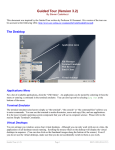
For a list of available applications, click the Xfce icon or right-click the desktop. An application can be started
by selecting it from the menu. In addition to Firefox and Thunderbird, other applications include NEdit (a text
editor with which to write programs), Acrobat Reader (to view and print PDF files), and OpenOffice (to create,
edit, and print Office documents). You can also log-out by selecting Quit at the bottom of the menu and
clicking OK.
Terminal
The terminal (also known as the console or the command-line) allows you to enter commands. You will use the
terminal to compile, run, and submit your programs. It is the most versatile operating system component that
you will use in computer science.
Starting Firefox and Thunderbird
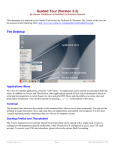
The Firefox Internet browser and the Thunderbird email client can be started with a single click. Firefox is
configured with department-specific bookmarks, while Thunderbird is configured to access your CSE mail
account
Guided Tour (v.3)
Page 1
CSE 1020 (2010F)
Workspaces
The operating system’s desktop is where you can arrange your application windows. With Xfce, you can arrange
you windows across four (by default) virtual desktops (also known as workspaces). Although you can only
work with one at a time, the applications on all workspaces remain running.
To switch between workspaces, you can click on the thumbnail images. Alternatively, you can scroll the mouse
wheel on an empty portion of the desktop. Even if you do not use the extra workspaces, make sure that you do
not accidentally switch to them as you work.
Focusing with the Mouse
With Windows, you indicate the active window by clicking within it. The window remains active until you
minimize it or select another window. However, with Xfce, the active window is the one that contains the mouse
pointer. If you move your mouse pointer to another window, the new window becomes the active one.
For example, if you want to type a command in a terminal, you must first position your mouse within its
window. If, as you type, your mouse pointer moves outside of the terminal window, the terminal will not
receive your keystrokes.
Simple Commands
Command: pwd
Example: pwd
Description: Displays the current directory (a.k.a. working directory). The same output can be seen a terminal
window’s title bar.
Command: man command
Example: man submit
Description: Displays the user manual for the passed command. The user manual details the type and number
of arguments required by the command, and lists all the available command options. To scroll through the user
manual, press the spacebar. To exit the user manual, simply press the Q-key.
Command: mkdir dirName Example: mkdir eChecks
Description: Creates a subdirectory with the passed name in the current directory. The example creates a
subdirectory called “eChecks”.
Command: cd dirName
Example 1: cd Example 2: cd ..
Example 3: cd mail
Description: Without any argument (Example 1), this command changes the working directory to your home
directory (equivalent to the “My Documents” folder in Windows). With the argument “..” (Example 2), this
command changes the working directory to the parent directory. If you provide the name of a subdirectory as an
argument (Example 3), this command changes the working directory to be that subdirectory (e.g., the
subdirectory called “mail”).
Command: ls dirName
Example 1: ls Example 2: ls mail Example 3: ls *.txt
Description: Lists the contents of the directory specified by the argument. Without any arguments (Example 1),
this command lists the visible contents of the working directory. If the argument is a directory name
(Example 2), this command lists the visible contents of that directory (e.g., the subdirectory called “mail”).
Example 3 lists all files in the current directory that have a “.txt” extension. You can use the “*” wildcard to
search for files that match a pattern. There are many options for this command, such as “-a” to show hidden
files and “-l” to show file and directory details. Enter the command man ls for further details.
Guided Tour (v.3)
Page 2
CSE 1020 (2010F)
Command: rm fileOrDir Example 1: rm First.java
Example 2: rm –r eChecks
Description: Removes the file or directory indicated by the argument. The first example deletes the file
“First.java”. The second example (note the “-r” option) removes directory called “eChecks” and all of its
contents. Use this command with caution!
Command: cp orgnl cpy Example: cp First.java First_backup.java
Description: Copies the file orgnl to the location cpy. The example creates a copy of “First.java”, called
“First_backup.java”.
Command: mv old new
Example: mv First.java Second.java
Description: Moves the file old to the location new. This command can also be used to rename files. The
example renames “First.java” to “Second.java”.
Command: script log
Example: script A1_log.txt
Description: Records the commands and output generated at the terminal until exit is entered. The record is
written to a file, whose name is passed as an argument.
Auto-Completion and Command History
You do not have to type entire filenames or directory paths. Type the first couple of characters, followed by the
TAB key. The operating system will complete the rest of the name or path. If there are multiple matches, the
operating system will complete only the common portion. You will have to type additional characters to
identify the desired file or directory.
To repeat a command at a terminal, you can use the up- and down-arrow keys to cycle through commands you
previously entered. This can be very beneficial during labs and lab tests, as you will repeatedly compile and run
your program to test it.
Creating and Editing Text Files
To create and edit your programs in 1020, I recommend you use a text editor called jEdit. Other text editors are
installed on the system, such as Pico, Emacs, and Vim; however, jEdit is user-friendly for new users and it is
written in Java. To start jEdit, you can select it from the applications menu, or enter jedit & at a terminal.
Optionally, you can include a filename (e.g., jedit First.java &). If the file already exists, it will be opened
automatically. If not, the file will be created.
Guided Tour (v.3)
Page 3
CSE 1020 (2010F)
Printing Files
Included in your course fee is a print quota of 500 pages. To display the number of pages remaining in your
quota, enter the command pquota at a terminal.
Typically, you can print an open file by selecting Print from the File menu. After you send the file to be
printed, go to any print station in room CSEB 1004 or 1006. Touch the screen to activate it. Enter your CSE
username and password using the attached keyboard. Ensure that the files you want printed are selected, and
press the print icon in the bottom-left corner. To exit without printing, press the exit icon. If you experience any
printing problems, contact the lab monitor.
Creating a Java Program
Before you can run a Java program, you need to write its code, compile it, and correct any syntax errors. If you
have not yet done so, read the above section, “Creating and Editing Text Files”. Create a new text file named
First.java with the following content:
import java.io.PrintStream;
public class First
{
public static void main(String[] args)
{
PrintStream output = System.out;
output.println(“My name is ???”);
}
}
Replace “???” with your name. Save your program. Compile it by entering javac First.java at a
terminal (note the “c” in “javac”). The compiler will identify the type and location of any syntax errors.
Correct any errors in your code, save your changes, and recompile your code.
Enter java First at the terminal to run your program (do not type the “.java” extension). Your program
should output “My name is”, followed by your name.
Guided Tour (v.3)
Page 4
CSE 1020 (2010F)
Configuring eCheck
Your weekly lab assignments will take the form of “eChecks” – programs that are checked electronically. You
will learn more about eChecks in the textbook. However, you must first configure the eCheck program that
checks your code. Enter the command java Options at a terminal.
Uncheck “Work Offline”. Enter your CSE username, password, and the following URL:
http://www.cse.yorku.ca/~roumani/type/ec/ec.cgi
Double-check that you entered the URL correctly. When you are finished, click Apply.
Submitting eChecks
Each eCheck exercise is given a three-character code (e.g., 03A). You can check an eCheck exercise by
entering the following command at a terminal (replace “03A” with the particular code):
java eCheck 03A
Your eCheck program will be tested with various inputs. If your program passes all the tests, your code will
be automatically submitted and your mark will be recorded. If your program does not pass all the tests,
output will indicate the given input, the expected output, and how your program’s output differed from the
expected one. Examine how your program’s output is different, make the necessary changes to your program,
and check the exercise again. You can check and revise your program as many times as you want before the
eCheck’s deadline. Nothing is submitted until your program passes all tests.
Submitting Assignments
Not all exercises in computer science courses are eChecks. You will be required to submit all non-eCheck
assignments and lab tests. To do so, you will use the submit command, which has the following structure:
submit course testName yourFile1 yourFile2 ... yourFileN
For example:
submit 1020 LT1 MyProgram.java readme.txt
It is recommended that you submit your files early and often. Newer files overwrite those with the same name.
For more information, enter the command man submit at a terminal.
Guided Tour (v.3)
Page 5
CSE 1020 (2010F)
Lab One
Your first lab will test your ability to follow written instructions and to apply the information presented in this
document. This lab assumes that you have configured eCheck as outlined in the above section Configuring
eCheck. If you have not done so, please complete this task before proceeding.
Before starting, read all the instructions and re-read this document to address any questions you might have.
Log in to a workstation in CSEB 1002, CSEB 1004, or CSEB 1006 (in whichever room your lab is scheduled)
using your CSE username and password.
1. Open a terminal window. Make sure that the mouse pointer is inside the terminal window.
a. In the terminal window, there should be a short piece of text followed by a % symbol; this is
called the prompt.
2. Enter the command
pwd
by typing the command, then pressing the ENTER key.
a. The command should print the full name of your home directory (something like
/cs/home/cseXXXXX where cseXXXXX is your CSE account name) on the line
immediately underneath the command you just entered. On the next line, you should see a new
prompt.
i. If you do not see the output described in 2a then you probably entered the command
incorrectly; try again, or ask a teaching assistant for help.
1. Pay careful attention to messages printed by commands you enter; the messages
usually tell you important information helping you to resolve any problems.
3. It is a good idea to keep your directory structure organized so that you can find files easily; therefore,
you should create a directory for all of your CSE1020 work.
Enter the command
mkdir cse1020
a. The command will print nothing if it is successful, and you should see a new prompt on the next
line.
i. If you see a message like
mkdir: cannot create directory `cse1020': File exists
then you already have a directory named cse1020 and you have probably already
taken this course before.
ii. If you see some other message then you probably entered the command incorrectly; try
again, or ask a teaching assistant for help.
Guided Tour (v.3)
Page 6
CSE 1020 (2010F)
4. Switch to your newly created directory by entering the command
cd cse1020
a. The command will print nothing if it is successful, and you should see a new prompt on the next
line.
i. If you see an message then you have either entered the command incorrectly, or
something went wrong in Step 4; ask a teaching assistant for help.
5. You should now be in the directory with the full name /cs/home/cseXXXXX/cse1020
Confirm that you are in the correct directory by entering the pwd command and checking its output.
6. Your cse1020 directory is where you should organize all of your CSE1020 work. Create a directory
to organize all of your lab work by entering the command
mkdir lab
a. Again, the command will print nothing if it is successful, and you should see a new prompt on
the next line.
7. Switch to your newly created directory by entering the command
cd lab
a. Again, the command will print nothing if it is successful, and you should see a new prompt on
the next line; ask a teaching assistant for help if you see an error message.
8. What is the full name of the directory you are now in? How can you check that you really are in the
directory you think you should be in? Go ahead and check.
9. Create a directory for the current lab by entering the command
mkdir 1
a. The directory name is the numeral one, not a lower case L.
10. Switch to your newly created directory by entering the command
cd 1
11. We will now attempt to complete eCheck Check01A (on page 45 of the 3rd Edition of the textbook).
Start the jEdit editor by entering the command
jedit Check01A.java &
a. If you do not type the & symbol, jEdit will still start, but your terminal will appear to freeze and
it will not respond to any new commands that you type. What has happened is that you have
entered the command to start jEdit and the terminal is waiting until the jEdit command completes
(i.e. the terminal will wait until you close jEdit). In this case, we say that jEdit has been started as
a foreground process; the terminal will wait until a foreground process completes before it can
start another one.
Guided Tour (v.3)
Page 7
CSE 1020 (2010F)
If this has happened, do not close the terminal! Instead, move the mouse pointer into the “frozen”
terminal window, press and hold the CTRL key, and (while still holding the CTRL key) press the Z
key. This operation is normally written like CTRL+Z.
CTRL+Z tells the terminal to suspend (but not close) the command that is currently running. You
should find that jEdit now appears to be frozen because it has been suspended from running, but
you now have a prompt in your terminal. To resume jEdit and have a terminal that will respond
to commands you type, enter the command
bg
The bg command will resume jEdit as a background process. A background process can run,
and the terminal does not need to wait for it to complete before accepting new commands from
the user.
12. Move the mouse pointer into the jEdit window, and type in the program from the Creating a Java
Program section on page 4 of this guide (just type in the program; instructions for saving, compiling,
and debugging are given below).
13. Save your work.
14. Move the mouse pointer into the terminal window and compile your program by entering the command
javac Check01A.java
a. The command will print nothing if it is successful, and you should see a new prompt on the next
line.
i. If you get some error messages, try to decipher what they mean. Note that a compiler
error message contains the line number of where the error probably occurred.
1. If you think you have identified the error, fix it using jEdit, save the file, and
repeat Step 14; otherwise, ask a teaching assistant for help.
15. Run your program by entering the command
java Check01A
a. Your program should print
My name is ???
and you should see a new prompt on the next line.
16. Modify your program so that it only outputs
My Account Number is cseXXXXX
where cseXXXXX is your CSE account name. Remember to save and re-compile everytime you
change your program. Make sure you get the output shown above.
17. Run eCheck to test your program. Do so by entering the command
java eCheck 01A
Guided Tour (v.3)
Page 8
CSE 1020 (2010F)
in the terminal.
18. Read the output from eCheck very carefully! eCheck emits a lot of information.
19. eCheck will indicate an error with your output. However, it will also tell you what your program
produced and what it expects as the correct answer. Make the appropriate modification to your code,
save the change, re-compile, and run your program until you get the output that eCheck expects.
20. Repeat steps 17-19 until eCheck states that your program “passed all tests”.
21. Submit your work by entering the command
submit 1020 lab01 Check01A.java
a. Examine the output from the command carefully; you should see the message
All files successfully submitted.
If you do not, correct the error and re-submit your work. You can submit as many times as you
want; your previous submissions are simply overwritten.
i. Make sure that you are comfortable using the submit command. It is the same
command that is used during lab tests to submit your programming tests.
22. Congratulations, you have just finished your first lab!
Guided Tour (v.3)
Page 9
CSE 1020 (2010F)