1
TransType SE
Customizing Suitcases
When you convert several fonts that form a font family on a PC, TransType
will automatically combine these fonts into a Macintosh font family
suitcase. If for some reason you don’t want TransType to do this, you have
the following options:
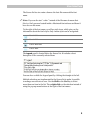
1.
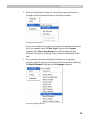
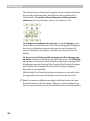
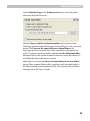
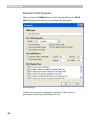
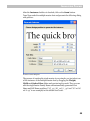
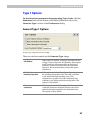
Force TransType to put all fonts in separate suitcases by checking
Save each Macintosh font in its own suitcase on the Font
Families Packaging Page of the Preferences dialog:
This is unusual and we do not recommend you switch on this option.
But if you do, the Set style to Plain for each saved font option is
recommended to simplify the usage of the fonts. When this option is
on, all fonts that are placed in separate suitcases will have the plain
style flag, even if the original fonts are not plain.
2.
Exclude the font from the current suitcase and move it into the new
one. To do this, position the mouse cursor on the font (not suitcase)
you want to move and press the right mouse button or use the pop-up
button ( ). Select one of the commands in the pop-up menu:
Move item to a new suitcase – to move the font from the current
suitcase to the new suitcase that will contain only this font.
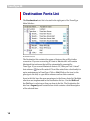
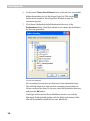
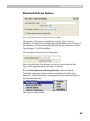
Move item to... – to open the Select Destination dialog box and
choose a destination suitcase:
40