1
SalesNexus Online CRM and Email Marketing
User Manual
Campaign Tab
This tab has undergone the most change in our new release, and there for has more items to note:
Existing Campaigns
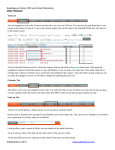
In Existing Campaign, you will see the reporting for all the campaigns you have turned on the tracking for. This has
been improved to allow you to track the tasks as well as the emails. You will also be able to track the bounced and do
not send based on each campaign. (This feature is not available on Small Business or Professional)
You have the ability to drill down into each of the campaign templates by clicking on the Name of the Campaign. To
the far right you will see that you can show your Active Campaigns or show the Retired Campaigns. This allows you
to remove campaigns from your day to day view if you are not using them but don’t want to completely remove them.
You will also notice that you can now send this report to a printer so your report totals can be printed and shared.
Below the Date/Time you will see 3 options:
•
•
•
Add to this Campaign which will allow you to add an existing contact or an existing look up to this same
campaign. This is the same window you get when you click on the Add to Campaign with in a contact record,
but allows you to add a look up.
Retire a campaign if you are not going to be using it again.
Delete this campaign, a new feature that allows you to control what you keep.
When you click on the Campaign name you will get the following details for that campaign.
©SalesNexus 2013
www.salesnexus.com
SalesNexus Online CRM and Email Marketing
User Manual
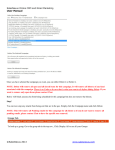
This displays the totals for this campaign combined or you can select to see them by template. You can see how your
subject line is working to increase your open rate. By seeing the detail of clicks per template you can see how your
Call to Actions are preforming. You also can choose to see the following:
•
•
•
•
•
•
•
•
•
All contacts in the Campaign
Recipients without email actions
Opens
Clicks
Opt-out
Bounced
Completed calls
Completed to dos
Completed meetings
Now choose who you want to market to next. Once you have your list in view. You can check the boxes to the right
of the name and select the ones you want to work with. To have all of them selected to be your current look up. Click
Check All and then click Make Checked Contacts My Look up. Now you are ready to market to them again.
If you want to see your campaigns in shorter versions by date, you simply make a copy of the campaign, add the new
contacts to the New Campaign and retire the previous one.
Email Templates
On the Campaign Tab, click on the Email Template in the Orange Ribbon. In this tab there are several folders. They are
used for the following
•
•
•
•
•
Email to Attendee Templates- Used when sending a meeting notice to all attendees while in a task. Pulls from contact
and activity fields
Email & Letters Templates- Used for all email blasts and campaigns
Library’s Email template – Used to store cover letters for items in the library, shortly this will not be needed
Private Templates – Used to store templates only the user can access
Quote/Proposal Templates – Used from the Sales tab, can create a proposal template that pulls fields from Contact and
from Sales Opportunities.
For Creating email for Campaigns, click on Email & Letters Templates
Click on Add Template in the Blue Ribbon, this will open a blank template.
•
At the top is Letter Description, this is the name of your template; make it only alpha numeric, no special characters.
©SalesNexus 2013
www.salesnexus.com
SalesNexus Online CRM and Email Marketing
User Manual
•
Check box for Enable email send form- checking this saves the coding for the To: From: and Subject: lines of an email
with your template. Without checking it, you can only print as a word document and mail merge.
At this point save your file by clicking on Save in the lower left corner. When your screen refreshes, you are ready to
start building your template.
The tool bar above is used to build your template and change the features. This functions a lot like Word and each button
is named at the end of this document for your convenience.
To insert an image into your template, you have to first put it on the server. Click on the small portrait icon. This will
open the upload image window
Browse to your hard drive and upload the
image to the server. Close the box when
you have uploaded all that you want to. It
will now be an option for any email
template you work on.
To insert the image to your template, have your cursor where you want the image to be, click on the small tree icon next
to the portrait icon.
Browse to your image on the server by clicking on the
file image to the right of the Image URL line. You will
see thumbnails for all images on the system. To select the
image for your template, click on it. You will want to
give your image a description. . This is what the client
will see if they do not allow images in their email. You
will find that line under the Image URL line.
Behind the General tab is the Appearance Tab. This
allows you to set the image size from this window
On the General tab, when you have your image selected,
click on Insert.
©SalesNexus 2013
www.salesnexus.com
SalesNexus Online CRM and Email Marketing
User Manual
Now you are ready to start personalizing your template:
To insert fields from the client into your template, make sure the radio button to the far right is
in Contact Field.
Put your cursor where you want the field to appear in the template and then scroll down the list
of fields to find the one you want. All fields are listed and are in alphabetic order. Clicking F
will take you to the first field beginning with F.
Continue adding text and fields until your info is complete.
To add your own contact information to the letter, change the radio button from Contact Field
to My Record Field and now it will pull in the data on the users.
You can Save your document along the way but you want to make sure you wait till it refreshes before you make another
change or close it, otherwise you can lose your work.
As you are creating the template, you can click Send Preview Email and that will send it to the email address associated
with your My Record.
Now that your templates are created, you are ready to create the work flow. Click Send Email with Template and it
will create the workflow for you the first time you send it. Workflows are needed for email templates but not to print to
word.
You can Make a Copy of the template if you want to make alterations but keep the same look and feel. Once you have a
copy, you will just need to rename it as it will read Copy of XXX
Manage Work Flow
Work flows are used to show the steps that will be involved for a that series of emails or tasks. On the Campaign Tab,
when you click on Manage work flow, you are taken to the area where you can create a new workflow, make a copy of
an existing one or change the status of an existing one. When you click on one of the existing work flows, you will see
the activities that make up that work flow to the right.
To Create a new workflow, click on GO. This will open up the window to start the workflow.
•
•
•
Choose Start date
Then Next
Now click ADD to open the task window.
©SalesNexus 2013
www.salesnexus.com
SalesNexus Online CRM and Email Marketing
User Manual
In the ACTIVITY type, you can change it from a To-do to a Call, Meeting, Email or Mail it for me. Depending on the
choice you make, it will change the field choices you see.
•
•
•
•
•
•
•
•
•
•
On the email Activity type, you will see Auto Send? This allows you to set the email to go out on the given day
without any interaction from you. This means the emails will go out the day they are scheduled even if you do
not log into SalesNexus
You want to select the template you have saved in the Manage Template folder. (Emails & Letters Templates )
and Library’s Email Templates)
You can select an Attachment you have in the Library.
You can enter your Subject line in the space provided
Schedule Activity x days AFTER Start date allows you to set this email to go out at a given number of days from
the time you start the campaign. 0 Days is always same day the campaign is scheduled to start.
Schedule for allows you to send it out from a specific user. Current user will be the one scheduling the campaign.
Contact’s Record Manger will choose which ever user is that contacts Record Manager.
Check Enable Tracking, if you are on Complete, allows you to create the report that tells you when they received
it.
Check Enable Open notification to create a task for you on every opening of your email template. This allows
you to follow up based on when and how many times the template was opened.
Check Enable Click notification allows you to have a task that tells you what URL in your email they clicked on.
Allows you to know when to follow up based on when they opened it and how many times they opened it.
Last check box is if the task falls on the weekend schedule for Monday.
Click OK
Now you can click ADD to add another item changing the options to fit your need as you build your workflow’.
Once you have your work flow listed in this window, add one more To-Do task, call it the End of XXX campaign, set it
as the last task of the work flow. This allows you to have a task telling you this campaign is over for that contact.
©SalesNexus 2013
www.salesnexus.com
SalesNexus Online CRM and Email Marketing
User Manual
Click Next and you will have the widow to name your work flow and put in a subscription. Once you have named it, just
click Finish. (if you created an End of XXX task, copy that name as your workflow name.)
Once you have created your templates and the workflow you want to use, you can check the box and it will create a
Campaign with the same name as your workflow. Or you can create the new campaign using this workflow.
Create Campaign
When you click on Create Campaign, you will get this window.
Choose the workflow you just created from the top
dropdown. You will see the activities that make up
the workflow to the right.
©SalesNexus 2013
www.salesnexus.com
SalesNexus Online CRM and Email Marketing
User Manual
If you did not create the workflow first, you can follow the link back to the screen by clicking on Create New Workflow.
Now you type in a Campaign Name, the Start Date and time, and the Subscription you want to send to. (Subscription
is the mailing list that you want to send to, this is used to be in compliance with the Spam laws. All contacts are added to
Default)
You can also Schedule from here. If you have already created your look up just click on Current Lookup, you now have
the option to schedule with one of your existing Groups without having to go to the Groups tab. The default is Contacts
will be scheduled later so you can always add contacts to this campaign later.
How to Schedule a Campaign for a contact or a lookup.
For a Contact
Look up the contact you want, in the orange ribbon at the top you will see Send Email. Use this to send them a regular
template,
To set them up in a campaign, you click on Add to Campaign. You will see the campaign options you have. You can
also add contacts to a campaign from the Existing Campaign window.
The default shows you the ones you recently used but
you can choose to see all Campaign or only the ones
you created.
You can set the date you want to start the campaign and
schedule the time you want it to go out.
From this window, you can choose which contacts you
want to schedule it for, from current contact, current
look up and even a one of your existing groups.
Then click Add to Campaign at the bottom
©SalesNexus 2013
www.salesnexus.com
SalesNexus Online CRM and Email Marketing
User Manual
All the tasks for that campaign will now appear in the Activity tab for the contact(s). If you delete any one open task
from a campaign, it will give you the option of deleting all open tasks for that campaign.
Manage Subscriptions
Allows you to add to add new Mailing lists to your database. All contacts are added to the mailing list Default in your
database so you can start out using just the one. You must complete the company information on this screen to be in
compliance with spam laws.
To do that, click on Campaign, then Manage Subscriptions., In this window you will see several fields that say they are
required.
To the right of that you will see all the mailing lists you have set up for your database.
To add contacts to an existing mailing list, click, on Edit for that list and you will see the option at the bottom to add
contacts.
©SalesNexus 2013
www.salesnexus.com
SalesNexus Online CRM and Email Marketing
User Manual
Library
When you click on the Library link, you can upload any document from your PC to the library. Once it is on the server
create a link to it that allows you to track the people who clicked on the link. Now instead of just sending an attachment,
you can use it to help with your marketing plan.
To upload a document click on the folder you want to save it in and click on Upload Document. You can now browse to
your PC to find it.
Once it is uploaded you can now create a link to use in templates. Click on the document in the window on the left, Right
click and pick Generate URL. The path is in the window on the right. If you want to confirm the link you can do that at
the bottom. Copy this link up to your clip board to paste into your template. We recommend copying all to a word doc so
you don’t lose the URLS.
Clean Up
This feature allows you to delete Campaigns that you want to remove permanently or retire ones that you do not wish to
use but would like to keep the details of. This does not remove the templates or the work flow, just that instance of the
campaign itself.
©SalesNexus 2013
www.salesnexus.com
SalesNexus Online CRM and Email Marketing
User Manual
Once you have selected the campaign you want, you can either Delete it or Retire it.
NOTE: Delete will remove all open and all closed items for this campaign. It will remove all history of any kind
associated with this campaign. There is no Undo so be sure that is what you want to do before hitting Delete. If you
want to remove only open items please contact Chat.
Retire- will block anyone else from being scheduled for this campaign but does not remove the history.
Stop!
You can now stop any emails from being sent that are in the que. Simply click the Campaign name and click Delete.
NOTE: This will remove all Pending emails for this campaign for all clients so if you do not want to remove all
pending emails, please contact Chat to have the specific one removed.
Groups Tab
To look up a group, Go to the group tab in the top row., Click Display All to see all your Groups
©SalesNexus 2013
www.salesnexus.com