1
3.2 Keyboard, Mouse, and Video configuration
Between the KVM IP Console Module and the host, there are two interfaces available for
transmitting keyboard and mouse data: USB and PS/2. The correct operation of the remote
mouse depends on several settings which will be discussed in the following subsections.
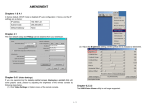
3.2.1 KVM over IP keyboard settings
The KVM over IP settings for the host's keyboard type have to be corrected in order to
make the remote keyboard work properly. Check the settings in the KVM IP Console
Module Web front-end.
3.2.2 Remote Mouse Settings
A common seen problem with KVM devices is the synchronization between the local and
remote mouse cursors. The KVM over IP addresses this situation with an intelligent
synchronization algorithm. There are two mouse modes available on the KVM IP Console
Module.
Auto mouse speed
The automatic mouse speed mode tries to detect the speed and acceleration settings of the
host system automatically. See the section below for more detailed explanation.
Fixed mouse speed
This mode just translates the mouse movements from the Remote Console in a way that
one pixel move will result in n-pixel moves on the remote system. This parameter n is
adjustable with the scaling. Please note that this works only when mouse acceleration is
turned off on the remote system.
3.2.3 Automatic mouse speed and mouse synchronization
The automatic mouse speed mode performs the speed detection during mouse
synchronization. Whenever the local and remote mouse cursors move synchronously or not,
there are two ways for re-synchronizing local and remote mouse cursors:
Fast Sync
The fast synchronization is used to correct a temporary, but fixed skew. Choose the option
using the Remote Console options menu or press the mouse synchronization hotkey
sequence in case you defined one.
Intelligent Sync
If the fast sync does not work or the mouse settings have been changed on the host system,
use the intelligent resynchronization. This method takes more time than the fast one and
can be accessed with the appropriate item in the Remote Console option menu. The
17