1
20
AN OVERVIEW
• The Image Pixels Model Selection package extends the concepts in Analyze Image Pixels to
model selection. In this package the user can load a number of different models that describe
the signal in a pixel and then the program will compute the posterior probability for the model.
Outputs include the posterior probability for the model indicator as well as parameter maps
of the parameters.
1.2
The Client Interface
The interface to the Bayesian Analysis software is a Java interface that runs on any machine having
Java 6 or higher. Assuming the Bayesian Analysis software has been installed on a server at your
site, for arguments sake lets call this machine “your.server.net,” then you can bring up the interface,
the client software, by issuing:
javaws http://your.server.net:8080/Bayes/launch.jnlp
where “javaws” is the Java web-start utility and comes with most Java installations, “your.server.net”
should be replaced by your server name or IP address, and you should replace “8080” by the port
number used by your installation, see Chapter 2 for a description of how to install the software.
If you do not have the software installed on your local machines, you can download the interface
directly from Washington University:
javaws http://bayes.wustl.edu/Bayes/launch.jnlp
This version of the interface, will allow you to view the packages and to determine what is available.
However, because the software has not been installed on one of your machines, you will not be able
to run an analysis.
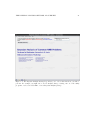
Assuming you use one of these to methods to start the interface, it will displays the default startup
page shown in Fig. 1.1. The purpose of the startup page is to allow you to restart an analysis. When
you exit the interface or changes working directories, the interface saves the current settings in a
special Java properties file. When the interface start, it consults this file and determines what your
last WorkDir was and how to restart that analysis. If an analysis was saved, the interface displays the
messages shown in Fig. 1.1, the lines starting “To restore analysis”. This line contains the name of
the package that was being processed, in this case the package name was “AnalyzeImagePixels” and
the analysis was saved in a WorkDir named “Given”. If the Restore Analysis button is activated
then the “Given/AnalyzeImagePixels” analysis will be restored to its previous status. When the
interface finishes restoring the analysis, it will function exactly like you never exited the WorkDir or
interface.
If you do not want to restore an analysis then changing the package will delete the contents
of the current WorkDir and configure the WorkDir for the new package. If you do not want to
change packages, but want to check on another analysis then changing the current working directory
using the WorkDir menu will cause the interface to switch to the new WorkDir and assuming that
WorkDir contains a previous analysis that analysis will be restored to its previous status.
Finally, if you wish to start a completely new analysis then selecting WorkDir/Edit will bring
up a popup that will allow you to create a new WorkDir. After you create and join a new WorkDir
the first thing you must do is to select the package you wish to use.
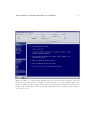
The global pull down menus along the top of the startup page are always present on all package
interfaces, not just the startup page. They allow the user to load files, select packages, configure