1
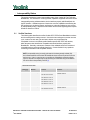
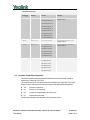
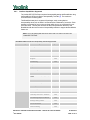
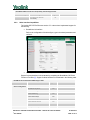
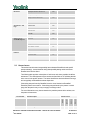
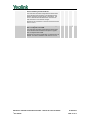
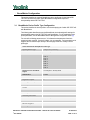
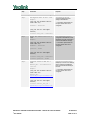
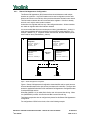
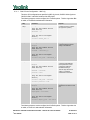
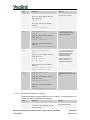
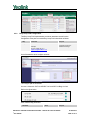
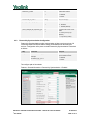
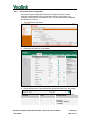
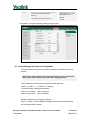
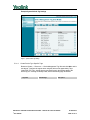
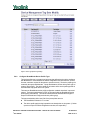
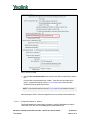
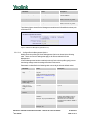
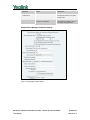
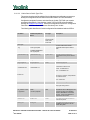
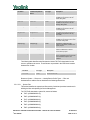
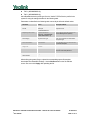
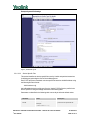
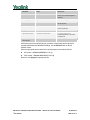
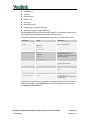
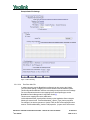
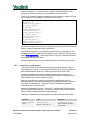
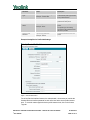
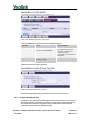
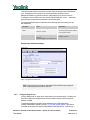
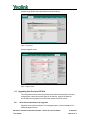
Perform the upgrade during a maintenance window. Keep the previous firmware on the system in case a downgrade is required. Older versions can be deleted. Perform the upgrade at the group level rather than the system-wide level. To do so: 1) Upload firmware at the system level. 2) Select the group to upgrade. 3) Select Utilities → Device Configuration. 4) Search for and select the Yealink model to upgrade. 5) Select Files. Upload the new or updated configuration files at the group level. (Refer to relevant upgrade section to identify new or modified configuration files.) 6) On the Files page, select Rebuild the files. This rebuilds all the configuration files associated with the selected Yealink device profile type in this group 7) On the Files page, select Reset the phones. This causes the phones to restart and pick up new firmware and configuration files. 8) Repeat steps 2 through 7 for each Yealink model in the group to upgrade. After all groups have been upgraded, complete the following steps to update the system device profile types and reset the group device profile types to default values. 1) Browse to the System → Resources → Identity/Device Profile Types page. Search for and select the Yealink model device type. Upload the new or updated configuration files at the group level. (Refer to relevant upgrade section to identify new or modified configuration files.) Repeat for each Yealink model. 2) For each group, browse to the Utilities → Device Configuration page. Search for and select the upgraded Yealink model. Select Files and set each updated file back to Default. Repeat for each Yealink model. BROADSOFT PARTNER CONFIGURATION GUIDE – YEALINK SIP-TXP/T3XG SERIES © 2013 YEALINK 20-BD5265-00 PAGE 69 OF 75