1
5.3 Assigning Sounds
In order for Sibelius to allocate sounds correctly, a manual sound set is required when
automatic loading is either not available or not being used. If you haven’t already,
please take a moment and read Section 5.2 - Manual Sound Sets before proceeding
with these instructions.
Manual Sound Set Tab
Continuing from Section 5.1 - Selecting the Sound Set, in the Playback Devices
dialog select the Manual Sound Sets tab to display channel assignment and routing
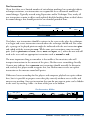
options. Using the Device drop-down menu,
Manual Sound Set, Device Setup
select the device(s) for which a manual sound
set will be defined and check the box next to
Use manual sound set. Then, use the No.
channels option to set the number of MIDI
channels the selected device supports. Most
devices support 16 MIDI channels.
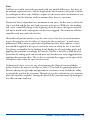
Manual Sound Set, Patch Assignment
Select the device you want to configure from
the Device drop-down menu. Under Sound
Settings enter an unassigned MIDI channel
number (1-16) in the Channel field and then
use the Program name drop-down menu
to select the desired instrument patch from
the sound set. Click the Apply button at the
bottom of the dialog to apply your channel
assignment.
Continue assigning sounds in this manner until all sounds you require have been assigned to a device and MIDI channel. Click the Save button at the top of the Playback
Devices dialog to save your assignments.
Once channels are assigned, the sounds need to be loaded. Select a device using the
Devices drop-down menu and click the Show… button to display the plugin interface. If using sounds outside of Sibelius, in either a standalone program, VST Host,
or on another computer, the Show… button will be inoperable. Instead, open the
corresponding device interface where it is being used.
VOXOS - Sibelius Sound Set User Manual | 22