1
7. The Display Controls
7. The Display Controls
7-2 Screen Adjustment Operation Procedure
7-1 Display Controls
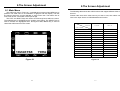
1) Entering the screen adjustment
The setting switches are normally at stand-by. Push the MENU button once to
display the main menu of the screen adjustment. The adjustable items will be
displayed in the main menu.
2) Entering the settings
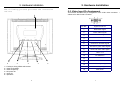
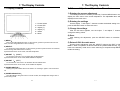
1 = Power Switch
2 = Power LED
3 = Adjust (4)
4 = Adjust (3)
5 = Select
6 = Menu
Use the Adjust 3 and Adjust 4 buttons to select the desired setting icon and
push the SELECT button to enter sub-menu.
3) Change the settings
After the sub-menu appears, use the Adjust 3 and Adjust 4 buttons to
change the setting values.
4) Save
After finishing the adjustment, push the SELECT button to memorize the
setting.
1) MENU:
Enter to the OSD adjustment menu. It also used for go back to previous menu for submenu, and the change data don’t save to memory.
2) SELECT:
To confirm the current selection. It also used for go back to previous menu for sub-menu,
and the change data will be save to memory.
If pressed when menu is not active, VOLUME is adjusted.
5) Return & Exit the main menu
Exit the screen adjustment, push the ‘SELECT’ button at the ‘EXIT’ of “MISC
MENU”. When no operation is done around 60 sec (default OSD timeout), it goes
back to the stand-by mode and no more switching is accepted except MENU to
restart the setting.
3) ADJUST 4: (RIGHT)
To scroll up in sub menu or to increase value of selected item.
If pressed when menu is not active, BRIGHTNESS is adjusted.
D
E
U
T
S
C
H
F
R
A
N
Ç
A
I
S
E
S
P
A
Ñ
O
L
I
T
A
L
I
A
N
4) ADJUST 3: (LEFT)
To scroll down in sub menu or to decrease value of selected item
If pressed when menu is not active, AUTO CINFIG is adjusted.
5) POWER SWITCH:
Pushing the power switch will turn the monitor on. Pushing it again to turn the monitor
off.
6) POWER INDICATOR:
The LED will light with green color in normal on state, and will light with orange color in
power saving mode.
12
E
N
G
L
I
S
H
13