1
SHADOW LAYER
By default, shadow is drawn on the same layer as the GameObject. You can override this
behavior and set the layer manually. This may help in certain situations.
Shadow texture generator
For objects with complex shape, a fuzzy circle shadow is not always the best choice. For
that case, Swift Shadows includes a shadow texture generator that can save you a lot of
time with trying to make a nice looking shadow texture manually.
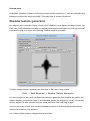
To open the generator window, use this item in the main Unity menu:
Tools → Swift Shadows → Shadow Texture Generator
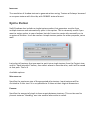
It is very simple to use: pick an object you want to generate the shadow for, select the
object meshes you need to have in the shadow, rotate the object to “view” it from the
above, adjust the blur amount to your taste, and save the resulting image!
You can then use it with your custom shadow material to make shadows that exactly
match the shape of your objects.
Let’s take a closer look on the generator interface.