1
®
HDTV LCD Projection Television
LS47P2 ● LS57P2
User’s Guide
Copyright Notice
All rights reserved. No part of this publication may be reproduced, stored in a retrieval
system, or transmitted in any form or by any means, electronic, mechanical,
photocopying, recording, or otherwise, without the prior written permission of Seiko
Epson Corporation. The information contained herein is designed only for use with this
Epson product. Epson is not responsible for any use of this information as applied to
other equipment.
Neither Seiko Epson Corporation nor its affiliates shall be liable to the purchaser of this
product or third parties for damages, losses, costs, or expenses incurred by purchaser or
third parties as a result of: accident, misuse, or abuse of this product or unauthorized
modifications, repairs, or alterations to this product, or (excluding the U.S.) failure to
strictly comply with Seiko Epson Corporation’s operating and maintenance instructions.
Seiko Epson Corporation shall not be liable for any damages or problems arising from the
use of any options or any consumable products other than those designated as Original
Epson Products or Epson Approved Products by Seiko Epson Corporation.
Responsible Use of Copyrighted Materials
Digital cameras, scanners, and printers, like conventional photocopiers and cameras, can
be misused by improper copying or printing of copyrighted material. While some
countries’ laws permit limited copying of copyrighted material in certain circumstances,
those circumstances may not be as broad as some people assume. Epson encourages each
user to be responsible and respectful of the copyright laws when using digital cameras,
scanners, and printers.
Trademarks
Epson is a registered trademark and Livingstation is a trademark of Seiko Epson
Corporation.
Epson Connection and Epson Store are service marks, and Epson PrivateLine is a
registered trademark, of Epson America, Inc.
Pixelworks, DNX, and the DNX Pixelworks logo are trademarks of Pixelworks, Inc.
Portions of this software are based in part on the work of the independent JPEG Group.
General Notice: Other product names used herein are for identification purposes only
and may be trademarks of their respective owners. Epson disclaims any and all rights in
those marks.
The ENERGY STAR emblem does not represent EPA endorsement of any product or
service.
© 2004 Epson America, Inc. 8/04
2
CPD-18296R1
Contents
Setting Up the TV
Selecting a Location . . . . . . . . . . . . . . . . . . . . . . . . . . . . . . . . . . . . . . . . . . . . . . . . . .7
Important Safety Instructions. . . . . . . . . . . . . . . . . . . . . . . . . . . . . . . . . . . . .7
Outdoor Antenna Installation and Grounding . . . . . . . . . . . . . . . . . . . . . . . .10
Suggested Supports or Stands . . . . . . . . . . . . . . . . . . . . . . . . . . . . . . . . . . . . .11
Installing the Set-Top Shelf . . . . . . . . . . . . . . . . . . . . . . . . . . . . . . . . . . . . . . . . . . . .12
Securing the TV. . . . . . . . . . . . . . . . . . . . . . . . . . . . . . . . . . . . . . . . . . . . . . . . . . . . .13
Connecting the HDTV Tuner. . . . . . . . . . . . . . . . . . . . . . . . . . . . . . . . . . . . . . . . . .14
Connecting the CD-R/RW Drive . . . . . . . . . . . . . . . . . . . . . . . . . . . . . . . . . . . . . . .15
Connecting Other Equipment . . . . . . . . . . . . . . . . . . . . . . . . . . . . . . . . . . . . . . . . . .16
Antenna or Direct Cable TV Connection. . . . . . . . . . . . . . . . . . . . . . . . . . . .17
Cable Box Connections . . . . . . . . . . . . . . . . . . . . . . . . . . . . . . . . . . . . . . . . .18
Satellite Receiver Connection . . . . . . . . . . . . . . . . . . . . . . . . . . . . . . . . . . . . .20
DVD Player With a DVI Connection . . . . . . . . . . . . . . . . . . . . . . . . . . . . . .21
DVD Player With Component Video Connection . . . . . . . . . . . . . . . . . . . .22
DVD Player With an S-Video Connection . . . . . . . . . . . . . . . . . . . . . . . . . .23
VCR Connection . . . . . . . . . . . . . . . . . . . . . . . . . . . . . . . . . . . . . . . . . . . . . .24
VCR and Cable Service (Without Cable Box) Connection. . . . . . . . . . . . . . .25
VCR and Cable Box Connection . . . . . . . . . . . . . . . . . . . . . . . . . . . . . . . . . .26
VCR and Satellite Receiver Connection . . . . . . . . . . . . . . . . . . . . . . . . . . . . .27
Stereo Amplifier Connection . . . . . . . . . . . . . . . . . . . . . . . . . . . . . . . . . . . . .29
PC or Game Console Connection . . . . . . . . . . . . . . . . . . . . . . . . . . . . . . . . .30
Camcorder, Digital Camera, or Other Portable Video Connection . . . . . . . .31
Other Optional Device Connections . . . . . . . . . . . . . . . . . . . . . . . . . . . . . . .32
Preparing the Remote Control . . . . . . . . . . . . . . . . . . . . . . . . . . . . . . . . . . . . . . . . . .33
Inserting the Batteries. . . . . . . . . . . . . . . . . . . . . . . . . . . . . . . . . . . . . . . . . . .33
Operating the Remote Control . . . . . . . . . . . . . . . . . . . . . . . . . . . . . . . . . . .34
Remote Control Information . . . . . . . . . . . . . . . . . . . . . . . . . . . . . . . . . . . . .34
Controlling the HDTV Tuner With the Remote Control . . . . . . . . . . . . . . . . . . . . .35
Controlling Other Equipment With the Remote Control . . . . . . . . . . . . . . . . . . . . .36
Programming the Remote Control . . . . . . . . . . . . . . . . . . . . . . . . . . . . . . . . .36
Using the Programmed Remote Control With Your Other Equipment . . . . .36
Remote Control Programming Codes . . . . . . . . . . . . . . . . . . . . . . . . . . . . . .37
Plugging In and Turning On the TV . . . . . . . . . . . . . . . . . . . . . . . . . . . . . . . . . . . . .41
Changing the Language of the Menus and Screen Text . . . . . . . . . . . . . . . . . . . . . . .42
Skipping Unused Input Sources . . . . . . . . . . . . . . . . . . . . . . . . . . . . . . . . . . . . . . . . .43
Labelling Input Sources . . . . . . . . . . . . . . . . . . . . . . . . . . . . . . . . . . . . . . . . . . . . . . .44
Selecting a Predefined Label . . . . . . . . . . . . . . . . . . . . . . . . . . . . . . . . . . . . . .45
Creating a Custom Label . . . . . . . . . . . . . . . . . . . . . . . . . . . . . . . . . . . . . . . .45
Deleting a Label . . . . . . . . . . . . . . . . . . . . . . . . . . . . . . . . . . . . . . . . . . . . . . .45
Turning Off the TV. . . . . . . . . . . . . . . . . . . . . . . . . . . . . . . . . . . . . . . . . . . . . . . . . .46
Setting Up and
Controlling Channels
Setting Up Your TV Channels . . . . . . . . . . . . . . . . . . . . . . . . . . . . . . . . . . . . . . . . . .47
Automatically Setting Up Your Channels. . . . . . . . . . . . . . . . . . . . . . . . . . . .47
Manually Adding or Skipping Channels. . . . . . . . . . . . . . . . . . . . . . . . . . . . .49
Selecting Channels . . . . . . . . . . . . . . . . . . . . . . . . . . . . . . . . . . . . . . . . . . . . . . . . . . .50
Setting Up Favorite Channels . . . . . . . . . . . . . . . . . . . . . . . . . . . . . . . . . . . . . . . . . .50
Contents
3
Labelling TV Channels. . . . . . . . . . . . . . . . . . . . . . . . . . . . . . . . . . . . . . . . . . . . . . .
Selecting a Predefined Label . . . . . . . . . . . . . . . . . . . . . . . . . . . . . . . . . . . . .
Creating a Custom Label . . . . . . . . . . . . . . . . . . . . . . . . . . . . . . . . . . . . . . .
Deleting a Label . . . . . . . . . . . . . . . . . . . . . . . . . . . . . . . . . . . . . . . . . . . . . .
Setting Up Parental Controls . . . . . . . . . . . . . . . . . . . . . . . . . . . . . . . . . . . . . . . . . .
Creating a Password . . . . . . . . . . . . . . . . . . . . . . . . . . . . . . . . . . . . . . . . . . .
Blocking Programs Using V-Chip. . . . . . . . . . . . . . . . . . . . . . . . . . . . . . . . .
Blocking Channels and Input Sources. . . . . . . . . . . . . . . . . . . . . . . . . . . . . .
Accessing Blocked Programs, Movies, Channels, and Input Sources . . . . . . . . . . . . .
51
52
52
52
53
53
55
59
61
Adjusting the Picture Quality . . . . . . . . . . . . . . . . . . . . . . . . . . . . . . . . . . . . . . . . . .
Changing the Color Mode . . . . . . . . . . . . . . . . . . . . . . . . . . . . . . . . . . . . . .
Adjusting the Brightness, Contrast, Sharpness, Saturation, Tint,
and Black Level . . . . . . . . . . . . . . . . . . . . . . . . . . . . . . . . . . . . . . . . . . . .
Adjusting the Color Temperature . . . . . . . . . . . . . . . . . . . . . . . . . . . . . . . . .
Adjusting the Screen Position . . . . . . . . . . . . . . . . . . . . . . . . . . . . . . . . . . . .
Switching the Component Video Image Quality Setting . . . . . . . . . . . . . . .
Selecting the Aspect Ratio. . . . . . . . . . . . . . . . . . . . . . . . . . . . . . . . . . . . . . . . . . . . .
Selecting the Default Aspect Ratio . . . . . . . . . . . . . . . . . . . . . . . . . . . . . . . .
Adjusting the Sound . . . . . . . . . . . . . . . . . . . . . . . . . . . . . . . . . . . . . . . . . . . . . . . . .
63
64
64
65
65
65
66
67
68
Using TV Features
Printing What You See on the Screen . . . . . . . . . . . . . . . . . . . . . . . . . . . . . . . . . . . .
Changing the Capture Settings . . . . . . . . . . . . . . . . . . . . . . . . . . . . . . . . . . .
Using Picture-Outside-Picture (POP). . . . . . . . . . . . . . . . . . . . . . . . . . . . . . . . . . . .
Using Channel Zapping . . . . . . . . . . . . . . . . . . . . . . . . . . . . . . . . . . . . . . . . . . . . . .
Turning Off the ANT 2 Port . . . . . . . . . . . . . . . . . . . . . . . . . . . . . . . . . . . .
Zapping Channels . . . . . . . . . . . . . . . . . . . . . . . . . . . . . . . . . . . . . . . . . . . .
Turning On Closed Caption Display . . . . . . . . . . . . . . . . . . . . . . . . . . . . . . . . . . . .
Selecting an Alternate Audio Track or Language. . . . . . . . . . . . . . . . . . . . . . . . . . . .
Automatically Shutting Off the TV . . . . . . . . . . . . . . . . . . . . . . . . . . . . . . . . . . . . .
Putting the TV Into Sleep Mode . . . . . . . . . . . . . . . . . . . . . . . . . . . . . . . . .
Setting Up Auto Shutdown. . . . . . . . . . . . . . . . . . . . . . . . . . . . . . . . . . . . . .
69
71
71
73
73
74
75
75
76
76
76
Viewing, Printing, and
Saving Photos
Viewing Photos on a Digital Photo Card or CD. . . . . . . . . . . . . . . . . . . . . . . . . . . .
Compatible Photos and File Structure (Photo Card). . . . . . . . . . . . . . . . . . .
Inserting a Photo Card . . . . . . . . . . . . . . . . . . . . . . . . . . . . . . . . . . . . . . . . .
Compatible Photos and File Structure (CD). . . . . . . . . . . . . . . . . . . . . . . . .
Inserting a CD . . . . . . . . . . . . . . . . . . . . . . . . . . . . . . . . . . . . . . . . . . . . . . .
Enlarging and Rotating Photos . . . . . . . . . . . . . . . . . . . . . . . . . . . . . . . . . . .
Viewing a Slide Show . . . . . . . . . . . . . . . . . . . . . . . . . . . . . . . . . . . . . . . . . .
Printing Photos. . . . . . . . . . . . . . . . . . . . . . . . . . . . . . . . . . . . . . . . . . . . . . . . . . . . .
Loading Paper. . . . . . . . . . . . . . . . . . . . . . . . . . . . . . . . . . . . . . . . . . . . . . . .
Selecting a Photo and Printing It . . . . . . . . . . . . . . . . . . . . . . . . . . . . . . . . .
Monitoring or Cancelling Your Print Jobs . . . . . . . . . . . . . . . . . . . . . . . . . .
Saving Photos to CD . . . . . . . . . . . . . . . . . . . . . . . . . . . . . . . . . . . . . . . . . . . . . . . .
Inserting a CD-R/RW . . . . . . . . . . . . . . . . . . . . . . . . . . . . . . . . . . . . . . . . .
Writing All Photos to a CD-R/RW . . . . . . . . . . . . . . . . . . . . . . . . . . . . . . .
77
77
78
80
80
83
84
86
86
89
91
92
93
93
Adjusting the Picture
and Sound
4
Contents
Caring For the TV
Cleaning the TV . . . . . . . . . . . . . . . . . . . . . . . . . . . . . . . . . . . . . . . . . . . . . . . . . . . .95
Cleaning the Air Filter . . . . . . . . . . . . . . . . . . . . . . . . . . . . . . . . . . . . . . . . . . . . . . . .95
Replacing the TV Projection Lamp . . . . . . . . . . . . . . . . . . . . . . . . . . . . . . . . . . . . . .97
Lamp Replacement Precautions . . . . . . . . . . . . . . . . . . . . . . . . . . . . . . . . . . .98
Removing and Installing the Lamp. . . . . . . . . . . . . . . . . . . . . . . . . . . . . . . . .98
Replacing the Printer Ink Cassette . . . . . . . . . . . . . . . . . . . . . . . . . . . . . . . . . . . . . . .101
Sliding Out the Printer. . . . . . . . . . . . . . . . . . . . . . . . . . . . . . . . . . . . . . . . . .101
Removing and Replacing the Ink Cassette . . . . . . . . . . . . . . . . . . . . . . . . . . .103
Sliding the Printer Back In . . . . . . . . . . . . . . . . . . . . . . . . . . . . . . . . . . . . . . .106
Moving or Transporting the TV . . . . . . . . . . . . . . . . . . . . . . . . . . . . . . . . . . . . . . . .107
Solving Problems
Responding to Screen Error Messages . . . . . . . . . . . . . . . . . . . . . . . . . . . . . . . . . . . .109
Responding to TV Panel Light Indicators . . . . . . . . . . . . . . . . . . . . . . . . . . . . . . . . .110
Basic Operation Problems . . . . . . . . . . . . . . . . . . . . . . . . . . . . . . . . . . . . . . . . . . . . .112
Picture Problems . . . . . . . . . . . . . . . . . . . . . . . . . . . . . . . . . . . . . . . . . . . . . . . . . . . .112
Sound Problems. . . . . . . . . . . . . . . . . . . . . . . . . . . . . . . . . . . . . . . . . . . . . . . . . . . . .113
TV Reception or Operation Problems . . . . . . . . . . . . . . . . . . . . . . . . . . . . . . . . . . . .114
Remote Control Problems . . . . . . . . . . . . . . . . . . . . . . . . . . . . . . . . . . . . . . . . . . . . .114
Problems Viewing Photos from Cards or Discs . . . . . . . . . . . . . . . . . . . . . . . . . . . . .115
Printing Problems . . . . . . . . . . . . . . . . . . . . . . . . . . . . . . . . . . . . . . . . . . . . . . . . . . .115
Clearing a Paper Jam From the Back of the Printer . . . . . . . . . . . . . . . . . . . .117
Problems Saving Photos to a CD-R/RW . . . . . . . . . . . . . . . . . . . . . . . . . . . . . . . . . .121
Where to Get Help . . . . . . . . . . . . . . . . . . . . . . . . . . . . . . . . . . . . . . . . . . . . . . . . . .121
Telephone Support Services . . . . . . . . . . . . . . . . . . . . . . . . . . . . . . . . . . . . . .121
Specifications
General . . . . . . . . . . . . . . . . . . . . . . . . . . . . . . . . . . . . . . . . . . . . . . . . . . . . . . . . . . .123
Screen and Display. . . . . . . . . . . . . . . . . . . . . . . . . . . . . . . . . . . . . . . . . . . . . . . . . . .123
Mechanical. . . . . . . . . . . . . . . . . . . . . . . . . . . . . . . . . . . . . . . . . . . . . . . . . . . . . . . . .123
Electrical . . . . . . . . . . . . . . . . . . . . . . . . . . . . . . . . . . . . . . . . . . . . . . . . . . . . . . . . . .123
Environmental . . . . . . . . . . . . . . . . . . . . . . . . . . . . . . . . . . . . . . . . . . . . . . . . . . . . . .124
Interfaces . . . . . . . . . . . . . . . . . . . . . . . . . . . . . . . . . . . . . . . . . . . . . . . . . . . . . . . . . .124
Printer . . . . . . . . . . . . . . . . . . . . . . . . . . . . . . . . . . . . . . . . . . . . . . . . . . . . . . . . . . . .125
Options . . . . . . . . . . . . . . . . . . . . . . . . . . . . . . . . . . . . . . . . . . . . . . . . . . . . . . . . . . .125
Safety . . . . . . . . . . . . . . . . . . . . . . . . . . . . . . . . . . . . . . . . . . . . . . . . . . . . . . . . . . . . .125
EMI . . . . . . . . . . . . . . . . . . . . . . . . . . . . . . . . . . . . . . . . . . . . . . . . . . . . . . . . . . . . . .125
Notices
Epson America, Inc., Limited Warranty. . . . . . . . . . . . . . . . . . . . . . . . . . . . . . . . . . .127
ENERGY STAR Compliance . . . . . . . . . . . . . . . . . . . . . . . . . . . . . . . . . . . . . . . . . .128
Note on Closed Captioning . . . . . . . . . . . . . . . . . . . . . . . . . . . . . . . . . . . . . . . . . . . .128
Note on TV Use . . . . . . . . . . . . . . . . . . . . . . . . . . . . . . . . . . . . . . . . . . . . . . . . . . . .128
FCC Compliance Statement . . . . . . . . . . . . . . . . . . . . . . . . . . . . . . . . . . . . . . . . . . .129
Index
. . . . . . . . . . . . . . . . . . . . . . . . . . . . . . . . . . . . . . . . . . . . . . . . . . . . . . . . . . . . . . . . . .131
Contents
5
6
Contents
Setting Up the TV
Follow the steps in these sections to prepare a spot for your TV, set it up, connect it, turn it
on, and prepare it for viewing:
•
“Selecting a Location” below
•
“Installing the Set-Top Shelf ” on page 12
•
“Connecting the HDTV Tuner” on page 14
•
“Connecting the CD-R/RW Drive” on page 15
•
“Connecting Other Equipment” on page 16
•
“Preparing the Remote Control” on page 33
•
“Controlling the HDTV Tuner With the Remote Control” on page 35
•
“Controlling Other Equipment With the Remote Control” on page 36
•
“Plugging In and Turning On the TV” on page 41
•
“Skipping Unused Input Sources” on page 43
•
“Labelling Input Sources” on page 44
•
“Turning Off the TV” on page 46
Selecting a Location
Select a suitable location for your TV and follow all of its safety instructions to ensure it
operates effectively and safely, as described in these sections:
•
“Important Safety Instructions” below
•
“Outdoor Antenna Installation and Grounding” on page 10
•
“Suggested Supports or Stands” on page 11
Important Safety Instructions
Selecting a Suitable Environment for the TV
• The TV is very heavy. Two people are required to lift or move the TV to avoid injury.
•
Do not place the TV on an unstable or tilted cart, stand, or table. Place the TV on the
center of the stand, making sure it is fully supported on all sides.
•
Do not place the TV near water or sources of heat.
•
Do not place the TV in direct sunlight, such as in front of a window.
Setting Up the TV
7
Note
•
Do not place the TV in an area subject to vibration.
•
Do not place the TV or the remote control on top of or near heat-producing equipment
or in a hot location.
•
Do not operate the TV in an area with high temperatures or humidity, or where large
amounts of dust are present.
•
Leave at least 12 inches (30 cm) of room around the vents on the sides of the TV and do
not block the vents. They provide ventilation and prevent the TV from overheating.
•
Do not use the TV in temperatures outside of the range of 41 to 95 °F (5 to 35 °C).
•
Do not store the TV in temperatures outside the range of 14 to 140 °F (–10 to 60 °C).
•
If you place the TV in a permanent installation near a wall, secure the TV to the wall
using screws and steel wire connected to the two screw holes on the top rear of the TV.
To CATV system installers:
Article 820-40 of the NEC
provides guidelines for
proper grounding and
specifies that the cable
ground shall be connected
to the grounding system of
the building, as close to the
point of cable entry as
practical.
Plugging the TV Into an Electrical Outlet
• Use only the type of power source indicated on the TV. If you are not sure of the power
available, consult your dealer or power company.
8
Setting Up the TV
•
Place the TV near a wall outlet where the power cord can be easily unplugged.
•
Do not overload wall outlets, extension cords, or integral convenience receptacles. This
can cause fire or electric shock.
•
Do not defeat the safety purpose of the polarized plug (two blades, with one wider than
the other). Connect the plug only to a compatible outlet where you can fully insert the
plug to prevent exposure of the plug blades. If you are unable to insert the plug fully, try
reversing the plug. If the provided plug does not fit your outlet, consult an electrician for
replacement of the outlet.
•
Do not place the TV where the power cord can be walked on. This may result in fraying
or damage to the plug.
•
Take the following precautions when plugging in the TV. Failure to comply with these
precautions could result in sparks, fire, or electric shock: Do not insert the plug into an
outlet with dust present. Do not insert the plug with wet hands. Insert the plug firmly
into the outlet.
•
Unplug the TV during lightning storms or when it will not be used for extended periods.
•
Unplug the TV from the wall outlet before cleaning.
•
Pull on the plug housing to unplug the power cord; do not pull on the cord.
Operating the TV Safely
• Except as specifically explained in this User’s Guide, do not attempt to service this product
yourself. Refer all servicing to qualified personnel. Opening or removing covers may
expose you to dangerous voltages or other hazards.
•
Unplug the TV from the wall outlet and refer servicing to qualified personnel under the
following conditions:
•
When the power cord is damaged or frayed, or if it becomes hot.
•
When liquid has been spilled into the TV or if it has been exposed to rain or water.
•
If the TV does not operate normally when you follow the operating instructions, or if
it exhibits a distinct change in performance, indicating a need for service.
•
If the TV has been dropped or the housing has been damaged.
•
Do not stand on the TV or place heavy objects on top of it.
•
Do not block the slots and openings in the TV case.
•
Never push objects of any kind through the cabinet slots.
•
Never insert an object other than a digital photo card in the card slots, or an object other
than paper or an ink cassette into the printer. Do not use sharp tools to remove a card
from a slot or you may damage the slot and card.
•
Use only the ink cassette and paper specified for use in the Epson Livingstation printer
(part number V13H151010).
•
Never spill liquid of any kind into the TV.
•
Do not move or lift the TV by moving or lifting the stand or table supporting it; the TV
may fall and cause injury.
Replacing the Projection Lamp Safely
• Never touch the projection lamp immediately after turning off the TV or you could be
burned.Wait at least 30 minutes after turning off the TV to let the lamp cool down
completely.
•
If the lamp has broken, handle the shards carefully to avoid injury.
•
The used lamp contains mercury. Please consult your state and local regulations regarding
disposal or recycling. Do not put the lamp in the trash.
•
Install the new lamp securely to avoid an electrical short or other damage. Insert the lamp
as described on page 97, pushing it all the way into its slot. Tighten the screws to lock the
lamp securely into place or the lamp will not come on.
•
Do not touch the glass on the lamp with your bare hands. This can shorten the lamp life
and obscure the projected image. Use a cloth or glove to handle the new lamp.
•
Do not drop the replacement lamp or bump it against any surface; the lamp could be
permanently damaged.
Setting Up the TV
9
Outdoor Antenna Installation and Grounding
•
It is best to have a professional technician install an antenna on the roof of a structure.
If you install an antenna yourself, be careful to avoid serious injury.
•
If an outside antenna is connected through other equipment, be sure the antenna system
is grounded so as to provide protection against voltage surges and built-up static charges.
In the U.S.A., section 810 of the National Electrical Code, ANSI/NFPA 70, provides
information on proper grounding of the mast and supporting structure, grounding of the
lead-in wire to an antenna-discharge unit, size of grounding conductors, location of
antenna-discharge unit, connection to grounding electrode, and requirements for the
grounding electrode.
Example of Antenna Grounding in National Electrical Code Instructions
Ground clamp
Antenna lead in wire
Antenna discharge unit
(NEC Section 810-20)
Grounding clamps
Grounding conductors
(NEC Section 810-21)
Power service grounding electrode system
(NEC ART 250, Part H)
10
Setting Up the TV
•
An outdoor antenna system should not be located in the vicinity of overhead power lines/
electric lights or power circuits, or where it can fall onto such power lines or circuits.
When installing an outdoor antenna system, extreme care should be taken to keep it from
touching such power lines or circuits as contact with them might be fatal.
•
For added protection during a lightning storm, or when it is left unattended and unused
for long periods of time, unplug the TV from the wall outlet and disconnect the antenna.
This will prevent damage due to lightning and power-line surges.
Suggested Supports or Stands
You can use an optional Epson TV stand to support your TV. Order part number
V12H003R03 (for the LS47P2) or V12H003R02 (for the LS57P2) from your dealer.
If you use your own stand, make sure it can securely support the TV as follows:
Specification
LS47P2
LS57P2
Width of the base
(minimum)
47 inches (119 cm)
56 inches (142 cm)
Depth of the base
(minimum)
16 inches (41 cm)
18 inches (46 cm)
Weight capacity
(minimum)
331 lb (159.0 kg)
331 lb (159.0 kg)
Make sure you place the stand in a location that allows you access to the back of the TV and
provides at least 12 inches (30 cm) of room for ventilation at the sides.
Setting Up the TV
11
Installing the Set-Top Shelf
Caution
Don’t fold the shelf
backwards on its hinge or it
may break.
12
Setting Up the TV
The set-top shelf provides a convenient support for a center surround sound speaker or other
component on top of the TV. The shelf can hold up to 11 lb (5 kg).
1
Fold the shelf into an upside-down L-shape with the shorter end on top.
2
Align the holes in the shelf with the holes on the back of the TV.
3
Using a Phillips-head screwdriver, secure the shelf to the TV with the four screws that
came with it. Tighten the screws.
Securing the TV
You may want to secure the TV to a wall or other support so it stays upright on its stand
during an earthquake or other situation. Use wires and screws connected to the outer pair of
holes on the top of the TV to secure the TV to the wall or other support.
Secure the TV
to a wall or
other support
Setting Up the TV
13
Connecting the HDTV Tuner
If your TV included an HDTV tuner, follow these instructions to connect it.
Note
For more information on
connecting an antenna,
see the tuner User’s Guide.
1
Turn off and unplug your TV and tuner.
2
Slide the OUTPUT SWITCH on the back of the tuner to YPbPr.
3
Connect your antenna’s wall jack to the RF IN jack on the tuner using a standard coaxial
antenna cable.
4
Connect one end of the component video cable (included with your TV) to the
Y (green), PB (blue), and PR (red) connectors on the back of the TV, as shown below. Be
sure to match the colors of the cables to the colors of the connectors.
Audio cable
Set to YPbPr
HDTV tuner
Wall jack
14
Setting Up the TV
Component
video cable
5
Connect the other end of the cable to the Y, Pb, and Pr connectors on the tuner.
6
Connect one end of the included RCA-style audio cable (with red/white connectors) to
the L–Audio–R connectors on the back of the TV.
7
Connect the other end of the cable to the L–Audio–R connectors on the tuner.
8
Plug the TV and tuner into an electrical outlet.
9
See the User’s Guide included with the tuner for instructions on setting up channels,
entering the date and time, and making other basic settings.
Note
To use the TV remote
control to operate the
tuner, see page 35. For
more information on using
the tuner, see the User’s
Guide that came with it.
Connecting the CD-R/RW Drive
Follow these instructions to connect the CD-R/RW drive included with your TV.
1
2
Connect the square end of a USB cable to the USB port on your external CD-R/RW
drive.
Connect the flat end of the USB cable to the EXT. I/F connector on the back of the TV.
Note
If you purchased an
optional Epson TV stand,
a mounting bracket is
included for the drive. You
may want to attach the
drive to the stand before
connecting its cables.
Note
The connectors on your
CD-R/RW drive may be in
different positions than
shown.
External
CD-R/RW
drive
USB cable
3
Plug the power cord that came with the CD-R/RW into the drive’s power supply, then
connect the cords to the drive and an electrical outlet.
4
Turn on the CD-R/RW drive by flipping the power switch in back.
Setting Up the TV
15
Note
Connecting Other Equipment
For a description of all the
available connectors on
the front and back panels,
see the inside back cover
of this book.
You can connect the TV to a variety of equipment. Follow the steps in the applicable sections
below, depending on the equipment you’re connecting and the type of connector or service
you’re using.
16
Setting Up the TV
•
“Antenna or Direct Cable TV Connection” on page 17
•
“Cable Box Connections” on page 18
•
“Satellite Receiver Connection” on page 20
•
“DVD Player With a DVI Connection” on page 21
•
“DVD Player With Component Video Connection” on page 22
•
“DVD Player With an S-Video Connection” on page 23
•
“VCR Connection” on page 24
•
“VCR and Cable Service (Without Cable Box) Connection” on page 25
•
“VCR and Cable Box Connection” on page 26
•
“VCR and Satellite Receiver Connection” on page 27
•
“Stereo Amplifier Connection” on page 29
•
“PC or Game Console Connection” on page 30
•
“Camcorder, Digital Camera, or Other Portable Video Connection” on page 31
•
“Other Optional Device Connections” on page 32
Antenna or Direct Cable TV Connection
Connect the TV to an outside antenna or to your cable system using a 75-ohm coaxial cable.
Connect the cable coming into the house to the ANT 1 connector on the back of the TV.
If your coaxial cable has a screw-type connector on the end, secure it by turning the end
clockwise.
Wall jack
If you’ll also be attaching a VCR to the TV, you need to use a different connection method so
you can record TV programs. See “VCR and Cable Service (Without Cable Box)
Connection” on page 25.
Note
If you have an older home,
you may have a 300-ohm
twin lead cable. If so, you
also need an antenna
connector or U/V splitter to
connect it to your TV. Keep
the twin lead cable as far
away from your TV as
possible to reduce the
radio noise that may cause
signal problems.
Setting Up the TV
17
Note
Cable Box Connections
Before connecting a cable
box to the TV, be sure to
read any instructions that
came with the cable box.
The connection method differs, depending on the type of cable box you have. Your cable box
may unscramble signals for all of your channels or it may unscramble only some of them.
If you’ll also be attaching a VCR to the TV, you need to use a different connection method so
you can record TV programs. See “VCR and Cable Box Connection” on page 26.
Cable Box Unscrambles All Channels
If your cable box unscrambles signals for all of your channels, connect it as follows:
1
Connect the cable coming into the house to the IN connector on the cable box.
2
Connect one end of a coaxial cable to the OUT connector on the cable box.
3
Connect the other end of the coaxial cable to the ANT 1 connector on the back of the
TV.
If your coaxial cable has a screw-type connector on the end, secure it by turning the end
clockwise.
Wall jack
Coaxial cable
Cable box
18
Setting Up the TV
Cable Box Unscrambles Only Some of Your Channels
If your cable box unscrambles signals for only some of your channels, connect it as follows:
1
Connect the cable coming into the house to the ANT 1 connector on the back of the TV.
2
Remove the jumper cable connected to both the RF Output and ANT 2 connectors on
the back of the TV. Retain the cable.
3
Connect one end of a coaxial cable to the RF Output connector on the back of the TV.
4
Connect the other end of the coaxial cable to the IN connector on the cable box.
Note
Be sure to retain the jumper
cable in case you change
your TV connections later.
You’ll need to connect it
again in certain
connection schemes to
provide the channel
zapping feature.
If your coaxial cable has a screw-type connector on the end, secure it by turning the end
clockwise.
5
Connect another coaxial cable to the OUT connector on the cable box.
6
Connect the other end of the coaxial cable to the ANT 2 connector on the back of the
TV.
7
Be sure to turn on use of the TV’s ANT 2 port, as described on page 47.
Wall jack
Coaxial cables
Cable box
Setting Up the TV
19
Satellite Receiver Connection
If you’ll also be attaching a VCR to the TV, you need to use a different connection method so
you can record TV programs. See “VCR and Satellite Receiver Connection” on page 27.
Note
If your satellite receiver
doesn’t have an S-video
connector, you can
connect a video cable
(yellow) to the Video
connectors instead of the
S-video cable using these
instructions.
It’s best to connect your
satellite receiver to the
S-Video connectors on the
back of the TV to free up
the S-Video connector on
the front to connect a
camcorder.
1
Turn off and unplug your TV and your satellite receiver.
2
Connect the satellite antenna cable coming into your house to the Satellite In connector
on your satellite receiver.
3
Connect one end of an S-video cable to one of the S-Video connectors on the back of
the TV or to the one on the front of the TV beneath the connector cover.
(If your satellite receiver uses a DVI connection, connect a DVI cable instead, as shown
on page 21. If it uses a component video connection, connect it as shown on page 22.)
4
Connect the other end of the S-video cable to the S-Video connector on your satellite
receiver.
5
Connect one end of a standard, red/white audio cable to the corresponding Video
Inputs R and L Audio connectors on the back or front of the TV.
6
Connect the other end of the audio cable to the R and L Audio Line Out connectors on
your satellite receiver.
S-video cable
Audio cable
Satellite receiver
Wall jack
7
20
Setting Up the TV
Plug your TV and satellite receiver back into their electrical outlets.
DVD Player With a DVI Connection
1
Turn off and unplug your TV and your DVD player.
2
Connect one end of a DVI-HDTV cable to the DVI-HDTV Input connector on the
back of the TV.
3
Connect the other end of the DVI-HDTV cable to the DVI-HDTV OUT connector on
your DVD player.
4
Connect one end of a standard, red/white audio cable to the DVI-HDTV Input R and L
Audio connectors on the back of the TV.
5
Connect the other end of the audio cable to the R and L Audio Out connectors on your
DVD player.
Audio cable
DVI-HDTV cable
DVD player
Note
6
Plug your TV and DVD player back into their electrical outlets.
If you have any trouble
switching to the DVI input
source, make sure you
didn’t turn off the Use of
DVI Input setting. See
page 43 for details.
Setting Up the TV
21
Note
DVD Player With Component Video Connection
The connectors may be
labeled Y, B-Y, R-Y, or Y, Cb,
Cr, or Y, Pb, Pr on your DVD
player, so just match the
connector colors.
1
Connect one end of the component video cable to any available set of Y (green), PB
(blue), and PR (red) connectors on the back of the TV.
2
Connect the other end of the component video cable to the corresponding color
Component Video Out connectors on your DVD player.
3
Connect one end of a standard, red/white audio cable to the corresponding
Component Input R and L Audio connectors on the back of the TV.
4
Connect the other end of the audio cable to the R and L Audio Line Out connectors on
your DVD player.
Component video
cable
DVD player
22
Setting Up the TV
Audio cable
DVD Player With an S-Video Connection
1
Connect one end of an S-video cable to one of the S-Video connectors on the back of
the TV or to the one on the front of the TV beneath the connector cover.
2
Connect the other end of the S-video cable to the S-Video connector on your DVD
player.
3
Connect one end of a standard, red/white audio cable to the corresponding Video
Inputs R and L Audio connectors on the back or front of the TV.
4
Connect the other end of the audio cable to the R and L Audio Line Out connectors on
your DVD player.
S-video cable
Note
If your DVD player doesn’t
have an S-video
connector, you can
connect a video cable
(yellow) to the Video
connectors instead of the
S-video cable using these
instructions.
It’s best to connect your
DVD player to the S-video
connectors on the back of
the TV to free up the
S-video connector on the
front to connect a
camcorder.
Audio cable
DVD player
Setting Up the TV
23
VCR Connection
Follow these steps to connect a VCR by itself.
If you’re connecting a cable, cable box, or satellite receiver along with the VCR, see the
instructions in the sections following this one instead.
Note
If your VCR doesn’t have
an S-video connector, you
can connect a video
cable (yellow) to the Video
connectors instead of the
S-video cable using these
instructions.
It’s best to connect your
VCR to the S-Video
connectors on the back of
the TV to free up the
S-Video connector on the
front to connect a
camcorder.
1
Connect one end of an S-video cable to one of the S-Video connectors on the back of
the TV or to the one on the front of the TV beneath the connector cover.
2
Connect the other end of the S-video cable to the S-Video connector on your VCR.
3
Connect one end of a standard, red/white audio cable to the corresponding Video
Inputs R and L Audio connectors on the back or front of the TV.
4
Connect the other end of the audio cable to the R and L Audio Line Out connectors on
your VCR.
S-video cable
Audio cable
VCR
24
Setting Up the TV
VCR and Cable Service (Without Cable Box) Connection
1
Connect the VCR as described in “VCR Connection” on page 24.
2
Connect the cable coming into the house to the IN connector on the VCR.
3
Connect one end of a coaxial cable to the OUT connector on the VCR.
4
Connect the other end of the coaxial cable to the ANT 1 connector on the back of the
TV.
If your coaxial cable has a screw-type connector on the end, secure it by turning the end
clockwise.
Coaxial
cable
S-video cable
Audio cable
VCR
Wall jack
Setting Up the TV
25
VCR and Cable Box Connection
Note
Before connecting a cable
box to the TV, be sure to
read any instructions that
came with the cable box.
1
Turn off and unplug your TV, VCR, and cable box.
2
Connect the VCR as described in “VCR Connection” on page 24.
3
Connect the cable line coming into the house to the ANT 1 connector on the back of the
TV.
4
Remove the jumper cable connected to both the RF Output and ANT 2 connectors on
the back of the TV. Retain the cable.
5
Connect one end of a coaxial cable to the RF Output connector on the back of the TV.
6
Connect the other end of the coaxial cable to the IN connector on the cable box. If your
coaxial cable has a screw-type connector on the end, secure it by turning the end
clockwise.
7
Connect another coaxial cable to the OUT connector on the cable box.
8
Connect the other end of the coaxial cable to the IN connector on the VCR.
9
Connect another coaxial cable to the OUT connector on the VCR.
Note
Be sure to retain the jumper
cable in case you change
your TV connections later.
You’ll need to connect it
again in certain
connection schemes to
provide the channel
zapping feature.
10 Connect the other end of the coaxial cable to the ANT 2 connector on the back of the
TV.
11 Be sure to turn on use of the TV’s ANT 2 port, as described on page 47.
Wall jack
ANT 1
RF Output
ANT 2
Coaxial
cables
Cable box
S-video cable
Audio cable
VCR
12 Plug your TV, VCR, and cable box back into an electrical outlet.
26
Setting Up the TV
VCR and Satellite Receiver Connection
1
Turn off and unplug your TV, VCR, and satellite receiver.
2
Connect the VCR as described in “VCR Connection” on page 24.
3
Connect the satellite antenna cable to the Satellite In connector on your satellite
receiver.
4
Connect one end of an S-video cable to one of the S-video connectors on your satellite
receiver.
(If your satellite receiver uses a DVI connection, connect a DVI cable instead, as shown
on page 21. If it uses a component video connection, connect it as shown on page 22.)
5
Connect the other end of the S-video cable to one of the S-video connectors on your
VCR.
6
Connect one end of a standard, red/white audio cable to the R and L Audio Line Out
connectors on your satellite receiver.
7
Connect the other end of the audio cable to the R and L Audio Line In connectors on
your VCR.
Note
Before connecting a
satellite receiver to the TV,
be sure to read any
instructions that came with
the receiver.
Note
If your satellite receiver
doesn’t have an S-video
connector, you can
connect a video cable
(yellow) to the Video
connectors instead of the
S-video cable using these
instructions.
It’s best to connect your
satellite receiver to the
S-Video connectors on the
back of the TV to free up
the S-Video connector on
the front to connect a
camcorder.
Setting Up the TV
27
8
If your satellite service does not include local channels, you can also connect an outside
antenna or cable service line to the VHF/UHF IN connector on the VCR. Then connect a
coaxial cable to the VHF/UHF OUT connector and to the ANT 1 connector on the back
of your TV.
S-video cable
Audio cable
Coaxial
cable
VCR
Wall jack
S-video cable
Audio cable
Satellite
receiver
Wall jack
9
28
Setting Up the TV
Plug your TV, VCR, and satellite receiver back into an electrical outlet.
Stereo Amplifier Connection
Note
1
Connect one end of a standard, red/white audio cable to the R and L Audio Output
Variable connectors on the back of your TV.
You can’t connect external
speakers to the TV directly;
you must connect them to
a stereo amplifier.
2
Connect the other end of the audio cable to the R and L Audio Line Input connectors
on your stereo amplifier.
For best sound quality, you
may want to connect the
amplifier directly to your
audio sources (DVD player,
HDTV tuner, etc.).
Audio cable
Stereo amplifier
3
Turn the TV’s speaker volume all the way up to the maximum level. Then use your
amplifier remote control to adjust the volume.
Setting Up the TV
29
PC or Game Console Connection
1
For a PC, connect one end of a Dsub15 RGB for PC cable to the monitor or PC output
connector on the back of your PC.
For a game console, just use the cable that came with the console.
Note
To display images on your
laptop monitor and the TV
screen at the same time,
you may need to press the
Fn or
button on your
laptop. See your computer
documentation for details.
If you have any trouble
switching to the PC input
source, make sure you
didn’t turn off the Use of PC
Input setting. See page 43
for details.
2
Connect the other end of the cable to the PC connector on the front of the TV.
3
Connect any necessary audio cables to your device and to the Video Inputs R and L
Audio connectors on the front of the TV.
PC or game
console
Dsub15 RGB for PC or
game console cable
TV’s front
connector
panel
30
Setting Up the TV
Camcorder, Digital Camera, or Other Portable Video Connection
It’s best to connect a portable video device to the S-Video or Video connector on the front
of the TV; however, you can use the connectors on the back. These instructions use a
camcorder as an example.
1
Connect one end of an S-video cable to the S-Video connector on the front of the TV
beneath the connector cover.
2
Connect the other end of the S-video cable to the S-Video connector on your
camcorder.
3
Connect one end of a standard, red/white audio cable to the Video Inputs R and L
Audio connectors on the front of the TV.
4
Connect the other end of the audio cable to the R and L A/V Output connectors on
your camcorder.
Note
If your device doesn’t have
an S-video connector, you
can connect a video
cable (yellow) to the Video
connector instead of the
S-video cable using these
instructions.
If you’re connecting a
device with mono audio,
connect the left (white)
cable to the L A/V Output
connector on your device
and the L Audio connector
on the front of the TV.
If you connect your device
to a video connector on
the TV’s front panel, select
Video 4 as the input source
using the TV/Video button.
S-video cable
Audio cable
TV’s front
connector
panel
Video Inputs
4
R–Audio–L
S-Video
Setting Up the TV
31
Other Optional Device Connections
Note
When you connect
headphones, the TV
speakers are turned off, but
sound is still audible from
any audio source you have
connected to the TV.
Headphones
Connect headphones to the Headphone connector on the front of the TV.
TV’s front
connector
panel
Remote IR Repeater
Connecting a remote IR repeater lets you control other equipment (such as a VCR or DVD
player) by using its remote control pointed at the TV’s remote control receiver on its front
panel.
Connect the remote IR repeater to the Remote-out connector on the back of the TV using
the cable that came with the repeater.
Mini-jack
cable
Remote IR
repeater
32
Setting Up the TV
Preparing the Remote Control
Before you can use the remote control, you need to insert the batteries and make sure you aim
it correctly. For a description of its functions when using it to operate the TV, see the inside
front cover of this book; for instructions on using it with the HDTV tuner, see page 35.
Inserting the Batteries
The remote control uses two AA batteries. You’ll need to install the batteries that came with
your TV before you can use the remote control.
1
Press in on the top of the battery cover on the back of the remote control. Then slide the
cover down and off the remote.
Caution
When you replace the
batteries, take the
following precautions:
Don’t mix old and new
batteries.
If the batteries leak, wipe
away the battery fluid with
a soft cloth. If fluid gets on
your hands, wash them
immediately.
Remove the batteries if you
won’t be using the TV for
a while.
Dispose of old batteries in
accordance with the
regulations in your area.
2
Insert the batteries as shown below, making sure the + and – ends face the right way. Then
push them down flat.
+ ends
3
Place the cover into the grooves and slide the cover all the way up until it clicks into place.
Setting Up the TV
33
Operating the Remote Control
Aim the remote control at the front of the TV, within about a 25° horizontal angle to the left
or right and a 15° vertical angle up or down from the remote receiver.
Receiver
Make sure the room lighting is not too bright and not shining directly on the remote control
or the TV receiver window. Keep the transmitter area on the top of the remote and the TV
receiver window clean.
To turn off the remote control’s beeping sound, hold down the Menu button for 2 seconds,
until the remote control light stops flashing. Then press the Volume down button. (To turn
it back on, hold down the Menu button for 2 seconds, until the remote control light stops
flashing. Then press the Volume up button.)
Remote Control Information
The TV may not respond to remote control commands under the following conditions:
•
There is an object between the remote control IR emitter and the IR receiver on the TV.
•
Ambient light is too bright.
•
Certain types of fluorescent lighting are used.
•
A strong light source shines into the IR receiver.
•
Other equipment that emits infrared energy, such as a radiant room heater, is in the room.
If these conditions cause problems for your TV’s remote control, try the following:
34
Setting Up the TV
•
The remote control’s batteries may be low on power; replace them.
•
Dim the ambient lighting and/or turn off any fluorescent lights.
•
Close any window coverings and/or move the TV out of direct sunlight.
•
Turn off other equipment that emits infrared energy.
Controlling the HDTV Tuner With the Remote Control
Note
You can also program the
remote to operate other
equipment you have
connected to the TV. See
page 36 for instructions.
You can use the TV’s remote control to operate the HDTV tuner that came with your TV
(tuner not included in all areas). That way, you only need to keep one remote control at hand.
1
2
Move the equipment switch at the top of the TV
remote control to the STB1 (Set-Top Box 1) position.
This position lets you operate the HDTV tuner.
Use the remote control to operate the tuner, as
described below. See the tuner User’s Guide for details.
Power
Power button
Turns the tuner on and off
Power
TV STB1 STB2 VCR DVD
REC
PAUSE
STOP
REW
SKIP
PLAY
FF
TV STB1 STB2 VCR DVD
REC
PAUSE
STOP
REW
SKIP
PLAY
Photo View Freeze
FF
Print
Exit
Menu
Menu button
Press to enter or exit the menu system
Slide to STB1
Select
Photo
Zoom
Prev.
Next Rotate
Enter
Exit button
Exits the menu system or returns to
the previous menu screen
Select
Number buttons
Use to enter channel numbers
and passwords, and to set the
time. To enter a digital
subchannel (such as 28–1 or 28-2),
enter the main channel number
(such as 28), press the – key, then
enter the subchannel (1, 2, etc.).
Press Ch Enter to complete the
selection.
MTS button (Multichannel
Television Stereo)
Selects an alternate audio track
or language
1
2
3
4
5
6
7
8
9
0
Ch
Enter
TV/Video
Mute
Favorite
Vol.
Aspect
POP
MTS
Guide
Navigation buttons
Moves highlight up, down, left, or right in
menus. Press Enter to accept a selection.
Vol. and Mute buttons
Control the sound
Ch
Swap
Sleep
Ch Prev. Ch Display
Info
Guide button
Displays the electronic program
guide
Channel up/down button
Moves the channel up or down
Ch. Display/Info button
Displays the channel and
programming information
When you want to operate the TV again, slide the equipment switch on the remote control
back to the TV position.
Setting Up the TV
35
Note
Controlling Other Equipment With the Remote Control
If there are multiple codes
listed for your equipment
manufacturer and the first
one you choose doesn’t
work, try another code.
You can program the remote control to operate other home theater equipment, such as a
DVD player, VCR, or satellite receiver. That way, you can use just one remote control when
watching movies or TV programs.
After you replace the
remote control’s batteries,
you will still be able to use it
to operate the TV and
tuner. But you will have to
re-enter the codes for any
other equipment that you
want to control.
Light
Power
PAUSE
STOP
REW
SKIP
PLAY
Photo View Freeze
FF
Exit
Select
Prev.
1
Look up the three-digit code for your equipment and manufacturer in the tables
beginning on page 37.
2
Slide the equipment switch on the top of the remote control to the setting for your
equipment type. For example, to enter a DVD player code, slide the switch to the DVD
setting. If you reprogram the STB1 setting, you won’t be able to use the remote control to
operate the HDTV tuner that may have come with your TV, unless you re-enter the
tuner’s code (101).
3
Hold down the Menu button on the remote control until its light comes on (about 2 to
3 seconds).
4
Enter the three-digit code using the remote control number buttons (for example, 420).
The remote control beeps once.
Control
buttons
Print
Menu
Photo
Zoom
Programming the Remote Control
Equipment
switch
TV STB1 STB2 VCR DVD
REC
First you must program your remote control so it knows what kind of equipment you’re using.
You do this by entering a code that corresponds to the equipment and its manufacturer.
Menu
button
Next Rotate
Enter
If it beeps 3 times, you’ve entered an invalid code. Repeat steps 3 and 4 using the correct
code.
Select
1
2
3
4
5
6
7
8
9
0
Ch
Enter
Mute
Favorite
TV/Video
Vol.
Aspect
POP
MTS
Guide
Number
buttons
Ch
Swap
Using the Programmed Remote Control With Your Other Equipment
Once you’ve programmed the remote control, follow these steps to use it to control
your equipment:
1
Slide the equipment switch at the top of the remote control to the type of equipment you
want to control, such as DVD.
2
Use the 8 buttons on the top of the remote control to play and stop movies, skip and
pause tracks, etc.
Sleep
Ch Prev. Ch Display
Info
When you want to operate the TV again, slide the equipment switch on the remote control
back to the TV position.
36
Setting Up the TV
Remote Control Programming Codes
The programming code for the Epson Livingstation HDTV tuner is 101. Codes for other
manufacturers’ products are listed below.
DVD player programming codes
Manufacturer
Code
Manufacturer
Code
Aiwa
420
Philips
401, 426, 433
Denon
406, 423
Pioneer
415, 416
Funai
435
Proscan
424, 425
Harmon/Kardon
410
RCA
424, 425
Hitachi
407, 422
Samsung
421
JVC
413, 414
Sanyo
401
Kenwood
431
Sharp
427, 434
Konka
403, 404
Sony
417, 418
LG
411
Sylvania
409
Magnavox
401, 426
Thomson
419
Mitsubishi
412
Toshiba
401, 402
Onkyo
408, 432
Yamaha
406, 428, 426, 433
Panasonic
405, 406, 429, 430
Zenith
411
Manufacturer
Code
Manufacturer
Code
Admiral
364
Mitsubishi / MGA
316, 341, 342, 343, 355,
356, 357, 359
Advanture
336
Montgomery Ward
358, 364
Aiko
346
Motorola
328, 364
Aiwa
319, 336, 363
MTC
329, 336
Akai
321, 322, 323, 353, 355
Multitech
307, 315, 329, 333, 336,
357
American High
328
NEC
308, 310, 311, 343, 353,
354
Asha
329
Nikko
319
Audio Dynamic
310, 343, 354
Nobelex
329
Audiovox
319
Olympic
328, 351
Bell & Howell
311, 312
Olympus
328
Beaunmark
329
Optimus
319, 355, 364
Broksonic
334, 337, 338, 354
Optonica
358
Calix
319
Orion
334, 348
Candle
310, 314, 319, 329
Panasonic
325, 326, 327, 328, 351,
352
VCR programming codes
Setting Up the TV
37
VCR programming codes (continued)
38
Setting Up the TV
Manufacturer
Code
Manufacturer
Code
Canon
328, 351
Pentax
316
Carver
349
Pentax Research
310
CCE
333, 346
Philco
312, 328, 334, 349, 351
Citizen
310, 314, 319, 329, 346
Philips
319, 328, 349, 351, 358
Colortyme
310
Pilot
319
Colt
333
Pioneer
316, 343, 350, 351
Craig
313, 319, 329, 333
Proscan / RCA
304, 305, 306, 314, 315,
316, 323, 328, 329, 349,
351, 365, 366, 367
Curtis Mathes
305, 308, 310, 328, 329,
336, 351, 366
Protec
333
Cybernex
329
Pulsar
324
Daewoo
312, 314, 328, 336, 338,
346
Quarter
311
DBX
308, 310, 343, 354
Quartz
311
Dimensia
364
Quasar
325, 326, 328, 351, 352
Synatech
336
RCA / Proscan
304, 305, 306, 314, 315,
316, 323, 328, 329, 349,
351, 365, 366, 367
Electrohome
319, 355
Radio
311, 313, 318, 319, 328,
329, 336, 351, 355, 358,
364
Electrophonic
319
Radix
319
Emerson
308, 312, 314, 319, 320,
329, 334, 335, 336, 337,
338, 339, 341, 346, 347,
355 356
Randex
319
Fisher
311, 313, 317, 318, 319,
333
Ricoh
301
Fuji
303, 328
Runco
324
Funai
336
Samsung
307, 314, 315, 316, 321,
329, 340
Garrard
336
Sankyo
324, 364
General Electric
305, 315, 328, 329, 349,
351, 365, 366
Sansui
343, 353, 354,
Go Video
330
Sanyo
311, 312, 313, 319, 329
Goldstar / LG
310, 319
Scott
307, 313, 314, 337, 338,
339, 341, 355, 357, 359
Grandiente
336
Sears / LXI
317, 319, 328
Harley Davidson
336
Sharp
355, 358, 364
Harmon Kardon
310
Shintom
301, 316, 333
Harwood
333
Shogun
329
VCR programming codes (continued)
Manufacturer
Code
Manufacturer
Code
Headquarter
311
Signature 2000
(M. Ward)
336, 364
Hitachi
316, 331, 332, 351, 353
Singer
301, 328, 333
Hi-Q
313, 314
Sony
301, 302, 303, 360, 361,
362
Instant Replay
328, 351
STS
316, 328
JC Penney
308, 310, 311, 316, 317,
319, 328, 329, 343, 351,
354
SV2000
328
JCL
328
Sylvania
328, 336, 341, 349, 351
Jensen
316, 353
Symphonic
336
JVC
308, 310, 311, 343, 344,
345, 353, 354
Tandy
311
Kenwood
308, 310, 311, 319, 343,
351, 354
Tashiro
319
KLH
333
Tatung
308, 310, 353, 354
Kodak
319, 328
Teac
308, 310, 336, 353, 354
LG / Goldstar
310, 319
Technics
325, 328, 351
Lloyd
336
Ter (k) nika
309, 319, 328, 336, 351
Logik
333
Toshiba
314, 316, 317, 318, 322,
341
LXI (Sears)
311, 313, 316, 317, 318,
319, 322, 328, 336
Totevision
319, 329
Magnavox
324, 326, 328, 349, 351
TMK
308, 320, 329
Magnin
329
Unitech
329
Marantz
308, 310, 311, 319, 328,
343, 349, 351, 354
Victor Research
310, 314, 343
Marta
319
Victor
343
Matsushita
328
Videoconcepts
310, 314, 343, 355
Mei
328
Videosonic
329
Memorex
311, 313, 324, 328, 329,
336, 341, 351, 364
Wards
313, 314, 316, 319, 324,
328, 329, 333, 336, 351,
355, 358, 364
MGA (Mitsubishi)
316, 341, 342, 343, 355,
356, 357, 359
XR-1000
328, 333, 336
MGN Tech
329
Yamaha
308, 310, 311, 313, 341,
343, 353, 354
Midland
315
Zenith
301, 303, 324
Minolta
316
Setting Up the TV
39
Satellite receiver programming codes
Manufacturer
Code
Manufacturer
Code
Alphastar
150
Philips
140
Echostar
147, 148
Primestar
149
GE
144, 145, 146
RCA / Proscan
144, 145, 146
GI (Motorola)
149
Sony
143
Hitachi
137, 138
Toshiba
136
Hughes
137
Uniden
141
JVC
147
Radio Shack
142
Magnavox
140
Zenith
139
Panasonic
150
Cable box programming codes
Manufacturer
Code
Manufacturer
Code
ABC
118, 119, 120, 121, 129,
133
Regal
125, 126, 127, 128
Color Voice
103, 104
Rembrandt
118
Contec
131
Samsung
134
Garrod
117, 118, 119, 120, 121,
122, 123, 124, 129
Scientific Atlanta
110, 111, 132, 133
Gemini
112, 123
Signal
123
GI (General)
(Motorola)
117, 118, 119, 120, 121,
122, 123,124, 129
Signature
118
Hamlin
125, 126, 127, 128
Sprucer
106
Hitachi
118
Starcom
120, 121, 123
Jerrold
117, 118, 119, 120, 121,
122, 123,124, 129
Stargate
123
Magnavox
116
Starquest
123
Oak
102, 130, 131
Tocom
129
Panasonic
106, 109, 115
Tusa
123
Philips
103, 104, 112, 116
United Cable
120
Pioneer
114, 134
Videoway
107
Radio Shack
123
View Star
116, 131
RCA / Proscan
113, 115, 106
Zenith
105, 108
DirecTV ® receiver programming codes
40
Setting Up the TV
Manufacturer
Code
Manufacturer
Code
Funai
101
Sony
153
Motorola
154
Voom
155
Samsung
151, 152
Plugging In and Turning On the TV
After your video and audio equipment are connected and the remote control is ready, you can
plug in and turn on the TV. You may want to turn on your connected equipment and insert a
tape or disc, if necessary, to test the TV with all of its video and audio sources.
1
Plug the power cord into a wall outlet or power strip.
The Power light comes on orange.
2
If you’re using the remote control, make sure the equipment switch at the top is in
the TV position.
3
Press the Power button on the TV panel or the remote control.
Power light
Power
button
Power
TV STB1 STB2 VCR DVD
REC
PAUSE
STOP
REW
SKIP
PLAY
Photo View Freeze
FF
Print
Exit
Menu
Select
Photo
Zoom
Prev.
Next Rotate
Enter
Select
1
2
3
4
5
6
7
8
9
0
Ch
Enter
TV/Video
Mute
Vol.
Favorite
Ch
TV panel
Aspect
POP
MTS
Guide
Swap
Sleep
Ch Prev. Ch Display
Info
Note
Remote control
The Power light flashes green while the TV warms up.
After a few moments, the Power light stops flashing and shines green.
4
Press the TV/Video button on the remote control or the TV panel to select the source
you want to look at (TV, DVD, etc.).
You can press the
TV/Video button
10 seconds after pressing
the Power button. You
don’t have to wait for the
Power light to stop flashing
first.
To turn off the DVI and PC
ports when you’re not using
them (so you don’t have to
cycle through them with
the TV/Video button), see
the instructions on page 43.
Setting Up the TV
41
If you see a blank screen with No Signal at the bottom:
No Signal
•
Turn on the source (VCR, DVD, etc.)
•
Insert a disc or tape, if you’re viewing one, and press Play
•
Press the TV/Video button to select the source
•
Check the cable connections
•
If it’s still not working, see “Basic Operation Problems” on page 112.
Changing the Language of the Menus and Screen Text
You can set the menu system, photo viewer, and other screens to display messages in English,
French, or Spanish.
1
Press the Menu button on the TV panel or the remote control.
2
To highlight the Setting menu tab, press Next >.
3
Press Enter. The Auto Aspect setting is highlighted.
Language
setting
4
42
Setting Up the TV
Press Select d to highlight the Language setting.
5
Press Prev < or Next > to select English, Français (French), or Español (Spanish).
6
Press Exit to select another menu or press Menu to exit the menu system.
Skipping Unused Input Sources
As you switch between input sources using the TV/Video button, the TV goes to sources to
which you’ve connected equipment. However, the TV goes to the DVI and PC sources even if
you aren’t using them, unless you turn the ports off.
To turn off the DVI and PC ports when you’re not using them (so you don’t have to cycle
through them with the TV/Video button), follow these steps:
1
Press the Menu button on the TV panel or the remote control.
2
To highlight the Setting menu tab, press Next >.
3
Press Enter. The Auto Aspect setting is highlighted.
4
Press Select d to highlight Use of DVI Input.
Note
You can use the buttons on
the TV or the remote for all
menu operations.
Use of DVI Input
and
Use of PC Input
settings
5
Press Prev. < or Next > to turn the setting OFF.
6
Repeat step 4 and 5 for the Use of PC Input setting.
7
Press Menu to exit the menus.
Setting Up the TV
43
Labelling Input Sources
It’s helpful to label your input sources if you’re using more than one device with your TV, such
as a DVD player, VCR, etc. Then you can easily recognize the devices as you switch between
them. The label appears on the TV screen when you display or switch input sources.
1
Press the Menu button on the TV panel or the remote control.
2
To highlight the Setting menu tab, press Next >.
3
Press Enter. The Auto Aspect setting is highlighted.
Input Label
setting
44
Setting Up the TV
4
Press Select d to move to the Input Label setting.
5
Press Enter. You see the Input Label screen:
6
To label an input source, press Select d or Select u to highlight the source in the
Input column, such as VIDEO1.
7
Press Enter. The highlight moves to the top of the Edit column.
Selecting a Predefined Label
1
Press Select d or Select u to highlight the label you want.
If 1/2 appears in the bottom right corner of the screen, you can press Next > to view
more predefined labels on a second screen. (Press Prev < to return to screen 1.)
2
Press Enter.
Creating a Custom Label
1
Press Select d or Select u to highlight Manual in the Edit column.
2
Press Enter. The highlight moves to the first character of the label in the Label column.
Custom
label
3
You can create a label up to 10 characters long, made up of letters, numbers, and/or
symbols. To cycle through the letters of the alphabet, press Select d. To cycle through
the symbols and then the numbers, press Select u. You can hold down the button or
press it repeatedly.
4
Once you’ve selected the first character, press Next > to move to the next character.
5
Repeat steps 3 and 4 until you’re finished creating a label. Then press Enter.
Deleting a Label
1
Press Select d or Select u to highlight the source in the Input column and press
Enter.
2
Press Select d to highlight Clear in the Edit column and press Enter. The label
disappears from the Label column. The input source name will appear when you display
or switch your input sources.
Setting Up the TV
45
Caution
Turn off the TV when not in
use. Continuous 24-hour-aday use may reduce its
overall life.
Turning Off the TV
1
Press the Power button on the TV panel or the remote control.
Power light
Power
button
Power
TV STB1 STB2 VCR DVD
REC
PAUSE
STOP
REW
SKIP
PLAY
Photo View Freeze
FF
Print
Exit
Menu
Select
Photo
Zoom
Prev.
Next Rotate
Enter
Select
1
2
3
4
5
6
7
8
9
0
Ch
Enter
TV/Video
Mute
Vol.
Favorite
Ch
TV panel
Aspect
POP
MTS
Guide
Swap
Sleep
Ch Prev. Ch Display
Info
Remote control
Note
You can also set the TV
to turn off automatically
after a set period of time
(see page 76).
46
Setting Up the TV
2
The Power light flashes orange as the TV cools down.
When it’s cool, the Power light stops flashing and shines orange. Leave the TV like this
or unplug it.
Setting Up and Controlling
Channels
If you plan to use your TV’s built-in tuner to view television programs, you’ll need to set up
your available channels. You may also want to use the TV’s channel control features or block
unwanted viewing of channels or input sources by children, as described in these sections:
•
“Setting Up Your TV Channels” below
•
“Labelling TV Channels” on page 51
•
“Selecting Channels” on page 50
•
“Setting Up Favorite Channels” on page 50
•
“Setting Up Parental Controls” on page 53
Note
If you watch TV programs
using an HDTV tuner, or a
cable, satellite, or digital TV
service with a separate
receiver box, you don’t
need to set up your
channels. The tuner or
receiver box does that for
you.
Setting Up Your TV Channels
If you’re receiving your TV programs using a broadcast antenna or a cable system without a
cable box, you need to set up the channels that the TV can receive.
You can use Auto Program to automatically search for the available channels and set them up.
Then, for channels that are not automatically detected, you can use Manual Program to add
them. You can also choose to have the TV “skip” certain channels that you don’t want to view.
Automatically Setting Up Your Channels
Before setting up your channels, make sure you’ve connected your broadcast antenna or cable
service line to the ANT 1 or ANT 2 connector on the back of the TV. Then press the
TV/Video button on the TV panel or remote control to select your TV signal.
1
Press the Menu button on the TV panel or the remote control.
2
To move to the Channel tab, press Next >.
3
When the Channel tab is highlighted, press Enter. The Antenna 1 setting is highlighted.
Note
You can use the buttons on
the TV or the remote for all
menu operations.
Setting Up and Controlling Channels
47
4
First make sure the correct television source type is selected for Antenna 1 and/or
Antenna 2. Select TV for broadcast television via an antenna outside your house. Select
CATV for cable television via a cable service line brought into your house.
If you need to change the option, press Select d or Select u to highlight the
Antenna 1 or Antenna 2 setting, then press Prev < or Next > to change the option.
Note
If you have another TV
signal source connected to
the other antenna
connector (ANT 1 or 2),
press the TV/Video button
to switch to that source.
Then repeat steps
1 through 5 to set up the
channels on that source
too.
48
5
If you connected a source to the ANT 2 connector, press Select d to highlight the Use
of Ant. 2 setting, then press Prev < or Next > to select On.
6
Press Select d to highlight Auto Program, then press Enter.
The menu disappears and Auto Program Setting appears in the middle of the screen
as the TV begins searching for available channels. It reports the current channel in the
upper right corner. This process takes a few minutes, depending on the number of
channels available.
When it’s finished, you return to the Channel menu.
If the automatic program doesn’t detect all of your available channels or if you want to set up
the TV to skip certain available channels, follow the steps in the next section.
Setting Up and Controlling Channels
Manually Adding or Skipping Channels
For channels that are not automatically detected when you use Auto Program, you can use
Manual Program to add them. You can also choose to have the TV skip certain channels so
you don’t have to cycle through them when you change channels.
1
Press Select d to highlight Manual Program, then press Enter. The screen changes
to the following:
2
To select a channel, press Select d or Select u until its number is highlighted in the
Channel column.
If the channel number you want is not shown on the screen, press Prev < or Next > to
go to the next or previous screen.
3
Press Enter. The highlight moves to the Add/Skip column.
4
Press Prev < or Next > to select Add or Skip, then press Enter.
5
To add or skip another channel, repeat steps 2 through 4.
6
Press Exit to return to the main Channel menu or press Menu to exit the menu system.
Setting Up and Controlling Channels
49
Selecting Channels
Note
If you’re using an HDTV
tuner or a cable, satellite,
or digital TV receiver with a
separate receiver box, you
can select TV channels
using the controls that
came with the tuner or
receiver.
Power
To select the channel you want to watch, do one of the following:
•
Enter the channel number using the number keys and press Ch Enter.
•
Press the Ch + or – button to go up or down one channel at a time.
•
Press the Ch Prev. button to go back and forth between the previous and current
channel.
TV STB1 STB2 VCR DVD
The channel number and audio mode briefly display in the upper right corner.
REC
PAUSE
STOP
REW
SKIP
PLAY
Photo View Freeze
FF
If you want to see a channel number after it has disappeared, press the Ch Display button.
The channel number and audio mode briefly appear, then the channel number remains on the
screen. Press Ch Display again to turn off the display.
Print
Exit
Menu
Select
Photo
Zoom
Prev.
Next Rotate
Enter
Setting Up Favorite Channels
Select
1
2
3
4
5
6
7
8
9
0
Ch
Enter
Mute
Favorite
TV/Video
Channel
selection
Favorite
Vol.
POP
MTS
Guide
To set up favorite channels, you must be connected to a broadcast antenna or cable TV system
without a decoder box so you can control your channels with the TV tuner.
Ch
Ch up/
down
Aspect
You can create a group of up to 12 favorite channels that you frequently want to watch. Then
you can quickly go to those channels by pressing the Favorite button on the remote control.
Swap
Sleep
Ch Prev. Ch Display
Info
1
To set up your favorite channels, first select the channel on your TV.
2
Hold down the Favorite button on the remote control for about 3 seconds.
Ch
Display
Registered appears in the upper left corner of the TV screen.
3
Select the next channel you want to add as a favorite and repeat step 2. You can add up to
12 favorite channels.
Whenever you want to tune to a favorite channel, press the Favorite button. Press it again to
go to the next favorite channel, and so on.
If you need to delete a channel from the favorites group, select the channel, then hold down
the Exit button on the remote control for about 3 seconds. Removed appears in the upper
left corner of the TV screen.
50
Setting Up and Controlling Channels
Labelling TV Channels
You may want to label your channels so you can easily identify them by name instead of just
by number. The channel label appears with the number in the upper right corner of the screen
when you display or switch channels.
1
Press the Menu button on the TV panel or the remote control.
2
To move to the Channel tab, press Next >.
3
When the Channel tab is highlighted, press Enter. The Antenna 1 setting is highlighted.
4
Press Select d to highlight Channel Label, then press Enter. You see this screen:
5
The first channel is highlighted. If you want to label that channel, press Enter.
To select a different channel, press Select d or Select u. If you don’t see the channel
you want, press Prev < or Next > to display the next or previous screen. Once you’ve
highlighted a channel, press Enter. The highlight moves to the Edit column.
Setting Up and Controlling Channels
51
Selecting a Predefined Label
1
Press Select d or Select u to highlight the label (such as CBS) in the Edit column.
If you don’t see a particular label, press Prev < or Next > to display the next screen.
2
Press Enter. The new label is listed in the Label column and the Channel number is
highlighted again.
Creating a Custom Label
1
Press Select d or Select u to highlight the Manual option in the Edit column and
press Enter. The highlight moves to the first character of the label in the Label column.
Custom
label
2
You can create a label up to 6 characters long, made up of letters, numbers, and/or
symbols. To cycle through the letters of the alphabet, press Select d. To cycle through
the symbols and then the numbers, press Select u. You can hold down the button or
press it repeatedly.
3
Once you’ve selected the first character, press Next > to move to the next character.
4
Repeat steps 2 and 3 until you’re finished creating a label. Then press Enter.
Deleting a Label
52
1
Press Select d or Select u to highlight the channel in the Channel column and press
Enter.
2
Press Select d to highlight Clear in the Edit column and press Enter. The label
disappears from the Label column. The channel number will appear when you display or
switch channels
Setting Up and Controlling Channels
Setting Up Parental Controls
You can control access to rated television programs and block access to certain channels and
input sources to prevent viewing of unsuitable materials. The person controlling access creates
a password that allows him or her to set up, lock, and unlock the parental controls.
Before setting up parental controls, you need to change the default password to a new one.
Write down the new password and keep it in a secure place.
Creating a Password
1
Press the Menu button on the TV panel or the remote control.
2
To move to the Lock tab, press Next >.
3
When the Lock tab is highlighted, press Enter. The highlight moves to the first character
in the password field:
Note
You can use the buttons on
the TV or the remote for all
menu operations.
Power
TV STB1 STB2 VCR DVD
REC
PAUSE
STOP
REW
SKIP
PLAY
Photo View Freeze
Exit
Menu
Select
Photo
Zoom
Prev.
4
FF
Print
First you need to enter the default password to access the Lock menu.
Next Rotate
Enter
Select
On the remote control, press the 0 button four times (the default password is 0000).
Asterisks (*) appear on the screen as you press the buttons.
Number
buttons
1
2
3
4
5
6
7
8
9
0
Ch
Enter
TV/Video
Mute
Vol.
Aspect
POP
MTS
Guide
Favorite
Ch
Swap
Sleep
Ch Prev. Ch Display
Info
Setting Up and Controlling Channels
53
Then you see the Lock menu.
Password
change
5
Press Select d to highlight Password Change, then press Enter. You see this
screen:
6
Use the number buttons on the remote control to enter a four-digit password.
7
Enter the same password again to confirm it. You return to the Lock menu.
8
To block programs using V-Chip, see page 55.
To block certain TV channels and/or input sources, such as a game console, see page 59.
To exit the menu system, press Menu.
54
Setting Up and Controlling Channels
Blocking Programs Using V-Chip
Your TV is equipped with V-Chip technology that allows you to block the display of TV
programs or movies based upon their content rating. You can also block display of programs
or movies that don’t carry V-Chip ratings (unrated programs). Whenever you need to change
the ratings or remove blocking, you need to enter a password.
1
Press the Menu button on the TV panel or the remote control.
2
To move to the Lock tab, press Next >.
3
When the Lock tab is highlighted, press Enter. The highlight moves to the first character
in the password field:
4
Using the number buttons on the remote control, enter your password. You see the Lock
menu.
5
Press Select d to highlight V-Chip.
V-Chip
Note
6
Press Prev < or Next > to select ON. The Rating, Unrated, and Country settings
become available.
When you turn on V-Chip
blocking, you can’t use
channel zapping
(described on page 73). To
use channel zapping, turn
off V-Chip blocking.
Setting Up and Controlling Channels
55
7
Press Select d to highlight Country, then press Prev < or Next > to select U.S.A. or
Canada.
8
If you want to block access to programs that don’t carry V-Chip ratings, press Select u
to highlight Unrated. Then press Prev < or Next > to select Block.
9
To set up V-Chip blocking, press Select u to highlight Rating and press Enter.
If you selected U.S.A as the Country setting, you see the U.S.A. Rating screen:
Go to step 10.
If you selected Canada as the Country setting, you see the Canada Rating screen:
Press Select d or Select u to select French Rating, English Rating, or U.S.A
Rating, indicating the rating system you want to use (for details, see page 58).
If you selected U.S.A. Rating, go to step 10.
If you selected French Rating or English Rating, press Enter to block programs with the
selected rating and any more mature ratings (– means unblocked and X means blocked).
Then go to step 13.
10 Press Select d or Select u to select TV Rating or Movie Rating, indicating the
type of U.S.A. rating you want to set up blocking for. Then press Enter.
56
Setting Up and Controlling Channels
11 If you selected TV Rating, you see these options:
All of the ratings are unblocked by default. Press Select d or Select u to select an Age
Based rating. If desired, press Prev < or Next > to select a Content Based rating.
Press Enter to block programs with the selected rating and any more mature ratings
(– means unblocked and X means blocked).
For details on the ratings, see page 58.
12 If you selected Movie Rating, you see these options:
All of the ratings are unblocked by default. Press Select d or Select u to select an Age
Based rating. Then press Enter to block programs with the selected rating and any more
mature ratings (– means unblocked and X means blocked).
For details on the ratings, see page 58.
13 Press Exit to return to the Lock menu or Menu to exit the menu system.
Setting Up and Controlling Channels
57
V-Chip Ratings
U.S.A. TV ratings
Rating
Description
Age-based ratings
TV-Y
All Children
Designed to be appropriate for all children, including ages 2 to 6.
TV-Y7
Directed to Older Children
Designed for children aged 7 and above.
TV-G
General Audience
Designed to be suitable for all ages.
TV-PG
Parental Guidance Suggested
Contains material that parents may find unsuitable for younger children.
TV-14
Parents Strongly Cautioned
Contains material that many parents would find unsuitable for children under 14.
TV-MA
Mature Audiences Only
Designed to be viewed by adults and may be unsuitable for children under 17.
Content-based ratings - may be combined with age-based ratings
FV
Fantasy Violence
D
Dialogue
L
Language
S
Sexuality
V
Violence
U.S.A. Movie ratings
58
Rating
Description
G
General Audience
PG
Parental Guidance Suggested
PG-13
Parents Strongly Cautioned
R
Restricted - No One Under 17 Admitted Without a Parent or Adult Guardian
NC-17
No One Under 17 Admitted
X
No One Under 17 Admitted (older version of the NC-17 rating)
Setting Up and Controlling Channels
French ratings (for Canada)
Rating
Description
G
General
Considered appropriate for all age groups.
8 ans+
General for 8 years and older
Not appropriate for children under 8 without supervision.
13 ans+
Over 13 years
May not be appropriate for children under 13.
16 ans+
Over 16 years
May not be appropriate for children under 16.
18 ans+
Adults
Intended for viewers 18 years and older.
English ratings (for Canada)
Rating
Description
C
Children
Intended for children under 8 years old.
C8+
Children Over 8 Years Old
Considered acceptable for children 8 years and older to view by themselves.
G
General
Considered acceptable for all age groups.
PG
Parental Guidance
Intended for a general audience, but some content may not be appropriate
for viewing by unsupervised children in the 8 to 13 age range.
14+
Over 14 Years
Contains themes or elements that may not be suitable for viewers under the
age of 14.
18+
Adults
Intended for viewers 18 years and older.
Blocking Channels and Input Sources
In addition to blocking rated TV programs and movies, you can block access to particular TV
channels or input sources, such as those used for game consoles.
1
Press the Menu button on the TV panel or the remote control.
2
To move to the Lock tab, press Next >.
3
When the Lock tab is highlighted, press Enter.
Note
You can use the buttons on
the TV or the remote for all
menu operations.
Setting Up and Controlling Channels
59
The highlight moves to the first character in the password field:
60
4
Using the number buttons on the remote control, enter your password. You see the Lock
menu:
5
Channel & Game Lock is highlighted. Press Prev < or Next > to select ON.
6
To lock a channel, press Select d to highlight Channel Lock, then press Enter. You
see the channel lock options:
Setting Up and Controlling Channels
7
Press Select d or Select u to highlight the channel number, then press Enter. The
highlight moves to the Lock column.
8
Press Prev < or Next > to select Lock or unlock (–). Then press Enter.
9
Repeat steps 7 and 8 to lock any other channels, then press Exit to return to the Lock
menu.
10 To lock an input source, press Select d to highlight Game Lock, then press Enter.
You see the input lock options:
11 Press Select d or Select u to highlight the input source, then press Enter. The
highlight moves to the Lock column.
12 Press Prev < or Next > to select Lock or unlock (–). Then press Enter.
13 Repeat steps 11 and 12 to lock any other sources, then press Exit to return to the Lock
menu.
Accessing Blocked Programs, Movies, Channels, and Input
Sources
If you try to access a blocked program, movie, channel, or input source, the TV displays one
of the screens shown below:
Blocked program or movie (V-Chip) screen
Blocked channel or input source screen
Setting Up and Controlling Channels
61
If you see one of these screens and you want to access the program, movie, channel, or input
source, follow these steps:
1
Press Enter. You see a screen asking you to enter your password.
2
Enter your 4-digit password using the remote control number buttons.
The program, movie, channel, or input source is unblocked and the blocking feature is
turned off.
To set up blocking again, see page 55 (for V-Chip blocking) or page 59 (for channel and input
source blocking).
62
Setting Up and Controlling Channels
Adjusting the Picture and Sound
You can make adjustments to your TV’s picture and sound quality, as described in these
sections:
•
“Adjusting the Picture Quality” on page 63
•
“Selecting the Aspect Ratio” on page 66
•
“Adjusting the Sound” on page 68
Adjusting the Picture Quality
Note
Your TV offers three color modes (preset picture settings) that let you quickly adjust the
picture for various lighting environments and image types. After selecting a suitable color
mode, you can fine-tune the picture by adjusting its brightness, contrast, sharpness,
saturation, tint, black level, color temperature, and screen position. You can also create two
custom color modes that let you quickly adjust the picture for special viewing needs.
Depending on your input
source, not all of the
picture quality adjustments
may be available.
Color modes and picture quality adjustments are saved independently for each image source.
Before changing settings, select the source you want to adjust (for example, HDTV tuner or
DVD player) and display a picture. After you finish adjusting the settings for this source,
switch to each additional source you’ll be viewing and make any desired adjustments.
1
Select the source you want to adjust and display a picture.
2
Press the Menu button on the TV panel or the remote control.
3
Press the Enter button. The Color Mode setting is highlighted.
Note
You can use the buttons on
the TV or the remote for all
menu operations.
Adjusting the Picture and Sound
63
Changing the Color Mode
1
Press Enter.
2
Press Select d or Select u to choose one of the following, then press Enter:
Note
Dynamic
Best for viewing movies in a brightly lit room. Colors appear warm and vibrant.
If the screen color is too
warm (red) or cool (blue),
you can adjust it with the
Color Temperature setting
(see page 65).
Theater
For viewing movies in a darkened room. Colors appear true-to-life; more subtle than
Dynamic mode.
Natural
For viewing TV programs in ordinary room lighting.
Custom1 and Custom2
Adjust any of the other settings on the Video menu. The settings you select are used
whenever you select Custom1 or Custom 2 using the Color button.
Adjusting the Brightness, Contrast, Sharpness, Saturation, Tint, and
Black Level
1
Press Select d or Select u to highlight the setting, then press Enter.
The menu disappears and the setting selector appears at the bottom of the screen.
Default setting marker
Current setting bar
2
Press Prev < or Next > to adjust the setting. Press the buttons repeatedly or hold them
down. The current setting bar moves and the setting number changes, but the default
setting marker stays in position.
The table below describes how the adjustments affect the settings:
3
64
Setting
Left side (press Prev <)
Right side (press Next >)
Brightness
Darker
Lighter
Contrast
Less contrast
More contrast
Sharpness
Less sharp
Sharper
Saturation
Less saturated colors
More saturated colors
Tint
More red tones
More green tones
Black Level
Reduces black level
Increases black level
Press Exit to return to the menus or press Menu to return to your image.
Adjusting the Picture and Sound
Adjusting the Color Temperature
1
Press Select d or Select u to highlight Color Temp..
2
Press Prev < or Next > to select one of these settings:
Warm
Changes the overall tone to emphasize warm colors, such as gold and brown.
Cool
Changes the overall tone to emphasize cool colors, such as blue and green.
Medium
Balances the overall tone between warm and cool colors.
Adjusting the Screen Position
1
To adjust the position of your image on the screen, press Select d or Select u to
highlight Position.
2
Press Enter.
The menu disappears and a position selector appears on your image:
Note
To change the screen
position, you must be
projecting an image on the
screen.
3
To position the image on the screen, press Select d, Select u, Prev <, or Next > as
necessary. (This doesn’t affect the position of the menus.)
4
Press Exit when you’re finished.
Switching the Component Video Image Quality Setting
If you’re viewing 480p broadcasts (EDTV) through an HDTV tuner, you may want to switch
the 480p Color Matrix option to the HDTV setting. When watching DVDs, select the
DVD setting. Color and image quality is improved for devices connected through the TV’s
Component Input ports.
1
Press the Menu button on the TV panel or the remote control.
2
To highlight the Setting menu tab, press Next >.
3
Press Enter. The Auto Aspect setting is highlighted.
Adjusting the Picture and Sound
65
4
Press Select d to highlight the 480p Color Matrix setting.
5
Press Prev < or Next > to select DVD (to optimize the quality of DVD images) or
HDTV (to optimize the quality of EDTV images).
6
Press Exit to select another menu or press Menu to exit the menu system.
Selecting the Aspect Ratio
Power
Most TV and video signals determine the size of the image on your screen. If your video
source is connected to the TV’s Video or S-Video port, or if you’re watching a TV program
through the TV’s built-in tuner, you can change the shape of the picture (called the aspect
ratio) by pressing the Aspect button on the remote control.
TV STB1 STB2 VCR DVD
REC
PAUSE
STOP
REW
SKIP
PLAY
Photo View Freeze
FF
Print
Press the Aspect button repeatedly to select any one of the screen sizes shown below. The
name of the aspect ratio appears in the upper left corner.
Exit
Menu
Select
Photo
Zoom
Prev.
Next Rotate
Enter
Select
Normal is the default size of your video
source, if it is in standard 4:3 broadcast ratio.
1
2
4
5
6
7
8
9
0
Ch
Enter
TV/Video
Mute
Favorite
Vol.
Aspect
POP
MTS
Guide
3
Ch
Swap
Sleep
Ch Prev. Ch Display
Info
66
Aspect
button
Full stretches a standard 4:3 ratio image to fit
into your 16:9 ratio screen, stretching equally
on all sides.
Adjusting the Picture and Sound
Wide stretches a standard 4:3 ratio image to fit
into your 16:9 ratio screen, but the image size
stretches increasingly more from the center to
the sides.
Zoom enlarges the entire screen and cuts off
some of the top and bottom for a closer view.
Use Zoom when you’re watching movies
broadcast in Letterbox format so they fit your
screen.
Auto lets the TV select a suitable aspect ratio
based on the signal it receives. If it can’t detect
an aspect ratio from the signal, it displays the
image using the default option selected in the
menu system, as described below.
Selecting the Default Aspect Ratio
You can also use the menu system to select the aspect ratio the TV uses, in case it can’t detect
the aspect ratio of the signal source:
1
Press the Menu button on the TV panel or the remote control.
2
To highlight the Setting menu tab, press Next >.
3
Press Enter. The Auto Aspect setting is highlighted.
4
Press the Prev < or Next > button to select the desired setting (Normal, Full, Wide,
or Zoom).
5
Press Exit to select another menu or press Menu to exit the menu system.
Adjusting the Picture and Sound
67
Adjusting the Sound
Note
If you connect
headphones to the TV, the
TV speaker sound shuts off.
You can press Mute to
mute the headphone
audio too.
If you connected your TV to
an external amplifier and
additional speakers (see
page 29), the Vol. button
controls the sound from
those speakers too.
If you connected
headphones to the
Headphone connector on
the TV front panel, you can
still hear sound if the
Speaker setting is turned
off.
To turn the TV speaker volume up or down, use
the Vol. up and down buttons on the TV panel or
remote control. To mute the sound, press the
Mute button on the remote control.
TV/Video
Mute
Vol.
Favorite
Mute
button
Ch
Volume
button
Aspect
POP
MTS
Guide
To adjust the bass, treble, or balance of the sound
from your TV speakers, you can change the Audio
settings in the menu system. You can also turn off
the TV speakers or the simulated surround sound feature.
Swap
Sleep
Ch Prev. Ch Display
Info
1
Turn on a program that includes sound so you can check the results of your adjustments.
2
Press the Menu button on the TV panel or the remote control.
3
To highlight the Audio menu tab, press Next >.
4
Press Enter. The Bass setting is highlighted.
5
Press Select d or Select u to highlight the Bass, Treble, or Balance setting.
6
Press Enter. The menu disappears and a selector appears on the bottom of the screen.
Default setting marker
Current setting bar
Press Prev < or Next > to move the setting higher or lower. Press the buttons repeatedly
or hold them down. The current setting bar moves and the setting number changes, but
the default setting marker stays in position. Press Exit to return to the menus or press
Menu to return to your image.
68
7
To turn the simulated Surround feature or the Speaker on or off, press Prev < or
Next > to toggle between the two options.
8
Press Exit to select another menu or press Menu to exit the menu system.
Adjusting the Picture and Sound
Using TV Features
Your TV provides various features to enhance your viewing experience, as described in these
sections:
•
“Printing What You See on the Screen” on page 69
•
“Using Picture-Outside-Picture (POP)” on page 71
•
“Using Channel Zapping” on page 73
•
“Turning On Closed Caption Display” on page 75
•
“Selecting an Alternate Audio Track or Language” on page 75
•
“Automatically Shutting Off the TV” on page 76
Power
Printing What You See on the Screen
You can “freeze” and print any video image that you see on your TV screen, such as a scene in
a movie or sporting event on TV (except from sources connected to the DVI or PC port).
Then you can print the image, if you like. Since you cannot save the image as a digital file, be
sure to print it if it’s something important that you want to keep.
1
While you’re viewing a program or movie, press the Freeze button on the TV panel or
remote control. You see the Freeze window:
TV STB1 STB2 VCR DVD
REC
PAUSE
STOP
REW
SKIP
PLAY
Photo View Freeze
Freeze
FF
Print
Exit
Menu
Select
Photo
Zoom
Prev.
Next Rotate
Enter
Select
1
2
3
4
5
6
7
8
9
0
Ch
Enter
TV/Video
Mute
Favorite
Vol.
Aspect
POP
MTS
Guide
Ch
Swap
Sleep
Ch Prev. Ch Display
Info
The program or movie keeps running on the right and the frozen image is shown on the
left.
2
Freeze captures 3 different images taken 40 milliseconds apart so you can choose the one
you like best.
To view the 3 frozen images, press Prev. < or Next >.
Using TV Features
69
(To freeze additional images, press the Freeze button again. The previously frozen
images are erased.)
3
To enlarge the selected image, press Enter. To return to the Freeze window, press Exit.
For most video images,
freezing the display in the
standard mode is sufficient.
However, if you’re freezing
an image with text (such as
a recipe) or freezing an
image from a DVD player
that uses progressive
output, you may get better
results by changing the
capture mode. See
page 71 for instructions.
4
To print the currently displayed image, press the Print button on the TV panel or remote
control.
Note
5
To select the number of printed copies you want, press Prev. < or Next >.
Make sure you have paper
loaded in the printer. For
instructions, see page 86.
6
Press Enter. Your image is sent for printing.
Note
You see the Print Settings screen. (The current program or video image keeps running on
the right.)
During printing, the Printer light flashes. When printing is finished, the Printer light
turns off.
7
To freeze another image for printing, repeat steps 1 through 6. You can send up to
3 frozen images for printing at one time.
8
To exit the Freeze menu, press the Exit button on the TV panel or remote control.
To monitor or cancel your print job, see page 91.
If you see a printing error message, select Yes to check for the problem. Then follow the
on-screen instructions to solve the problem and continue printing. For additional help, see
page 115.
When you’re finished printing, remove the borders from the edges of your photo by bending
them back and forth and tearing them off.
70
Using TV Features
Changing the Capture Settings
If you’re freezing images containing text or images from a DVD player that uses progressive
output, you may get better results by changing the capture method, as described below.
1
Press the Freeze button.
2
Press Select d to highlight Capture settings and press Enter. You see the Capture
Settings screen:
3
To change the aspect ratio of the image you’re freezing, press Enter. Then press
Select d to highlight 16:9 and press Enter.
4
To change the capture method, press Select d to highlight Capture Method and
press Enter. Then press Select d to highlight Progressive scan and press Enter.
5
When you’re finished, press Select d to highlight Enter and press Enter.
6
Press Exit to return to normal viewing.
7
Press Freeze to freeze an image using the new settings, as described on page 69.
Using Picture-Outside-Picture (POP)
You can view images from two channels or sources at once using POP (Picture-OutsidePicture). This lets you check on a sporting event on TV while you watch a movie, for
example. You can also watch TV, a DVD, or another source while you view photos from a
digital camera card or an external CD.
Power
TV STB1 STB2 VCR DVD
REC
PAUSE
STOP
REW
SKIP
PLAY
Photo View Freeze
You cannot display images in POP mode using equipment connected to input sources in these
combinations:
Exit
Menu
Select
Photo
Zoom
Prev.
•
•
•
Component Inputs 1 and 2
1
2
3
4
5
6
7
8
9
0
Ch
Enter
DVI and PC
TV/Video
1
Press the TV/Video button on the TV panel or remote control to select your main
source (such as Video 1 for the DVD player). You’ll hear audio only from this source
when you turn on POP.
Next Rotate
Enter
Select
Component Inputs 1 or 2 and DVI or PC
The first video source you select for viewing in POP is the main source. You’ll be able to hear
the audio only from this source, so select the source you’d like to listen to first.
FF
Print
Mute
Vol.
POP
button
Aspect
POP
MTS
Guide
Swap
button
Using TV Features
Favorite
Ch
Swap
Sleep
Ch Prev. Ch Display
Info
71
Note
2
If you’re watching a TV
station and have no
second video source
running, the next TV
channel is automatically
selected as the second
source.
Press the POP button on the remote control. The image from the first source appears on
the left and the image from the second source appears on the right.
If you want to view photos
on a digital photo card or
CD while using POP, insert
the card or CD first. The
photo viewer screen
appears. Now press the
POP button on the remote
control. (You can only view
images in this mode; you
can’t print.)
The photo viewer window
remains on the right side of
the screen when you’re
using POP. When you press
the Swap button, the red
outline moves from source
to source.
To exit the photo viewer
when its window is outlined
in POP mode, press the
POP button, press the 5
button, and press Enter.
First source
3
Red outline indicates
currently selected source
Second source
Press the TV/Video button to change the second source, if necessary.
Here’s how to select a new source in POP:
1
Press the Swap button on the remote control to choose the left or right source. A red
outline appears around the current selection (always on the right).
2
Press the TV/Video button to change the source. If you’re using the photo viewer, press
Photo Zoom + or - to select an image.
To resize the POP windows, press Swap to select the source, then press Next > to enlarge its
window or Prev. < to reduce it. The other window is automatically resized to fit the screen.
Note
If you’re viewing the photo
viewer in the right POP
window, press Swap to
select the other source
before resizing the window.
You can’t resize the photo
viewer window directly in
POP mode.
]
To exit POP, make sure the source you want to continue viewing is selected (if necessary, press
Swap to select it). Then press POP twice or press Exit.
72
Using TV Features
Using Channel Zapping
Channel zapping lets you get a quick look at programs broadcast on up to seven additional
channels while you’re watching a TV program on an eighth channel. If you see a different
channel that you want to watch, you can make it your main program.
To use channel zapping, you must be watching a cable or broadcast program received through
the ANT 1 port (as shown on page 17). The factory-installed jumper cable that connects the
ANT 2 and RF Output ports also has to be in place. Follow the steps below to turn off the
ANT 2 port; this frees the necessary tuner.
Turning Off the ANT 2 Port
1
Make sure the jumper cable connecting the ANT 2 and RF Output ports is still installed
on the back of your TV.
2
Press the Menu button on the TV panel or remote control. You see the Video menu.
3
Press Next > to highlight Channel, then press Enter.
4
Press Select d to highlight Use of Ant. 2, then press Next > to select OFF.
5
Press Menu to exit the menu system.
Note
You also need to turn off
the V-Chip feature to use
channel zapping. See
page 55 for instructions.
Using TV Features
73
Zapping Channels
The first channel you select in channel zapping is the main channel. You’ll be able to hear the
audio only from this channel, so select the channel you’d like to listen to first.
4
5
6
7
8
9
0
Ch
Enter
TV/Video
Mute
Favorite
Vol.
Aspect
POP
MTS
Guide
1
Press the POP button on the remote control. You see the POP (Picture-Outside-Picture)
screen display (two images at once).
2
Press the POP button again.
Ch
Swap
Sleep
Ch Prev. Ch Display
POP
button
You see the channel zapping window with your main channel on the left. The next 4 and
previous 2 channels gradually fill windows on the right side of the screen with a frozen
image from each channel. The main zapped channel is outlined in red at the top.
Info
Main channel
Main zapped channel
11
10
12
10
13
9
14
8
Previous
3 channels
Next
3 channels
Here’s how to control the zapped channels:
•
To view the zapped channel at the top as your main channel on the left, press the Swap
button.
•
To make the next zapped channel your main zapped channel, press Ch + or Select u.
The channels rotate into position. When you see the channels you want, press Enter to
stop channel rotation.
•
To make the previous zapped channel your main zapped channel, press Ch – or
Select d. The channels rotate into position. When you see the channels you want, press
Enter to stop channel rotation.
To return to single channel viewing, press the POP or Exit button. (To view two channels at
once, press POP again and follow the steps on page 71.)
74
Using TV Features
Turning On Closed Caption Display
You can turn on closed caption display so you can read dialogue or station information
transmitted along with certain programs. You can also turn on an option that displays closed
captions whenever you press the Mute button on the remote control. That way, you won’t
miss any dialogue when you’ve muted the sound.
1
Press the Menu button on the TV panel or the remote control.
2
To highlight the Setting menu tab, press Next >.
3
Press Enter. The Auto Aspect setting is highlighted.
Closed Caption
setting
4
Press Select d to highlight the Closed Caption setting.
5
Press Prev < or Next > to select one of the following options:
CC1, CC2, CC3, or CC4
Displays closed captions of the program’s dialogue and sound effects.
TEXT1, TEXT2, TEXT3, or TEXT4
Displays closed captions of the network and station information.
Note
Not all the closed caption
modes may be available
for your program. Select
CC1 or TEXT1 first to see if
they work.
MUTE ON
Displays closed captions whenever you press the Mute button on the remote control.
OFF
Turns off closed captions.
6
Press Exit to select another menu or press Menu to exit the menu system.
Selecting an Alternate Audio Track or Language
When the channel you are viewing provides alternate audio tracks, you can select a different
track to hear sound in Mono (the default is Stereo) or listen to a different language.
To select audio modes, press the MTS (Multichannel Television Stereo) button on the bottom
of the remote control. The current mode appears in the upper left corner of the screen. Press
the MTS button to change the mode as necessary.
Using TV Features
75
Power
Automatically Shutting Off the TV
TV STB1 STB2 VCR DVD
REC
PAUSE
STOP
REW
You can set up the TV to shut off automatically in case you fall asleep or want to control how
long it stays on. You can set the TV to go into “sleep” mode after 30, 60, or 90 minutes or you
can set it to turn off automatically after 30 minutes if it receives no signal input.
SKIP
PLAY
Photo View Freeze
FF
Print
Exit
Menu
Putting the TV Into Sleep Mode
Select
Photo
Zoom
Prev.
Next Rotate
Enter
1
Press the Sleep button on the remote control. SLEEP OFF appears in the upper left
corner of the screen.
2
Press the Sleep button again to select one of the following options:
Select
1
2
3
4
5
6
7
8
9
0
Ch
Enter
TV/Video
Mute
Vol.
Favorite
•
SLEEP 30min
•
SLEEP 60min
•
SLEEP 90min
Ch
Aspect
POP
MTS
Guide
Swap
Sleep
Ch Prev. Ch Display
Sleep
button
3
To check how much time is left before the TV enters sleep mode, press the Sleep
button. If less than 3 minutes are left, the time display remains on the screen. Press
Sleep again if you want to change the sleep time or turn off sleep mode.
4
After the selected time has elapsed, the TV screen goes blank and the Power light flashes
orange. When the Power light stays lit orange, the TV is in sleep mode.
Info
To turn the TV back on, press the Power button on the TV panel or remote control.
Setting Up Auto Shutdown
76
Using TV Features
1
Press the Menu button on the TV panel or the remote control.
2
To highlight the Setting menu tab, press Next >.
3
Press Enter. The Auto Aspect setting is highlighted.
4
Press Select d to highlight Auto Shutdown.
5
Press Prev. < or Next > to select ON.
6
Press Menu to exit the menu system. If there is no signal input after 30 minutes, the TV
shuts off.
Viewing, Printing, and Saving Photos
You can use the digital photo card slots and printer built into your TV, and the external
CD-R/RW drive, to view, print, and save digital photos, as described in these sections:
•
“Viewing Photos on a Digital Photo Card or CD” below
•
“Printing Photos” on page 86
•
“Saving Photos to CD” on page 92
Note
Viewing Photos on a Digital Photo Card or CD
You can view photos on your TV screen from a compatible digital photo card or a CD. You
can also enlarge and rotate your photos and view them in a slide show.
•
“Compatible Photos and File Structure (Photo Card)” below
•
“Inserting a Photo Card” on page 78
•
“Compatible Photos and File Structure (CD)” on page 80
•
“Inserting a CD” on page 80
•
“Enlarging and Rotating Photos” on page 83
•
“Viewing a Slide Show” on page 84
Your TV can view photos in
JPEG (Joint Photographic
Experts Group) format on
cards that are DCF (Design
rule for Camera File system)
version 1.0 compliant.
You cannot use a
Microdrive™ disc or a
Memory Stick PRO™ or PRO
Duo™ card in your TV.
Compatible Photos and File Structure (Photo Card)
Make sure your photo card uses the file structure and naming conventions defined in the
DCF standard so the photo viewer can display your photos. Most digital cameras
automatically format the files this way, but if you copy photos to the photo card using another
device, you may need to set up this structure yourself.
•
Photo card
The folder structure must be:
D:\DCIM\
or
D:\DCIM\123abcde\
DCIM
100epson
•
where D: is the drive letter of your card reader, and it contains a DCIM folder. Your
photos may be in the DCIM folder or in a folder beneath it. Any folders beneath the
DCIM folder must be no more than 8 characters long, usually three numbers followed by
up to 5 alphabetic characters, such as 100epson.
epsn0002.jpg
The photo files must be in JPEG format and named:
epsn0003.jpg
abcd1234.jpg
epsn0001.jpg
epsn0001.jpg
where abcd1234 is a file name 8 characters long, beginning with 4 letters and ending with
4 numbers higher than 0000, such as epsn0001.jpg.
epsn0002.jpg
epsn0003.jpg
Viewing, Printing, and Saving Photos
77
Note
The photo viewer cannot
display, enlarge, or print TIF
images. You see only the
icon on the viewer
screens for TIF images. You
can write TIF images to a
CD-R/RW and view them
on your computer,
however.
•
The photo files must contain a time stamp, so the slide show can display the files in time
stamp order.
•
The photo files should contain thumbnail data, such as that included in Exif format
JPEG files, to speed up display of the files in the photo viewer.
Inserting a Photo Card
1
Make sure the TV is turned on and the Power light is green and not flashing. Also make
sure the Card and Printer lights are off.
2
Insert your photo card in the appropriate slot on the TV’s front panel. The Card light
flashes orange as the TV reads the data on the card.
Turn the card so the
metal contacts face down
CompactFlash® card
Memory Stick®
Note
Memory Stick PRO and PRO
Duo cards are not
supported at this time.
78
Viewing, Printing, and Saving Photos
SmartMedia® card
SD/MultiMediaCard™
3
After a few seconds, the Photo screen appears. It displays the photos on your card and
outlines the first one in gold:
Selected photo
Note
If the photo viewer doesn’t
come up automatically,
press the Photo View
button on the TV panel or
remote control.
Power
Photo
View
TV STB1 STB2 VCR DVD
REC
PAUSE
STOP
REW
SKIP
PLAY
Photo View Freeze
FF
Print
Exit
Menu
Select
Photo
Zoom
Prev.
Next Rotate
Enter
Select
1
2
3
4
5
6
7
8
9
0
Ch
Enter
TV/Video
Mute
Vol.
4
If you inserted more than one photo card, the photos on the card you inserted first appear
on the screen.
Aspect
POP
MTS
Guide
Favorite
Ch
Swap
Sleep
Ch Prev. Ch Display
Info
To switch to the photos on another card, press the 1 button. (Or press Menu, press
Select d or Select u to highlight Photo Source, then press Enter.)
The Photo Source menu on the left is opened. Press Select d or Select u to highlight
the card you want to view and press Enter.
5
Follow the instructions in these sections to view or print your photos:
•
“Enlarging and Rotating Photos” on page 83
•
“Viewing a Slide Show” on page 84
•
“Printing Photos” on page 86
6
To exit the photo viewer, press the 5 button or press Menu, highlight Exit viewer, and
press Enter.
7
Wait for the Card light to shine green or turn off, then remove your digital photo
card(s).
Note
You can select the menus
on the left of the screen by
pressing the Menu button,
highlighting the menu, and
pressing Enter. You can also
select them by pressing the
number button for the
menu, such as 1 for the
Photo Source menu or 2 for
the Slide Show menu.
Caution
Don’t remove a card from
the slot when the Card light
is flashing or you may
damage the card.
Viewing, Printing, and Saving Photos
79
Compatible Photos and File Structure (CD)
If you create a CD-R/RW of your photos using a computer, make sure that you use the file
structure and naming conventions defined in the DCF standard so the photo viewer can
display your photos. Your CD-R/RW must contain folders and files using the following
structure and format:
•
The folder structure must be:
D:\nnnnnnnn\
Photo CD
where D: is the drive letter of your CD drive and nnnnnnnn is a folder up to 8 characters
long, such as \pictures. Any folders beneath the first level folder must also be no more
than 8 characters long.
Pictures
Vacation
•
The photo files must be named:
photo001.jpg
nnnnnnnn.jpg
photo002.jpg
where nnnnnnnn is a file name up to 8 characters long (consisting of alphanumeric
characters and the ~ and _ symbols), such as photo001.jpg. The file must be in JPEG
format.
photo003.jpg
photo001.jpg
•
The photo files must contain a time stamp, so the slide show can display the files in time
stamp order.
•
The photo files should contain thumbnail data, such as that included in Exif format
JPEG files, to speed up display of the files in the photo viewer.
photo002.jpg
photo003.jpg
You cannot use the TV to write photos to a CD-R/RW disc that was previously written to by
a computer. You can view and print photos from these discs, but you cannot write new photos
to them using your TV. This is because your TV and computer use different methods for
writing files. When you want to write photos to a CD-R/RW, use a new, blank disc.
Note
The photo viewer cannot
display, enlarge, or print TIF
images. You see only the
icon on the viewer
screens for TIF images. You
can write TIF images to a
CD-R/RW and view them
on your computer,
however.
80
Inserting a CD
Before you view photos on a CD, make sure you’ve connected the external CD-R/RW drive
that came with your TV. See page 15 for instructions.
Follow these steps to insert a CD-R/RW in your external CD-R/RW drive:
1
Make sure the TV is turned on and the Power light is green and not flashing.
2
Press the eject button on the drive to open the tray.
Viewing, Printing, and Saving Photos
3
Place your CD-R/RW on the tray with the label side facing up. Make sure the disc lays
flat in the tray.
Caution
Always use the eject
button to open and close
the tray. Pushing in the tray
may damage the drive
and your disc.
4
Press the eject button again to close the tray.
5
Press the Photo View button on the TV panel or remote control. The Photo screen
appears:
Power
Photo
View
TV STB1 STB2 VCR DVD
REC
PAUSE
STOP
REW
SKIP
PLAY
Photo View Freeze
FF
Print
Exit
Menu
Select
Photo
Zoom
Prev.
Next Rotate
Enter
Select
1
2
3
4
5
6
7
8
9
0
Ch
Enter
TV/Video
Mute
Vol.
Aspect
POP
MTS
Guide
Favorite
Ch
Swap
Sleep
Ch Prev. Ch Display
Info
6
Press the 1 button. (Or press the Menu button, then press Enter.)
The Photo Source menu on the left is opened.
Viewing, Printing, and Saving Photos
81
7
Press Select d to highlight CD-R/RW (if necessary) and press Enter. You see the CD
folders in the Photo View screen:
8
Select a folder by pressing the Prev. <, Next >, Select d, or Select u button. Then
press Enter. The folder opens and the photos within it appear in the Photo View screen:
9
To view the photos in a different folder, press Exit. Then repeat step 8.
Note
If you don’t see your
folders, your drive may not
be ready. Wait a moment
and repeat step 6.
If you still don’t see your
folders, your disc may
contain the wrong folder or
file format. See page 80 for
details.
10 Follow the instructions in these sections to view or print your photos:
•
“Enlarging and Rotating Photos” on page 83
•
“Viewing a Slide Show” on page 84
•
“Printing Photos” on page 86
11 To exit the photo viewer, press the 5 button or press Menu, highlight Exit viewer, and
press Enter. Press the eject button on the CD-R/RW drive to remove your disc.
82
Viewing, Printing, and Saving Photos
Enlarging and Rotating Photos
After inserting your photo card or CD, you can enlarge the photo view. You can also zoom in
on parts of the photo or rotate it so you can view it correctly. The rotated position is retained
until you remove the card or CD. You can also print a photo after zooming in on it, effectively
enlarging and cropping the printed photo.
Power
TV STB1 STB2 VCR DVD
REC
PAUSE
STOP
REW
SKIP
PLAY
Photo View Freeze
1
If necessary, press Menu to move to the Photo View screen.
Exit
Menu
2
3
FF
Print
Select a photo by pressing the Prev. <, Next >, Select d, or Select u button.
Press the Enter button on the TV panel or remote control. The current photo is
enlarged.
Select
Photo
Zoom
Prev.
Photo
Zoom
Next Rotate
Enter
Select
1
2
3
4
5
6
7
8
9
0
Ch
Enter
Mute
Favorite
Rotate
TV/Video
Vol.
Aspect
POP
MTS
Guide
Ch
Swap
Sleep
Ch Prev. Ch Display
Info
4
To rotate the photo, press the Rotate button on the remote control. Press it again to
keep rotating.
5
To zoom into the photo, press the Photo Zoom + button. Press Photo Zoom – to
zoom out. Use the Prev. <, Next >, Select d, and Select u buttons to select the part
of the photo you want to view.
6
To select another photo, press Exit or use Photo Zoom – to zoom all the way out. Then
use the Prev. <, Next >, Select d, or Select u button to select the next photo.
7
To return to normal photo viewing, press the Exit button on the TV panel or remote
control.
Note
You can’t rotate an image
when it is zoomed. Press
Photo Zoom – or Exit to
return the image to normal
size, then press Rotate.
Viewing, Printing, and Saving Photos
83
Note
Viewing a Slide Show
To move between the
Menu and Slide Show sides
of the screen, just press
Menu.
You can view your photos automatically, for a few seconds each, by running a slide show. You
can view all the photos or just selected ones.
1
Press the 2 button. (Or press Menu, press Select d or Select u to highlight Slide
Show, and press Enter.)
The Slide Show menu on the left of the screen is opened.
Caution
Don’t remove a card from
the slot when you’re
viewing a slide show or you
may damage the card.
Wait until the slide show is
finished and the Card light
shines green (or is off)
before removing the card.
2
The first photo is enlarged and appears on the screen. It displays for 3 seconds, then the
next photo is displayed.
Note
To print a photo when
you’re viewing it in Slide
Show mode, press the Print
button. Then follow the
instructions on page 86 to
print it.
To view all your photos in a slide show, press Enter to select View Slide Show.
3
To pause the slide show, press Enter. The || icon appears on the screen. To resume, press
Enter again.
4
To end the slide show, press Exit.
Selecting Photos for a Slide Show
If you want to select your favorite photos for a slide show, follow these steps:
Note
If you choose the option for
selecting photos
individually right after
inserting a card, all the
photos are automatically
selected.
84
1
Press the 2 button to open the Slide Show menu.
2
Do one of the following:
•
To view most of the photos on your card, press Select d to highlight Select all
and press Enter. Your photos appear with checkboxes, indicating that they are
selected for inclusion in the slideshow. You can deselect any photos you don’t want to
view.
•
To view only a few photos on your card, press Select d to highlight Cancel all
and press Enter. None of your photos appear with checkboxes; you can select only
those you want to view.
Viewing, Printing, and Saving Photos
3
To select or deselect a photo, press Prev. <, Next >, Select d, or Select u to
highlight it, then press Enter. (A checkmark appears if the photo is selected.)
4
When you’re ready to run the slide show, press the 2 button, then press Enter to select
View Slide Show.
5
To end the slide show, press Exit.
Changing the Slide Show Settings
1 To change the way your slide show plays, press Exit to stop the slide show, if necessary.
Then press the 2 button and select Advanced from the Slide Show menu. You see the
Advanced Settings window:
2
Slides display at 3 second intervals. To lengthen the interval, press Next > to change the
Transition speed setting from 3 to 10 seconds. (Press Select d or Select u to highlight
Transition speed, if necessary.)
3
Slide shows play continuously until you stop them. To set them to play once and stop on
their own, press Select d to select Playback and press Enter. Press Select d to
select One cycle and press Enter.
4
When you’re finished, press Select d to highlight OK and press Enter. You return to
the menu screen.
Viewing, Printing, and Saving Photos
85
Printing Photos
Once you’ve viewed your photos on a digital photo card or CD—or captured a video image
using the Freeze button—follow the steps in these sections to print it.
•
“Loading Paper” below
•
“Selecting a Photo and Printing It” on page 89
•
“Monitoring or Cancelling Your Print Jobs” on page 91
Loading Paper
You can purchase Photo Printing Packet number V13H151010 containing 50 sheets of
paper and an ink cassette from your dealer or Epson. Call (800) 873-7766 or visit the
Epson Store at www.epsonstore.com (U.S. sales only). In Canada, please call (800) 463-7766
for dealer referral.
Follow these steps to load up to 20 sheets of paper in the printer’s paper cassette:
1
86
Press and release the printer cover latch to open the cover.
Viewing, Printing, and Saving Photos
2
Grasp the paper cassette and pull it all the way out of the printer.
3
Open the paper cassette lid.
Viewing, Printing, and Saving Photos
87
Caution
4
Don’t remove the
perforated borders on the
paper before you print. The
paper may jam or the
printer may malfunction
when it loads the paper.
You can load up to 20 sheets of paper. Position the paper with the shiny side face up, with
the wide bordered edge facing the hinge of the cassette, and the narrow bordered end
facing the open end of the cassette.
Wide border
facing hinge
Also, don’t touch the
printable (shiny) surface of
the paper. Oil from your
hands may cause the
paper to discolor.
Narrow border
facing open end
Shiny side up
5
88
Close the cassette lid and press it until it clicks shut.
Viewing, Printing, and Saving Photos
6
Slide the cassette into its slot, open end first. Push it in until it clicks into place.
7
Close the printer cover.
Selecting a Photo and Printing It
Caution
You can print one photo at a time from a digital photo card or CD-R/RW.
Don’t remove a card from
the slot while you’re
printing or you may
damage the card. Wait
until printing is finished and
the Card light shines green
or turns off before
removing the card.
If you haven’t yet inserted your photo card or CD, insert it. The photo viewer starts
automatically. (If it doesn’t start, press the Photo View button on the TV panel or remote
control.).
1
Press Prev. <, Next >, Select d, or Select u to highlight the photo you want
to print.
Selected photo
Note
To rotate or crop the photo
before printing, press the
Enter button on the remote
control. Rotate the image
or zoom in on the desired
portion of it, as needed
(see page 83). The photo
prints the way you see it on
the screen.
Viewing, Printing, and Saving Photos
89
Power
2
Press the Print button on the TV panel or remote control. You see the Print Settings
screen:
3
To print one copy of the photo, press Enter.
TV STB1 STB2 VCR DVD
REC
PAUSE
STOP
REW
SKIP
PLAY
Photo View Freeze
FF
Print
Print
Exit
Menu
Select
Photo
Zoom
Prev.
Next Rotate
Enter
Select
1
2
3
4
5
6
7
8
9
0
Ch
Enter
Mute
Favorite
TV/Video
Vol.
Ch
Aspect
POP
MTS
Guide
Swap
Sleep
Ch Prev. Ch Display
Info
To print multiple copies, press Prev. < or Next > until the number in the Copies box is
correct. Then press Enter.
After a moment, printing starts.
Caution
Remove your printed
photos before 10 of them
have ejected from the
printer so they don’t block
additional photos from
ejecting properly or cause
a paper jam.
Don’t open the lock cover
on the front of the printer
while it is printing; this
causes printing to stop.
Don’t remove your photo
card while the printer is
printing any photos from
the card. Wait for all the
queued print jobs to finish.
During printing, the Printer light flashes. When printing is finished, the Printer light
turns off.
4
To print additional photos, repeat these steps. You can send multiple photos for printing
at one time, up to 15 photos.
To monitor your print job or to cancel it, see the next section.
If you see a printing error message, select Yes to check for the problem. Then follow the
on-screen instructions to solve the problem and continue printing. For additional help, see
page 115.
When you’re finished printing, remove the borders from the edges of your photo by bending
them back and forth and tearing them off.
90
Viewing, Printing, and Saving Photos
Monitoring or Cancelling Your Print Jobs
Once you send a photo for printing, you can monitor its progress or cancel it.
1
Press the 4 button. (Or press Menu, press Select d to highlight Print Monitor, and
press Enter.) The Print Monitor menu opens.
2
To monitor your print jobs, press Enter to choose Select Print Job. You see the Print
Monitor screen:
The status of each print job is listed below the photo.
Viewing, Printing, and Saving Photos
91
Cancelling an Individual Print Job
1 Press Prev. <, Next >, Select d, or Select u to highlight the job and press Enter.
You see the Printing or Waiting screen:
2
Press Select u to highlight Cancel and press Enter.
(If the print job has finished before you could cancel it, press Select d to highlight Exit
and press Enter.)
3
Select Yes on the next screen. Your print job is cancelled.
Cancelling All Print Jobs
1 Press the 4 button. (Or press Menu, press Select d to highlight Print Monitor, and
press Enter.)
2
Press Select d to highlight Cancel All Print Jobs and press Enter.
3
Select Yes on the next screen and press Enter. Your print jobs are cancelled.
Saving Photos to CD
Before you save photos on a CD, make sure you’ve connected the external CD-R/RW drive
that came with your TV (see page 15) and turned on the drive.
You cannot write photos to a CD-R/RW disc that was previously written to by a computer.
You can view and print photos from these discs, but you cannot write new photos to them
using your TV. This is because your TV and computer use different methods for writing files.
When you want to write photos to a CD-R/RW, use only a new, blank disc.
Make sure that your disc can be written to at 4X speed. Some high-speed discs don’t support
4X writing, so check your disc specifications before inserting it into the drive.
Note
You can’t write photos to a
CD-R/RW while viewing
photos on a CD-R/RW.
92
Follow the instructions in “Inserting a Photo Card” on page 78 to insert your digital photo
card and open the photo viewer. Then follow the steps in the next section to insert a
CD-R/RW in the drive and write the photos to it.
Viewing, Printing, and Saving Photos
Inserting a CD-R/RW
1
Press the eject button on the drive to open the tray.
2
Place a new, blank CD-R/RW disc on the tray with the label side facing up. Make sure the
disc lays flat in the tray.
Caution
Always use the eject
button to open and close
the tray. Pushing in the tray
may damage the drive
and your disc.
3
Press the eject button again to close the tray.
Writing All Photos to a CD-R/RW
1
Press the 3 button. (Or press Menu, press Select d to highlight CD-R/RW Writer,
and press Enter.) The CD-R/RW Writer menu opens.
Caution
Don’t remove a card from
the slot while you’re writing
to CD-R/RW or you may
damage the card or your
CD-R/RW drive. Wait until
writing is finished and the
Card light shines green (or
is off) before removing the
card.
Note
2
To write all of the photos on your digital photo card to the CD, press Enter to select
Write to CD-R/RW.
3
You see a confirmation message. Select Yes and press Enter. (To cancel, select No and
press Enter.)
The photo viewer cannot
display, enlarge, or print TIF
images. You see only the
icon on the viewer
screens for TIF images. You
can write TIF images to a
CD-R/RW and view them
on your computer,
however.
Viewing, Printing, and Saving Photos
93
Caution
Don’t eject a disc, remove
a digital photo card, or
disconnect or turn off the
CD-R/RW drive while you’re
writing to a disc. You may
damage your disc, card,
or drive.
4
You see a writing confirmation message while your photos are written to the CD and the
drive light flashes. When it’s finished, the CD tray opens and you see a completion
message. Press Enter.
Selecting Photos for Writing to CD-R/RW
1 To select only some of your photos for writing to CD, press the 3 button to open the
CD-R/RW Writer menu.
2
Do one of the following:
•
To write most of the photos to a CD, press Select d to highlight Select all and
press Enter. All your photos appear with checkboxes, indicating they are selected.
Deselect any photos you don’t want to write to the CD.
•
To write only a few photos to a CD, press Select d to highlight Cancel all and
press Enter. Select only the photos you want to write to the CD.
3
When you’re ready to write the photos to the CD, press the 3 button, then press Enter to
select Write to CD-R/RW.
4
You see a confirmation message. Select Yes and press Enter. (To cancel, select No and
press Enter.)
5
You see a confirmation message while your photos are written to the CD. When it’s
finished, the CD tray opens and you see a completion message. Press Enter.
Viewing Photos Written to a CD-R/RW
1 Press the eject button to re-insert the CD.
94
2
Press the 1 button to open the Photo Source menu.
3
Press Select d to highlight CD-R/RW and press Enter. Your photo folders appear.
4
Press Prev. <, Next >, Select d, or Select u to select a folder and press Enter. You
see your photos. To view photos in another folder, press Exit; then repeat this step.
Viewing, Printing, and Saving Photos
Caring For the TV
To keep your TV clean and operating correctly, or to move it to another location, follow the
steps in these sections:
•
“Cleaning the TV” below
•
“Cleaning the Air Filter” below
•
“Replacing the TV Projection Lamp” on page 97
•
“Replacing the Printer Ink Cassette” on page 101
•
“Moving or Transporting the TV” on page 107
Cleaning the TV
Remove dust from the screen using only a soft, lint-free cloth, such as a lens-cleaning cloth or
a flannel or microfiber cloth. If necessary, moisten the cloth with water and diluted mild
detergent.
Don’t press too hard as you clean the screen.
Caution
Don’t use strong or
abrasive cleaning solutions
to clean the screen. Never
use alcohol, benzene, wax,
window cleaner, scouring
powder, or other cleaners.
Clean the rest of the TV in the same way. Keep the panel covers closed as you clean and avoid
dampening the connectors on the back.
Cleaning the Air Filter
You need to clean the TV’s air filter periodically—about once a month—to make sure the TV
doesn’t overheat due to insufficient ventilation.
1
Pull out and remove the vent cover on the left side of the TV.
Caring For the TV
95
96
Caring For the TV
2
Use a small, hand-held vacuum to remove dust from both sides of the vent cover.
3
To replace the vent cover, insert the tabs on the back into the right side of the vent
opening. Then press in the left side of the vent cover.
Replacing the TV Projection Lamp
Caution
The projection lamp in your TV is designed to last approximately 10,000 hours. Lamp life
will vary depending on the mode selected, environmental conditions, and usage.
When it is time to replace the lamp, the TV displays a message on the screen.
The Lamp and Power lights on the front of the TV also indicate the status of the lamp.
You can purchase replacement lamp number V13H010R02 from your dealer or Epson. Call
(800) 873-7766 or visit the Epson Store at www.epsonstore.com (U.S. sales only). In Canada,
please call (800) 463-7766 for dealer referral
Don’t replace the lamp unless you see a screen message or the Lamp and Power lights
indicate lamp replacement, as described in the table below:
Lamp
light
Power
light
Lamp light
status
Power light
status
Action
Orange flashing
Any state
Lamp replacement warning
If your picture quality is not
what it should be, try the
other solutions described in
“Picture Problems” on
page 112 to correct it. If
none of them work, you
may need to replace the
lamp. However, contact
Epson (see page 121) to
see if lamp replacement
would help before
replacing the lamp
unnecessarily.
Turn off the TV when not in
use. Continuous 24-hour-aday use may reduce its
overall life.
The projection lamp is almost burned out. You may also see a
message on the screen.
Obtain a replacement lamp, then follow the steps on page 98
to replace it.
Red
Red
Lamp error
The projection lamp has burned out or has another problem.
Obtain a replacement lamp, then follow the steps on page 98
to replace it.
Red flashing
Red
Lamp cooling or open cover error
Make sure the lamp cover is closed completely. See the steps
for accessing the cover on page 98.
If the cover is closed, the lamp may not have cooled
completely before the cover was opened. Wait a few minutes
until the fan stops running, then unplug the TV, plug it back in,
and press the Power button to turn on the TV. If the error
persists, contact Epson as described on page 121.
Caring For the TV
97
Lamp Replacement Precautions
•
Never touch the projection lamp immediately after turning off the TV or you could be
burned.Wait at least 30 minutes after turning off the TV to let the lamp cool down
completely.
•
If the lamp has broken, handle the shards carefully to avoid injury.
•
The used lamp contains mercury. Please consult your state and local regulations regarding
disposal or recycling. Do not put the lamp in the trash.
•
Install the new lamp securely to avoid an electrical short or other damage. Insert the lamp
as described below, pushing it all the way into its slot. Tighten the screws to lock the lamp
securely into place or the lamp will not come on.
•
Do not touch the glass on the lamp with your bare hands. This can shorten the lamp life
and obscure the projected image. Use a cloth or glove to handle the new lamp.
•
Do not drop the replacement lamp or bump it against any surface; the lamp could be
permanently damaged.
Removing and Installing the Lamp
WARNING
The lamp is very hot. You
must let it cool down for at
least 30 minutes before you
touch it or you could be
burned.
98
Caring For the TV
1
Turn off the TV, unplug it from the electrical outlet, and let it cool down for at least
30 minutes.
2
Make sure you have a replacement lamp (part number: V13H010R02).
3
Grasp the right speaker cover on the bottom and side, pull it off, and set it aside.
4
On the front of the TV, push in the latch on the lamp cover, then pull off the cover and
set it aside.
5
Use the screwdriver that came with the replacement lamp to loosen the two screws in the
corners of the lamp housing. (You can’t remove the screws.)
6
Caution
Don’t loosen the two
screws securing the handle
to the lamp housing.
Grasp the handle on the lamp and pull it out of the TV. Set it aside carefully.
Caring For the TV
99
100 Caring For the TV
7
Position the new lamp as shown below. Then slide it carefully into the lamp slot until
it stops.
8
Tighten the screws in the corners of the lamp housing.
9
Insert the tabs on the lamp cover into the right side of the opening. Then push in the left
side to close the cover.
10 Align the speaker cover over the TV, making sure it fits into the holes. Push in on all sides
of the cover.
11 Plug in the TV and press the Power button to turn it on.
If the Lamp and Power lights come on or flash red, you may not have installed the lamp
correctly or completely closed the lamp cover. Check the cover and lamp installation, making
sure you followed all the steps above.
Replacing the Printer Ink Cassette
Make sure you have a new ink cassette before you begin. You can purchase Photo Printing
Packet number V13H151010 containing 50 sheets of paper and an ink cassette from your
dealer or Epson. Call (800) 873-7766 or visit the Epson Store at www.epsonstore.com (U.S.
sales only). In Canada, please call (800) 463-7766 for dealer referral.
Sliding Out the Printer
1
Press and release the printer cover latch to open the cover.
Caring For the TV 101
102 Caring For the TV
2
Flip down the printer lock cover.
3
Turn the printer lock counterclockwise to loosen it. It spins freely when it is unlocked.
4
Grasp the printer handle and pull the printer out as far as it goes.
Removing and Replacing the Ink Cassette
1
Pull open the ink cover on the side of the printer.
Caring For the TV 103
Caution
If the ink ribbon catches in
the opening, carefully
adjust it so it doesn’t tear.
2
Lift up the ink cassette latch, then carefully pull out the cassette.
3
Remove the new cassette from its package. Then remove the red paper strip from the end.
4
Position the cassette as shown below. Then carefully align the cassette and its ribbon with
with the cassette slot.
Plastic point should
face up
Covered ends of the
ribbon should face out
104 Caring For the TV
5
6
Once it is aligned, gently push the cassette into the slot until it clicks into place beneath
the latch.
Caution
You must align the cassette
and its ribbon with the slot
or you will damage it when
you slide it in.
Flip up the ink cover and push it closed.
Caring For the TV 105
Sliding the Printer Back In
1
Slide in the printer until it stops. If the printer catches on the opened printer door
beneath it, gently hold the cover down and out of the way as you slide the printer in.
2
Push in on the printer lock as you turn it clockwise to tighten it. If it doesn’t tighten, push
the printer in further and try again.
3
Flip up the lock cover.
4
Close the printer cover.
Caution
Make sure to lock the
printer securely and close
the lock cover completely
or the printer won’t print.
If you see any error messages when you print, you may need to reinstall the ink cassette.
Carefully follow the steps in this section to reinstall it.
106 Caring For the TV
Moving or Transporting the TV
When moving the TV, have two people grasp the TV as shown below. Lift the TV using the
handles on the back and the top of the TV frame in the front.
WARNING
The TV is very heavy. Two
people are required to lift
or move the TV to avoid
injury.
Never move the TV and its
stand or other support
together or the TV may fall
and cause injury or be
damaged.
Be careful not to drop the
TV during transport; it may
cause injury or the TV may
be irreparably damaged.
When shipping the TV or transporting it for a long distance, pack it in its original box using
the original packing materials.
Caring For the TV 107
108 Caring For the TV
Solving Problems
If you have a problem with the TV, read any error messages on the screen and check the lights
on the front panel. Then follow the suggested solutions in these sections:
•
“Responding to Screen Error Messages” below
•
“Responding to TV Panel Light Indicators” on page 110
•
“Basic Operation Problems” on page 112
•
“Picture Problems” on page 112
•
“Sound Problems” on page 113
•
“TV Reception or Operation Problems” on page 114
•
“Remote Control Problems” on page 114
•
“Problems Viewing Photos from Cards or Discs” on page 115
•
“Printing Problems” on page 115
•
“Problems Saving Photos to a CD-R/RW” on page 121
•
“Where to Get Help” on page 121
Responding to Screen Error Messages
Message
Action
Replace the Lamp
The projection lamp is almost burned out.
Order replacement lamp number V13H010R02, then follow the steps on
page 97 to replace it.
The TV is overheating.
The TV is overheating and the lamp has turned off automatically.
Turn off the TV and let it cool for a few minutes. Make sure there is plenty of
space around the TV and that none of the ventilation slots are obstructed. If
necessary, clean the TV’s air filter, as described on page 95. Then turn the TV
back on. If it continues to overheat, contact Epson as described on
page 121.
Solving Problems 109
Responding to TV Panel Light Indicators
Lamp
light
Power
light
Lamp and Power light status
Lamp light
Power light
Status
Off
Green
Ready
The TV is operating normally.
Off
Green flashing
Warm-up mode
After a moment, your image will appear.
Off
Orange flashing
Cool-down mode
Wait until the Power light stops flashing. When it lights orange
without flashing, you can turn the TV back on or unplug it.
Off
Orange
Standby mode
To turn the TV back on, press the Power button. If you need to
disconnect the power, you can unplug the TV.
Orange flashing
Any state
Lamp replacement warning
The projection lamp is almost burned out. You may also see a
message on the screen.
Obtain a replacement lamp, then follow the steps on page 97
to replace it.
Red
Red
Lamp error
The projection lamp has burned out or has another problem.
Obtain a replacement lamp, then follow the steps on page 97
to replace it.
Red flashing
Red
Lamp cooling or open cover error
Make sure the lamp cover is closed completely.
If the cover is closed, the lamp may not have cooled
completely before the cover was opened. Wait a few minutes
until the fan stops running, then unplug the TV, plug it back in,
and press the Power button to turn on the TV. If the error
persists, contact Epson as described on page 121.
Orange
Red
High temperature warning
The TV is overheating and the lamp is turned off automatically.
Turn off the TV and let it cool for a few minutes. Make sure there
is plenty of space around the TV and that none of the
ventilation slots are obstructed. Then turn the TV back on. If it
continues to overheat, contact Epson as described on
page 121.
110 Solving Problems
Lamp and Power light status
Lamp light
Power light
Off
Red
Status
Internal error
The TV has an internal problem. Press the Power button to turn
off the TV and then unplug it. Contact Epson as described on
page 121.
Orange flashing
Red
Fan or temperature sensor error
The cooling fan or temperature sensor has a problem. Press the
Power button to turn off the TV and then unplug it. Contact
Epson as described on page 121.
Printer
light
Card
light
Printer light status
Printer light
Status
Off
The printer is in standby mode and is ready to print a photo.
Green flashing
The printer is currently printing a photo or an image frozen on using the Freeze for
printing feature. Don’t remove a photo card or CD-R/RW from the slot or drive
while the Card light is orange or flashing orange and the Printer light is flashing
green or you may damage the card, disc, or drive.
Red
The printer has encountered an error and displays an error message on the
screen. Follow the instructions in the screen message to solve the problem. For
details on printing, see page 86.
Card light status
Card light
Status
Orange
The TV is initializing the photo viewing system. When it’s finished, the Card light
turns off. Wait to insert another card or press the Photo View button until the Card
light turns off; the TV won’t be able to recognize the new card or respond to the
button command.
Orange flashing
The TV is reading photos from a digital photo card, accessing the CD-R/RW, or
printing photos. Don’t remove the photo card or CD while the light is orange or
flashing orange or you may damage the card, disc, or drive.
Green
The TV is displaying photos from a digital photo card or CD-R/RW. If necessary, you
can remove the card or disc safely.
Off
If a card is inserted in a slot, the photo viewer is finished accessing it. You can
safely remove the card.
Solving Problems 111
Basic Operation Problems
Problem
Solution
The power won’t come on.
Make sure your electrical outlet is working and isn’t controlled by
a switch or timer.
Check that the power cord is connected securely.
If the Power light is flashing orange, the TV is cooling down. When
it stops flashing and lights orange, you can unplug it or press the
Power button to turn it on.
If the Power light is flashing green, the TV is warming up. When it
stops flashing and lights green, the TV is ready.
If the Power light is red, you may have a problem with the TV,
depending on the state of the Lamp light. See “Responding to TV
Panel Light Indicators” on page 110.
The buttons on the TV panel don’t
work.
When the TV is warming up or cooling down (the Power light is
flashing), you can’t use the buttons. When the Power light stays
lit green or orange, the buttons are operable.
The TV’s fan keeps running when
the TV is turned off.
The TV cools itself down using internal power even after you turn it
off.
You forgot the password you set
up.
Follow the steps on page 53 to access the Lock menu, then enter
the master password 0500. Continue following the steps to enter
your password again. Make a note of the password you choose.
Picture Problems
Problem
Solution
You don’t see a picture or hear
any sound.
If you see the “Signal is not supported” message on the screen,
check the signal output by the equipment you have connected.
If you connected to a computer, it may be outputting an
incorrect refresh rate.
If you see the No Signal message, check that your equipment is
connected to the TV correctly and that you’ve put in a disc,
tape, or other media, if necessary.
If there are no messages on the TV screen, see if the TV is still
warming up (the Power light is flashing green). If so, wait until the
light stays lit green.
Check the equipment you connected to make sure you selected
the correct settings for sending images to the TV.
If you locked an input source from use using the menus, you need
to unlock it. Press the Menu button on the TV panel or remote
control. Then follow the steps on page 59 to unlock the input
source.
112 Solving Problems
You hear sound, but you don’t
see a picture or the picture
doesn’t look right.
Make sure the cables are connected to the TV and your
equipment correctly. See page 16 for instructions.
The picture displays with stripes,
ghosting, snow, or static.
Check your TV reception and connections. Weather conditions
and interference from other nearby equipment may be affecting
the picture quality. Turn off or relocate equipment such as hair
dryers or microwave ovens, if possible.
Check the equipment you connected to make sure you selected
the correct settings for sending images to the TV.
Problem
Solution
The picture contains no color or
incorrect colors.
Select a different Color Mode as described on page 63.
Check your TV reception and connections. Weather conditions
and interference from other nearby equipment may be affecting
the picture quality. Turn off or relocate equipment such as hair
dryers or microwave ovens, if possible.
Check the equipment you connected to make sure you selected
the correct settings for sending images to the TV.
If the color is uneven in all the corners of the image, your TV may
have an internal problem. Contact Epson for more information.
The picture is dark.
Press the Menu button on the TV panel or remote control. Then
follow the steps on page 63 to adjust the brightness and other
picture settings.
The TV’s projection lamp may need to be replaced soon.
The screen has some bright spots
or dark spots.
The TV’s LCD screen contains a 99.99% accurate dot display.
However, some individual dots may appear bright or dark.
The picture is cut off.
Press the Aspect button on the remote control to change the
TV’s aspect ratio, or the size and format of the display.
Depending on the type of video you’re viewing, the ratio may
cause part of the image to be cut off.
If you’re zooming in on a DVD image, make sure the DVD player’s
aspect ratio is set to 16:9. Then set the TV’s aspect ratio to FULL.
A black frame appears around
the picture.
Closed captioning is turned on. To turn it off, follow the instructions
on page 75.
Sound Problems
Problem
Solution
You see a picture, but you don’t
hear any sound or the sound is
flawed.
Press the Mute button on the remote control. If you had muted
the sound, it should return.
If the sound wasn’t muted, press the Volume up button on the
TV panel or remote control to turn up the volume.
If you’re using headphones, the speakers are automatically
turned off while the headphones are connected.
Make sure the audio cables you connected for the input source
you’re trying to listen to are connected to the correct
connectors. See page 16 for instructions.
Press the Menu button on the TV panel or remote control. Check
the Speaker setting on the Audio menu to make sure it isn’t
turned off. See page 68 for instructions.
If you’re using POP (picture-outside-picture), you only hear sound
from the main picture source. To hear sound from the other
source, press the Swap button on the remote control.
Make sure the TV program, tape, disc, or other video medium
actually includes sound.
If you’re watching a dual language program with multiplex audio
or a supplementary soundtrack, the program may not be dual
language or the TV may not be set to SAP mode. Press the MTS
button on the remote control until you see SAP in the upper left
corner of the screen. Also check that your antenna or cable
connections are secure.
Solving Problems 113
TV Reception or Operation Problems
Problem
Solution
TV reception is poor.
Check your antenna, cable, or digital or satellite receiver
connections. See page 16 for details.
Weather conditions and interference from other nearby
equipment may be affecting the picture quality. Turn off or
relocate equipment such as hair dryers or microwave ovens, if
possible.
The TV channels can’t be
changed or selected.
When the TV is warming up or cooling down (the Power light is
flashing), you can’t use the buttons. When the Power light stays
lit green or orange, the buttons are operable.
You may have locked access to certain channels. Press the
Menu button on the TV panel or remote control. Check the
Channel Lock settings on the Lock menu as described on
page 59.
You may have marked the channel to be skipped. Press the
Menu button on the TV panel or remote control. Check the
Manual Program settings on the Channel menu as described
on page 49.
If your cable system added channels and you can’t receive
them, you need to run the Auto Program utility to add them to
your TV’s list of receivable channels. Press the Menu button on
the TV panel or remote control. Select the Auto Program setting
on the Channel menu as described on page 47.
Light
Power
Equipment
switch
TV STB1 STB2 VCR DVD
REC
PAUSE
STOP
REW
FF
Print
Exit
Menu
Select
Prev.
Next Rotate
Enter
Select
1
2
3
4
5
6
7
8
9
0
Ch
Enter
TV/Video
Mute
Favorite
Vol.
Aspect
POP
MTS
Guide
You must connect the TV to a digital TV receiver to receive digital
broadcasts.
Remote Control Problems
SKIP
PLAY
Photo View Freeze
Photo
Zoom
You can’t receive a digital
broadcast.
Solution
The remote control doesn’t work.
If you have problems with the remote control, press any button
on the remote to check if the light on the top comes on.
If the light comes on, move closer to the TV when you use the
remote control and aim it at a more direct angle. Make sure the
room lighting is not too bright and not shining directly on the
remote control or the TV receiver window. Also clean the
transmitter area on the top of the remote and the receiver
window on the TV to see if that helps.
If the light doesn’t come on, make sure the batteries are inserted
correctly and are working. If necessary, replace the batteries.
Ch
Swap
Problem
Make sure the equipment switch at the top of the remote control
is set to the device you’re trying to control.
If you still have problems with the remote control, try the other
suggestions on page 34.
Sleep
Ch Prev. Ch Display
Info
114 Solving Problems
Problems Viewing Photos from Cards or Discs
Problem
Solution
You insert a card or CD, but you
don’t see your photos in the
photo viewer screen.
Make sure your card or disc actually contains photos and that
the files aren’t protected from viewing. Also make sure your
whole photo card isn’t protected from viewing. Your card should
be formatted for multi-session packet writing and your files
contained in a DCF compatible folder structure. See page 78
and page 80 for details.
Your photos may not be in the correct format. They should be
JPEG (not progressive JPEG) files with resolutions between
120 × 120 to 4600 × 4600 pixels. If your files are in this format and
resolution range, look at them on a computer to see if you can
see them there. If you can’t, they are probably corrupted.
Your photos don’t look right when
you view them in the photo
viewer.
Make sure your photos are in JPEG (not progressive JPEG) format
and are between 120 × 120 and 4600 × 4600 pixel resolution.
Check the TV’s Color Mode, Brightness, and other picture quality
settings (see page 63).
Printing Problems
Check the icon on the screen while
printing. If you see a message about
checking for errors, select Yes and
follow the on-screen instructions to
correct the problem.
Error icon
Icon
Problem and solution
The printer has been pulled out of the TV. Make sure it is securely pushed back in
and locked, as described on page 106.
The printer’s lock cover is not closed. Flip up the lock cover to close it (see
page 106).
The printer is out of paper or paper is jammed. See page 86 to load paper or
page 117 to clear a paper jam.
The printer is out of ink or no ink cassette is installed. See page 103 to replace the ink
cassette.
Unsupported file format or communication error. If you pulled out the printer during
printing, push it back in as described on page 106. If you are printing an image from
a CD or picture card, make sure the image is 3MB or smaller in size and meets the
requirements on page 77 (for cards) or page 80 (for CDs).
Hardware problem. If you see an error code on the screen, write down the code
number. Contact Epson as described on page 121.
Printing is in progress.
Solving Problems 115
If you don’t see an error icon, check here for more printing solutions:
Problem
Solution
You see an error message on the
screen.
The printer may be out of paper or ink. Follow the on-screen
instructions or the instructions on the sticker inside the printer door
to replace paper or ink.
If the on-screen message contains an error code, write down the
code number and contact Epson as described on page 121.
You just replaced the ink cassette,
but the printer is not working.
Make sure the printer is locked and the lock cover is closed, as
described on page 106, or the printer won’t print.
Nothing is printed.
If you removed a digital photo card or CD that contained the
image you were printing, the TV cancels printing automatically.
Insert the card or disc and print again. For detailed steps, see
page 86.
You may have set up too many photos to print at one time. You
can send up to 15 photos or up to 3 captured images for printing
at one time. Each photo or image must be 3MB or smaller.
A blank page prints.
Your ink cassette may need replacement. Obtain a Photo Printing
Packet and replace the ink cassette as described on page 101.
The printed colors are incorrect,
smudged, faded, or streaked.
Make sure you loaded the paper with the shiny side up. See
page 86 for instructions.
Your ink cassette may need replacement. Obtain a Photo Printing
Packet and replace the ink cassette as described on page 101.
Make sure your photo or image is 3MB or smaller in size.
Printed colors can never exactly match the screen colors.
Paper is jammed in the printer.
If paper jams in the printer at the front, gently pull the paper out
and try printing again.
If paper is still jammed in the printer, you may need to clear the
jam from the back of the printer. Follow the steps beginning on
page 117 to clear the jam.
116 Solving Problems
Clearing a Paper Jam From the Back of the Printer
1
Press and release the printer cover latch to open the cover.
2
Flip down the printer lock cover.
Solving Problems 117
118 Solving Problems
3
Turn the printer lock counterclockwise to loosen it. It spins freely when it is unlocked.
4
Grasp the printer handle and pull the printer out as far as it goes.
5
Use a Phillips-head screwdriver with a shaft at least 6 inches long to remove the 2 screws
securing the printer on each side, as shown below.
Remove only the screws at the base of the
long plastic channels on the sides of the
printer that secure it to the guiderails below.
6
Lift up the front of the printer slightly and slide it forward off of its guiderails until you
can access the back of the printer.
7
Open the back door of the printer and pull out any paper jammed inside.
8
Close the back door.
Solving Problems 119
9
Slide the printer back onto its guiderails and align the screws with the screw holes on each
side.
10 Tighten the screws securely, but don’t over-tighten them.
11 Slide in the printer until it stops. If the printer catches on the opened printer door
beneath it, gently hold the cover down and out of the way as you slide the printer in.
12 Push in on the printer lock as you turn it clockwise to tighten it. If it doesn’t tighten, push
the printer in further and try again.
13 Flip up the lock cover.
Caution
Make sure to lock the
printer securely and close
the lock cover completely
or the printer won’t print.
14 Close the printer cover.
120 Solving Problems
Problems Saving Photos to a CD-R/RW
When the CD-R/RW Writer can’t write your photo to a disc, or has another detectable
problem, the TV displays an error message on the screen. Follow the on-screen instructions to
solve the problem. If replacing the disc doesn’t solve the problem, make sure you didn’t
damage the drive by removing a disc, photo card, or cable, or by turning off the power while
writing to a disc.
If you previously wrote photos or other data to a CD-R/RW using a computer or other
source, you cannot write photos to it with the TV. See page 93 for guidelines on writing
photos to a CD-R/RW with your TV.
Where to Get Help
Epson provides technical assistance through the World Wide Web 24 hours a day. From the
Internet, you can reach Epson’s product support page at http://support.epson.com. After
selecting your product, you can access troubleshooting information, download product
documentation, and receive technical advice through e-mail.
Telephone Support Services
To use the Epson PrivateLineSM Support service, call (800) 637-7661 and enter the PIN on
the Epson PrivateLine Support card included in your User’s Guide kit. This is the fastest way
of speaking to a live representative, and it’s free. This service is available 6 AM to 6 PM, Pacific
Time, Monday through Friday, for the duration of your warranty period.
You may also speak with a TV support specialist by dialing one of these numbers:
•
U.S.: (562) 276-4394, 6 AM to 6 PM, Pacific Time, Monday through Friday
•
Canada: (905) 709-3839, 6 AM to 6 PM, Pacific Time, Monday through Friday
Toll or long distance charges may apply.
Before you call, please have the following information ready:
•
Product name (Epson Livingstation LS47P2 or LS57P2)
•
Product serial number (located on the back left side of the TV; you may also have written
it down on the Quick Setup sheet when you set up your TV)
•
Description of the problem
You can purchase supplies and accessories from your dealer or from Epson. Call
(800) 873-7766 or visit the Epson Store at www.epsonstore.com (U.S. sales only). In Canada,
please call (800) 463-7766 for dealer referral.
Solving Problems 121
122 Solving Problems
Specifications
Note
General
Projection system
3 LCD panel, 1 lens, rear projection
Television system
NTSC (American standard); 2 tuners
Channel coverage
VHF: 2 - 13
UHF: 14 - 69
CATV: 1 - 125
Television specifications are
listed here. Specifications
for the HDTV tuner are listed
in the tuner User’s Guide.
Screen and Display
Screen size
LS47P2: 47 inches (119.4 cm)
LS57P2: 57 inches (144.8 cm)
LCD panel
3 TFT panels with approximately 2.76 million dots total (1280 × 720 × 3)
Lamp
Short-arc, UHE (Ultra High Efficiency), 100 W; 10,000 hour life,*
replaceable from front
Display format
720p
Aspect ratio
16:9
* Lamp life will vary depending on the mode selected, environmental conditions, and usage.
Mechanical
Cooling system
Quiet, dust-resistant, sealed housing
Height
LS47P2: 34.6 inches (878.8 mm)
LS57P2: 39.5 inches (1003.3 mm)
Width
LS47P2: 45.7 inches (1160.8 mm)
LS57P2: 54.4 inches (1381.8 mm)
Depth
LS47P2: 14.8 inches (375.9 mm)
LS57P2: 16.3 inches (414.0 mm)
Weight
LS47P2: 106 lb (48.0 kg)
LS57P2: 124 lb (56.2 kg)
Electrical
Power requirement
120 VAC, 2.3 A, 60 Hz
Power consumption
Operating: 280 W
Standby: 1.1 W
Speaker Out
10 W × 2
Specifications 123
Environmental
Operating temperature
41 to 95 °F (5 to 35 °C)
Storage temperature
14 to 140 °F (–10 to 60 °C)
Operating humidity
20 to 80%, non-condensing
Interfaces
Input interfaces
Video IN
4 total (3 in back, 1 in front), RCA-type;
1 V p-p, 75 ohms
S-Video IN
4 total (3 in back, 1 in front), S-type;
Y: 1 V p-p, 75 ohms
C: 0.286 V p-p, 75 ohms
Component Video IN
2 in back; 3 RCA-type;
Y: 1 V p-p, 75 ohms, unbalanced, sync negative
Pb, Pr: 0.7 V p-p, 75 ohms
DVI
1 in back, DVI-type;
3.3 V, TMDS, 50 V;
DVI-HDTV, VGA, SVGA, XGA, SXGA
RF IN (Antenna)
2 in back, F-connector
Computer (RGB)
1 in front, D-sub-15-type;
0.7 V P-P, 75 ohms;
VGA, SVGA, XGA, SXGA
Audio IN
8 total (6 in back, 2 in front),
2 RCA-type, except for 1 mini-jack (for PC) in front;
500mVrms, 47K ohms impedance
Output interfaces
Video OUT
1 in back, RCA-type;
1 V p-p, 75 ohms, unbalanced, sync negative
Audio OUT (Variable)
1 in back, 2 RCA-type;
1 V p-p, 600 ohms
Audio OUT (Fixed)
1 in back, 2 RCA-type;
1 V p-p, 600 ohms
RF OUT
1 in back, F-connector
Headphone
1 in front, stereo mini-jack;
5 V p-p (max)
Remote
1 in back, mini-jack for Xantech IR remote model 282 or 283
External interfaces
124 Specifications
USB
1 in back, Type A (for external CD-R/RW drive only)
Serial
1 in back, D-sub 9-pin, RS-232C (for servicer use only)
Memory card
4 in front (1 each SD/MultiMediaCard, Memory Stick, CompactFlash,
SmartMedia)
JPEG, Exif (1.0 to 2.2), and DCF version 1.0 file system compliant
Printer
Type
Dye-sublimation thermal transfer printer
Resolution
300 dpi (equivalent to 4896 dpi on an ink jet printer)
Paper size
4 × 6 inches (10.2 × 15.2 cm)
Paper capacity
20 sheets
Print speed
110 seconds per sheet
Options
TV stand
For LS47P2: V12H003R03
For LS57P2: V12H003R02
Replacement lamp
V13H010R02
IR repeater
Recommend Xantech 282 or 283 M emitter
Printer pack
50 sheets, 4 × 6-size, and ink cassette: V13H151010
Safety
United States
UL60950 Third Edition
Canada
cUL (CSA C22.2 No.950 Third Edition)
EMI
United States
FCC Part 15B Class B
Canada
DOC ICES003 Class B
Specifications 125
126 Specifications
Notices
Epson America, Inc., Limited Warranty
What Is Covered: Epson America, Inc. (“Epson”) warrants to the original consumer purchaser
that the Epson rear projection television product (including any accessories) enclosed with
this limited warranty statement, if purchased new and delivered in the United States or
Canada, conforms to the manufacturer’s specifications and will be free from defects in
workmanship and materials for a period of two (2) years from the date of original purchase,
except that the warranty period for the included lamp is 90 days from the date of original
purchase. For warranty service, you must provide a sales receipt or bill of sale as proof of the
date of purchase.
What Epson Will Do to Correct Problems: Should your Epson Product require service during
the warranty period, you must contact Epson for service diagnostic and repair procedures.
For the television unit, Epson will provide on site service to repair or replace the Product, at
Epson’s option, without charge for parts or labor. On-site service may not be available in all
areas or all instances. If on-site service is not available or cannot be accomplished, Epson has
the option to perform repairs at an Epson authorized repair center, in which case Epson will
arrange and pay for shipping to and from the repair location. In such case it may be necessary
for Epson to remove the television unit and return it after the repair. For included accessories
(e.g., Printer, CD-RW drive, Remote Control, ATSC Tuner), Epson will exchange the defective
unit as needed without charge for parts or labor. With an exchange of a defective unit, Epson
will ship a replacement unit to you, freight prepaid, to an address in the U.S or Canada.
Shipments to other locations (Puerto Rico and U.S. Possessions) will be made freight collect.
You are responsible for securely packaging the defective unit and returning it to Epson within
five (5) working days of receipt of the replacement. Epson requires a debit or credit card
number to secure the cost of the replacement unit in the event that you fail to return the
defective one. In all cases where warranty service involves the replacement of the product or of
a part, the item replaced becomes Epson property. The exchanged product or part may be new
or previously repaired to the Epson standard of quality, or, at Epson’s option, may be another
model of like kind and quality. Replacement products and parts assume the remaining
warranty period of the product covered by this limited warranty.
What This Warranty Does Not Cover: This warranty covers only normal use of the Product in
the United States and Canada. 24-hour-per-day use of this product causes unusual strain and
is not considered normal use. This warranty does not cover consumables (e.g., fuses or
batteries), other than the 90 day warranty as to the lamp. This warranty does not apply to
used, refurbished or reconditioned products and is not transferable. The warranty does not
cover set up adjustments or signal reception problems; it does not cover damage due to
misuse, abuse or neglect or due to disasters such as fire, water or lightning, or due to electrical
currents or surges; it does not cover failure to properly maintain the Product, improper
shipping or installation, using the product other than as intended, interaction with nonEpson products, or service or modification of the Product other than by an Epson Authorized
Servicer. The warranty shall be invalid if the Epson label, rating label or serial number has
been altered or removed. If a claimed defect cannot be identified or reproduced in service, or
you fail to make the Product available for a service call, you will be held responsible for costs
incurred.
Notices 127
THIS WARRANTY AND REMEDY ARE EXCLUSIVE AND IN LIEU OF ALL OTHER
EXPRESS OR IMPLIED WARRANTIES INCLUDING, BUT NOT LIMITED TO, THE
IMPLIED WARRANTIES OF MERCHANTABILITY OR FITNESS FOR A
PARTICULAR PURPOSE. SOME LAWS DO NOT ALLOW THE EXCLUSION OF
IMPLIED WARRANTIES. IF THESE LAWS APPLY, THEN ALL EXPRESS AND
IMPLIED WARRANTIES ARE LIMITED TO THE WARRANTY PERIOD
IDENTIFIED ABOVE. UNLESS STATED HEREIN, ANY STATEMENTS OR
REPRESENTATIONS MADE BY ANY OTHER PERSON OR FIRM ARE VOID.
EXCEPT AS PROVIDED IN THIS WRITTEN WARRANTY, NEITHER EPSON
AMERICA, INC. NOR ITS AFFILIATES SHALL BE LIABLE FOR ANY LOSS,
INCONVENIENCE, OR DAMAGE, INCLUDING DIRECT, SPECIAL, INCIDENTAL
OR CONSEQUENTIAL DAMAGES, RESULTING FROM THE USE OR INABILITY
TO USE THE EPSON PRODUCT, OR FROM LOSS DATA, WHETHER RESULTING
FROM BREACH OF WARRANTY OR ANY OTHER LEGAL THEORY. IF THE
REMEDY ABOVE FAILS, EPSON’S ENTIRE LIABILITY SHALL BE LIMITED TO A
REFUND OF THE PRICE PAID FOR THE EPSON PRODUCT COVERED BY THIS
LIMITED WARRANTY.
In Canada, warranties include both warranties and conditions.
Some jurisdictions do not allow limitations on how long an implied warranty lasts, and some
jurisdictions do not allow the exclusion or limitation of incidental or consequential damages,
so the above limitations and exclusions may not apply to you. This warranty gives you specific
legal rights, and you may also have other rights, which vary from jurisdiction to jurisdiction.
For warranty support, call the Epson ConnectionSM at (800) 637-7661 + PIN or
(562) 276-4394 in the U.S. and (905) 709-3839 in Canada, or write to: Epson America, Inc.,
P.O. Box 93012, Long Beach, CA 90809-3012.
ENERGY STAR Compliance
As an ENERGY STAR Partner, Epson has determined that this product meets the ENERGY
STAR guidelines for energy efficiency.
Note on Closed Captioning
This television receiver provides display of television closed captioning in accordance with
§15.119 of the FCC rules.
Note on TV Use
Use of this television receiver for other than private viewing of programs broadcast on UHF or
VHF, or transmitted by cable or satellite companies, for the use of the general public may
require authorization from the broadcast/cable/satellite company and/or program owner.
128 Notices
FCC Compliance Statement
For United States Users
This equipment has been tested and found to comply with the limits for a Class B digital
device, pursuant to Part 15 of the FCC Rules. These limits are designed to provide reasonable
protection against harmful interference in a residential installation. This equipment generates,
uses, and can radiate radio frequency energy and, if not installed and used in accordance with
the instructions, may cause harmful interference to radio or television reception. However,
there is no guarantee that interference will not occur in a particular installation. If this
equipment does cause interference to radio and television reception, which can be determined
by turning the equipment off and on, the user is encouraged to try to correct the interference
by one or more of the following measures:
•
Reorient or relocate the receiving antenna.
•
Increase the separation between the equipment and receiver.
•
Connect the equipment into an outlet on a circuit different from that to which the
receiver is connected.
•
Consult the dealer or an experienced radio/TV technician for help.
WARNING
The connection of a non-shielded equipment interface cable to this equipment will invalidate
the FCC Certification of this device and may cause interference levels which exceed the limits
established by the FCC for this equipment. It is the responsibility of the user to obtain and
use a shielded equipment interface cable with this device. If this equipment has more than one
interface connector, do not leave cables connected to unused interfaces. Changes or
modifications not expressly approved by the manufacturer could void the user’s authority to
operate the equipment.
For Canadian Users
This Class B digital apparatus meets all requirements of the Canadian Interference-Causing
Equipment Regulations.
Notices 129
130 Notices
Index
A
Adding channels, 49
Adjusting picture and sound, 63 to 68
Air filter, cleaning, 95 to 96
Antenna
connecting, 17
grounding, 10
satellite, 20
Antenna 1/2 settings, 47 to 48, 73
Aspect button, 66 to 67
Aspect ratio
changing screen, 66 to 67
for frozen images, 71
ATSC/NTSC tuner
connecting, 14
controlling with TV remote, 35
Audio
default settings, 68
problems, 113
setting volume, 68
Audio receiver, 29
Audio track, selecting, 75
Auto Program setting, 47 to 48
Auto Shutdown setting, 76
B
Balance setting, 68
Bass setting, 68
Batteries, remote control, 33, 114
Black Level setting, 63 to 65
Blocking
channels, 59 to 61
input sources, 59 to 61
programs, V-Chip, 55 to 59
Brightness setting, 63 to 65
C
Cable TV
cable box connection, 18 to 19
cable box/VCR connection, 26
direct cable/VCR connection, 25
direct connection, 17
Cables
antenna, 17
audio receiver, 29
cable box, 18 to 19
cable box/VCR, 26
camcorder, 31
component video, see Component video
connecting, 14 to 32
direct cable TV, 17
direct cable/VCR, 25
DVI-HDTV, 21
game console, 30
headphone, 32
PC, 30
remote IR repeater, 32
satellite receiver/VCR, 27 to 28
standard video, see Standard video
S-Video, see S-Video
USB, 15
Camcorder, 31
Cancelling
CD-R/RW writing, 94
print jobs, 91 to 92
Captions, displaying, 75
Capture Method setting, 71
Card light, 78, 79, 84, 89, 93, 111
Card, photo, see Digital photo card
Caring for TV, 95 to 107
Cassette
paper, 87 to 89
printer ink, 101, 103 to 106
CD
cancelling writing to, 94
ejecting, 82, 94
file structure, 80
folders, 82
inserting in drive, 80 to 81
printing photos on, 86 to 92
problems, 115
saving photos on, 92 to 94, 121
slide show, 84 to 85
viewing photos on, 80 to 82
CD-R/RW drive
cable connection, 15
inserting CD in, 80 to 82
Channel zapping, 55, 73 to 74
Index 131
Channel(s)
adding, 49
Auto Program setting, 47 to 48
blocking, 59 to 61
buttons, 50
favorite, 50
labelling, 51 to 52
Lock setting, 59 to 61
Manual Program setting, 49
menu, 51 to 52, 73
problems, 114
selecting, 50
setting up, 47 to 49
skipping, 49
specifications, 123
zapping, 55, 73 to 74
Cleaning
air filter, 95 to 96
TV, 95
Closed Caption setting, 75, 128
Codes, remote control programming, 36 to 40
Color Mode
setting, default, 63 to 65
Color Temp. setting, 63 to 65
Component video
digital receiver connection, 14 to 15
DVD player connection, 22
Contrast setting, 63 to 65
Copies setting, 70, 90
Cover
lamp, 99 to 101
speaker, 98, 101
Cropping photos for printing, 83
D
DCF format, 77
Digital photo card
file structure, 77 to 78
inserting, 78 to 79
printing photos on, 86 to 92
problems, 115
saving photos on CD, 92 to 94
slide show, 84 to 85
viewing photos on, 77 to 79
Digital receiver
component video connection, 14 to 15
Display size
changing, 66 to 67
specifications, 123
Display type
setting default, 63 to 65
132 Index
Drive, see CD-R/RW drive
DVD player
component video connection, 22
DVI-HDTV connection, 21
progressive scan, 71
S-Video connection, 23
DVI-HDTV
cable connection, 21
port, skipping unused, 43
E
Ejecting CD, 82, 94
Electrical specifications, 123
ENERGY STAR, 128
Enlarging
photos, 83
screen display, 66 to 67
Epson
contacting, 121
supplies and accessories, 121
Epson Store, 121
Equipment switch, 36, 114
Error messages, 90, 109
F
Favorite channels, 50
FCC statement, 129
Features, using TV, 69 to 76
Filter, cleaning, 95 to 96
Folders, CD, 82
Freeze button, 69
Freezing images
aspect ratio, 71
capture settings, 71
monitoring printing, 91 to 92
on screen, 69 to 70
printing, 69 to 70
G
Game
blocking console port, 59 to 61
console cable connection, 30
Grounding, antenna, 10
H
Headphones
cable connection, 32
volume, 68
Help, 121
I
P
Ink cassette
problems, 115 to 116
replacing, 101 to 106
Input source
blocking, 59 to 61
labelling, 44 to 45
skipping unused, 43
Interface specifications, 124
Paper
cassette, 86 to 89
jams, clearing, 116 to 120
loading, 86 to 89
Parental controls
channel blocking, 59 to 61
input source blocking, 59 to 61
password, see Password
ratings, 58 to 59
setting up, 53 to 61
V-Chip blocking, 55 to 59
Password
accessing TV with, 61 to 62
changing, 53 to 54
creating, 53 to 54
entering, 55
problems, 112
PC
cable connection, 30
port, skipping unused, 43
Photo card, see Digital photo card
Photo View button, 79, 81, 84, 89
Photo Zoom buttons, 72
Photo(s)
cropping for printing, 83
enlarging, 83
on CD, 80 to 82
on photo card, 77 to 79
printing, 86 to 92
problems, 115
rotating, 83
saving, 92 to 94
slide show, 84 to 85
viewing, 77 to 85, 94
Picture quality
adjusting, 63 to 65
problems, 112 to 113
Picture-Outside-Picture (POP), 71 to 72, 74
Playback setting, 85
POP button, 72, 74
Position setting, 63 to 65
Power
button, 41 to 42, 46
light, 41, 46, 76, 78, 80, 97, 101, 110 to 111
specifications, 123
turning off, 46
turning on, 41 to 42
Precautions, 7 to 10
Print button, 70, 90
J
Jammed paper, clearing, 116 to 120
JPEG format, 77, 80
Jumper cable, 73
L
Labelling
channels, 51 to 52
input sources, 44 to 45
Lamp
cover, 99 to 101
light, 97, 101, 110 to 111
messages, 97
part number, 98
problems, 109 to 111
replacing, 97 to 101
specifications, 123
Language setting, 42 to 43
Letterbox format, 66 to 67
Lights, 110 to 111, 114
Loading paper, 86 to 89
Location, selecting, 7 to 11
Lock
menu, 53 to 61
printer, 102, 106, 117 to 118, 120
setting, 59 to 61
M
Maintaining TV, 95 to 107
Manual Program setting, 49
Mechanical specifications, 123
Memory card, see Digital photo card
Menu language, 42 to 43
Monitoring print jobs, 91
Moving TV, 107
MTS setting, 75
Mute button, 68
N
No Signal message, 41 to 42
Index 133
Printer
light, 70, 90, 111
lock, 102, 106, 117 to 118, 120
paper, see Paper
replacing ink, 101 to 106
sliding in, 106
sliding out, 101 to 103, 117 to 118
specifications, 125
using, see Printing
Printer light, 78
Printing
cancelling, 91 to 92
error messages, 90
frozen images, 69 to 70
loading paper, 86 to 89
monitoring jobs, 91
photos, 86 to 92
problems, 115 to 120
Problems
audio, 113
basic operation, 112
CD, 115
channel, 114
error messages, 109
lamp, 110 to 111
light indicators, 110 to 111
password, 112
picture quality, 112 to 113
printing, 115 to 120
remote control, 114
saving to CD-R/RW, 121
sound, 113
TV, 109 to 114
viewing photos, 115
Program blocking, V-Chip, 55 to 59
Progressive scan DVD player, 71
Projection lamp, see Lamp
R
Ratings, V-Chip, 58 to 59
Reception, TV, 114
Remote control
ATSC tuner code, 36
batteries, inserting, 33
controlling other equipment, 36 to 40
equipment switch, 36, 114
information, 34
light, 114
operating, 34
preparing, 33 to 34
problems, 114
134 Index
Remote control (continued)
programming, 36 to 40
using with other equipment, 36
Remote IR repeater, 32
Rotate button, 83, 89
S
Safety instructions, 7 to 10
Satellite receiver
S-Video connection, 20
VCR connection, 27 to 28
Saturation setting, 63 to 65
Saving photos to CD-R/RW, 92 to 94, 121
Screen
aspect ratio, 66 to 67
cleaning, 95
display size, setting, 66 to 67
error messages, 90, 109
freezing images, see Freezing images
picture quality, 63 to 65
position setting, 63 to 65
problems, 112 to 113
Setting up the TV, 7 to 46
Sharpness setting, 63 to 65
Shelf, set-top, 12
Shipping TV, 107
Shutting off TV automatically, 76
Skipping
channels, 49
unused input sources, 43
Sleep button, 76
Slide show
changing settings for, 85
selecting photos for, 84 to 85
viewing, 84 to 85
Sound
adjusting, 68
problems, 113
Speaker
cover, 98, 101
setting, 68
specifications, 123
volume setting, 68
Specifications, 123 to 125
Standard video
camcorder connection, 31
DVD player connection, 23
satellite receiver connection, 20
VCR connection, 24
VCR/cable box connection, 26
VCR/direct cable connection, 25
VCR/satellite receiver connection, 27 to 28
Stands/supports, TV, 11, 107
Surround setting, 68
S-Video
camcorder connection, 31
DVD player connection, 23
satellite receiver connection, 20
VCR connection, 24
VCR/cable box connection, 26
VCR/direct cable connection, 25
VCR/satellite receiver connection, 27 to 28
Swap button, 72, 74
T
Temperature
problems, 109 to 111
specifications, 124
TIF format, 78, 80
Tint setting, 63 to 65
Transition speed setting, 85
Transporting TV, 107
Treble setting, 68
Troubleshooting, 109 to 121
Tuner, ATSC/NTSC
controlling with TV remote, 35
Turning off system, 46, 76
Turning on system, 41 to 42
TV
adjusting picture and sound, 63 to 68
air filter, cleaning, 95 to 96
caring for, 95 to 107
cleaning, 95
connecting cables, 14 to 32
dimensions, 123
error messages, 90, 109
features, using, 69 to 76
lamp, see Lamp
menus, see Menu system
moving, 107
printer, see Printer
problems, 109 to 114
reception, 114
remote control, see Remote control
screen, see Screen
TV (continued)
selecting location, 7 to 11
setting up, 7 to 46
shelf, 12
shipping, 107
shutting off automatically, 76
sleep mode, 76
stands, 11, 107
supports, 11, 107
transporting, 107
turning off, 46
turning on, 41 to 42
usage notification, 128
weight, 123
TV/Video button, 41 to 42, 71
U
USB/CD-R/RW drive connection, 15
V
V-Chip blocking, 55 to 59
VCR
standard video connection, 24
standard video/cable box connection, 26
standard video/direct cable connection, 25
standard video/satellite connection, 27 to 28
S-Video connection, 24
S-Video/cable box connection, 26
S-Video/direct cable connection, 25
S-Video/satellite receiver connection, 27 to 28
Viewing
photos, 77 to 85, 94
Volume, 68
W
Weight, TV, 123
Where To Get Help, 121
Writing photos to CD-R/RW, 92 to 94
Z
Zapping channels, 55, 73 to 74
Index 135
136 Index


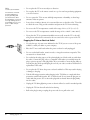

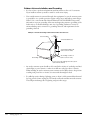
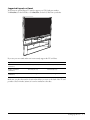
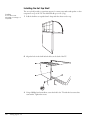

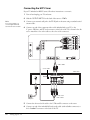
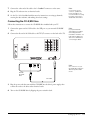
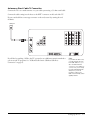

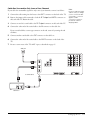
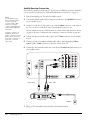
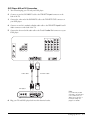
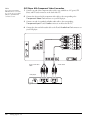
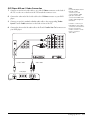

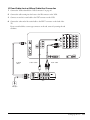
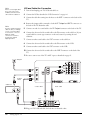
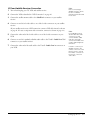
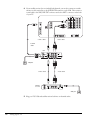
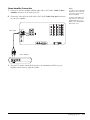

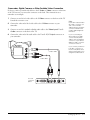

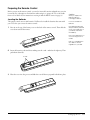

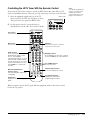
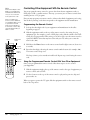
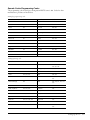
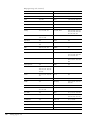
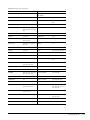
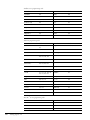
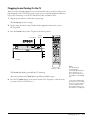

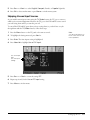

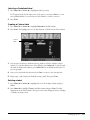


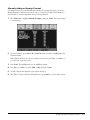

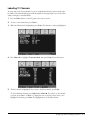
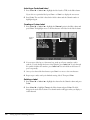

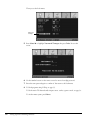
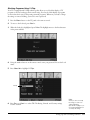
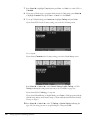



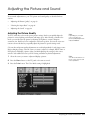
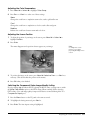
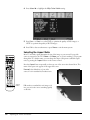
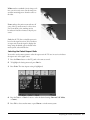
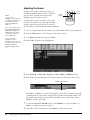
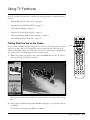


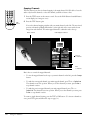
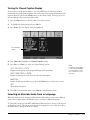


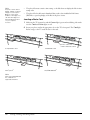
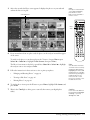


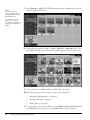
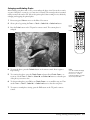
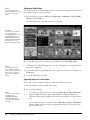

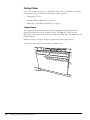
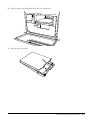
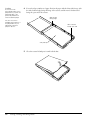
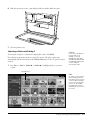

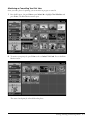
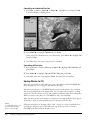

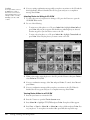
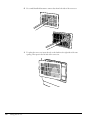
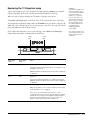
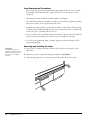
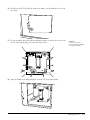


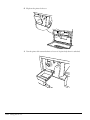


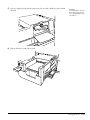

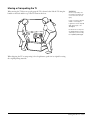



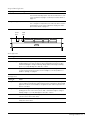
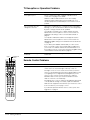












![Epson Visualiser - ELPDC11 - Desktop [240v]](http://vs1.manualzilla.com/store/data/007223285_1-93e9dd17be7603091f7bae370cd4ba76-150x150.png)