1
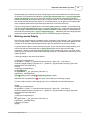
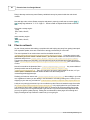
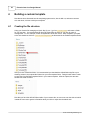
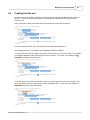
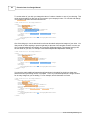
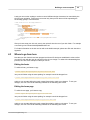
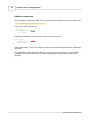
Pinnacle Cart Core
Design Manual
© 2011 Desert Dog Marketing, LLC
Pinnacle Cart Core Design Manual
© 2011 Desert Dog Marketing, LLC
All rights reserved. No parts of this work may be reproduced in any form or by any means - graphic, electronic, or
mechanical, including photocopying, recording, taping, or information storage and retrieval systems - without the
written permission of the publisher.
Products that are referred to in this document may be either trademarks and/or registered trademarks of the
respective owners. The publisher and the author make no claim to these trademarks.
While every precaution has been taken in the preparation of this document, the publisher and the author assume no
responsibility for errors or omissions, or for damages resulting from the use of information contained in this document
or from the use of programs and source code that may accompany it. In no event shall the publisher and the author be
liable for any loss of profit or any other commercial damage caused or alleged to have been caused directly or
indirectly by this document.
Printed: July 2011
Publisher
Desert Dog Marketing, LLC
Managing Editor
Mike Rose
Technical Editors
Mike Rose
Sebi Nievas
Kyle Weiskopf
Contents
3
Table of Contents
0
Part I Introduction
1 Overview
6
................................................................................................................................... 6
2 Languages used
................................................................................................................................... 7
Part II Framework
11
1 Base template
...................................................................................................................................
folder
11
2 Prebuilt template
...................................................................................................................................
folder
12
3 Custom template
...................................................................................................................................
folder
13
4 Compiled folder
................................................................................................................................... 13
Part III Important notes before you start
15
1 Rebuilding skin
...................................................................................................................................
cache
15
Rebuild via Design
..........................................................................................................................................................
Mode
Rebuild via Dev
..........................................................................................................................................................
Mode
15
16
2 Suggested pathing
................................................................................................................................... 18
3 Working around
...................................................................................................................................
Smarty
19
4 Files to not touch
................................................................................................................................... 20
Part IV Building a custom template
22
1 Creating the...................................................................................................................................
file structure
22
2 Creating the...................................................................................................................................
skin.xml
23
3 Where to go...................................................................................................................................
from here
25
Part V Useful Tools
28
1 Design tools................................................................................................................................... 28
2 Page speed ...................................................................................................................................
checkers
28
3 CSS compliance
...................................................................................................................................
tools
28
4 HTML validation
...................................................................................................................................
tools
28
5 Language editor
................................................................................................................................... 28
Part VI Appendix
31
1 Examples downloads
................................................................................................................................... 31
2 Skin.xml data
................................................................................................................................... 31
3 Example template
...................................................................................................................................
layouts
33
4 CSS reference
...................................................................................................................................
list
38
5 Default skin ...................................................................................................................................
images
55
© 2011 Desert Dog Marketing, LLC
3
4
Pinnacle Cart Core Design Manual
0
© 2011 Desert Dog Marketing, LLC
Introduction
I
6
1
Pinnacle Cart Core Design Manual
Introduction
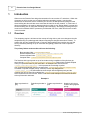
Welcome to the Pinnacle Cart design documentation for cart versions 3.7 and above. Within this
document we will cover the core principles behind the templating system, how the skins
themselves are structured, how to construct your own skin, as well provide key things to know
when building the skins and also some tools that will assist in the skin creation. It is the intent of
this documentation to be used by designers who do not wish to use "Design Mode" to create their
skins and strictly plan on using raw file editing and/or managing. We strongly encourage that you
commit to this method 100% to prevent any conflicts that can occur, which we will touch on later
in this document.
1.1
Overview
The templating engine is built around the concept of being able to push core changes to the skin
templates during an update/upgrade without interrupting the design that has been created. To
achieve this, we have created a tiered or "layered" design platform that compiles into one final
skin by essentially stacking on top of each other and getting pushed into a final compilation
directory.
The primary folders used to achieve this are the following:
Base template folder: \content\engine\design
Prebuilt template folder: \content\skins\(Prebuilt template name)
Custom template folder: \content\skins\_custom
Compiled folder: \content\cache\skins\(Custom template name)
The first three skins get layered on top of each other during compilation of the skin then get
saved into the \content\cache\skins\(Prebuilt template name) folder where (Prebuilt template
name) is equal to the name of your active skin. An example name would look like
\content\cache\skins\SimpleGreen . In this process the core design is pulled
from \content\engine\design then any changes from \content\skins\(Prebuilt template name)
are added on top with a higher priority. After this occurs, any changes from
\content\skins\_custom are then added as the final layer with the highest priority and the
resulting skin files are then fully published into \content\cache\skins\(Prebuilt template name)
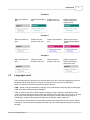
which is what the end user will see. Below is are more visual examples of how this would work
with any files and/or elements:
Example A
Base says header is
gray
Prebuilt says header is
teal
Custom says header is
pink
Header is pink due to
Custom having highest
priority
© 2011 Desert Dog Marketing, LLC
Introduction
7
Example B
Base says header is
gray
Prebuilt says header is
teal
Custom does not
declare a new color
Header is teal due to
Prebuilt having next
highest priority
Example C
Base says header is
gray
Prebuilt does not
declare a new color
Custom says header is
pink
Header is pink due to
Custom having highest
priority
Example D
Base says header is
gray
1.2
Prebuilt does not
declare a new color
Custom does not
declare a new color
Header is gray since
Prebuilt and Custom
did not have input
Languages used
While the templates are generically css and html based, there are a few other languages as well as a
templating engine being utilized to create the look and feel of the Pinnacle Cart application.
Below is a summary of the technologies being used in the cart:
HTML - Stands for HyperText Markup Language, is the predominant markup language for web pages.
HTML is the basic building-blocks of webpages.
HTML is written in the form of HTML elements consisting of tags, enclosed in angle brackets (like
<html>), within the web page content. HTML tags normally come in pairs like <h1> and </h1>. The first
tag in a pair is the start tag, the second tag is the end tag (they are also called opening tags and
closing tags). In between these tags web designers can add text, tables, images, etc.
The purpose of a web browser is to read HTML documents and compose them into visual or audible
web pages. The browser does not display the HTML tags, but uses the tags to interpret the content of
the page.
© 2011 Desert Dog Marketing, LLC
8
Pinnacle Cart Core Design Manual
HTML elements form the building blocks of all websites. HTML allows images and objects to be
embedded and can be used to create interactive forms. It provides a means to create structured
documents by denoting structural semantics for text such as headings, paragraphs, lists, links, quotes
and other items. It can embed scripts in languages such as JavaScript which affect the behavior of
HTML webpages.
Web browsers can also refer to Cascading Style Sheets (CSS) to define the appearance and layout of
text and other material. The W3C, maintainer of both the HTML and the CSS standards, encourages
the use of CSS over explicitly presentational HTML markup.
For more information on HTML please see http://en.wikipedia.org/wiki/Html
CSS - Cascading Style Sheets (CSS) is a style sheet language used to describe the presentation
semantics (the look and formatting) of a document written in a markup language. Its most common
application is to style web pages written in HTML and XHTML, but the language can also be applied to
any kind of XML document, including plain XML, SVG and XUL.
CSS is designed primarily to enable the separation of document content (written in HTML or a similar
markup language) from document presentation, including elements such as the layout, colors, and
fonts. This separation can improve content accessibility, provide more flexibility and control in the
specification of presentation characteristics, enable multiple pages to share formatting, and reduce
complexity and repetition in the structural content (such as by allowing for tableless web design). CSS
can also allow the same markup page to be presented in different styles for different rendering
methods, such as on-screen, in print, by voice (when read out by a speech-based browser or screen
reader) and on Braille-based, tactile devices. While the author of a document typically links that
document to a CSS style sheet, readers can use a different style sheet, perhaps one on their own
computer, to override the one the author has specified.
CSS specifies a priority scheme to determine which style rules apply if more than one rule matches
against a particular element. In this so-called cascade, priorities or weights are calculated and
assigned to rules, so that the results are predictable.
For more information on CSS please see http://en.wikipedia.org/wiki/CSS
JavaScript - Also known as ECMAScript, is a prototype-based, object-oriented] scripting language
that is dynamic, weakly typed and has first-class functions. It is also considered a functional
programming language like Scheme and OCaml because it has closures and supports higher-order
functions.
JavaScript is an implementation of the ECMAScript language standard and is primarily used in the
form of client-side JavaScript, implemented as part of a web browser in order to provide enhanced
user interfaces and dynamic websites. This enables programmatic access to computational objects
within a host environment.
JavaScript's use in applications outside web pages—for example in PDF documents, site-specific
browsers and desktop widgets—is also significant. Newer and faster JavaScript VMs and frameworks
built upon them (notably Node.js) have also increased the popularity of JavaScript for server-side web
apps.
For more information on Javascript please see http://en.wikipedia.org/wiki/Javascript
Xajax - xajax is an open source PHP class library implementation of AJAX that gives developers the
ability to create web-based Ajax applications using HTML, CSS, JavaScript, and PHP. Applications
developed with xajax can asynchronously call server-side PHP functions and update content without
reloading the page.
© 2011 Desert Dog Marketing, LLC
Introduction
9
Unlike some other Ajax frameworks, xajax is designed to allow the programmer to have no prior
knowledge of JavaScript.
For more information on xajax please see http://en.wikipedia.org/wiki/Xajax
jQuery - jQuery is a cross-browser JavaScript library designed to simplify the client-side scripting of
HTML. It was released in January 2006 at BarCamp NYC by John Resig. Used by over 43% of the
10,000 most visited websites, jQuery is the most popular JavaScript library in use today.
jQuery is free, open source software, dual-licensed under the MIT License and the GNU General
Public License, Version 2. jQuery's syntax is designed to make it easier to navigate a document, select
DOM elements, create animations, handle events, and develop Ajax applications. jQuery also provides
capabilities for developers to create plug-ins on top of the JavaScript library. Using these facilities,
developers are able to create abstractions for low-level interaction and animation, advanced effects
and high-level, theme-able widgets. This contributes to the creation of powerful and dynamic web
pages.
For more information on jQuery please see http://en.wikipedia.org/wiki/Jquery
XML - Extensible Markup Language (XML) is a set of rules for encoding documents in machinereadable form. It is defined in the XML 1.0 Specification produced by the W3C, and several other
related specifications, all gratis open standards.
The design goals of XML emphasize simplicity, generality, and usability over the Internet. It is a textual
data format with strong support via Unicode for the languages of the world. Although the design of
XML focuses on documents, it is widely used for the representation of arbitrary data structures, for
example in web services.
Many application programming interfaces (APIs) have been developed that software developers use to
process XML data, and several schema systems exist to aid in the definition of XML-based languages.
For more information on XML please see http://en.wikipedia.org/wiki/XML
Smarty - Smarty is a web template system written in PHP. Smarty is primarily promoted as a tool for
separation of concerns. Smarty is intended to simplify compartmentalization, allowing the presentation
of a web page to change separately from the back-end. Ideally, this eases the costs and efforts
associated with software maintenance.
Smarty generates web content by the placement of special Smarty tags within a document. These tags
are processed and substituted with other code. Tags are directives for Smarty that are enclosed by
template delimiters. These directives can be variables, denoted by a dollar sign ($), functions, logical
or loop statements. Smarty allows PHP programmers to define custom functions that can be accessed
using Smarty tags.
For more information on Smarty please see http://en.wikipedia.org/wiki/Smarty
© 2011 Desert Dog Marketing, LLC
Framework
II
Framework
2
11
Framework
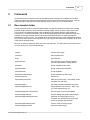
As discussed earlier in this document, the templating engine compiles your template into one after
pulling from three other folders and stacking them on top of each other based upon priority. Here we
will go through the different skin folders and their primary intent in a more in depth fashion.
2.1
Base template folder
The base template folder is the central design folder of which all templates are based from including
backend design templates, email templates, template images, and of course the base skin its self.
This is where any updates/upgrades to the templates will get installed during a hotfix release by
Pinnacle Cart. It currently is housed in the \content\engine\design folder of the default Pinnacle Cart
package. As the base template folder is the default, unmodified design it is usually very bland in
appearance if used by its self. This template folder has the lowest priority in the compilation procedure
so you would never want to make any edits here, only copy the files themselves individually to be used
in the Prebuilt template folder.
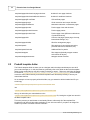
Below is an outline of what each folder is for and what it houses. The base path for all of these files is
of course going to be \content\engine\design :
images
Custom skin images
javascript
Skin javascript files
styles
Skin CSS files
styles\elements
Skin CSS files for specific site elements
(used by Styles Editor in Design Mode)
templates
Smarty templates main folder
templates\admin
Design mode related templates.
templates\email
E-mail templates
templates\email\elements
E-mail templates top and bottom
templates\layouts\
Site layouts
templates\layouts\zones
Main parts of site layout – site header, footer,
navigation bar, side bars
templates\pages\
Site pages templates separated by groups
templates\pages\account
Pages related to user account – log-in, sign
up, profile, address book, etc
templates\pages\account\elements
Common parts for account templates
templates\pages\catalog
Product catalog and product search pages
templates\pages\catalog\elements
Elements for catalog pages such as
navigation bar, bread crumbs, page break
control and product preview parts
templates\pages\catalog\views
Custom views for catalog pages
templates\pages\checkout
Checkout-relates pages
© 2011 Desert Dog Marketing, LLC
12
2.2
Pinnacle Cart Core Design Manual
templates\pages\checkout\one-page-checkout
Includes for one-page-checkout
templates\pages\checkout\traditional-checkout
Includes for traditional checkout
templates\pages\gift-certificate
Gift certificate pages
templates\pages\google
Good conversion and coupon includes
templates\pages\newsletters
Newsletter subscribe / unsubscribe pages
templates\pages\product
Product page views and elements
templates\pages\product\elements
Product page peaces
templates\pages\product\views
Product page views (different combinations
of product/elements)
templates\pages\site
Common site pages (home page, site map,
international settings, etc)
templates\pages\wishlist
Wish list management pages
templates\panels
Site panels such as products categories,
products search box, bestsellers, etc)
templates\panels\includes
Additional files for panels
templates\wrappers
Site wrappers (basically wrapper creates
environment for layout)
templates\wrappers\elements
Wrapper shared elements
Prebuilt template folder
The Prebuilt template folder is where you as a designer and/or developer would want to save all of
your content changes to. In this document we generically refer to this folder as the Prebuilt template
folder but the actual folder its self will be what you decide to name it. Right now, this folder will always
be located at \content\skins\(Prebuilt template name) or \content\skins\MyNewSkin as an example.
It uses the same folder hierarchy as the Base template folder discussed previously to house your
customized skin files.
As an example on how to properly utilize this folder, say you wanted to edit the header.html file you
would copy
content\engine\design\templates\layouts\zones\header.html
into
content\skins\MyNewSkin\templates\layouts\zones\header.html
then go in and make your customizations to the
content\skins\MyNewSkin\templates\layouts\zones\header.html
file, leaving the original one stored in
the Base template intact.
This is the process you would want to consistently follow to edit mostly all of the template files.
Keeping them all here will also make packaging of your skin tons easier if you plan to do things like
resell it or provide it to another Pinnacle Cart User.
© 2011 Desert Dog Marketing, LLC
Framework
2.3
13
Custom template folder
The Custom template folder is where the Pinnacle Cart feature of Design Mode saves all of its
changes, its current location is \content\skins\_custom . This folder is exclusively used by Design
Mode and should never be used when creating your own design. Since it is the folder being used by
Design Mode, it gets the highest and final priority in the skin compilation process. As this is the folder
The Custom template does follow the same hierarchy as the Base template as well so in the off
chance something is built or changed via Design Mode you can always grab the changed file and
move it into your skin. This fact does mean you in theory could side by side design a skin via raw
editing and Design Mode but we do not recommend it in order to avoid potential complications.
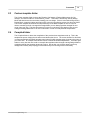
2.4
Compiled folder
The Compiled folder is where the compilation of the previous three templates ends up. This is the
template the person visiting the site will see and browse the site on. The current location for this folder
is \content\cache\skins\(Prebuilt template name) where Prebuilt template name is equal to the name of
your active skin. An example folder would look like \content\cache\skins\MyNewSkin . This folder gets
written to every time the cart is told to recompile the templates either through entering Design Mode or
navigating through the site when devmode is active. Due to that, you will never want to save any
changes here as they will promptly get overwritten and your work will get lost unfortunately.
© 2011 Desert Dog Marketing, LLC
Important notes before you
start
III
Important notes before you start
3
15
Important notes before you start
Before we get into template creation, we have some suggestions and rules of sorts that will make life
easier overall for you while making your new template. We may expand this section from time to time
so we do suggest checking back every now and then.
3.1
Rebuilding skin cache
As you build your skin, you will need to rebuild the cache folder so that you can see your changes.
Within Pinnacle Cart we currently have two ways to accomplish this: entering into Design Mode and
enabling Dev Mode. Both have their pros and cons which we will cover next.
3.1.1
Rebuild via Design Mode
To rebuild the cart via Design Mode, you'll want go through the following steps:
1. Log into the admin area of your shopping cart (typically is http://www.yourdomain.tld/login.php)
© 2011 Desert Dog Marketing, LLC
16
Pinnacle Cart Core Design Manual
2. Click on Activate Cart Designer in the Quick Links section of your admin area, located on the left
hand side.
3. Once it has loaded, you'll then simply hit the Exit button, located in the bottom right hand corner of
Design Mode. You don't need to do anything in Design Mode its self, the act of activating it rebuilds
the cache.
The drawback to this method is the process can be tiresome to reload your design every time, but it
does not impact the performance of your site.
3.1.2
Rebuild via Dev Mode
Dev Mode is a pretty useful option as it forces the cart to auto refresh the cache every time the site is
navigated through. It also fully explains the any mysql errors that occur which is something you
generally wouldn't run into when strictly doing a design but is good to know either way.
© 2011 Desert Dog Marketing, LLC
Important notes before you start
To enable Dev Mode, you will want to do the following:
1. Connect to your deployed cart via an editor of your choice (FTP, SSH, SFTP, Etc..) For this
exercise we will do it via SFTP .
2. Drill down into the content\engine\ directory
© 2011 Desert Dog Marketing, LLC
17
18
Pinnacle Cart Core Design Manual
3. Open up the engine_config.php
4. Add in a new line above the php closing tag ( ?> ) with the text of " define('DEVMODE', 'True'); " and
then save the changes
The draw back to this method is that if it is not turned of during "visitor hours" it will slow down the
performance of your site as every visitor will be rebuilding your template consistently. To turn it off you
can set the flag to False instead of True, then change back when needed.
3.2
Suggested pathing
The Pinnacle Cart application operates in both a non-secure and secure environment in order to
maintain PA-DSS compliance . Due to this we strongly suggest making sure all of your designs use
relative pathing over absolute pathing. If you do not do so, you run a high chance of getting security
warnings when your site goes into secure mode.
© 2011 Desert Dog Marketing, LLC
Important notes before you start
19
Absolute pathing is commonly seen when calling images and/or other media such as flash and video.
An example of this would be something like <a href="http://www.domain.com" >< img src="http://www.
domain.com/image.jpg"></a> As you see in this example we use the full image path including the
domain name its self. If you used code like this in say your header or footer, what happens is that your
cart will start throwing errors during checkout. In Internet Explorer you will get an error message right
away complaining about insecure content being loaded from a non-secure directory.
The way to keep this from happening is to use relative pathing wherever possible. An example would
look like <a href="http://www.domain.com" >< img src="image.jpg"></a> . Notice that in the image call
only the image is referenced as the image is located in webroot. If it was located in a subdirectory the
call would look something like < img src="images/image.jpg"> . Maintaining this basic design principle
will greatly increase site speeds and keep insecure content warnings from appearing.
3.3
Working around Smarty
Due to the cart using Smarty as a templating engine, all usage of curly brackets ( { and } ) is assumed
to be a Smarty variable. Additionally it does not parse php code properly unless some additional code
is added as we will explain below along with how to get curly brackets to be ignored by Smarty.
To get the Smarty engine to treat curly brackets as part of your code and not a Smarty variable, you'll
want to use what are called literal tags or {literal} {/literal} which are the open and close tags
respectively. Ideally you will wrap both tags around any curly bracket being used in your code. Most
commonly you will see these used inside of javascript chunks as curly brackets are used as part of the
regular operators.
A working example of this would be as follows:
<script type="text/javascript">
var gaJsHost = (("https:" == document.location.protocol) ? "https://ssl." : "http://www.");
document.write(unescape("%3Cscript src='" + gaJsHost + "google-analytics.com/ga.js' type='text/
javascript'%3E%3C/script%3E"));
</script>
<script type="text/javascript">
try {literal}{{/literal}
var pageTracker = _gat._getTracker("UA-xxxxx-x");
pageTracker._trackPageview();
{literal}}{/literal} catch(err) {literal}{{/literal}{literal}}{/literal}</script>
Notice that the curly brackets in pink have been surrounded by the literal tags in green.
You also could have done it the following way, but it is considered to be less efficient/proper :
{literal}
<script type="text/javascript">
var gaJsHost = (("https:" == document.location.protocol) ? "https://ssl." : "http://www.");
document.write(unescape("%3Cscript src='" + gaJsHost + "google-analytics.com/ga.js' type='text/
javascript'%3E%3C/script%3E"));
</script>
<script type="text/javascript">
try {
var pageTracker = _gat._getTracker("UA-xxxxx-x");
pageTracker._trackPageview();
} catch(err) {}</script>
{/literal}
© 2011 Desert Dog Marketing, LLC
20
Pinnacle Cart Core Design Manual
Doing it that way renders any actual Smarty variables that may be present inside the code chunk
useless.
Now with php code, to have Smarty recognize and parse it properly you will want to use the {php} {/
php} smarty tags instead of <? ?> or <?php ?> . Below is what an adjusted Hello World would look
like.
Not inside a smarty engine:
<?php
Echo "Hello, World!";
?>
Inside a smarty engine:
{php}
Echo "Hello, World!";
{/php}
3.4
Files to not touch
As part of best practices with making a compliant skin and helping stay away from getting interrupted
from a possible update, there are a few files we strongly recommend you never edit.
The most important file to mention here would be the default head file or
. If you have custom code
that needs to go into the <head> </head> section , you will want to create a file called element-customhead.html and put it into \content\skins\(Prebuilt template name)\templates\wrappers\elements .
This way the changes are included in your skin when the cache is refreshed and incase we have to
update \content\engine\design\templates\wrappers\element-default-head.html your custom code is
not lost.
\content\engine\design\templates\wrappers\element-default-head.html
Next in line would be the javascript files in \content\engine\design\javascript . Any custom tidbits of
javascript would want to be passed into \content\skins\(Prebuilt template name)
\templates\javascript\skin.js . There you can put in any new js code needed for the site, or if you
need to pass in variables to override default variables from the existing files in
\content\engine\design\javascript .
Similarly you'll also not want to edit \content\engine\design\styles\base.css when adding in your own
css, regardless of wether you are adding in new elements or overriding existing ones. When you are
dropping in your new css, you'll add it to \content\skins\(Prebuilt template name)\styles\skin.css
Lastly we very strongly recommend you do not edit the opc html files at all wether through direct edits
in \content\engine\design\templates\pages\checkout\opc or by copying them into your custom skin.
The reason for this is that it is highly sensitive and if we are having to push new skin/js files for that
section it is likely due to a bug that needed to get fixed and if you have edited them/duplicated them
you may not get the update properly. Editing the css elements for those pages is fine though and
highly encouraged to help create the custom look you are going for.
© 2011 Desert Dog Marketing, LLC
Building a custom template
IV
22
4
Pinnacle Cart Core Design Manual
Building a custom template
Now that we have discussed how the templating system works, how its laid out, and some common
do's and dont's, it's time to build your template!
4.1
Creating the file structure
Using your favorite file managing tool (ssh, sftp, ftp, etc...) go into \content\skins and create a folder
for your new skin. It's recommended to name the folder after the name of your skin for ease of
management. For our example, we will us MyNewSkin as the skin name. After completion your path
to the skin should be similar to \content\skins\MyNewSkin as discussed in the Prebuilt template section
After you have created the folder, it is recommended you download the defaultfolders zip file to your
desktop, extract it, then upload the folders into your new template folder. Doing this will make it easier
to copy files from the Base template folder in your custom template. After the upload, the structure
should look similar to below:
Now that you have the default folders inside of your custom skin, we can move onto the skin.xml which
is what the cart uses to get the information about your skin to output into the admin area.
© 2011 Desert Dog Marketing, LLC
Building a custom template
4.2
23
Creating the skin.xml
As mentioned, the next step in creating your custom skin is to build the Skin Definition file, known as
skin.xml . This file is required for the skin to be recognized and be selected in the admin area of
Pinnacle Cart.
Using a text editor, create a file named skin.xml and paste the code below into the file:
<?xml version="1.0" encoding="UTF-8"?>
<skin>
<title>Sample Title</title>
<name>skin_template</name>
<author>nobody</author>
<thumbnail>previewThumbnail.jpg</thumbnail>
<preview>previewFullsize.jpg</preview>
<images>
<image title="Catalog View">screenshot1.jpg</image>
</images>
<settings>
<DesignTopMenuAvailable>NO</DesignTopMenuAvailable>
</settings>
</skin>
This is the default structure of the skin.xml with some default data added into it.
After dropping the xml in, you'll want to start updating the different variables.
To set the title of your skin you change the value of <title></title> to one of you choosing. This variable
will be what is displayed in the admin area for the skin selectors. For our skin, we'll change it to My
New Skin, so the end result will look like:
<?xml version="1.0" encoding="UTF-8"?>
<skin>
<title>My New Skin</title>
<name>skin_template</name>
<author>nobody</author>
<thumbnail>previewThumbnail.jpg</thumbnail>
<preview>previewFullsize.jpg</preview>
<images>
<image title="Catalog View">screenshot1.jpg</image>
</images>
<settings>
<DesignTopMenuAvailable>NO</DesignTopMenuAvailable>
</settings>
</skin>
To set the name of your skin you change the value of <name></name> to one of you choosing. This
value must match exactly the name of your custom templates folder. For our skin, we'll change it to
MyNewSkin so the end result will look like
<?xml version="1.0" encoding="UTF-8"?>
<skin>
<title>My New Skin</title>
<name>MyNewSkin</name>
<author>nobody</author>
<thumbnail>previewThumbnail.jpg</thumbnail>
<preview>previewFullsize.jpg</preview>
<images>
<image title="Catalog View">screenshot1.jpg</image>
</images>
<settings>
<DesignTopMenuAvailable>NO</DesignTopMenuAvailable>
</settings>
</skin>
© 2011 Desert Dog Marketing, LLC
24
Pinnacle Cart Core Design Manual
To set the author of your skin you change the value of <author></author> to one of you choosing. This
value can be anything you like such as your name or your company's name. For our skin well change
it to Pinnacle Cart so the end result will look like
<?xml version="1.0" encoding="UTF-8"?>
<skin>
<title>My New Skin</title>
<name>MyNewSkin</name>
<author>Pinnacle Cart</author>
<thumbnail>previewThumbnail.jpg</thumbnail>
<preview>previewFullsize.jpg</preview>
<images>
<image title="Catalog View">screenshot1.jpg</image>
</images>
<settings>
<DesignTopMenuAvailable>NO</DesignTopMenuAvailable>
</settings>
</skin>
One of the things you can do with the skin.xml is set thumbnail and preview images of your skins. You
likely would not have anything to present right away at the start of the template creation, but once you
did, you would update the <thumbnail> and <preview> fields respectively. The images would go into
the root folder of your skin, for example \content\skins\MyNewSkin\MyNewSkinThumb,jpg
<?xml version="1.0" encoding="UTF-8"?>
<skin>
<title>My New Skin</title>
<name>MyNewSkin</name>
<author>Pinnacle Cart</author>
<thumbnail>MyNewSkinThumb.jpg</thumbnail>
<preview>MyNewSkinPreview.jpg</preview>
<images>
<image title="Catalog View">screenshot1.jpg</image>
</images>
<settings>
<DesignTopMenuAvailable>NO</DesignTopMenuAvailable>
</settings>
</skin>
You can also supply additional images that will get shown in the admin for the skin to show case
different areas of your design once it is complete. To do so you would duplicate the <image> section
for as many images as you are adding. For our example, we will showcase our footer.
<?xml version="1.0" encoding="UTF-8"?>
<skin>
<title>My New Skin</title>
<name>MyNewSkin</name>
<author>Pinnacle Cart</author>
<thumbnail>MyNewSkinThumb.jpg</thumbnail>
<preview>MyNewSkinPreview.jpg</preview>
<images>
<image title="Awesome Footer">footer.jpg</image>
</images>
<settings>
<DesignTopMenuAvailable>NO</DesignTopMenuAvailable>
</settings>
</skin>
© 2011 Desert Dog Marketing, LLC
Building a custom template
25
Lastly you can use the <settings> section to control different design elements to be controlled by the
skin.xml upon activation. Right now it can control only the top menu but we will be expanding the
functionality greatly in future releases.
<?xml version="1.0" encoding="UTF-8"?>
<skin>
<title>My New Skin</title>
<name>MyNewSkin</name>
<author>Pinnacle Cart</author>
<thumbnail>MyNewSkinThumb.jpg</thumbnail>
<preview>MyNewSkinPreview.jpg</preview>
<images>
<image title="Awesome Footer">footer.jpg</image>
</images>
<settings>
<DesignTopMenuAvailable>Yes</DesignTopMenuAvailable>
</settings>
</skin>
After you have setup your skin.xml, save it, then upload it into the root of your skin folder. For example
ours would go into \content\skins\MyNewSkin\skin.xml
For further information on the skin.xml as well as the default example, please see Skin.xml data in the
Appendix
4.3
Where to go from here
Now that your skin folders have been prepped and the xml file has been established in order to allow
your skin to work with the cart, the only thing left to do is to design! To assist with understanding that
process, here are some examples of what you can do.
Editing the footer
To edit the footer, you'll want to copy
\content\engine\design\templates\layouts\zone\footer.html
into your skin folder using the same pathing, for example it would be dropped into
\content\skins\MyNewSkinName\templates\layouts\zone\footer.html
and then you can start editing the newly created footer.html to make your changes. To see your
changes, use one of the cache rebuilding methods list in Rebuilding skin cache.
Editing the home page
To edit the home page, you'll want to copy
\content\engine\design\templates\pages\site\home.html
into your skin folder using the same pathing, for example it would be dropped into
\content\skins\MyNewSkinName\templates\pages\site\home.html
and then you can start editing the newly created home.html to make your changes. To see your
changes, use one of the cache rebuilding methods list in Rebuilding skin cache.
© 2011 Desert Dog Marketing, LLC
26
Pinnacle Cart Core Design Manual
Adding in custom css
Say you wanted to change the default color of your panel headers background color, you'll want to edit
\content\skins\MyNewSkinName\styles\skin.css
and put in the css for that element
.panel .title {
background-color: #999999;
color: white;
}
and update background color to have your custom color as shown below
.panel .title {
background-color: #FF55AA;
color: white;
}
and save the change. To see your changes, use one of the cache rebuilding methods list in Rebuilding
skin cache.
This is basically the whole process for adding in your own code, css, and images. For some helpful
examples as to how each page is laid out, check out the Example template layouts section of the
Appendix.
© 2011 Desert Dog Marketing, LLC
Useful Tools
V
28
Pinnacle Cart Core Design Manual
5
Useful Tools
5.1
Design tools
In order to facilitate finding the different CSS elements through out a skin, we recommend using some
of the various design tools built into the different browsers. Each utility has the ability to inspect
sections of a website and give you the HTML and/or CSS controlling that element.
Firebug for Firefox
http://getfirebug.com/
Developer tools for Chrome
http://code.google.com/chrome/devtools/docs/overview.html
Internet Explorer developer tools
http://msdn.microsoft.com/en-us/library/dd565628%28v=vs.85%29.aspx
5.2
Page speed checkers
Page Speed by Google
http://code.google.com/speed/page-speed/
Web Page Test
http://www.webpagetest.org/
5.3
CSS compliance tools
W3C CSS Validation Service
http://jigsaw.w3.org/css-validator/
CSSCheck
http://www.htmlhelp.com/tools/csscheck/
CSS Analyser
http://juicystudio.com/services/csstest.php
5.4
HTML validation tools
WDG HTML Validator
http://htmlhelp.com/tools/validator/
Html Validator for Firefox
https://addons.mozilla.org/en-US/firefox/addon/html-validator/
W3C Markup Validation Service
http://validator.w3.org/
5.5
Language editor
One of the more powerful tools in the cart is the Language Editor located in Cart Settings > Global Cart
Settings > Languages and Currencies > Languages
For a quick visual walkthrough on accessing the languages area, check out http://support.pinnaclecart.
© 2011 Desert Dog Marketing, LLC
Useful Tools
29
com/tutorials/languages/languages.htm
This is not directly related to editing the design template, but it does control all of the default text in
your website which is handy to know in case say you wanted to change 'My Cart' to say 'My Shopping
Cart' for example.
We feel this is definitely one of the most commonly overlooked but very powerful features of the cart.
If you have any questions on using it, please feel free to let us know or checkout the Languages
section in our user manual.
Of note though, that if you do utilize the feature and plan to send the skin out to another customer, you
will want to include the language file as well for them to deploy. If this does occur, you can get the
language file from your \content\languages folder.
© 2011 Desert Dog Marketing, LLC
Appendix
VI
Appendix
6
Appendix
6.1
Examples downloads
Default folder hierarchy for custom skins
http://www.cartmanual.com/manuals/defaultfolders.zip
Example skin package
http://www.cartmanual.com/manuals/SampleSkin.zip
6.2
Skin.xml data
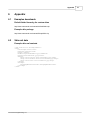
Example skin.xml contents
<?xml version="1.0" encoding="UTF-8"?>
<skin>
<title>Sample Title</title>
<name>skin_template</name>
<author></author>
<thumbnail>previewThumbnail.jpg</thumbnail>
<preview>previewFullsize.jpg</preview>
<images>
<image title="Catalog View">screenshot1.jpg</image>
<image title="Product Details">screenshot2.jpg</image>
<image title="View Cart">screenshot3.jpg</image>
</images>
<settings>
<DesignTopMenuAvailable>NO</DesignTopMenuAvailable>
</settings>
</skin>
© 2011 Desert Dog Marketing, LLC
31
32
Pinnacle Cart Core Design Manual
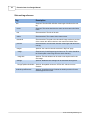
Skin.xml tag reference
Tag
skin
Description
Required. The skin XML definition must begin with this as the root
tag
name
Required. This value should be the same as the custom skin folder
name.
title
Recommended. The title of the skin.
author
Recommended. The custom skins creator name.
thumbnail
Recommended. The path to the thumbnail image used as a preview
of the custom skin that is relative to the custom skin folder name.
preview
Recommended. The skin XML definition must begin with this as the
root tag
images
Optional. Icon used to view the customer’s “My Cart” page.
image
Required only if skin/images tag has been set. The value should be
the relative path to the image from the skin's directory.
image title
Optional. The title attribute can be used to set caption text for the
skin image.
settings
Optional. Additional skin settings can be set within this tag block.
DesignTopMenuAvailable Optional. Acceptable values are YES or NO. Values are case
sensitive.
defaultLayoutElements
Optional. A serialized array of where the default position of boxes
should appear for this skin.
© 2011 Desert Dog Marketing, LLC
Appendix
6.3
Example template layouts
© 2011 Desert Dog Marketing, LLC
33
34
Pinnacle Cart Core Design Manual
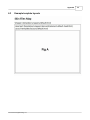
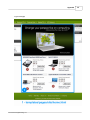
Fig A - Basic Layout
© 2011 Desert Dog Marketing, LLC
Appendix
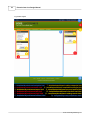
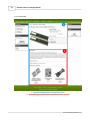
Fig B - Home page
© 2011 Desert Dog Marketing, LLC
35
36
Pinnacle Cart Core Design Manual
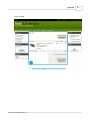
Fig C - Product Page
© 2011 Desert Dog Marketing, LLC
Appendix
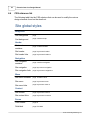
Fig D - Cart Page
© 2011 Desert Dog Marketing, LLC
37
38
6.4
Pinnacle Cart Core Design Manual
CSS reference list
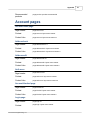
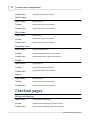
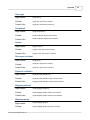
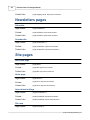
The following table lists the CSS selectors that can be used to modify the various
design elements found on the storefront.
Site global styles
Background
Site background
.page
Cart background
.page .container-wrap
Header
Site header
container
.page .container-header
Site header
.page .layout-zone-header
Site header links
.page .layout-zone-header a
Navigation
Site navigation
container
.page .container-navigation
Site navigation
.page .layout-zone-navigation
Site navigation links .page .layout-zone-navigation a
Menu
Site menu container .page .container-menu
Site menu
.page .layout-zone-menu
Site menu links
.page .layout-zone-menu a
Content
Site content
.page .layout-zone-content
Site content links
.page .layout-zone-content a
Forms
Form header
.page h3
Field label
.page .field label
© 2011 Desert Dog Marketing, LLC
Appendix
Required field label
.page .field.required label
Field comments
.page .field .hint
Footer
Site footer container .page .container-footer
Site footer
.page .layout-zone-footer
Site footer links
.page .layout-zone-footer a
Images
Site logo
.page .image-logo
Site slogan
.page .image-slogan
Home page image
.page .image-home
Hot deal mark
.page .image-hot-deal
No image mark
(small)
.page .image-no-image-small
No image mark (big) .page .image-no-image-big
Cart image in top
bar
.page .image-cart
Delete item from a
cart
.page .image-delete-item
CVV2 Number help
image
.page .image-cvv2
Check numbers
help image
.page .image-check
Click-to-view
.page .image-click-to-view
Print version
.page .image-print-version
Gift certificate
image
.page .image-gift-certificate
Buttons
Common style
.page input.button,input.submit,input.reset
Start search
.page input.button-start-search
Catalog navigation
.page input.button-catalog-navigation
© 2011 Desert Dog Marketing, LLC
39
40
Pinnacle Cart Core Design Manual
Add to cart
.page input.button-add-to-cart
Checkout
.page input.button-checkout
Subscribe
.page input.button-subscribe
Unsubscribe
.page input.button-unsubscribe
Continue
.page input.button-continue
Continue with order
.page input.button-continue-with-order
Continue shopping
.page input.button-continue-shopping
Login
.page input.button-login
Register
.page input.button-register
Reset
.page input.button-reset
Update
.page input.button-update-cart
Complete
.page input.button-complete
Purchase
.page input.button-purchase
Process payment
.page input.button-process-payment
Save
.page input.button-save
Add address
.page input.button-add-address
Reset password
.page input.button-reset-password
Email to a friend
.page input.button-email-to-friend
Get shipping rates
.page input.button-get-shipping-rates
Get shipping quotes .page input.button-get-shipping-quotes
Gift certificate
balance
.page input.button-gift-certificate-balance
Add wish list
.page input.button-add-wishlist
Update wish list
.page input.button-update-wishlist
Send wish list
.page input.button-send-wishlist
Send review
.page input.button-review-send
Close review
.page input.button-review-close
Testimonial Submit
.page input.button-testimonial-submit
© 2011 Desert Dog Marketing, LLC
Appendix
Boxes
Global styles for all boxes
Box header
.panel .title
Box content
.panel .content
Link styles
.panel a
Search catalog
Box header
.panel-catalog-search .title
Box content
.panel-catalog-search .content
Link styles
.panel-catalog-search a
Bestsellers
Box header
.panel-catalog-bestsellers .title
Box content
.panel-catalog-bestsellers .content
Link styles
.panel-catalog-bestsellers a
Catalog categories
Box header
.panel-catalog-categories .title
Box content
.panel-catalog-categories .content
Link styles
.panel-catalog-categories a
Manufacturers
Box header
.panel-catalog-manufacturers .title
Box content
.panel-catalog-manufacturers .content
Link styles
.panel-catalog-manufacturers a
Products others bought
Box header
.panel-catalog-others-bought .title
Box content
.panel-catalog-others-bought .content
Link styles
.panel-catalog-others-bought a
Recently viewed
© 2011 Desert Dog Marketing, LLC
41
42
Pinnacle Cart Core Design Manual
Box header
.panel-catalog-recent .title
Box content
.panel-catalog-recent .content
Link styles
.panel-catalog-recent a
Account profile
Box header
.panel-account-profile .title
Box content
.panel-account-profile .content
Link styles
.panel-account-profile a
Checkout
Box header
.panel-checkout .title
Box content
.panel-checkout .content
Link styles
.panel-checkout a
View cart
Box header
.panel-checkout-cart .title
Box content
.panel-checkout-cart .content
Link styles
.panel-checkout-cart a
Newsletter signup
Box header
.panel-newsletters-subscribe .title
Box content
.panel-newsletters-subscribe .content
Link styles
.panel-newsletters-subscribe a
Menus
Top menu
Menu background
.layout-zone-menu ul.drop-down-menu
Menu item
.layout-zone-menu a.drop-down-menu-item
Menu item hover
.layout-zone-menu a.drop-down-menu-item-hover
Side menu
Menu background
.panel-catalog-categories ul.drop-down-menu
© 2011 Desert Dog Marketing, LLC
Appendix
Menu item
.panel-catalog-categories a.drop-down-menu-item
Menu item hover
.panel-catalog-categories a.drop-down-menu-item-hover
Catalog pages
Common styles
Page header
.page-catalog h1
Content
.page-catalog .layout-zone-content
Content links
.page-catalog .layout-zone-content a
Bread crumbs
.page-catalog .catalog-bread-crumbs
Bread crumbs links
.page-catalog .catalog-bread-crumbs a
Navigation
.page-catalog .catalog-navigation
Page breaks
.page-catalog .catalog-page-breaks
Page breaks links
.page-catalog .catalog-page-breaks a
Page breaks current page
.page-catalog .catalog-page-breaks .active
Sort/View dropdowns
Menu background
.catalog-navigation ul.drop-down-menu
Menu item
.catalog-navigation a.drop-down-menu-item
Menu item hover
.catalog-navigation a.drop-down-menu-item-hover
Common product view
Product title
.page .catalog-product-title a
Product title
background
.page .catalog-product-title
Product ID
.page .catalog-product-id
Product image
.page .catalog-product-image
Product overview
.page .catalog-product-overview
Product price label
.page .catalog-product-price .price-label
Product price
.page .catalog-product-price .price-amount
© 2011 Desert Dog Marketing, LLC
43
44
Pinnacle Cart Core Design Manual
amount
Product sale price
label
.page .catalog-product-sale-price .sale-price-label
Product sale price
amount
.page .catalog-product-sale-price .sale-price-amount
Product case pack
.page .catalog-product-case-pack
Product hot deal
.page .catalog-product-hot-deal
Product out of stock .page .catalog-product-out-of-stock
Product click to view .page .catalog-product-click-to-view a
Product category
link
.page .catalog-product-more-in-category a
Text view
Product title
.catalog-view-text .catalog-product-title a
Product title
background
.catalog-view-text .catalog-product-title
Product ID
.catalog-view-text .catalog-product-id
Product image
.catalog-view-text .catalog-product-image
Product overview
.catalog-view-text .catalog-product-overview
Product price label
.catalog-view-text .catalog-product-price .price-label
Product price
amount
.catalog-view-text .catalog-product-price .price-amount
Product sale price
label
.catalog-view-text .catalog-product-sale-price .sale-price-label
Product sale price
amount
.catalog-view-text .catalog-product-sale-price .sale-price-amount
Product case pack
.catalog-view-text .catalog-product-case-pack
Product hot deal
.catalog-view-text .catalog-product-hot-deal
Product out of stock .catalog-view-text .catalog-product-out-of-stock
Product click to view .catalog-view-text .catalog-product-click-to-view a
Product category
link
.catalog-view-text .catalog-product-more-in-category a
© 2011 Desert Dog Marketing, LLC
Appendix
Thumbnails - single column
Product title
.catalog-view-thumb1 .catalog-product-title a
Product title
background
.catalog-view-thumb1 .catalog-product-title
Product ID
.catalog-view-thumb1 .catalog-product-id
Product image
.catalog-view-thumb1 .catalog-product-image
Product overview
.catalog-view-thumb1 .catalog-product-overview
Product price label
.catalog-view-thumb1 .catalog-product-price .price-label
Product price
amount
.catalog-view-thumb1 .catalog-product-price .price-amount
Product sale price
label
.catalog-view-thumb1 .catalog-product-sale-price .sale-price-label
Product sale price
amount
.catalog-view-thumb1 .catalog-product-sale-price .sale-price-amount
Product case pack
.catalog-view-thumb1 .catalog-product-case-pack
Product hot deal
.catalog-view-thumb1 .catalog-product-hot-deal
Product out of stock .catalog-view-thumb1 .catalog-product-out-of-stock
Product click to view .catalog-view-thumb1 .catalog-product-click-to-view a
Product category
link
.catalog-view-thumb1 .catalog-product-more-in-category a
Thumbnails - single column clean
Product title
.catalog-view-thumb1-clean .catalog-product-title a
Product title
background
.catalog-view-thumb1-clean .catalog-product-title
Product ID
.catalog-view-thumb1-clean .catalog-product-id
Product image
.catalog-view-thumb1-clean .catalog-product-image
Product overview
.catalog-view-thumb1-clean .catalog-product-overview
Product price label
.catalog-view-thumb1-clean .catalog-product-price .price-label
Product price
amount
.catalog-view-thumb1-clean .catalog-product-price .price-amount
© 2011 Desert Dog Marketing, LLC
45
46
Pinnacle Cart Core Design Manual
Product sale price
label
.catalog-view-thumb1-clean .catalog-product-sale-price .sale-price-label
Product sale price
amount
.catalog-view-thumb1-clean .catalog-product-sale-price
.sale-price-amount
Product case pack
.catalog-view-thumb1-clean .catalog-product-case-pack
Product hot deal
.catalog-view-thumb1-clean .catalog-product-hot-deal
Product out of stock .catalog-view-thumb1-clean .catalog-product-out-of-stock
Product click to view .catalog-view-thumb1-clean .catalog-product-click-to-view a
Product category
link
.catalog-view-thumb1-clean .catalog-product-more-in-category a
Thumbnails - double column
Product title
.catalog-view-thumb2 .catalog-product-title a
Product title
background
.catalog-view-thumb2 .catalog-product-title
Product ID
.catalog-view-thumb2 .catalog-product-id
Product image
.catalog-view-thumb2 .catalog-product-image
Product overview
.catalog-view-thumb2 .catalog-product-overview
Product price label
.catalog-view-thumb2 .catalog-product-price .price-label
Product price
amount
.catalog-view-thumb2 .catalog-product-price .price-amount
Product sale price
label
.catalog-view-thumb2 .catalog-product-sale-price .sale-price-label
Product sale price
amount
.catalog-view-thumb2 .catalog-product-sale-price .sale-price-amount
Product case pack
.catalog-view-thumb2 .catalog-product-case-pack
Product hot deal
.catalog-view-thumb2 .catalog-product-hot-deal
Product out of stock .catalog-view-thumb2 .catalog-product-out-of-stock
Product click to view .catalog-view-thumb2 .catalog-product-click-to-view a
Product category
link
.catalog-view-thumb2 .catalog-product-more-in-category a
Two column view
© 2011 Desert Dog Marketing, LLC
Appendix
Product title
.catalog-view-display .catalog-product-title a
Product title
background
.catalog-view-display .catalog-product-title
Product ID
.catalog-view-display .catalog-product-id
Product image
.catalog-view-display .catalog-product-image
Product overview
.catalog-view-display .catalog-product-overview
Product price label
.catalog-view-display .catalog-product-price .price-label
Product price
amount
.catalog-view-display .catalog-product-price .price-amount
Product sale price
label
.catalog-view-display .catalog-product-sale-price .sale-price-label
Product sale price
amount
.catalog-view-display .catalog-product-sale-price .sale-price-amount
Product case pack
.catalog-view-display .catalog-product-case-pack
Product hot deal
.catalog-view-display .catalog-product-hot-deal
Product out of stock .catalog-view-display .catalog-product-out-of-stock
Product click to view .catalog-view-display .catalog-product-click-to-view a
Product category
link
.catalog-view-display .catalog-product-more-in-category a
Two column box view
Product title
.catalog-view-display .catalog-product-title a
Product title
background
.catalog-view-display .catalog-product-title
Product ID
.catalog-view-display .catalog-product-id
Product image
.catalog-view-display .catalog-product-image
Product overview
.catalog-view-display .catalog-product-overview
Product price label
.catalog-view-display .catalog-product-price .price-label
Product price
amount
.catalog-view-display .catalog-product-price .price-amount
Product sale price
label
.catalog-view-display .catalog-product-sale-price .sale-price-label
© 2011 Desert Dog Marketing, LLC
47
48
Pinnacle Cart Core Design Manual
Product sale price
amount
.catalog-view-display .catalog-product-sale-price .sale-price-amount
Product case pack
.catalog-view-display .catalog-product-case-pack
Product hot deal
.catalog-view-display .catalog-product-hot-deal
Product out of stock .catalog-view-display .catalog-product-out-of-stock
Product click to view .catalog-view-display .catalog-product-click-to-view a
Product category
link
.catalog-view-display .catalog-product-more-in-category a
Three column view
Product title
.catalog-view-thumb3 .catalog-product-title a
Product title
background
.catalog-view-thumb3 .catalog-product-title
Product ID
.catalog-view-thumb3 .catalog-product-id
Product image
.catalog-view-thumb3 .catalog-product-image
Product overview
.catalog-view-thumb3 .catalog-product-overview
Product price label
.catalog-view-thumb3 .catalog-product-price .price-label
Product price
amount
.catalog-view-thumb3 .catalog-product-price .price-amount
Product sale price
label
.catalog-view-thumb3 .catalog-product-sale-price .sale-price-label
Product sale price
amount
.catalog-view-thumb3 .catalog-product-sale-price .sale-price-amount
Product case pack
.catalog-view-thumb3 .catalog-product-case-pack
Product hot deal
.catalog-view-thumb3 .catalog-product-hot-deal
Product out of stock .catalog-view-thumb3 .catalog-product-out-of-stock
Product click to view .catalog-view-thumb3 .catalog-product-click-to-view a
Product category
link
.catalog-view-thumb3 .catalog-product-more-in-category a
Three column clean
Product title
.catalog-view-thumb3-clean .catalog-product-title a
© 2011 Desert Dog Marketing, LLC
Appendix
49
Product title
background
.catalog-view-thumb3-clean .catalog-product-title
Product ID
.catalog-view-thumb3-clean .catalog-product-id
Product image
.catalog-view-thumb3-clean .catalog-product-image
Product overview
.catalog-view-thumb3-clean .catalog-product-overview
Product price label
.catalog-view-thumb3-clean .catalog-product-price .price-label
Product price
amount
.catalog-view-thumb3-clean .catalog-product-price .price-amount
Product sale price
label
.catalog-view-thumb3-clean .catalog-product-sale-price .sale-price-label
Product sale price
amount
.catalog-view-thumb3-clean .catalog-product-sale-price
.sale-price-amount
Product case pack
.catalog-view-thumb3-clean .catalog-product-case-pack
Product hot deal
.catalog-view-thumb3-clean .catalog-product-hot-deal
Product out of stock .catalog-view-thumb3-clean .catalog-product-out-of-stock
Product click to view .catalog-view-thumb3-clean .catalog-product-click-to-view a
Product category
link
.catalog-view-thumb3-clean .catalog-product-more-in-category a
Flexible
Product title
.catalog-view-flexible .catalog-product-title a
Product title
background
.catalog-view-flexible .catalog-product-title
Product ID
.catalog-view-flexible .catalog-product-id
Product image
.catalog-view-flexible .catalog-product-image
Product overview
.catalog-view-flexible .catalog-product-overview
Product price label
.catalog-view-flexible .catalog-product-price .price-label
Product price
amount
.catalog-view-flexible .catalog-product-price .price-amount
Product sale price
label
.catalog-view-flexible .catalog-product-sale-price .sale-price-label
Product sale price
.catalog-view-flexible .catalog-product-sale-price .sale-price-amount
© 2011 Desert Dog Marketing, LLC
50
Pinnacle Cart Core Design Manual
amount
Product case pack
.catalog-view-flexible .catalog-product-case-pack
Product hot deal
.catalog-view-flexible .catalog-product-hot-deal
Product out of stock .catalog-view-flexible .catalog-product-out-of-stock
Product click to view .catalog-view-flexible .catalog-product-click-to-view a
Product category
link
.catalog-view-flexible .catalog-product-more-in-category a
Product page
Common
Product title
.page-product .product-title
Bread crumbs
.page-product .product-bread-crumbs
Bread crumbs links
.page-product .product-bread-crumbs a
Product ID
.page-product .product-id
Product image
.page-product .product-image
Product price label
.page-product .product-price .price-label
Product price
amount
.page-product .product-price .price-amount
Product sale price
label
.page-product .product-price .sale-price-label
Product sale price
amount
.page-product .product-price .sale-price-amount
Product case pack
.page-product .product-case-pack
Product hot deal
.page-product .product-hot-deal
Product out of stock .page-product .product-out-of-stock
Overview
.page-product .product-overview
Description
.page-product .product-description
Secondary images
.page-product .product-secondary-images
Reviews
.page-product .product-reviews
© 2011 Desert Dog Marketing, LLC
Appendix
Recommended
products
.page-product .product-recommended
Account pages
Account home page
Page header
.page-account h1
Content
.page-account .layout-zone-content
Content links
.page-account .layout-zone-content a
Address book
Page header
.page-address-book h1
Content
.page-address-book .layout-zone-content
Content links
.page-address-book .layout-zone-content a
Address edit
Page header
.page-address-edit h1
Content
.page-address-edit .layout-zone-content
Content links
.page-address-edit .layout-zone-content a
Auth error
Page header
.page-auth-error h1
Content
.page-auth-error .layout-zone-content
Content links
.page-auth-error .layout-zone-content a
Account blocked page
Page header
.page-blocked h1
Content
.page-blocked .layout-zone-content
Content links
.page-blocked .layout-zone-content a
Login page
Page header
.page-login h1
Content
.page-login .layout-zone-content
© 2011 Desert Dog Marketing, LLC
51
52
Pinnacle Cart Core Design Manual
Content links
.page-login .layout-zone-content a
Orders page
Page header
.page-orders h1
Content
.page-orders .layout-zone-content
Content links
.page-orders .layout-zone-content a
Order page
Page header
.page-order h1
Content
.page-order .layout-zone-content
Content links
.page-order .layout-zone-content a
Password reset
Page header
.page-password-reset h1
Content
.page-password-reset .layout-zone-content
Content links
.page-password-reset .layout-zone-content a
Profile
Page header
.page-profile h1
Content
.page-profile .layout-zone-content
Content links
.page-profile .layout-zone-content a
Signup
Page header
.page-signup h1
Content
.page-signup .layout-zone-content
Content links
.page-signup .layout-zone-content a
Checkout pages
Billing and Shipping
Page header
.page-billing-and-shipping h1
Content
.page-billing-and-shipping .layout-zone-content
Content links
.page-billing-and-shipping .layout-zone-content a
© 2011 Desert Dog Marketing, LLC
Appendix
Cart page
Page header
.page-cart h1
Content
.page-cart .layout-zone-content
Content links
.page-cart .layout-zone-content a
Completed
Page header
.page-completed h1
Content
.page-completed .layout-zone-content
Content links
.page-completed .layout-zone-content a
Invoice
Page header
.page-invoice h1
Content
.page-invoice .layout-zone-content
Content links
.page-invoice .layout-zone-content a
One page checkout
Page header
.page-opc h1
Content
.page-opc .layout-zone-content
Content links
.page-opc .layout-zone-content a
Payment validation
Page header
.page-payment-validation h1
Content
.page-payment-validation .layout-zone-content
Content links
.page-payment-validation .layout-zone-content a
Shipping method
Page header
.page-shipping-method h1
Content
.page-shipping-method .layout-zone-content
Content links
.page-shipping-method .layout-zone-content a
Shipping quote
Page header
.page-shipping-quote h1
Content
.page-shipping-quote .layout-zone-content
© 2011 Desert Dog Marketing, LLC
53
54
Pinnacle Cart Core Design Manual
Content links
.page-shipping-quote .layout-zone-content a
Newsletters pages
Subscribe
Page header
.page-subscribe h1
Content
.page-subscribe .layout-zone-content
Content links
.page-subscribe .layout-zone-content a
Unsubscribe
Page header
.page-unsubscribe h1
Content
.page-unsubscribe .layout-zone-content
Content links
.page-unsubscribe .layout-zone-content a
Site pages
Not found page
Page header
.page-404 h1
Content
.page-404 .layout-zone-content
Content links
.page-404 .layout-zone-content a
Home page
Page header
.page-home h1
Content
.page-home .layout-zone-content
Content links
.page-home .layout-zone-content a
International settings
Page header
.page-international h1
Content
.page-international .layout-zone-content
Content links
.page-international .layout-zone-content a
Site map
Page header
.page-site-map h1
© 2011 Desert Dog Marketing, LLC
Appendix
Content
.page-site-map .layout-zone-content
Content links
.page-site-map .layout-zone-content a
Text pages
Page header
.page-text h1
Content
.page-text .layout-zone-content
Content links
.page-text .layout-zone-content a
Testimonials
6.5
Page header
.page-testimonials h1
Content
.page-testimonials .layout-zone-content
Content links
.page-testimonials .layout-zone-content a
Default skin images
Name
Element ID
Description
Site logo
image-logo
The storefront logo image.
Home page image
image-home
The storefront home page image.
Hot deal mark
image-hot-deal
The product hot deal image.
Site slogan
image-slogan
The storefront slogan image that is
usually next to the storefront logo.
No image mark
(small)
image-no-image-small
Small version of image used to indicate
that a preview image is not available for a
product.
No image mark (big)
image-no-image-big
Large version of image used to indicate
that a preview image is not available for a
product.
Cart image in top bar
image-cart
Icon used to view the customer’s “My
Cart” page.
Delete item from a
cart
image-delete-item
Icon used on the “My Cart” page and “My
Cart” box to remove items from the cart.
CVV2 Number help
image
image-cvv2
Helper icon used in the checkout process
to show where the customer can find the
CVV2 number on their credit card.
Check numbers help
image
image-check
Helper icon used in the checkout process
to show the customer an example of a
check.
Click-to-view
image-click-to-view
Icon used on product listings that links
the customer to the product detail page.
Print version
image-print-version
Icon used for link to a printer-friendly
version of the current page’s content.
© 2011 Desert Dog Marketing, LLC
55
56
Pinnacle Cart Core Design Manual
Gift certificate image
image-gift-certificate
Icon used for the gift certificate page.
Start search
button-start-search
Button used for search forms on the
storefront.
Catalog navigation
button-catalog-navigation
Button used for catalog navigation.
Add to cart
button-add-to-cart
Button used when adding a product to
the shopping cart.
Checkout
button-checkout
Button used to begin checkout.
Subscribe
button-subscribe
Button used to subscribe to the stores
newsletter and product updates.
Unsubscribe
button-unsubscribe
Button used to unsubscribe from the
stores newsletter and product updates.
Continue
button-continue
Button used to continue to the next step
in the checkout process.
Continue with order
button-continue-with-order
Button used to proceed to the
billing/shipping page of the checkout
process.
Continue shopping
button-continue-shopping
Button used on the My Cart page to
return to the store’s catalog to continue
adding items to the cart.
Login
button-login
Button used on the customer’s login
form.
Register
button-register
Button used on the customer’s
registration form.
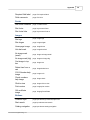
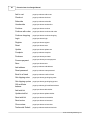
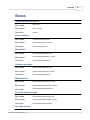
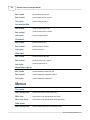
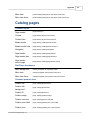
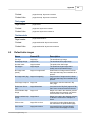
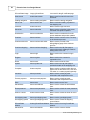
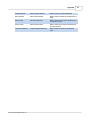
Reset
button-reset
Button used to reset the form.
Update
button-update-cart
Button used on the My Cart page to
update the details of the shopping cart.
Complete
button-complete
Button used to complete orders where a
payment is not due at the time, such as a
free order or a custom payment gateway.
Purchase
button-purchase
Button used to submit payment
information and complete the order.
Process payment
button-process-payment
Button used to submit payment
information and complete the order.
Save
button-save
Button used to save a form.
Add address
button-add-address
Button used to submit the add address
form.
Reset password
button-reset-password
Button used to submit the reset password
form.
Email to a friend
button-email-to-friend
Button used to submit the email to friend
form.
Get shipping rates
button-get-shipping-rates
Button used to get shipping rates.
Get shipping quotes
button-get-shipping-quotes
Button used to submit the shipping
quotes feature.
Gift certificate
balance
button-gift-certificate-balance Button used to check a gift certificate
balance.
Add wish list
button-add-wishlist
Button used to create a wishlist.
© 2011 Desert Dog Marketing, LLC
Appendix
Update wish list
button-update-wishlist
Button used to update the wishlist.
Send wish list
button-send-wishlist
Button used to submit the wishlist form to
send.
Send review
button-review-send
Button used on the product reviews form
to submit a review.
Close review
button-review-close
Button used on the product reviews form
to close the form.
Testimonial Submit
button-testimonial-submit
Button used to submit the testimonial
form.
© 2011 Desert Dog Marketing, LLC
57