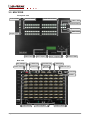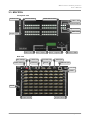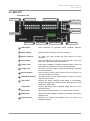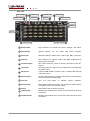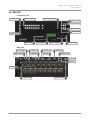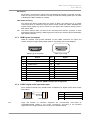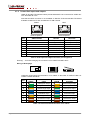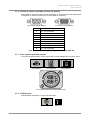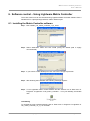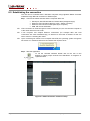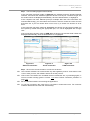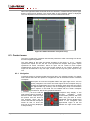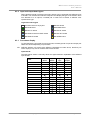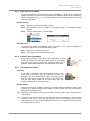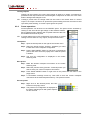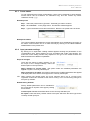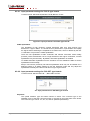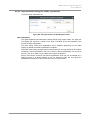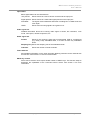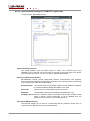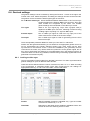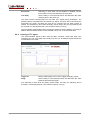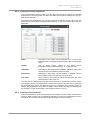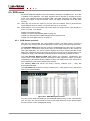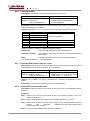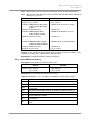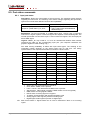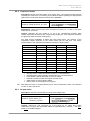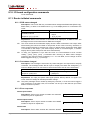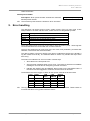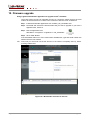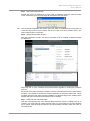
1
MX-FR9 MX-FR17 MX-FR33 MX-FR33L MX-FR33R MX-FR65R MX-FR80R with MX-CPU2 MX-FR9 MX-FR17 MX-FR33L MX-FR33R MX-FR80R MX-CPU2 board User’s Manual MX-FR series modular matrices User’s Manual SAFETY INSTRUCTIONS Class I apparatus construction. This equipment must be used with a main power system with a protective earth connection. The third (earth) pin is a safety feature, do not bypass or disable it. This equipment should be operated only from the power source indicated on the product. To disconnect the equipment safely from power, remove the power cord from the rear of the equipment, or from the power source. The MAINS plug is used as the disconnect device, the disconnect device shall remain readily operable. There are no user-serviceable parts inside of the unit. Removal of the top cover will expose dangerous voltages. To avoid personal injury, do not remove the top cover. Do not operate the unit without the cover installed. The apparatus shall not be exposed to dripping or splashing and that no objects filled with liquids, such as vases, shall be placed on the apparatus. The apparatus must be safely connected to multimedia systems. Follow instructions described in this manual. Replacing the AC f use Unplug the AC power cord from the equipment Locate the AC fuse on the rear of the unit Replace only the AC fuse as indicated on the rear panel of the unit: 3.15A fast blowing Connect the power cord to the switcher and to the AC power source. Make sure the switcher is working properly. WEEE ( W as te E l e c tr ic a l & E lec tr on ic Eq u ipm en t ) Co rr e ct Di spo s al of T his P rodu ct This marking shown on the product or its literature, indicates that it should not be disposed with other household wastes at the end of its working life. To prevent possible harm to the environment or human health from uncontrolled waste disposal, please separate this from other types of wastes and recycle it responsibly to promote the sustainable reuse of material resources. Household users should contact either the retailer where they purchased this product, or their local government office, for details of where and how they can take this item for environmentally safe recycling. Business users should contact their supplier and check the terms and conditions of the purchase contract. This product should not be mixed with other commercial wastes for disposal. Section 1. Introduction Page 3 / 137 DECLARATION OF CONFORMITY We, Lightware Kft. 1071 Budapest Peterdy str. 15 HUNGARY as manufacturer declare, that the products MX-FR9 MX-FR17 MX-FR33 MX-FR33L MX-FR33R MX-FR65R MX-FR80R ( Computer Matrix Switcher ) in accordance with the EMC Directive 2004/108/EC and the Low Voltage Directive 2006/95/EEC are in conformity with the following standards: EMI/EMC .................... EN 55103-1 E3, EN 55103-2 Safety .......................................... EN 60065 Class I Date: 16.09.2010. Name: Gergely Vida ( Managing Director ) Signed: Page 4 / 137 Section 1. Introduction MX-FR series modular matrices User’s Manual Table of contents 1. INTRODUCTION ...................................................................................................................... 9 1.1. 1.2. 1.3. 1.4. 2. BOX CONTENTS................................................................................................................... 9 DESCRIPTION...................................................................................................................... 9 FEATURES ........................................................................................................................ 10 APPLICATIONS .................................................................................................................. 11 HYBRID MODULAR MATRIX CONCEPT............................................................................. 12 2.1. ROUTER FRAMES .............................................................................................................. 12 2.1.1. MX-CPU2 processor board ..................................................................................... 12 2.2. MX-CPU2 AS AN UPGRADE FOR OLDER FRAMES ................................................................ 13 2.3. INPUT BOARDS .................................................................................................................. 14 2.4. OUTPUT BOARDS .............................................................................................................. 14 3. CONTROLS AND CONNECTIONS....................................................................................... 16 3.1. MX-FR80R AND MX-FR65R ............................................................................................ 16 3.2. MX-FR33R ...................................................................................................................... 20 3.3. MX-FR33L ...................................................................................................................... 21 3.4. MX-FR33 ........................................................................................................................ 22 3.5. MX-FR17 ........................................................................................................................ 23 3.6. MX-FR9 .......................................................................................................................... 25 3.7. ELECTRICAL CONNECTIONS ............................................................................................... 26 3.7.1. Power connection ................................................................................................... 26 3.7.2. DVI inputs and outputs............................................................................................ 26 3.7.3. HDMI inputs and outputs ........................................................................................ 27 3.7.4. S/PDIF digital audio input and output ..................................................................... 27 3.7.5. Twisted Pair inputs and outputs .............................................................................. 28 3.7.6. RS-232 connectors (available on some I/O boards) ............................................... 29 3.7.1. Fiber optical inputs and outputs .............................................................................. 29 3.7.2. 3G-SDI inputs ......................................................................................................... 29 3.7.3. Analog stereo audio input and output connectors .................................................. 30 3.7.4. Symmetrical analog stereo audio ........................................................................... 30 3.7.5. RS-232 / RS-422 control port ................................................................................. 31 3.7.6. Ethernet port ........................................................................................................... 31 3.7.7. Genlock input .......................................................................................................... 32 3.7.8. Alarm output ............................................................................................................ 32 4. TECHNOLOGIES................................................................................................................... 33 4.1. UNDERSTANDING EDID..................................................................................................... 33 4.1.1. Basics...................................................................................................................... 33 4.1.2. Common problems related to EDID ........................................................................ 33 4.2. ADVANCED EDID MANAGEMENT ........................................................................................ 34 4.3. PIXEL ACCURATE RECLOCKING ......................................................................................... 34 4.4. HDCP MANAGEMENT ........................................................................................................ 36 4.4.1. Mixing encrypted and unencrypted signals ............................................................ 36 4.4.2. HDPC key cashing .................................................................................................. 36 4.4.3. Avoiding unnecessary HDCP encryption ................................................................ 36 5. OPERATION .......................................................................................................................... 38 5.1. POWERING ON .................................................................................................................. 38 5.2. FRONT PANEL OPERATIONS ............................................................................................... 38 5.2.1. CONTROL LOCK.................................................................................................... 38 5.2.2. TAKE / AUTOTAKE modes .................................................................................... 38 5.2.3. Source and destination buttons .............................................................................. 39 5.2.4. Viewing crosspoint state ......................................................................................... 39 5.2.5. Switching ................................................................................................................. 40 5.2.6. Switching operations flowchart ............................................................................... 41 5.2.7. Preset operations .................................................................................................... 42 5.2.8. OUTPUT LOCK ...................................................................................................... 42 Section 1. Introduction Page 5 / 137 5.3. ABOUT EDID MEMORY ...................................................................................................... 44 5.3.1. EDID types .............................................................................................................. 44 5.3.2. Factory EDID list ..................................................................................................... 45 5.4. FRONT PANEL LCD MENU OPERATION ................................................................................ 46 5.4.1. Basic concept .......................................................................................................... 46 5.4.2. Normal mode .......................................................................................................... 47 5.4.3. LCD menu pop-up messages ................................................................................. 57 5.4.4. EDID mode ............................................................................................................. 58 5.4.5. Signal Present mode............................................................................................... 59 5.5. REMOTE OPERATION ......................................................................................................... 60 5.5.1. Control interfaces .................................................................................................... 60 5.5.2. Multiple simultaneous connections ......................................................................... 61 5.5.3. IP settings ............................................................................................................... 61 5.5.4. Serial port settings .................................................................................................. 62 5.5.5. Control protocols ..................................................................................................... 62 6. SOFTWARE CONTROL – USING LIGHTWARE MATRIX CONTROLLER ........................ 63 6.1. INSTALLING THE MATRIX CONTROLLER SOFTWARE ............................................................. 63 6.2. ESTABLISHING THE CONNECTION ....................................................................................... 64 6.3. CONTROL MENU ................................................................................................................ 66 6.3.1. Navigation ............................................................................................................... 66 6.3.2. Input and output board types .................................................................................. 67 6.3.1. Port status display................................................................................................... 67 6.3.2. CPU board DVI ports .............................................................................................. 68 6.3.3. Input and output names .......................................................................................... 69 6.3.4. Quick I/O port information ....................................................................................... 69 6.3.5. Crosspoint operations ............................................................................................. 69 6.3.6. Preset operations .................................................................................................... 70 6.3.7. Preset names .......................................................................................................... 71 6.3.8. Input parameter settings ......................................................................................... 71 6.3.9. Output parameter settings ...................................................................................... 81 6.3.10. Frame detector ........................................................................................................ 87 6.3.11. HDCP key counter .................................................................................................. 88 6.4. GENLOCK SETTINGS .......................................................................................................... 89 6.4.1. Locking to video sync.............................................................................................. 89 6.4.2. Locking to TTL signal .............................................................................................. 90 6.4.3. Locking to Preview output DVI ................................................................................ 91 6.4.4. Locking to Test input DVI ........................................................................................ 91 6.5. EDID MENU ...................................................................................................................... 92 6.5.1. EDID Router operation............................................................................................ 92 6.5.2. Advanced EDID Editor ............................................................................................ 94 6.5.3. Easy EDID Creator ................................................................................................. 95 6.6. TERMINAL MENU ............................................................................................................... 95 6.7. STATUS MENU................................................................................................................... 96 6.7.1. Device information .................................................................................................. 97 6.7.2. IP settings ............................................................................................................... 97 6.7.3. Installed cards ......................................................................................................... 98 6.7.4. CPU Card health status .......................................................................................... 98 6.7.5. Generate report ....................................................................................................... 98 6.7.6. View error logs ........................................................................................................ 99 6.8. FIND MENU ....................................................................................................................... 99 7. WEB CONTROL – USING THE BUILT-IN WEBSITE .......................................................... 99 8. PROGRAMMER’S REFERENCE ........................................................................................ 100 8.1. CHANGING PROTOCOLS ................................................................................................... 100 8.2. PROTOCOL DESCRIPTION................................................................................................. 100 8.3. STORAGE MEMORIES....................................................................................................... 102 8.4. SWITCHING AND CONTROL COMMANDS ............................................................................. 103 8.4.1. MX-CPU2 Test input and Preview output ............................................................. 103 th 8.4.2. Select 80 input port ............................................................................................. 103 Page 6 / 137 Section 1. Introduction MX-FR series modular matrices User’s Manual 8.4.3. Switch one input to one output ............................................................................. 103 8.4.4. Switch one input to all outputs .............................................................................. 104 8.4.5. Batch switch outputs ............................................................................................. 104 8.4.6. View connection on the specified output .............................................................. 105 8.4.7. View connection on all outputs ............................................................................. 105 8.4.8. View mutes on all outputs ..................................................................................... 106 8.4.9. Mute specified output ............................................................................................ 106 8.4.10. Unmute specified output ....................................................................................... 107 8.4.11. Disconnect any inputs from one output ................................................................ 107 8.4.12. Lock specified output ............................................................................................ 107 8.4.13. Unlock specified output ......................................................................................... 107 8.4.14. Save preset to the specified memory location ...................................................... 108 8.4.15. Load preset from the specified location ................................................................ 108 8.4.16. Preview preset ...................................................................................................... 108 8.4.17. Renaming Presets / Inputs / Outputs .................................................................... 108 8.4.18. Query names of Presets / Inputs / Outputs........................................................... 109 8.4.19. Set default names of Presets / Inputs / Outputs ................................................... 110 8.5. COMMUNICATION SETUP COMMANDS ................................................................................ 110 8.5.1. Query IP settings .................................................................................................. 110 8.5.2. Reload factory default IP settings ......................................................................... 111 8.5.3. Enable DHCP IP setting........................................................................................ 111 8.5.4. Query RS-232 baud rate ....................................................................................... 112 8.5.5. Change RS-232 baud rate .................................................................................... 112 8.5.6. Query control protocol........................................................................................... 112 8.5.7. Change control protocol ........................................................................................ 113 8.5.8. Configure remote alerts ........................................................................................ 113 8.6. ROUTER STATUS COMMANDS .......................................................................................... 114 8.6.1. View product type ................................................................................................. 114 8.6.2. View serial number ............................................................................................... 114 8.6.3. View firmware version of the CPU ........................................................................ 114 8.6.4. View crosspoint size ............................................................................................. 114 8.6.5. View I/O slot limits................................................................................................. 115 8.6.6. View installed I/O boards ...................................................................................... 115 8.6.7. View firmware for all controllers’ ........................................................................... 116 8.6.8. View LAN versions ................................................................................................ 116 8.6.9. View router’s health .............................................................................................. 116 8.6.10. View error list ........................................................................................................ 117 8.7. SYSTEM COMMANDS ....................................................................................................... 118 8.7.1. Reload factory defaults ......................................................................................... 118 8.7.2. Clear HDCP key cache ......................................................................................... 118 8.7.3. Set CPU time ........................................................................................................ 118 8.7.4. Query CPU time .................................................................................................... 119 8.7.5. Restart matrix router ............................................................................................. 119 8.7.6. Switch matrix router to standby ............................................................................ 119 8.8. EDID ROUTER COMMANDS .............................................................................................. 120 8.8.1. Change EDID on input .......................................................................................... 120 8.8.2. Change EDID on all inputs ................................................................................... 120 8.8.3. Save EDID to user memory (Learn EDID) ............................................................ 120 8.8.4. View emulated EDIDs on all inputs ....................................................................... 120 8.8.5. Watch EDID validity table ..................................................................................... 121 8.8.6. View EDID header ................................................................................................ 122 8.8.7. Download EDID content from the router ............................................................... 122 8.8.8. Upload EDID content to the router ........................................................................ 122 8.8.9. Delete EDID from memory .................................................................................... 123 8.9. PORT STATUS COMMANDS ............................................................................................... 124 8.9.1. Input port status .................................................................................................... 124 8.9.2. Output port status ................................................................................................. 125 8.9.3. All port status ........................................................................................................ 125 8.10. I/O BOARD CONFIGURATION COMMANDS ........................................................................... 126 8.11. ROUTER INITIATED COMMANDS ........................................................................................ 126 8.11.1. EDID status changed ............................................................................................ 126 Section 1. Introduction Page 7 / 137 8.11.2. Port status changed .............................................................................................. 126 8.11.3. Error responses .................................................................................................... 126 9. ERROR HANDLING ............................................................................................................ 127 10. FIRMWARE UPGRADE....................................................................................................... 128 10.1. FORCED FIRMWARE UPGRADE ......................................................................................... 130 11. TROUBLESHOOTING ......................................................................................................... 132 11.1. 11.2. 11.3. 11.4. 11.5. GENERAL PROBLEMS....................................................................................................... 132 SERIAL CONNECTION PROBLEMS ...................................................................................... 132 TCP/IP CONNECTION PROBLEMS ..................................................................................... 132 PICTURE IS NOT DISPLAYED OR DISTORTED ...................................................................... 133 ERROR ALERTS ............................................................................................................... 134 12. APPENDIX ........................................................................................................................... 134 12.1. MAXIMUM CABLE LENGTH ................................................................................................ 134 13. SPECIFICATIONS ............................................................................................................... 135 13.1. 13.2. 13.3. 13.4. 13.5. MX-FR80R .................................................................................................................... 135 MX-FR33R .................................................................................................................... 135 MX-FR33L .................................................................................................................... 135 MX-FR17, MX-FR9 ....................................................................................................... 136 I/O PORTS ...................................................................................................................... 136 14. VERSION APPLICABILITY ................................................................................................. 137 15. WARRANTY ........................................................................................................................ 137 16. DOCUMENT REVISION HISTORY ..................................................................................... 137 Page 8 / 137 Section 1. Introduction MX-FR series modular matrices User’s Manual 1. Introduction Thank you for choosing Lightware DVI matrix routers. The hybrid modular matrices are capable of routing DVI or HDMI signals in a scalable non-blocking crosspoint configuration, with up to 80 inputs and 80 outputs. 1.1. Box contents Routing switcher frame Router CPU board (MX-CPU2) Router input and output boards (depend on ordered configuration) Power supply units o internal for MX-FR9, MX-FR17, MX-FR33 and MX-FR33L o 2 x MX-PSU-160 for MX-FR33R o 2 x MX-PSU-850 for MX-FR65R o 3 x MX-PSU-850 for MX-FR80R 2 x Rack mounting ears IEC power cable User's manual (this document) CD-ROM with control software RS-232 9 pole D-SUB Male to Female cable UTP cross link LAN cable 1.2. Description Lightware MX-FR series matrices are modular DVI and HDMI matrix switchers with up to 80 inputs and 80 outputs, which routes any input(s) to any combination of output(s). The router conforms to DVI 1.0 specification, and switches signals between 25 - 225 MHz pixel clock frequency: from 640x480@60Hz to 1920x1200@60Hz or 2048x1080@60Hz PC resolutions. The switcher has an RS-232 (or RS-422 optional) and an Ethernet LAN port for remote control applications and a control panel for local control operation. Front panel buttons are illuminated and easily relegendable with text for informative system integration. Section 1. Introduction Page 9 / 137 1.3. Features Non-blocking cross point matrix architecture – The router allows any input to be switched to any output or more outputs simultaneously. Hybrid modular system - custom I/O sizes with several types of input and output boards give the flexibility for interfacing with different video sources and displays. 2.25 Gb/s channel transmission – Any DVI or HDMI signal between 25 and 225 MHz TMDS clock frequency cab be routed depending on the input and output boards. Supports all HDTV resolutions and HDCP – 720p, 1080i and 1080p etc. signals are supported with or without HDCP encryption. HDCP capability - Relevant I/O boards are fully HDCP compliant. Both HDCP encrypted and nonHDCP components can be installed in the same system, HDCP and non-HDCP boards are now compatible within the same chassis. No signal latency with zero frame delay – The signal management architecture ensures that there is no delay added between the input and the output. Instantaneous switching – No delay is added to the switch function and multiple switches can be executed at the same time instantaneously. Advanced EDID Management – The user can emulate any EDID on the switcher's inputs independently, read out and store any attached monitor's EDID in 100 internal memory locations, upload and download EDID files using Matrix Control Software. Built-in cable compensation – Each DVI, HDMI or SDI input port contains an individual built-in cable extender. Pixel Accurate Reclocking – (removes jitter caused by long cables) Each output has a clean, jitter free signal, eliminating signal instability and distortion caused by long cables or connector reflections. Frame detector and signal analysis – The exact video and audio signal format can be determined such as timing, frequencies, scan mode, HDCP encryption, color range, color space and audio sample rate. Genlock switch function – The crosspoint switch can be synchronized to the blanking interval in the signal to serve professional rental and staging or broadcast systems. Front panel control – Every source and destination has its own button to select it. Single switches can be executed or crosspoint presets can be saved and reloaded. Almost every setting can be configured through the front panel LCD menu. Legendable buttons – Each button has a removable flat cap and a translucent label which can be inserted under it to identify sources and destinations. RS-232 or RS-422 control – Simple ASCII based protocol can be used for switching, preset calling, status request, etc. Ethernet control – Multiple simultaneous TCP/IP connections are available with simple ASCII based protocol for controlling and configuring the matrix router. Built-in WEB site – easy access from a WEB browser to control and configure the switcher. USB control – Easily accessible front panel USB configuration port. DVI +5V power support – 500 mA constant current output on each DVI or HDMI output to power long distance fiber optical cables or other DVI powered devices. Redundant power supply – Accepting AC voltages from 100 to 240 Volts with 50 or 60 Hz line frequency on standard IEC connector. Redundant hot swappable PSUs on selected models. Power failure memory – The matrix router starts with its latest configuration settings when powered on or after power failure. Every setting is stored in a non volatile memory. Page 10 / 137 Section 1. Introduction MX-FR series modular matrices User’s Manual 1.4. Applications Some typical connection variations with the matrix router are illustrated below. Section 1. Introduction Page 11 / 137 2. Hybrid modular matrix concept Lightware’s hybrid modular matrix switchers allow building custom I/O sizes that meets the user’s requirements. Different types of input and output boards give the maximum flexibility for rental and installation signal transmission. The hybrid architecture allows signal routing between boards even if they have different connectors. This way any input can be routed to any or more outputs, if the output interface is capable of transmitting the signal. For example a DVI source can be routed to an HDMI sink, but HDCP encrypted sources cannot be routed to non-HDCP capable DVI sinks. Available interface types include DVI-D single- and dual-link, HDMI, fiber, and twisted pair cables as well. 2.1. Router frames Different frame sizes are available from 9x9 up to 80x80. To fit user needs various input and output interface boards are available, that can be mixed in the same frame without limitation. Rack height Max. input boards Max. input ports Max. output boards Max. output ports MX-FR9 4U 1 9 1 9 MX-FR17 4U 2 17 2 17 MX-FR33 5U 4 33 4 33 MX-FR33L 6U 4 33 4 33 MX-FR33R 7U 4 33 4 33 MX-FR65R 15U 8 65 8 65 MX-FR80R 15U 10 80 10 80 Frame type Info: The maximum number of input and output ports includes the Test input and Preview output port of the MX-CPU2 processor board. 2.1.1. MX-CPU2 processor board In order for the router frames to work, a CPU board is needed. This board is responsible for controlling the matrix and storing the settings. Test input and Preview output ports The MX-CPU2 board has a “TEST” DVI input, and a “PREVIEW” DVI output port. Although these ports have special functions they can be used as normal I/O ports as well. These ports are HDMI and HDCP capable. MX-FR80R and MX-FR65R Used in the MX-FR80R (and MX-FR65R) router frame, the Preview output is directly th connected to the 80 output port with a DVI splitter. Therefore this port always outputs th the same signal as the 80 output, even if it uses a different interface (TP, OPT, etc.). th th The 80 input port of the crosspoint is multiplexed between the Test input port and the 8 th port of the 10 input board. This switch is independent from the crosspoint state. The th selected port (Test input or Input board #10) will be available as the 80 input on the crosspoint switch. Other frames All other frames use the Test input and Preview output just like any other ports. These ports are referred as the last port in the crosspoint. Page 12 / 137 Section 2. Hybrid modular matrix concept MX-FR series modular matrices User’s Manual Frame type Test input Preview output MX-FR9 in 9 out 9 MX-FR17 in 17 out 17 MX-FR33 in 33 out 33 MX-FR33R in 33 out 33 MX-FR65R in 80 out 80 MX-FR80R multiplexed in 80 distributed out 80 Other connectors The MX-CPU2 board has Ethernet, Serial, Genlock and alarm ports as well. 2.1.2. MX-FR65R limitations The MX-FR65R matrix frame is physically identical to the MX-FR80R. The only difference is a limitation on the number of allowed I/O boards. While the MX-FR80R can work with 10 input and 10 output boards the MX-FR65R allows only 8. The frame has 10 physical board slots but will not boot up when more than 8 input or output boards are inserted. Only the number of boards is limited thus they can be used in any of the physical slots. However to gain access to the Test input and preview output ports on the MX-CPU2 it is recommended to leave the last slot empty. For example if the input slot #1 is empty, there can be 8 input boards in slots #2 to #9 and the slot #10 left empty. In this case the 65 input ports can be accessed with port numbers 9-72 and 80. 2.2. MX-CPU2 as an upgrade for older frames Lightware MX-CPU2 processor board fits into Lightware hybrid modular matrices: Older models: MX16x16DVI-Pro MX32x32DVI-Pro MX32x32HDMI-Pro MX16x16HDMI-Pro MX32x32DVI-HDCP-Pro MX16x16DVI-HDCP-Pro MX-DVI-FR16 MX-DVI-FR32 MX-DVI-FR32R New models: MX-FR9 MX-FR17 MX-FR33(L) MX-FR33R MX-FR65R MX-FR80R All older models can be upgraded with MX-CPU2 processor board. Changes with MX-CPU2 upgrade Extra I/O ports - Get an additional DVI-HDCP input and output port. Ethernet control – Multiple simultaneous TCP/IP Ethernet connections. Combine HDCP and non-HDCP boards – Any interface board combination is possible in the same frame. Section 2. Hybrid modular matrix concept Page 13 / 137 2.3. Input boards Several input interface boards are available. Each model has different capabilities and functions. The table below shows a summary of the main features. Ports HDMI HDCP EDID Cable EQ capability capability emulation Model Connector MX-DVID-IB DVI-I (D) 8 single link no no MX-DVI-TP-IB RJ45 8 single link no no no MX-DVI-TP-IB+ RJ45 dual 8 single link no no MX-DVI-OPT-IB-… LC / NT / SC / ST 8 single link no no no n/a MX-DVIDL-IB DVI-I (D) 4 dual link no no 4 dual link no no no n/a 8 single link 3 3 no n/a no n/a no MX-DVIDL-OPT-IB-… LC / NT / SC / ST MX-DVI-HDCP-IB DVI-I (D) MX-DVII-HDCP-IB DVI-I MXD-UMX-IB DVI-I, more MX-HDMI-IB HDMI MX-HDMI-TP-IB RJ45 dual 8 single link 1 8 single link 8 single link 8 single link 2 MXD-HDMI-TP-IB RJ45 dual, more MX-HDMI-OPT-IB-… LC / NT / SC / ST 8 single link MX-3GSDI-IB BNC, S/PDIF 8 single link DVI-I (D) 1 single link MX-CPU2 Test Input 8 single link 1 more : Phoenix (balanced analog audio), S/PDIF 2 more : RS-232, S/PDIF 3 note : Limited cable equalization. See details in specifications. Info: DVI-I (D) connector means that any DVI connector can be plugged in but only digital pins are connected. 2.4. Output boards Several output interface boards are available. Each model has different capabilities and functions. The table below shows a summary of the main features. Model Connector Ports HDMI HDCP capability capability EDID reading Reclocking MX-DVID-OB DVI-I (D) 8 single link no no MX-DVI-TP-OB RJ45 8 single link no no no MX-DVI-TP-OB+ RJ45 dual 8 single link no no MX-DVI-OPT-OB-… LC / SC / ST 8 single link no no no no MX-DVI-OPT-OB-R-… LC / NT / SC / ST 8 single link no no no MX-DVIDL-OB 4 dual link no no 4 dual link no no no no DVI-I (D) MX-DVIDL-OPT-OB-… LC / NT / SC / ST MX-DVI-HDCP-OB DVI-I (D) 8 single link MX-HDMI-OB HDMI, S/PDIF 8 single link MX-HDMI-TP-OB RJ45 dual 8 single link 3 8 single link MX-HDMI-OPT-OB-… LC / NT / SC / ST 8 single link no MX-CPU2 Preview Out DVI-I (D) RJ45 dual, more MXD-HDMI-TP-OB 1 single link 3 more : RS-232, S/PDIF Page 14 / 137 Section 2. Hybrid modular matrix concept MX-FR series modular matrices User’s Manual Section 2. Hybrid modular matrix concept Page 15 / 137 3. Controls and connections 3.1. MX-FR80R and MX-FR65R Front panel view USB control 1 Menu display 2 Menu navigation 3 4 Status LEDs Control Lock 5 9 Take / Auto 10 Preset buttons 12 Signal Present Output Lock 6 11 EDID mode Source buttons 7 Destination buttons 8 Info: The MX-FR65R has a label below the MX-FR80R name showing that the product is configured as MX-FR65R. Page 16 / 137 Configured as MX-FR65R Section 3. Controls and connections MX-FR series modular matrices User’s Manual 1 USB control USB connection for Lightware Matrix Controller Software. 2 Menu display Displays status information and menu operation. 3 Menu navigation Up, down, left, right, escape and enter buttons for menu navigation. 4 Status LEDs CPU live LED blinks to indicate normal operation. Power LED lights green when the router is powered on. 5 Control Lock Disables or enables front panel operation. When illuminated, all operations on front panel are prohibited. 6 Output Lock Locks and protects one (or more) outputs. Inhibits accidental input changing on protected output. 7 Source buttons Source buttons have three functions: to select an input, to select a preset and to view the selected input’s state (only in TAKE mode). 8 Destination buttons Destination buttons have two functions: to select an output, or to view the selected output’s state. 9 Take / Auto Displays the actual switching mode of the router (TAKE or AUTOTAKE). Long press toggles the switching mode, short press executes switching in TAKE mode. Load Preset Loads a previously saved crosspoint preset from one of the preset memories. Save Preset Stores actual crosspoint state, in one of the preset memories. EDID mode Switches the Menu display to EDID menu allowing EDID switch, EDID save etc. 12 Signal Present Displays live sources and attached sinks on source and destination buttons. 10 11 red Info: The unlabeled buttons are disabled, and are only for future functions. Section 3. Controls and connections Page 17 / 137 Rear view DIP settings 2 Status LEDs 1 3 Alarm out Genlock 4 5 Preview out Test in 6 7 Serial port 8 Ethernet port 9 CPU live a 10 Reset 11 Input boards Power supplies 12 Output boards 13 Info: The MX-FR65R is shipped with 2 power supply units and the rightmost PSU slot is covered with a blank metal plate. Info: The MX-FR65R has a label showing that maximum 8 input and output boards are allowed. Page 18 / 137 Maximum allowed Input boards: 8 Output boards: 8 Section 3. Controls and connections MX-FR series modular matrices User’s Manual 1 Status LEDs LED indicators for internal DC power voltages, and alarm. 2 DIP settings Special 3 Alarm out Standard SMPTE 269M alarm output with BNC connector. See section 3.7.8 for more information. 4 Genlock LED indicators for genlock status, and BNC receptacles for genlock loop connection. See section 3.7.7 for more information. 5 Preview output DVI output connector, which is directly connected to the 80 output. See section 2.1.1 for more information. 7 Test input DVI input connector, which can be configured as an alternative th for the 80 input. See section 2.1.1 for more information. Serial port 9 pole D-SUB female connector. Can be ordered with RS-232 or RS-422 control. See section 3.7.5 for more information. Ethernet port Locking RJ45 connector. Remote control port for connecting the unit to Local Area Network (LAN). See section 3.7.6 for more information. CPU live CPU 6 8 9 settings live LED can blinks be made to with indicate these normal switches. th operation. 10 Reset button Reset button reboots the matrix. This is same as disconnecting from power source, and reconnect again. 11 Input boards Modular input board slots. Connect DVI source devices to these connectors. 12 Power supplies Hot swap slots for power supply units. See section 5.1 for more information. 13 Output boards Modular output board slots. Connect DVI sink devices to these connectors. Section 3. Controls and connections Page 19 / 137 3.2. MX-FR33R Front panel view Control Lock 5 7 Source buttons Destination buttons 8 9 Take / Auto 10 Preset buttons 12 Signal Present 11 EDID mode Output Lock 6 USB control 1 Menu navigation 3 Menu display 2 4 Status LEDs Rear view DIP settings 2 3 Status LEDs 1 Alarm out Genlock 4 5 Preview out Test in 6 7 Serial port 8 Ethernet port 9 CPU live a 10 Reset 11 Input boards Page 20 / 137 Power supplies 12 Output boards 13 Section 3. Controls and connections MX-FR series modular matrices User’s Manual 3.3. MX-FR33L Front panel view Control Lock 5 7 Source buttons Destination buttons 8 9 Take / Auto 10 Preset buttons 12 Signal Present 11 EDID mode Output Lock 6 USB control 1 Menu display 2 Menu navigation 3 4 Status LEDs Rear view DIP settings 2 3 Status LEDs 1 Alarm out Genlock 4 5 Preview out Test in 6 7 Serial port 8 Ethernet port 9 CPU live a 10 Reset Power 12 11 Input boards Section 3. Controls and connections Output boards 13 Page 21 / 137 3.4. MX-FR33 Front panel view Control Lock 5 7 Source buttons Destination buttons 8 9 Take / Auto 10 Preset buttons 12 Signal Present 11 EDID mode Output Lock 6 USB control 1 Menu display 2 Menu navigation 3 4 Status LEDs Rear view DIP settings 2 3 Status LEDs 1 Alarm out Genlock 4 5 Preview out Test in 6 7 Serial port 8 Ethernet port 9 CPU live a 10 Reset Power 12 11 Input boards Page 22 / 137 Output boards 13 Section 3. Controls and connections MX-FR series modular matrices User’s Manual 3.5. MX-FR17 Front panel view Control Lock 5 7 Source buttons Destination buttons 8 9 Take / Auto 10 Preset buttons 12 Signal Present 11 EDID mode Output Lock 6 USB control 1 Menu display 2 Menu navigation 3 4 Status LEDs 1 USB control USB connection for Lightware Matrix Controller Software. 2 Menu display Displays status information and menu operation. 3 Menu navigation Up, down, left, right, escape and enter buttons for menu navigation. 4 Status LEDs CPU live LED blinks to indicate normal operation. Power LED lights green when the router is powered on. 5 Control Lock Press long to disable or enable front panel buttons. When red illuminated, all operations on front panel are prohibited. 6 Output Lock Locks one (or more) outputs. Inhibits accidental input changing on protected output. 7 Source buttons Source buttons can be used to select an input or preset or to view the selected input’s state. 8 Destination buttons Destination buttons can be used to select an output, or view the selected output’s state. 9 Take / Auto Displays the actual switching mode (TAKE or AUTOTAKE). Long press toggles the switching mode, short press executes switching in TAKE mode. Load Preset Loads a previously saved crosspoint preset from one of the preset memories. Save Preset Stores actual crosspoint state, in one of the preset memories. 10 11 EDID mode Switches the Menu display to EDID menu allowing EDID switch, EDID save etc. 12 Signal Present Displays live sources and attached sinks on source and destination buttons. Section 3. Controls and connections Page 23 / 137 Rear view DIP settings 2 3 Status LEDs 1 Alarm out 5 Preview out Genlock 4 7 Serial port Test in 6 8 Ethernet port 9 CPU live a 10 Reset Power 11 12 Input boards Page 24 / 137 Output boards 13 1 Status LEDs LED indicators for internal DC power voltages, and alarm. 2 DIP settings Special 3 Alarm out Standard SMPTE 269M alarm output with BNC connector. 4 Genlock LED indicators for genlock status, and BNC receptacles for genlock loop connection. 5 Preview output DVI output connector, which is directly connected to the 80 output. 7 Test input DVI input connector, which can be configured as an alternative th for the 80 input. 6 Serial port 9 pole D-SUB female connector. Can be ordered with RS-232 or RS-422 control. 8 Ethernet port Locking RJ45 connector. Remote control port for connecting the unit to Local Area Network (LAN). 9 CPU live CPU settings live LED can be blinks made to with indicate these normal switches. th operation. 10 Reset button Reset button reboots the matrix. This is same as disconnecting from power source, and reconnect again. 11 Power Mains switch and AC power connector. 12 Input boards Modular input board slots. Connect DVI source devices to these connectors. 13 Output boards Modular output board slots. Connect DVI sink devices to these connectors. Section 3. Controls and connections MX-FR series modular matrices User’s Manual 3.6. MX-FR9 Front panel view Control Lock 5 7 Source buttons Destination buttons 8 9 Take / Auto 10 Preset buttons 12 Signal Present 11 EDID mode Output Lock 6 USB control 1 Menu display 2 Menu navigation 3 4 Status LEDs Rear view DIP settings 2 3 Status LEDs 1 Alarm out Genlock 4 5 Preview out Test in 6 7 Serial port 8 Ethernet port 9 CPU live a 10 Reset Power 11 12 Input boards Section 3. Controls and connections Output boards 13 Page 25 / 137 3.7. Electrical connections The below sections discuss all possible electrical connections of a hybrid router. Please note that the availability of some connection types depend on your modular configuration as different boards have different connectors. 3.7.1. Power connection Some frames have redundant power supplies with hot swappable units. Frame type Power supplies Hot swappable units MX-FR9 MX-FR17 MX-FR33 MX-FR33L MX-FR33R MX-FR65R MX-FR80R single internal 160W PSU single internal 160W PSU single internal 160W PSU single internal 250W PSU redundant 160W PSU redundant 850W PSU redundant 850W PSU none none none none 2 3 3 Every PSU has its own standard IEC power connector, and works with 100 to 240 Volts AC, 50 Hz or 60 Hz power source. See section 5.1 for more information. 3.7.2. DVI inputs and outputs 29 pole DVI-I connectors, however internally connected pins vary by input board types. This way, users can plug in any DVI connector, but keep in mind that analog signals (such as VGA or RGBHV) are processed only on certain boards. Always use high quality DVI cable for connecting sources and displays. Pin Signal Pin Signal Pin Signal 1 TMDS Data2- 9 TMDS Data1- 17 TMDS Data0- 2 TMDS Data2+ 10 TMDS Data1+ 18 TMDS Data0+ 3 TMDS Data2/4 Shield 11 TMDS Data1/3 Shield 19 TMDS Data0/5 Shield 4 TMDS Data4- 1 12 TMDS Data3- 1 20 TMDS Data5- 1 5 TMDS Data4+ 1 13 TMDS Data3+ 1 21 TMDS Data5+ 1 6 DDC Clock 14 +5V Power 22 TMDS Clock Shield 15 GND (for +5V) 23 TMDS Clock+ 16 Hot Plug Detect 24 TMDS Clock- C3 Analog Blue 7 DDC Data 8 Analog Vertical Sync C1 Analog Red C4 2 2 Analog Horizontal Sync 2 C2 Analog Green C5 2 2 GND Table 3-1. DVI-I connector pin assignments 1 2 3 4 5 6 7 8 C1 C2 9 10 11 12 13 14 15 16 17 18 19 20 21 22 23 24 C3 C4 C5 Figure 3-1. DVI connector 1 2 Page 26 / 137 - These pins are connected only in MX-DVIDL-IB and MX-DVIDL-OB boards. - These pins are connected only in MX-DVII-HDCP-IB and MXD-UMX-IB boards. Section 3. Controls and connections MX-FR series modular matrices User’s Manual DVI outputs 29 pole DVI-I connectors for outputs have only digital pins internally connected. This way, users can plug in any DVI connector, but keep in mind that analog signals (such as VGA or RGBHV) are NOT available on outputs. Fiber Cable powering DVI outputs are able to supply 500 mA current on DDC +5V output (pin 14 on output connectors) which is sufficient to supply power to fiber optical DVI cables. Standard DVI outputs usually supply only 55 mA current on +5V output, thus unable to directly power a fiber optical cable. Info The matrix switcher does not check if the connected sink (monitor, projector or other equipment) supports Hotplug or EDID signals but outputs the selected signal immediately after switch command. 3.7.3. HDMI inputs and outputs HDMI-TP extender units provide standard 19 pole HDMI connectors for inputs and outputs. Always use high quality HDMI cable for connecting sources and displays. 19 17 15 13 11 9 7 18 16 14 12 10 8 5 6 3 4 1 1 2 2 HDMI Type A receptacle Pin 1 2 3 4 5 6 7 8 9 10 Signal TMDS Data2+ TMDS Data2 Shield TMDS Data2– TMDS Data1+ TMDS Data1 Shield TMDS Data1– TMDS Data0+ TMDS Data0 Shield TMDS Data0– TMDS Clock+ 3 5 4 6 7 9 11 13 15 17 19 8 10 12 14 16 18 HDMI Type A Plug Pin Signal 11 12 13 14 15 16 17 18 19 TMDS Clock Shield TMDS Clock– CEC Reserved SCL SDA DDC/CEC/HEC Ground +5 V Power (max 50 mA) Hot Plug Detect Table 3-2. HDMI connector pin assignments 3.7.4. S/PDIF digital audio input and output Some interface boards have standard RCA receptacles for digital coaxial audio inputs and outputs. 00 00 3 2 1 RCA receptacle Info RCA plug Nr. 1 2 3 Name S/PDIF input or output Plastic insulator GND Plugs and sockets on consumer equipment are conventionally color-coded by CEA/CEDIA-863-B (ANSI) to aid correct connections. According to the standard Lightware uses orange colored RCA connectors for S/PDIF signals. Section 3. Controls and connections Page 27 / 137 3.7.5. Twisted Pair inputs and outputs HDMI-TP and DVI-TP interface boards provide standard RJ-45 connectors for VIDEO IN / OUT and DDC IN / OUT. Note that the DDC connector is not available on MX-DVI-TP-IB and MX-DVI-TP-OB but available on MX-DVI-TP-IB+ and MX-DVI-TP-OB+ boards. VIDEO 8 DDC 1 8 RJ45 receptacle 1 RJ45 receptacle Pin VIDEO IN/OUT DDC IN DDC OUT 1 2 3 4 5 6 7 8 TMDS Data0+ TMDS Data0TMDS Clock+ TMDS Data1+ TMDS Data1TMDS ClockTMDS Data2+ TMDS Data2- CEC (no conn.) Hot Plug Detect (in) RS-232 RX DDC CLK +12V (out) RS-232 TX DDC SDA GND CEC (no conn.) Hot Plug Detect (out) RS-232 RX DDC CLK +12V (out) RS-232 TX DDC SDA GND Table 3. RJ45 input and output connector pin assignment Warning: Avoid interchanging the connection to the VIDEO and DDC lines! Wiring of RJ45 plugs 8 1 1 Top 1 8 Bottom Side Lightware recommends the termination of TP cables on the basis of TIA/EIA T 568 A or TIA/EIA T 568 B standards. Pin TIA/EIA T568 A color and name TIA/EIA T568 B color and name 1 white/green stripe white/orange stripe 2 green solid orange solid 3 white/orange stripe white/green stripe 4 blue solid blue solid 5 white/blue stripe white/blue stripe 6 orange solid green solid 7 white/brown stripe white/brown stripe 8 brown solid brown solid Table 3-4. Recommended termination of TP cables Page 28 / 137 Section 3. Controls and connections MX-FR series modular matrices User’s Manual 3.7.6. RS-232 connectors (available on some I/O boards) MXD-HDMI-TP interface boards provide standard 9 pin female and male D-subminiature receptacles for serial port pass-thru to remote HDMI-TP extenders. 5 1 9 5 6 1 9 D-sub 9-pin female (DE9F) Pin nr. 6 D-sub 9-pin male (DE9M) RS-232 pin out 1 2 3 NC - non connected RX data receive TX data transmit 4 5 6 7 8 9 DTR (Internally connected to Pin 6) GND signal ground (shield) DSR (Internally connected to Pin 4) RTS (Internally connected to Pin 8) CTS (Internally connected to Pin 7) NC - non connected Table 3-5. D-sub connector pin assignment for standard RS-232 3.7.1. Fiber optical inputs and outputs The optical interface boards can be ordered with several standard fiber connector types. ST receptacle LC receptacle SC receptacle NT receptacle (Neutrik® OpticalCON DUO) 3.7.2. 3G-SDI inputs Standard BNC receptacle is used for 3G-SDI inputs. BNC receptacle Section 3. Controls and connections BNC plug Page 29 / 137 3.7.3. Analog stereo audio input and output connectors Some interface boards have standard RCA receptacle for analog stereo audio inputs and outputs. Inputs and outputs work with standard line-in and line-out voltage levels. 6 5 4 RCA plug (left channel) 00 00 00 00 RCA receptacles Nr. 1 2 3 4 5 6 3 2 1 RCA plug (right channel) Name Right channel input or output Plastic insulator GND Left channel input or output Plastic insulator GND Table 3-6. RCA connector pin assignments for analog audio Info Plugs and sockets on consumer equipment are conventionally color-coded by CEA/CEDIA-863-B (ANSI) to aid correct connections. According to the standard Lightware uses red colored RCA connectors for right channel of analog stereo audio signals and white colored RCA connectors for left channel of analog stereo audio signals. 3.7.4. Symmetrical analog stereo audio 5 pole Phoenix connector is used for symmetrical analog audio (line in/out). Some I/O boards use this connector as a configurable input or output. Always check if this connector is configured as an output or input to prevent connecting two outputs together. Asymmetrical audio signals can be connected as well. For asymmetrical output, connect only + and ground. For asymmetrical input connect + and ground to the source and connect – to the ground. 1 2 3 4 5 Pin nr. 1 2 3 4 5 Signal Left + Left Ground Right Right + Compatible plug type: Phoenix® Combicon series (3.5mm pitch), type: MC 1.5/5-ST-3.5, order number: 1840395 Page 30 / 137 Section 3. Controls and connections MX-FR series modular matrices User’s Manual 3.7.5. RS-232 / RS-422 control port Lightware modular matrices can be remote controlled through industry standard 9 pole DSUB female connector. The router can be ordered with RS-232 or RS-422 control port. 5 1 9 6 Figure 3-2. D-SUB 9 pole connector Pin nr. 1 2 3 4 5 6 7 8 9 RS-232 RS-422 (optional) NC - non connected TX data transmit (output) RX data receive (input) DTR (Internally connected to Pin 6) GND signal ground (shield) DSR (Internally connected to Pin 4) RTS (Internally connected to Pin 8) CTS (Internally connected to Pin 7) NC - non connected TX- data transmit complement TX+ data transmit true RX+ data receive true RX- data receive complement GND signal ground (shield) Not used. (Internally connected to Pin 4) Not used. (Internally connected to Pin 8) Not used. (Internally connected to Pin 7) NC - non connected Table 3-7. D-SUB 9 pole pin assignments 3.7.6. Ethernet port Lightware modular matrices can be remote controlled through Ethernet as well. The Ethernet port can be connected to a LAN hub, switch or router with a UTP patch cable. If connecting to a computer directly, a cross UTP cable has to be used! The robust Neutrik EtherCON connector ensures reliable connection, however normal RJ45 connectors can be used as well. See section 5.5 about remote operation on page 60 for more information. Pin nr. Name Wire color 8 TX + Green stripe 2 TX - Green 3 RX + Orange stripe 4 Not used Blue 5 Not used Blue stripe 6 RX - Orange 7 Not used Brown stripe 8 Not used Brown 1 1 Figure 3-3. RJ45 connector Section 3. Controls and connections Figure 3-8. Ethernet pin connections Page 31 / 137 3.7.7. Genlock input BNC connector for genlock signal input, with direct loop through. 75 ohm termination can be switched on/off by software setting. LED indicators show genlock status as described in Table 3-9. LED Label Description LOCKED Lights if the switcher is locked to genlock source. Switching will be done frame locked. STD Lights when the incoming genlock signal matches a signal standard in the genlock table. - Not used 75 Ω Lights if the 75 ohm termination is enabled. VIDEO Tri-level or Bi-level video sync (BNC) Genlock TTL signal (BNC) source Test input (DVI) TTL TEST SOURCE Any DVI source routed to the preview output Table 3-9. Genlock LED indicators Figure 3-4. Genlock connector and indicators Info: Voltages over 5 Volts or negative to signal ground could damage the genlock circuit! Never plug cables in genlock connector that may pass such voltages. ! 3.7.8. Alarm output BNC output connector for SMPTE 269M alarm signaling. The router handles different error levels. Only the three highest level errors trigger the alarm output and the CPU alarm LED. Figure 3-5. Alarm connector Page 32 / 137 Figure 3-6. Alarm output circuit Section 3. Controls and connections MX-FR series modular matrices User’s Manual 4. Technologies 4.1. Understanding EDID 4.1.1. Basics EDID stands for Extended Display Identification Data. Simply put, EDID is the passport of display devices (monitors, TV sets, projectors). It contains information about the display’s capabilities, such as supported resolutions, refresh rates (these are called Detailed Timings), the type and manufacturer of the display device, etc. After connecting a DVI source to a DVI display, the source reads out the EDID to determine the resolution and refresh rate of the image to be transmitted. Figure 4-1. EDID communication Most DVI computer displays have 128-byte long EDID structure. However, Digital Televisions and HDMI capable displays may have another 128 bytes, which is called EEDID and defined by CEA (Consumer Electronics Association). This extension contains information about additional Detailed Timings, audio capabilities, speaker allocation and HDMI capabilities. It is important to know, that all HDMI capable devices must have CEA extension, but not all devices are HDMI capable which have the extension. 4.1.2. Common problems related to EDID Problem: „My system consists of the following: a computer, a Lightware matrix, a WUXGA (1920x1200) LCD monitor, and a SXGA (1280x1024) projector. I would like to see the same image on the monitor and the projector. What EDID should I chose on the router?” Solution: Section 4. Technologies If you want to see the image on both displays, you need to select the resolution of the smaller display (in this case SXGA), otherwise the smaller display may not show the higher resolution image. Page 33 / 137 Problem: „I have changed to a different EDID on an input port of the matrix to have a different resolution but nothing happens.” Solution: Some graphics cards and video sources read out the EDID only after powerup and later they don’t sense that EDID has been changed. You need to restart your source to make it read out the EDID again. 4.2. Advanced EDID management Each DVI sink (e.g. monitors, projectors, plasma displays, and switcher inputs) must support the EDID data structure. Source BIOS and operating systems are likely to query the sink using DDC2B protocol to determine what pixel formats and interface are supported. DVI standard makes use of EDID data structure for the identification of the monitor type and capabilities. Most DVI sources (VGA cards, set top boxes, etc) will output DVI signal after accepting the connected sink’s EDID information. In case of EDID readout failure or missing EDID the source will not output DVI video signal. All of our modular matrices provide Lightware’s Advanced EDID Management function that helps system integration. The built in EDID Router stores and emulates 100 EDID data plus all monitor's EDID that are connected to the output connectors. First 50 EDID are factory presets, while memories 51 to 100 are user programmable. The router stores the EDID of all attached monitors or projectors for each output in a non-volatile memory. This way the EDID from a monitor is available when the monitor is unplugged, or switched off. Any EDID can be emulated on any input. An emulated EDID can be copied from the EDID router's memory (static EDID emulation), or from the last attached monitors memory (dynamic EDID emulation). For example, the router can be set up to emulate a device, which is connected to one of the outputs. In this case the EDID automatically changes, if the monitor is replaced with another display device (as long as it has a valid EDID). EDID is independently programmable for all inputs without affecting each other. All input has its own EDID circuit. EDID Router can be controlled via serial port or Ethernet. Info The user is not required to disconnect the DVI cable to change an EDID as opposed to other manufacturer’s products. EDID can be changed even if source is connected to the input and powered ON. Info When EDID has been changed, the router toggles the HOTPLUG signal for 2 seconds. Some sources do not observe this signal, so in this case the change is not recognized by the source. In such cases the source device must be restarted or powered OFF and ON again. 4.3. Pixel Accurate Reclocking Signal reclocking is an essential important procedure in digital signal transmission. After passing the reclocking circuit, the signal becomes stable and jitter-free, and can be transmitted over more equipment like processors, or event controllers. Without reclocking, sparkles, noise and jaggies can be seen on the image. Lightware’s sophisticated Pixel Accurate Reclocking technology fixes more problems than general TMDS reclocking. It removes not only intra-pair skew but inter-pair skew as well. Page 34 / 137 Section 4. Technologies MX-FR series modular matrices User’s Manual The Pixel Accurate Reclocking circuit eliminates the following errors: Intra-pair skew: skew between the + and - wires within a differential wire pair (e.g. Data2- and Data2+). It’s caused by different wire lengths or slightly different wire construction (impedance mismatch) in DVI cable. It results in jitter. Inter-pair skew: skew between two differential wire pairs in a cable. It’s caused by different wire pair lengths or different number of twists in the DVI cable. Too much inter-pair skew results in color shift in the picture or sync loss. Jitter: signal instability in the time domain. The time difference between two signal transitions should be a fix value, but noise and other effects cause variations. Noise: electromagnetic interference between other electronic devices such as mobile phones, motors, etc. and the DVI cable are coupled onto the signal. Too much noise results in increased jitter. The Pixel Accurate Reclocking circuit completely regenerates the original video signal and outputs a strong, high-quality digital signal that conforms to the DVI specification. Section 4. Technologies Page 35 / 137 4.4. HDCP management Lightware Visual Engineering is a legal HDCP adopter, and has developed several functions that helps to solve HDCP related problems. 4.4.1. Mixing encrypted and unencrypted signals Complex AV systems often have both HDCP and non-HDCP components. Lightware hybrid modular routers allow to use HDCP encrypted and unencrypted signals in the same system. HDCP and non-HDCP I/O boards can be used in the same matrix frame. The router will be still HDCP compliant as it will never output an encrypted signal to a non-HDCP compliant display device. If an encrypted signal should be switched to a non compliant output, it will show a red screen alert or will be muted. 4.4.2. HDPC key cashing Lightware introduced the HDCP key cashing technique in early 2009 that validates all the display keys in an AV system during system boot up and keeps them constantly available for sources. This method eliminates the HDCP handshake at every switch and keeps all sources sending uninterrupted signals. Without this function the sources should re-authenticate HDCP after each crosspoint switch which makes the displays to drop the signal and go black for 5-8 seconds. The HDCP key cashing technique avoids this and allows instantaneous switching between two encrypted signals. 4.4.3. Avoiding unnecessary HDCP encryption Many video sources send HDCP protected signal if they detect that the sink is HDCP capable – even if the content is not copyrighted. This can cause trouble if a HDCP capable device (e.g. repeater or matrix router) is connected between the source and the display. In this case the content can’t be viewed on non-HDCP capable displays and interfaces like event controllers. Rental and staging technicians often complain about Apple laptops, who always send HDCP encrypted signals if the receiver device (display, matrix router, etc.) reports HDCP compliancy. However HDCP encryption is not required all the time (e.g. computer desktop image) MacBook and MacBookPro still do that. Non HDCP display encrypted signal HDCP compliant repeater unprotected content To avoid unnecessary HDCP encryption, Lightware introduced the HDCP enabling/disabling function: the HDCP capability can be disabled on each input port separately. If HDCP is disabled on an input port, the connected source will detect that the sink is not HDCP capable, and turn off authentication. The source will not be able to communicate with any of the devices (displays, repeaters, etc.) that are connected to the routers output, therefore it could not see if they are HDCP capable or not. Page 36 / 137 Section 4. Technologies MX-FR series modular matrices User’s Manual note 1 unprotected content note 2 note 3 protected content HDCP disabled input port HDCP enabled input port protected content HDCP disabled input port HDCP compliant display Non HDCP display encrypted signal note 4 non encrypted signal Note 1: If a source detects that the input port is HDCP disabled, it will send only unprotected content. Note 2: If a source detects that the input port is HDCP enabled, it could send protected or unprotected contents as well. Note 3: HDCP protected content will not be sent to any input port with disabled HDCP setting. Note 4: HDCP protected content will never be sent to a non HDCP compliant display. Please note that if HDCP capability is disabled on an input port, the connected source cannot send protected content to any display. If HDCP function is enabled on an input port and the source sends encrypted signal, the non-HDCP compliant devices cannot display the video. This new feature does not remove the encryption of an encrypted signal, and does not void HDCP standard at all. Section 4. Technologies Page 37 / 137 5. Operation 5.1. Powering on Connect the power cords to the power supply units’ IEC standard power input connector. After switching the mains switch to the ‘I’ position the router starts up. If the mains switch is not available or it was in the ‘I’ position, then the matrix starts up immediately when the power cord is connected to the AC source. During the initial self-test and loading of the latest settings ,,Booting…” appears on the LCD screen. After the self-test, the router reloads its last configuration and it is ready to use. In case of hardware failure, an error message is displayed. Info: After switching ON, the router reloads the latest settings that were used before it was turned off. The router has an internal emergency memory that stores all current settings and tie configurations. This memory is independent from presets and invisible for the user. This built-in feature helps the system to be ready immediately in case of power failure or accidental power down. Redundant power supplies Some frame models have hot pluggable, redundant power supplies. Power supply units (PSU) can be dismounted or installed during operation. Depending on the router’s configuration (number and type of I/O boards) one or two PSUs are needed to operate. The extra PSU makes the system redundant. Please consult Lightware support about your system configuration to ensure redundancy. If more than one PSU is needed for supplying the matrix, please make sure that the second PSU gets power no more than 10 seconds after the first one is plugged in to prevent overload on the first PSU. If one PSU is enough to supply the whole matrix, then the other one(s) can be left unplugged. 5.2. Front panel operations 5.2.1. CONTROL LOCK Front panel button operations can be enabled or disabled using CONTROL LOCK button, while RS-232 / RS-422, USB and Ethernet control is still enabled. If the button is not illuminated, front panel button operations are enabled. If it illuminates red continuously, front panel operations are inhibited (including LCD menu). Press and hold the CONTROL LOCK button for 3 seconds to toggle the control lock state. 5.2.2. TAKE / AUTOTAKE modes The router has two different switching modes: TAKE and AUTOTAKE. If the TAKE / AUTO button is unlit, TAKE mode is active. When the TAKE / AUTO button continuously lights green, AUTOTAKE mode is selected. Press and hold the TAKE button for three seconds to toggle between TAKE and AUTOTAKE modes. TAKE mode allows the user to connect or disconnect multiple outputs to an input at once. This mode is useful when time delay is not allowed between multiple switching. The commands are only realized when the TAKE button is pressed. If no button is pressed for two seconds, all preselected actions (which were not realized with the pressing TAKE) will be ignored, and the router returns to its idle state. AUTOTAKE mode is useful when immediate actions must be done or fast switching is needed between sources on a particular destination. In this mode switching occurs immediately upon pressing one of the input selector buttons. Page 38 / 137 Section 5. Operation MX-FR series modular matrices User’s Manual 5.2.3. Source and destination buttons Normal I/O ports have dedicated buttons on the front panel. These buttons are labeled with numbers and have backlight to indicate active or selected ports. These are referred as Source and Destination buttons. However the MX-CPU2 has a Test input and a Preview output port which does not have dedicated buttons with backlight. Test input and Preview output To access the Test input and Preview output ports from the front panel, the up ▲ and down ▼ buttons can be used which are next to the front panel LCD. To use this function navigate to the ‘Switch In## Out##’ menu (## can be 17 or 33 depending on the frame type). ~Switch In17 Out17>> If any of the source or destination buttons are pressed, this menu activates for three seconds to give quick Press UP: Test input [ ] access to the additional I/O ports. An asterisk indicates if the port is selected just like the backlight LEDs for normal Press DOWN: I/O ports. Preview output [*] See LCD menu operation section for more information. 5.2.4. Viewing crosspoint state User can check the current switching status on the front panel using front panel buttons. This status view feature is slightly different in TAKE or AUTOTAKE modes because of different switching philosophy of the two modes. Info Status view occurs whenever the router has to be switched. After entering the view state, the user can change the routing configuration. Viewing and switching can be done after each other, or if nothing is pressed for three seconds, the router returns to idle state. View current state in TAKE mode If all source and destination buttons and TAKE button are unlit (the unit is in TAKE mode, and no input was selected in last 3 seconds), user can verify both input and output connections. This informative display will remain for 3 seconds, and then all button lamps go out. In TAKE mode no accidental change can be done unless TAKE button is pressed. For viewing input connections, press and release a source button. Now the selected source button and all destination buttons will light up which are currently connected to the selected source. For viewing output connections, press and release a destination button. Now the source button which is connected to the selected destination will light up. If no source button is lighting, the selected destination is in muted state. View current state in AUTOTAKE mode In AUTOTAKE mode only states of destinations can be viewed. Press and release the required destination button. Now the source button which is connected to the selected destination will light up. If no source button is lighting, the selected destination is muted or disconnected. By pressing another destination button, the state of that destination can be seen. Info: Muting or disconnecting an output cannot be done in AUTOTAKE mode. Info: Be careful, as in AUTOTAKE mode if a source button is pressed, it is immediately connected to the last selected destination. Section 5. Operation Page 39 / 137 5.2.5. Switching Changing connections in TAKE mode Step 1. First press and release the desired source button. The pressed source button and all destination buttons which are currently connected to this source will light up. The dark remaining destination buttons are not connected to this source. This is an informative display about current status of the selected input (view only). Step 2. Press and release the desired destination button or buttons which has to be connected to the selected source. The preselected destination button(s) start(s) blinking. Step 3. Press and release TAKE button to execute switching. Now the selected input is switched to the selected output or to the multiple outputs. Info: A source button can be pressed twice to preselect all outputs. Outputs which are connected to the pressed input light up and all other outputs start to blink. Some outputs can be unselected if needed, then pressing TAKE executes the switching. Info: Test input and Preview output ports can be accessed with up ▲ and down ▼ buttons when the LCD shows their status. An asterisk on the LCD indicates if the port is selected just like the backlight for other I/O ports. Info: If the pressed destination is locked then it could not be selected. This is indicated by a short flash of the OUTPUT LOCK when a locked destination is pressed. Disconnecting or muting in TAKE mode Step 1. First press and release the selected source button. The pressed source button and all destination buttons which are currently connected to this source will light up. The dark remaining destination buttons are not connected to this source. This is an informative display about current status of the selected input (view only). Step 2. Press and release the selected, green lighting destination button which has to be disconnected from the selected source. The pressed destination or multiple destinations will turn dark. Step 3. Press and release TAKE button to execute disconnection. Info Deselected destinations are disconnected from any source, thus output devices will display black image or "no signal" message, or automatically will turn off. Creating a connection in AUTOTAKE mode Step 1. Press and release the desired destination button. The pressed destination button, and the actually connected source button light up green. If no source is connected (the output is muted) no source button will light up. Step 2. Press and release the desired input button. The switch action will be executed immediately. Switching between sources to the selected destination can be done directly. Info: The ‘Switch In## Out##’ menu activates automatically when entering AUTOTAKE mode to give quick access to the Test input and Preview output ports. Info: Test input and Preview output ports can be accessed with up ▲ and down ▼ buttons when the LCD shows their status. An asterisk on the LCD indicates if the port is selected just like the backlight for other I/O ports. Disconnecting or muting in AUTOTAKE mode To prevent accidental muting this action is inhibited (disabled) in AUTOTAKE mode. Pressing a source button twice would cause accidental disconnecting. Page 40 / 137 Section 5. Operation MX-FR series modular matrices User’s Manual 5.2.6. Switching operations flowchart To better understand the viewing and switching sequence in TAKE and AUTOTAKE modes, please study the below diagrams. TAKE mode source button pressed same button pressed twice all outputs preselected viewing source connections select or deselect destinations previewing connections nothing pressed for 3 sec idle connections realized TAKE mode TAKE button pressed nothing pressed for 3 sec destination button pressed viewing destination connection Figure 5-1. Switching flowchart in TAKE mode AUTOTAKE mode destination button pressed idle AUTOTAKE mode viewing last destination’s connection select or deselect source connection realized Figure 5-2. Switching flowchart in AUTOTAKE mode Section 5. Operation Page 41 / 137 5.2.7. Preset operations All Lightware matrices have 32 user programmable presets. Each preset stores a configuration regarding all input connections and mute state for all outputs. All presets are stored in a non volatile memory; the router keeps presets even in case of power down. Memory numbers are assigned to source buttons 1 to 32. If the frame has fewer buttons, the higher numbered presets are accessible only through software control. Saving a Preset in TAKE mode Step 1. Create the desired connections which have to be saved. Step 2. Press and release the SAVE PRESET button. Step 3. Press and release a source button according to the desired memory address (source 1 to 32). Step 4. Press and release TAKE button. Now the current configuration is stored in the selected memory. Info Preset save action always stores the current configuration for all outputs including mute state, but ignoring lock state. Loading a Preset in TAKE mode Step 1. Press and release LOAD PRESET button. Step 2. Press and release a source button according to the desired memory address (source 1 to 32). Step 3. Press and release TAKE button. Now the selected preset is loaded. Info Loading a preset modifies all output states that are not currently locked. Saving a Preset in AUTOTAKE mode Step 1. Create the desired connections which have to be saved. Step 2. Press and release SAVE PRESET button. Step 3. Press and release a source button according to the desired memory address (source 1 to 32). Now the current configuration is stored in the selected memory. Info Preset save action always stores the current configuration for all outputs including mute state, but ignoring lock state. Loading a Preset in AUTOTAKE mode Step 1. Press and release LOAD PRESET button. Step 2. Press and release a source button according to the desired memory address (source 1 to 32). Now the selected preset is loaded. Info Loading a preset modifies all output states that are not currently locked. 5.2.8. OUTPUT LOCK Using Lightware routers it is possible to lock a destination’s state. This feature prevents an accidental switching to the locked destination in case of important signal. Locking a destination means, that no input change or muting can be executed on that particular destination. Destinations can be independently locked or unlocked. Locking a destination does not affect other destinations. Page 42 / 137 Section 5. Operation MX-FR series modular matrices User’s Manual View locked outputs in TAKE mode Step 1. Press and release the Output Lock button. Step 2. The Output Lock button starts to blink and all the buttons of any locked destinations light up, and remain illuminated for three seconds. Lock an output in TAKE mode Step 1. Press and release the Output Lock button. Step 2. Now the Output Lock button starts to blink and all the locked output’s buttons illuminate green (view state). Step 3. If no button is pressed for three seconds, the router returns to idle state. Step 4. If an unlit output button is pressed, it starts to blink, to indicate that it is preselected for output locking. Step 5. Press and release TAKE button. The selected destinations are now locked. Unlock an output in TAKE mode Step 1. Press and release the Output Lock button. Step 2. Now the Output Lock button starts to blink and all the locked output’s buttons illuminate green (view state). Step 3. If no button is pressed for three seconds, the router returns to idle state. Step 4. If an illuminating output button is pressed, it goes off, to indicate that it is preselected for unlocking. Step 5. Press and release the TAKE button. The deselected destinations are now unlocked. View locked outputs in AUTOTAKE mode In AUTOTAKE mode a destination is selected all the time. Therefore the currently selected output and input buttons are illuminated. The Output Lock button illuminates regarding to the lock state of the current output. Viewing all locked outputs is not possible is AUTOTAKE mode, as pressing the Output Lock button instantly locks or unlocks the current output. Lock an output in AUTOTAKE mode Step 1. Press and release the required destination button. Now the selected destination button and the currently configured source button light up (view mode). Step 2. Press and release the Output Lock button. Now the Output Lock button lights up in red, and lock function is activated at once. No source can be changed at the locked destination. Unlock an output in AUTOTAKE mode Step 1. Press and release the required destination button which was previously locked. Now the selected destination button and the currently configured source button and the Output Lock button light up. Step 2. Press and release the Output Lock button (deselect). Now the Output Lock button turns off, and the locking function has been cancelled. Section 5. Operation Page 43 / 137 5.3. About EDID memory EDID memory is non-volatile and consists of four blocks, each for different purpose. These blocks are: Factory preset EDIDs User saved EDIDs Dynamic EDIDs (EDID of last connected sink on a specific output port) Emulated EDIDs (EDID currently emulated on a specific input port) EDIDs are numbered from 1 in each block, and they can be referred as the first letter of the block name, and the number of the desired EDID. This way F02 refers to the second factory preset EDID, and D15 refers to the display device’s EDID on output 15. Dynamic and emulated EDID blocks’ size adapts to the frame size. The memory structure is as follows: F01..F99 ............................................................. Factory Preset EDIDs U01..U50 ............................................... User programmable memories D01..Dxx ................................. Last attached monitor’s EDIDs (outputs) E01..Exx ......................................................... Emulated EDIDs (inputs) All EDIDs (including factory preset; user programmable memories; EDID at other inputs; and EDID at outputs) can be switched and emulated at any of the inputs. Info: The factory EDIDs (Fxx) are factory preprogrammed and cannot be modified. These are the most commonly used resolutions. Info: MX-CPU2 can handle both 128 Byte EDID and 256 Byte extended EDID structures. Info: The attached monitor’s EDID is stored automatically, until a new monitor is attached to that particular output. In case of powering the unit off, the last attached monitor’s EDID remains in non volatile memory even is the monitor is unconnected. 5.3.1. EDID types Most of the factory preset EDIDs include only one resolution. This is to force the connected source to give a signal with the needed resolution. However there are Universal EDIDs as well which allow many resolutions. The factory EDIDs are divided into groups regarding their type. Some EDIDs are supporting DVI only, some support HDMI, and some are for analog VGA signals. Also there are some EDIDs for Dual Link DVI resolutions. DVI EDIDs does not support audio. The Universal DVI EDID indicates support for many PC (VESA) resolutions. HDMI EDIDs support embedded audio. These EDIDs have PCM stereo audio format enabled. To allow other audio formats like Dolby and DTS, special EDIDs have to be used. There are three Universal HDMI EDIDs which include the same resolutions but support different capabilities. EDID Universal_HDMI_PCM Universal_HDMI_ALL Universal_HDMI_DC PCM audio yes yes yes other audio no yes yes deep color no no yes Analog EDIDs can be used for input ports which have a VGA (RGBHV) source. Dual Link DVI EDIDs does not support audio. Use only for Dual Link ports. Page 44 / 137 Section 5. Operation MX-FR series modular matrices User’s Manual 5.3.2. Factory EDID list Memory F01 F02 F03 F04 F05 F06 F07 F08 F09 F10 F11 F12 F13 F14 F15 F16 F17 F18 F19 F20 F21 F22 F23 F24 F25 F26 F27 F28 F29 F30 F31 F32 F33 F34 F35 F36 F37 F38 F39 F40 F41 F42 F43 F44 F45 F46 F47 F48 F49 Resolution 640 x 480 848 x 480 800 x 600 1024 x 768 1280 x 768 1280 x 768 1280 x 768 1360 x 768 1280 x 1024 1280 x 1024 1280 x 1024 1400 x 1050 1400 x 1050 1400 x 1050 1680 x 1050 1920 x 1080 1920 x 1080 2048 x 1080 2048 x 1080 1600 x 1200 1600 x 1200 1920 x 1200 1920 x 1200 2048 x 1200 @ 60.0 Hz @ 60.0 Hz @ 60.30 Hz @ 60.0 Hz @ 50.0 Hz @ 59.92 Hz @ 75.0 Hz @ 60.1 Hz @ 50.0 Hz @ 60.1 Hz @ 75.1 Hz @ 49.99 Hz @ 59.99 Hz @ 75.0 Hz @ 59.99 Hz @ 50.0 Hz @ 60.0 Hz @ 50.0 Hz @ 59.99 Hz @ 50.0 Hz @ 60.0 Hz @ 50.0 Hz @ 59.55 Hz @ 59.95 Hz Reserved Reserved Reserved Reserved Universal_DVI 1440 x 240 @ 60.3 Hz 1440 x 288 @ 50.6 Hz 640 x 480 @ 59.94 Hz 720 x 480 @ 59.92 Hz 720 x 576 @ 50.0 Hz 1280 x 720 @ 50.0 Hz 1280 x 720 @ 60.0 Hz 1920 x 540 @ 50.3 Hz 1920 x 540 @ 50.0 Hz 1920 x 540 @ 59.98 Hz 1920 x 540 @ 60.5 Hz 1920 x 1080 @ 24.0 Hz 1920 x 1080 @ 24.99 Hz 1920 x 1080 @ 30.0 Hz 1920 x 1080 @ 50.0 Hz 1920 x 1080 @ 59.93 Hz 1920 x 1080 @ 60.0 Hz Universal_HDMI_PCM Universal_HDMI_ALL Universal_HDMI_DC Type Memory DVI F50 DVI F51 DVI F52 DVI DVI F53 F54 DVI F55 DVI F56 DVI F57 DVI F58 DVI DVI F59 F60 DVI F61 DVI F62 DVI F63 DVI F64 DVI DVI F65 F66 DVI F67 DVI F68 DVI F69 DVI F70 DVI DVI F71 F72 DVI F73 DVI F74 DVI F75 DVI F76 DVI DVI F77 F78 HDMI F79 HDMI F80 HDMI F81 HDMI F82 HDMI HDMI F83 F84 HDMI F85 HDMI F86 HDMI F87 HDMI F88 HDMI HDMI F89 F90 HDMI F91 HDMI F92 HDMI F93 HDMI F94 HDMI HDMI F95 F96 HDMI F97 HDMI F98 Resolution 720 x 480 720 x 576 640 x 480 640 x 480 800 x 600 800 x 600 800 x 600 1024 x 768 1024 x 768 1024 x 768 1280 x 768 1280 x 768 1280 x 768 1360 x 768 1364 x 768 1364 x 768 1364 x 768 1280 x 1024 1280 x 1024 1366 x 1024 1400 x 1050 1400 x 1050 1400 x 1050 1920 x 540 1920 x 540 1920 x 1080 1920 x 1080 1600 x 1200 1600 x 1200 1920 x 1200 1920 x 1200 @ 30.1 Hz @ 25.3 Hz @ 60.0 Hz @ 75.0 Hz @ 50.0 Hz @ 60.30 Hz @ 74.99 Hz @ 49.98 Hz @ 60.0 Hz @ 75.2 Hz @ 50.0 Hz @ 59.92 Hz @ 75.0 Hz @ 60.1 Hz @ 50.0 Hz @ 59.93 Hz @ 74.98 Hz @ 50.0 Hz @ 60.1 Hz @ 59.99 Hz @ 49.99 Hz @ 59.99 Hz @ 75.0 Hz @ 50.0 Hz @ 59.98 Hz @ 50.0 Hz @ 60.0 Hz @ 50.0 Hz @ 60.0 Hz @ 59.55 Hz @ 50.0 Hz Reserved Reserved Reserved Reserved Reserved Reserved Reserved Reserved Universal_Analog 1920 x 2160 @ 59.98 Hz 1024 x 2400 @ 60.1 Hz 1920 x 2400 @ 59.97 Hz 2048 x 2400 @ 59.97 Hz 2048 x 1536 @ 59.99 Hz 2048 x 1536 @ 74.99 Hz 2560 x 1600 @ 59.85 Hz Type Analog Analog Analog Analog Analog Analog Analog Analog Analog Analog Analog Analog Analog Analog Analog Analog Analog Analog Analog Analog Analog Analog Analog Analog Analog Analog Analog Analog Analog Analog Analog Analog Analog Analog Analog Analog Analog Analog Analog Analog DVI-DL DVI-DL DVI-DL DVI-DL DVI-DL DVI-DL DVI-DL F99 Table 5-1. Factory preset EDID list Section 5. Operation Page 45 / 137 5.4. Front panel LCD menu operation 5.4.1. Basic concept There are three operating modes of the LCD menu: Normal mode Most settings can be done in this mode. It is active when none of the EDID or the SIGNAL PRESENT button lights. EDID mode Use this mode to set up the emulated EDID on the inputs, learn EDID form the outputs or to view the EDID memory. Enter or exit this mode by pressing the EDID button. The illuminated EDID button shows that this mode is active. Signal present mode This mode is for checking the presence of incoming signals and display devices. Enter or exit this mode by pressing the SIGNAL PRESENT button. The illuminated SIGNAL PRESENT button shows that this mode is active. Menu structure Normal mode IP settings IP status DHCP enable [-] Port IP address IP gateway IP subnet Save & exit RS-232 settings Baud rate Protocol settings LAN RS-232 Input settings Output settings Hardware status Router status Card information Firmware versions Factory reset IP reset I/O card reset EDID reset HDCP key reset Protocol reset All reset HDCP keycounter View log… Switch In## Out## / Input #80 Page 46 / 137 EDID mode View EDID Dynamic EDIDs Emulated EDIDs Factory EDIDs User EDIDs Save EDID Switch EDID Signal present mode Test input Preview output Genlock state Crosspoint Crosspoint status Section 5. Operation MX-FR series modular matrices User’s Manual Navigation The front panel LCD has 4 lines and 20 characters in each line. The up ▲ and down ▼ buttons can be used to scroll between menu items. The enter button steps in the submenus or makes changes available. The escape ● button steps back to the previous menu. The left ◄ and right ► navigation buttons modify the value for the current menu item. The right ► button steps in the current submenu and the left ◄ button steps back to the previous menu as well. Menu items can be submenus, values or checkboxes. The ‘~’ sign shows the currently selected menu item. Submenus are marked with ‘>>’ sign. Changeable values appear between ‘<’ and ‘>’ signs. Checkboxes are shown like ‘[*]’, where the asterisk indicates if the function is active or not. 5.4.2. Normal mode Main menu list Up ▲ and down ▼ buttons select between menu items. More items become visible when scrolling down. Enter or right ► buttons step in submenus. ~IP settings >> RS-232 settings Protocol settings Input settings IP settings menu This menu contains the IP status submenu, DHCP ~IP settings enable checkbox and TCP/IP port value. If the DHCP is switched off then IP address, Default gateway and Subnet IP SETTINGS mask can be set as well. Changes take place only when ~IP status ‘Save settings’ is executed. Press the escape ● button to DHCP enable return to main menu without saving any changes. Port: >> >> [*] IP status submenu Navigate to this submenu and press enter or right ► button to see the current IP address, port, gateway and subnet mask. No changes can be made here. Press escape ● to return to previous menu. IP: 192.168.002.105 Port: 10001 GW: 000.000.000.000 SM: 255.255.255.000 DHCP enable checkbox Navigate to this item with the up ▲ and down ▼ buttons. IP SETTINGS IP status Pressing enter toggles DHCP state. If DHCP is inactive then the IP address, Gateway, and Subnet mask ~DHCP enable Port: cab be set manually to fix values. [*] ~ Port value IP SETTINGS Navigate to this item with the up ▲ and down ▼ buttons. DHCP enable Use the left ◄ and right ► buttons to change the TCP/IP ~Port: port value. ~< 10001 IP address submenu [ ] Navigate to this item with the up ▲ and down ▼ buttons. IP SETTINGS Port: This submenu appears only if DHCP is disabled. Press 10001 enter or right ► button to step in. ~IP address The four part of the fix IP address can be set separately. Use the left ◄ and right ► buttons to select the part, and IP SETTINGS IP address then use the up ▲ and down ▼ buttons to change the value of that part. Press escape ● button to return to ~192.168.002.102 previous menu. --- Section 5. Operation ~ >~ >> ~ Page 47 / 137 Default gateway submenu This submenu can be used the same like IP address submenu. Subnet mask submenu This submenu can be used the same like IP address submenu. Save settings IP SETTINGS Any changes made in the IP settings menu come alive Default gateway only when ‘Save settings’ is executed. To do this, Subnet mask navigate to this item with the up ▲ and down ▼ buttons, ~Save settings >> then press enter or right ► button. ~ The ‘Operation is progress’ message appears on the LCD. If~< saving the settings succeed 10001 >~ then ‘Operation done!’ message is shown for 2 seconds. Info: If you get ,,OPERATION FAILED” message then please try again. RS-232 settings menu ~RS-232 settings The serial port baud rate value can be set here. Use the left ◄ and right ► buttons to change the baud rate value. RS-232 settings Changes take place immediately when modifying the ~Baud rate: value. Press the escape ● button to return to main menu. ~<57600 >> ~ >~ Protocol settings menu ~Protocol settings>> Navigate to this menu in the main menu list and press the enter or the right ► button to set the Protocol settings communication protocol for each interface separately. ~LAN: ~ Use the up ▲ and down ▼ buttons to select an interface, ~<Lightware >~ and then select the desired protocol with the left ◄ and RS-232: right ► buttons. Changes take place immediately when modifying the value. A beep sound indicates that the Protocol settings Lightware protocol is changed. ~RS-232: ~ Press the escape ● button to return to main menu. ~<Protocol #2 >~ Input settings menu Navigate to this menu in the main menu list and press enter or right ► button. Select input port submenu ~Input settings Select Input Use the up ▲ and down ▼ buttons to select the port that ~Input needs adjustment and then press the enter or right ► Input button. input 1 2 3 >> >> The items in the following submenu depend on the interface board type as different I/O boards have different capabilities. Page 48 / 137 Section 5. Operation MX-FR series modular matrices User’s Manual Input port settings submenu (DVI-D type) Covered boards: MX-DVID-IB, MX-DVI-TP-IB(+) The input cable equalization can be set in 0.1dB increments from 0dB to 41.0 dB, or ‘Auto’. Use the left ◄ and right ► buttons to change the value. Input 1 settings ~Equalization ~< 40.7 dB ~ >~ Input port settings submenu (HDMI type) Covered boards: MX-HDMI-IB, MX-DVI-HDCP-IB, MX-HDMI-TP-IB, MX-CPU2 Test input Use the up ▲ and down ▼ buttons to select the setting Input 9 settings to be changed. ~Equalization ~ The input cable equalization can be set to 3, 9 25, 35, 40 ~< Auto >~ dB, or Auto. Use the left ◄ and right ► buttons to HDCP enable [*] change the value. (exception: MX-CPU2 Test input port Input 9 settings does not have cable equalization!) Equalization The HDCP capability on the input port can be enabled or Auto disabled with the ‘HDCP enable’ checkbox. ~HDCP enable [*]~ Press enter to toggle state. The ‘Color range’ conversion can be set to compress, Input 9 settings HDCP enable [*] expand or Auto. Use the left ◄ and right ► buttons to ~Color range ~ change the value. ~<Compress >~ Input port settings submenu (DVI-I type) Covered boards: MX-DVII-IB, MXD-UMX-IB Use the up ▲ and down ▼ buttons to select the parameter to be changed. Use the left ◄ and right ► buttons to change the value. Input 2 settings The ‘Interface’ parameter sets the signal type which is ~Interface ~ connected to the input port. It can be set to Auto, Analog ~<Auto >~ auto, Analog RGB, Analog YUV, or Digital. Port mode The ‘Port mode’ setting affects the signal type which is Input 2 settings sent to the crosspoint. All incoming analog signals are ~Port mode ~ digitized on the input. DVI or HDMI signal can be sent to ~<pass HDMI >~ the crosspoint. This parameter can be fixed ‘DVI’ or ‘pass Audio source HDMI’. The latter option uses HDMI signal if the incoming signal is HDMI as well. The ‘Audio source’ parameter is accessible only with Input 2 settings MXD-UMX-IB. It can be set to ‘No Audio’, ‘DVII’ (embedded audio) or ‘Add-on’. The latter option takes the ~Audio source audio signal from the analog stereo or the S/PDIF inputs ~<DVII HDCP enable according to the ‘Add-on source’ setting. The HDCP capability on the input can be enabled or disabled with the ‘HDCP enable’ setting. Input 2 settings ~HDCP enable ~<Enabled Analog settings The ‘Analog settings’ submenu affects the analog video Input 2 settings input parameters. HDCP enable Enabled ~Analog settings Section 5. Operation ~ >~ ~ >~ >> Page 49 / 137 The ‘Add-on source’ setting is accessible only with MXDUMX-IB. The analog stereo and S/PDIF conversion Input 2 settings functions can be set here. Two signal conversions are ~Add-On Source ~ shown. ‘S’ represents the S/PDIF port, ‘An’ represents the ~ An->D;An->S ~ analog stereo port and ‘D’ represents the digital audio Analog Audio Input which is embedded in the HDMI signal on the video port. Possible options are shown below: LCD legend An->D;An->S Connections HDMI deembedded from input port HDMI embedded to crosspoint S/PDIF An->D;D->S HDMI deembedded from input port HDMI embedded to crosspoint S/PDIF D->An;S->D HDMI embedded to crosspoint Analog HDMI embedded to crosspoint HDMI deembedded from input port S/PDIF D->S;D->An Analog HDMI deembedded from input port S/PDIF S->D;S->An Analog Analog HDMI embedded to crosspoint HDMI deembedded from input port S/PDIF Analog The ‘Analog audio Input’ submenu contains settings like Input 2 settings volume, balance, etc. for the analog stereo audio port Add-On Source when it is configured as input. An->D;An->S Accessible only with MXD-UMX-IB. ~Analog Audio Inpu>> The ‘Analog audio Output’ submenu contains settings like Input 2 settings volume, balance, etc. for the analog stereo audio port An->D;An->S when it is configured as output. Analog Audio Input Accessible only with MXD-UMX-IB. ~Analog Audio Outp>> ~ An->D;An->S ~ Input port settings submenu (DVIDL type) Analog Audio Input Covered boards: MX-DVIDL-IB Input 9 settings The input cable equalization can be set to 3, 9, 25, 35, 40 ~Equalization ~ dB, or Auto. Use the left ◄ and right ► buttons to ~< 9dB >~ change the value. Input port settings submenu (‘3G-SDI’ type) Covered boards: MX-3GSDI-IB Use the up ▲ and down ▼ buttons to select the parameter to be changed. Use the left ◄ and right ► buttons to change the value. The ‘Equalization’ can be set to ‘Auto’ (recommended) or ‘0 dB’. The later setting disables equalization. The ‘Audio source’ selects which is embedded to the forwarded HDMI signal can be set to ‘SDI’, ‘S/PDIF’ or ‘No audio’. Page 50 / 137 Input 17 settings ~Equalization ~ ~<Auto >~ Audio source Input 17 settings ~Audio source ~ ~<SDI >~ Video mode Section 5. Operation MX-FR series modular matrices User’s Manual The ’Video mode’ sets the signal type to DVI or HDMI mode which is sent towards the matrix crosspoint. The ‘Audio dependent’ mode sends HDMI signal to the crosspoint if the audio source is set to embed audio from SDI or S/PDIF. Input 17 settings The ‘Frame compatible’ mode sets the signal type ~Video mode ~ according to the output board types in the matrix frame If ~<Audio depend. >~ there are only HDMI compatible output boards then the Aud.Preset signal type will be HDMI. The incoming SDI embedded audio channels can be rearranged and allocated to HDMI audio channels. The Input 17 settings Audio depend. channel allocation preset can be selected with the ~ ‘Aud.Preset’ setting. SDI audio allocation presets are ~Aud.preset ~<FACT1 >~ common for all SDI input ports in the matrix. Output settings menu Navigate to this menu in the main menu list and press enter or right ► button. ~Output settings >> Select output port submenu Use the up ▲ and down ▼ buttons to select the port that needs adjustment and then press the enter or right ► Select output button. Output 1 The items in the following submenu depend on the ~Output 2 Output 3 interface board type as different I/O boards have different capabilities. Use the up ▲ and down ▼ buttons to select the setting to be changed. >> Output port settings submenu (DVI-D type) Covered boards: MX-DVID-OB, MX-DVI-TP-OB, MX-DVI-OPT-OB-RCLK The ‘Deskewing’ can be enabled or disabled with this Output 1 settings checkbox. Default setting is disabled. Press enter to ~Deskewing [*] ~ toggle state. Deskew level 4 The ‘Deskew level’ can be set using the left ◄ and right Output 1 settings ► buttons. Makes effect only if the deskewing is enabled. Deskewing [*] Default setting is 4. ~Deskew level ~ ~< 4 >~ The ‘PLL filter’ can be enabled or disabled with this Output 1 settings checkbox. Default setting is enabled. Press enter to ~PLL filter [*] ~ toggle state. PLL value 4 The ‘PLL value’ can be set using the left ◄ and right ► buttons. Makes effect only if the PLL filter is enabled. Default setting is 4. Section 5. Operation Output 1 settings PLL filter [*] ~PLL value ~ ~< 4 >~ Page 51 / 137 Output port settings submenu (HDMI type) Covered boards: MX-HDMI-OB, MX-CPU2 Preview output MX-DVI-HDCP-OB, MX-HDMI-TP-OB, The ‘Signal mode’ can be set to DVI, HDMI 24bit, HDMI Output 9 settings 30bit, HDMI 36bit or Auto mode. The ‘Auto’ option sets ~ the signal mode regarding to the attached display ~Signal mode ~< HDMI 24 bit >~ device’s EDID and the incoming signal. Use the left ◄ Colorspace and right ► buttons to change the value. The ‘Colorspace’ can be set to RGB, YUV444, YUV422 Output 9 settings or Auto. Convert the color space on the output to the ~ given type. Please note that DVI signals support only ~Colorspace ~< RGB >~ RGB color space. Use the left ◄ and right ► buttons to Color range change the value. The ‘Colorrange’ can be set to compress, expand or Output 9 settings Auto. Use the left ◄ and right ► buttons to change the ~Colorrange ~ value. ~< Expand >~ PCM subsample With the ‘PCM subsample’ setting the 2-channel PCM Output 9 settings audio can be subsampled by 2x or 4x. The minimum of ~PCM subsample ~ the new sampling frequency is 44.1kHz. Use the left ◄ ~< 2x >~ and right ► buttons to change the value. Encryption The ‘Encryption’ option sets the HDCP encryption on the output. The Auto setting applies encryption when the Output 9 settings 2x incoming signal is encrypted. The Always setting forces ~Encryption ~ encryption on any incoming video signal. Use the left ◄ ~< Auto >~ and right ► buttons to change the value. Output port settings submenu (DVIDL type) Covered boards: MX-DVIDL-OB The ‘DualLink mode’ can be set to enable or disable the Output 4 settings wires needed for Dual-Link signals. The disable mode ~ virtually disconnects the Dual-Link TMDS wires. The Auto ~DualLink mode ~< Enable >~ mode considers the actual connected input port type. Use the left ◄ and right ► buttons to change the value. Output port settings submenu (OPT type) Covered boards: MX-DVI-OPT-OB(-RCLK), MX-HDMI-OPT-OB The laser on each output port can be enabled or disabled. Output 15 settings Disabling unused laser outputs can lengthen their ~Laser enable ~ lifespan. Use the left ◄ and right ► buttons to change ~< On >~ the value. The MX-DVI-OPT-OB-RCLK board has additional settings as described for DVI-D type output boards. Hardware status menu Navigate to this menu in the main menu list and press enter or right ► button. ~Hardware status >> Hardware status The monitored voltage levels, fan speeds, etc. can be CPU 3.3V: 3.32V scrolled through with up ▲ and down ▼ buttons. CPU 5V: 5.03V Battery: 2.60V Press the escape ● button to return to main menu. Page 52 / 137 Section 5. Operation MX-FR series modular matrices User’s Manual Router status menu Navigate to this menu in the main menu list and press enter or right ► button. ~Router status >> This view is shown by default after powering on the matrix. Matrix serial number, current IP address, Name: 11410200 IP: 192.168.002.105 TCP/IP port, and the RS-232 baud rate is shown. Port: 10001 Press the escape ● button to return to main menu. RS-232: 57600,8,N,1 Card information menu Navigate to this menu in the main menu list and press enter or right ► button. ~Card information >> The installed I/O board types can be checked. Navigate to Card information a slot with up ▲ and down ▼ buttons, and then press ~Motherboard Input slot #1 enter or right ► button to see the board information for Input slot #2 the selected slot. Press the escape ● button to return to main menu. Input slot #1 The product name and version is shown of the installed MX-DVID-IB board in the selected slot. Press the escape ● button to SCH: 2.0 return to previous menu. PCB: 2.0 >> Firmware versions menu Navigate to this menu in the main menu list and press enter or right ► button. The current firmware version can be checked for each controller module. Use the up ▲ and down ▼ buttons to scroll through modules. Press the escape ● button to return to main menu. ~Firmware versions>> Firmware versions CPU: 3.2.1 Web server: 3.0.3 Web content: 1.3.5 Factory reset menu This menu contains submenus which can reload factory ~Factory reset defaults for certain group of settings separately. After selecting an option (submenu) with the up ▲ and down ▼ buttons, press enter or right ► button to execute it. ~IP reset IO card reset Any reset operation has to be confirmed. Some EDID reset operations need to reboot the matrix. Press the escape ● HDCP key reset button to return to main menu without any changes. >> >> IP reset submenu This operation reloads the factory default IP settings. Parameter IP address port number Subnet mask Gateway Default value 192.168.254.254 10001 255.255.0.0 0.0.0.0 ~IP reset >> Reset IP settings? ~NO >> YES Select ‘YES’ and press enter or right ► button to execute operation. Select ‘NO’ or press escape ● to return to previous menu without any changes. Section 5. Operation Page 53 / 137 IO card reset submenu This operation reloads the factory default settings for all input and output ports on all currently installed I/O boards. The matrix will reboot after execution. ~IO card reset Reset IO cards? Select ‘YES’ to execute operation. Select ‘NO’ or press ~NO escape ● to return to previous menu without any YES changes. >> >> EDID reset submenu This operation emulates the factory default F49 EDID (Universal HDMI with deep color) to all input ports on all currently installed I/O boards. ~EDID reset >> Reset EDID settings? >> Select ‘YES’ to execute operation. Select ‘NO’ or press ~NO YES escape ● to return to previous menu without any changes. HDCP key reset submenu This operation clears the HDCP key cache in the matrix. This is useful when a source cannot accept as many keys as the matrix stores. ~HDCP key reset >> Reset HDCP settings? Select ‘YES’ to execute operation. Select ‘NO’ or press ~NO >> escape ● to return to previous menu without any YES changes. Protocol reset submenu This operation sets the Lightware communication protocol for every control interface (LAN, RS-232, USB). Beep sounds indicate protocol change. ~Protocol reset Reset Protocols? Select ‘YES’ to execute operation. Select ‘NO’ or press ~NO YES escape ● to return to previous menu without any changes. >> >> All reset submenu This operation resets all the above mentioned settings. The matrix will reboot. ~All reset >> Select ‘YES’ to execute operation. Select ‘NO’ or press Reset all settings? >> escape ● to return to previous menu without any ~NO changes. YES Page 54 / 137 Section 5. Operation MX-FR series modular matrices User’s Manual HDCP keycounter menu This menu allows to test source devices how many HDCP keys can they accept. Select the input port with ~HDCP keycounter the up ▲ and down ▼ buttons, to which the tested device is connected to, and then press enter or HDCP keycounter right ► button to execute keycounter test. Press the ~Input 7 escape ● button to return to main menu. Input 8 Input 17 The availability of this test depends on the input port type. >> >> The menu lists only those ports which are capable to run ~------------------~ this test (HDMI or DVI-HDCP inputs). |Trying ## keys... | A message appears showing the test progress. It can |25% | take several minutes to complete. ~------------------~ After the test is finished, the result is shown. Press ~------------------~ enter to acknowledge the result and return to previous |Finished | menu. |Result: 16 keys | ~------------------~ View log menu Navigate to this menu in the main menu list and press enter or right ► button. ~View log >> System events and errors can be checked in this menu. Log entries Use the up ▲ and down ▼ buttons to scroll between the 1/8 Notice log entries. The first line of each log entry shows the BOOT current entry number, number of all entries, and the level p:0x03 o:1 of the current entry. The second line is the name of the event that created the entry. The third line shows a Log entries hexadecimal parameter and an occurrence counter. The 7/8 Error occurrence shows how many times the event happened FANSPEED since the last startup. p:0x01 o:3 Level Notice Warning Matter Error Fatal Description Not an error. Initialization information. Possible problem without influencing normal operation. Problem that may lead to further errors. Serious error. Must report to support. Fatal error. Normal operation is not possible. See section 9 for more information. Press escape ● to return to main menu. Info: This log can contain NOTICEs and WARNINGs under normal operation. These entries do not mean that there is any problem with the matrix! Section 5. Operation Page 55 / 137 Switch In## Out## menu The numbers shown in the name of this menu depend on the router frame. ‘Switch In17 Out17’ appears for MX- ~Switch In17 Out17>> FR17, and ‘Switch In33 Out33’ appears for MX-FR33, MX-FR33L and MX-FR33R. For MX-FR9 and MX-FR80R Press UP: and MX-FR65R this menu is disabled. Test input [ ] Navigate to this menu in the main menu list and press Press DOWN: Preview output [*] enter or right ► button. This menu makes possible to switch the Test input and Preview output ports from the front panel. These ports do not have a dedicated button with backlight like other I/O ports. Use the up ▲ button to the select the Test input port and the down ▼ button to select the Preview output port. The checkboxes act like the backlight for the illuminated I/O port buttons. If the asterisk appears next to the port name, it means that it is selected. This menu is activated for three seconds every time when an I/O button is pressed on the front panel. Also this menu appears automatically when the AUTOTAKE mode is activated. This gives quick access to the Test input and Preview output ports without navigating to this menu. However if this menu is selected manually from the main menu list, it remains active until the escape ● button is pressed. Input #80 menu This menu only appears in MX-FR80R and MX-FR65R router frames. ~Input #80 Navigate to this menu in the main menu list and press Input #80 enter or right ► button. <Test input th It makes possible to select the crosspoint’s 80 port to th use the Test input port from the CPU board or the 8 port th from the 10 input board. th >> > th Info: The 80 input port of the crosspoint is multiplexed between the Test input port and the 8 th port of the 10 input board. This switch is independent from the crosspoint state. The th selected port (Test input or Input board #10) will be available as the 80 input on the crosspoint switch. Page 56 / 137 Section 5. Operation MX-FR series modular matrices User’s Manual Config backup menu Navigate to this menu in the main menu list and press enter or right ► button. ~Config backup >> The full matrix configuration including every port setting and EDIDs can be saved and reloaded later. Config backup ~Save config now! >> To save the current configuration select Config to load: ‘Save config now!’ and press enter or right ► button. A Preview output [*] confirmation message appears then the progress starts. A status indicator shows the progress. This may take up Saving config! to 1 minute. After the saving finished a message appears: 14% ready ‘Ready! 20120925-1536.cfg’ The configuration file name includes the date and time when the configuration was saved in YYYYMMDD-HHMM format. For example the file th 20120925-1536.cfg was saved at 15:36 on 25 September 2012. Config backup To reload a previously saved configuration go to ‘Config Save config now! to load’ item with the up ▲ and down ▼ buttons and then ~Config to load: ~ select the desired configuration file with the left ◄ and ~< 20120925-0000 >~ right ► buttons. Press enter to reload the selected configuration. Note that this will change every setting in the matrix (I/O port parameters, crosspoint presets, EDIDs, etc.) and the previous state could be restored only if the configuration was saved earlier. A confirmation message appears then the progress can be started. This may take several minutes. A status Load config file? NO indicator shows the progress. After the configuration >> reloading finished a message appears: ‘Ready!’ and the ~YES matrix reboots. Info: The matrix must not be switched off during configuration Loading – 82% reload process! If the power goes off then the matrix will Don’t turn off! restart with factory default settings. 5.4.3. LCD menu pop-up messages ALERT screen This pup-up screen appears when a high level error ~------------------~ occurs in the matrix. Press the enter button to dismiss |ALERT! | this alert and jump to the system log entry. |FANSPEED | Use the up ▲ and down ▼ buttons to scroll between the ~------------------~ log entries. Log entries Please contact Lightware support. 7/8 Error FANSPEED p:0x01 o:3 Section 5. Operation Page 57 / 137 5.4.4. EDID mode To enter or to exit from this mode press and release the EDID button. EDID mode is active when the EDID button is illuminated on the front panel. All EDIDs are referred with their memory location e.g. F49 or D03, see section 5.3 about EDID memory structure on page 44. Select menu items with up ▲ and down ▼ buttons and EDID management then press enter or right ► button to step in ~View EDID Save EDID submenus. Press the escape ● button to return to main EDID management menu. Switch EDID >> Info: You can cancel any not yet executed operation by exiting the EDID menu. Info: Source and destination buttons are disabled while EDID mode is active. View EDID menu All the stored EDIDs can be checked through this menu. View EDID The EDID types are grouped in submenus. ~Dynamic EDIDs >> The most important information about each EDID is Emulated EDIDs shown in the submenu. Factory EDIDs Use the left ◄ and right ► buttons to select the desired Dynamic EDIDs EDID. The monitor name and the preferred resolution can <EDID mem: D15 > be checked. PHL Philips 230W5 [email protected] Save EDID menu The EDID from any connected monitor can be learned to user memory slots. Select the dynamic EDID of the output EDID save port with the left ◄ and right ► buttons. Then press <Dynamic EDID D6 to User EDID U2 down ▼ and select the user EDID slot where the Save! > monitor’s EDID has to be stored. EDID save After the desired dynamic EDID and user memory is Dynamic EDID D6 selected, go to ‘Save!’ and press the enter or right ► to User EDID U2 button to store the EDID. ~Save! >> Switch EDID menu The emulated EDIDs can be changed in this menu. <Switch EDID: F21 Dynamic, User or Factory EDIDs can be selected in the top row with the left ◄ and right ► buttons. The preferred LWR D1600x1200p60 to input: 4 resolution of the selected EDID is shown in the second Do switch! row of the screen. > Press down ▼ and then select the input port with the left Switch EDID: F21 ◄ and right ► buttons. LWR D1600x1200p60 to input: 4 After the desired EDID and input port is selected, go to >> ‘Do switch!’ and press enter or right ► button to ~Do switch! change the emulated EDID. The ‘Operation is progress’ message appears on the LCD. If switching the EDID succeed then ‘Operation done!’ message is shown for 2 seconds. Page 58 / 137 Section 5. Operation MX-FR series modular matrices User’s Manual 5.4.5. Signal Present mode To enter or exit this mode you have to press the SIGNAL PRESENT button. Signal present mode is active when Signal present button is illuminated. In this mode the source and destination buttons show the actual connection state of the corresponding port, and the actual crosspoint state can be checked on the LCD menu. Press up ▲ or down ▼ buttons to navigate between submenus and screens. Info: Source and destination buttons are disabled while Signal Present mode is active. Source and destination buttons If a source button is illuminated then a signal is present on that source. If a destination button is illuminated then a powered display is attached to this output (Hot Plug Detect signal is present). You can quickly check the cable connections with this feature. Info: Keep in mind that I/O boards have different capabilities to sense signals and monitors, therefore this function could be inadequate with certain I/O boards. Signal on Test input This screen shows the actual incoming signal resolution Signal present on the Test input port. Test input: Press up ▲ or down ▼ button to go to previous or next 1600x1200p60 screen. Signal on Preview output This screen shows the actual signal resolution that Signal present presents on the Preview output port. Preview output: Press up ▲ or down ▼ button to go to previous or next no signal screen. Genlock state This screen shows if the matrix router in locked to a genlock source. Genlock settings are accessible with Signal present Genlock state: Matrix Controller Software. locked Press up ▲ or down ▼ button to go to previous or next ~Crosspoint screen. >> Crosspoint status Navigate to ‘Crosspoint’ submenu item with up ▲ and Crosspoint status down ▼ buttons and then press enter or right ► o01i03 o02i12 o03i12 button to step in this submenu. o04i12 o05i12 o06i12 The crosspoint connections are shown. One screen o07i12 o08i12 o09i12 shows connected inputs for nine outputs. Further outputs can be checked by scroll through screens with up ▲ and down ▼ buttons. Every output’s connection is shown like this: ‘o01i03’. In this example it means that input 3 is connected to output 1. Press the escape ● button to return to the main Signal present menu. Section 5. Operation Page 59 / 137 5.5. Remote operation Lightware matrix routers can be controlled through various interfaces remotely. This makes possible to use such functions that are not accessible via the front panel. Also, this helps system integrators and operators to control multiple devices in a big system through a single user interface. 5.5.1. Control interfaces Users can connect to the matrix through Ethernet (TCP/IP), Serial port (RS-232 or RS-422), USB (if available on the matrix frame front panel) After establishing connection, there is no difference between connection types (except some rare cases, which are uniquely noted). The available remote connections and the relating chapters are listed below. Connection type Ethernet port RS-232 serial port USB port further information Lightware matrix controller software chapter 6 page 63 Built-in website no no chapter 7 page 99 third party control system no chapter 8 page 100 User interface Table 5-2. Available remote connections Info Ethernet port can be connected to a LAN hub, switch or router with a UTP patch cable. If connecting to a computer directly, a cross link UTP cable has to be used! User interface comparison The built-in website and the Lightware matrix controller software have little different capabilities. The table below summarizes the main differences, helping you to select the interface that suits your needs. Matrix controller software Function platform installation I/O and preset names Preview presets Easy EDID creator EDID editor EDID upload / download Built-in website Windows only ANY installation required web browser needed only no no no no no Table 5-3. User interface comparison Page 60 / 137 Section 5. Operation MX-FR series modular matrices User’s Manual 5.5.2. Multiple simultaneous connections The matrix allows simultaneous remote control over multiple interfaces. External control over Ethernet, Serial and USB connections can be used at the same time. Moreover the Ethernet interface can handle multiple connections on the same TCP/IP port. The responses to the commands are only sent to the interface on which they were queried – except responses to crosspoint switch, mute/unmute, lock/unlock and preset setting commands, which are always sent. This makes it possible to operate more controllers without disturbing each other but keeping the crosspoint state synchronized. If different protocols are used, then the responses to crosspoint commands are translated to the proper form. Please note that however the matrices can accept multiple connections from LAN, the incoming sockets are treated as one connection, hence all messages sent by the MXCPU2 to the LAN interface are copied to every connected client. 5.5.3. IP settings The Ethernet port can be configured on the front panel LCD menu or remotely through Controller software or the built-in website. The factory default IP settings or DHCP mode can be activated quickly through front panel shortcut buttons. To reset the IP configuration perform the following: Resetting the IP address Reset to factory default IP configuration or to DHCP mode with front panel buttons. Step 1. Switch the router to TAKE mode if used previously in AUTOTAKE mode by pressing TAKE button for 3 seconds (light will go off). Step 2. Press and hold down the Control Lock button for 3 seconds (Control Lock button lights in up red continuously). Step 3. Press and keep pressed the Output Lock button (the current protocol indication will light up). Step 4. Press and release the a) Load Preset button to set the factory default IP settings IP address: port number: subnet mask: gateway: b) 192.168.254.254 10001 255.255.0.0 0.0.0.0 Save Preset button to set DHCP enabled IP address: port number: subnet mask: gateway: Acquired with DHCP unchanged Get from DHCP server Get from DHCP server Step 5. A light sequence will occur to confirm the command. (Take/Auto, Load Preset and Save Preset buttons will light up one after the other) Step 6. Wait about 5 seconds before connecting the router via Ethernet. Section 5. Operation Page 61 / 137 5.5.4. Serial port settings MX-CPU2 can be ordered with either RS-232 or RS-422 communication port. The port settings are done in the factory. The device uses standard RS-232 interface with the following default settings: 57600 Baud, 8 data bit, 1 stop bit, no parity The serial port baud rate can be changed on the front panel LCD menu or remotely by protocol command as well. 5.5.5. Control protocols Matrix routers can be controlled with multiple control protocols. Lightware routers have a special protocol, but to interoperate with third party devices, a secondary protocol is also provided. Info: Be aware that different control interfaces can be set to use different protocols. E.g. the Ethernet interface can use the Lightware protocol while the Serial interface uses Protocol#2 at the same time. Info: The USB interface always uses the Lightware protocol, this cannot be changed. Info: Lightware Matrix Controller software and the built-in website works only with LW protocol (#1)! The currently used protocol can be viewed or changed any time on the matrix front panel or with protocol commands. Change (view) protocol on the front panel Step 1. Switch the router to TAKE mode if used previously in AUTOTAKE mode by pressing TAKE button for 4 seconds. (light will go off) Step 2. Press Control Lock button for 3 seconds (it lights in up red continuously) Step 3. Press and keep pressed the Output Lock button. Now the active protocols for the Serial and the Ethernet ports are displayed (view protocol): a) b) One source button lights up according to the current protocol on the Serial port: Source#1 lights: Lightware protocol active on Serial Source#2 lights: Protocol#2 is active on Serial One destination button lights up according to the current protocol on the Ethernet port Destination#1 lights: Lightware protocol active on Ethernet Destination#2 lights: Protocol#2 is active on Ethernet c) The LCD on the front panel shows the active protocols for each interface as well. a) If you do not want to change the protocol, release the Output Lock button (view only). b) If you want to change the protocol on any interface, keep the Output Lock button pressed, and press the desired Source or Destination button, accordingly to the new protocol for that specific interface. Step 4. Step 5. If the control protocol for any interface has changed then a beep will sound to notify the change. Change (view) protocol via remote connection Connect to the matrix through any control interface, then use the commands described in the Lightware protocol section. Page 62 / 137 Section 5. Operation MX-FR series modular matrices User’s Manual 6. Software control – Using Lightware Matrix Controller The matrix router unit can be controlled using Lightware Matrix Controller software from a Windows PC or Laptop through RS-232, USB or Ethernet port. 6.1. Installing the Matrix Controller software Step 1. Run Installer_LW_matrix_controller_v3_3_9.exe Step 2. Select destination folder and click Install (Using the default path is highly recommended) Step 3. If you want to create desktop icon click Yes in the next pop-up window: Step 4. After finishing the installation the following message appears: Step 5. To run Lightware matrix control software find the shortcut icon in Start menu Programs Lightware LW_matrix_controller… or on your desktop, and double click: Uninstalling To uninstall the control software double click on: Start menu Programs Lightware LW_matrix_controller_v3_3_9 Uninstall Section 6. Software control – Using Lightware Matrix Controller Page 63 / 137 6.2. Establishing the connection The unit can be controlled from a Windows computer using Lightware Matrix Controller software through RS-232 connection or Ethernet port. Step 1. Connect the matrix switcher and the computer either via Serial port, with RS-232 Male to Female cable (straight through) Ethernet, with LAN patch cable (to a Hub, Switch or Router) Ethernet, with LAN cross cable (directly to Computer) USB, with a mini USB cable Info If the connection is made through the router’s Ethernet port, be sure that the computer is in the same network as the router. Info If the computer has multiple Ethernet connections (for example WiFi and LAN connections are used simultaneously) you will have to know the IP address for the one that is used for controlling the matrix. Info: Upon connecting the matrix to the computer with USB, the operating system recognizes the device as a standard HID device and installs the required driver. Step 2. Start the application To run the controller software double click on the icon on the desktop or select proper shortcut from Start Menu Programs Lightware folder. Figure 6-1. Matrix Controller software startup Page 64 / 137 Section 6. Software control – Using Lightware Matrix Controller MX-FR series modular matrices User’s Manual Step 3. The Find dialog appears automatically If the connection has been made via Ethernet, the software picks the primary Ethernet interface, and shows the available Lightware devices on that port. The device type and the serial number are displayed automatically. Click the desired device, to highlight it. If the computer has more Ethernet ports (for example WiFi and LAN connections are used simultaneously), you must select the one that is used to control the router from the drop-down list. If you are unsure which one to use, try to search for devices on all of them. If the connection has been made via serial port, the device type and serial number can be inquired by double clicking the appropriate port, or it can be highlighted with a single click. If the connection has been made via USB port, the device type and the serial number are displayed automatically. Click the desired device, to highlight it. Figure 6-2. Ethernet connection Figure 6-3. Serial connection Figure 6-4. USB connection Step 4. Click on the Connect button to connect to the device Info: The controller software can communicate only with Lightware protocol. If the matrix router is set to other protocol, the software will ask to set the protocol. Info: If the router is not listed in the “available devices on Ethernet” box, try searching again, or see the trouble shooting guide in section 11.3 about TCP/IP connection problems on page 132. Info: Be sure that the firewall is not blocking the application! Info: For RS-232 connection the router has to use 9600 or 57600 baud rate. The controller software determines the baud rate automatically. Section 6. Software control – Using Lightware Matrix Controller Page 65 / 137 When the Lightware Matrix Controller finds the hardware, it determines the product type, and the control menu appears. The current state of the crosspoint switch is displayed. This view depends on the matrix frame size and the installed I/O boards. Figure 6-5. Matrix Controller crosspoint array 6.3. Control menu This menu contains the crosspoint area and the preset area. After connecting to a device, this menu appears by default. This view adapts to the input and output numbers of the router. I1; I2; I3... columns represent the inputs, the O1; O2; O3...rows represent the outputs. Each green square represents an active connection. Since an input can be routed to more outputs simultaneously, there can be one or more green squares in one column. However an output can be switched to only one input, so there can be only one green square in any row. 6.3.1. Navigation Crosspoint arrays for frames smaller than 33x33 fits in the software window. For bigger matrix frames there are two options to navigate the view to the desired section of the full crosspoint: One option is to use the navigation field in the upper right corner. You can quickly navigate to one of the nine main regions of the crosspoint array by clicking the appropriate area in the navigation field. Note that the regions are approximate only, and they can be overlapping. Keep in mind that the green squares in this field are not related with the actual crosspoint connections, but are only graphical elements. The other option is to scroll the right mouse button is pressed, a becomes visible. Keep the right the pointer over the arrow in The direction arrow will be scrolls. Note that the red square scrolls as well, to show the array tah tis currenly displayed. to stop scrolling. Page 66 / 137 crosspoint array display. If the four-way navigation arrow mouse button pressed, and move which way you want to move. highlighted, and the display area frame in the navigation field approximate region of the full Release the right mouse button Section 6. Software control – Using Lightware Matrix Controller MX-FR series modular matrices User’s Manual 6.3.2. Input and output board types With Lightware Hybrid Technology the matrix frames can be equipped with different types of boards. The colored bars near the crosspoint area display the type of the board in each slot. Whether it is an optical, a twisted pair or other kind of board, a different color represents its type. Legend for board types Unknown board or empty slot MX-DVII board MX-DVID board MXD-UMX board MX-DVI-TP board MX-DVI-DL board MX-HDMI or MX-DVI-HDCP board MX-DVI-OPT board MX-HDMI-TP board MX-3GSDI board 6.3.1. Port status display To help identifying connected sources and sinks, the background of input and output port labels are colored depending on port status. Info: Different interface I/O boards have different capabilities as listed above, therefore port status displays may not be available with certain boards. Input boards The table below shows a summary about the signal detection capabilities of the different input boards. Source detect Signal detect Signal type Signal analysis MX-DVID-IB no no no no no MX-DVI-TP-IB+ no no MX-DVI-TP-IB no no no no no no no no Model MX-DVI-OPT-IB-… MX-DVIDL-IB MX-DVIDL-OPT-IB-… laser no laser MX-HDMI-IB MX-HDMI-TP-IB no MXD-HDMI-TP-IB no MX-DVI-HDCP-IB MX-DVII-HDCP-IB MXD-UMX-IB MX-HDMI-OPT-IB-… laser MX-3GSDI-IB no MX-CPU2 Test Input Section 6. Software control – Using Lightware Matrix Controller no (resolution) Page 67 / 137 Output boards The table below shows a summary how different output boards can detect connected displays or other sink devices. Signal type Receiver sense MX-DVID-OB no no MX-DVI-TP-OB no no no MX-DVI-TP-OB+ no no MX-DVI-OPT-OB-… no no no MX-DVI-OPT-OB-R-… no no no MX-DVIDL-OB no no MX-DVIDL-OPT-OB-… no no no MX-DVI-HDCP-OB hidden no hidden MXD-HDMI-TP-OB no hidden MX-HDMI-OPT-OB-… no laser no MX-CPU2 Preview Out hidden Model MX-HDMI-OB MX-HDMI-TP-OB Hotplug detect hidden hidden: Some output boards detect the hotplug signal from the connected display device, however this is not shown in the port status because of compatibility reasons. If the mouse pointer hovers over an input our output port label, a hint message will come up showing the port’s name and its status information. Legend for input ports Legend for output ports No source connected; or no information available No sink connected; or no information available +5V is present from the source; (source connected) Monitor or other sink device is present DVI signal is present HDMI signal is present Analog signal is present 6.3.2. CPU board DVI ports The MX-CPU2 board has a Test DVI input, and a preview DVI output port. See section 2.1.1 about functions and usage. When used in the MX-FR80R or MX-FR65R router frame, the th 80 input port of the crosspoint is multiplexed between the Test th th input port and the 8 port of the 10 input board. This switch can be controlled by selecting the appropriate option at the right side of the control window. The port indication in the last column of the crosspoint array changes to ‘I80’ or ‘TIN’ regarding this setting. Page 68 / 137 Section 6. Software control – Using Lightware Matrix Controller MX-FR series modular matrices User’s Manual 6.3.3. Input and output names To help memorizing the connected sources and destinations, names can be assigned to inputs and outputs. I/O names can be maximum 15 characters long, and can contain any ASCII characters except: ( ) { }. The ports names are shown when the mouse is moved over an I/O port label. Rename I/O port Step 1. Right click on the desired input or output. Step 2. Click Rename Input (or Output) in the popup menu. The Rename window appears. Step 3. Type the desired name, and click Apply. Read I/O names I/O names are loaded automatically when connection to the router is established. However I/O names can be re-read manually as well. Step 1. Right click on any input or output. Step 2. In the popup menu click Read I/O names. 6.3.4. Quick I/O port information If the mouse pointer is moved above an I/O port label, a tooltip comes up showing the main information about the port status. port name, the incoming signal and connection status can be checked. Output status shows only port name and connections. The 6.3.5. Crosspoint operations Switching For making a connection click on the desired square. If the output port is not locked, then the connection is made. For example input 15 is connected to output 2 according to the picture on the right. For switching an input to all outputs, click with the right mouse button on the input label, and click “Switch to all outputs” in the popup menu. Muting outputs Outputs can be easily muted by clicking on the button titled ’M’ beside the output. This means that no signal is present at this output. If mute is active, the color of the button’s background changes to black. Info: Switching muted outputs does not unmute them, muting remains active until ‘M’ button is clicked again. Info: Outputs can be disconnected from any inputs (by protocol command). In this case the crosspoint view will not show any green square for the disconnected output and the output will have no signal just like when muted. Click on a crosspoint square to connect the output again to an input. Section 6. Software control – Using Lightware Matrix Controller Page 69 / 137 Locking outputs Outputs can be locked to any input. After locking an input to an output, no switching is permitted to this output unless it is unlocked again. If output lock is active, the color of the button’s background changes to red. Info: Loading a preset does not change either the lock state or the switch state of a locked output. If an output is locked to an input before preset loading it will also be locked to that input after preset loading, so locked outputs ignore the preset. 6.3.6. Preset operations Preset operations can be done on the PRESET panel. The panel can be accessed by clicking on the arrow at the right margin of the software window. Each Lightware matrix switcher has 32 preset memories that can be loaded and saved at any time. Info: A preset setting stores a full configuration of all outputs, so preset loading have an effect on every output, except the locked ones. Load preset Step 1. Open the Preset panel on the right of the Control menu. Step 2. Select the preset memory (Preset1...Preset32) you want to load as the next crosspoint configuration. Step 3. Press LOAD PRESET button or right click on the desired preset, and click Load in the popup menu. Now the preset is loaded. Step 4. The new I/O configuration is displayed on the matrix switching area. Save preset Step 1. Make the desired crosspoint connections on the matrix switching area. Step 2. Select the preset memory (Preset1...Preset32) where you want to save your current crosspoint connections. Step 3. Press SAVE PRESET button or right click on the preset and click Save in the popup menu. Step 4. A confirmation message comes up. Click YES to save the current crosspoint connections to the selected preset memory. The preset is stored. Preview preset Step 1. Right click on the desired preset, and click Preview in the popup menu. Step 2. The preset’s I/O configuration is displayed on the matrix switching area with yellow squares for two seconds. Page 70 / 137 Section 6. Software control – Using Lightware Matrix Controller MX-FR series modular matrices User’s Manual 6.3.7. Preset names To help memorizing the preset configurations, names can be assigned to saved presets. Preset names can be maximum 15 characters long, and can contain any ASCII characters except: ( ) { }. Rename preset Step 1. Select the preset memory (Preset1...Preset32) you want to rename. Step 2. Click RENAME... in the popup menu. The Rename window appears. Step 3. Type in the desired name and click APPLY. Now the new preset name is stored. Read preset names The control software downloads the names automatically upon establishing connection to the matrix. Preset names can be re-read manually by clicking on the READ PRESET NAMES button in the preset area. 6.3.8. Input parameter settings By clicking on an input label a dialog window appears showing the parameters for the corresponding input. Some settings are only accessible with certain input boards. The exact look of the setting window may depend on the type of the board because the different boards have different capabilities. Scope of changes There are two options to apply changes. To set the scope of the changed settings, select the desired option in the top left box. Apply changes to current input: this option means the modified parameters are applied only to the currently selected port. Apply changes to all inputs: this option means that the modified parameters are applied to all input ports which are the same type as the currently viewed port. Info: When opening this window again, the scope selection will be set to “Current Input” regardless of the active selection at the time of closing. It is to avoid making changes to all inputs by mistake. Reload factory defaults Factory default parameters can be reloaded for the current port or all ports of this type by clicking these buttons. Current input: Reloads the default values to the currently selected input. All inputs: Loads the factory default values to all inputs which are the same type as the currently viewed input port. Section 6. Software control – Using Lightware Matrix Controller Page 71 / 137 6.3.8.1. Input parameter settings for ‘DVI-D’ type boards Covered boards: MX-DVID-IB, MX-DVI-TP-IB, MX-DVI-TP-IB+ Figure 6-6. Input parameters for DVI-D type boards Cable equalization The amplitude of high frequency signals decreases after they pass through long distances in copper cables. To counter-act this phenomenon, input boards can amplify the signal while maximizing the amplitude at a certain level, which is defined by the DVI 1.0 standard. This process is called equalization. There are two equalization modes: automatic and manual. Automatic mode usually provides perfect transmission but at longer distances and higher resolutions, manual equalization may be necessary. By default, automatic equalization is enabled. To disable automatic equalization turn the checkbox off. This enables the slider to set the equalization level manually. Keep in mind that a previously set manual equalization level may not be suitable for a different system. It is always advised to use the automatic mode and only adjust the equalization manually if the auto mode does not give a good result. 6.3.8.2. Input parameter settings for ‘DVI-OPT’ type boards Covered boards: MX-DVI-OPT-IB-…, MX-DVIDL-OPT-IB-… 6-7. Input parameters for DVI-OPT type boards Properties The optical module’s type and serial number is shown. The connector type is the standard name of the fiber connector which is mounted on the back plate of the board. The connector type can be: LC, SC, ST, and NT (Neutrik OpticalCON). Page 72 / 137 Section 6. Software control – Using Lightware Matrix Controller MX-FR series modular matrices User’s Manual 6.3.8.3. Input parameter settings for ‘DVIDL’ type boards Covered boards: MX-DVIDL-IB Figure 6-8. Input parameters for DVIDL type boards Input equalization The signal amplitude decreases after passing through long copper cables. The input port can amplify the signal to a certain level, which is defined by the DVI standard. This process is called equalization. The Auto setting means that equalization will be adaptive (depending on the cable length). By default, automatic equalization is enabled. Automatic mode usually provides perfect transmission but at longer distances and higher resolutions, manual equalization may be necessary. Manual equalization can be set to fixed 3, 9, 25, 35 or 40dB. Longer cables need higher equalization. Keep in mind that a previously set manual equalization level may not be suitable for a different system. It is always advised to use the automatic mode and only adjust the equalization manually if the auto mode does not give a good result. Section 6. Software control – Using Lightware Matrix Controller Page 73 / 137 6.3.8.4. Input parameter settings for ‘HDMI’ type boards Covered boards: MX-HDMI-IB, MX-DVI-HDCP-IB, MX-HDMI-TP-IB, MXD-HDMI-TP-IB, MX-CPU2 Test input Input equalization The signal amplitude decreases after passing through long copper cables. The input port can amplify the signal to a certain level, which is defined by the DVI standard. This process is called equalization. The Auto setting means that equalization will be adaptive (depending on the cable length). By default, automatic equalization is enabled. Automatic mode usually provides perfect transmission but at longer distances and higher resolutions, manual equalization may be necessary. Manual equalization can be set to fixed 3, 9, 25, 35 or 40dB. Longer cables need higher equalization. Keep in mind that a previously set manual equalization level may not be suitable for a different system. It is always advised to use the automatic mode and only adjust the equalization manually if the auto mode does not give a good result. Info: The MX-CPU2 Test input port does not have cable equalization! Set color range Some sources may send the video signal with different color range. If the black or white level seems to be incorrect in the picture try to set this parameter to compress or expand the color range. The default setting is no change which gives good result in most cases. HDCP enable The HDCP capability can be enabled or disabled on the input port. This can prevent unnecessary HDCP encryption with certain source devices. Note that only unprotected contents can be played on the source if this setting is disabled (unchecked). See section 4.4 on page 36 for more information. Page 74 / 137 Section 6. Software control – Using Lightware Matrix Controller MX-FR series modular matrices User’s Manual Input status Basic signal status can be checked here. +5V present: Shows if there is a source device connected to the input port. Signal present: Shows if there is a valid video signal present on the input port. DVI/HDMI: The signal mode is detected and shown including DVI or HDMI mode and color depth. HDCP: Shows if the incoming signal is encrypted or not. Video signal info Detailed information about the incoming video signal is shown, like resolution, scan mode, color space, refresh frequencies, etc. Audio signal info Format: Shows if the incoming signal has uncompressed PCM or compressed (e.g. Dolby, DTS) embedded audio, or it does not have any embedded audio. Sampling freq: Shows the sampling rate of the embedded audio. Channels: Shows the number of audio channels. Frame detector More detailed information on the input signal like blanking intervals can be checked with this function. See section 6.3.10 for more information. HDCP key counter Some source devices can accept a limited number of HDCP keys. This function helps to determine the capabilities of the connected source device. See section 0 for more information. Section 6. Software control – Using Lightware Matrix Controller Page 75 / 137 6.3.8.5. Input parameter settings for ‘HDMI-OPT’ type boards Covered boards: MX-HDMI-OPT-IB-… Optical module parameters The optical module’s type and serial number is shown. The connector type is the standard name of the fiber connector which is mounted on the back plate of the board. The connector type can be: LC, SC, ST, and NT (Neutrik OpticalCON). Serial port extension parameters MX-HDMI-OPT boards provide bidirectional RS-232 communication with periphery devices at remote endpoints through optical extenders. This communication is transmitted over the same fiber cable as the video signal. Serial passthru: The remote serial communication feature can be enabled or disabled. It is recommended to disable this feature if not used. Serial link: Shows if there is a compatible receiver connected. Baudrate: The baudrate is set on the transmitter unit (HDMI-OPT-TX). Periphery device: Set if the periphery device connected to the remote extender needs ASCII or Binary control commands. It set to disabled then the periphery device could not send commands back. Port remote RS-232 terminal This terminal window can be used to communicate with the periphery device which is connected to the RS-232 port on the remote extender. Page 76 / 137 Section 6. Software control – Using Lightware Matrix Controller MX-FR series modular matrices User’s Manual 6.3.8.6. Input parameter settings for ‘DVI-I’ type boards Covered boards: MX-DVII-IB, MXD-UMX-IB General settings Source The signal type of the connected source can be selected in this drop down list: Analog RGB, Analog YUV, Analog auto, Digital, and Auto source. The Analog auto setting determines the color space of the connected analog video signal automatically. The Auto source setting accepts both digital and analog signals on the input and selects the one which is firstly detected. Section 6. Software control – Using Lightware Matrix Controller Page 77 / 137 Output format This sets the signal type to DVI or HDMI mode which is sent towards the matrix crosspoint. Pass HDMI: Send HDMI signal to the crosspoint only if the incoming signal is HDMI or the audio settings are set to embed audio. Force DVI: Send only DVI signal to the crosspoint without embedded audio. Automatic: Detect the output board types in the matrix frame and sets the signal type accordingly. If there are only HDMI compatible output boards then the signal type will be HDMI. If there is one or more DVI output boards in the matrix frame then the signal type will be DVI. (Note that DVI-HDCP boards are HDMI compliant) HDCP enable The HDCP capability can be enabled or disabled on the input port. This can prevent unnecessary HDCP encryption with certain source devices. Note that only unprotected contents can be played on the source if this setting is disabled (unchecked). See section 4.4 on page 36 for more information. No sync color The port generates a solid 640x480 resolution image when there is no incoming signal. The color of this picture can be set here. Status Basic status of the port is shown here. Signal: Shows if there is a valid video signal present on the input port. The signal mode is detected and shown including DVI or HDMI mode and color depth. HDCP encryption. HDCP: Shows if the incoming signal is encrypted or not. DVI 5V: Shows if there is a source device connected to the input port. Sync type: Shows if the incoming analog video has separate or composite HV sync signals. For digital signals ‘digital’ appears. Video signal info Resolution, color depth and color space of the incoming signal is shown. The ‘Timing type’ and ‘Timing ID’ fields are used only when an analog video signal is detected and show which parameters are used to digitize the incoming analog signal. The input port measures the incoming analog signal and determines timings. If the parameters need adjustment, it can be done on the right side at ‘analog options’. In this case the ‘Timing ID’ field changes to ‘user modified’ till the parameters are not saved. Audio signal info Information about the incoming embedded audio signal is shown. This audio could be replaced with audio from the add-on in the signal which is sent towards the crosspoint. The shown information represents always the incoming embedded audio, not the forwarded signal. Audio settings The below settings appear only with the MXD-UMX-IB. Audio source The signal which is sent to the matrix crosspoint can have embedded audio. No audio embedding: Page 78 / 137 Disables audio in the signal. Section 6. Software control – Using Lightware Matrix Controller MX-FR series modular matrices User’s Manual HDMI embedded pass-through: Leave the incoming signal as it is. Audio addon embedded to HDMI: Use the analog stereo or S/PDIF audio input and embed it to the HDMI signal. Conversion mode The analog stereo and S/PDIF audio ports can be configured as inputs and outputs as well. (The LEDs on next to the connectors indicate if the port works as input or output to prevent wrong connections.) If they are configured as input, its signal can be used to embed into the HDMI signal and/or output on the other audio connector. The available modes: Mode ‘A’ AnalogHDMI, AnalogSPDIF ‘B’ AnalogHDMI, HDMISPDIF Connections The analog audio is digitized and embedded into the HDMI stream. In addition it is sent out on the S/PDIF. HDMI deembedded from input port HDMI embedded to crosspoint S/PDIF The analog audio is digitized and embedded into the HDMI stream. The original embedded audio from the incoming HDMI signal is sent out on the S/PDIF. HDMI deembedded from input port HDMI embedded to crosspoint S/PDIF ‘C’ HDMIAnalog, SPDIFHDMI S/PDIFHDMI, S/PDIFAnalog ‘E’ HDMISPDIF, HDMIAnalog Analog The original embedded audio from the incoming HDMI signal is sent out on the analog audio. The S/PDIF input is embedded into the HDMI stream. HDMI deembedded from input port HDMI embedded to crosspoint S/PDIF ‘D’ Analog Analog The S/PDIF input is embedded into the HDMI stream. In addition it is sent out on the analog audio. HDMI embedded to crosspoint HDMI deembedded from input port S/PDIF Analog The original embedded audio from the incoming HDMI signal is sent out on the S/PDIF and analog audio as well. HDMI embedded to crosspoint HDMI deembedded from input port S/PDIF Analog Note that conversion between S/PDIF or HDMI and analog audio is available only with PCM stereo audio signals. Analog options Analog video signals are digitized on the input. The timing parameters can be adjusted here if needed. Timing presets can be saved for each resolution separately. Analog audio input settings These settings appear only if the analog audio port is configured as input. Volume, balance, gain, phase invert and DC filter can be adjusted. Analog audio output settings These settings appear only if the analog audio port is configured as output. Volume, balance, bass, treble, deemphasis and phase invert can be adjusted. Section 6. Software control – Using Lightware Matrix Controller Page 79 / 137 6.3.8.7. Input parameter settings for ‘3G-SDI’ type boards Covered boards: MX-3GSDI-IB Setting for input port Output mode This sets the signal type to DVI or HDMI mode which is sent towards the matrix crosspoint. Audio dependent: Send HDMI signal to the crosspoint if the audio source is set to embed audio from SDI or S/PDIF. Force HDMI: Always send HDMI signal to the crosspoint. If there is no incoming audio on the selected audio source then silence is embedded into the forwarded signal. Force DVI: Send only DVI signal to the crosspoint without embedded audio. Frame compatible: Detect the output board types in the matrix frame and sets the signal type accordingly. If there are only HDMI compatible output boards then the signal type will be HDMI. If there are one or more DVI output boards in the matrix frame then the signal type will be DVI. (Note that DVI-HDCP boards are HDMI compliant) Audio source The audio source which is embedded to the forwarded HDMI signal can be set. SDI: The forwarded signal will have the embedded audio from the SDI input. S/PDIF: The forwarded signal will have the audio from the S/PDIF input. No audio: The forwarded signal will not have any embedded audio. Page 80 / 137 Section 6. Software control – Using Lightware Matrix Controller MX-FR series modular matrices User’s Manual Input EQ Long cables have to be equalized on the input port. The ‘Auto’ setting gives good result in most cases. The ‘Disabled’ setting switches off equalization. Video signal info The detected incoming signal resolution and signal type (SD, HD or 3G) is shown. The active mode indicates the signal type which is currently forwarded to the crosspoint (DVI or HDMI). Audio signal info Sampling frequency and the number of audio channels are shown. SDI audio channel allocation The incoming SDI embedded audio channels can be rearranged and allocated to HDMI audio channels. The channel allocation setups can be saved as presets. SDI audio allocation presets are common for all SDI input ports in the matrix. 3G-SDI signals can have up to 16 audio channels in 4 groups. The input port can work with any 2 groups of the 4. Presets There are 4 factory presets for the most common audio channel allocations. Moreover there are 5 user configurable presets which can be renamed as well. To load an audio allocation preset, select the desired preset from the drop down list and then press LOAD. The audio channel crosspoint shows the current allocation. To rename a user audio allocation preset, select the desired preset from the drop down list and then press RENAME. Type the new name in the pop up window and click OK. Preset names can be up to 5 characters long. HDMI audio channel allocation The forwarded HDMI signal has to be set up correctly to indicate the channel allocation. This helps the connected display device or AV receiver to know which audio channels have to be used for which speakers. Select how many audio channels (speakers) have to be used. Then select the desired speaker assignment. These settings define the ‘outputs’ of the below audio channel crosspoint. Audio channel crosspoint This crosspoint view can be used to set up the channel allocation between the incoming SDI embedded audio and the forwarded HDMI embedded audio. The columns represent the channels of the incoming SDI audio channels. The rows represent the channels of the forwarded HDMI embedded audio. SDI audio channels are highlighted with yellow background if there is a signal detected. 6.3.9. Output parameter settings By clicking on an output label a dialog window appears showing the parameters for the corresponding output. Some settings are only accessible with certain output boards. The exact look of the setting window may depend on the type of the board because the different boards have different capabilities. Section 6. Software control – Using Lightware Matrix Controller Page 81 / 137 Scope of changes There are two options to apply changes. To set the scope of the changed settings, select the desired option in the top left box. Apply changes to current output: this option means the modified parameters are applied only to the currently selected port. Apply changes to all outputs: this option means that the modified parameters are applied to all output ports which are the same type as the currently viewed port. Info: When opening this window again, the scope selection will be set to “Current Output” regardless of the active selection at the time of closing. It is to avoid making changes to all outputs by mistake. Reload factory defaults Factory default parameters can be reloaded for the current port or all ports of this type by clicking these buttons. Current output: Reloads the default values to the currently selected output. All outputs: Loads the factory default values to all outputs which are the same type as the currently viewed output port. 6.3.9.1. Output parameter settings for ‘DVI-D’ type boards Covered boards: MX-DVID-OB, MX-DVI-TP-OB, MX-DVI-TP-OB+, MX-DVI-OPT-OB-R-… Figure 6-9. Output parameters for DVI-D boards Parameters The factory default settings give good result in most cases. Please consult Lightware support for further information if encountering problems with output signals. Page 82 / 137 Section 6. Software control – Using Lightware Matrix Controller MX-FR series modular matrices User’s Manual 6.3.9.2. Output parameter settings for ‘DVI-OPT’ type boards Covered boards: MX-DVI-OPT-OB-…, MX-DVIDL-OPT-OB-… Optical module parameters The optical module’s type and serial number is shown. The connector type is the standard name of the fiber connector which is mounted on the back plate of the board. The connector type can be: LC, SC, ST, and NT (Neutrik OpticalCON). Laser enable The optical module can be powered down with this setting. This can help to prevent aging of the laser transmitter and save lifetime. If the laser is disabled then no signal transmission is available. 6.3.9.3. Output parameter settings for ‘DVIDL’ type boards Covered boards: MX-DVIDL-OB 6-10. Output parameters for DVIDL boards Output level The output signal strength (voltage swing) can be set. The default setting gives good result in most cases. PreEmphasis level The output signal can be boosted so it may pass through a longer cable to the display device. The default setting gives good result in most cases. PLL bandwidth The signal is reclocked on the output. The reclocking performance can be adjusted if the signal drops on the display device. The default setting gives good result in most cases. Dual-link Mode The dual-link output port can be configured to disable the TMDS wires needed for duallink signals. This can solve problems with dual-link monitors when a single-link signal is routed to them. Section 6. Software control – Using Lightware Matrix Controller Page 83 / 137 Enable Dual Link: The dual-link channel is enabled disregarding the input port type. Some dual-link monitors may display distorted, squeezed picture when the signal comes from a single-link input port. Disable Dual Link: The dual-link channel is disabled. In this case no dual-link signals can be used. Use this setting if a single-link signal has to be routed to the output and the Auto mode does not work. Auto Mode: Enables or disables the dual-link channel depending on the input port type. If the input port is single-link then the dual-link channel is disabled. If the input port is dual-link then the dual-link channel is enabled. Note that only the port type depends not the signal type on the port. 6.3.9.4. Output parameter settings for ‘HDMI’ type boards Covered boards: MX-HDMI-OB, MX-DVI-HDCP-OB, MX-HDMI-TP-OB, MXD-HDMI-TP-OB, MX-CPU2 Preview Output Figure 6-11. Output parameters for HDMI boards Output Mode The signal mode can be set to DVI, HDMI 24bit, HDMI 30bit, HDMI 36bit or Auto mode. The ‘Auto’ option sets the signal mode regarding to the attached display device’s EDID and the incoming signal. Color space Can be set to RGB, YUV444, YUV422 or Auto. Convert the color space on the output to the given type. Please note that DVI signals support only RGB color space. Page 84 / 137 Section 6. Software control – Using Lightware Matrix Controller MX-FR series modular matrices User’s Manual Color range Some sources may send the video signal with different color range. If the black or white level seems to be incorrect in the picture try to set this parameter to compress or expand the color range. The default setting is no change which gives good result in most cases. LPCM subsample With this setting the 2-channel PCM audio can be subsampled by 2x or 4x. The minimum of the new sampling frequency is 44.1kHz. HDCP use This option sets the HDCP encryption on the output. The Auto setting applies encryption when the incoming signal is encrypted. The ‘Always’ setting forces encryption on any incoming video signal. General port info Basic port status can be checked here. Monitor present: Shows if there is a display device connected to the output port based on the TMDS wire sense. Output signal: The currently outputted signal mode is shown including DVI or HDMI mode and color depth. Active signal: Shows if there is a valid video signal present on the input port. HDCP: Shows if the currently outputted signal is encrypted or not. HotPlug Detect: Shows if the connected display device sends a hotplug signal. Video signal info Detailed information about the outputted video signal is shown, like resolution, scan mode, color space, refresh frequencies, etc. Connected Display info The capabilities of the connected display device are shown, based on its EDID. Information about the supported signal types can help to adjust the output settings properly. Audio signal info Format: Shows if the outputted signal has uncompressed PCM or compressed (e.g. Dolby, DTS) embedded audio, or it does not have any embedded audio. Sampling freq: Shows the sampling rate of the embedded audio. Channels: Shows the number of audio channels. Frame detector More detailed information about the outputted signal like blanking intervals can be checked with this function. See section 6.3.10 for more information. Section 6. Software control – Using Lightware Matrix Controller Page 85 / 137 6.3.9.5. Output parameter settings for ‘HDMI-OPT’ type boards Covered boards: MX-HDMI-OPT-OB-… Optical module parameters The optical module’s type and serial number is shown. The connector type is the standard name of the fiber connector which is mounted on the back plate of the board. The connector type can be: LC, SC, ST, and NT (Neutrik OpticalCON). Laser enable The optical module can be powered down with this setting. This can help to prevent aging of the laser transmitter and save lifetime. If the laser is disabled then no signal transmission is available. Serial port extension parameters MX-HDMI-OPT boards provide bidirectional RS-232 communication with periphery devices at remote endpoints through optical extenders. This communication is transmitted over the same fiber cable as the video signal. Serial passthru: The remote serial communication feature can be enabled or disabled. It is recommended to disable this feature if not used. Serial link: Shows if there is a compatible receiver connected. Baudrate: The baudrate can be set. The receiver unit (HDMI-OPT-RX) will communicate with this baudrate with the periphery device. Periphery device: Set if the periphery device connected to the remote extender needs ASCII or Binary control commands. It set to disabled then the periphery device could not send commands back. Page 86 / 137 Section 6. Software control – Using Lightware Matrix Controller MX-FR series modular matrices User’s Manual Port remote RS-232 terminal This terminal window can be used to communicate with the periphery device which is connected to the RS-232 port on the remote extender. 6.3.10. Frame detector Some input and output ports can show detailed information about the signal like blanking intervals and active video resolution. This feature is a good troubleshooter if compatibility problems occur during system installation. To access this function, open the parameter window for the input or output port on which the signal has to be checked. Click the Frame Detector button to show detailed timings. If the desired port does not have this feature, the signal can be routed to the Preview output port on the CPU2 board and the Frame detector can be used on the output port. Figure 6-12. Frame detector window Lightware’s frame detector function works like an input signal analyzer and makes possible to determine the exact video format that is sent by the source, thus helps to identify many problems. For example the actual timing parameters may differ from the expected and this may cause some displays to drop the picture. The frame detector measures the detailed timings on the matrices’ incoming video signals just like a built-in oscilloscope, but it is much more easy to use. The parameters are displayed on an intuitive graphical interface. The actual display area shows the active video size. The grayed area of the full frame is the blanking interval which can contain the infoframes and embedded audio data for HDMI signals. The shown values are measured actually on the signal and not retrieved only from the HDMI infoframes. Section 6. Software control – Using Lightware Matrix Controller Page 87 / 137 6.3.11. HDCP key counter Some source devices can accept a limited number of HDCP keys. This tool helps to determine the capabilities of a connected source device. To access this function, open the parameter window for the input port on which the source device has to be checked. Click the HDCP key counter button to open the tool. Click on the Start button to begin the process. Info: The test takes about 1-2 minute and the device will not process any other command during the test. The video signal will disappear or flash on the outputs. Page 88 / 137 Section 6. Software control – Using Lightware Matrix Controller MX-FR series modular matrices User’s Manual 6.4. Genlock settings The genlock settings can be accessed by clicking the Genlock… button on the right in the Control menu view. Please be patient, as loading the settings can take several seconds. The genlock circuit can take the below signal types as reference: Tri- or Bi-level video sync When Standard Definition Black Burst or HD Tri-level sync signal is applied to the Genlock BNC input connector, SD or HD video formats are recognized by the router. The suitable genlock settings are used based on the video sync format. TTL signal When a TTL sync signal (e.g. Vsync from a graphic card) is applied to the BNC input connector, switching is locked to rising or falling edge of a pulsing TTL signal on BNC input. Preview output DVI or HDMI sync signal is used from any input port of the matrix router that is routed on the Preview output. Test input DVI or HDMI sync signal is used for genlocking from the CPU board’s DVI input. There are separate parameter tables for video sync, DVI and TTL references. Please note that genlocked switching occurs whenever an appropriate genlock source is set up, disregarding the actually switched signal’s type. Each switch will be done synchronous to the Genlock source. If there are standalone (not genlocked) sources connected to the matrix, they will be switched synchronous to the genlock signal, but as they are not genlocked, the switching is not guaranteed to be in the blanking interval. Of course this does not cause any problems, because timing of switching signals that are not genlocked are irrelevant anyway. 6.4.1. Locking to video sync The synchronization signal is taken from the BNC connector. The video-sync table stores genlock settings for up to ten different video formats. Video formats are defined with the number of active lines, and a “P” or “I” letter according to the progressive or interlaced signals. Each video format has its own settings for appropriate switching. To edit a row in the table, click the Edit button. Format SMPTE standard formats are identified only. Type the number of active lines followed by “I” or “P”. Odd fields Switching on odd fields can be enabled or disabled. Set the line number in which the switching has to be done. Section 6. Software control – Using Lightware Matrix Controller Page 89 / 137 Even fields Switching on even fields can be enabled or disabled. Set the line number in which the switching has to be done. Line delay Set the delay in microseconds which will determine the exact switching time in the given row. The video format is determined from the video sync signal timing parameters. The switching time is calculated from the vertical sync signal. The given line is counted by the horizontal sync signal, and after the given line is reached, the line delay counter is started. The switching is done when the delay counter stops, this way the switching will be accurate in ± 300 nanoseconds. (The minimum value is 3.75 μs) The most widely used standard video formats are stored by factory default in according to SMPTE RP168. Default values can be reloaded row by row, or for the whole table. 6.4.2. Locking to TTL signal The synchronization signal is taken from the BNC connector. Unlike with other synx references, the TTL-sync table has actually only one row, as different signal formats are not identified in this mode. Trigger on Rising or falling edge can be set to trigger the delay counter. Delay Set the delay in microseconds which will determine the exact switching time after the trigger. The switching is done when the delay counter stops, this way the switching will be accurate in ± 300 nanoseconds. (The minimum value is 3.75 μs) Page 90 / 137 Section 6. Software control – Using Lightware Matrix Controller MX-FR series modular matrices User’s Manual 6.4.3. Locking to Preview output DVI The synchronization signal is taken from any DVI source that is routed to the Preview output port on the CPU board. The DVI-sync table stores genlock settings for up to ten different DVI formats. DVI formats are defined with the full active resolution and the refresh rate. Each DVI format has its own settings for appropriate switching. To edit a row in the table, click the Edit button. Input… Any input of the matrix can be selected to be routed to the Preview output. Changing the field executes the switching right away! Format Size of active picture content in the below format: [horizontal pixels] x [vertical pixels] [‘i’ or ‘p’] [refresh rate] Odd fields Switching on odd fields can be enabled or disabled. Set the line number in which the switching has to be done. Even fields Switching on even fields can be enabled or disabled. Set the line number in which the switching has to be done. Line delay Set the delay in microseconds which will determine the exact switching time in the given row. The DVI format is determined from the actual DVI source routed to the preview output. The switching time is calculated from the vertical sync signal. The given line is counted by the horizontal sync signal, and after the given line is reached, the line delay counter is started. The switching is done when the delay counter stops, this way the switching will be accurate in ± 300 nanoseconds. (The minimum value is 3.75 μs) 6.4.4. Locking to Test input DVI The synchronization is done the same way as for locking to Preview output, and the same DVI-sync table is used. The only difference that the sync source is independent from the crosspoint, as it is taken directly from the DVI test input on the CPU board. Section 6. Software control – Using Lightware Matrix Controller Page 91 / 137 6.5. EDID menu Advanced EDID Management can be accessed by clicking on the EDID menu. This view is divided in two segments. The upper segment can be opened by clicking the green arrow. This segment contains the EDID editor. The lower segment is the EDID router area. This consists of two list windows, which can display a selected part of the EDID memory. Info: When the user enters the menu for the first time, the software starts to download the whole EDID list from the matrix. It may take about up to 30 seconds. Info: EDID features are not accessible with certain input and output boards. See chapter 2.3 and 2.4 on page 14 for details. Please read related sections: Chapter 4.1 about Understanding EDID on page 33, Chapter 4.2 about Advanced EDID management on page 34 and Chapter 5.3 About EDID memory on page 44. 6.5.1. EDID Router operation After the list is downloaded, the current status is shown. The EDID memory consists of four parts. Any memory part can be displayed on either side by using the drop down lists. The Emulated EDID List shows the currently emulated EDIDs for each input. It contains the resolution, manufacturer and vendor name of the EDID reported to the sources for each input separately. The source column displays the memory location that the current EDID was routed from (Mem0 is shown as source if the source was changed after it was copied to an input). The rows with red background are dynamically routed to the input. The Last attached Monitor's EDID List contains the resolution, manufacturer and vendor name of the display devices connected to matrix switcher's output. The matrix remembers the last display device’s EDID, so there is an EDID shown even if there is no device attached to the router’s output at the moment. The Factory EDID List shows the factory memory locations (F01 – F99) with preprogrammed EDID. The User EDID List shows the memory locations (U01 – U50) which can be used by the user to save custom EDIDs. Figure 6-13. EDID Management menu Any DVI source reads the EDID from the Emulated EDID memory for the corresponding port. The user can copy an EDID from any of the three EDID lists to the desired input’s memory location. This is called EDID routing. Page 92 / 137 Section 6. Software control – Using Lightware Matrix Controller MX-FR series modular matrices User’s Manual There are two types of the emulation: static and dynamic. Static EDID emulation happens, when an EDID from the Factory or User EDID list is routed to an input Dynamic EDID emulation occurs, when an attached monitor’s EDID is routed to an input. In this case the emulated EDID changes automatically, if a new monitor is attached to the output, by simply copying the data from the monitor. Changing the emulated EDID at one or all inputs Step 1. Select the Emulated EDID List in one of the list window areas in the drop down list. Step 2. Select the desired EDID list in the other list window from which you want to copy (route) the EDID. Step 3. To change the emulated EDID at a) one input, drag and drop the EDID to the desired input location. b) all inputs at the same time, right click on the desired new EDID and select “Switch to all Inputs” from the pop-up menu. Step 4. Click Yes in the pop-up dialog window to confirm EDID change. Info: If dynamic emulation is established, the emulated EDID will be changed on all inputs that are affected, every time a new monitor is connected to the output which was the source of the dynamic EDID routing. If the monitor is disconnected from the output, the last EDID remains emulated for the sources. This feature helps especially rental technicians or system integrators to keep the source continuously transmitting the signal, and adopt the system for new incoming display devices. Info: Power ON/OFF cycle will not affect the emulated EDID or other settings. Info: EDID routing procedure causes a status change, hence it is reported back to the CONTROL SOFTWARE within 2-3 seconds. Learning EDID from attached display device The system is able to learn the EDID from a connected display device and store it in one of the user programmable memory locations. Step 1. Select the User Memory in the drop-down menu in one of the list windows. Step 2. Select the EDID to be saved from the other list window. Step 3. Drag and drop the selected EDID to the desired User Memory location. Step 4. Click Yes in the pop-up dialog window to confirm EDID change. Saving EDID from memory to file The control software is able to download EDID from the matrix and to save it as an EDID file (dat (recommended), bin or edid file extension can be selected). Step 1. Right click on the EDID to be saved. Step 2. Click on the “Save to file” in the pop-up window. Step 3. The Matrix Controller Software downloads the desired EDID and a save dialog appears. It may take a few seconds to download the EDID. If the save dialog is shown, type in the file name, select the file type and press the Save button. Step 4. After the process was completed, an ‘EDID saved!’ message appears. Section 6. Software control – Using Lightware Matrix Controller Page 93 / 137 Load EDID from file to memory The system is able to load EDID from a file located on the computer and store it in the matrix. EDIDs can be stored in *.dat, *.bin, or *.edid files. Step 1. Select the User Memory list in one of the list windows Step 2. Right click on the desired memory location. Then select “Load from file” from the pop-up menu. Step 3. Browse your hard drive to find the desired EDID file. Select the file type. The software checks whether the selected file is a valid EDID file. Step 4. Click Open in the browser window. After ‘EDID Upload completed!’ message appears. the process finished, an Synchronizing EDID lists By clicking “Synchronize EDID List” button the Lightware Matrix Controller software rereads all EDID information from the connected matrix switcher. During normal operation it is not necessary to use this function because the matrix switcher always reports every status change automatically. Info: There is always a small delay in responses. So if a new monitor is connected to the output its new EDID is not shown immediately but in 2-3 seconds! Info: As the matrix switcher reports status change nothing will happen if you select the same EDID to a given input or connect the same display device to a given output! Deleting EDIDs Last Attached Monitor’s EDIDs and User saved EDIDs can be deleted from the list. Note that if the deleted EDID was in use then the emulated EDID on the affected input it will change to factory default EDID (F49). Step 1. Right click on the EDID to be deleted. Step 2. Click on the “Delete EDID” in the pop-up window. Step 3. A confirmation message appears. Select Yes to delete the EDID. 6.5.2. Advanced EDID Editor This powerful tool is essential for AV professionals. The Lightware Advanced EDID Editor is integrated into the Lightware Matrix Controller software, and it makes possible to manage every setting in the EDID on an intuitive user interface. The editor can read and write all descriptors, which are defined in the standards, including the additional CEA extensions. Any EDID from the router’s memory or a saved EDID file can be loaded in the editor. The software resolves the raw EDID, and displays it as readable information to the user. All descriptors can be edited, and saved in an EDID file, or uploaded to the router’s memory. By clicking on the green arrow, the editor area rolls down. When the user enters the menu for the first time, an empty EDID is loaded into the editor’s memory. All EDID in the router’s memory can be edited in the following way: Step 1. Right click on the desired EDID to be loaded to the EDID Editor. Step 2. In the pop-up menu, click on Edit EDID. The editor area automatically rolls down, and the EDID is loaded into the editor area. For further information, see the user’s manual of Advanced EDID Editor. Page 94 / 137 Section 6. Software control – Using Lightware Matrix Controller MX-FR series modular matrices User’s Manual 6.5.3. Easy EDID Creator Since the above mentioned advanced editor needs more complex knowledge about EDID, Lightware introduced a wizard like interface for fast and easy EDID creation. With Lightware Easy EDID Creator it is possible to create custom EDIDs in four simple steps. By clicking on the wizard icon, the Easy EDID Creator opens in a new window. For further information, see the user’s manual of Easy EDID Creator. 6.6. Terminal menu This general purpose terminal is intended mainly for test and debug purposes. After a successful connection is established with a router this terminal can be used either via serial RS-232, TCP/IP LAN or USB connection. All commands can be used here that are discussed in the programmer’s reference. The command text can be typed directly. Figure 6-14. Terminal window By default commands are automatically surrounded by framing brackets. Every sent command and every received response gets an arrow (-> or <-) prefix, and has different font colors in order to help distinguishing. The timecode in every row shows the exact time when the command was sent or the response received. If the “Command framing” checkbox is unchecked, you can send multiple commands together, however in this case you have to type in the framing brackets manually. Section 6. Software control – Using Lightware Matrix Controller Page 95 / 137 6.7. Status menu Device information, such as remote connection setup, installed boards’ versions and hardware health are displayed in this window. Figure 6-15. Status menu Info: If the device is connected via RS-232, the IP address field shows “serial connection” instead of the IP address. If the matrix is connected via IP connection, the serial and IP settings can be viewed by clicking on the “Serial and IP Settings...” button. MX-FR80R and MX-FR65R The MX-FR80R and MX-FR65R matrix frame has more hardware health information which is shown on the Advanced tab. Figure 6-16. Advanced Status menu Page 96 / 137 Section 6. Software control – Using Lightware Matrix Controller MX-FR series modular matrices User’s Manual 6.7.1. Device information Device name The model type of the connected device is shown. Some matrix frames may be used with limited number of I/O boards. The maximum allowed numbers of input and output boards are shown here. If your matrix router has more physical board slots than the allowed number, and you would like to use more boards then please contact Lightware support. If more boards are installed than allowed in the matrix frame then the matrix will not start up and will display an error message. IP and MAC address The current IP address can be checked. The MAC address cannot be changed it is the unique identifier of the network interface on the matrix. Serial The serial number of the matrix frame is shown. 6.7.2. IP settings The IP address and TCP/IP port can be set up here. Obtain IP address automatically By selecting the “Obtain IP address automatically” option, the matrix gets the IP address from the DHCP server on the LAN, or if DHCP server is not present, it gets an AutoIP address from the 169.254.xxx.xxx domain. Fix IP configuration In this case, the matrix has an IP address configuration set up by the user/administrator. The current address setting is shown in brackets. Step 1. Select the “Fix IP configuration” option. Step 2. Type in the IP address, select the desired subnet mask and type in the gateway IP address. Step 3. Click on “Apply Settings” button. Depending on the modified settings, you might need to restart the router and the Matrix Controller Software. Info: The “Load Default” button loads the factory default IP settings to the fields, which contain a fix configuration: IP Address: 192.168.254.254 Subnet Mask: 255.255.0.0 Default Gateway: 0.0.0.0 Section 6. Software control – Using Lightware Matrix Controller Page 97 / 137 IP port settings The router can be accessed via this TCP/IP port number with TCP connection. This number can be modified to any number between 1025 - 65535 except the followings: 9999, 14000 - 14009, 30704, and 30718. Info: To use the matrix with Barco Encore set port to 23. To use the matrix with Vista Spyder set port to 10001. Info: The IP port number is 10001 by default. 6.7.3. Installed cards The internal components of the matrix frame and the installed I/O boards are listed here. Each component can have a name, a firmware and a hardware version. Note that some components do not have all these attributes which is normal. 6.7.4. CPU Card health status The voltage levels and fan speeds measured by the CPU card are shown here. 6.7.5. Generate report Standard report The controller software is able to collect information from the matrix and save it to a report file. This information package can be sent to Lightware support team when a problem may arise with the matrix router. Step 1. Press the red button on the status menu page ‘generate report file’. Step 2. A ‘Save as’ dialog box appears. Select the place where you want to save the report file. The default file name may be changed. Step 3. The Controller Software collects the needed information. This may take several seconds or even up to 1 minute. Step 4. When the process finished a file browser window is opened at the folder where the file was saved. The report contains the following information: Current command protocol Matrix frame type and serial number Current crosspoint state Firmware versions of all the internal controllers Installed I/O board types and versions Hardware health status All EDID headers and status (emulated, dynamic, factory, user) Basic error list Log file list Last detailed error log Browse command file The controller software is able to send a custom command file to the matrix router. The command file can be generated by Lightware support. This is needed when some special commands has to be used for configuring the matrix or troubleshooting. Info: This function is only for special troubleshooting cases. Page 98 / 137 Section 6. Software control – Using Lightware Matrix Controller MX-FR series modular matrices User’s Manual 6.7.6. View error logs The matrix router saves error logs on the built-in micro SD memory card. These log files can be downloaded and viewed with this function. The columns in the list are: error level, time, error code, error parameter, processor task identifier, occurrences and extra information. The device creates a new error log file every time it is started except if there is already a log file created for that day. The software allows to select only months and days which have a log. Step 1. Click on the ‘View error log…’ button in the Status menu. Step 2. Select the month of the error log. Step 3. Select the day. Step 4. The error log is downloaded and shown as a table. Step 5. The error log can be saved in a CSV file on the computer if needed. 6.8. Find menu By clicking this menu, the available devices can be rescanned on the serial port and on the Ethernet. If the Matrix Controller Software has a live connection to a device on a port, a question window appears, asking if you really want to search for devices. Clicking Yes will open the Find window. See section 6.2 about establishing the connection on page 64. Clicking No will close the pop up window, the original connection remains active. 7. Web control – Using the Built-in website This chapter is under construction. Section 7. Web control – Using the Built-in website Page 99 / 137 8. Programmer’s reference Users can connect to the matrix through Ethernet, serial port or USB. After establishing connection, there is no difference between connection types (except some rare cases, which are uniquely noted). Lightware matrix routers can be controlled with external devices which can communicate according to the router protocol. Lightware routers have a special protocol, but to interoperate with third party devices, a secondary protocol is also provided. Please see section 5.5 on page 60 about remote operation and connection setup. Renewed protocol The MX-CPU2 processor board works with a similar but renewed protocol as the earlier generation matrix frames with ‘CPU1’. This icon indicates functions which are heavily modified in the MX-CPU2. 8.1. Changing protocols The router is equipped with multiple router protocols. Different control interfaces can be set to use different protocols. E.g. the Ethernet interface can use the Lightware protocol while the Serial interface uses Protocol#2 at the same time. The currently used protocol can be viewed or changed any time on the matrix front panel (see section 5.5.5 on page 62) or with protocol commands. 8.2. Protocol description The protocol description hereinafter stands for Lightware protocol. The matrices accept commands surrounded by curly brackets - { } - and responds data surrounded by round brackets - ( ) - only if a command was successfully executed. All input commands are converted to uppercase, but respond commands can contain upper and lower case letters as well. Legend for control commands: Page 100 / 137 <in> = input number in 1 or 2 digit ASCII format (01,5,07,16 etc.) <out> = output number in 1 or 2 digit ASCII format <in²> = input number in 2 digit ASCII format (01, 02, 10, 12 etc.) <out²> = output number in 2 digit ASCII format (01, 02, 10, 12 etc.) <loc> = location number in 1, 2 or 3 digit ASCII format <id> = id number in 1 or 2 digit ASCII format <id²> = id number in 2 digit ASCII format CrLf = Carriage return, Line feed (0x0D, 0x0A) ● = space character (0x20) → = each command issued by the controller ← = each response received from the router Section 8. Programmer’s reference MX-FR series modular matrices User’s Manual ASCII table: The most frequently used characters are highlighted. Dec Hex 0 00 1 01 2 02 3 03 4 04 5 05 6 06 7 07 8 08 9 09 10 0A 11 0B 12 0C 13 0D 14 0E 15 0F 16 10 17 11 18 12 19 13 20 14 21 15 22 16 23 17 24 18 25 19 26 1A 27 1B 28 1C 29 1D 30 1E 31 1F Char [NUL] [SOH] [STX] [ETX] [EOT] [ENQ] [ACK] [BEL] [BS] [TAB] [LF] [VT] [FF] [CR] [SOH] [SI] [DLE] [DC1] [DC2] [DC3] [DC4] [NAK] [SYN] [ETB] [CAN] [EM] [SUB] [ESC] [FS] [GS] [RS] [US] Section 8. Programmer’s reference Dec Hex Char Dec Hex 32 20 [Space] 64 40 ! 33 21 65 41 " 34 22 66 42 # 35 23 67 43 $ 36 24 68 44 % 37 25 69 45 & 38 26 70 46 ' 39 27 71 47 ( 40 28 72 48 ) 41 29 73 49 * 42 2A 74 4A + 43 2B 75 4B , 44 2C 76 4C 45 2D 77 4D . 46 2E 78 4E / 47 2F 79 4F 0 48 30 80 50 1 49 31 81 51 2 50 32 82 52 3 51 33 83 53 4 52 34 84 54 5 53 35 85 55 6 54 36 86 56 7 55 37 87 57 8 56 38 88 58 9 57 39 89 59 : 58 3A 90 5A ; 59 3B 91 5B < 60 3C 92 5C = 61 3D 93 5D > 62 3E 94 5E ? 63 3F 95 5F Char @ A B C D E F G H I J K L M N O P Q R S T U V W X Y Z [ \ ] ^ _ Dec Hex 96 60 97 61 98 62 99 63 100 64 101 65 102 66 103 67 104 68 105 69 106 6A 107 6B 108 6C 109 6D 110 6E 111 6F 112 70 113 71 114 72 115 73 116 74 117 75 118 76 119 77 120 78 121 79 122 7A 123 7B 124 7C 125 7D 126 7E 127 7F Char ` a b c d e f g h i j k l m n o p q r s t u v w x y z { | } ~ [DEL] Page 101 / 137 8.3. Storage memories The matrix stores many configuration settings and parameters and uses different memories. In some cases it is important to know which setting is stored in which memory. Available storage memories: Matrix frame memory (read only) CPU board memory, upgrade resistant CPU board memory, cleared by upgrade CPU board, microSD memory card Input board memory (read only) Output board memory (read only) Setting or parameter Matrix router serial number HDCP options I/O port and preset names EDID lists (F, U, D) EDID emulation table (E) Input port settings Output port settings Crosspoint settings Crosspoint presets Serial port settings IP settings Genlock settings Analog video timings Test input multiplexer (FR80) Protocol modes Remote alert send levels I/O slot limits Basic error list Detailed error list Page 102 / 137 Stored in memory Frame After firmware upgrade remain unchanged remain unchanged remain unchanged CPU microSD card remain unchanged Section 8. Programmer’s reference MX-FR series modular matrices User’s Manual 8.4. Switching and control commands 8.4.1. MX-CPU2 Test input and Preview output MX-FR80R and MX-FR80R Used in the MX-FR80R or MX-FR65R router frame, the Preview output is directly th connected to the 80 output port with a DVI splitter. Therefore this port always outputs th the same signal as the 80 output, even if it has a different interface (TP, OPT, etc.). th th The 80 input port of the crosspoint is multiplexed between the Test input port and the 8 th port of the 10 input card. This switch is independent from the crosspoint state. The th selected port (Test input or Input board #10) will be available as the 80 input on the crosspoint switch. Other frames All other frames use the Test input and Preview output just like any other ports. These ports are referred as the last port in the crosspoint. Frame MX-FR9 MX-FR17 MX-FR33 MX-FR33R MX-FR65R MX-FR80R Test input in 9 in 17 in 33 in 33 in 80 multiplexed in 80 Preview output out 9 out 17 out 33 out 33 out 80 distributed out 80 8.4.2. Select 80th input port Info: Available only for MX-FR80R and MX-FR65R. th th Description: Configure the crosspoint’s 80 port to use the Test input port or the 8 port th of the 10 input card. Format Command {TI=<value>} Response (TI=<value>)CrLf Example (MX-FR80R) → {TI=?} ← (TI=1)CrLf Explanation: Query Test input state. Test input is selected for the 80 th crosspoint. The last port on the 10 input board is not used. th input of th Legend: <value>: ? = Query 80 port multiplexer status. th th 0 = Set port multiplexer to use the 8 port of the 10 input card. 1 = Set port multiplexer to use the Test input port. Info: The status of the multiplexer is not shown in other crosspoint commands. The crosspoint switching works independent from this setting. 8.4.3. Switch one input to one output Description: Switch input <in> to output <out>. Format Command {<in>@<out>} Response (O<out²>●I<in²>)CrLf Example 1 → {1@5} ← (O05 I01)CrLf Explanation 1: Input 1 is switched to output 5. Section 8. Programmer’s reference Page 103 / 137 Format Command {<in>@<out>} Response (1LO<out²>)CrLf Example 2 → {2@4} ← (1LO04)CrLf Explanation 2: Input 2 to output 4 switch is not made because output 4 is locked. Info: The response for this command does not show if the output is muted. To check the mute status a separate query has to be used like {VC}. See 8.4.7. Info: To achieve multiple switches executed together, see 8.4.5. 8.4.4. Switch one input to all outputs Description: Switch input <in> to all outputs. Format Command {<in>@O} Response (I<in²>●ALL)CrLf Example → {02@O} ← (I02 ALL)CrLf Explanation: Input 2 is switched to all outputs. Info: The response for this command does not show if any of the outputs are muted. To check the mute status a separate query has to be used. Info: The response for this command does not show if there were some locked outputs which cannot be switched. 8.4.5. Batch switch outputs Description: The router is capable of switching multiple outputs exactly at the same time. To do this, the normal switch commands have to be used. If the switch commands arrive to the router with less than 10 milliseconds delay, then the router collects the commands and changes the output connections together. Required circumstances: Switch commands have this format: {<in>@<out>}{<in>@<out>} The delay between two ‘}’ characters must be below 10 milliseconds No other command or junk character is allowed between switch commands Affected outputs must not be locked If any of the above circumstances fail, then the commands will be processed separately and the output connections will change on by one. Info: The delay timeout applies for the receiving time of characters. Please note that if LAN connection is used then the network may cause additional delays. This could result that batch switching does not occur. The below example shows a command that resulted batch switching: → ← → ← Page 104 / 137 One by one commands {02@01}CrLf (O01 I02)CrLf {05@04}CrLf (O04 I05)CrLf Batch commands → {02@01}{05@04}CrLf ← (O01 I02)CrLf ← (O04 I05)CrLf Section 8. Programmer’s reference MX-FR series modular matrices User’s Manual The below example shows a command that does not resulted batch switching, because another command get between: → ← → ← → ← One by one commands {02@01}CrLf (O01 I02)CrLf {+06}CrLf (0MT06)CrLf {05@04}CrLf (O04 I05)CrLf → ← ← ← Batch commands {02@01}{+06}{05@04}CrLf (O01 I02)CrLf (0MT06)CrLf (O04 I05)CrLf Info: The response itself does not show if batch switching happened or not. This assures that a third party controller does not get unknown responses. 8.4.6. View connection on the specified output Info: Obsolete! Use {VC} instead. See 8.4.7. Description: View connection on output <out>. Format Command {?<out>} Response (O<out²>●I<in²>)CrLf Example → {?05} ← (O05 I01)CrLf Explanation: Viewing connection for output 5. The connected input is 1. Info: If the output is locked, muted, or both locked and muted, the response format changes. If the output is muted you get a letter 'M', if locked a letter 'L' and if muted and locked at the same time 'U' before the 2 digit numbers (e. g. O05 IL01). 8.4.7. View connection on all outputs Description: Viewing all outputs’ connection results in different response length, because it depends on the frame size. The response below supposes a router having 17 outputs. Info: The MX-CPU2 responds the connection of Preview Output port as well. The earlier 16x16 or 32x32 frames responded 16 and 32 outputs but with MX-CPU2 the response will be 17 and 33 correspondingly. Format Command {VC} Example 1 (MX-FR17) → {VC} Response (ALL●<O1>●<O2>●<O3> ← (ALL 02 02 02 05 05 05 08 08 08 08 ●<O4>●<O5>●<O6>●<O7> 08 08 08 08 08 08 08)CrLf ●<O8>●<O9>●<O10> ●<O11>●<O121>●<O13> ●<O14>●<O15>●<O16> ●<O17>)CrLf Legend 1: All <Ox> indexes show the corresponding output’s connection state. If value <O5> equals 04 it means that output 5 is connected to input 4. All <Ox> indexes are two digit ASCII characters (01, 02, 04, etc.). Explanation 1: Viewing connection for all outputs. Input 2 is connected to outputs 1, 2 and 3. Input 5 is connected to outputs 4, 5 and 6. Input 8 is connected to outputs 7 through 17. Info: If an output is locked, muted, or both locked and muted, the response format changes. If outputs are muted you get a letter 'M', if locked a letter 'L' and if muted and locked at the same time 'U' before the 2 digit numbers. Section 8. Programmer’s reference Page 105 / 137 Format Example 2 (MX-FR17) → {VC} Command {VC} Response (ALL●<O1>●<O2>●<O3> ← (ALL M02 L02 U02 05 05 05 08 08 ●<O4>●<O5>●<O6>●<O7> 08 08 08 08 08 08 08 08 08)CrLf ●<O8>●<O9>●<O10> ●<O11>●<O121>●<O13> ●<O14>●<O15>●<O16> ●<O17>)CrLf Legend 2: Any <Ox> indexes can be a two digit number, or there can be a leading character showing the mute and/or lock state for the corresponding output. Index Legend Explanation <Ox> <in²> <Ox> is connected to <in²>, <Ox> neither muted nor locked. <Ox> M<in²> <Ox> is connected to <in²>, <Ox> is muted, and unlocked. <Ox> L<in²> <Ox> is connected to <in²>, <Ox> is not muted, but locked. <Ox> U<in²> <Ox> is connected to <in²>, <Ox> is muted and locked. Explanation 2: Viewing connection for all outputs. Input 2 is connected to outputs 1, 2 and 3. Output 1 is muted. Output 2 is locked. Output 3 is muted and locked. Input 5 is connected to outputs 4, 5 and 6. Input 8 is connected to outputs 7 through 16. 8.4.8. View mutes on all outputs Description: Viewing all outputs’ mute state results in different response length, depending on the frame size. Format Command {VM} Example (MX-FR17) → {VM} Response (MUT●<M1>●<M2>●<M3> ← (MUT 1 0 1 1 0 0 0 0 0 0 0 0 0 0 0 0 ●<M4>●<M5>●<M6>●<M7> 0)CrLf ●<M8>●<M9>●<M10> ●<M11>●<M12>●<M13> ●<M14>●<M15>●<M16> ●<M17>)CrLf Legend: All <Mx> indexes are one digit numbers, showing the mute state for the corresponding output. If <Mx> equals 0 the output x is unmuted. If <Mx> equals 1, the output x is muted. Explanation: Output 1, 3 and 4 are muted, the other outputs are not muted. 8.4.9. Mute specified output Description: Mute output <out>. The output signal is turned off. Format Command {#<out>} Response (1MT<out²>)CrLf Example → {#03} ← (1MT03)CrLf Explanation: Output 3 is muted. No signal is present on output 3 now. Info: Muting does not change the crosspoint’s state, but disables the output itself. This way the last connection can be easily restored with an unmute command. Info: Switching a muted output does not unmute the output. Page 106 / 137 Section 8. Programmer’s reference MX-FR series modular matrices User’s Manual 8.4.10. Unmute specified output Description: Unmute output <out>. Format Command {+<out>} Response (0MT<out²>)CrLf Example → {+03} ← (0MT03)CrLf Explanation: Output 3 is unmuted. Now output 3 is switched to the input it was connected to prior to the mute command. Info: Unmuting an output makes the previous connection active as the crosspoint’s state has not been changed with the muting command, only the output was disabled. 8.4.11. Disconnect any inputs from one output Description: Switch an output to virtual unconnected input. No signal on output. Format Command {0@<out>} Response (O<out²>●I00)CrLf Example → {0@3} ← (O03 I00)CrLf Explanation: Inputs are disconnected from output 5 (no input will be connected). Info: The response for this command is (1LO<out²>) if the output is locked. Info: Disconnecting acts similar to muting except that the previous connection cannot be restored with an unmute command. A disconnected output can still be muted or unmuted, however this has no real effect in this case. Info: To make a disconnected output live again another input has to be switched to it. 8.4.12. Lock specified output Description: Lock output <out>. Output’s state cannot be changed until unlocking. Format Command {#><out>} Response (1LO<out²>)CrLf Example → {#>05} ← (1LO05)CrLf Explanation: Output 5 is locked. 8.4.13. Unlock specified output Description: Unlock output <out>. The connection on output can be changed. Format Command {+<<out>} Response (0LO<out²>)CrLf Example → {+<05} ← (0LO05)CrLf Explanation: Output 5 is unlocked. Info: The router issues the above response regardless of the previous state of the output (either it was locked or unlocked). Section 8. Programmer’s reference Page 107 / 137 8.4.14. Save preset to the specified memory location Description: Save current crosspoint configuration (output states) to preset <id>. Format Command {$<id>} Response (SPR<id²>)CrLf Example → {$4} ← (SPR04)CrLf Explanation: Current crosspoint state is saved to preset 4, including the mute state of the outputs. Info: Lock states are not saved. Lock state is assigned to the physical output of the router. Presets do not affect output locks. Info: All frames have 32 preset memories. 8.4.15. Load preset from the specified location Description: Load crosspoint configuration from preset <id>. Format Command {%<id>} Response (LPR<id²>)CrLf Example → {%4} ← (LPR04)CrLf Explanation: Current crosspoint state is changed according to preset 4, including the mute state of the outputs. Info: Locked outputs are left unchanged. Presets do not affect output locks. 8.4.16. Preview preset Description: Preview stored connections in preset <id> without loading it. This results different response length, because it depends on the crosspoint size. The response below supposes a router having 17 outputs. Format Example (MX-FR17) Command {VP#<id>=?} → {VP#3=?} Response (VP#<id>=●<O1>●<O2> ← (VP#3= 02 M02 M01 02 02 01 01 01 ●<O3>●<O4>●<O5>●<O6> 01 01 01 01 01 01 01 01)CrLf ●<O7>●<O8>●<O9>●<O10> ●<O11>●<O121>●<O13> ●<O14>●<O15>●<O16> ●<O17>)CrLf Legend: Any <Ox> indexes can be a two digit number, or there can be a leading character showing the mute state for the corresponding output. Explanation: Viewing connections for preset 3. Input 2 is connected to outputs 1, 2, 4 and 5. Input 1 is connected to all other outputs. Outputs 2 and 3 are muted. Index Legend Explanation <Ox> <in²> <Ox> is connected to <in²>, <Ox> is not muted. <Ox> M<in²> <Ox> is connected to <in²>, <Ox> is muted. 8.4.17. Renaming Presets / Inputs / Outputs Description: Allows storing names for each preset / input / output. Any 15-byte long string is allowed (15 characters). The router accepts <id> for I/O names depending on the actual frame size. All router models have 32 presets memories. Page 108 / 137 Section 8. Programmer’s reference MX-FR series modular matrices User’s Manual Rename a preset Format Command {PNAME#<id>= <preset_name>} Response (PNAME#<id>= <preset_name>)CrLf Example → {PNAME#1=First preset} ← (PNAME#1=First preset)CrLf Explanation: Preset 1 was named as “first preset”. Rename an input Format Command {INAME#<id>= <input_name>} Response (INAME#<id>= <input_name>)CrLf Example → {INAME#3=Media_Player} ← (INAME#3=Media_Player)CrLf Explanation: Input 3 was named as “media player”. Rename an output Format Command {ONAME#<id>= <output_name>} Response (ONAME#<id>= <output_name>)CrLf Example → {ONAME#2=Monitor#2} ← (ONAME#2=Monitor#2)CrLf Explanation: Output 2 was named as “monitor#2”. 8.4.18. Query names of Presets / Inputs / Outputs Description: Each preset / input / output name can be read from the router. Read a preset’s name Format Command {PNAME#<id>=?} Example → {PNAME#1=?} Response (PNAME#<id>= <preset_name>)CrLf ← (PNAME#1=First preset)CrLf Explanation: Name for preset 1 is “first preset”. Read an input’s name Format Command {INAME#<in>=?} Example → {INAME#3=?} Response (INAME#<in>= <input_name>)CrLf ← (INAME#3=Media_Player)CrLf Explanation: Name for input 3 is “media player”. Section 8. Programmer’s reference Page 109 / 137 Read an output’s name Format Command {ONAME#<out>=?} Example → {ONAME#2=?} Response (ONAME#<out>= <output_name>)CrLf ← (ONAME#2=Monitor#2)CrLf Explanation: Name for output 2 is “monitor#2”. 8.4.19. Set default names of Presets / Inputs / Outputs Description: Renames all preset / input / output names to the default: Preset 1..32 / Input 1..17 / Output 1..17 respectively. Info: The <id> field is not relevant here, only has to be a valid one. The command will affect ALL Presets / Inputs / Outputs disregarding the actual number that was in the command. Reload default preset names Format Command {PNAME#<id>=!} Example → {PNAME#2=!} Response (PNAME#<id>= Preset●<id>)CrLf ← (PNAME#2=Preset 2)CrLf Explanation: All preset names are set to default: “Preset 1”, “Preset 2”, and so on. Reload default input names Format Command {INAME#<id>=!} Example → {INAME#4=!} Response (INAME#<id>= Input●<id>)CrLf ← (INAME#4=Input 4)CrLf Explanation: All input names are set to default: “Input 1”, “Input 2”, and so on. Reload default output names Format Command {ONAME#<id>=!} Example → {ONAME#3=!} Response (ONAME#<id>= Output●<id>)CrLf ← (ONAME#3=Output 3)CrLf Explanation: All output names are set to default: “Output 1”, “Output 2”, and so on. 8.5. Communication setup commands 8.5.1. Query IP settings Description: IP settings can be retrieved from the router with this command. Format Command {IP_CONFIG=?} Response (IP_CONFIG=<id> ●<ip_address>●<port> ●<mask>●<gateway>)CrLf Page 110 / 137 Example → {IP_CONFIG=?} ← (IP_CONFIG=0 192.168.2.106 10001 255.255.000.000 192.168.002.001) CrLf Section 8. Programmer’s reference MX-FR series modular matrices User’s Manual Legend: Identifier <id> <ip_address> <port> <mask> <gateway> Description 0: fix IP 2: DHCP IP address TCP/IP port subnet mask gateway address Default value 0 192.168.254.254 10001 255.255.0.0 0.0.0.0 Explanation: The router has a fix IP address 192.168.2.106 on the 255.255.0.0 subnet with a gateway on 192.168.2.1 and communicates over TCP port 10001. 8.5.2. Reload factory default IP settings Description: This command sets the router to the factory default IP setup. Format Command {IP_CONFIG=!} Response (Changing●IP● configuration…)CrLf (DONE!)CrLf or (FAILED!)CrLf Example → {IP_CONFIG=!} ← (Changing IP configuration…)CrLf ← (DONE!)CrLf Parameters after successful command execution: Parameter IP address port number Subnet mask Gateway Value 192.168.254.254 10001 255.255.0.0 0.0.0.0 Info: This command can be used on all control interfaces (LAN, RS-232 and USB) but the ‘(DONE!)’ response cannot be seen on LAN because the connection is dropped just after the ‘(Changing IP configuration…)’ response. Info: Factory default setting can be reloaded by the front panel buttons (section Error! Reference source not found.) or on the front panel LCD menu as well. 8.5.3. Enable DHCP IP setting Description: After sending this command the router will inquire IP address with DHCP. Format Command {IP_CONFIG=D} Response (Changing●IP● configuration…)CrLf (DONE!)CrLf or (FAILED!)CrLf Example → {IP_CONFIG=D} ← (Changing IP configuration…)CrLf (DONE!)CrLf Parameters after successful command execution: Parameter IP address port number Subnet mask Gateway Value Acquired with DHCP unchanged Acquired with DHCP Acquired with DHCP Info: This command can be used on all control interfaces (LAN, RS-232 and USB) but the ‘(DONE!)’ response cannot be seen on LAN because the connection is dropped just after the ‘(Changing IP configuration…)’ response. Info: DHCP setting can be reloaded by the front panel buttons as well (section Error! Reference source not found.) or on the front panel LCD menu as well. Section 8. Programmer’s reference Page 111 / 137 8.5.4. Query RS-232 baud rate Description: The RS-232 baud rate can be checked. It works via LAN and RS-232 as well, but if RS-232 is used the command has to be sent with the appropriate baud rate. Format Command {RS232BAUD=?} Response (RS232BAUD=<rate>)CrLf Example → {RS232BAUD=?} ← (RS232BAUD=57600)CrLf Explanation: The router communicates with 57600 baud on the RS-232 port. Info: RS-232 Baud rate can be checked and set on the front panel LCD menu as well. 8.5.5. Change RS-232 baud rate Description: The RS-232 baud rate can be set. If RS-232 connection is used, the command has to be sent with the earlier baud rate but the response comes with the new baud rate. Format Command {RS232BAUD=<rate>} Response (RS232BAUD=<rate>)CrLf Example → {RS232BAUD=9600} ← (RS232BAUD=9600)CrLf Explanation: The router RS-232 port is set to 9600 baud. Possible settings: <rate> 9600 19200 38400 57600 115200 Baud rate 9600 baud 19 200 baud 38 400 baud 57 600 baud 115 200 baud (default) Info: RS-232 Baud rate can be checked and set on the front panel LCD menu as well. 8.5.6. Query control protocol Description: Matrix routers can be controlled with different control protocols. This command queries the active protocol for the used control interface. Info: Be aware that different control interfaces can be set to use different protocols. E.g. the Ethernet interface can use the Lightware protocol while the Serial interface uses Protocol#2 at the same time. Info: The response shows only the active protocol for the interface that was used to send the command! Format Example Command {P_?} → {P_?} Response (CURRENT●PROTOCOL●= ← (CURRENT PROTOCOL = #1)CrLf ●#<protocol>)CrLf Explanation: The matrix communicates with Lightware protocol. Possible settings: <protocol> 1 2 3 Control protocol Lightware Protocol #2 LW simple (default) (not for use) Info: Control protocol for each interface can be checked by the front panel buttons (section Error! Reference source not found.) or on the front panel LCD menu as well. Page 112 / 137 Section 8. Programmer’s reference MX-FR series modular matrices User’s Manual 8.5.7. Change control protocol Description: Matrix routers can be controlled with different control protocols. This command sets the active protocol only for the currently used control interface. Info: The setting applies only for the interface that was used to send the command! Info: The USB interface always uses the Lightware protocol, this cannot be changed. Format Example Command {P_<protocol>} → {P_1} Response (PROTOCOL●#<protocol>● ← (PROTOCOL #1 SELECTED!)CrLf SELECTED!)CrLf Explanation: The matrix communicates with Lightware protocol. Possible settings: <protocol> 1 2 3 Control protocol Lightware Protocol #2 LW simple (default) (not for use) Info: Be aware that different control interfaces can be set to use different protocols. E.g. the Ethernet interface can use the Lightware protocol while the Serial interface uses Protocol#2 at the same time. Info: Control protocol for each interface can be checked by the front panel buttons (section Error! Reference source not found.) or on the front panel LCD menu as well. 8.5.8. Configure remote alerts Description: The matrix logs different levels of errors. Configure which level of errors has to be sent out as an alarm message. Format {ELEVELSEND#<p>= Command <0>;<1>;<2>;<3>;<4>} Response (ELEVELSEND#<p>= <0>;<1>;<2>;<3>;<4>)CrLf Example → {ELEVELSEND#0=0;0;1;1;1} ← (ELEVELSEND#0=0;0;1;1;1)CrLf Explanation: The matrix will send an immediate message on all control interfaces when a ‘matter’, ‘error’ or ‘fatal’ level error occurs. Legend: <p>: Adjusted control interface 0 = all 1 = RS-232 2 = LAN 3 = USB <0>: ‘Notice’ level events 0 = no immediate message send 1 = immediate message <1>: ‘Warning’ level events 0 = no immediate message send 1 = immediate message <2>: ‘Matter’ level events 0 = no immediate message send 1 = immediate message <3>: ‘Error’ level events 0 = no immediate message send 1 = immediate message <4>: ‘Fatal’ level events 0 = no immediate message send 1 = immediate message See section 8.6.10 for more information about error levels. Section 8. Programmer’s reference Page 113 / 137 8.6. Router Status commands 8.6.1. View product type Description: The router responds its name. Format Example Command {i} Response (<PRODUCT_TYPE>)CrLf → {i} ← (I: MX-FR17)CrLf Explanation: The connected device is a MX-FR17. Legend: <PRODUCT_TYPE> shows the router model: Possible responses crosspoint size (I:MX-FR9)CrLf 9x 9 (I:MX-FR17)CrLf 17 x 17 (I:MX-FR33)CrLf 33 x 33 (I:MX-FR33L)CrLf 33 x 33 (I:MX-FR33R)CrLf 33 x 33 (I:MX-FR80R)CrLf 80 x 80 Info: Please note that MX-FR65R gives (I:MX-FR80R) response. 8.6.2. View serial number Description: The router responds its 8-digit serial number. Format Command {s} Response (SN:<SERIAL_N>)CrLf Example → {s} ← (SN:11270142)CrLf Info: Old devices may have only the last 4 numbers written onto the back of the router. 8.6.3. View firmware version of the CPU Description: View the CPU firmware revision. To view other controller’s firmware version see {FC} command. Format Command {f} Response (FW:<FW_VER><s>)CrLf Example → {f} ← (FW:3.3.1r)CrLf Legend: <FW_VER> is the firmware version. It is followed by <s> string which may indicate special versions. <s>=r indicates standard version. 8.6.4. View crosspoint size Description: Shows the physical crosspoint size. Format Command {getsize} Response (SIZE=<size>)CrLf Example → {getsize} ← (SIZE=17x17)CrLf Explanation: The router reports that it has a 17x17 crosspoint. Legend: <size> can be 17x17, 33x33 or 80x80. Page 114 / 137 Section 8. Programmer’s reference MX-FR series modular matrices User’s Manual 8.6.5. View I/O slot limits Description: Check the number of I/O boards limited by factory. Format Example (MX-FR17) Command {MAXSLOTS=?} → {maxslots=?} Response (MAXSLOTS= ← (MAXSLOTS=IB:01,OB:01)CrLf IB:<num1>,OB:<num2>)CrLf Explanation: The router is limited for one input board and one output board. Legend: <num1> and <num2> are two digit numbers showing the maximum number of allowed input and output boards correspondingly. 8.6.6. View installed I/O boards Description: Shows the hardware name and revision of the installed cards. The number of responses varies regarding the frame size (number of slots). Format Command {is} Response (SL#●0●<MB_DESC>)CrLf (SL#●1●<OB_DESC>)CrLf (SL#●2●<OB_DESC>)CrLf ... (SL#●51●<IB_DESC>)CrLf (SL#●52●<IB_DESC>)CrLf … (SL●END)CrLf Example → {is} ← (SL# 0 MX-DVI-MB80 SCH_1.1 PCB_1.1)CrLf ← (SL# 1 MX-DVID-OB SCH_2.0 PCB_2.0)CrLf ← (SL# 2 empty)CrLf … ← (SL# 51 MX-DVID-IB SCH_2.0 PCB_2.0)CrLf ← (SL# 52 MX-DVII-HDCP-IB SCH_2.1 PCB_2.1)CrLf … ← (SL END)CrLf Explanation: The router reports that it has two output and two input slots. There are two input cards and one output card installed, and one output slot is empty. Legend: Slot 0 represents the motherboard. Slots from 1 to 50 are showing the output boards. Slots from 51 to 100 are showing the input boards. Legend SL# 0 … Explanation This “slot” represents the motherboard. SL# 1-50 … Slots from 1 to 50 are showing the output boards. SL# 51-100 … Slots from 51 to 100 are showing the input boards. SL END This message indicates the end of the list. Info: The matrix responds an ‘empty’ board descriptor for empty physical slots. Section 8. Programmer’s reference Page 115 / 137 8.6.7. View firmware for all controllers’ Description: Shows the firmware versions of all installed controllers. The number of responses depends on the router configuration. Format Example (MX-FR17) Command {FC} Response (CF●<DESC>)CrLf (CF●<DESC>)CrLf … (CF END)CrLf → {fc} ← (CF MX-CPU2 FW:3.1.6v SCH_2.2)CrLf ← (CF MX-CP FW:1.0.8 @ 0x10)CrLf … ← (CF END) CrLf Explanation: The matrix has an MX-CPU2 processor. There is one control panel in the frame. 8.6.8. View LAN versions Description: Shows information about the LAN interface. Format Command {LAN_VER=?} Response (MAC_ADDR=<mac>)CrLf (WEB_VER=<ver1>)CrLf (SERVER_VER=<ver2>)CrLf → ← ← ← Example (MX-FR17) {LAN_VER=?} (MAC_ADDR=00-20-4A-C7-AC-C0 )CrLf (WEB_VER=1.4.0)CrLf (SERVER_VER=3.0.6)CrLf Explanation: MAC address, webcontent and webserver versions are shown. Legend: <mac>: MAC address of LAN controller in the matrix. <ver1>: Version of built-in website user interface (webcontent). <ver2>: Version of LAN controller firmware (webserver). 8.6.9. View router’s health Description: Queries health status. Response varies depending on the frame type. MX-FR17, MXFR33 and MX-FR33L Format Command {ST} Response (ST●<DESC>)CrLf … (ST●<DESC>)CrLf Example (MX-FR17) → {st} ← (ST CPU 3.32V 5.03V 3.05V 5.03V 12.11V 31.6C)CrLf ← (ST FAN#1 1530RPM)CrLf ← (ST FAN#2 1530RPM)CrLf Explanation: Internal voltages, temperature and fan speeds shown. MX-FR33R Format Command {ST} Response (ST●<DESC>)CrLf … (ST●<DESC>)CrLf Example (MX-FR33R) → {st} ← (ST CPU 3.31V 5.03V 3.08V 5.03V 11.74V 29.9C) ← (ST FAN#1 1500RPM) ← (ST FAN#2 1440RPM) Explanation: Internal voltages, temperature and fan speeds shown. Page 116 / 137 Section 8. Programmer’s reference MX-FR series modular matrices User’s Manual MX-FR80R Format Command {ST} Response (ST●<DESC>)CrLf … (ST●<DESC>)CrLf Example (MX-FR80R) → {st} ← (ST CPU N/A 5.03V 3.27V N/A 12.27V 31.2C)CrLf (ST FAN#1 1500RPM 1470RPM 1500RPM 1470RPM 1500RPM 4770RPM)CrLf (ST FAN#2 1500RPM 1500RPM 1410RPM 1470RPM 1470RPM 4560RPM)CrLf (ST PS#1 Not powered!)CrLf (ST PS#2 12.14V 14.32A 10200RPM)CrLf (ST PS#3 Not seated!)CrLf (ST MB_TOP 1.21V 1.76V 3.31V 3.29V 5.02V 5.06V 12.17V 35.48C 36.63C 36.15C)CrLf (ST MB_BOT 1.19V 1.77V 3.30V 3.31V 5.04V 5.02V 12.13V 34.70C 24.10C 23.35C)CrLf (ST XP_TOP 98 89)CrLf (ST XP_BOT 89 89)CrLf Explanation: Internal voltages, temperature and fan speeds shown. 8.6.10. View error list Description: Shows the basic error list since last boot up. Format Command {elist=?} Response (ELIST#<num>● <elevel>●<code>● <param>●<occ>)CrLf … (ELIST#<num>● <elevel>●<code>● <param>●<occ>)CrLf → ← ← ← ← ← Example (MX-FR17) {elist=?} (ELIST#1 Notice BOOT p:2 o:1)CrLf (ELIST#2 Notice SERIAL p:0 o:1 )CrLf (ELIST#3 Notice CARDINIT p:81 o:1 ) CrLf (ELIST#4 Notice CARDINIT p:2 o:1 )CrLf (ELIST#5 Notice READY p:0 o:1)CrLf Explanation: There are no errors only standard notices that occur on boot up. Legend: <num>: line number <elevel>: NOTICE = Not an error. Initialization information. WARNING = Possible problem without influencing normal operation. MATTER = Problem that may lead to further errors. ERROR = Serious error. Must report to support. FATAL = Fatal error. Normal operation is not possible. <code>: Short name for type of log entry. <param>:Technical parameter. <occ>: Occurrence number for this type of log entry. Info: The error list can contain NOTICEs and WARNINGs under normal operation. These entries do not mean that there is any problem with the matrix! Section 8. Programmer’s reference Page 117 / 137 8.7. System commands 8.7.1. Reload factory defaults Description: Factory default settings can be reloaded for different functions separately. Multiple functions can be entered. Format Example Command {FACTORY=<f1>;<f2>;…;fx} → {FACTORY=XPOINT;IOCARDS; EDIDS} Response (FACTORY●<f1>…)CrLf ← (FACTORY XPOINT…)CrLf (FACTORY●<f2>…)CrLf ← (FACTORY IOCARDS…)CrLf … ← (FACTORY EDIDS…)CrLf (FACTORY●<fx>…)CrLf Explanation: Factory default settings reloaded for crosspoint and I/O card configurations and emulated EDIDs. Legend: <f1>, <f2> are the names of the functions which have to be reset to factory default. Any number of <fx> can be entered, separated by semicolons. <fx> GENERAL IOCARDS XPOINT PRESETS Restores factory settings to Control protocols, Front panel state, Alarm message levels All I/O settings for boards currently in the frame Crosspoint table and configuration (All outputs to in1, unmute, unlock) Crosspoint presets (All output to in1, unmuted), and preset names IONAMES Input and output names GENLOCK EDIDS All genlock parameters Emulated EDIDs (F49 is default) EDIDMEM Clear User and Dynamic EDIDs Additional response none none none (PNAME#1=Preset1) (I1 ALL) (SPR01)…(SPR32) (INAME#1=Input1) (ONAME#1=Output1) none none (DE_OK) (DE_OK) Info: The response may contain additional messages as the router makes the configurations. These responses can be omitted. Info: After resetting the needed parameters, the matrix restarts. 8.7.2. Clear HDCP key cache Description: The matrix stores the HDCP keys from the connected devices. These cached keys can be cleared with this command. Format Command {:HDCPRESET} Response (DONE)CrLf Example → {:HDCPRESET} ← (DONE)CrLf Explanation: HDCP key cache is cleared. Info: This function is useful when too many keys were cached and a connected source device cannot accept so many keys. 8.7.3. Set CPU time Description: The matrix router has a built-in real time clock on the MX-CPU2 processor board. This command allows setting the correct time. Page 118 / 137 Section 8. Programmer’s reference MX-FR series modular matrices User’s Manual Format Example (MX-FR17) Command {SETTIME=<date>●<time>● → {SETTIME= 15.10.2012. 16:52:34 UTC+<zone>} UTC+0100} Response (<date>●<time>● ← (15.10.2012. 16:52:34 UTC+<zone>)CrLf UTC+0100)CrLf Explanation: The matrix router’s processor stores the new time. Legend: <date> Date in DD.MM.YYYY. format. <time> Time in HH:MM:SS format. <zone> Time zone related in HHMM format. to UTC (Universal coordinated time) Info: The UTC, and therefore processor time does not observe daylight saving. For example the Central European time is UTC+1 during winter and UTC+2 during summer. Info: The CPU time is used mainly for timestamp in the error log. Info: The MX-CPU2 board has a CR2032 button battery which supplies power to the clock when the matrix is not powered on. 8.7.4. Query CPU time Description: This command allows reading the CPU time. Format Command {GETTIME} Response (<date>●<time>● UTC+<zone>)CrLf Example (MX-FR17) → {GETTIME} ← (15.10.2012. 16:52:34 UTC+0100)CrLf Explanation: The matrix router responds the current CPU time. Legend: See above. 8.7.5. Restart matrix router Description: The matrix router can be restarted without unplugging power. Format Command {RST} Response (Booting…)CrLf (<name>●Ready!)CrLf Example (MX-FR17) → {RST} ← (Booting…)CrLf (MX-FR17 Ready!)CrLf Explanation: The matrix reboots and sends a message when it is ready. Legend: <name> is the type of the matrix. Info: The response can be seen only if the connection to the router is still alive. 8.7.6. Switch matrix router to standby Description: This command works only in the MX-FR80R and MX-FR65R. The frame can be switched to standby without unplugging power. The CPU can still communicate. Format Command {PWR_<state>} Response (Powered <state>)CrLf Example (MX-FR17) → {PWR_OFF} ← (Powered off)CrLf Explanation: The switches to standby mode. Legend: <state> can be OFF or ON. Info: The I/O boards do not get any power when in standby mode. The CPU will still work and respond only for status commands. Section 8. Programmer’s reference Page 119 / 137 8.8. EDID router commands The EDID router manipulates the EDID memory, which has memory locations that are assigned to specific input or output ports. Please read section 5.3. on page 44 about EDID memory structure. 8.8.1. Change EDID on input Description: Copy EDID from memory location <loc2> to input port <loc1>. Format Command {<loc1>:<loc2>} Response (E_SW_OK)CrLf …delay… (E_S_C) CrLf Example → {E5:F10} ← (E_SW_OK)CrLf …delay… ← (E_S_C) CrLf Explanation: Factory EDID #10 is copied to input 5. Legend: <loc1> has to be ‘Exx’. <loc2> can be ‘Fxx’ or ‘Uxx’ or ‘Dxx’. Info: If <loc2> is ‘Fxx’ or ‘Uxx’ then static EDID routing occurs. In this case the router will keep the same EDID on the input until it is changed with another command. Info: If <loc2> is ‘Dxx’ then dynamic EDID routing occurs. In this case the router will follow the EDID changes on the output. Every time a different EDID is recognized on the output, it is copied instantly to the input. Info: The router sends (E_S_C) only if the new EDID is different from the earlier one. 8.8.2. Change EDID on all inputs Description: Copy EDID from memory location <loc2> to all inputs. Location <loc2> should be ‘Fxx’ or ‘Uxx’ for static routing and ‘Dxx’ for dynamic routing. Format Command {EA:<loc2>} Response (E_SW_OK)CrLf …delay… (E_S_C) CrLf Example → {EA:U2} ← (E_SW_OK)CrLf …delay… ← (E_S_C) CrLf Explanation: User EDID #2 is copied to all inputs. Info: This operation can take several seconds depending on the frame size. 8.8.3. Save EDID to user memory (Learn EDID) Description: Learn EDID from <loc2> to <loc1>. Format Command {<loc1>:<loc2>} Response (E_SW_OK)CrLf (E_S_C) CrLf Example → {U4:D3} ← (E_SW_OK)CrLf ← (E_S_C) CrLf Explanation: EDID from output 3 is saved to user EDID #4. Legend: <loc1> has to be ‘Uxx’. <loc2> can be ‘Fxx’ or ‘Uxx’ or ‘Dxx’ or ‘Exx’. 8.8.4. View emulated EDIDs on all inputs Description: Shows the currently emulated EDIDs for each input. The response length depends on the frame size (number of inputs). The value at the given index (<in1>..<inN>) shows which EDID is used on that particular input. Page 120 / 137 Section 8. Programmer’s reference MX-FR series modular matrices User’s Manual Format Command {VEDID} Example 1 (MX-FR17) → {VEDID} Response (VEDID●<IN1>●<IN2>● <IN3>●<IN4>●<IN5>● <IN6>●<IN7> ●<IN8>● <IN9>●<IN10>●<IN11>● <IN12>●<IN13>●<IN14>● <IN15>●<IN16>● <IN17>)CrLf ← (VEDID F049 F049 F049 F049 F049 F049 F049 F049 U002 U002 U002 U002 F049 F049 F049 F049 D004)CrLf Legend: All <INx> indexes show a <loc> which was copied to that input port. Explanation: F049 (Factory preset EDID #49) is emulated on all inputs except 9-12 and 17. U002 (User saved EDID #2) is emulated on inputs 9-12. EDID from output 4 is dynamically emulated on input 17. 8.8.5. Watch EDID validity table Description: Shows EDID validity table, which contains information about the EDID memory states. Format Command {WV<type>} Response (EV<type>● <VALIDITY_TABLE> )CrLf Example → {WV*} ← (EVU 0000000000000000000000000 0000000000000000000000000)CrLf ← (EVD 10001001000000000)CrLf ← (EVE 13111111111111111)CrLf Explanation: There is one ‘3’ on the second position of the emulated EDID table. This means that the emulated EDID on input 2 is changed since the last EDID query on that port. Legend: <type> F U D E * Response length Factory preset EDIDs User saved EDIDs Dynamic EDIDs Emulated EDIDs ‘U’, ‘D’ and ‘E’ EDIDs maximum 50 according to frame size according to frame size Each number represents the EDID validity state for the corresponding memory location. Value ‘0’ ‘1’ ‘2’ ‘3’ Description invalid EDID valid EDID deleted EDID changed EDID Info: If a changed EDID is queried by the {WH} command (see the next section), its value returns to ‘1’. The status of a deleted EDID returns to ‘0’ after query. Section 8. Programmer’s reference Page 121 / 137 8.8.6. View EDID header Description: Shows basic information about EDIDs in the memory. Format Command {WH<loc>} Response (EH#<loc>● <EDID_HEADER>)CrLf Example → {WHD14} ← (EH#D14 NEC 1280x1024@60 LCD1970NXp)CrLf Explanation: Shows the EDID from memory location D14 which is the EDID from the Last attached monitor on output 14. Legend: Depending on <loc> the query can be for one EDID, all EDID in the block. <loc> Fxx Uxx Dxx Exx F* U* D* E* Result Factory EDID query User EDID query Dynamic EDID query Emulated EDID query All Factory preset EDIDs All User saved EDIDs All Dynamic EDIDs All Emulated EDIDs Response header for one EDID headers for all Factory EDIDs headers for 50 user EDIDs headers from all outputs (frame size) headers from all inputs (frame size) <EDID_HEADER> consists of 3 fields separated by spaces: PNPID code The three letter abbreviation of the manufacturer Preferred resolution The resolution and refresh rate stored in the preferred detailed timing block. Name The name of display device stored in product descriptor. The <EDID_HEADER> is ‘-‘ for invalid EDIDs. 8.8.7. Download EDID content from the router Description: EDID hex bytes can be read directly. The router will issue the whole content of the EDID present on memory location <loc> (256 bytes). Format Command {WE<loc>} Response (EB#<loc>●<B1> ●<B2>●..●<B256>)CrLf Example → {WEF1>} ← (EB#F1 00 FF FF FF FF FF FF 00 32 F2 00 00 00 .. .. .. 00 00) CrLf Legend: <B1>..<B256> are space separated hex characters represented in ASCII format. Explanation: Full EDID from memory location F1 is downloaded. 8.8.8. Upload EDID content to the router Description: EDID hex bytes can be written directly to the user programmable memory locations. Sequence: Step 1. Prepare the router to accept EDID bytes to the specified location <loc> with command {WL#<loc>} Step 2. Router responds that it is ready to accept EDID bytes with (E_L_S)CrLf Step 3. Send 1 block of EDID (1 block consist of 8 bytes of hex data represented in ASCII format) with command {WB#<num>●<B1>●<B2>●<B3>●<B4> ●<B5>●<B6>●<B7>●<B8>} Step 4. The router acknowledges with response (EL#<num>) Page 122 / 137 Section 8. Programmer’s reference MX-FR series modular matrices User’s Manual Step 5. Repeat steps 3 and 4 to send the remaining 31 blocks of EDID (32 altogether) Step 6. After the last acknowledge, the router indicates that the EDID status changed by sending (E_S_C) CrLf Example → {WL#U3} ← (E_L_S) CrLf → {WB#1 00 FF FF FF FF FF FF 00} ← (EL#1) CrLf → {WB#2 38 A3 8E 66 01 01 01 01} ← (EL#2) CrLf … … Format Command {WL#<loc>} Response (E_L_S)CrLf Command {WB#1●<B1>●<B2>●<B3> ●<B4>●<B5>●<B6>●<B7> ●<B8>} Response (EL#<num>)CrLf Command {WB#2●<B9>●<B10> ●<B11>●<B12>●<B13> ●<B14>●<B15>●<B16>} Response (EL#<num>) CrLf Command {WB#32●<B249>●<B250> → {WB#32 36 59 42 0A 20 20 00 96} ●<B251>●<B252>●<B253> ●<B254>●<B255>●<B256>} Response (EL#<num>) CrLf ← (EL#32) CrLf Response (E_S_C) CrLf ← (E_S_C) CrLf Legend: <num> represents the sequential number of every 8 byte part of EDID. <num> is between 1 and 32. <B1>..<B256> are the bytes of EDID. Explanation: Full EDID uploaded to memory location U3. 8.8.9. Delete EDID from memory Description: Clear EDID from memory location <loc>. Format Command {DE<loc>} Response (DE_OK)CrLf (E_S_C)CrLf Example → {DEU*} ← (DE_OK)CrLf (E_S_C)CrLf Explanation: All user EDIDs are cleared from memory. Legend: Depending on <loc>, one EDID, or all EDIDs in a block can be cleared. <loc> Result Fxx Not valid! Factory EDID cannot be deleted. No response. Uxx Exx Specified User EDID is deleted. Specified Dynamic EDID is deleted. It will be empty until a new monitor is connected. Specified Emulated EDID cleared. By default F49 EDID is copied to it. F* Not valid! Factory EDID cannot be deleted. No response. U* All User EDIDs are deleted. All Dynamic EDIDs are deleted. They will be empty until a new monitor is connected. All Emulated EDIDs are cleared. By default F49 EDID is copied to them. Dxx D* E* Section 8. Programmer’s reference Page 123 / 137 8.9. Port status commands 8.9.1. Input port status Description: Shows the actual status of the input ports. The response length changes regarding the frame size. The meaning of the values changes regarding the input board types as the boards have different functions and capabilities. Format Command {:ISD} Response (ISD●<INPUT_D> )CrLf Example (MX-FR17) → {:ISD} ← (ISD 113337770011000000000000 000000007)CrLf Explanation: The first input board is a HDMI board. Input 1 and 2 have a connected source but no signal. Inputs 3-5 have DVI signals and inputs 6-8 have HDMI signals. The second input board is a DVI board. Input 11 and 12 have DVI signals. The Test Input port has a HDMI signal. Legend: <INPUT_D> may contain 9, 17, 33 or 80 hexadecimal numbers. Each number represents the state for the corresponding input port. (The response characters are grayed in eights for easier reading only.) Port state sensing availability is differs with input board types. The meaning of the responded number depends on the actual board type for that port. The binary representation of the responded hexadecimal numbers is shown below. Board type 3. bit (MSB) 2. bit 1. bit 0. bit (LSB) MX-DVID-IB 0 0 0 clock detect MX-DVI-TP-IB 0 0 0 clock detect MX-DVI-TP-IB+ 0 0 0 clock detect MX-DVI-OPT-IB 0 0 0 laser + clock MX-DVIDL-IB 0 0 0 clock detect MX-DVIDL-OPT-IB 0 0 0 laser + clock MX-HDMI-IB 0 HDMI mode signal detect source 5V MX-DVI-HDCP-IB 0 HDMI mode signal detect source 5V MX-HDMI-TP-IB 0 HDMI mode signal detect source 5V MXD-HDMI-TP-IB 0 HDMI mode signal detect source 5V MX-HDMI-OPT-IB HDCP active HDMI mode TX detect clock detect MX-DVII-HDCP-IB analog signal HDCP active digital signal source 5V MXD-UMX-IB analog signal HDCP active digital signal source 5V MX-3GSDI-IB video detect audio detect type: 01=SD, 10=HD, 11=3G Source 5V: The connected source sends 5V Clock detect: TMDS clock is present Laser + Clock: Laser detected and TMDS clock is present Signal Detect: Video signal is present (TMDS stream can be recognized) HDMI mode: Incoming signal is HDMI HDCP active: Incoming signal is encrypted TX detect: Communication with optical transmitter is OK Analog signal: Video signal is present on analog input Digital signal: Video signal is present on digital input Info: Both Clock Detect or Signal Detect can be used to determine if there is an incoming signal. Page 124 / 137 Section 8. Programmer’s reference MX-FR series modular matrices User’s Manual 8.9.2. Output port status Description: Shows the actual status of the output ports. The response length changes regarding the frame size. The meaning of the values changes regarding the output board types as the boards have different functions and capabilities. Format Command {:OSD} Response (ISD●<OUTPUT_D> )CrLf Example (MX-FR17) → {:OSD} ← (OSD 010000001011000000000000 000000000)CrLf Explanation: There are three DVI sinks connected on ports 2, 9, 11 and 12. No other output port is connected. Legend: <OUTPUT_D> may contain 9, 17, 33 or 80 hexadecimal numbers. Each number represents the state for the corresponding output port. (The response characters are grayed in eights for easier reading only.) Port state sensing availability is differs with input board types. The meaning of the responded number depends on the actual board type for that port. The binary representation of the responded hexadecimal numbers is shown below. Board type 3. bit (MSB) 2. bit 1. bit 0. bit (LSB) MX-DVID-OB 0 0 0 receiver sense MX-DVI-TP-OB 0 0 0 0 MX-DVI-TP-OB+ 0 0 0 hotplug detect MX-DVI-OPT-OB 0 0 0 0 MX-DVI-OPT-OB-R 0 0 0 0 MX-DVIDL-OB 0 0 0 hotplug detect MX-DVIDL-OPT-OB 0 0 0 0 MX-HDMI-OB 0 0 0 receiver sense MX-DVI-HDCP-OB 0 0 0 receiver sense MX-HDMI-TP-OB 0 0 0 1 (fixed) MXD-HDMI-TP-OB 0 0 0 receiver sense MX-HDMI-OPT-OB HDMI mode HDCP active RX detect laser enable Receiver Sense: TMDS termination present in connected device Hotplug Detect: Hotplug signal is presented by the connected device Laser Enable: Optical transmitter is active on output RX detect: Communication with optical receiver is OK HDMI mode: Incoming signal is HDMI HDCP active: Incoming signal is encrypted Info: Both Receiver Sense or Hotplug Detect can be used to determine if there is an attached monitor or other sink device. 8.9.3. All port status Description: Shows the actual status of all input and output ports. Format Command {PS} Response (PS● <INPUT_D>, <OUTPUT_D>)CrLf Example (MX-FR17) → {PS} ← (PS 113337770011000000000000 000000007,0100000010110000 00000000 000000000)CrLf Legend: <INPUT_D> and <OUTPUT_D> is the same as for {:ISD} and {:OSD} commands. The input and output state tables are separated with a comma “,”. See 8.9.1 and 8.9.2 for detailed legend. Section 8. Programmer’s reference Page 125 / 137 8.10. I/O board configuration commands To be determined. 8.11. Router initiated commands 8.11.1. EDID status changed Description: This is sent after any command which changed the EDID table (EDID copy, EDID switch), or after a new EDID source e.g. a new display device is connected to the router. Format Command various Response (E_S_C) CrLf Example a new monitor is connected to an output ← (E_S_C) CrLf Explanation: When a new monitor is connected to an output port, its EDID is read. The message from the router shows that an EDID has changed. Info The router stores the last attached display device’s EDID connected to the output. After disconnecting this device its EDID is still present at the router’s memory, therefore no status change message is issued by the router if a display device having the same EDID is connected to that output. (The same display device is connected again, or another display device (same brand) from the same manufacturer). Info: To keep your application in sync with the router it is recommended to issue a watch validity ( {wvd}, {wvu}, {wve} ) commands after receiving an EDID status changed response, and read all location indicating ‘2’ or ’3’ in the table, as the change of these EDIDs triggered the (E_S_C) message. 8.11.2. Port status changed Description: This message is sent when any value changes in the response for the {PS} command. The message means that an input or output port’s state has changed e.g. a source or display device is connected or disconnected. See XXX for more information. Format Command none Response (PSC) CrLf Example an input port looses signal ← (PSC)CrLf Explanation: An input port (which had signal present before) detects no signal. The router sends a message to indicate port status change. Info: The (PSC) message can be omitted by third party controller, or it can be used to trigger a {PS} command. In the latter case, the controller can be up to date with the port status without continuous queries. 8.11.3. Error responses Invalid input number Description: Given input number exceeds the maximum number of inputs or equals zero. Response (ERR01)CrLf Response (ERR02)CrLf Response (ERR03)CrLf Invalid output number Description: Given output number exceeds the installed number of outputs or equals zero. Invalid value Description: Given value exceeds the maximum allowed Page 126 / 137 Section 8. Programmer’s reference MX-FR series modular matrices User’s Manual value can be sent. Invalid preset number Description: Given preset number exceeds the maximum allowed preset number. Response (ERR04)CrLf Info: The maximum preset number is limited to 32 for all routers. 9. Error handling The MX-CPU2 can detect and log many system events. Every log entry gets a time stamp based on the CPU real time clock. These events are categorized by levels. Level Notice Warning Matter Error Fatal Description Not an error. Initialization information. Possible problem without influencing normal operation. Problem that may lead to further errors. Serious error. Must report to support. Fatal error. Normal operation is not possible. The matrix router saves error logs on the built-in micro SD memory card. These log files can be downloaded and viewed with the controller software. The error log entries have an error level, time, error code, error parameter, processor task identifier, occurrences and extra information. The device creates a new error log file every time it is started except if there is already a log file created for that day. The software allows to select only months and days which have a log. The matrix can indicate if an error occurred in several ways: Show alert on the front panel LCD Send protocol messages when errors occur. The levels for which this immediate message is sent out can be changed by protocol command. Indicate with ALERT LED and SMPTE alarm output on the MX-CPU2 board. If the Alarm LED was triggered it remains lit until the frame is rebooted. The default levels which trigger an alarm for the specific method are shown below: Level Name 0 1 2 3 4 NOTICE WARNING MATTER ERROR FATAL LCD alert LED, SMPTE RS-232, LAN yes yes yes yes yes yes yes yes Info: This log can contain NOTICEs and WARNINGs under normal operation. These entries do not mean that there is any problem with the matrix! Section 9. Error handling Page 127 / 137 10. Firmware upgrade Using Lightware bootloader application to upgrade router’s firmware The matrix router can only be upgraded via LAN, so connect the matrix router to the local subnet. Be sure that there is no other active connection with the router via Ethernet. Step 1. Install the bootloader application with “Installer_LW_bootloader.exe” Step 2. Download and save all the firmware files that you want to upgrade. If you have a zipped archive, extract it. Step 3. Run the application from Start Menu Programs Lightware LW_bootloader. Step 4. Click “FIND” Button! If the bootloader finds one or more routers their IP addresses, type and serial number are listed in the tree view window. Info Note, that you must wait until all the devices on the network completely start up, before pressing FIND button. Figure 10-1. Bootloader searches for devices Page 128 / 137 Section 10. Firmware upgrade MX-FR series modular matrices User’s Manual Step 5. Select the desired device Double click on the IP address, then click “YES” to establish connection with the matrix router. It will take 10-15 seconds to get all information from the router. Info: The bootloader application will restart the router when it establishes the connection. All connected DVI sources and monitors will act as if the router was powered down. The matrix beeps when it is rebooted. Step 6. Review the firmware versions After the connection is made, the device properties, and he installed controller modules are displayed. Select the one or more controllers that need firmware upgrade by clicking the checkbox next to it. MX-CPU2 is the main processor’s firmware. MX-CP controllers are the front panel button modules. The number of the MX-CP modules depends on the matrix frame size. These modules must have the same firmware installed. The Web Package is the module which handles the LAN connections and hosts the built-in website. Step 7. Browse for the new firmware(s) Click the corresponding cell in the “Browse New Firmware” column. A dialog pops up, to confirm if you really want to modify the path. Now you can browse for the new firmware file to upload. After opening the new file, the new firmware field will contain the name of the firmware file. Section 10. Firmware upgrade Page 129 / 137 Step 8. Upgrade firmware(s) Click “UPGRADE SELECTED FIRMWARES” button. A confirmation message appears. After clicking the “YES” button the selected controllers are being reprogrammed, with the firmware you selected. If you select a file that doesn’t fit for the selected controller, you will get an information message about which file is wrong. If you selected a controller to upgrade, but you had not selected a file for it, then you will also get an information message about which file is missing. Quick Bootload mode can be switched on or off any time. It makes the bootloader software faster by only checking the checksum of the controller. No data verification is done after writing if the checksum was correct. Info: The reprogramming can take between 3-8 minutes per controller. A progress bar will show the current state of the reprogramming. With some controller type an erasing process will take place first, and then the programming is done, so the progress bar runs up twice. When the reprogramming is finished, a “Done!” message will appear in the bottom left corner. The application closes the connection, and the router restarts. Step 9. Done! If the upgrade was successful, the following window pops up: Now you can close the application, or you can select another matrix router to upgrade. After closing the bootloader application, switch the upgraded devices off and then on. Now the router is ready to be used with the new firmware! 10.1. Forced firmware upgrade If a previous upgrade process has failed or the matrix is not listed in the available device list then the normal firmware upgrading process may not work. In this case the below procedures can help. Device not listed The IP address of a matrix may not be listed in the list because of wrong network configuration or if a previous upgrade process failed. In this case the router’s IP address can be added manually to the list with the ‘Add IP’ button. Info: Use this option with caution as the manually typed IP address is not checked if it is a Lightware device or not. If the address belongs to an unknown network device then this may cause malfunction of the device. Page 130 / 137 Section 10. Firmware upgrade MX-FR series modular matrices User’s Manual Step 1. Type in the IP address of the matrix router (check on the front panel LCD if possible). Step 2. The TCP port can be selected manually if the checkbox is selected. If the port is not set then the default port 10001 is used. Step 3. Click the Add button. The IP address will appear in the list. Cannot connect to device If the IP address was added manually then the bootloader software usually cannot detect the device type and cannot connect to it automatically. The IP addresses with unrecognized devices appear in the list without showing the type and serial number. Info: Use this option with caution as the manually typed IP address is not checked if it is a Lightware device or not. If the address belongs to an unknown network device then this may cause malfunction of the device. Step 1. Add the IP address manually as described above. Step 2. Right click on the desired IP address and select ‘Handle as MX-CPU2’. Step 3. The software tries to connect to the device handling it as the selected type. If the connection is succesful then the further process is the same as the normal firmware upgrade. Section 10. Firmware upgrade Page 131 / 137 11. Troubleshooting 11.1. General problems Check the router Check whether the router is properly powered and whether CPU LIVE LED is blinking. Try performing a reset through the controller software, or unplug and reconnect the router’s power cable. 11.2. Serial connection problems Check the protocol Check whether the proper protocol is selected (see section 8.1 about changing protocols on page 100). Select Protocol #1 in order to use the matrix with the controller software. Check the cable Check whether your serial cable is properly connected. A straight thru male-female cable is needed for connecting the matrix to a computer’s COM port. Check software settings The router communicates by default with 57600 Baud, 8 data bit, No parity, 1 stop bit. The baud rate can be changed and checked on the front panel LCD menu. Check if the correct COM port is selected in the computer for the connection. 11.3. TCP/IP connection problems Check the LAN cable type If you connect the router directly to your computer, you must use a cross-link cable. If the matrix is connected to an Ethernet hub, switch or router, you have to use a straight patch LAN cable. Check the network connection The computer and the router have to be in the same network. If your computer has multiple network connections (for example WiFi and LAN connections are used simultaneously), check which network the router is connected to. The appropriate Ethernet interface has to be selected in the Find dialog box of the Matrix Controller software (see section 6.2 Establishing the connection on page 64). Check the IP settings If you connect the router directly to your computer, you have to set the router’s IP address manually, since in this case there is no DHCP server that could assign an address to the matrix. If the IP address is set manually, check if there is an IP address conflict. If there is a DHCP server on the network, try to set the matrix to DHCP mode. See section 5.5.3 about how to reset the IP address with the front panel buttons on page 61. The matrix accepts LAN connection on the 10001 TCP port. This can be changed or checked on the front panel LCD menu. Check whether your computer’s firewall blocks the selected port. Page 132 / 137 Section 11. Troubleshooting MX-FR series modular matrices User’s Manual Check the protocol Check whether the proper protocol is selected (see section 8.1 about changing protocols on page 100). Select Protocol #1 in order to use the matrix with the controller software. 11.4. Picture is not displayed or distorted Check the cables (DVI) Due to the high data rates, the cables must fit very well. DVI connectors have to be locked with screws, no tensions or breaches are allowed. If your source or display has more connectors then make sure that the proper input port is selected. Although all the I/O boards are equipped with DVI-I connectors, analog signals are not supported. You cannot use VGA cables with DVI-VGA adapter plugs. The only exception is the MX-DVII-HDCP-IB and the MXD-UMX-IB which accept analog signals as well. Check the cables (TP) Although twisted pair signal transmission uses the same plugs and cables as TCP/IP or Ethernet networks, the transmission is NOT compatible with these interfaces. DVI-TP or HDMI-TP cables must not be connected to any Ethernet device. Due to the high data rates, high quality cables must be used. It is recommended to use Cat6 or Cat7 S/FTP cables. Check the crosspoint matrix Check the connection between the input and output port either on the front panel or from web or the control software. Check whether the output is muted or not. Check EDID related problems Maybe your display device is not capable of receiving the sent video format. Try emulating your display device’s EDID to the source. Check the source Check whether your source is powered on and configured properly. The HDMI output can be turned off on some DVD players. If the source is a computer, then verify that the DVI output is active. Try restarting your computer; if you get a picture during the booting process, you have to review the driver settings. Section 11. Troubleshooting Page 133 / 137 11.5. Error alerts Battery low The warning shows that the battery on the CPU board is exhausted or not inserted. The function of the battery is powering the real time clock when the frame is powered down. The low battery does not affect normal operation of the matrix. However the error log will not have correct time stamps. Switch off the matrix and take out the MX-CPU2 board. Locate the battery holder (see picture below). Check if the battery is contacting well in the holder. Take the battery out firmly taking care not to bend the spring contact upwards. Bend the spring contact a little bit downwards to ensure good contact. If the battery is exhausted, replace with lithium button battery type CR2032. 12. Appendix 12.1. Maximum cable length The maximum cable lengths at the inputs of the MX-…-TP-IB are shown below: Resolution 640x480@60 800x600@60 1024x768@60 1280x720p60 1280x1024@60 1400x1050@60 1600x1200@60 1920x1080p60 1920x1200p60 Page 134 / 137 Cat5e UTP 60 m 60 m 55 m 55 m 50 m 45 m 30 m 30 m 30 m Cat5e FTP 60 m 60 m 55 m 55 m 50 m 45 m 35 m 35 m 35 m CAT6 UTP 65 m 65 m 60 m 60 m 55 m 45 m 35 m 35 m 35 m CAT6 FTP 70 m 65 m 60 m 60 m 60 m 55 m 45 m 45 m 45 m CAT6 SFTP CAT7 SFTP 70 m 80 m 65 m 75 m 60 m 75 m 60 m 70 m 60 m 65 m 55 m 60 m 45 m 50 m 45 m 50 m 45 m 50 m Section 12. Appendix MX-FR series modular matrices User’s Manual 13. Specifications General Compliance ..................................................................................... CE, UL, FCC EMI/EMC ...................................................................... EN 55103-1, EN 55103-2 Safety ....................................................................................... EN 60065 Class I Warranty .................................................................................................. 3 years Operating temperature ..................................................................... 0°C ~ +50°C Humidity ........................................................................................... 10 ~ 90% RH 13.1. MX-FR80R and MX-FR65R Power Power source ................................................................ 100-240 V AC; 50~60 Hz Power consumption .............................................. max 2000 W (6830 BTU/hour) Power supply unit(s) type .............................................................. FNP850-12RG AC power connector(s) ........................................................... IEC-C14 receptacle Enclosure Rack mount ................................................................................... Yes, 15U high Dimensions ................ 482W x 393D x 665H mm (19.0W x 15.5D x 26.2H inch) 13.2. MX-FR33R Power Power source ................................................................ 100-240 V AC; 50~60 Hz Power consumption ................................................ max 320 W (1092 BTU/hour) Power supply unit(s) type ................................................................. MX-PSU-160 AC power connector(s) ........................................................... IEC-C14 receptacle Enclosure Rack mount ...................................................................................... Yes, 7U high Dimensions ................ 482W x 400D x 309H mm (19.0W x 15.7D x 12.1H inch) 13.3. MX-FR33L Power Power source ................................................................ 100-240 V AC; 50~60 Hz Power consumption .................................................. max 250 W (854 BTU/hour) AC power connector(s) ........................................................... IEC-C14 receptacle Enclosure Rack mount ...................................................................................... Yes, 6U high Dimensions ................ 482W x 400D x 265H mm (19.0W x 15.7D x 10.4H inch) Section 13. Specifications Page 135 / 137 13.4. MX-FR17, MX-FR9 Power Power source ................................................................ 100-240 V AC; 50~60 Hz Power consumption .................................................. max 160 W (546 BTU/hour) AC power connector(s) ........................................................... IEC-C14 receptacle Enclosure Rack mount ...................................................................................... Yes, 4U high Dimensions .................. 482W x 300D x 176H mm (19.0W x 11.8D x 6.9H inch) 13.5. I/O ports Inputs (MX-CPU2) Connectors .................................................................... 29-pole DVI-I digital only Input cable equalization ................................................................................... No EDID emulation .............................................................................................. Yes Reclocking ........................................................... Yes, Pixel Accurate Reclocking Outputs (MX-CPU2) Connectors ..................................................................... 29 pole DVI-I digital only Output preemhasis............................................................................................ No Reclocking .......................................................... Yes, Pixel Accurate Reclocking EDID read ....................................................................................................... Yes +5V output current ............ 500 mA continuous each, with overcurrent protection Signal Data rate: ........................ all between 25 Mbps and 2.25 Gbps / TMDS channel Channels: ..................................................... 1x TMDS Clock + 3x TMDS Colors Resolutions: all between 640x480 and 1920x1200@60Hz or 2048x1080@60Hz Color depth: .......................................................... maximum 36 bits, 12 bit/color Color format ........................................................................... RGB, YCbCr 4:4:4 HDTV resolutions: ................................................................. 720p, 1080i, 1080p HDMI 1.3a compatible: .................................................... Yes (embedded audio) HDCP compliant: ........................................................................................... Yes Control Front Panel buttons......................................................................................... Yes Serial port connector ............................ 9 pole D-SUB female RS-232 or RS-422 Baud rate .................................................. 57600 Baud, 8 bit, 1stop bit, no parity Ethernet port connector ................................ EtherCON, RJ45 female connector Ethernet protocol..................................................... TCP/IP, HTTP, TFTP, Telnet IP address assignment .................................... fixed, DHCP, BOOTP, and AutoIP Alarm output connector ............................................ SMPTE 269M standard BNC Page 136 / 137 Section 13. Specifications MX-FR series modular matrices User’s Manual 14. Version applicability This User’s Manual applies to the following versions of the mentioned software, firmware and hardware: version Lightware Matrix Controller software 3.3.9 Lightware Bootloader software 3.2.9 CPU2 firmware (MX-CPU2) 3.3.0 CPU board / Web Server firmware 3.0.7 CPU board / Web Content firmware 1.4.1 CPU board hardware PCB 2.2 Control Panel(s) firmware (MX-CP1) 1.0.8 15. Warranty Lightware Visual Engineering warrants this product against defects in materials and workmanship for a period of three years from the date of purchase. The customer shall pay shipping charges when unit is returned for repair. Lightware will cover shipping charges for return shipments to customers. In case of defect please call your local representative, or Lightware at Lightware Visual Engineering H-1071 Budapest, Peterdy Street 15, HUNGARY Tel.: +36 1 888 8361 E-mail: [email protected] 16. Document revision history Document Release Date Changes Editor Rev. 1.1 07-11-2012 Added MX-FR65R to several places. Corrected firmware version table (chapter 14) Tamas Lehel Rev. 1.0 19-10-2012 initial version Tamas Lehel Section 14. Version applicability Page 137 / 137