1
Thank you Jor your purchase of this product and we hope you enjoy using
SBuetooth'
it,
Using Method
Please ensure that you fully read and understand the informalion within this user
manual prior to using the product.
Precautions
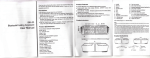
IBK-06 iPad Air
Multifunctional Bluetooth Keyboard Case
User Manual
.
Do not drop or strong impact your keyboard.
Do not disassemble or modify the unit by yourself in any way, otheMise the
. warranty will become invalid.
Do not expose lhe unit in humid environment to avoid any malfunction.
.
Use the corect power supply for charging, improper power supply charge will
. damage the keyboard or cause fire risk.
Vertically
Schematic Diagram
lnstallation and Disassembly
Rotating Button
_
stand
@
Specifications
As the pictures, pressing the adjusting button, at the same time take the
stand to another side to ssparat€ it from th€ koyboard case.
@
Stand and keyboard can be completely separatsd, And thoy can be ussd
Product namor lPad Alr
Multlfunoilonal Bluotooth Koyboard Case
independently.
Modclr IBK-06
Distance: 10M
Charge: DCSV
Battery: Built-in 3.7V 250mA
1,
HOtVlE
10,
Volume control
2'
Reduce brightness
11'
12'
Bluetooth pairing
3' lncrease brightness
4' Switching virtual keyboard
5'
Lock bracket switch
6.
7,
Search
8'
Music control
Function Feature
L
Mute
r For lOST aystom, 360 degrees folio case.
Note: shortcuts: Fn + shortcut key
Metgrlel: ABS
Slzer 246 ' 187,5
'
lithium battery
Standby: 70 days
Continuous working time: 80 H
Applicable devices: iPad Air
26.9mm
Welght: 4609
Bluctooth: Bluctooth 3.0
Lock bracket switch
Charge light
13, Capitalize light
14'
15'
Bluetooth paring light
16.
17.
l.ock
Power key( on/off)
tulicro USB slot(charge slot)
r Bullt-ln 260mA lilon battery, continuous working time up to 80 hours, standby
70 dayr.
o
Adopt Broadcom 8CM20730 Bluetooth 3.0 chip.
. Sclltor koy cor€, typlng easy and versatile QWERry keyboard.
lnstruction
1
Product Structure
,
2,
Turn on the power of Bluetooth keyboard.
Press the paiing button on Bluetooth keyboard, and the Bluetooth light will
flash, the Bluetooth keyboard is in paring status.
Bluetooth Pairing Light
BLuetooth Pairing Key
keyboard power key
trtrtr8ttrtrtrtrtrtr
trtrtrtrtrtr[]
o@
O
Open the ce8e, pr6ss the rotation button with your thumb and forellngar
abov6 plctur6s.
@
Gently remove the case, then it separates from the stand.
trtrtrtrE1trtrtr
r!
tho
3'
Open Bluetooth of the device you are using, and search the device
named "Bluetooth Keyboard'.
I
t+lx
S.uhgr
.
-... ...'-'. . --:
8.tlhg.
I
-..1
!
Buetooth
w&a
E
E
,We
irod€
Se&+h1fiq-,
the success of search equipment, click on ,'Bluetoolh Keyboard,, to conne€f,
will appear a group offigures on the screen, then key in the figures and press
on Bluetooth keyboard to confirm.
I
i
Aud@th
I
I
Hffi
O
r':.
Eurtodh Keyborr,
Conr:ecfed
@
Note: After a su@essful pairing, only need switch the power to turn
on the Bluetooth
devie for the next use ,Bluetooth keyboard will automatically connect to the last
device, no further paiing opeEtion.
FAQ
Q1: Why my tablet can nol be connected to Bluetooth keyboard?
A: 1) Please check whether the Bluetooth keyboard is in pairing mode, and lhen
turn on the Bluetooth of tablet to search and connect.
2) Check whether the Bluetooth keyboard power is suffcient.lt cannot be
connected if it Iacks of powen Connect Bluetooth keyboard after fully charged.
Q2: How to use the shortcuts function on the Bluetmth keyboard?
A: The way is to press keys of ,,Fn +shortcul ..
Package List
Mutifunctional Bluetooth Keyboard Case *1
Bluetooth keyboard pairing connection is successful
User Manual *1
USB Charging Cable *1