1
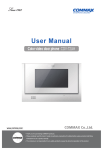
User Manual
Color video door phone CDV-71UM
• Thank you for purchasing COMMAX products.
• Please carefully read this User’s Guide (in particular, precautions for safety) before using a product and follow
instructions to use a product exactly.
• The company is not responsible for any safety accidents caused by abnormal operation of the product.
Greetings
● Thank you for choosing COMMAX.
● Please read this manual carefully before you use the product.
Table of contents
Greetings ..................................................................................................................1
Contents table ...........................................................................................................1
1. Warnings and caution ...........................................................................................2
2. Part Names ...........................................................................................................4
3. Function and Description ......................................................................................5
4. GUI Description .................................................................................................10
5. Wiring schematic.................................................................................................29
6. Product components ...........................................................................................31
7. Caution in use ....................................................................................................32
8. Miscellaneous .....................................................................................................32
9. Specification........................................................................................................32
1
1. Warnings and caution
Please follow the things described below in order to prevent any
danger or property damage.
Prohibition.
Warning
No disassembly
It may cause a serious damage or injury if
violated.
No touch
Caution
Must follow strictly.
It may cause a minor damage or injury if violated.
Shows plugging out the power cord
without an exception
Shows the warning and caution for an electric shock.
Shows the warning and caution for a fire.
Power & Installation
Warning
2
Please don’t use several
products at the same time on
one power socket.
·It may cause a fire due to an
abnormal overheating.
Please don’t bend the power
cable excessively or it may
cause an electric shock.
·fire when using a damaged
power cable.
Please don’t handle the power
cable with a wet hand.
·It may cause an electric
shock.
Please plug out the power
cable from the socket when
not using it for a long period
of time.
·It may shorten the product
lifespan or cause a fire.
Please don’t install the
product in the place where
there is much oil, smoke or
humidity.
·It may cause an electric
shock or fire.
Please don’t install the
product with the lightening
and thunder.
·It may cause an electric
shock or fire.
Please don’t use and connect
this product with other
products with different rated
voltage
·It may cause a disorder or
fire.
When installing the product
that generates heat, please
install the product away from
the wall (10cm) for the
ventilation.
·It may cause a fire due to
the increased internal
temperature.
Cleaning & Use
Warning
Please don’t disassemble,
repair or rebuild this product
arbitrarily (please contact the
service center if a repair is
needed.
·It may cause an electric
shock or fire.
If an abnormal sound, burning
smell or smoke is coming out
of the product, please plug out
the power cable and contact a
service center.
·It may cause an electric
shock or fire.
Please don’t insert any
metallic or burnable materials
into the ventilation hole.
·It may cause an electric
shock or fire.
Please use only the designated
batteries for the products of
using DC power.
·It may cause an electric
shock or fire.
Cleaning & Use
Power & Installation
Caution
Please plug the power cable
firmly into the inner end
·It may cause a fire.
Please hold the plug tightly
when unplugging the power
cable (a part of the copper
wire may be disconnected if
the grabbing is only made on
the cord when pulling out the
cable).
·It may cause an electric
shock or fire
When connecting the power
cables after cutting the cable,
please install the product with
power off
·It may cause an electric
shock or fire
Please be careful when using
an AC circuit breaker since
there is a possibility of an
electric shock.
Please check the use voltage
and current for the DC-only
products and use the
appropriate rectifier.
·It may cause a fire.
Please avoid direct rays of the
sun or heating devices at a
time of installation.
·It may cause a fire.
When cleaning the product,
please rub it with a soft and
dry cloth after plugging out
the power cable. (Please don’t
use any chemical products
such as wax, benzene, alcohol
or cleanser.)
Please don’t drop the product
on the ground and don’t apply
a shock .
·It may cause a failure.
Please use the designated
connection cable within the
maximum calling distance
designated for the product
·It may reduce the product
performance.
When installing the product,
please fix it firmly while using
the wall-mounting unit and
screws.
·It may cause an injury from
the falling object.
Please don’t install the
product on an unstable place
or small support board.
·It may cause an injury if it
falls down while in use.
3
2. Part Names
No.
4
Description
No.
Description
1
LCD Touch Screen
6
Volume control
2
Speaker
7
Talk button
3
SD Card Slot
8
Door release button
4
Power lamp
9
Power switch
5
Microphone
10
Connecting terminal
• This videophone product provides different functionality for connecting the second
door camera. At the time of booting, the built-in program checks the connectivity of
the second door camera and commands to supply the power to the second
camera.
• Therefore, in case of connecting the second camera, the connection must be
completed before the power is turned on.
• This product provides a full touch feature.
All functions are operated by touch of icons displayed on screen.
3. Function and Description
Stand-by mode
• As power is turned on by power switch, the blue LED located at the bottom of the front
panel is turned on and the booting logo is displayed. After a few seconds, you will hear
the beep tone and the videophone is now in standby mode.
Main menu
(1) Page and Call function
- As the paging button on a door camera is pressed, the paging tone ("Sol-Mi-Do")
rings at the connected videophone and sub-interphone (if connected to the
videophone) for two times consecutively. The door camera view is displayed on the
videophone within 3 seconds and the blue LED at the bottom of the screen starts
blinking.
- Touch "
" icon to talk to the visitor. The LCD screen of the videophone will
remain on for 30 seconds if not answered. If answered, it will remain on for 60
seconds.
- The "
" icon is displayed on the screen. To answer a call from door camera,
simply touch the "
" icon.
- To page an interphone connected to the videophone from Home screen, simply
touch the "
" icon. The "
" icon is displayed on the screen at the bottom
right of the screen and touch the icon again to page the interphone. To answer a
call, paged from the videophone, simply pick up the handset. To end a call from the
videophone, touch the interphone icon "
"
- To call the videophone from the interphone, simply pick up the handset and keep
pressing the paging button. If the icon is released, it stops paging the videophone.
Please keep pressing the button until answered from the videophone. The
paging tone rings at the videophone and to answer the call, paged from the
interphone, touch "
" icon to answer the call. The interphone icon on the screen
remains for 10 seconds after the call is ended and the videophone enters standby
mode.
(2) Ringtone volume control (low high)
- Ringtone volume is controlled by the switch located on the right side of the panel.
(3) Call function
- Touch a camera icon to answer the call. The blue LED at the bottom of the panel
blinks. If the handset of the interphone connected to the videophone is picked up
during the call between the videophone and the door camera, 3-way call is enabled.
- Talk time is limited to 60 seconds and will automatically be ended.
5
- If the "
" icon is touched during a call from a videophone to a door camera, the
handset of the interphone can be picked up to enable 3-way call.
- If a visitor presses a paging button from the door camera 2 during a call between the
videophone and the door camera 1, the first call from the door camera 1 is ended
and the connection to the door camera 2 is made automatically.
- If a visitor pages the videophone from a door camera during a call between the
videophone and the sub-interphone in progress, the door camera view is displayed
on the videophone and the 3-way call is enabled.
All calls are ended if the "
" icon is touched during the call.
(4) Recording video
- When paged from a door camera or monitoring the door camera view from the
videophone, touch the "
" icon to record the video.
- In case of recording still images, it is taken every time the icon is touched.
- While recording a video, the recording continues.
- This function is enabled regardless of the settings of "Automatic Saving/Manual
Saving" in the settings menu.
- This function is enabled even during a call between the videophone and the door
camera.
- The video and still images are recorded on to SD Card memory and without the SD
Card memory inserted in the videophone, video and still images cannot be recorded.
(5) Monitoring
- By touching the camera icon from the videophone, the camera view is monitored
from the videophone screen.
- If you continue monitoring other cameras connected to the videophone, please
touch the icon located on the upper left corner of the display. The cameras in the
following order will be displayed on the screen (CAM1 CCTV1 CAM2
CCTV2 ... Continue in loop)
- To end monitoring, simply touch the exit icon "
".
(6) Door release
- To open the door, simply touch the "
" icon on the screen.
(7) Still image recording function
This function is activated when the settings is set to record still images.
If set as "Auto Saving", the still image is recorded every time paged from a door
camera.
During monitoring or talking with the door camera, touch the "
record the still image
6
" icon to
(8) Video recording function
• This function is activated when the settings is set to record video.
If set as "Automatic Saving", the video is recorded every time paged from a door
camera.
When paged, recorded for 30 seconds and when talking, recorded for 60 seconds.
The maximum recorded time is 90 seconds (30 seconds when paged + 60 seconds
when answered)
Caution 1 : Do not remove SD Card while recording still images or video. It
may damage the SD Card and data can be lost.
Caution 2 : This product records only on to SD Card and without the SD
Card inserted or with damaged SD Card, still images and video
cannot be recorded.
7
Managing Folder and File
Root folders created
. \MOVIE
. \PICTURE
If below icon is displayed on the screen, please backup the data.
⇨ Recorded file name and format
Still image
Video
Description
Note
8
000001C1.jpg
000002C2.jpg
000003D1.jpg
000004D1.jpg
000001C1.asf
000002C2.asf
000003D1.asf
000004D2.asf
Date
Time
Video Type
C1,C2: Door 1,2 (Still Image)
2014-10-25 13:05:02 D1,D2: CCTV 1,2 (Video)
(YY-MM-DD) (13H5M2S) C1,C2 : Door 1,2(Still Image)
D1,D24 : CCTV1,2(Video)
File Type
Still Image
(*.jpg)
Video
(*.asf)
⇨ SD Card requires a minimum space availability for system
operation. Minimum storage space: Min. 300MB.
⇨ Still image recorded up to 256 cuts.
As it becomes full (256 cuts), overwrites from the oldest data.
⇨ Video is recorded up to maximum space availability of the SD
Card. If no space available on the SD Card,
Backup icon is displayed on the screen.
As the above icon is displayed, it starts to
overwrite from the oldest data.
At this time, several files can be deleted to keep
minimum space availability for system file.
It is strongly recommended to backup important
video data. Depending on the SD Card memory,
number of files to be recorded may Vary. Please
refer to below table. Even if the CD Card memory
has space available, it starts to overwrite as
the number of file limit exceeds.
⇨ a single file or all files may be selected to delete.
⇨ Limit of files for various SD Card size
SDHC Card
8 GByte
256
Size
Still Images
4 GByte
256
Limit of Video Files
(60 Second long)
max 380
max 750
max 1,500
Appx. 380 min
Appx. 750 min
Appx. 1,500 min
Recording time
16 GByte
156
9
4. GUI Description
(1) As Powered On
As powered on, the "COMMAX" booting logo is displayed and the system checks SD
Card memeory availability. The SD Card icon "___" is displayed and the message,
"SD CARD CHECKING..." is displayed on the screen. As the system initializing is
completed, a beep sounds and the screen becomes off to enter standby mode.
(2) Main menu
In standby mode (screen is off), touch the screen to turn on the screen.
To go back to standby mode, touch the power icon (
corner of the screen.
10
) located on the upper right
Icons and description
Icon
Description
Function
Checking Visitor Check recorded video or still images of visitors.
Menu Settings
Setup functions.
Camera_1
Call or monitor the Door Camera_1.
Camera_2
Call or monitor the Door Camera_2.
CCTV_1
Monitor CCTV Camera_1 view.
CCTV_2
Monitor CCTV Camera_2 view.
Interphone
To call the sub-interphone.
(3) Checking Visitor
Select video or still image.
11
Icons and description
Icon
Description
Function
Video
Check visitors of recorded video.
Still Image
Check visitors of still images.
Home
Return to main menu.
Prev
Move to previous menu.
Recorded videos and still images are listed in 4 split screen in chronological order with time.
Icons and description
Icon
12
Description
Function
Prev
Move to previous menu or screen.
UP
Move to previous page.
DOWN
Move to next page.
(4) Check video
As a single video is selected from the 4 split screen, the screen turns to full screen to
playback the selected video. To delete the video, touch
icon.
Icons and description
Icon
Description
Function
Prev
Move to previous menu or screen.
UP
Move to previous page.
DOWN
Move to next page.
Delete
Delete the selected video.
13
(5) Delete recorded video
Touch
icon to delete the video. Touch "Yes" to delete.
Icons and description
Icon
14
Description
Function
Prev
Move to previous menu or screen.
UP
Move to previous page.
DOWN
Move to next page.
Delete
Delete the selected video.
Yes
Command to delete.
No
Cancel delete.
(6) Settings
Time, display, and language setup are enabled in Settings menu.
Icons and description
Icon
Description
Function
Time Setting
Date and time setup.
Display Setting
Display setup for contrast, brightness, hue.
Language Setting Language setup (8 languages supported)
Setting (More)
Settings menu for other functions.
Home
Return to main menu.
Prev
Move to previous menu or screen.
15
(7) Time
The time stamp for recorded video and still images are recorded according to time
setup in this menu. The year, month, date, hour and minute can be adjusted by left
and right button. Touch the category to adjust. Touch
Icon to complete the
setup.
Icons and description
Icon
Description
Function
Decrease value
Decrease the time and date to adjust.
Increase value
Increase the time and date to adjust.
Save
Save the date/time settings.
Cancel
Cancel the date/time settings.
Home
Return to main menu.
Prev
Move to previous menu or screen.
[CAUTION]
The time and date automatically reset if powered off for 48 hours. Time and date
settings required as powered on.
16
(8) Display
Brightness, contrast, and hue can be set in this menu.
Touch the category that you wish to adjust.
Touch "
" or "
" Icon to change the value.
Icons and description
Icon
Description
Function
BRIGHTNESS
Adjust the brightness.
CONTRAS
Adjust the contrast.
HUE
Adjust the color.
Reset
All values are reset to default settings
(Brightness, Contrast, Hue reset to the middle).
Prev
Move to previous menu or screen.
17
(9) Language
Language setup is enabled in this menu (Default language settings is English).
Select the language you wish to set and touch
to complete the settings.
Icons and description
Icon
18
Description
Function
Save
Save the language settings.
Cancel
Cancel the language settings.
Home
Return to main menu.
Prev
Move to previous menu or screen.
(10) More (settings for other functions)
Settings for Saving Method (video or still image), Reset All Settings,
Automatic/Manual Saving, and Motion detection (of CCTV camera) is enabled in this
menu.
Icons and description
Icon
Description
Saving Method
Function
Recording option setup. (Video / Still image)
All settings of the device including recorded
All Initialization
(Reset All Settings) video and still image data are to be reset and deleted.
Automatic/Manual
Saving
Select recording option from Automatic and Manual.
Motion
Settings for motion detection option of CCTV
cameras connected to the videophone.
Home
Return to main menu.
Prev
Move to previous menu or screen.
19
(11) Saving Method
Recording option can be selected between video and still image.
If video is selected, video is recorded and audio is also recorded for door camera
recording. CCTV camera recording is only for video.
If still image is selected, only the still image is recorded.
Icons and description
Icon
20
Description
Function
Video
If selected, video is recorded(both video & audio
recording is for door camera recording.)
Still Image
If selected, still images are recorded.
Save
Save video or still image depending on
the recording option.
Cancel
Cancel recording option settings.
Home
Return to main menu.
Prev
Move to previous menu or screen.
(12) Reset All Settings
This function resets all settings of the device to initial settings and inserted SD Card
memory is formatted. All the recorded video and still images on the SD Card are
completely deleted if "Reset All Settings" function is performed with the SD Card
memory inserted in the device. We strongly recommend to backup the recorded video
and still images or remove the SD Card memory prior to performing the reset function.
Time settings remains however, the time is reset if powered off for 48 hours.
- Please backup the recorded video and still images or remove the SD Card from
the device prior to perform "Reset All Settings" function.
21
Icons and description
Icon
Description
Function
All settings of the device is set to initial settings and
All Initialization
(Reset All Settings) the inserted SD Card is formatted (Time and Language settings remain).
22
Yes
Start reset all settings.
No
Cancel reset all settings.
Home
Return to main menu.
Prev
Move to previous menu or screen.
(13) Automatic/Manual Saving
This function is to select Automatic or Manual Saving option.
Icons and description
Icon
Description
Function
Automatic
Saving
Set recording option to automatic.
Manual Saving
Set recording option to manual.
Save
Save Automatic/Manual Saving option settings.
Cancel
Cancel Automatic/Manual Saving option settings.
Home
Return to main menu.
Prev
Move to previous menu or screen.
23
(14) MOTION Detection (including the sensitivity settings)
The motion detection recording option of CCTV camera and its sensitivity can be set
(Ref. Only one camera is recorded at a time and motion detection function applies to
one camera as well. When door camera button is pressed while the CCTV camera
motion detection recording is on, the recording channel is instantly changed to door
camera from the CCTV camera).
Icons and description
Icon
24
Description
Function
CCTV_1
Touch this icon and activate CCTV_1 for
motion detection recording.
CCTV_2
Touch this icon and activate CCTV_2 for
motion detection recording.
MOTION Not
Activated
MOTION detection is not activated.
High
Cancel Automatic/Manual Saving option settings.
Medium
Return to main menu.
Low
Move to previous menu or screen.
Home
Return to main menu.
Prev
Move to previous menu or screen.
(15) Page, Call, and Door release
When paged from a door camera or the visitor icon
is touched, the door camera
view is displayed on the LCD screen.
As the door camera view is displayed on the screen, touch the call icon
to
connect to the door phone.
- The camera icon
located on the upper left corner of the screen indicates which
camera view is displayed.
-
icon for still image recording mode or
icon for video recording mode is
displayed on the upper right corner of the screen.
- Touch
or
Touch the call icon
next to icon to control the call volume during a call.
to end a call.
Touch the door release icon
release icon
during a call to release the door lock. The blue door
is displayed in the center of the screen and the door is released.
25
Icons and description
Icon
26
Description
Function
Call
To start a call or end a call.
Door release
Touch to release a door lock during a call.
Manual Saving
Record video or still images manually by
touching the icon during a call.
Reject call
(Exit)
Reject a call when paged from a door camera(video and ringtone become off
and enter standby mode) or Exit from current menu.
Interphone
Page the sub-interphone connected to the videophone.
(16) Interphone
To page an interphone connected to the videophone
In standby mode, touch the interphone icon
to turn the touch screen to
interphone mode.
Touch the interphone call icon
to make a call to an interphone.
(*** when you page the interphone, you need to keep touching the icon).
As the handset of the interphone is picked up, the call is made.
The call time is limited to 60 seconds.
If the interphone icon
is not touched after 15 secondsl, the call is ended and the
videophone enters standby mode.
When paged from the interphone
Ringtone sounds and the display is turned to the interphone call screen.
Touch the call icon
to connect.
The call time is limited to 60 seconds.
If the interphone is not answered within 10 seconds, the videophone automatically
enters standby mode.
Touch the call icon
to end a call.
27
Icons and description
Icon
28
Description
Function
Call
Start or end a call.
Reject (Exit)
Reject a call from an interphone (screen and ringtone are off and
enter standby mode) or Exit from current menu
Intephone
Page an interphone.
5. Wiring schematic
Camera connecting terminal (4 wires with polarity)
1. RED: Voice signal input
2. BLUE: GND
3. YELLOW: Power (+12V)
4. WHITE: Video signal input
Sensor connecting terminal (3 wires with polarity)
1. RED: Power (+12V) 2. BLUE: GND 3. YELLOW: SENSOR Signal input
CCTV Connector (2 wires with polarity)
1. RED: Video signal input 2. BLUE: GND
29
CCTV Camera wiring
♠ CCTV CAMERA requires a separate power supply.
♠ Use the proper cable (Coaxial Cable) with appropriate specification for various
distances between the CCTV CAMERA and the videophone.
#① : RED--(VIDEO)
#② : Blue-(GND)
30
6. Product components
MANUAL
User Manual
Monitor(CDV-71UM)
Mounting screw
(4EA)
Tp
RpConnector
Door
CameraTp
(4PX2EA)
MANUAL
Wall Bracket
Monitor fixing Screw
Tp
(1EA)
RpVp
Tp
Tp
Rp
RpVp
CCTV Camera Connector
(2PX2EA)
Rp
Vp
InterPhone
Connector
(4PX1EA)
Rp
Vp
R
Vp
Rp
Sp
SpTp
Rp Tp Up
31
7. Caution in use
1. Turn on the power switch.
2. Please contact your local agent for product maintenance when you have a
problem in use of CDV-71UM
3. For your safety, power switch with a safety device must be used in your building.
4. Unplug before installing or repairing the product.
5. Unplug when you connect monitor with door cameras.
8. Miscellaneous
● Please carefully read this User's Guide before calling service man
After checking the entire check list, please contact customer service center.
We will do our best to make you satisfy with our services.
9. Specification
CDV-71UM
MODEL
Wiring
Door camera 4 wires (Polarity), CCTV 2wires(Polarity),
Interphone 4wires(Polarity)
Voltage
100-240V~, 50/60 Hz
Power Consumption
Standby : 4.6W , in operation : 16W
Communication
Full duplex (Hands-Set)
Monitor
17.78Cm(7") TFT-DIGITAL LCD
Ringing
- Entrance : Electronic chime (3 call 2times)
- Interphone : Electron buzzer
Video receiving period
Standby : 30 ±5sec , response : 60 ±5sec
0.5mm
Distance
32
28m
0.65mm
0.8mm
50m
70m
Temperature
0 ~ +40°C (32°F ~ 104°F)
Dimensions(mm)
276(W) X 178(H) X 31(D)
513-11, Sangdaewon-dong, Jungwon-gu, Seongnam-si, Gyeonggi-do, Korea
Int’l Business Dept. Tel. : +82-31-7393-540~550 Fax. : +82-31-745-2133
Web site : www.commax.com
PM0771UM0010
Printed In Korea / 2014.05.104