1
BlackVue Software
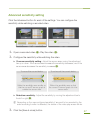
Playing a Recorded File
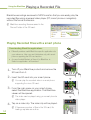
1. Click the [
Browse] button and
select the folder in which the file is
located.
NN The files contained in the selected
folder are displayed in the list.
2. Double-click the file you want to
play. (Alternatively, select the file and
click the
button.)
The selected file starts to be played.
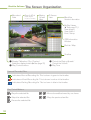
NN Scroll mouse wheel to Zoom In/Out
in Playing Screen View. X
(Min. 0.5X ~ Max. 2.0X)
NN You can control the playing speed
from 0.5x to 2.0x speed.
NN To list only the files with the types
you specify, select or deselect the
buttons in the [Select Types] section. X
(All types are selected by default.)
NN Select the checkbox in the date, the
files of selected date in the Timeline
appears in the list.
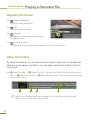
The recorded file is MP4 format.
• BlackVue saves recordings in MP4 format so that you can easily view the recordings using
a video player supporting MP4 format.
19