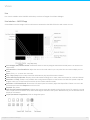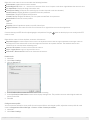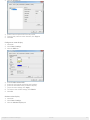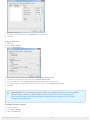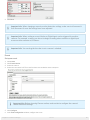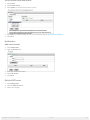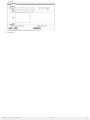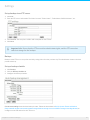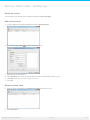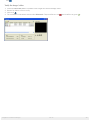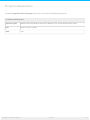
1
Seagate Surveillance Manager User Manual Model: Click here to access an up-to-date online version of this document. You will also find the most recent content as well as expandable illustrations, easier navigation, and search capability. Cont ent s 1 Regulatory . . . . . . . . . . .Compliance .........................................................................5 ....... . . . . . . . arks Tradem . . . . . . . . . . . . . . . . . . . . . . . . . . . . . . . . . . . . . . . . . . . . . . . . . . . . . . . . . . . . . . . . . . . . . . . . . . . . . . . . . . . . . . . . . . . . . . . . . . . . . . . . . .5. . . . . . . . . . . . . . . . . .and Licenses . . . .Free . . . . .So . . ftware . . . . . . . . . . . . . . . . . . . . . . . . . . . . . . . . . . . . . . . . . . . . . . . . . . . . . . . . . . . . . . . . . . . . . . . . . . . . . . . . . . . . . . . . . . .5. . . . . . . . . . . . . . . . . . . . . . . . . . . . . . . . . . . . . . . . . . . . . . . . . . . . . . . . . . . . . . . . . . . . . . . . . . . . . . . . . . . . . . . . . . . . . . . . . . . . . . . . . . . . . . . . . . . . . . . . . .6. . . . . . . . . Data . . . . .capacity Disk . . . . . . . . . . . . . . . . . . . . . . . . . . . . . . . . . . . . . . . . . . . . . . . . . . . . . . . . . . . . . . . . . . . . . . . . . . . . . . . . . . . . . . . . . . . . . . . . . . . . . . . . . . . .7. . . . . . . . . 2 Seagate . . . . . . . .Surveillance . . . . . . . . . . . Manager . . . . . . . . . . . . . . . . . . . . . . . . . . . . . . . . . . . . . . . . . . . . . . . . . . . . . . . . . . . . . . . . .8 ....... 3 Install . . . . . . Seagate . . . . . . . .Surveillance . . . . . . . . . . . Manager . . . . . . . . . . . . . . . . . . . . . . . . . . . . . . . . . . . . . . . . . . . . . . . . . . . . . . . . . . .9 ....... . . . . .OS NAS . . . (Browser) . . . . . . . . . . . . . . . . . . . . . . . . . . . . . . . . . . . . . . . . . . . . . . . . . . . . . . . . . . . . . . . . . . . . . . . . . . . . . . . . . . . . . . . . . . . . . . . . . . . . . . . . .9. . . . . . . . . . . . . . . . . (Windows) Desktop . . . . . . . . . . . . . . . . . . . . . . . . . . . . . . . . . . . . . . . . . . . . . . . . . . . . . . . . . . . . . . . . . . . . . . . . . . . . . . . . . . . . . . . . . . . . . . . . . . . . . . . . .9. . . . . . . . . . . . . . . .devices Mobile . . . . . . . . . . . . . . . . . . . . . . . . . . . . . . . . . . . . . . . . . . . . . . . . . . . . . . . . . . . . . . . . . . . . . . . . . . . . . . . . . . . . . . . . . . . . . . . . . . . . . . . . . .9. . . . . . . . . 4 Seagate . . . . . . . .Surveillance . . . . . . . . . . . Manager . . . . . . . . .Licenses . . . . . . . . . . . . . . . . . . . . . . . . . . . . . . . . . . . . . . . . . . . . . . . . . . . . . . . 10 ........ . . . . . . . . . . . Seagate Uninstalling . . . . . . . Surveillance . . . . . . . . . . .Manager . . . . . . . .and . . . .licenses . . . . . . . . . . . . . . . . . . . . . . . . . . . . . . . . . . . . . . . . . . . . . . . . . . . . . . . . . . . . . . . . . . . . . . .10 .......... . . . . . . . . .licenses Replacing . . . . . . . . . . . . . . . . . . . . . . . . . . . . . . . . . . . . . . . . . . . . . . . . . . . . . . . . . . . . . . . . . . . . . . . . . . . . . . . . . . . . . . . . . . . . . . . . . . . . . . .10 .......... 5 Login . . . . . . . . . . . . . . . . . . . . . . . . . . . . . . . . . . . . . . . . . . . . . . . . . . . . . . . . . . . . . . . . . . . . . . . . . . . . . . . . . . . 11 ........ 6 Views . . . . . . . . . . . . . . . . . . . . . . . . . . . . . . . . . . . . . . . . . . . . . . . . . . . . . . . . . . . . . . . . . . . . . . . . . . . . . . . . . . . 12 ........ . . . . . . . . . . . . . . . . . . . . . . . . . . . . . . . . . . . . . . . . . . . . . . . . . . . . . . . . . . . . . . . . . . . . . . . . . . . . . . . . . . . . . . . . . . . . . . . . . . . . . . . . . . . . . . . .12 Live .......... . . . . .interface Live . . . . . . . .–. .NAS . . . . OS . . . app . . . . . . . . . . . . . . . . . . . . . . . . . . . . . . . . . . . . . . . . . . . . . . . . . . . . . . . . . . . . . . . . . . . . . . . . . . . . . . . . . . . . . . . .12 .......... . . . nfigure Co . . . . . . . jo . .ystick . . . . . co . . .ntro . . . .l . . . . . . . . . . . . . . . . . . . . . . . . . . . . . . . . . . . . . . . . . . . . . . . . . . . . . . . . . . . . . . . . . . . . . . . . . . . . . . . . . . . . . .15 .......... . . . . .view Live . . . . -. .Deskto . . . . . . p. .app . . . .(Windo . . . . . . ws) . . . . . . . . . . . . . . . . . . . . . . . . . . . . . . . . . . . . . . . . . . . . . . . . . . . . . . . . . . . . . . . . . . . . . . . . . . . . . . . . .16 .......... . . . . . . . . . . . . . . . . . . . . . . . . . . . . . . . . . . . . . . . . . . . . . . . . . . . . . . . . . . . . . . . . . . . . . . . . . . . . . . . . . . . . . . . . . . . . . . . . . . . . . . . . . . . . . . . .21 Playback .......... . . . . . . . . .interface Playback . . . . . . . . . . . . . . . . . . . . . . . . . . . . . . . . . . . . . . . . . . . . . . . . . . . . . . . . . . . . . . . . . . . . . . . . . . . . . . . . . . . . . . . . . . . . . . . . . . . . .21 .......... . . . . . . . . . .search Intelligent . . . . . . . . . . . . . . . . . . . . . . . . . . . . . . . . . . . . . . . . . . . . . . . . . . . . . . . . . . . . . . . . . . . . . . . . . . . . . . . . . . . . . . . . . . . . . . . . . . . .24 .......... . . . . . . . . .reco Enhance . . . . rded . . . . .video . . . . . . . . . . . . . . . . . . . . . . . . . . . . . . . . . . . . . . . . . . . . . . . . . . . . . . . . . . . . . . . . . . . . . . . . . . . . . . . . . . . . . . . . . . . .25 .......... . . . . . a. .video Save . . . . . file . . . . . . . . . . . . . . . . . . . . . . . . . . . . . . . . . . . . . . . . . . . . . . . . . . . . . . . . . . . . . . . . . . . . . . . . . . . . . . . . . . . . . . . . . . . . . . . . . .25 .......... . . . . . an Save . . .image . . . . . .in. .a. video . . . . . . . . . . . . . . . . . . . . . . . . . . . . . . . . . . . . . . . . . . . . . . . . . . . . . . . . . . . . . . . . . . . . . . . . . . . . . . . . . . . . . . . . . . . . .26 .......... . . . . .an Print . . .image . . . . . in . . a. .video . . . . . . . . . . . . . . . . . . . . . . . . . . . . . . . . . . . . . . . . . . . . . . . . . . . . . . . . . . . . . . . . . . . . . . . . . . . . . . . . . . . . . . . . . . . . .26 .......... . . . . . up Back . . . video . . . . . .files . . . . . . . . . . . . . . . . . . . . . . . . . . . . . . . . . . . . . . . . . . . . . . . . . . . . . . . . . . . . . . . . . . . . . . . . . . . . . . . . . . . . . . . . . . . . . . . .26 .......... . . . . . . . . .–. Desktop Playback . . . . . . . .App . . . . . . . . . . . . . . . . . . . . . . . . . . . . . . . . . . . . . . . . . . . . . . . . . . . . . . . . . . . . . . . . . . . . . . . . . . . . . . . . . . . . . . . . . . . . . .27 .......... .........n Applicatio . . Co . . .ntro . . . .l .Panel . . . . . . . . . . . . . . . . . . . . . . . . . . . . . . . . . . . . . . . . . . . . . . . . . . . . . . . . . . . . . . . . . . . . . . . . . . . . . . . . . . . . . . . . . . .27 .......... . . . . . . . . . .Search Intelligent . . . . . . . . . . . . . . . . . . . . . . . . . . . . . . . . . . . . . . . . . . . . . . . . . . . . . . . . . . . . . . . . . . . . . . . . . . . . . . . . . . . . . . . . . . . . . . . . . . . .29 .......... . . . . . a. .video Save . . . . . file . . . . . . . . . . . . . . . . . . . . . . . . . . . . . . . . . . . . . . . . . . . . . . . . . . . . . . . . . . . . . . . . . . . . . . . . . . . . . . . . . . . . . . . . . . . . . . . . . .29 .......... . . . . . an Save . . .image . . . . . .in. .a. video . . . . . . . . . . . . . . . . . . . . . . . . . . . . . . . . . . . . . . . . . . . . . . . . . . . . . . . . . . . . . . . . . . . . . . . . . . . . . . . . . . . . . . . . . . . . .30 .......... . . . . .an Print . . .image . . . . . in . . a. .video . . . . . . . . . . . . . . . . . . . . . . . . . . . . . . . . . . . . . . . . . . . . . . . . . . . . . . . . . . . . . . . . . . . . . . . . . . . . . . . . . . . . . . . . . . . . .30 .......... . . . . . up Back . . . video . . . . . .files . . . . . . . . . . . . . . . . . . . . . . . . . . . . . . . . . . . . . . . . . . . . . . . . . . . . . . . . . . . . . . . . . . . . . . . . . . . . . . . . . . . . . . . . . . . . . . . .30 .......... . . . . . .te. .Live Remo . . . .Viewer . . . . . . .and . . . .E-Map . . . . . . . . . . . . . . . . . . . . . . . . . . . . . . . . . . . . . . . . . . . . . . . . . . . . . . . . . . . . . . . . . . . . . . . . . . . . . . . . . . . . . . .31 .......... . . . . . . .-. NAS E-Map . . . . .OS . . .app . . . . . . . . . . . . . . . . . . . . . . . . . . . . . . . . . . . . . . . . . . . . . . . . . . . . . . . . . . . . . . . . . . . . . . . . . . . . . . . . . . . . . . . . . . . . . .31 .......... . . . . . . .–. Deskto E-Map . . . . . . .p. .app . . . . . . . . . . . . . . . . . . . . . . . . . . . . . . . . . . . . . . . . . . . . . . . . . . . . . . . . . . . . . . . . . . . . . . . . . . . . . . . . . . . . . . . . . . . . .34 .......... 7 Camera . . . . . . . . . . . . . . . . . . . . . . . . . . . . . . . . . . . . . . . . . . . . . . . . . . . . . . . . . . . . . . . . . . . . . . . . . . . . . . . . . . . 35 ........ . . . . cam Add . . . .eras . . . .by . . .searching . . . . . . . . the . . . local . . . . .network . . . . . . . . . . . . . . . . . . . . . . . . . . . . . . . . . . . . . . . . . . . . . . . . . . . . . . . . . . . . . . . . . . . . . . . . . . . . . . . . .35 .......... . . . . cam Add . . . .eras . . . .m . .anually . . . . . . . . . . . . . . . . . . . . . . . . . . . . . . . . . . . . . . . . . . . . . . . . . . . . . . . . . . . . . . . . . . . . . . . . . . . . . . . . . . . . . . . . . . . . . . . . . .35 .......... . . . . . . . cam Modify . . . .era . . .inform . . . . . . ation . . . . . . . . . . . . . . . . . . . . . . . . . . . . . . . . . . . . . . . . . . . . . . . . . . . . . . . . . . . . . . . . . . . . . . . . . . . . . . . . . . . . . . . . . . . 36 ........... . . . . . . . a. .cam Replace . . . era . . . . . . . . . . . . . . . . . . . . . . . . . . . . . . . . . . . . . . . . . . . . . . . . . . . . . . . . . . . . . . . . . . . . . . . . . . . . . . . . . . . . . . . . . . . . . . . . . . . 36 ........... . . . . . .Quality Video . . . . . . . . . . . . . . . . . . . . . . . . . . . . . . . . . . . . . . . . . . . . . . . . . . . . . . . . . . . . . . . . . . . . . . . . . . . . . . . . . . . . . . . . . . . . . . . . . . . . . . . . . 36 ........... . . . . . . .video Adjust . . . . . settings . . . . . . . . . . . . . . . . . . . . . . . . . . . . . . . . . . . . . . . . . . . . . . . . . . . . . . . . . . . . . . . . . . . . . . . . . . . . . . . . . . . . . . . . . . . . . . . . . .36 .......... . . . nfigure Co . . . . . . . the . . . lens . . . . . . . . . . . . . . . . . . . . . . . . . . . . . . . . . . . . . . . . . . . . . . . . . . . . . . . . . . . . . . . . . . . . . . . . . . . . . . . . . . . . . . . . . . . . . . . . .36 .......... . . . . . camera View . . . . . . . status . . . . . . . . . . . . . . . . . . . . . . . . . . . . . . . . . . . . . . . . . . . . . . . . . . . . . . . . . . . . . . . . . . . . . . . . . . . . . . . . . . . . . . . . . . . . . . . . . .37 .......... . . . . . camera View . . . . . . . status . . . . . . details . . . . . . . . . . . . . . . . . . . . . . . . . . . . . . . . . . . . . . . . . . . . . . . . . . . . . . . . . . . . . . . . . . . . . . . . . . . . . . . . . . . . . . . . . . . .38 .......... 8 Recording . . . . . . . . . . . . . . . . . . . . . . . . . . . . . . . . . . . . . . . . . . . . . . . . . . . . . . . . . . . . . . . . . . . . . . . . . . . . . . . . . . . 39 ........ . . . . . . . . . . . . . . . . . . . . . . . . . . . . . . . . . . . . . . . . . . . . . . . . . . . . . . . . . . . . . . . . . . . . . . . . . . . . . . . . . . . . . . . . . . . . . . . . . . . . . . . . . . . . . . . .39 Schedule .......... . . . nfigure Co . . . . . . . reco . . . . rding . . . . . .mo . . de . . . . . . . . . . . . . . . . . . . . . . . . . . . . . . . . . . . . . . . . . . . . . . . . . . . . . . . . . . . . . . . . . . . . . . . . . . . . . . . . . . . . . . . .39 .......... . . . . . . . . . reco Schedule . . . . .rdings . . . . . . . . . . . . . . . . . . . . . . . . . . . . . . . . . . . . . . . . . . . . . . . . . . . . . . . . . . . . . . . . . . . . . . . . . . . . . . . . . . . . . . . . . . . . . . . .39 .......... . . . . . . . . . . . . . . . . . . . . . . . . . . . . . . . . . . . . . . . . . . . . . . . . . . . . . . . . . . . . . . . . . . . . . . . . . . . . . . . . . . . . . . . . . . . . . . . . . . . . . . . . . . . . . . . .40 Events .......... . . . .up Set . . .an . . event . . . . . . . . . . . . . . . . . . . . . . . . . . . . . . . . . . . . . . . . . . . . . . . . . . . . . . . . . . . . . . . . . . . . . . . . . . . . . . . . . . . . . . . . . . . . . . . . . . . . . 40 .......... . . . .up Set . . .I/O . . . bo . . .x. input . . . . . actio . . . . ns . . . . . . . . . . . . . . . . . . . . . . . . . . . . . . . . . . . . . . . . . . . . . . . . . . . . . . . . . . . . . . . . . . . . . . . . . . . . . . . . . . . . . . .41 .......... . . . .up Set . . .system . . . . . . events . . . . . . .and . . . .actio . . . .ns . . . . . . . . . . . . . . . . . . . . . . . . . . . . . . . . . . . . . . . . . . . . . . . . . . . . . . . . . . . . . . . . . . . . . . . . . . . . . . . . . .42 .......... . . . . . . . . . . . . . . . . . . . . . . . . . . . . . . . . . . . . . . . . . . . . . . . . . . . . . . . . . . . . . . . . . . . . . . . . . . . . . . . . . . . . . . . . . . . . . . . . . . . . . . . . . . . . . . . .42 Notifications .......... . . . . .event Add . . . . . co . . ntacts . . . . . . . . . . . . . . . . . . . . . . . . . . . . . . . . . . . . . . . . . . . . . . . . . . . . . . . . . . . . . . . . . . . . . . . . . . . . . . . . . . . . . . . . . . . . . . . . . .42 .......... . . . . the Edit . . . .SMTP . . . . .server . . . . . . . . . . . . . . . . . . . . . . . . . . . . . . . . . . . . . . . . . . . . . . . . . . . . . . . . . . . . . . . . . . . . . . . . . . . . . . . . . . . . . . . . . . . . . . . . .42 .......... 9 Settings . . . . . . . . . . . . . . . . . . . . . . . . . . . . . . . . . . . . . . . . . . . . . . . . . . . . . . . . . . . . . . . . . . . . . . . . . . . . . . . . . . . 44 ........ . . . .up Set . . backups . . . . . . . . to . . an . . . FTP . . . .server . . . . . . . . . . . . . . . . . . . . . . . . . . . . . . . . . . . . . . . . . . . . . . . . . . . . . . . . . . . . . . . . . . . . . . . . . . . . . . . . . . . . . . . . .44 .......... . . . . . . . . . . . . . . . . . . . . . . . . . . . . . . . . . . . . . . . . . . . . . . . . . . . . . . . . . . . . . . . . . . . . . . . . . . . . . . . . . . . . . . . . . . . . . . . . . . . . . . . . . . . . . . . .44 Backups .......... . . . .up Set . . .a. backup . . . . . . . schedule . . . . . . . . . . . . . . . . . . . . . . . . . . . . . . . . . . . . . . . . . . . . . . . . . . . . . . . . . . . . . . . . . . . . . . . . . . . . . . . . . . . . . . . . . . . . . . . 44 .......... . . . .box I/O . . . . . . . . . . . . . . . . . . . . . . . . . . . . . . . . . . . . . . . . . . . . . . . . . . . . . . . . . . . . . . . . . . . . . . . . . . . . . . . . . . . . . . . . . . . . . . . . . . . . . . . . . . . .45 .......... . . . dify Mo . . . . I/O . . . .bo . . x. .settings . . . . . . . . . . . . . . . . . . . . . . . . . . . . . . . . . . . . . . . . . . . . . . . . . . . . . . . . . . . . . . . . . . . . . . . . . . . . . . . . . . . . . . . . . . . . . . .45 .......... . . . nfigure Co . . . . . . . I/O . . . .pin . . .settings . . . . . . . . . . . . . . . . . . . . . . . . . . . . . . . . . . . . . . . . . . . . . . . . . . . . . . . . . . . . . . . . . . . . . . . . . . . . . . . . . . . . . . . . . . . . .45 .......... . . . . . . . . . . . . . . . . . . . . . . . . . . . . . . . . . . . . . . . . . . . . . . . . . . . . . . . . . . . . . . . . . . . . . . . . . . . . . . . . . . . . . . . . . . . . . . . . . . . . . . . . . . . . . . . .45 Network .......... . . . nfigure Co . . . . . . . Live . . . . View . . . . . and . . . . the . . . Playback . . . . . . . . .Service . . . . . . . . . . . . . . . . . . . . . . . . . . . . . . . . . . . . . . . . . . . . . . . . . . . . . . . . . . . . . . . . . . . . . . . . . . .45 .......... . . . nfigure Co . . . . . . . the . . . CMS . . . . . Service . . . . . . . . . . . . . . . . . . . . . . . . . . . . . . . . . . . . . . . . . . . . . . . . . . . . . . . . . . . . . . . . . . . . . . . . . . . . . . . . . . . . . . . . . . . .46 .......... . . . . . . . . . . . . . . . . . . . . . . . . . . . . . . . . . . . . . . . . . . . . . . . . . . . . . . . . . . . . . . . . . . . . . . . . . . . . . . . . . . . . . . . . . . . . . . . . . . . . . . . . . . . . . . . .46 Users .......... . . . . . the View . . . .User . . . . .list . . . . . . . . . . . . . . . . . . . . . . . . . . . . . . . . . . . . . . . . . . . . . . . . . . . . . . . . . . . . . . . . . . . . . . . . . . . . . . . . . . . . . . . . . . . . . . . .46 .......... . . . . .users Add . . . . . . . . . . . . . . . . . . . . . . . . . . . . . . . . . . . . . . . . . . . . . . . . . . . . . . . . . . . . . . . . . . . . . . . . . . . . . . . . . . . . . . . . . . . . . . . . . . . . . . . . .47 .......... . . . dify Mo . . . . user . . . . .settings . . . . . . . . . . . . . . . . . . . . . . . . . . . . . . . . . . . . . . . . . . . . . . . . . . . . . . . . . . . . . . . . . . . . . . . . . . . . . . . . . . . . . . . . . . . . . . . . . .47 .......... . . . . . . . .a. user’s Change . . . . . . passwo . . . . . . . rd . . . . . . . . . . . . . . . . . . . . . . . . . . . . . . . . . . . . . . . . . . . . . . . . . . . . . . . . . . . . . . . . . . . . . . . . . . . . . . . . . . . . . . . .48 .......... . . . . . . .users Delete . . . . . . . . . . . . . . . . . . . . . . . . . . . . . . . . . . . . . . . . . . . . . . . . . . . . . . . . . . . . . . . . . . . . . . . . . . . . . . . . . . . . . . . . . . . . . . . . . . . . . . .48 .......... . . . . . . .Activation License . . . . . . . . . and . . . .Transfer . . . . . . . . . . . . . . . . . . . . . . . . . . . . . . . . . . . . . . . . . . . . . . . . . . . . . . . . . . . . . . . . . . . . . . . . . . . . . . . . . . . . . . . . . . . .48 .......... . . . . . . .Activation License . . . . . . . . . and . . . .Transfer . . . . . . . . . . . . . . . . . . . . . . . . . . . . . . . . . . . . . . . . . . . . . . . . . . . . . . . . . . . . . . . . . . . . . . . . . . . . . . . . . . . . . . . . . . . .49 .......... . . . . . . . license Online . . . . . . . activatio .......n . . . . . . . . . . . . . . . . . . . . . . . . . . . . . . . . . . . . . . . . . . . . . . . . . . . . . . . . . . . . . . . . . . . . . . . . . . . . . . . . . . . . . . . . .49 .......... . . . . . . .license Offline . . . . . . .activatio . . . . . . . n. . . . . . . . . . . . . . . . . . . . . . . . . . . . . . . . . . . . . . . . . . . . . . . . . . . . . . . . . . . . . . . . . . . . . . . . . . . . . . . . . . . . . . . . .49 .......... . . . . . . . license Online . . . . . . . transfer . . . . . . . . . . . . . . . . . . . . . . . . . . . . . . . . . . . . . . . . . . . . . . . . . . . . . . . . . . . . . . . . . . . . . . . . . . . . . . . . . . . . . . . . . . . . . . . .51 .......... . . . . . . . . . . . . . . . . . . . . . . . . . . . . . . . . . . . . . . . . . . . . . . . . . . . . . . . . . . . . . . . . . . . . . . . . . . . . . . . . . . . . . . . . . . . . . . . . . . . . . . . . . . . . . . . .51 Logs .......... . . . . . . . . . . . . . . . . . . . . . . . . . . . . . . . . . . . . . . . . . . . . . . . . . . . . . . . . . . . . . . . . . . . . . . . . . . . . . . . . . . . . . . . . . . . . . . . . . . . . . . . . . . . . . . . .51 Logs .......... . . . . . the View . . . .system . . . . . . lo . . gs . . . . . . . . . . . . . . . . . . . . . . . . . . . . . . . . . . . . . . . . . . . . . . . . . . . . . . . . . . . . . . . . . . . . . . . . . . . . . . . . . . . . . . . . . . . . .51 .......... . . . . .and Save . . . .load . . . .Seagate . . . . . . .Surveillance . . . . . . . . . . Manager . . . . . . . . settings . . . . . . . . . . . . . . . . . . . . . . . . . . . . . . . . . . . . . . . . . . . . . . . . . . . . . . . . . . . . . . . . . . . . . . . . . .52 .......... . . . . . co Save . . .nfiguratio . . . . . . . . n. . . . . . . . . . . . . . . . . . . . . . . . . . . . . . . . . . . . . . . . . . . . . . . . . . . . . . . . . . . . . . . . . . . . . . . . . . . . . . . . . . . . . . . . . . . . . .52 .......... . . .ad Lo . . co . . .nfiguratio . . . . . . . . n. . . . . . . . . . . . . . . . . . . . . . . . . . . . . . . . . . . . . . . . . . . . . . . . . . . . . . . . . . . . . . . . . . . . . . . . . . . . . . . . . . . . . . . . . . . . . .52 .......... 10 .Back . . . . up . . . /. Delete . . . . . . .video .....– . . desktop . . . . . . . .app . . . . . . . . . . . . . . . . . . . . . . . . . . . . . . . . . . . . . . . . . . . . . . . . . . . . 54 ........ . . . . . . . the Backup . . . .system . . . . . . . . . . . . . . . . . . . . . . . . . . . . . . . . . . . . . . . . . . . . . . . . . . . . . . . . . . . . . . . . . . . . . . . . . . . . . . . . . . . . . . . . . . . . . . . . . . . . .54 .......... . . . . .a. backup Add . . . . . . . server . . . . . . . . . . . . . . . . . . . . . . . . . . . . . . . . . . . . . . . . . . . . . . . . . . . . . . . . . . . . . . . . . . . . . . . . . . . . . . . . . . . . . . . . . . . . . . . . .54 .......... . . . . . . . .o.r. delete Backup . . . . . . video . . . . . . . . . . . . . . . . . . . . . . . . . . . . . . . . . . . . . . . . . . . . . . . . . . . . . . . . . . . . . . . . . . . . . . . . . . . . . . . . . . . . . . . . . . . . . .54 .......... . . . . .backed Play . . . . . .up . . .video . . . . . . . . . . . . . . . . . . . . . . . . . . . . . . . . . . . . . . . . . . . . . . . . . . . . . . . . . . . . . . . . . . . . . . . . . . . . . . . . . . . . . . . . . . . . . . . . . .55 .......... . . . . . . the Using . . . playback . . . . . . . . .applicatio ........n . . . . . . . . . . . . . . . . . . . . . . . . . . . . . . . . . . . . . . . . . . . . . . . . . . . . . . . . . . . . . . . . . . . . . . . . . . . . . . . . . . . .55 .......... . . . . . . Seagate Using . . . . . . . .Surveillance . . . . . . . . . . . Manager . . . . . . . . . . . . . . . . . . . . . . . . . . . . . . . . . . . . . . . . . . . . . . . . . . . . . . . . . . . . . . . . . . . . . . . . . . . . . . . . . . . . .56 .......... 11 .Video . . . . . .Verification . . . . . . . . . . . . . . . . . . . . . . . . . . . . . . . . . . . . . . . . . . . . . . . . . . . . . . . . . . . . . . . . . . . . . . . . . . . . 57 ........ . . . . . . . . . . .tool Verification . . . . . . . . . . . . . . . . . . . . . . . . . . . . . . . . . . . . . . . . . . . . . . . . . . . . . . . . . . . . . . . . . . . . . . . . . . . . . . . . . . . . . . . . . . . . . . . . . . . . .57 .......... . . . . . . . . . .n. to Verificatio . . o. l. o . .verview . . . . . . . . . . . . . . . . . . . . . . . . . . . . . . . . . . . . . . . . . . . . . . . . . . . . . . . . . . . . . . . . . . . . . . . . . . . . . . . . . . . . . . . . . . . . .57 .......... . . . . . . the Verify . . . .image . . . . . /. .video . . . . . . . . . . . . . . . . . . . . . . . . . . . . . . . . . . . . . . . . . . . . . . . . . . . . . . . . . . . . . . . . . . . . . . . . . . . . . . . . . . . . . . . . . . . . .58 .......... 12 .PC . . .System . . . . . . .Requirements . . . . . . . . . . . . . . . . . . . . . . . . . . . . . . . . . . . . . . . . . . . . . . . . . . . . . . . . . . . . . . . . . . . . . . . . 59 ........ 13 .Troubleshooting . . . . . . . . . . . . . . . . . . . . . . . . . . . . . . . . . . . . . . . . . . . . . . . . . . . . . . . . . . . . . . . . . . . . . . . . . . . . . . . . . . 60 ........ . . . . . .problem Video . . . . . . . s. .with . . . .Internet . . . . . . . Explorer . . . . . . . . . . . . . . . . . . . . . . . . . . . . . . . . . . . . . . . . . . . . . . . . . . . . . . . . . . . . . . . . . . . . . . . . . . . . . . . . . . . . . .60 .......... . . . . . . . log Cannot . . . In . . .to. .Seagate . . . . . . .Surveillance . . . . . . . . . . .Manager . . . . . . . .using . . . . .the . . .correct . . . . . . usernam . . . . . . . .e. and . . . .password . . . . . . . . . . . . . . . . . . . . . . . . . . . . . . . . . . . . . . . . . . . .60 .......... Regulatory Compliance Trademarks Apple, Mac, Time Machine, and Macintosh are registered trademarks of Apple Computer, Inc. Microsoft, Windows, and Windows Vista are registered trademarks of Microsoft Corporation. Other trademarks mentioned in this manual are the property of their respective owners. Licenses and Free So ware Your Seagate product ships with copyrighted software licensed under GPL, AFL, Apache, Apple, BSD, GNU LGPL, MIT, OpenLDAP, OpenSSL, PHP, Python, and Creative Common. It also includes free software. Download the source code from the Seagate website: www.seagate.com/support. krb5: Copyright, OpenVision Technologies, Inc., 1996, All Rights Reserved Copyright © 1985-2006 by the Massachusetts Institute of Technology. Copyright 2000 by Zero-Knowledge Systems, Inc. Copyright © 2001,Dr Brian Gladman (maito:[email protected]), Worcester, UK. All rights reserved. Copyright © 2004 Sun Microsystems, Inc. bzip2: Copyright © 1996-2006 Julian R Seward. All rights reserved. berkeleydb: Copyright © 1990, 1993, 1994, 1995 The Regents of the University of California. All rights reserved. Copyright © 1990-2003 Sleepycat Software. All rights reserved. Copyright © 1995, 1996 The President and Fellows of Harvard University. All rights reserved. libnatpmp: Copyright © 2007-2008, Thomas BERNARD python-flup: Copyright © 2005, 2006 Allan Saddi (mailto:[email protected]) All rights reserved. net-snmp: Copyright © 1990, 1991, 1992 by Carnegie Mellon University. All rights reserved. lighttpd: Copyright © 2004, Jan Kneschke, incremental. All rights reserved. python-transmissionrpc: Copyright © 2008-2010 Erik Svensson libfreetype2: Copyright 1996-2002, 2006 by David Turner, Robert Wilhelm, and Werner Lemberg cyrus-sasl: Copyright © 1998-2003 Carnegie Mellon University. All rights reserved. openssl: Copyright © 1995-1998 Eric Young (mailto:[email protected]). All rights reserved. Seagate Surveillance Manager 1/9/15 5 Copyright © 1998-2008 The OpenSSL Project. All rights reserved. miniupnpc: Copyright © 2005-2011, Thomas BERNARD python-werkzeug: Copyright © 2011 by the Werkzeug Team, see AUTHORS for more details. openldap: Copyright 1999-2003 The OpenLDAP Foundation, Redwood City, California, USA. All Rights Reserved. uefishell: Copyright © 2004, Intel Corporation python-simplejson: Copyright (c) 2006 Bob Ippolito libevent: Copyright 2003 Michael A. Davis (mailto:[email protected]) Copyright © 2007 Niels Provos (mailto:[email protected]) Copyright © 1998 Todd C. Miller (mailto:[email protected]) Copyright © 2007 Sun Microsystems. All rights reserved. Copyright © 2005 Nick Mathewson (mailto:[email protected]) Copyright © 2000 Artur Grabowski (mailto:[email protected]) Copyright © 2006 Maxim Yegorushkin (mailto:[email protected]) Copyright © 2000 Dug Song (mailto:[email protected]) ajaxplorer: Copyright 2007-2011 Charles du Jeu (mailto:[email protected]) php: Copyright © 1999 - 2006 The PHP Group. All rights reserved. python-webpy: Copyright © 2004-2007, CherryPy Team (mailto:[email protected]) All rights reserved. python-pydispatch: Copyright © 2001-2006, Patrick K. O'Brien and Contributors. All rights reserved. Qt 4.8.0 (LGPL) ffmpeg-0.7.8 (LGPL) apr-1.4.2 (Apache License 2.0) apr-util-1.3.9 (Apache License 2.0) This list of licenses can evolve over time and can be found on the user interface under the heading “Credits.” Data Any loss, corruption, or destruction of data while using a Seagate drive, drive system, or network storage is the sole responsibility of the user. Under no circumstances will Seagate be held liable for the recovery or restoration of this data. To help prevent the loss of your data, Seagate highly recommends that you keep a second copy in another location. Seagate Surveillance Manager 1/9/15 6 Disk capacity 1TB (Terabyte) = 1,000GB. 1GB = 1000MB. 1MB = 1,000,000 bytes. Total accessible capacity varies depending on your operating environment (typically up to 10 percent less per TB). Seagate Surveillance Manager 1/9/15 7 Seagate Surveillance Manager Seagate Surveillance Manager adds surveillance to your NAS OS device. Seagate has partnered with surveillance market leader NUUO to create a NAS OS app that includes: High throughput recording Robust video management Support for a large variety of cameras Extensive options for events and actions Access via desktop and mobile apps Support for multiple languages Multistream ready Seagate Surveillance Manager 1/9/15 8 Install Seagate Surveillance Manager You can run Seagate Surveillance Manager on: NAS OS Windows Android iOS NAS OS (Browser) 1. On the NAS OS home page, start the App Manager. 2. Click Security. 3. To install the app, click Surveillance Manager. Desktop (Windows) Download the software from the Seagate Download Finder. 1. Go to https://apps1.seagate.com/downloads/request.html (https://apps1.seagate.com/downloads/request.html). 2. Enter your Seagate product’s serial number. 3. Locate Seagate Surveillance Manager for Windows. 4. Download and install the software. Mobile devices Mobile versions of Seagate Surveillance Manager are available at the Google Play and iOS App stores. Seagate Surveillance Manager 1/9/15 9 Seagate Surveillance Manager Licenses A Seagate NAS OS device includes one camera license. You can purchase licenses to add more cameras to Seagate Surveillance Manager. For information on adding cameras, see the Seagate Surveillance Manager website (http://wwwedit.seagate.com/services-software/apps/nas-os/nas-apps/surveillance-manager/). Uninstalling Seagate Surveillance Manager and licenses Uninstalling Seagate Surveillance Manager removes: All licenses Recorded data Settings Back up data and transfer licenses before uninstalling the app. Before attempting to transfer licences, contact Seagate customer support (http://wwwedit.seagate.com/support/). Replacing licenses If you have a device that is no longer working, contact Seagate customer support to troubleshoot the problem. To guarantee that a camera license is up to date, make certain to tell the Seagate customer support representative that Seagate Surveillance Manager has been installed on the NAS OS device. For further information on licensing, see the applicable section in Settings (http://wwwedit.seagate.com/manuals/networkstorage/business-storage-nas-os/surveillance-manager/settings/). Seagate Surveillance Manager 1/9/15 10 Login 1. Click the Seagate Surveillance Manager app on the NAS OS home page. 2. Select the language. 3. Enter the username and password. The default username and password is admin. Seagate Surveillance Manager’s four main functions appear on the left side of the app’s window: Views (http://wwwedit.seagate.com/manuals/network-storage/business-storage-nas-os/surveillance-manager/views/) Camera (http://wwwedit.seagate.com/manuals/network-storage/business-storage-nas-os/surveillance-manager/camera/) Recording (http://wwwedit.seagate.com/manuals/network-storage/business-storage-nas-os/surveillance-manager/recording/) Settings (http://wwwedit.seagate.com/manuals/network-storage/business-storage-nas-os/surveillance-manager/settings/) Seagate Surveillance Manager 1/9/15 11 Views Live Live view is available on the NAS OS and desktop versions of Seagate Surveillance Manager. Live interface – NAS OS app Select Live to view the images sent from all cameras connected to the NAS OS device and remote servers. Pan Tilt Zoom (PTZ) Camera Control–Control the camera’s view by using the PTZ camera control panel. The camera must support PTZ. Set Preset Point / Go to Preset Point–Adjust the camera view and make it a pre-set point. You can create multiple pre-set points. Zoom–Click + or – to zoom in or zoom out. Play / Stop / Drop–Select a camera and click this button to play/stop/disconnect a channel. Information Display Window–Displays video information including server name, status and bit rate for a selected channel. Start Menu > E-Map–E-Map is only available when using Internet Explorer as the browser for NAS OS. Upload a map and drag the camera or I/O box onto it to track the device location and alarm status. Start Menu > I/O Control Panel–Choose the I/O control panel to remotely adjust the Output Pins. Choose a server in the pull-down menu and click Output to turn it On or Off. Playback–Play video. Auto Scan (see zoomed image below)–Activate auto scan to rotate the channels on the display screen. For example, you can view a 4-split screen on the live view, while connecting 16 channels to the system. With auto scan, you can alternate how to display all 16 channels. Layout (see zoomed image below)–Click to change the layout. Seagate Surveillance Manager 1/9/15 12 Right-click on the camera’s screen to enable the following functions: Enable Audio–Enable audio on active channels. Enable Digital PTZ–Click + or – to zoom in or zoom out of the view. A square on the lower right indicates the camera’s view. Fix Aspect Ratio–Display the image in its native ratio. Fisheye Lens Setting–Select the lens mode (types of modes depend on the lens location.). Generic Dewarp–Original, Rectilinear, Quad and Dual-view panorama ImmerVision–Original, PTZ, Quad and Perimeter Vivotek Fish Eye–Original, Rectilinear, Full-view panorama and Dual-view panorama Stream Profile–Select the stream profiles Original Low Minimum Snapshot–Select Snapshot to capture a specific video frame. Toggle Fullscreen–View cameras in full screen. Choose Esc or right click to return to the original view. Cameras that support PTZ allow for adjusting angles and positions. Drag the camera’s view. button on the display screen to adjust the PTZ Right click the camera’s list to duplicate, connect or disconnect it. Duplicate Camera–Create multiple camera views. The duplicate camera view has a green indicator on the right. Cameras that support PTZ can enhance the areas in the image and view them as separate channels. The standard camera view continues to be recorded when enhancing areas. Connect / Disconnect–Connect or disconnect the camera. Login / Logout Server–Log in or log out of the server. Connect All / Disconnect All–Connect or disconnect all cameras. Enable Audio 1. Click Live. 2. Click General settings. 3. Click the General tab. 4. Select Enable audio on active channel to enable audio streaming. 5. Select Synchronize video frames to avoid video display tearing issues. This problem can occur when high demands are placed on the CPU. 6. Click OK. Configure stream profile You can select the default live view profile for each camera. Before selecting the profile, adjust the stream profile for each camera at Seagate Surveillance Manager > Camera > Video > Camera parameters. 1. Click Live. 2. Click General settings. Seagate Surveillance Manager 1/9/15 13 3. Click the Camera tab. 4. Select a camera and select its stream profile. 5. To apply this profile to other channels, click Copy to. 6. Click OK. Configure on-screen display 1. Click Live. 2. Click General settings. 3. Click the OSD tab. 4. 5. 6. 7. 8. 9. Select Enable camera OSD. Select the foreground and background settings. Select the information that you want to display. To preview the settings, click Apply. To return to the default settings, click Default. Click OK. Set the monitor display 1. Click Live. 2. Click General settings. 3. Click the Monitor Display tab. Seagate Surveillance Manager 1/9/15 14 4. Configure auto scan. 5. Select the screen division from the NXN type pull-down menu. 6. Click OK. Configure notifications 1. Click Live. 2. Click General settings. 3. Click the Notification tab. 4. 5. 6. 7. 8. For a visual indicator of the recording status, select Show recording status. To display text regarding a camera event, select Show camera event. To play sound alerts, select Enable playing sound on event and define the sound. To receive dialog warnings when system events are detected, select Popup system event. Click OK. Important info: The sound option is only available for configured events. You must configure camera motion, camera I/O, and I/O Box as events. See Event & Action Management (http://wwwedit.seagate.com/manuals/network-storage/business-storage-nas-os/surveillancemanager/recording/#events) Configure joys ck control 1. Click Live View. 2. Click General settings. 3. Click the Joystick tab. Seagate Surveillance Manager 1/9/15 15 4. Select each button’s function and parameters from the pull-down menus. 5. Click OK. Live view - Desktop app (Windows) Application Control Panel Pan Tilt Zoom (PTZ) Camera Control–Control the camera’s view by using the PTZ camera control panel. The camera must support PTZ. Set Preset Point / Go to Preset Point–Adjust the camera view and make it a pre-set point. You can create multiple pre-set points. Zoom–Click the + or – button to zoom in or zoom out. Minimize–Minimize the Remote Live Viewer window. Exit–Shut down the application. Play / Stop / Drop–Select a camera and click this button to play/stop/disconnect a channel. Information Display Window–Displays video information including server name, status and bit rate for a selected channel. Start Monitor > Monitor–Select Open Monitor to view live video on multiple monitors. Start Menu > E-Map–Upload a map and drag the camera or I/O box onto it to track the device’s location and alarm status. Start Menu > I/O Control Panel–Choose the I/O control panel to remotely adjust the Output Pins. Choose a server in the pull-down menu and click Output to turn it On or Off. Playback–Play video. Auto Scan (see zoomed image below)–Activate auto scan to rotate the channels on the display screen. For example, you can view a 4-split screen on the live view, while connecting 16 channels to the system. With auto scan, you can alternate how to display all 16 channels. Layout (see zoomed image below)–Click to change the layout. Seagate Surveillance Manager 1/9/15 16 Right click on the camera’s screen to enable the following functions: Enable Audio–Enable audio on active channels. Enable Digital PTZ– Click + or – to zoom in or zoom out of the view. A square on the lower right indicates the camera’s view. Fix Aspect Ratio–Display the image in its native ratio. Fisheye Lens Setting–Select the lens mode. The types of mode depend upon the lens’s location. Generic Dewarp–Original, Rectilinear, Quad and Dual-view panorama ImmerVision–Original, PTZ, Quad and Perimeter Vivotek Fish Eye–Original, Rectilinear, Full-view panorama and Dual-view panorama. Stream Profile–Select the stream profiles Original Low Minimum Snapshot–Select Snapshot to capture a specific video frame. Toggle Fullscreen–View cameras in full screen. Press Esc or right click to return to the original view. Cameras that support PTZ allow for adjusting angles and positions. Drag the button on the display screen to adjust the PTZ camera’s view. Right click on the camera’s list to duplicate, connect or disconnect it. Duplicate Camera–Create multiple views. The duplicate camera view has a green indicator on the right. Cameras that support PTZ can enhance areas in the image and view them as separate channels. The standard camera view is recorded when enhancing areas. Connect / Disconnect–Connect or disconnect the camera. Login / Logout Server–Log in or log out of the server. Connect All / Disconnect All–Connect or disconnect all cameras. Add a server 1. Click Remote Live Viewer. 2. Click General settings. 3. Click the Server tab. Seagate Surveillance Manager 1/9/15 17 4. 5. 6. 7. Enter the server information. To test the connection between the local application and the remote server, click Test server. Click Add to add the server to the remote server list. Click OK. General settings 1. Click Remote Live Viewer. 2. Click General settings. 3. Click the General tab. 4. Select Enable audio on active channel to enable audio streaming. 5. Select Synchronize video frames to avoid video display tearing issues. This problem can occur when high demands are placed on the CPU. 6. Select the monitor to run Live View from the pull-down menu. 7. Select Full screen for Live View to enter full screen upon start up. 8. Click OK. Create camera groups You can create one or more groups of cameras. Before creating a group, you must log in to the servers that connect to the cameras you want to add. 1. Click Remote Live Viewer. 2. Click General settings. 3. Click the Group tab. Seagate Surveillance Manager 1/9/15 18 4. 5. 6. 7. Click Insert and name the group. Select the cameras to add to the group and then click the left arrow icon ( Repeat these steps to create additional groups. Click OK. ). Delete or rename a camera group 1. Click Remote Live Viewer. 2. Click General settings. 3. Click the Group tab. 4. Click the group you want to modify. 5. To permanently remove a group, click Delete. 6. To rename the group, click Rename enter the new name. 7. Click OK. Stream a profile setting You can select a the default live view profile for each camera. Before selecting the profile, adjust the stream profile for the applicable cameras. See Camera parameters (http://wwwedit.seagate.com/manuals/network-storage/business-storage-nasos/surveillance-manager/camera/). 1. Click Remote Live Viewer. 2. Click General settings. 3. Click the Camera tab. 4. Click a camera and select its stream profile. 5. To apply this profile to other channels, click Copy to. 6. Click OK. Seagate Surveillance Manager 1/9/15 19 Configure on-screen display 1. Click Remote Live Viewer. 2. Click General settings. 3. Click the OSD tab. 4. 5. 6. 7. 8. 9. Select Enable camera OSD. Select the foreground and background settings. Select the information that you want to display. To preview the settings, click Apply. To return to the default settings, click Default. Click OK. Set the monitor display 1. Click Remote Live Viewer. 2. Click General settings. 3. Click the Monitor display tab. 4. Configure auto scan. Seagate Surveillance Manager 1/9/15 20 5. Select the screen division in the NxN type pull-down menu. 6. Click OK. Configure notifications 1. Click Remote Live Viewer. 2. Click General settings. 3. Click the Notification tab. 4. 5. 6. 7. 8. For a visual indicator of the recording status, select Show recording status. To display text regarding a camera event, select Show camera event. To play sound alerts, select Enable playing sound on event and define the sound. To receive dialog warnings when system events are detected, select Popup system event. Click OK. Important info: The sound option is only available for configured events. You must configure camera motion, camera I/O and I/O Box as events. See Event & Action Management (http://wwwedit.seagate.com/manuals/network-storage/business-storage-nas-os/surveillancemanager/recording/#events). Configure joystick control 1. Click Remote Live Viewer. 2. Click General settings. 3. Click the Joystick tab. 4. Select each button’s function and parameters from the pull-down menus. 5. Click OK. Playback Playback is available on the NAS OS and desktop versions of Seagate Surveillance Manager. Playback interface Seagate Surveillance Manager 1/9/15 21 Information Display Window: Date and time Cue-in / Cue-out points Speed Audio Volume Control–Adjust the volume. Screen Division–Adjust the sub-screen display by clicking on the desired layout icon. To switch to a single camera display, double click the preferred sub-screen. Double click the screen again to return to the previous layout. Browse Mode–Play the recorded video while in Search Mode. Open Record–Click Open Record to access the Date-Time Panel. You can select video to play. General settings: Record Display Calendar View–View the Record Display Window as a calendar. List Control–View the Record Display Window as a list. Play Play when open–Check this option to automatically play a video when it is opened. Auto-skip when recording in motion-only mode–Check this option to automatically skip to the points where motion was detected. Next interval–Set the interval for the Next button. Previous interval–Set the interval for the Previous button. Capture Image Save in clipboard–Save the image to the clipboard. Manually save the image file–Browse to a location to save the image. You can also name the image file and choose its format. Automatically save the image file–Configure a default local path or URL and image format. Images are saved according to the default settings when Save Image is selected. Seagate Surveillance Manager 1/9/15 22 Right click on the camera screen to choose the following functions: Toggle Fullscreen–View cameras in full screen. Press Esc or right click on the full screen to return to the original view. Fix Aspect Ratio–View the original image. Enable Fisheye PTZ–Adjust PTZ in PTZ mode. Fisheye Lens Setting–Choose a lens mode. Original PTZ Quad Perimeter Search video files Choose the Refresh icon to reload the Record Display Window. Choose the Previous or icons when reviewing recording dates. Record Display Window-Display the information for recorded video. Date Time Period–Select the period you want to view from the selected cameras. Video Preview–Check the Enable Preview option to view the selected video. Time Table–Set the recording schedule. You can select or deselect all channels and use the scale bar to modify the time. Recording Types: Red line in bold–Always record. Blue line in bold–Record on event. Red thin line–Recording data. Black thin line–There are multiple video clips within the same period. This is due to a time change (e.g. daylight saving time). Show Recording Schedule–Show the recording schedule in the timetable. Show Event Log–Show the time of event detection in the timetable. The color of the event type can be defined by preference. Select a video 1. From the Record Display Window at the top left of the Date Time Panel, select the date you want to search. The red lines on the timetable indicate available video files. 2. Left-click the video clip you want to review and drag the time period. After you have selected a camera, you can use set the start and end times in the Date Time Period Section. You can also modify the scale of the timetable with the icons on the bottom left. 3. If the time period has multiple videos, you are prompted to select a camera. Seagate Surveillance Manager 1/9/15 23 4. To preview the video, select Enable Preview. 5. Click the camera names to increase or decrease the cameras you want to play. 6. Click OK. Important info: The Record Display Window can be shown in calendar view or list control view. To modify the settings of the record display window, click General settings. Play a video 1. Confirm that you have set the schedule / recording event. 2. Click Playback. 3. Click Open Record. The Record Display Window shows the video clips. 4. Select the date to search. 5. Select the video you want to view. 6. Click OK. Intelligent search You can search for specific events and motion events in a video using the Intelligent Search Tool. 1. Open the video file and click Search Mode 2. Select an alarm event type. General Motion—Detect movement in the defined area. Foreign Object—Detect foreign objects in the defined area. Missing Object—Detect objects that have been removed from the defined area. Focus Lost—Detect when cameras lose their focus. Camera Occlusion— Detect when cameras are blocked. 8. Define the area to search by dragging the cursor to draw a detection zone. You can define more than one zone. 9. Set the sensitivity with the slider. Moving to the right increases the sensitivity, which means a relatively small movement triggers an alarm. 10. Set the motion interval with the slider. Moving to the right increases the time interval, which means that longer movements trigger an alarm. 11. To list all discovered events, select Stop when found. 12. Click Search. Seagate Surveillance Manager 1/9/15 24 Enhance recorded video 1. 2. 3. 4. 5. 6. Click Playback. Click Open Record. Click the Notification tab. In the Record Display Window, select a date. Select the video you want to enhance and click OK. Click Enhancement. 7. Select whether to apply the settings to all channels or only the active channel. 8. Adjust the Filter Settings sliders. Visibility–Adjusts the image’s gamma value of the image. This option can help clean the image. Sharpen–Moving to the right sharpens the image. Moving to the left softens it. Brightness–Moving to the right brightens the image. Contrast–Moving to the right increases the contrast. Grey Scale–Select to display the image in black and white. 14. Click OK. Save a video file 1. 2. 3. 4. 5. 6. Click Playback. Click Open Record. Select a date. Select a video and click OK. Select the camera display to save as a video clip. Select the cue in and cue out points in the information window. 7. Click Save Video. 8. In the Export Video/Audio window, select where to export the file. 9. Name the file and click Save. 10. Select the export format. Important info: It is recommended to use the .asf format. The .avi format increases the frame rate and forces the video to run faster than normal. Seagate Surveillance Manager 1/9/15 25 11. Select the use profile. 12. Select whether you want to export the recorded video with its audio and OSD data. 13. Click OK. Save an image in a video 1. 2. 3. 4. 5. 6. 7. 8. Click Playback. Select a date. Select a video and click OK. Select the camera display and review the video. Click Save Image when the image appears. Select where to save the file. Select the image format, BMP or JPEG. Name the file and click Save. Print an image in a video 1. 2. 3. 4. 5. 6. 7. Click Playback System. Click Open Record. Select a date. Select a video and click OK. Select the camera display and review the video. Click Print when the image appears. Configure the print setup. 8. Click Print. Back up video files Backup saves all the video files within a set period of time. 1. Click Open Record. 2. Click Backup. Seagate Surveillance Manager 1/9/15 26 3. 4. 5. 6. Set the start and end times. Select the cameras to back up. Select the media format and a path to back up the files. Click OK. The amount of time to back up files depends on the length of the time period, number of recordings, and number of channels. Playback – Desktop App Applica on Control Panel The desktop app’s Playback System is similar to the playback panel in NAS OS. Seagate Surveillance Manager 1/9/15 27 Add a server Before using the Playback System, you must set a connection to a server that manages one or more cameras. 1. Select Playback System. 2. Click General settings. 3. Click the Server tab. 4. Enter the server information. Seagate Surveillance Manager 1/9/15 28 5. To test the connection between the local application and the remote server, click Test server. 6. Click Add to add the server to the remote server list. 7. Click OK. Search video files 1. Click Playback System. 2. Click Open Record. 3. Click the Home icon on the top left of the Date-Time Panel. The Remote Playback Site Management dialog opens. 4. Select the server you want to access. 5. Select the recording you want to view in the Time Table. 6. Set the Date Time Period. The search function in the desktop app’s Playback System is similar to the NAS OS. See Search the Recorded Video (http://wwwedit.seagate.com/manuals/network-storage/business-storage-nas-os/surveillance-manager/views/#intelligent-search) for details. Play a video 1. Confirm that you have set the schedule / recording event. 2. Click Playback System. 3. Click General settings and select the Server tab to set the connection to one or more servers. See Add Server (http://wwwedit.seagate.com/manuals/network-storage/business-storage-nas-os/surveillance-manager/views/#live-view-desktopapp-windows). 4. Click Open Record. 5. Select a date. See Search the Recorded Video for more information. 6. Select the video you want to review. 7. Select the start and end points of the viewing period. 8. Click OK. Intelligent Search You can search for specific events and motion events in a video using the Intelligent Search Tool. 1. Click Playback System. 2. Click Open Record. 3. Select a date. See Search the Recorded Video (http://wwwedit.seagate.com/manuals/network-storage/business-storage-nasos/surveillance-manager/views/#intelligent-search) for more information. 4. Select the video you want to review. 5. Select a camera display. 6. Click Search Mode to open the Intelligent Search Tool panel. 7. See Intelligent Search (http://wwwedit.seagate.com/manuals/network-storage/business-storage-nas-os/surveillancemanager/views/#intelligent-search) for more instructions. Save a video file 1. Click Playback System. Seagate Surveillance Manager 1/9/15 29 2. Click Open Record. 3. Select a date. See Search the Recorded Video (http://wwwedit.seagate.com/manuals/network-storage/business-storage-nasos/surveillance-manager/views/#intelligent-search) for details. 4. Select a video and click OK. 5. Select the camera display to save as a video clip. 6. Select the cue in and cue out points in the information window. 7. Click Save Video. 8. In the Export Video/Audio window, select where to export the file. 9. Name the file and click Save. 10. Select the export format. 11. Select the use profile. 12. To include the recorded audio, select Export Audio. 13. Click OK. Save an image in a video 1. Click Playback System. 2. Click Open Record. 3. Select a date. See Search the Recorded Video (http://wwwedit.seagate.com/manuals/network-storage/business-storage-nasos/surveillance-manager/views/#intelligent-search) for details. 4. Select a video and click OK. 5. Select the camera display and review the video. 6. Click Save Image when the image appears. 7. Select where to save the file. 8. Select the image format, BMP or JPEG. 9. Name the file and click Save. Print an image in a video 1. 2. 3. 4. 5. 6. 7. 8. Click Playback System. Click Open Record. Select a date. Select a video and click OK. Select the camera display and review the video. Click Print when the image appears. Configure the print setup. Click Print. Back up video files Backup saves all the video files within a set period of time. 1. Click Playback System. 2. Click Open Record. 3. Click Backup. 4. Set the start and end times. 5. Select the cameras to back up. 6. Select the media format and a path to back up the files. 7. Click OK. The amount of time to back up files depends on the length of the time period, number of recordings, and number of channels Seagate Surveillance Manager 1/9/15 30 Remote Live Viewer and E-Map E-Map lets you track live events with instant alerts. The arrows and lightening icons represent cameras and I/O devices. The icons turn red when the app receives an alert. E-map has two modes: Icon Feature Description Edit Mode Add, edit, or delete maps and indicators. Browse Mode During live viewing, you can confirm alert hierarchies, the device list, indicators and other settings. You cannot adjust E-map settings during a live event. E-map is available in: NAS OS–It is recommended that users access NAS OS using Internet Explorer. Desktop app–The desktop app is compatible with Windows. E-Map - NAS OS app 1. Click Live. 2. Click Start menu and select Open E-Map. E-Map Control Panel Seagate Surveillance Manager 1/9/15 31 Icon Feature Description Map Select a map. Camera Select a camera to preview video or to mark an indicator on E-map. Digital Input Select a device to review its status. IP cameras display live video. Digital Output Select a device to review its status. IP cameras display live video. Map Indicator Click to review the next map layer. To return to the previous layer, click the back arrow icon. Back arrow Click to return to the previous window. Camera Indicator Shows the cameras dragged from the Device and Map Tree List. This indicator provides preview video and related information. The camera indicator turns red when an event occurs. Digital I/O Indicator Shows the I/O devices dragged from the Device and Map tree list. This indicator provides information about the devices. The digital I/O indicator turns red when an event occurs. Add a map 1. Select Edit Mode. 2. Make sure that all devices are ready. 3. Right-click the Map icon ( ) in the Device and Map tree list or click Add Map. 4. Select a Map Image File, name it, and then click OK. The new map appears in the Device and Map tree list. 5. Drag the map indicator ( ) to the desired position on the map. 6. Repeat the steps to add more maps. 7. Click Upload to enable the settings. Important info: The maximum file size for a map is 500KB. A map has 10 layers. Seagate Surveillance Manager 1/9/15 32 Edit a map 1. Select Edit Mode. 2. Make sure that all devices are ready. 3. Right-click the Map icon ( ) in the Device and Map tree list, or click Edit Map. 4. Adjust the map’s settings. 5. Repeat the steps to edit more maps. 6. Click Upload to enable the settings. Delete map 1. Select Edit Mode. 2. Make sure that all devices are ready. 3. Right-click the Map icon ( ) in the Device and Map tree list, or click Delete. 4. Repeat the steps to delete more maps. 5. Click Upload to confirm the map removal. Add a device indicator 1. Select Edit Mode. 2. Make sure that all devices are ready. 3. Select a map. 4. Select a device from the list and drag it to the desired location on the map. 5. Repeat the steps to add more indicators. 6. Click Upload. Rotate a device indicator 1. Select Edit Mode. 2. Make sure that all devices are ready. 3. Select a map. 4. Right-click a camera indicator, or click Rotate to adjust its direction. 5. Repeat the steps to rotate more indicators. 6. Click Upload. Delete the device indicator 1. Confirm that Edit Mode is selected and that all devices are ready. 2. Right click on the indicator, or click Delete. 3. Repeat step 2 to delete additional indicators. 4. Click Upload to confirm the settings. Layout Adjustment Seagate Surveillance Manager 1/9/15 33 Icon Feature Description Adjust the Layout Click the triangle to hide or reveal the Device and Map Tree List / Preview and Information Window. Maximize the Map Click the square icon on the upper right to enter full screen. Relative configuration and application E-Map alerts and dialog windows appear when events occur. See Notification (http://wwwedit.seagate.com/manuals/networkstorage/business-storage-nas-os/surveillance-manager/recording/#notifications) for details on alerts. E-Map – Desktop app 1. Click Remote Live Viewer. 2. Click Start menu. 3. Click Open E-Map. E-Map Control Panel Server List–Select a server to display its E-map settings. E-Map for the desktop app is similar to the NAS OS app. See E-Map - NAS OS app (http://wwwedit.seagate.com/manuals/network-storage/business-storage-nas-os/surveillance-manager/views/#e-map-nas-os-app) for instructions. Seagate Surveillance Manager 1/9/15 34 Camera You can add cameras connected to the local network using: UPnP (cameras must support UPnP) Camera search tool Add cameras by searching the local network 1. Click Settings. 2. Click the Camera search tab. 3. Click Search. The cameras found on the network are listed. Cameras that have been added to a server are blue. 4. Click the + icon to add a camera. 5. Name the camera and enter the admin username and password. Important info: Administrator privileges are recommended when creating a camera’s credentials. 6. Click Add. Add cameras manually 1. 2. 3. 4. Click Settings. Click the Camera settings tab. In the camera list, select the channel you want to add. Enter the camera’s information. Seagate Surveillance Manager 1/9/15 35 Important info: Administrator privileges are recommended when creating a camera’s credentials. 5. (Optional) After entering the IP address, port, username, and password, click Auto detection to add additional camera data. 6. Click Save. Note: To return to the camera’s previous settings, click Reset. To use the camera’s default settings, click Clear Modify camera informa on 1. 2. 3. 4. Click Settings. Click the Camera settings tab Select the camera you want to modify. Make the changes and click Save. Replace a camera 1. 2. 3. 4. In the navigation bar under Camera, click Settings. Click the Camera settings tab. Select the camera you want to replace. Add the information about the new camera and click Save. Video Quality Adjust video se ngs Mobile clients require a stream profile. Live stream displays with lower frames per second (FPS). 1. Click Video. 2. Click the Camera parameter tab and select the camera you want to modify. 3. Make your changes and click Save. Configure the lens Important info: Configure the lens settings when the lens is properly installed on the camera. If the lens is not installed, a warning message appears regarding access to the Live View page. 1. Click Video. 2. Click the Lens settings tab and select the camera you want to modify. 3. Make your changes. Seagate Surveillance Manager 1/9/15 36 Note: For Lens Type, Generic Dewarp is suitable for most fisheye cameras. 4. Click Save. View camera status 1. Click Status. 2. Click the Camera status tab. Connection status–Click Connect / Disconnect to change the connection status. Icon Feature Status Connection Status Connected Connection Status Disconnected Connection Status Connecting Connection Button Connected: Normal ` Connected: Over Connection Button Disconnected: Normal Disconnected: Over Recording status–The camera’s recording schedule. Icon Feature Status Recording Status No Recording Recording Status Always Recording – Recording Recording Status Always Recording – Stopped Recording Status Schedule Recording – Recording Recording Status Schedule Recording – Stopped Frame rate–The camera’s frame rate. Bit rate–The camera’s bit rate. Estimated remaining recording time–Estimated remaining recording time. The time is determined by dividing the free capacity by the total dynamic bit rate. Seagate Surveillance Manager 1/9/15 37 View camera status details 1. Click Status. 2. Click the Details tab. Important info: If the total bit rate is red, the load placed on the NAS’s CPU is too heavy. Seagate Surveillance Manager 1/9/15 38 Recording Schedule Configure recording mode 1. 2. 3. 4. Click Schedule Click the Recording mode tab. Set the recording mode. To remove the oldest video files when storage space is low, select Automatic recycle. It is highly recommended to enable automatic recycling when storage space is less than 10%. Important info: When both Automatic recycle and Keep video are enabled, Automatic recycle has priority. Schedule recordings 1. Click Schedule. 2. Click the Recording schedule tab. 3. Select the frequency. Day–Record daily at the same time. Week–Record daily at different times. 6. Select a camera. 7. Click Configure. 8. Configure the start and ends times and the recording mode. Note: If you select Record on event, the motion that triggers the event must already be configured. Seagate Surveillance Manager 1/9/15 39 9. Click Save. Important info: When changing a camera’s motion detection settings, make sure to disconnect it first. Reconnect it once the settings have been adjusted. Important info: When setting an event, Motion or Digital inputs can be triggered from other cameras. For example, a camera can be set to begin recording when motion or a digital input occurs on other cameras or I/O Boxes. Important info: You can drag the time bar to set a camera’s schedule. Events Set up an event 1. 2. 3. 4. Click Events. Click Event & Action. Select the camera. Select an event on the left. The event list shows events that the camera supports. Important info: Before choosing Camera motion, make certain to configure the camera’s motion detection settings. 5. Click Configure. 6. In the Event configuration window, configure the event. Seagate Surveillance Manager 1/9/15 40 Graphic 73 7. Click OK. 8. Click Add to select an action for the event. Graphic 74 9. To modify an action, click it and then click Configure. 10. Click Save to confirm the settings. Important info: After selecting camera events, the event information displays when it is triggered. Set up I/O box input ac ons 1. 2. 3. 4. 5. Click Events. Click Event & Action. Select an I/O Box input from the list. Click Add to select an action. To modify the action, click it and then click Configure. 6. Click Save. Seagate Surveillance Manager 1/9/15 41 Set up system events and ac ons 1. Click Events. 2. Click Event & Action. 3. Click System to view the list of system events. 4. Click Add to set up the actions for the event. Follow the steps in Set up Event & Action. () 5. Click Save. No fica ons Add event contacts 1. Click Notifications. 2. Click the Contacts tab. 3. Enter the contact information. 4. Click Add contact. 5. Click Save. Edit the SMTP server 1. Click Notifications. 2. Click the SMTP server tab. 3. Make your changes. Seagate Surveillance Manager 1/9/15 42 4. Click Send test mail and confirm that the email arrived. 5. Click Save. Seagate Surveillance Manager 1/9/15 43 Se ngs Set up backups to an FTP server 1. Click FTP. 2. Enter the FTP server information. The folder format is “Folder Name”, “FolderName/SubFolderName”, etc. 3. Click Test FTP. The test places a folder with a snapshot on the FTP site. 4. Click Save. Important info: Ensure that the FTP account has administrator rights, and the FTP server has sufficient storage for the backups. Backups Backups to the FTP server are performed daily, saving video from the previous day. The administrator chooses the time period to back up. Set up a backup schedule 1. Click Backup. 2. Click the Backup schedule tab. 3. Configure the backup schedule. Current event settings show the Auto backup’s status. Follow the instructions at Set Up System Events and Actions (http://wwwedit.seagate.com/manuals/network-storage/business-storage-nas-os/surveillance-manager/recording/#events) to configure events and actions for the FTP server. Seagate Surveillance Manager 1/9/15 44 Important info: The system backs up recorded video files one by one. If the connection to the FTP server experiences problems, the system attempts to write a file three times before moving to the next file. If the connection to the FTP server is lost, the system stops the backup. The Auto backup can resume when the connection is re-established. I/O box It is assumed that you have already installed an I/O box. Seagate cannot take responsibility for I/O boxes. If an I/O box presents problems or cannot be configured with Seagate Surveillance Manager, it is recommended that you use a compatible camera. Modify I/O box se ngs 1. 2. 3. 4. 5. Click Input/Output. Click the I/O box settings tab. Click the I/O box you want to modify. Adjust the settings and click Modify. Click Save. Configure I/O pin se ngs 1. Click Input/Output. 2. Click the I/O pin settings tab. 3. Select a pin and give it a name. 4. Associate a camera or I/O box with the pin. The link defines the communication between the server (NAS OS device) and client (camera or I/O box). 5. Configure the amount of time that the device responds to an event in the Output duration pull-down menu. N/A stands for unlimited. 6. Click Save. Important info: The I/O pin box must be selected and configured to be available on the app’s settings pages. Network Configure Live View and the Playback Service 1. Click Network. 2. Click the Live view & Playback service tab. 3. You can configure the following settings: Seagate Surveillance Manager 1/9/15 45 Live streaming server Port–Live streaming transmission port. Maximum connections–Number of remote access connections (maximum is 64). Playback server Port–Playback transmission port. Maximum users–Number of users who can play video at the same time (maximum is 8). Log access–Add playback access information on the NVR Log page. Allowed / Blocked list Allowed list–Only IP addresses from the allowed list can log in. Blocked list–IP addresses from the blocked list are unable to log in. For Maximum Connections, one connection means that one user connects to one camera. However, a single user can connect to more than one camera. Each connection is counted when calculating the maximum connections. For example, if maximum connections is set to 16, 4 users can connect to 4 cameras. Configure the CMS Service You can enable the Central Management Service (CMS), allowing compatible servers to connect to Seagate Surveillance Manager. 1. Click Network. 2. Click the CMS service tab. 3. Select the applicable settings and click Save. Users View the User list 1. Click Users. 2. Click the Create new users tab. The list is displayed on the bottom of the page. Seagate Surveillance Manager 1/9/15 46 Add users 1. Click Users. 2. Click the Create new users tab. 3. Enter the username and password. 4. Add the user to a Group. For example, a Power user has access to all settings, except FTP, Backup, Network, Users, License, Logs, Save and Load. 5. Select the Live view and Playback access channels available to the user. 6. In Remote privileges, select the privileges available to the user. 7. In Advanced, check the box if the user can access the Browse log. 8. Click Create new user. Important info: Seagate Surveillance Manager supports one user named admin with full access to all management features. Modify user se ngs 1. Click Users. 2. Click the Modify users tab. 3. Click a user in the User list. Seagate Surveillance Manager 1/9/15 47 4. Make your changes and then click Modify user. Change a user’s password 1. Click Users. 2. Click the Change password tab. 3. Select the user in the Username pull-down menu. 4. Enter the new password and then click OK. Delete users You can delete all users, except admin. 1. Click Users. 2. Click the Modify users tab. 3. Locate the user in the User list. 4. Click the delete icon at the far right of the user’s row. 5. Confirm the deletion. 6. Click OK. License Ac va on and Transfer A Seagate NAS OS device with Seagate Surveillance Manager includes one camera license. To add more cameras to the Seagate Surveillance Manager, users can purchase licenses. For details on adding cameras, see the Seagate Surveillance Manager website. (http://wwwedit.seagate.com/services-software/apps/nas-os/nas-apps/surveillance-manager/) License activations and transfers can be performed: Online–The NAS OS must be connected to the Internet. Use the NAS OS app. Offline–Use the NAS OS app to download the device’s identification details and the desktop app to activate the license. The PC running the desktop app must have access to the Internet. Make certain to purchase licenses before following the directions in this section. Licenses include serial numbers to be used for activation. License Ac va on and Transfer Seagate Surveillance Manager 1/9/15 48 License Ac va on and Transfer A Seagate NAS OS device with Seagate Surveillance Manager includes one camera license. To add more cameras to the Seagate Surveillance Manager, users can purchase licenses. For details on adding cameras, see the Seagate Surveillance Manager website. (http://wwwedit.seagate.com/services-software/apps/nas-os/nas-apps/surveillance-manager/) License activations and transfers can be performed: Online–The NAS OS must be connected to the Internet. Use the NAS OS app. Offline–Use the NAS OS app to download the device’s identification details and the desktop app to activate the license. The PC running the desktop app must have access to the Internet. Make certain to purchase licenses before following the directions in this section. Licenses include serial numbers to be used for activation. Online license ac va on 1. Click License. 2. Click the Activate tab. 3. Enter the serial number at Online activation > Input S/N. 4. Click Activate. Offline license ac va on Offline activation is performed in three operations. Follow the steps below. NAS OS app Download the identification file from the NAS OS app. 1. Click License. 2. Click the Activate tab. Seagate Surveillance Manager 1/9/15 49 3. At Offline activation > Step 1, click Export to save your NAS OS device’s identification file. The file, offline.req, is needed to activate the license on the PC running the desktop app. Desktop app - Windows In this section, you must copy the offline.req file to a PC running the Windows desktop app. You will also need the serial numbers provided with the licenses. Confirm that your PC is connected to the Internet before following the instructions below. 1. Locate the OffLineTool.exe in the Seagate Surveillance Manager folder. 2. Launch OffLineTool.exe. You are prompted for the offline.req file created by the NAS OS app. 3. Enter the serial number provided with the license and click Activate. Seagate Surveillance Manager 1/9/15 50 4. Save the offline_license.dll file. The file must be imported to the NAS OS app. NAS OS app Import the .dll file to the NAS OS app. 1. Click License. 2. Click Import. You are prompted for the .dll file. 3. The license is added to the License list. Online license transfer 1. Click License. 2. Click the Transfer tab. 3. From the License list, select the license you want to transfer and click Transfer. 4. The license is removed from the License list. Logs Logs View the system logs 1. Click Logs. Seagate Surveillance Manager 1/9/15 51 The events reported are: System log–The NAS OS device’s actions, such as user access, restart, or shut down NVR event Log–Events and actions, such as motion detection or lost camera connection Export and Backup Log–Video exports and backups Important info: The NVR Event Log is available if enabled on the Event & Action (http://wwwedit.seagate.com/manuals/network-storage/business-storage-nas-os/surveillancemanager/recording/#events) page. User access events are only available in the log if the option is enabled in Network (http://wwwedit.seagate.com/manuals/network-storage/business-storage-nasos/surveillance-manager/settings/#network). Save and load Seagate Surveillance Manager se ngs Save the Seagate Surveillance Manager settings as a backup or to load into a compatible NAS OS device. Save configura on 1. Click Save/Load. 2. Click the Save the configuration tab. 3. Select E-Map Settings to add E-Map setting to the configuration. 4. Click OK and enter where to save the configuration file. Load configura on Load a configuration file to restore settings to Seagate Surveillance Manager. You can also load the configuration file on a compatible NAS OS device running the app. 1. Click Save/Load. 2. Click the Load the configuration tab. Seagate Surveillance Manager 1/9/15 52 3. To revert the configuration to its default settings, click Load default settings and Load. 4. To import a configuration file, click Load the configuration and browse for it. Select E-Map Settings if you want to restore E-Map settings with the configuration. 5. Click Load in the Load configuration section. 6. Click OK on the pop-up window to load the settings. Important info: User accounts are saved when reverting to default settings. Seagate Surveillance Manager 1/9/15 53 Back up / Delete video – desktop app Backup the system You can back up and delete video using the desktop app Backup System. Add a backup server 1. Launch Seagate Surveillance Manager and choose Backup System. 2. Click Remote Server Site ( 3. 4. 5. 6. ) to add the remote server. Enter the server information. Click Test Server to test the connection between the local application and the server. Click Add to add server to the remote server list. Click OK. Backup or delete video 1. Click the down button ▼ next to Remote Server Site and select a server. 2. Click New Period. Seagate Surveillance Manager 1/9/15 54 3. 4. 5. 6. Set a Start Time and an End Time, or select the video records to back up. Select the cameras to back up. Click OK. Select the time slot. 7. Click: 7.1. Backup to back up the video and continue with the steps below. 7.2. Delete to delete the video and click OK. 8. Select the path to save the backup data. 9. To add the Playback application to the backup folder, check Include Playback application. 10. Click OK. Play backed up video This section describes how to play video backed up by the desktop app. Using the playback applica on To follow the steps below, the option Include Playback application must be selected when backing up the video. 1. Locate the folder with the backed up video. 2. Launch the Playback application. 3. Select the video to play back. Using Seagate Surveillance Manager Seagate Surveillance Manager 1/9/15 55 Using Seagate Surveillance Manager Follow the steps below if the option Include Playback application was not selected when creating the backup. 1. Move the folder with the backed up video into the Seagate Surveillance Manager program folder. The default directory is C:\Program Files (x86)\Seagate Surveillance Manager. 2. In the Seagate Surveillance Manager folder, launch Playback System. 3. Click Open Record. 4. Select the video to play back. Seagate Surveillance Manager 1/9/15 56 Video Verifica on The Verification Tool confirms the digital signature on files created by Seagate Surveillance Manager. If the digital signature is not recognized, someone may have tampered with the files. The Verification Tool checks for three types of data: Icon File Format (.dat) (.264) (.avi) (.asf) (.bmp) (.jpg) Verifica on tool You must install the desktop app to access the Verification Tool. Verifica on tool overview Add File–Browse for a file to add to the verification list. Add Folder– Browse a folder to add to the verification list. Remove File–Remove selected files from the verification list. Select All–Select all files. Important info: Choose the file type before selecting files. Video Preview–Preview a file on the verification list and choose: Play Pause Seagate Surveillance Manager 1/9/15 57 Stop Verify the image / video 1. 2. 3. 4. Launch the Verification Tool. It is available in the Seagate Surveillance Manager folder. Browse for folders or files to verify. Click Verify . The verification results include column called Watermark. Tampered files are red ( ) and clean files are green ( ). Seagate Surveillance Manager 1/9/15 58 PC System Requirements To install the Seagate Surveillance Manager app on a PC, it must meet the following requirements: PC Minimum Requirements Operating System Windows XP 32-bit, Windows Vista 32-bit, Windows 7 32-/64-bit, Windows 8 32-/64-bit CPU Intel Core 2 Duo, 2.6GHz RAM 1GB Seagate Surveillance Manager 1/9/15 59 Troubleshoo ng Video problems with Internet Explorer Video issues can occur with Internet Explorer if ActiveX is not installed or active. 1. Delete the folder NVSWebAll_2_2_0 at: C:\Users\Public\Documents 2. Launch Internet Explorer and log in to Seagate Surveillance Manager 3. Click the Live view / Playback button. 4. Follow the prompts to Install Active X. Cannot log In to Seagate Surveillance Manager using the correct username and password Antivirus software can interfere with Seagate Surveillance Manager. Confirm the antivirus software’s settings or turn it off. Seagate Surveillance Manager 1/9/15 60