1
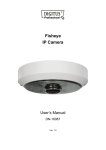
5 Megapixel, 360 View IR Mini-Dome
LP500-360
User Manual
9.20.2012
Table of Contents
1.
2.
Overview .................................................................................................................................. 2
1.1
Features ........................................................................................................................ 2
1.2
Package Contents ......................................................................................................... 3
1.3
Connectors .................................................................................................................... 4
1.4
Cable Definition (Optional) ............................................................................................ 5
Camera Cabling....................................................................................................................... 6
2.1
Connect Power .............................................................................................................. 6
2.2
Connect Ethernet Cable ................................................................................................ 6
3.
System Requirements ............................................................................................................ 7
4.
Camera Access ....................................................................................................................... 8
5.
Setup Video Resolution ........................................................................................................ 13
6.
Configuration Files Export / Import ..................................................................................... 14
Appendix A: Technical Specifications ........................................................................................ 15
Appendix B: Delete the Existing DC Viewer ............................................................................... 17
Appendix C: Setup Internet Security .......................................................................................... 18
razberi technologies™
1
1.
Overview
The LP500-360 mini-dome camera is designed to provide cost effective
panoramic (180°) or surround view (360°) of wide open areas. Packaged in a
discrete, low profile enclosure, the 5 Megapixel CMOS progressive scan sensor
provides a high density of pixels to reduce the number of cameras required to
cover a wide field of view. The LP500-360 is compatible with the user-friendly
razberi™ ServerSwitch NVR for quick plug-and-play installation.
1.1
Features
i.
ii.
iii.
iv.
v.
vi.
vii.
viii.
ix.
x.
xi.
xii.
xiii.
xiv.
xv.
xvi.
xvii.
2
Progressive Scan CMOS Sensor
5M resolution
Dual Streams, Full HD 1080P real-time + D1 real-time
Quad Streams support
Quad Streams Compression:
H.264 Baseline / Main / High Profile + MJPEG
360° Panorama View
ePTZ
Quad View
Tampering Alarm
Wide Dynamic Range
Motion Detection
Privacy Masks
Day / Night (ICR)
IR LED Module
Built-in MIC & Speaker
Micro SD support
ONVIF support
razberi technologies™
1.2
Package Contents
Please verify that the package contains the following items listed below.
LP500-360
Security Torx
Self-tapping screws
Plastic Anchors
Security Screw
(×3)
(×3)
(×1)
Power Terminal
Quick Guide
CD
Block (x1)
All In One Cable (Optional)
NOTE: The supplied self-tapping screws are mainly for softer substrate /
material installation such as wood. For other installation environments
such as cement wall, it is required to pre-drill and use plastic anchors
before fastening the supplied self-tapping screw on the wall.
razberi technologies™
3
1.3
Connectors
Please remove the security screws and the cover to reach the connectors.
The diagram below shows the LP500-360 connectors and reset button.
No.
Connector
DC 12V
1
Power*
AC 24V
Pin
1
2
3
1
2
3
-
2
3
RJ-45
Alarm & Audio I/O*
4
Reset Button
-
5
Micro SD Card Slot
-
Definition
Remarks
Power
Reserved
GND
Power connection
Power-1
Earth GND
Power-2
10/100 Mbps Ethernet / PoE
Alarm & Audio I/O
Restore to default setting
Press the button with a proper tool
For video recording storage
*All in One Cable is required for Power, Alarm and Audio I/O utilization.
4
razberi technologies™
1.4
Cable Definition (Optional)
No.
Connector
1
Audio I/O
Pin
Pink
Alarm
(4-Pin Terminal Block)
Power DC Jack
3
Remarks
Line In
Two-way audio transmission
Green
2
Definition
1
2
3
4
-
Line Out
ALM_IN –
ALM_IN +
ALM_OUT –
ALM_OUT +
DC 12V
Red
AC 24V (+)
Black
AC 24V (–)
Power Wires
4
Alarm & Audio I/O
5
Power Wires
1
2
3
4
5
6
7
8
Red
Black
GND
Line In
Line Out
ALM_IN –
ALM_IN +
ALM_OUT –
ALM_OUT +
DC 12V (+) /
AC 24V (+)
DC 12V (–) /
AC 24V (–)
razberi technologies™
Alarm connection
Power connection
Remove DC Jack connector
head, and apply AC 24V with
Red and Black wires (as
shown in the diagrams
below).
Two-way audio transmission /
Alarm connection
Power connection
5
2.
Camera Cabling
Please follow the instructions below to complete LP500-360 connection.
2.1
Connect Power
Please refer to Section: Connectors. Alternatively, connect the Ethernet cable to
the camera’s RJ-45 port and plug the other end of the cable into a PoE switch.
NOTE: If using PoE, make sure Power Sourcing Equipment (PSE) is in
use in the network.
2.2
Connect Ethernet Cable
Use of Category 5 Ethernet cable is recommended for the network connection.
Cable length shall not exceed 100 meters. Connect one end of the Ethernet
cable to the RJ-45 connector of the LP500-360, and the other end of the cable
to the network switch, PC or Razberi ServerSwitch.
NOTE: In some cases, you may need use an Ethernet crossover cable
when connecting the LP500-360 directly to the PC.
Check the status of the link indicator and activity indicator LEDs; if the LEDs are
unlit, please check LAN connection.
Green Link Light indicates good network connection.
Orange Activity Light flashes for network activity indication.
6
razberi technologies™
3.
System Requirements
To access the LP500-360 via web browser, please ensure your PC has a good
network connection and meets the minimum requirements as described below.
Items
System Requirement
Minimum :
1. Intel® Core™ i5-2430M @ 2.4 GHz
Personal Computer
2. 4 GB RAM
Recommended:
1. Intel® Core™ i7-870 @ 2.93 GHz
2. 8 GB RAM
Operating System
Windows VISTA / Windows XP / Windows 7
Web Browser
Microsoft Internet Explorer 6.0 or later
Firefox
Chrome
Safari
Network Card
10Base-T (10 Mbps) or 100Base-TX (100 Mbps) operation
Viewer
ActiveX control plug-in for Microsoft IE
razberi technologies™
7
4.
Camera Access
For initial access to the LP500-360, users can search the camera through the
installer program: DeviceSearch.exe, which can be found in “DeviceSearch”
folder in the supplied CD.
Device Search Software Setup
Step 1: Double click on the program Device Search.exe. After its window
appears, click on the <Device Search> button on the top side.
Step 2: The security alert window will pop up. Click on <Unblock> to continue.
Device Search
Step 3: Click on <Device Search> again, and all the discovered IP devices will
be
listed in the page. The LP500-360’s default
IP
address
is:
192.168.0.250.
Step 4: Double click or right click and select <Browse> to access the camera
directly via web browser.
Step 5: Enter the default username and password at the prompt.
The default login ID and password for the Administrator are:
Login ID
Password
Admin
1234
NOTE: ID and password are case sensitive.
8
razberi technologies™
NOTE: It is strongly advised that administrator’s password be
altered for the security concerns. Refer to Full HD Multiple
Streams IP Camera Menu Tree for further details.
razberi technologies™
9
Additionally, users can change the IP Camera’s network properties to either
DHCP or Static IP. Refer to the following section for changing the LP500-360
network properties.
Changing LP500-360 Network Properties
Users can change an LP500-360’s network properties, ex. from static IP to
DHCP in the discovered device list:
Step 1: In the discovered device list, click on the LP500-360 to change its
network properties. On the selected camera, right click “Network Setup.”
Meanwhile, record the LP500-360’s MAC address, for future identification.
Step 2: The “Network Setup” page will appear. Select “DHCP,” and press the
“Apply” button.
Step 3: Click on <OK> . Wait for one minute to re-search the LP500-360.
Step 4: Click on the <Device Search> button to search all the devices. Then
select the LP500-360 with the correct MAC address. Double click on the
LP500-360, and the login window will appear..
Step 5: Enter User name and Password to access the LP500-360.
Installing DC Viewer Software Online
For the initial access to the LP500-360, a client program, DC Viewer, will be
automatically installed to your PC when connecting to the LP500-360.
If the Web browser doesn’t allow DC Viewer installation, please check the
Internet security settings or ActiveX controls and plug-ins settings (refer to
Section: Setup Internet Security) to continue the process.
The Information Bar (just below the URL bar) may come out and ask for
permission to install the ActiveX Control for displaying video in the browser.
Right click on the Information Bar and select <Install ActiveX Control…> to allow
the installation.
10
razberi technologies™
The download procedure of DC Viewer software is specified as follows.
Step 1: In the DC Viewer installation window, click on <Next> to start
installation.
Step 2: The status bar will show the installation progress. After the installation
is completed, click on <Finish> to exit the installation process.
Step 3: Click on <Finish> to close the DC Viewer installation page.
Once the DC Viewer is successfully installed, the LP500-360’s Home page will
be able to correctly display as shown below.
Ceiling Mount Installed Camera
razberi technologies™
11
Wall Mount Installed Camera
Note: Please refer to Full HD Multiple Streams LP500-360 Menu Tree
for more button function detail.
12
razberi technologies™
5.
Setup Video Resolution
Users can setup Video Resolution on Video Format page of the user-friendly
browser-based configuration interface.
Video Format can be found under this path: Streaming> Video Format.
The default value of Video Resolution is: H.264 2592 x 1994 (10 fps) + H.264
720 x 480 (10 fps). For more Video Resolution combination detail, please refer
to Appendix: Video Resolution. Click on <Save> to confirm the setting.
razberi technologies™
13
6.
Configuration Files Export / Import
To export / import configuration files, users can access the Maintenance page
on the user-friendly browser-based configuration interface.
The Maintenance setting can be found under this path: System> Maintenance.
Users can export configuration files to a specified location and retrieve data by
uploading an existing configuration file to the LP500-360.
Export
Users can save the system settings by exporting the configuration file (.bin) to a
specified location for future use. Click on the <Export> button, and the popup
File Download window will come out. Click on <Save> and specify a desired
location for saving the configuration file.
Upload
To copy an existing configuration file to the LP500-360, please first click on
<Browse> to select the configuration file, and then click on the <Upload> button
for uploading.
14
razberi technologies™
Appendix A: Technical Specifications
Camera
Image Sensor
Effective Pixels
W8
5M Progressive CMOS
2592(H) x 1944(V)
0.2 lux (Color) @ F2.8
0.02 lux (B/W) @ F2.8
Manual / AWB / ATW
1 ~ 1/10k sec.
Minimum illumination
White Balance
Shutter Speed
Lens
Lens
Focal Length
F Number
FOV
Operation
Stereo Projection Type
English / French / German / Italian / Korean / Simplified Chinese /
Traditional Chinese / Russian
Multiple Languages
Image Setting
Audio
Backlight
Compensation
White Balance
Noise Reduction (3D)
Wide Dynamic Range
Privacy Mask
Brightness
Exposure
Sharpness
Contrast
Saturation
Hue
Digital Zoom
Motion detection
Privacy Mask Type
ICR
Tampering Alarm
Type
Compression
Network
Interface
Video Compression
Video Streaming
Video Resolution
1/2.5" Fisheye Lens
1.05 mm
F2.8
180° @ Full Resolution
H.264
MJPEG
Protocol
Security
Input
Alarm*
Output
Event Notification
Micro SD
Supported Web Browser
User Account
Password Levels
On / Off
Auto / Manual
On / Off
On / Off
On / Off
Manual
Auto / Manual
Manual
Manual
Manual
Manual
Support
On / Off
Color
Auto / LED On / LED Off / Smart IR / Light Sensor
On / Off
Built-in Speaker (Max. 2W Mono) /
Microphone or Two-way Audio (Line in / Line out)*
G.711 / G.726
RJ-45, 10/100 Mbps Ethernet
H.264 Baseline / Main Profile / High Profile / MJPEG
Single Stream: 2592 x 1944 (10 fps)
Single Stream: 2048 x 1536 (15 fps)
Simultaneous H.264 1080p (25/30 fps) + MJPEG D1 (25/30 fps)
Simultaneous H.264 1080p (25/30 fps) + H.264 D1 (25/30 fps)
Quad Streams
5M (2592 x 1944) / 3M (2048 x 1536) / Full HD 1080P / SXGA /
HD 720P / XGA / SVGA / D1 / VGA / CIF
Full HD 1080P / SXGA / HD 720P / XGA / SVGA / D1 / VGA / CIF
IPv4/v6, TCP/IP, UDP, RTP, RTSP, HTTP, HTTPS, ICMP, FTP, SMTP,
DHCP, PPPoE, UPnP, IGMP, SNMP, QoS, ONVIF
HTTPS / IP Filter / IEEE 802.1x
1 Set
5V 10kΩ pull up
1 Set
Photo Relay Output 300V DC / AC
HTTP / FTP / SMTP
microSDHC 32GB support
Internet Explorer (6.0+) / Chrome / Firefox / Safari
20
User and Administrator
razberi technologies™
15
Mechanical
Built-in IR
Illuminator
Working Distance
Wavelength
Number of LEDs
Lens Mounting
Connectors
Alarm & Audio
Power
Ethernet
All in one Cable*
Audio I / O
Alarm
Power
DC 12V
AC 24V
General
Operating Temperature
Humidity
Weatherproof Standard
Dimension
Weight
Power Source
Power Consumption
Regulatory
5m
850 nm
6
M12 Fisheye Lens
8 Pin Terminal Block, Pitch 2.5 mm
3 Pin Terminal Block
RJ-45
Line in / Line Out
4 Pin Wire Cables
DC Jack
Power Wire Cables AC 24V (+), AC 24V (-)
-10°C ~ 50°C (14°F ~ 122°F)
10% ~ 90%, No Condensation
Rugged Camera- IP66
Ø 149 x 45.8 mm (Ø 5.87 x 1.80 in.)
350 g (0.77 lbs)
DC 12V* / AC 24V* / PoE
Max. 12W
CE / FCC / RoHS
(*) Optional
16
razberi technologies™
Appendix B: Delete the Existing DC Viewer
For users who have installed the DC Viewer in the PC previously, please first remove the
existing DC Viewer from the PC before accessing the LP500-360.
Deleting the DC Viewer
In the Windows <Start Menu>, activate <Control Panel>, and then double click on <Add or
Remove Programs>. In the <Currently installed programs> list, select <DCViewer> and
click on the button <Remove> to uninstall the existing DC Viewer.
Deleting Temporary Internet Files
To improve browser performance, it is suggested to clean up the all the files in the
Temporary Internet Files.
The procedure is as follows:
Step 1: Click on the <Tools> tab on the menu bar and select <Internet Options>.
Step 2: Click on the <Delete> button under <Browsing history> section. Then click on the
<Delete Files> button under the <Temporary Internet files> section.
Step 3: A confirmation window will pop up. Click on <Yes> to start deleting the files.
razberi technologies™
17
Appendix C: Setup Internet Security
If ActiveX control installation is blocked, please either set Internet security level to default or
change ActiveX controls and plug-ins settings.
Internet Security Level: Default
Step 1: Start the Internet Explorer (IE).
Step 2: Click on the <Tools> tab on the menu bar and select <Internet Options>.
Step 3: Click on the <Security> tab, and select <Internet> zone.
Step 4: Down the page, click on the <Default Level> button and click on <OK> to confirm
the setting. Close the browser window, and restart a new one later to access the IP
Camera.
ActiveX Controls and Plug-ins Settings
Step 1: Repeat Steps 1~3 of the previous section above.
Step 2: Down the page, click on the <Custom Level> button to change ActiveX controls
and plug-ins settings. The Security Settings window will pop up.
Step 3: Under <ActiveX controls and plug-ins>, set ALL items (as listed below) to
<Enable> or <Prompt>. Please note that the items vary by IE version.
ActiveX controls and plug-ins settings:
1. Allow previously unused ActiveX controls to run without prompt.
2. Allow Scriptlets.
3. Automatic prompting for ActiveX controls.
4. Binary and script behaviors.
5. Display video and animation on a webpage that does not use external media player.
6. Download signed ActiveX controls.
7. Download unsigned ActiveX controls.
8. Initialize and script ActiveX controls not marked as safe for scripting.
9. Run ActiveX controls and plug-ins.
10. Script ActiveX controls marked safe for scripting.
Step 4: Click on <OK> to accept the settings and close the Security Settings window.
Step 5: Click on <OK> to close the Internet Options screen.
Step 6: Close the browser window, and restart a new one later to access the LP500-360.
18
razberi technologies™
razberi technologies™
19