1
USB Color Camera User‟s Manual
StCamSWare v1.10
Quick Start Reference Guide
Installation of Software
1. Uninstall any previous version of StCamSWare software before installing the latest version and DO NOT connect
the camera until instructed to do so.
2. Install the StCamSWare CD in the CD-ROM and click “setup.exe” to begin the installation process.
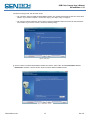
3. In the Choose Setup Language window select the desired setup language, and then click “OK”.
4. Next the Welcome InstallShield Wizard screen will appear, click the “Next” button to continue.
5. In the License Agreement window select “I accept the terms of the license agreement” then click “Next” if you
agree with the terms of the Agreement.
6. Next, the Setup Type window will appear, select the “Complete” setup type then click “Next”
7. In the Choose Destination Location window click “Next”.
8. The Ready to Install the Program will appear, click “Install”
9. Finally the InstallShield Wizard Complete window will appear, click the “Finish” button.
10. Make sure to continue with the Installation of USB Driver Instructions (This does NOT apply to Windows
Vista users).
Installation of USB Driver (This Section Does NOT apply to Windows Vista users)
1. Connect the camera to the PC via USB2.0 cable.
2. The Welcome to the Found New Hardware Wizard window will appear. Select “Install the software automatically
(Recommended)” then click “Next”.
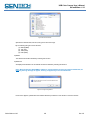
3. Hardware Installation Windows Logo Testing Warning, click “Continue Anyway”
4. Completing the Found New Hardware Wizard, click “Finish” button.
5. If the camera will be connected to more than one USB connector on the same computer, repeat this “Installation
of USB Driver” process with the camera connected to each of the USB ports intended to be used. This “maps”
the port, enabling it to drive the camera with the software.
Starting the Camera
1. Make certain that the software driver is correctly installed and the USB camera is connected to the USB2.0 port
before continuing forward with the instructions.
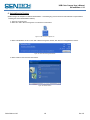
2. Click the shortcut icon of StCamSWare software to start the program. If the software does not start immediately
please wait a few moments until the system recognizes the camera.
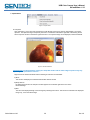
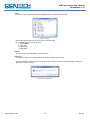
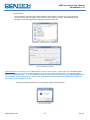
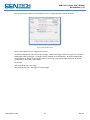
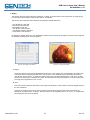
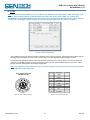
3. When the software is recognized the live image will appear :
Figure 1: Live Image
This concludes the Quick Start portion of the instruction manual. Please proceed forward with the manual for a more
detailed version of these instructions and additional operating instructions for the Sentech USB camera.
StCamSWare v1.10
4
Rev 1.0