1
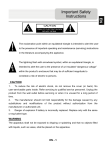
The exclamation point within an equilateral triangle is intended to alert the user
to the presence of important operating and maintenance (servicing) instructions
in the literature accompanying the appliance.
The lightning flash with arrowhead symbol, within an equilateral triangle, is
intended to alert the user to the presence of un-insulated “dangerous voltage”
within the product’s enclosure that may be of sufficient magnitude to
constitute a risk of electric to persons.
CAUTION
1.
To reduce the risk of electric shock, do not remove the cover (or back). No
user-serviceable parts inside. Refer servicing to qualified service personnel. Unplug the
product from the wall outlet before servicing or when it is unused for a long period of
time.
2.
The manufacturer should not hold responsibility for the damage caused by any
substitutions and modifications of the product without authorization from the
manufacturer or authorized unit.
3.
Danger of explosion if battery is incorrectly replaced. Replace only with the same
or equivalent type.
WARNING
The apparatus shall not be exposed to dripping or splashing and that no objects filled
with liquids, such as vases, shall be placed on the apparatus.
EN-1
EN
Important Safety
Instructions
Accessories
EN
Accessories List
ITEM
NAME
QTY
Car Charger
1
Mounting Cradle
1
USB Cable
1
AC charger
1
OTG Cable
1
Stylish Carrying case
1
CD
1
User Manual
1
Warranty Card
1
EN-2
View of Main Unit
EN
1
2
9
3
4
5
11
6
7
8
10
1
Power
2
Vol +\ Vol - Button
Turn on/off the device; Suspend/Activate the
device
3
Built-in Microphone
4
Earphone Jack
5
Micro SD Card Slot
6
HDMI
7
USB port
8
DC port
9
Take photos or video chat
10
Front Camera
Speaker
11
Rear Camera
Take photos.
Adjust the volume level.
Record sounds.
Earphones connection.
Insert Micro SD card.
HDMI cable connection
USB connection
AC adapter connection
Emit sound, voice or music
EN-3
Device Connection
EN
NOTE:
Please always make sure that the device and any other external device
connected to the device are powered off and unplugged from the power
supply before attempting to connect the device to any external device.
Inserting microSD Card
z
To insert a microSD card, place connector towards device and card
z
label towards the front side of the device.
To remove a microSD card, gently press the edge of the card to
release the safety lock and pull the card out of the slot.
NOTE:
Please always make sure that no application is accessing the microSD
card before extraction.
Charging
1.
Connecting to External USB Device
z
Flip open the protective rubber cover towards the front of the device.
z
Insert USB connector into the appropriate USB port.
z
Insert the other USB connector into USB port on PC to start charging.
EN-4
Device Connection
EN
2.
Connecting to Car Charger
z
Flip open the protective rubber cover towards the left side of the device.
z
z
Insert USB connector into the appropriate USB port.
Insert car charger connector into vehicle 12V accessory/cigarette socket to start
charging.
NOTE:
Please connect the car charger to
vehicle
12V
accessory/cigarette
socket after vehicle engine is started
to protect the device from sudden
surges in current.
Connecting to Earphones
z
z
Flip open the protective rubber cover towards the front of the device.
Insert earphone plug (not included) into the appropriate earphone port to switch
audio output from device speaker to earphone.
NOTE:
Excessively loud volume is potentially detrimental to hearing. Please turn
down the volume before connecting the earphone and gradually turn up
the volume to a comfortable level.
EN-5
Cautions on Battery
Charging
EN
About Rechargeable Battery
The device is equipped with a built-in rechargeable battery. Please fully charge the
battery (for at least 8 hours) before initial use. The battery status indicator glows in red
color when charging and turns bright amber color when charging is complete. Charging
time is approximately 2 hours.
Working conditions and precautions for the rechargeable battery
z
Device with new batteries should be fully charged before initial use.
z
Battery should only be used and charged when temperatures are between 0° ~
z
37°C.
It is not necessary to start charging the device before the battery is fully discharged.
NOTE:
Please connect the car charger to vehicle 12V accessory/cigarette
socket after vehicle engine is started to protect the device from sudden
surges in current.
EN-6
NOTE:
Do not operate the device while driving.
z
Please select an appropriate location on the dashboard or
z
windshield where the device will not obstruct driver field of vision.
Device Mounting Procedures
The device can be securely mounted on vehicle dashboard or windshield with the
mounting cradle included. Please follow procedures below to operate mounting cradle:
1.
Select an appropriate location on windshield or dashboard where the device and
2.
mounting cradle will not obstruct driver field of vision.
Please also make sure that the device has a clear view of sky to attain best GPS
reception.
z
Place device on the bracket with bottom positioned on the
appropriate socket.
z
Push on the top edge to securely install device onto the cradle.
z
Lift the suction cup lever and press the suction cup at desired
location.
z
Press down the suction cup lever to secure the mounting cradle on
the surface.
z
Rotate the knob to adjust device to desired viewing angle.
To Dismount Device
1.
Push the tap on top of the mounting cradle to release the device.
2.
Lift the suction cup lever to easily remove the suction cup from windshield or
dashboard.
EN-7
EN
Using Mounting
Cradle
Connecting to WiFi
EN
z
icon and select Settings icon to access the list of
In the Home menu press the
options. Select Wireless & networks.
z
If the Wi-Fi is off, tap on the Wi-Fi line to turn it on.
z
The device will scan for available Wi-Fi networks and display them at the right of
the screen.
z
Tap on the network you want to connect to. Then tap inside the Wireless password
field to make the virtual keyboard appear. Enter the required network information,
tap on Enter, and then tap on Connect.
z
Your device will now attempt to establish a connection to the Wi-Fi access point
with the network parameters you entered.
Getting Started
1. Press and hold Power Button to turn on device.
2. Shortly after the greeting screen is shown, the main menu will be
displayed.
3. Tap the corresponding buttons with touch pen included to navigate various
functions.
4. Press and hold Power Button to turn off the device or to allow device to
enter sleep mode.
EN-8
Program interface
EN
No.
Name
Function
A sign of the upcoming manoeuvre. There are various turns,
1
Information
panel
distance to the next maneuver in metres or kilometres, etc. on a
gray background. Clicking on the sign stops the route guidance
and more route options.
Context menu opens by pressing this button. In this menu
switches the orientation of the map («North up» - lock icon is
next to the compass, «Rotate in accordance with the
2
Compass
movement» - route is next to the compass), the type of card
(Flat view «2D» and the Panoramic view of the «3D»)
and the skins («Night», «Day», «Auto»). When driving the
compass always points to the North.
3
4
5
6
7
8
Sound
Information
Sound menu opens by pressing this button
The estimated total time in a way, the total length of the route,
panel
time of arrival at the final point of the route.The active
Route
The active route.
Navitel. Events Event management button.
GPS-cursor
Menu
Your location indicator.
Main menu opens by pressing this button.
EN-9
Program interface
EN
No.
Name
9
Information
panel
Function
10
2D/3D
11
Traffic lane
12
Scale button
Zoom out.
13
Scale button
Zoom in.
14
Information
panel
Following street.
15
Battery
Shows the name of the street you are currently driving along.
Available only if GPS/GLONASS connection is established. If
there is no street name, the direction will be shown.
Switches 2D/3D format.
Displays the traffic lanes with a valid maneuvers at the next
intersection.
Icon shows the level of battery charge. Press it to see the
remaining memory.
GPS/GLONASS connection icon. If the indicator is grey —
receiver is disabled, red — switched
16
GPS
on, but the connection is not established, yellow - poor
connestion, green - connection
established. There is a number of the satellites in the dot.
EN-10
Program interface
EN
No.
Name
17
«Save»
18
«Cursor»
Function
Saves current marc on map as a waypoint.
Shows the mark menu.
EN-11
Program interface
EN
No.
19
Name
Mark on the
map
20
Function
You can set the mark by taping on the map. You can save this
mark as a waypoint, add it
to the route or see object’s characteristics the mark was set on.
Track record. Red dot means that the track is recording, grey
Track record
dot means that the record
stoped.
21
22
23
Traffic Jams
Navitel.SMS
Software
update
24
25
26
27
28
«Go!»
«Route through»
«Set start»
«Set finish»
Map
Shows the current traffic jams on a 10-point scale.
This button is intended to read/send SMS-messages. Near the
icon you can see the number of unread messages.
Shows available updates.
Marks the current position on the map as the end of the route
Mark becomes the start point on the route. You should turn off
your GPS/GLONASS receiver.
Mark becomes the middle point of the route.
Mark on the map becomes the end of the route. And previous
end of the route becomes the middle point.
Back to map.
EN-12
Autorouting
EN
Route to the objects.
To create a route to the object with known address, press the «Menu» button at the lower
left corner of the screen [1]. Then select «Find», «By address» [2]. Press the «Select
country» button and enter its name [4]. To minimize the keyboard, press the icon at the
right top of the screen. Select the required country[5]. Menus «Select city», «Select
street» and «Select building» will become active [6]. After choosing the required
information press «Go!» to create a route. The route will be shown on the map [8]. You
can follow this route or start simulation by pressing the «Demo route» button.
EN-13
Autorouting
EN
Route to the selected point on the map.
You can set the route to any point on the map. This point will be the end of the route,
your current position will become the start of the route. Create a mark on the route by
pressing any place on the map[1]. Press the «Cursor», then «Go!»[2]. The route is
created[3].
Route from point to point.
If you want to create a route from point to point you should create a point on the map[1].
Then set this button as a start route by pressing «Cursor» > «Go!». If you didn’t turn off
your GPS receiver, the system will ask you to do it[3]. The start point will be marked by
green flag[4]. Then find the finish point, tap on map and press «Cursor» > «Go!»[5]. The
route will be created from point to point.
EN-14
Additional features
EN
If your device has GSM/GPRS module, you will be able to use some «Navitel
Navigator» software features like «Navitel. Traffic Jams» and «Navitel .SMS»
services.
Navitel.Traffic
Using this service you can see the
information about the traffic jams.To set
the service go to «Settings > «Online
services» > «Traffic jams». When the
service is active the roads are painted in
different colors.
Red - traffic jam, Orange - traffic is bad,
Yellow - traffic is a bit difficult, Green normal traffic[1].
Navitel.SMS
The special window will appear on the screen when you receive the Navitel.SMSI2].
Select “Hide” to hide it or”Accept” to see options.
Note:
For more detailed information regarding the functionality of Navitel software, please,
refer to the complete user manual on CD, or to www.prestigio.com.
EN-15
Troubleshooting
EN
NOTE:
Immediately turn off the device and disconnect the power adapter if the
device is not working properly. Never try to repair the unit without
authorized professionals for it may damage the unit.
PROBLEM
POSSIBLE CAUSE
POSSIBLE SOLUTION
The adaptor doesn’t
connect well.
Connect the adaptor
correctly.
The built-in rechargeable
battery is weak.
Use the adaptor to supply
power or charge the
battery.
There is no
sound.
The volume may be turned
down or mute.
Turn up the volume or turn
on the sound output.
There is no
picture.
The brightness may be
turned down.
Adjust the brightness of the
LCD.
The unit can’t
receive satellite
signals or can’t
orient.
The unit may be obstructed
by buildings or metal block.
Make sure to use the unit
out of room; if in the
vehicle, you can use the
external GPS antenna to
solve this problem.
Users can’t turn
on the unit.
EN-16
Troubleshooting
EN
PROBLEM
The unit can
receive signals
now but can’t
then; signals
received are not
stable.
POSSIBLE CAUSE
POSSIBLE SOLUTION
The built-in rechargeable
battery is weak.
Use the adaptor to supply
power or charge the
battery.
The unit may be obstructed
by veil, such as heat
insulation paper.
Remove the veil.
Swing of the unit is too
great.
Avoid great swing of the
unit.
EN-17
Technical Specifications
EN
GPS
MT3339 66 Channels
Processor
High performance ARM Cortex A5 at 1.2GHz
RAM
Display
Resolution
Storage capacity
1GB DDR3
7” TFT LCD, Capacitive multi-touch
800 x 480 pixels
Interfaces
Communications
Battery
Dimensions
USB 2.0, Micro SD (micro SDHC compatible), USB
Host
WiFi (802.11 b/g/n)
2900 mAh Li-Polymer battery
191.8 x 123 x 9.5mm (L x W x H) (appro.)
Weight
Storage Temperature
290 g (appro.)
-10℃ ~ +60℃
8 GB flash memory (about 6.0GB are accessible
by user), Memory card slot supports micro SDHC
card up to 32 GB
Operation Temperature
Operation
Humidity
Relative
Storage Relative Humidity
0℃ ~ +50℃
45% ~ 80% Non-Condensed
30% ~ 90% Non-Condensed
Disclaimer
As the Prestigio products are constantly updated and improved, your device’s software
may have a slightly different appearance or modified functionality than presented in this
Quick Start Guide.
EN-18