1
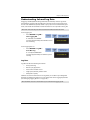
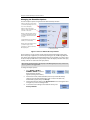
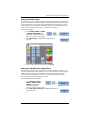
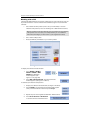
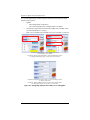
IntelliTrac
User Guide
Part No. 875-0308-000 Rev A1
This device complies with part 15 of the FCC Rules. Operation is subject to the following two
conditions:
(1) This device may not cause harmful interference, and
(2) this device must accept any interference received, including interference that may cause
undesired operation.
Copyright Notice
Copyright AgJunction, Inc. (2014). All rights reserved.
No part of this manual may be reproduced, transmitted, transcribed, stored in a retrieval system or
translated into any language or computer language, in any form or by any means, electronic,
mechanical, magnetic, optical, chemical, manual or otherwise, without the prior written
permission of AgJunction, Inc.
Trademarks
AirStar™, AirTrac™, AutoMate™, Bantam™, BaseLineHD™, BaseLineX™, eDrive®, eDriveTC™,
eDriveVSi™, eDriveX™, G4™, HQ™, IntelliFlow®, IntelliGate™, IntelliStar™, IntelliTrac™, Just Let
Go™, LiteStar II™, M3™, MapStar®, Outback™, Outback 360™, Outback Guidance Center™,
Outback Guidance®, Outback Hitch™, Outback MAX™, Outback S™, Outback S2™, Outback S3™,
Outback S-Lite™, Outback Sts™, Outback STX™, Outback Steering Guide™, Satloc®, and the
Satloc logo are proprietary trademarks of AgJunction, Inc. Other trademarks are the properties of
their respective owners.
Patents
AgJunction, Inc. products may be covered by one or more of the following patents:
U.S. Patents
6111549
6876920
6397147
7142956
6469663
7162348
6501346
7277792
6539303
7292185
6549091
7292186
6711501
7373231
6744404
7388539
6865465
7400294
7400956
7429952
7437230
7460942
7689354
7808428
7835832
7885745
7948769
8000381
8018376
8085196
8102325
8138970
8140223
8174437
8184050
8190337
8214111
8217833
8265826
8271194
8307535
8311696
8334804
RE41358
Australia Patents
2002244539
2002325645
2004320401
Other U.S. and foreign patents pending.
Dealer Support
Contact your local dealer for technical assistance. To find the authorized dealer near you:
Phone: (800) 247-3808
[email protected]
Satloc Technical Support
If you need to contact Satloc Technical Support:
2207 Iowa Street
Hiawatha, KS 66434
Phone: (785) 742-2976
Fax: (785) 742-4584
[email protected]
Contents
Chapter 1
Introduction . . . . . . . . . . . . . . . . . . . . . . . . . . . . . . 1
What’s In This Guide? . . . . . . . . . . . . . . . . . . . . . . . . . . . . . . . . . . . . 2
Product Overview . . . . . . . . . . . . . . . . . . . . . . . . . . . . . . . . . . . . . . . . 2
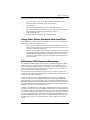
Using Other Satloc Products with IntelliTrac . . . . . . . . . . . . . . . . . . 3
Differential GPS Receiver Advantage . . . . . . . . . . . . . . . . . . . . . . . . 3
Chapter 2
Getting Started . . . . . . . . . . . . . . . . . . . . . . . . . . . . 5
Starting IntelliTrac . . . . . . . . . . . . . . . . . . . . . . . . . . . . . . . . . . . . . . . 6
IntelliTrac Display Overview . . . . . . . . . . . . . . . . . . . . . . . . . . . . . . . 8
Understanding the Map Screen . . . . . . . . . . . . . . . . . . . . . . . . 8
Pressing Buttons in IntelliTrac . . . . . . . . . . . . . . . . . . . . . . . . 11
Using the Keypad . . . . . . . . . . . . . . . . . . . . . . . . . . . . . . . . . . . 12
Setting Up IntelliTrac . . . . . . . . . . . . . . . . . . . . . . . . . . . . . . . . . . . . 17
Entering Field Values . . . . . . . . . . . . . . . . . . . . . . . . . . . . . . . . 19
Zooming and Panning the Moving Map Area . . . . . . . . . . . . 20
Day Mode and Night Mode . . . . . . . . . . . . . . . . . . . . . . . . . . . 22
Using Hot Keys . . . . . . . . . . . . . . . . . . . . . . . . . . . . . . . . . . . . . 23
Setting User-Defined Fields . . . . . . . . . . . . . . . . . . . . . . . . . . 24
Before You Start Using IntelliTrac . . . . . . . . . . . . . . . . . . . . . . . . . 26
Understanding Systemwide Settings . . . . . . . . . . . . . . . . . . 26
Detecting Your Flow Control System . . . . . . . . . . . . . . . . . . . 28
Switching Between IntelliTrac and the Windows Desktop . . . . . . 28
Exiting IntelliTrac . . . . . . . . . . . . . . . . . . . . . . . . . . . . . . . . . . . . . . . 29
Chapter 3
Work Options . . . . . . . . . . . . . . . . . . . . . . . . . . . . 31
Aerial Guidance Terms and IntelliTrac . . . . . . . . . . . . . . . . . . . . . . 32
Entering Basic Job Details (Quick Start) . . . . . . . . . . . . . . . . . . . . 34
Understanding Job and Log Data . . . . . . . . . . . . . . . . . . . . . . . . . . 37
Log Data . . . . . . . . . . . . . . . . . . . . . . . . . . . . . . . . . . . . . . . . . . 37
Adding Job Information to the Log . . . . . . . . . . . . . . . . . . . . 38
Spray Options . . . . . . . . . . . . . . . . . . . . . . . . . . . . . . . . . . . . . . . . . . 39
Setting Spray Options - Volume . . . . . . . . . . . . . . . . . . . . . . . 41
Spray Boom Settings . . . . . . . . . . . . . . . . . . . . . . . . . . . . . . . . . . . . 42
Changing the Flow Lead Time . . . . . . . . . . . . . . . . . . . . . . . . 44
Using Prescription Maps . . . . . . . . . . . . . . . . . . . . . . . . . . . . . . . . . 45
Importing a Prescription Map . . . . . . . . . . . . . . . . . . . . . . . . . 45
Loading a Prescription Map . . . . . . . . . . . . . . . . . . . . . . . . . . 47
Chapter 4
Pattern Guidance . . . . . . . . . . . . . . . . . . . . . . . . . 49
Pattern Types Overview . . . . . . . . . . . . . . . . . . . . . . . . . . . . . . . . . 50
G4 IntelliTrac User Guide
iii
PN 875-0308-000 Rev A1
Contents
Flying Patterns . . . . . . . . . . . . . . . . . . . . . . . . . . . . . . . . . . . . . . . . . 51
Flying a Basic Pattern . . . . . . . . . . . . . . . . . . . . . . . . . . . . . . . 52
Common Pattern Flying Tasks . . . . . . . . . . . . . . . . . . . . . . . . 55
Troubleshooting . . . . . . . . . . . . . . . . . . . . . . . . . . . . . . . . . . . . 56
Available Pattern Types . . . . . . . . . . . . . . . . . . . . . . . . . . . . . . . . . . 57
Pattern Types Summary . . . . . . . . . . . . . . . . . . . . . . . . . . . . . 57
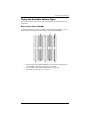
Flying the Available Pattern Types . . . . . . . . . . . . . . . . . . . . . . . . . 59
Back-to-Back Pattern (BK-BK) . . . . . . . . . . . . . . . . . . . . . . . . . 59
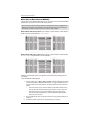
Multi Back-to-Back Pattern (MB2BK) . . . . . . . . . . . . . . . . . . . 60
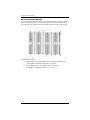
Back-to-Back Skip Pattern (BKBKS) . . . . . . . . . . . . . . . . . . . . 61
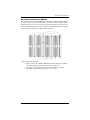
Racetrack Pattern (RCTRK) . . . . . . . . . . . . . . . . . . . . . . . . . . . 62
Quick Racetrack Pattern (QKRTK) . . . . . . . . . . . . . . . . . . . . . . 63
Reverse Racetrack Pattern (RVTRK) . . . . . . . . . . . . . . . . . . . . 64
QuickTrac X Pattern (QKRTX) . . . . . . . . . . . . . . . . . . . . . . . . . 65
Squeeze Pattern (SQUEZ) . . . . . . . . . . . . . . . . . . . . . . . . . . . . 66
Expand Pattern (EXPND) . . . . . . . . . . . . . . . . . . . . . . . . . . . . . 67
Understanding Marks (Return Points) . . . . . . . . . . . . . . . . . . . . . . 68
Creating a Mark . . . . . . . . . . . . . . . . . . . . . . . . . . . . . . . . . . . . 68
Returning to a Mark . . . . . . . . . . . . . . . . . . . . . . . . . . . . . . . . . 69
Clearing a Mark . . . . . . . . . . . . . . . . . . . . . . . . . . . . . . . . . . . . 71
Managing Data and Log Files . . . . . . . . . . . . . . . . . . . . . . . . . . . . . 71
About Log Data Files and Job Data Files . . . . . . . . . . . . . . . . 71
Viewing Log Data . . . . . . . . . . . . . . . . . . . . . . . . . . . . . . . . . . . 72
Clearing Log Data . . . . . . . . . . . . . . . . . . . . . . . . . . . . . . . . . . 73
Transferring Data Files . . . . . . . . . . . . . . . . . . . . . . . . . . . . . . 76
Deleting Files . . . . . . . . . . . . . . . . . . . . . . . . . . . . . . . . . . . . . . 81
Chapter 5
Waypoints and Routes . . . . . . . . . . . . . . . . . . . . . 83
Overview . . . . . . . . . . . . . . . . . . . . . . . . . . . . . . . . . . . . . . . . . . . . . . 84
Working with Waypoints . . . . . . . . . . . . . . . . . . . . . . . . . . . . . . . . . 84
Setting a Waypoint While Flying . . . . . . . . . . . . . . . . . . . . . . 85
Setting a Waypoint Manually . . . . . . . . . . . . . . . . . . . . . . . . . 86
Recalling a Waypoint . . . . . . . . . . . . . . . . . . . . . . . . . . . . . . . . 90
Automatic Guidance . . . . . . . . . . . . . . . . . . . . . . . . . . . . . . . . 91
Editing a Waypoint . . . . . . . . . . . . . . . . . . . . . . . . . . . . . . . . . 92
Deleting a Waypoint . . . . . . . . . . . . . . . . . . . . . . . . . . . . . . . . 93
Working with Routes . . . . . . . . . . . . . . . . . . . . . . . . . . . . . . . . . . . . 94
Recalling a Route . . . . . . . . . . . . . . . . . . . . . . . . . . . . . . . . . . . 94
Chapter 6
Jobs and Polygons . . . . . . . . . . . . . . . . . . . . . . . . 97
Overview . . . . . . . . . . . . . . . . . . . . . . . . . . . . . . . . . . . . . . . . . . . . . . 98
Working with Jobs . . . . . . . . . . . . . . . . . . . . . . . . . . . . . . . . . . . . . . 98
Saving a Job . . . . . . . . . . . . . . . . . . . . . . . . . . . . . . . . . . . . . . . 98
G4 IntelliTrac User Guide
iv
PN 875-0308-000 Rev A1
Contents
Recalling a Job . . . . . . . . . . . . . . . . . . . . . . . . . . . . . . . . . . . . . 99
Clearing a Job . . . . . . . . . . . . . . . . . . . . . . . . . . . . . . . . . . . . 100
Deleting Jobs . . . . . . . . . . . . . . . . . . . . . . . . . . . . . . . . . . . . . 100
Working with Polygons . . . . . . . . . . . . . . . . . . . . . . . . . . . . . . . . . 102
Using Polygons . . . . . . . . . . . . . . . . . . . . . . . . . . . . . . . . . . . 103
Setting Polygon Points . . . . . . . . . . . . . . . . . . . . . . . . . . . . . 103
Calculating Total Polygon Area . . . . . . . . . . . . . . . . . . . . . . 110
Saving Polygons . . . . . . . . . . . . . . . . . . . . . . . . . . . . . . . . . . 110
Editing a Polygon . . . . . . . . . . . . . . . . . . . . . . . . . . . . . . . . . . 112
Deleting a Polygon . . . . . . . . . . . . . . . . . . . . . . . . . . . . . . . . . 112
Receiving Guidance to a Polygon . . . . . . . . . . . . . . . . . . . . . 113
Managing A|B Lines with Polygons . . . . . . . . . . . . . . . . . . . 114
Saving and Recalling Patterns . . . . . . . . . . . . . . . . . . . . . . . 118
Chapter 7
Advanced Setup and Customization . . . . . . . . . 119
Entering Subscription Information . . . . . . . . . . . . . . . . . . . . . . . . 120
Setting Up the Lightbar . . . . . . . . . . . . . . . . . . . . . . . . . . . . . . . . . 122
Configuring Lightbar Dimming and Warnings . . . . . . . . . . 123
Setting a Double-Spray Warning . . . . . . . . . . . . . . . . . . . . . 124
Setting the DOF Obstacle Warning . . . . . . . . . . . . . . . . . . . 125
Setting Lightbar Display Fields . . . . . . . . . . . . . . . . . . . . . . . 129
Displaying/Hiding the Virtual Lightbar . . . . . . . . . . . . . . . . . 131
Setting the Cross-Track Sensitivity . . . . . . . . . . . . . . . . . . . 132
Setting the Lightbar Edge Warning . . . . . . . . . . . . . . . . . . . 132
Desensitizing the LEDs . . . . . . . . . . . . . . . . . . . . . . . . . . . . . 133
Understanding Guidance Delay . . . . . . . . . . . . . . . . . . . . . . . . . . 135
Configuring Your Display . . . . . . . . . . . . . . . . . . . . . . . . . . . . . . . 136
Setting Up the Display . . . . . . . . . . . . . . . . . . . . . . . . . . . . . . 136
Changing the Zoom/Pan Options . . . . . . . . . . . . . . . . . . . . . 138
Changing Logging Options . . . . . . . . . . . . . . . . . . . . . . . . . . . . . . 139
Flow Control . . . . . . . . . . . . . . . . . . . . . . . . . . . . . . . . . . . . . . . . . . 140
Setting GPS Options . . . . . . . . . . . . . . . . . . . . . . . . . . . . . . . . . . . 140
Setting the Mask Angle . . . . . . . . . . . . . . . . . . . . . . . . . . . . . 141
Setting the GPS Receiver Update Rate . . . . . . . . . . . . . . . . 141
Setting the Differential Source . . . . . . . . . . . . . . . . . . . . . . . 142
Sending GPS Commands to the Receiver . . . . . . . . . . . . . . 143
Working with e-Dif . . . . . . . . . . . . . . . . . . . . . . . . . . . . . . . . . 144
Customized Settings . . . . . . . . . . . . . . . . . . . . . . . . . . . . . . . . . . . 145
Appendix A
Lightbar and Screen Display Options . . . . . . . . . 147
Appendix B
Hot Key Descriptions . . . . . . . . . . . . . . . . . . . . . 151
Index . . . . . . . . . . . . . . . . . . . . . . . . . . . . . . . . . . . . . . . . . . . . . . 157
G4 IntelliTrac User Guide
v
PN 875-0308-000 Rev A1
Contents
End User License Agreement . . . . . . . . . . . . . . . . . . . . . . . . . . . 161
Warranty Notice . . . . . . . . . . . . . . . . . . . . . . . . . . . . . . . . . . . . . 164
G4 IntelliTrac User Guide
vi
PN 875-0308-000 Rev A1
Chapter 1: Introduction
What’s In This Guide?
Product Overview
Using Other Satloc Products with IntelliTrac
Differential GPS Receiver Advantage
G4 IntelliTrac User Guide
1
PN 875-0308-000 Rev A1
Chapter 1: Introduction
IntelliTrac™ aerial guidance software provides precise, flexible guidance technology
for today’s aerial spray market. IntelliTrac is included as part of the Satloc® G4™
system that enables you to fly and spray precise patterns using constant rate flow
control, thereby reducing fuel, flying time, and application costs.
What’s In This Guide?
This user guide provides the following information to get you up and running quickly
with IntelliTrac.
•
This chapter briefly outlines the contents of this manual, lists IntelliTrac
features, introduces related Satloc products, and describes both the
advantages of differential GPS (DGPS) and how it is used by IntelliTrac.
•
Chapter 2, “Getting Started” describes how to start and exit IntelliTrac,
provides an overview of IntelliTrac Map (display) screen, describes how to
set up IntelliTrac, and lists what you need to know before using IntelliTrac.
•
Chapter 3, “Work Options” provides an overview of aerial guidance terms,
describes how to quickly enter basic job details, describes jobs and logs and
how they are related, and lists spray and boom options.
•
Chapter 4, “Pattern Guidance” describes patterns, marks, and job and log
data files.
•
Chapter 5, “Waypoints and Routes” shows you how to work with marks and
routes.
•
Chapter 6, “Jobs and Polygons” describes how to work with jobs and
polygons.
•
Chapter 7, “Advanced Setup and Customization” includes such tasks as
entering subscriptions, configuring your lightbar, and changing logging
defaults.
•
Appendix A, “Lightbar and Screen Display Options” lists the options
available for user-defined fields on the Map screen and all display options
for your lightbar.
•
Appendix B, “Hot Key Descriptions” provides descriptions for all IntelliTrac
Hot Keys.
Product Overview
The Satloc G4™ is the most complete and advanced aerial guidance system for aerial
applicators. Satloc G4 is built with the top-of-the-line processing power of the Intel®
Dual-Core™ i7 processor and includes the Windows® 7 64-bit operating system. G4
features a 9-inch, 16:9 ratio touchscreen that lets you use multi-touch gestures such as
pinch-to-zoom, rotate, and press-and-drag to access information. G4 also supports
Skype™ and Ethernet connectivity for cell-based modems.
You can download job files and shapefiles as well as prescription maps. Background
maps are also available with G4 and enhance flight navigation and confidence by
enabling aerial applicators to view such flight information as spray, waypoints, and
polygons on background maps.
G4 also includes an A21™ antenna and external L7 lightbar.
G4 IntelliTrac User Guide
2
PN 875-0308-000 Rev A1
Chapter 1: Introduction
IntelliTrac, the software that runs on the G4, enables you to do the following:
•
Fly various pattern types, such as Back-to-Back and RaceTrack patterns
•
Download job files, shapefiles, and prescription maps
•
Transfer log files
•
Log data to the G4 hard drive or to an external USB flash drive
•
Use configurable shortcut keys (Hot Keys) to quickly perform common tasks
•
Perform advanced lightbar setup and dimming functions
•
Load background maps
•
Push/pull data via Satloc HQ™ (see section following)
Using Other Satloc Products with IntelliTrac
HQ and MapStar® are Satloc software products that you can use in conjunction with
IntelliTrac to perform more advanced tasks.
•
HQ is a real-time web-based asset tracking tool that enables companies to
track the position and position-related data of aircraft and other assets, such
as spotter vehicles and loader trucks.
•
MapStar is pre-application mapping and post-application analysis log replay
software that allows you to import/export common GIS file formats (such as
CAD DXF, MapInfo MID/MIF, and Esri® shapefiles) as well as view, analyze,
and export log data. MapStar also supports variable rate applications and
prescription maps.
Differential GPS Receiver Advantage
The G4 differential GPS (DGPS) receiver supports such differential signals as SBAS,
L-band, and beacon. IntelliTrac automatically detects the active signal from your
receiver. If you lose satellite reception you may want to switch receiver applications—
since you cannot switch receiver applications via IntelliTrac, see your receiver user
guide for information on switching applications.
During a temporary signal outage, the receiver uses aging correction data for 40
minutes or more without significantly affecting positioning quality—meaning you will
never be without a differential signal.
Your receiver also includes Hemisphere GNSS’ e-Dif® technology—a differential
solution for areas where it is geographically difficult to obtain a good differential
signal. With e-Dif, you can achieve GPS accuracy of a few feet without the need for a
differential signal broadcast. e-Dif generates internal differential corrections based on
your starting location and these corrections are modeled over time and applied to the
GPS data to maintain a consistent relative position.
IntelliTrac uses DGPS data to provide highly accurate guidance to help you efficiently
complete your spray jobs. Once you establish a reference line, or starting location for
your pattern, IntelliTrac can calculate exactly where your next swath should be based
on your selected swath width and pattern using a GPS location it computes 5-20 times
per second. The GPS location is made more accurate by applying DGPS corrections.
The resulting lightbar guidance cues reflect your real-time GPS data. IntelliTrac also
uses GPS data to guide you to specific waypoints—GPS coordinates of a specific
location.
G4 IntelliTrac User Guide
3
PN 875-0308-000 Rev A1
Chapter 2: Getting Started
Starting IntelliTrac
IntelliTrac Display Overview
Setting Up IntelliTrac
Before You Start Using IntelliTrac
Switching Between IntelliTrac and the Windows Desktop
Exiting IntelliTrac
G4 IntelliTrac User Guide
5
PN 875-0308-000 Rev A1
Chapter 2: Getting Started
This chapter provides an introduction to IntelliTrac and covers the following topics:
•
Starting IntelliTrac
•
Overview of the IntelliTrac display
•
Setting up IntelliTrac, including how to enter values and navigate the display
•
What to know before you begin using IntelliTrac
•
Switching between IntelliTrac and the Windows desktop
•
Exiting IntelliTrac
Starting IntelliTrac
Refer to the G4 Installation Guide for more information on how to set up and power
on your G4 system and how to start IntelliTrac. The G4 Installation Guide is available
from the Satloc website at www.satloc.com.
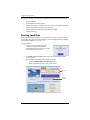
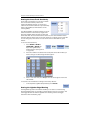
To start IntelliTrac:
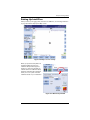
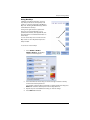
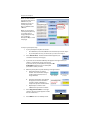
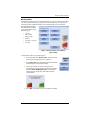
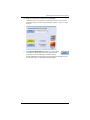
1.
Power on your G4 system. After G4
completes its bootup sequence the
Disclaimer window appears in front of the
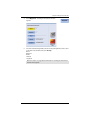
IStarLaunchG4 startup screen.
2.
Press OK. The DISCLAIMER window closes and the full IStarLaunch G4
screen is visible.
3.
Run IntelliTrac using either of the following methods:
•
Press the RUN IntelliTrac Touchscreen button
•
Wait for IntelliTrac to finish counting down to zero
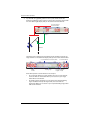
Press here
-or-
Wait for
countdown
G4 IntelliTrac User Guide
6
PN 875-0308-000 Rev A1
Chapter 2: Getting Started
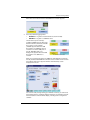
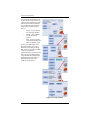
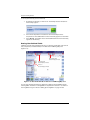
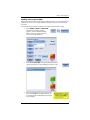
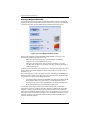
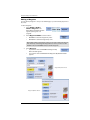
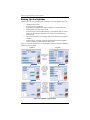
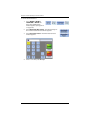
With either start method the Select LOGGING Drive window appears.
4.
Press the preferred logging button:
•
Hard Drive - Log data to the G4 hard drive (recommended)
•
USB Drive - Log data to a USB flash drive
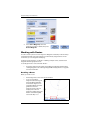
The Hard Drive option is always
available (‘FOUND’ appears above the
Hard Drive button). However, the USB
Drive option is only available
(‘FOUND’ appears above the USB
Drive button) if a USB flash drive is
inserted in one of the USB ports on
the G4. ‘NO USB’ (with a red
background) appears above the USB
Drive button if no USB drive is
inserted.
USB flash drive inserted
No USB flash drive inserted
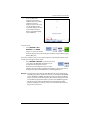
After you press either Hard Drive or USB Drive (with USB drive inserted in
the G4), the Select LOGGING Drive window closes and after several seconds
the IntelliTrac Map screen appears with the IntelliTrac Setup screen
displayed in front of it.
You are now ready to begin setting up IntelliTrac. However, you should use
the following section (“IntelliTrac Display Overview”) to familiarize yourself
with each section of the IntelliTrac display, including how to navigate the
software.
G4 IntelliTrac User Guide
7
PN 875-0308-000 Rev A1
Chapter 2: Getting Started
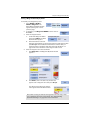
IntelliTrac Display Overview
The IntelliTrac display includes important status information and user-defined display
options as well as Quick Keys and Hot Keys that allow you to quickly perform tasks.
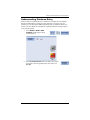
Understanding the Map Screen
After you select your logging device (hard drive or USB drive, see “Starting
IntelliTrac” on page 6) IntelliTrac displays the Map screen.
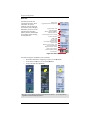
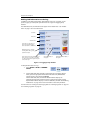
The Map screen is the main display screen in IntelliTrac and is divided into three
areas: the Moving Map area, the Data area, and the Header area.
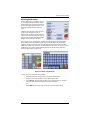
Header area
Moving Map area
Data area
Figure 2-1: Map screen
G4 IntelliTrac User Guide
8
PN 875-0308-000 Rev A1
Chapter 2: Getting Started
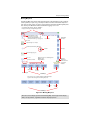
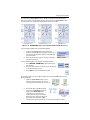
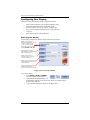
Moving Map Area
The Moving Map area shows a GIS-generated map of the field when you fly a pattern,
create a job file, or open a log. The map includes an outline of the field’s shape and
size, areas to spray and to not spray, and any marks in the field. The Moving Map area
also shows your differential status and whether logging is on or off.
User-defined fields (SETUP > SETUP > SCREEN >
Displays, Left Display and Right Display fields)
Shows filename of each
log or polygon you cycle
through using POLYS button
(shows ALL for all logs or polygons)
Hide/display
Hot Keys
Coordinates
Zoom in
Cycle through zoom modes
Center aircraft in Moving Map area
Hot Keys
Aircraft
Cycle through polygons
Zoom out
Current zoom level
Waypoint name or route#/waypoint#
Bearing angle
Range distance
GPS and
differential
status indicators
Log On/Off
indicator
Display
Setup screen
Save
position
in field
Return to
mark
Set A point
Show Keypad
Quick Keys
Note: Once you set a pattern the DEC and ADV Quick Keys
appear at the lower right of the Moving Map area.
Decrement
swath
Increment
swath
Quick Keys
Figure 2-2: Moving Map area
Note: For a list of display options for the Moving Map area’s large format display
fields, see Appendix A, “Lightbar and Screen Display Options.”
G4 IntelliTrac User Guide
9
PN 875-0308-000 Rev A1
Chapter 2: Getting Started
Data Area
The Data area shows the
current date and time, status
information for special
functions (such as waypoints
and missions, help messages,
GPS status), and your current
job information including
pattern, direction, swath width
and number, speed, heading,
and sprayed area.
Date and time
Toggle between Wide and Split views
Toggle Pan mode on/off
User-defined fields
(SETUP > SETUP > SCREEN >
DISPLAYS, fields 1-3)
Direction/pattern (press to change)
Swath #, GPS status
Swath width
Ground speed
Aircraft heading
Current field/total sprayed areas
(press to reset)
Remaining volume (press to reset
volume and TACH times)
Display File Transfer window
Display Logging window
Switch to Windows desktop
Show calculator
Figure 2-3: Data area
The Data area appears in different colors as follows:
•
Blue when IntelliTrac is navigating to a point or mark (A below)
•
Green when an A|B line is set or loaded (B below)
•
Gray at all other times (C below)
A
B
C
Note: For a list of display options for the Data area’s fields 1 – 3, see Appendix A,
“Lightbar and Screen Display Options.”
G4 IntelliTrac User Guide
10
PN 875-0308-000 Rev A1
Chapter 2: Getting Started
Header Area
The Header area displays the following information along the top of the Map screen:
•
Pilot name
•
Log label
•
Aircraft name
•
Job name
•
Liquid or dry material
•
Log name (current log; if no open log then <No Open Log> appears)
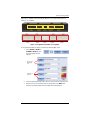
Figure 2-4: Header area
Information in the Header area is read-only. You can change some of the data;
however, you cannot use the Header area to change the information—use the Logging
Setup window. For example, you use the Logging Setup window to change the Pilot
Name (see “Adding Job Information to the Log” on page 38).
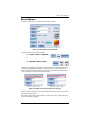
Pressing Buttons in IntelliTrac
This manual uses the following format as well as screen captures of the buttons to
describe pressing buttons in succession:
Button1 > Button2 > Button 3, etc.
Below are two examples of this format and their associated buttons:
•
“Press the SETUP button, press the next SETUP button, then press the
SCREEN button” is written as...
Press SETUP > SETUP > SCREEN
and is shown as...
•
“Press the KEYPAD button, press the CLEAR button, press the JOB button,
then press the ENTER button” is written as:
Press KEYPAD > CLEAR > JOB\9 > ENTER
and is shown as...
G4 IntelliTrac User Guide
11
PN 875-0308-000 Rev A1
Chapter 2: Getting Started
Using the Keypad
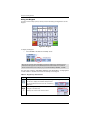
You enter custom setup options, values, and commands by pressing buttons on the
Keypad.
Figure 2-5: Keypad
To display the Keypad:
•
Press KEYPAD at the bottom of the Map screen
Note: In this manual, when describing procedures buttons are referred to by all
information that appears on the buttons (both text and number, if a number is
shown on the button). For example you press LEFT RIGHT\3, MARK\4, or SAVE.
The most often used keys—PATTERN\1, SWATH\2, and LEFT RIGHT\3—are highlighted
in white. Table 2-1 describes the function of each key on the Keypad.
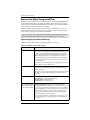
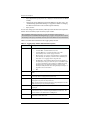
Table 2-1: Keypad keys and functions
Key
Function
Display the first IntelliTrac Setup window (see Figure 2-7 on page 17).
You can also display the IntelliTrac Setup window
by pressing SETUP at the bottom left of the Moving
Map area.
Scroll through available patterns (the pattern name
changes in the Data area).
This key also functions as numeric value 1.
G4 IntelliTrac User Guide
12
PN 875-0308-000 Rev A1
Chapter 2: Getting Started
Table 2-1: Keypad keys and functions (continued)
Key
Function
Display the Enter Swath Width window, where you enter a swath width. The
value you enter appears as the WID value in the Data area.
2 - Enter new value
and press Accept
3 - New value appears
in WID field in Data area
1 - Current swath width
You can also enter the swath width in the IntelliTrac Setup window (see
“Entering Basic Job Details (Quick Start)” on page 34).
This key also functions as numeric value 2.
Change direction (left to right or
right to left) of the current pattern.
The pattern/direction button in the
Data area shows the current
direction and pattern—LFT
indicates you are flying to the left
of the A|B line and RGT indicates
you are flying to the right of the
A|B line.
Left and right Back-to-Back patterns
When you change the direction
the new direction is shown on this
button. For example, if you are
Left and right Expand patterns
flying an Expand pattern and the
current direction is Left, the direction/pattern button in the Data area shows LFT
EXPND. Pressing the LEFT RIGHT/3 button changes the direction to right and the
direction/pattern button shows RGT EXPND.
Direction does not apply to all available pattern types. For example, you can
change the direction of the Expand (EXPND) pattern but not the Squeeze
(SQUEZ) pattern.
You can also press the pattern/direction button in the Data area to toggle
between LFT and RGT for patterns that have the option to fly left or right.
This key also functions as numeric value 3.
Create A, B, and C points when creating a pattern. Once you set the pattern this
button functions as a swath advance button (if not using the ADV Quick Key or
the remote swath advance switch).
Display the Zoom/Pan window. See “Zooming and Panning the Moving Map
Area” on page 20 for more information.
G4 IntelliTrac User Guide
13
PN 875-0308-000 Rev A1
Chapter 2: Getting Started
Table 2-1: Keypad keys and functions (continued)
Key
Function
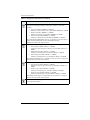
Display the Quick Marks window where you can quickly set a mark (1-9).
Also, press this key after pressing an action key to (where ‘n’ is the mark
number):
•
Save a mark (SAVE > MARK\4 > n > ENTER)
Example: To save a mark as mark 2, press SAVE > MARK\4 > 2 > ENTER
•
Recall a mark (SET > MARK\4 > n > ENTER)
Example: To recall mark 2, press SET > MARK\4 > 2 > ENTER
•
Delete a mark (CLEAR > MARK\4 > n > ENTER)
Example: To delete mark 2, press DELETE > MARK\4 > 2 > ENTER
See “Understanding Marks (Return Points)” on page 68 for more information on
marks, including working with marks numbered 10 and higher.
This key also functions as numeric value 4.
Press this key after pressing an action key to (where ‘n’ is the waypoint number):
•
Save a waypoint (SAVE > WPT\5 > n > ENTER)
Example: To save a waypoint as waypoint 3, press SAVE > WPT\5 > 3 >
ENTER
•
Recall a waypoint (SET > WPT\5 > n > ENTER)
Example: To recall waypoint 3, press SET > WPT\5 > 3 > ENTER
•
Delete a waypoint (CLEAR > WPT\5 > n > ENTER)
Example: To delete waypoint 3, press DELETE > WPT\5 > 3 > ENTER
See “Working with Waypoints” on page 84 for more information on waypoints.
This key also functions as numeric value 5.
Press this key after pressing an action key to (where ‘n’ is the polygon number):
•
Save a polygon (SAVE > POLY\6 > n > ENTER)
Example: To save a polygon as polygon 5, press SAVE > POLY\6 > 5 >
ENTER
•
Recall a polygon (SET > POLY\6 > n > ENTER)
Example: To recall polygon 5, press SET > POLY\6 > 5 > ENTER
•
Delete a polygon (CLEAR > POLY\6 > n > ENTER)
Example: To delete polygon 5, press DELETE > POLY\6 > 5 > ENTER
See “Working with Polygons” on page 102 for more information on polygons.
This key also functions as numeric value 6.
Swath decrement (if not using the DEC Quick Key on the Map screen or the
remote decrement switch).
G4 IntelliTrac User Guide
14
PN 875-0308-000 Rev A1
Chapter 2: Getting Started
Table 2-1: Keypad keys and functions (continued)
Key
Function
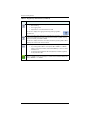
Used in conjunction with other keys to either clear a data type from the screen
or delete a data type. For example:
•
To clear job data (polygons and patterns) from the screen:
Press CLEAR > JOB > ENTER
•
To delete the job from memory (you have to confirm the deletion):
Press CLEAR > JOB > n > ENTER (where n = the job number)
You also use this button to exit IntelliTrac:
•
To close IntelliTrac and return to Windows:
Press CLEAR > CLEAR > Exit To Windows
•
To close IntelliTrac and shut down Windows
Press CLEAR > CLEAR > YES
For important information on exiting and powering off IntelliTrac see “Exiting
IntelliTrac” on page 29.
Make sure you understand the difference between clearing a
data type from the screen and clearing (deleting) a data type from the database
by entering its number. If you delete a job, you also delete the job’s polygons
and patterns.
Press this key and then a number key (1 - 9) to return to a mark numbered 1 - 9.
You cannot return to a mark > 9 because only the first digit counts. To return to a
mark > 9 use SET (see SET later in this table).
This key also functions as numeric value 7.
Press this key after pressing an action key to (where ‘n’ is the route number):
•
Save a route (SAVE > ROUTE\8 > n > ENTER)
Example: To save a route as route 6, press SAVE > ROUTE\8 > 6 > ENTER
•
Recall a route (SET > ROUTE\8 > n > ENTER)
Example: To recall route 6, press SET > ROUTE\8 > 6 > ENTER
•
Delete a route (CLEAR > ROUTE\8 > n > ENTER)
Example: To delete route 6, press DELETE > ROUTE\8 > 6 > ENTER
This key also functions as numeric value 8.
Press this key after pressing an action key to (where ‘n’ is the job number):
•
Save a job (SAVE > JOB\9 > n > ENTER)
Example: To save a job as job 6, press SAVE > JOB\9 > 6 > ENTER
•
Recall a job (SET > JOB\9 > n > ENTER)
Example: To recall job 6, press SET > JOB\9 > 6 > ENTER
•
Delete a job (CLEAR > JOB\9 > n > ENTER)
Example: To delete job 6, press DELETE > JOB\9 > 6 > ENTER
This key also functions as numeric value 9.
Use in conjunction with other keys to save a data type. For example, to save a
polygon press SAVE > POLY > n (where n = polygon number).
Return to the Map screen (saving your changes).
G4 IntelliTrac User Guide
15
PN 875-0308-000 Rev A1
Chapter 2: Getting Started
Table 2-1: Keypad keys and functions (continued)
Key
Function
Display the Logging window where you can:
•
Start a new log
•
Turn logging off/on
•
Upload files to or download files from HQ
You can also display the Logging window by pressing Log HQ in
the Data area.
Use in conjunction with other keys to view data type information. For example,
to display the Marks window that shows the mark number, log label, and log
name of all marks, press INFO > MARK.
You can also display the Flow Control Setup window by pressing INFO > INFO.
This key also functions as numeric value 0.
Use in conjunction with other keys to recall a specific data type. For example:
•
To provide guidance back to a mark press SET > MARK > n > ENTER
(where n is the mark number). Use the RETURN key to return to marks
numbered 1-9.
•
To switch the display between Normal (daytime) and Dark (nighttime)
mode press SET > SET.
Save changes (when you press a combination of buttons to perform a task) and
return to the Map screen. For example, to create a mark numbered 10-99 press
SAVE > MARK\4 > nn > ENTER.
G4 IntelliTrac User Guide
16
PN 875-0308-000 Rev A1
Chapter 2: Getting Started
Setting Up IntelliTrac
After you select your logging drive (hard drive or USB drive, see “Starting IntelliTrac”
on page 6) IntelliTrac displays the Map screen.
Figure 2-6: Map screen at startup
When you press the Setup button in
the Moving Map area the main
IntelliTrac Setup window appears
(Figure 2-7). From this window you
can drill down into additional Setup
windows. IntelliTrac Setup windows
allow you to set up and customize
IntelliTrac based on your installation.
Figure 2-7: Main Setup window
G4 IntelliTrac User Guide
17
PN 875-0308-000 Rev A1
Chapter 2: Getting Started
You use the Setup windows (some
of them shown in Figure 2-8) to set
values or make selections for all the
different options within IntelliTrac.
You navigate through successive
Setup screens via the following
buttons:
•
SETUP - press to display
the next Setup window
•
CLEAR - press to display
the previous Setup
window
•
EXIT - press to close the
current Setup window and
return to the Map screen
There is no CLEAR button on the
first Setup window, since going
back one screen takes you to the
Map screen. To go back to the Map
screen you press EXIT.
Additionally, when you press a field
button (such as the UNITS button
on the System Setup window) the
resulting window may contain a
SETUP button that provides
additional setup options.
Figure 2-8: Setup windows
G4 IntelliTrac User Guide
18
PN 875-0308-000 Rev A1
Chapter 2: Getting Started
Entering Field Values
To enter field values in IntelliTrac, such as
on the Logging Setup window (at right),
press the button for the field. For example,
to enter the Logging Interval value press
the Logging Interval button (circled at
right).
IntelliTrac then displays one of two types
of data entry windows: numeric or
alphanumeric. IntelliTrac determines if the
value for the field can be numeric only or
alphanumeric and automatically displays
the appropriate data entry window.
For example, on the Logging Setup window the Logging Interval and the Logging
Speed fields can be only numeric values. If you press the button for either field
IntelliTrac displays a numeric data entry window (left window in Figure 2-9). LOG
Label, Pilot, and Aircraft, however, can all be alphanumeric values so when you press
the button for any of these fields IntelliTrac displays an alphanumeric data entry
window (right window in Figure 2-9).
Numeric data entry window
Alphanumeric data entry window
Figure 2-9: Data entry windows
To enter values in either data entry window:
1.
Press the button for the field value you want to enter/change.
2.
Enter a value using the buttons in the data entry window.
3.
Press Accept. The data entry window closes and the value you entered
populates the appropriate field on the previous window.
or
Press EXIT to cancel the entry and return to the previous window.
G4 IntelliTrac User Guide
19
PN 875-0308-000 Rev A1
Chapter 2: Getting Started
Zooming and Panning the Moving Map Area
Zooming refers to making a section of the screen larger so you can see more detail
(zoom in) or making the screen smaller so you can see a larger area and less detail
(zoom out).
You can zoom in and out using buttons in the Zoom/Pan window and in the Moving
Map area (Figure 2-10). You can also ‘pinch’ to zoom in and out on the Moving Map
area:
•
To pinch to zoom in place your thumb and index finger far apart on the
Moving Map area then drag (slide) your thumb and finger closer together
•
To pinch to zoom out place your thumb and index finger close together on
the Moving Map area then drag (slide) your thumb and finger farther apart
Panning refers to moving the screen in a specific direction (such as left or right) so you
can see detail that may not be visible on the current screen.
Figure 2-10 illustrates the zooming and panning features of IntelliTrac.
Zoom/pan controls in
Moving Map area
Zoom/Pan window
Use outer
arrows to pan
You can use either
the Zoom/Pan
window (left) or the
Moving Map area
controls (right) to
zoom/pan the map
Use CENTER
button to center
the aircraft in
the Moving Map
area
Use ZOOM
buttons to zoom
in and out
Zoom in
Zoom Mode
Press EXIT to
close the Zoom/
Pan window
Zoom out
Press before you fly your pattern
to autozoom in/out to keep the
pattern in view while flying
Zoom distance
Tip! Press the CENTER button to
sequentially toggle through centering
the following:
- Aircraft
- All polygons
- Each active polygon in a job
- Log (if log is loaded to view)
Pan the screen by pressing
anywhere in the Moving Map area
and then dragging (Pan mode
must be ON)
Figure 2-10: Zooming and panning
G4 IntelliTrac User Guide
20
PN 875-0308-000 Rev A1
Chapter 2: Getting Started
The status of the ZOOM MODE button in the Moving Map area determines what
buttons are active in the Zoom/Pan window. You can press the ZOOM MODE button
(to change the zoom mode) while the Zoom/Pan window is visible.
ZOOM MODE Manual
ZOOM MODE Manual Locked
ZOOM MODE Auto
Figure 2-11: ZOOM MODE button and related Zoom/Pan window features
To pan the Moving Map area using the Moving Map:
1.
Verify the Pan ON/OFF button in the Data area
displays ‘Turn PAN OFF’ (meaning Pan mode is on). If
Pan mode is off (the button displays ‘Turn PAN ON’)
press the button.
2.
Press (and hold) your finger on the map and drag in
the desired direction.
To pan the Moving Map area using the Zoom/Pan window:
1.
Press KEYPAD > ZOOM PAN to display the Zoom/
Pan window.
2.
Press the appropriate arrow button to pan the display
in the direction of the arrow.
3.
Press EXIT to close the Zoom/Pan window.
To manually zoom in/out on the Moving Map area using the ZOOM buttons on the
Moving Map area:
1.
Verify the ZOOM MODE button is set to
Manual or Manual Locked. You cannot
manually zoom if the button is set to Auto.
Manual zooming
enabled
2.
Manual zooming
disabled
On the left edge of the Moving Map
area, press the Zoom In button (up
arrow) or the Zoom Out button
(down arrow) as many times as
needed. Each time you press either
Zoom distance
button the zoom distance indicator at
indicator
the bottom left of the Moving Map
area decreases (pressing Zoom In) or increases (pressing Zoom Out).
G4 IntelliTrac User Guide
21
PN 875-0308-000 Rev A1
Chapter 2: Getting Started
To zoom in/out on the Moving Map area using the Zoom/Pan window:
1.
Press KEYPAD > ZOOM PAN to display the Zoom/
Pan window (see Figure 2-10 on page 20).
2.
Press ZOOM IN or ZOOM OUT (as many times
as needed). Each time you press either button the
zoom distance indicator at the bottom left of the
Moving Map area decreases (pressing ZOOM IN)
or increases (pressing ZOOM OUT).
3.
Press EXIT to close the Zoom/Pan window.
To have IntelliTrac automatically zoom in/out to keep your pattern in view while
spraying:
•
Press the ZOOM MODE button until ‘Auto’ appears on the button.
Day Mode and Night Mode
IntelliTrac has two screen color options: Normal (daytime) mode and Dark (nighttime)
mode (Figure 2-12). Normal is the default mode.
Day mode
Night mode
Figure 2-12: Day mode (default) vs. Night mode (dark)
To switch the screen mode using the KEYPAD:
•
Press KEYPAD > SET > SET
To switch the screen mode using the SETUP menus:
1.
Press SETUP > SETUP > SCREEN.
The Screen Setup window appears (see
Figure 7-8 on page 136).
2.
Press Mode, select a mode from the
drop-down list, then press EXIT.
G4 IntelliTrac User Guide
22
PN 875-0308-000 Rev A1
Chapter 2: Getting Started
Using Hot Keys
IntelliTrac includes five Hot Keys—shortcut
keys that provide access to frequently used
functions—along the right side of the Moving
Map area. Pressing the HOT KEYS (top) button
shows/hides the Hot Keys.
The figure at right shows five specific Hot
Keys. You can set each Hot Key to your
preferred functionality. See Appendix B, “Hot
Key Descriptions” for detailed information on
all Hot Keys.
You can set Hot Keys one at a time from the
Map screen or set multiple Hot Keys from a
Setup window.
Hot Keys
To set one or more Hot Keys:
1.
Press SETUP > SETUP >
SETUP > Hotkeys. The Hotkeys
selections window appears.
2.
Press the button for the Hot Key you want to change and select a Hot Key
function from the drop-down list.
For example (using the above screenshot), to change the first Hot Key press
MISC then select the desired option from the drop-down list.
3.
Repeat step 2 for each additional Hot Key you want to change.
4.
Press EXIT when finished.
G4 IntelliTrac User Guide
23
PN 875-0308-000 Rev A1
Chapter 2: Getting Started
To set a specific Hot Key (shortcut method):
1.
Double-tap the Hot Key you want to set. The HotKey selection window for
that Hot Key appears.
2.
Press the Hot Key button and select the new functionality from the
drop-down list. The abbreviation for the functionality appears on the button.
3.
Press Accept. The window closes and the abbreviation for the functionality
appears on the Hot Key.
Setting User-Defined Fields
IntelliTrac includes several fields that allow you to display specific data (such as flow
rate, temperature, and GPS altitude) in the Data area and Moving Map area
(Figure 2-13).
Right Display field
(Screen Displays window)
Left Display field
(Screen Displays window)
Fields 1-3
(Screen Displays window)
Figure 2-13: User-defined fields in Data area and Moving Map area
You can also set what information is displayed on both the actual lightbar and the
virtual lightbar. The LEDs on a G4 lightbar are separated into sections—as shown on
the L7 lightbar in Figure 2-14. See “Setting Up the Lightbar” on page 122 and
G4 IntelliTrac User Guide
24
PN 875-0308-000 Rev A1
Chapter 2: Getting Started
Appendix A, “Lightbar and Screen Display Options” for complete information on
setting up your lightbar.
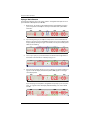
Left
Display
Left
Display
Left Center
Display
Left Center
Display
Center
Display
Center
Display
Right Center
Display
Right
Display
Right Center
Display
Right
Display
Figure 2-14: Lightbar field LEDs on L7 lightbar
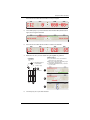
To set user-defined data for display in the Data and Moving Map areas:
1.
Press SETUP > SETUP >
SCREEN > Displays. The
Screen Displays window
appears.
Appear in the
Moving Map
area
Appear in the
Data area
2.
Press the appropriate button then select an option from the drop-down list.
3.
Repeat step 2 for each field you want to change then press EXIT when
finished. The display fields show the newly selected information.
G4 IntelliTrac User Guide
25
PN 875-0308-000 Rev A1
Chapter 2: Getting Started
Before You Start Using IntelliTrac
Each time you start IntelliTrac you select an external storage device (USB flash drive)
or the IntelliTrac hard drive as the logging read/write device. The option you select
affects various file transfer procedures. For more information see “Starting IntelliTrac”
on page 6 and “Transferring Data Files” on page 76.
IntelliTrac’s default settings should meet most users’ needs. However, you can set
some systemwide values and options to suit your local requirements. After setting
these values or options, you can start using IntelliTrac.
Note: You can save customized settings and transfer them via USB drive to a PC or
other G4 units. For more information see “Customized Settings” on page 145.
Understanding Systemwide Settings
Table 2-2 describes the IntelliTrac systemwide settings you can set.
Table 2-2: IntelliTrac systemwide settings
Field
Description
Local Time Offset
IntelliTrac is set to Greenwich Mean Time (GMT). To convert to
local time, you must know the time difference between GMT and
local time for both standard and daylight saving. For example,
Arizona, U.S. is located in the Mountain time zone and does not
observe daylight saving. So, to use IntelliTrac in Arizona, you
would set the local time setting to -07:00 (7 hours behind GMT).
You can select an offset from (+)14 hours to (-)12 hours in half
hourly increments.
Note: If you live in an area that observes daylight saving, you will
need to set the local time twice a year.
Global Units
IntelliTrac uses U.S. standard units (such as feet and pounds) as
the default. Use the Global Units field to change this setting to
Metric or Nautical.
You can also assign units to individual data types (such as speed
and area) in the Units Advanced Setup window (see step 4 on
page 28).
Coordinates
You can display GPS coordinates as one of the following:
DDD.DDDDDDD - decimal degrees (default)
DDDMM.MMMM - decimal minutes
DDDMMSS.SSS - decimal seconds
Ag. Laser Offset
Ag. Laser Max Height
Ag. Laser Min Height
(laser altimeter fields)
AgLaser is an optional product. To purchase AgLaser
contact your dealer. AgLaser is a laser altimeter used to
provide IntelliTrac with a distance from the aircraft to the ground/
crop canopy. The offset is a number that you can set to offset the
difference between the actual mounting location of the AgLaser
(usually in the wing) and the lowest point of the aircraft (the
landing gear) to determine exactly how high the lowest part of
the plane is off the ground/crop canopy.
Note: The laser will bounce off the ground or the canopy of the
crop the plane is flying over if the vegetation is thick and hides
the ground.
G4 IntelliTrac User Guide
26
PN 875-0308-000 Rev A1
Chapter 2: Getting Started
To select systemwide settings:
1.
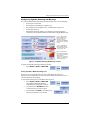
Press SETUP > SETUP > UNITS. The
Units window appears.
2.
For the following press the appropriate button then select an option from the
drop-down list. See Table 2-2 on the previous page for information on these
fields.
3.
•
Local Time Offset
•
Global Units
•
Coordinates
If AgLaser is installed press the appropriate button, enter a value in the data
entry window that appears, then press Accept.
•
Ag. Laser Offset—number to allow for the difference between the actual
mounting location of the AgLaser (usually in the wing) and the lowest
point of the aircraft (the landing gear)
•
Ag. Laser Max Height—maximum height above ground
•
Ag. Laser Min Height—used to allow you to get to a minimum above
ground (generally used as a warning mechanism)
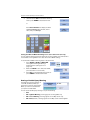
IntelliTrac displays an
AgLaser range bar on the
left side of the Moving
Map area—at right this
range is from 2 (Min
Height) to 16 (Max Height).
When you are within the
Min and Max values the
bar is blue; if you are
outside the range, the bar
is red.
Within Min/Max range
G4 IntelliTrac User Guide
27
Outside Min/Max range
PN 875-0308-000 Rev A1
Chapter 2: Getting Started
4.
To override the global units for certain values, press SETUP on the
Units window. The Units Advanced Setup window appears.
5.
For each value you want to change press the appropriate button and select
an option from the drop-down, then press EXIT to return to the Map screen.
Detecting Your Flow Control System
IntelliTrac automatically detects if a flow control system is connected to the G4 and
what type it is: AerialACE™, IntelliFlow®, or IntelliGate™. If IntelliTrac detects a flow
control system it displays the type at the top of the Flow Control Setup window. If
IntelliTrac does not detect a flow control system, “No Ctrl! Check Cables, etc.” appears
at the top of the Flow Control Setup window. For more information see “Spray
Options” on page 39 and “Flow Control” on page 140. See Figure 3-4 on page 39 for
an example of both messages (flow control detected and flow control not detected).
Switching Between IntelliTrac and the
Windows Desktop
You can switch between IntelliTrac and the Windows desktop without closing
IntelliTrac. For example, you may want to work with files located on the hard drive or
on a USB drive. When you are finished working with these files, you can quickly return
to IntelliTrac.
To switch to the Windows desktop from IntelliTrac:
•
On the Map screen, press the Windows
button in the lower left of the Data area.
To switch to IntelliTrac from the Windows desktop:
•
On the Windows taskbar,
double-tap the IStarLaunch
button.
G4 IntelliTrac User Guide
28
PN 875-0308-000 Rev A1
Chapter 2: Getting Started
Exiting IntelliTrac
You have two options when exiting IntelliTrac:
•
Exit IntelliTrac and display the Windows desktop
•
Exit IntelliTrac and shut down Windows
To protect your data, you must exit (shut down) IntelliTrac before you
turn the power source off. If you power off without first exiting
IntelliTrac you risk corrupting your data. Data integrity can be ensured
only if you exit IntelliTrac before powering off.
To exit IntelliTrac:
1.
Press KEYPAD > CLEAR > CLEAR. The exit
window appears.
2.
Press YES to exit IntelliTrac and shut down Windows.
or
Press EXIT TO WINDOWS to exit IntelliTrac and display the Windows
desktop.
G4 IntelliTrac User Guide
29
PN 875-0308-000 Rev A1
Chapter 3: Work Options
Aerial Guidance Terms and IntelliTrac
Entering Basic Job Details (Quick Start)
Understanding Job and Log Data
Spray Options
Spray Boom Settings
Using Prescription Maps
G4 IntelliTrac User Guide
31
PN 875-0308-000 Rev A1
Chapter 3: Work Options
Aerial Guidance Terms and IntelliTrac
IntelliTrac uses common aerial guidance terms on the Map screen and in the various
windows you can display. This section provides a brief summary of these common
terms and how they are used in IntelliTrac. The remaining sections of this chapter and
the chapters that follow provide detailed information on how these terms apply to
using IntelliTrac and all its advanced features.
Waypoint - A waypoint represents the GPS
coordinates (latitude and longitude) of a
significant location you want to record (or set).
For example, you may want to set a waypoint at
the beginning or end of your spray job or at a
location in your route at which you will stop or
change course. When you set a waypoint a
message briefly appears on the screen indicating
the waypoint number being saved (“Waypoint 3
saved.” at right). IntelliTrac also displays the
route-waypoint number for each waypoint in a
route (three waypoints in example at right).
Route - A route is a group of one or more
waypoints. Each waypoint you set is
automatically assigned to a route in IntelliTrac—
even if there is only one waypoint. IntelliTrac
displays the route-waypoint number for each
waypoint in a route (one route with three
waypoints in example at right).
Polygon - A polygon is the shape of a field (or
other area, such as a forest plot) that you define.
You can create two types of polygons in
IntelliTrac—an inclusion polygon (enclosed area
you spray, shown at right) and an exclusion
polygon (enclosed area you do not spray).
Inclusion and exclusion polygons visually show
you the borders of your spray/no-spray areas in
the Moving Map area. Just as a Route is made up
of one or more Waypoints, a Polygon is made of
multiple poly points that you set.
G4 IntelliTrac User Guide
32
PN 875-0308-000 Rev A1
Chapter 3: Work Options
Pattern - A pattern is the specific order
of passes (or swaths) you make when
flying your aircraft. IntelliTrac includes
several built-in patterns from which to
choose. For example, you may want to fly
a Back-to-Back pattern (shown at right)
where you fly consecutive swaths
parallel to the A|B line. There are two
types of patterns in IntelliTrac—an open
pattern, where you can fly an unlimited
(or open) number of swaths because the
pattern is not dependent on the size of
the field, and a closed pattern, where the
number of swaths you can fly is limited
(or closed) because you define the width
of the field.
B
7
6
5
4
3
2
1
A
7 swaths; A|B line is swath 1
Job - A job is an IntelliTrac entity
comprising one or more polygons and one or more flown patterns. You can save,
delete, add to, and subtract from a job.
Log - A log is a set of data that includes exact positioning and rate of spray
application, precise time and date record, flight speed, altitude, patterns flown, and
GPS position quality. IntelliTrac records this information in the log any time you are
above a pre-designated airspeed. You can add job information to a log.
Swath - A swath is a strip or row of a field that you fly. For example, in the above
pattern there are seven swaths.
A|B line - An A|B line is the initial guideline of a pattern. Each subsequent swath of
the pattern is based on this initial guideline. The beginning of an A|B line is Point A
and the end of the A|B line is Point B. For example, in the above pattern the A|B line is
swath 1.
Mark - A mark is a point to which you want to
return, such as a last sprayed point. When you
create a mark, IntelliTrac saves the following
current swathing information: swath number,
pattern, A|B line, direction, job ID, acreage, swath
width, and spray information.
G4 IntelliTrac User Guide
33
PN 875-0308-000 Rev A1
Chapter 3: Work Options
Entering Basic Job Details (Quick Start)
Note: If you exit IntelliTrac (see “Exiting IntelliTrac” on page 29) with a saved job
active, that job is active when you restart IntelliTrac. If you exit with no job active
(<No JOB Name>* is displayed in the Header area), JOB Name: 0 is displayed in the
Header area.
After you complete basic setup in IntelliTrac (see “Starting IntelliTrac” on page 6) and
each time you start IntelliTrac thereafter, the IntelliTrac Setup window appears in front
of the Map screen.
Figure 3-1: IntelliTrac Setup window on startup
In addition to being the starting point to all other SETUP windows, the IntelliTrac
Setup window enables you to enter the following basic job information (for more
information on jobs, see “Working with Jobs” on page 98):
•
Pattern (with or without auto-repeat)
•
Swath width
•
Direction (left/right)
Tip! If you installed a dry or liquid flow controller and IntelliTrac and the controller
stop communicating, “Controller NOT FOUND” appears below the RESET button.
Press RESET to re-establish the connection.
To enter basic job information in the Setup window:
1.
If you are on the Map screen with the Setup window not
visible, press SETUP (along the bottom of the Moving Map
area). The IntelliTrac Setup window appears (Figure 3-1
above).
2.
Press PATTERN and select the desired pattern type from
the drop-down list.
G4 IntelliTrac User Guide
34
PN 875-0308-000 Rev A1
Chapter 3: Work Options
Additional buttons/fields appear when you select QUICKTRACK_X or MULTI
BACK-TO-BACK.
•
If you select QUICKTRACK_X, the PATTERN SETUP button appears
below the drop-down.
i.
Press PATTERN SETUP. The Quicktrack X Settings window
appears.
ii.
Press either Total Swaths or Distance from A-B then in the data
entry window that appears enter a value and press Accept. For
the value you do set IntelliTrac recalculates the other value. For
example, if Total Swaths is 10 and you set it to 6 IntelliTrac reduces
the Distance from A-B value accordingly.
G4 IntelliTrac User Guide
35
PN 875-0308-000 Rev A1
Chapter 3: Work Options
•
3.
If you select MULTI BACK-TO-BACK, the ROTATION and TOTAL FIELDS
buttons appear in the bottom left of the window.
i.
Press ROTATION to toggle between HALF and FULL.
ii.
Press TOTAL FIELDS, and in the data entry window that appears
enter a value then press Accept.
If the AUTO REPEAT button is set to NO press the button to
toggle the setting to YES to repeat the current pattern when
you complete it.
If auto repeat is NO, IntelliTrac reverts to a Back-to-Back pattern when you
have completed the current pattern.
Note: You can auto-repeat the following patterns (the AUTO REPEAT
button is enabled when you select any of the following patterns):
RACETRACK
QUICK_RACETRACK
SQUEEZE
REVERSE_RACETRACK
You cannot auto-repeat the following patterns (the AUTO REPEAT button is
disabled when you select any of the following patterns):
BACK-TO-BACK
MULTI BACK-TO-BACK
QUICKTRACK_X
4.
EXPAND
BACK-TO-BACK SKIP
Press SWATH WIDTH. The Enter Swath Width window
appears.
Enter a swath width then press Accept to accept the value
and close the window. The new value appears next to the SWATH WIDTH
button.
5.
Press LEFT/RIGHT to select a direction (pressing the button
toggles the setting between LEFT and RIGHT).
G4 IntelliTrac User Guide
36
PN 875-0308-000 Rev A1
Chapter 3: Work Options
Understanding Job and Log Data
If logging is enabled (default setting) IntelliTrac automatically creates a log file for
each job flown, assigning the time/date stamp of each new log as the log file name.
You can enter additional (optional) details to your job, such as a name/number, pilot
name, and aircraft name/number and this information is also captured in the log file.
Note: You must enter the pilot name and aircraft number for HQ to be active.
To turn logging off:
•
Press KEYPAD > Log HQ >
Turn Logging Off.
A “LOG was Just CLOSED”
message appears briefly after IntelliTrac closes
the current log.
To turn logging back on:
•
Press KEYPAD > Log HQ >
Start New Log.
A “Just Opened NEW LOG”
message appears briefly as IntelliTrac opens a
new log.
Log Data
Log data includes the following information:
•
Exact positioning
•
Rate of spray application
•
Precise time and date record
•
Flight speed, altitude, patterns flown
•
GPS position quality
IntelliTrac records this information in the log when you are above a pre-designated
airspeed. The default is 45 mph but you can change this via the Logging Speed field
(see “Changing Logging Options” on page 139).
Note: IntelliTrac records no information if you are below the logging speed.
G4 IntelliTrac User Guide
37
PN 875-0308-000 Rev A1
Chapter 3: Work Options
Adding Job Information to the Log
In addition to the default information that IntelliTrac logs (see “Log Data” on the
previous page) you add specific job information to a log in the Logging Setup
window.
The LOG Label, Pilot, and Aircraft values appear in the Header area—see “Header
Area” on page 11 for more information.
Job name
Pilot name
Aircraft name
How often you want G4 to log
data to the specified logging
device (hard drive or USB drive)
Minimum speed you must be
traveling before G4 logs data
(default is 45 mph)
Set to Yes to start a new job each time you
start a new log or set to No so each time
you start a new log that log becomes part
of the current job
View one, multiple, or
all log files
Clear (delete) one, multiple, or
all log files
Figure 3-2: Logging Setup window
To add job information to a log:
1.
Press SETUP > SETUP > LOGGING
SETUP.
2.
For the LOG Label, Pilot, Aircraft, Logging Interval, and Logging Speed
fields, press the appropriate button and in the data entry window that
appears enter a value and press Accept.
For the LOG Label, Pilot, and Aircraft fields IntelliTrac displays an
alphanumeric data entry window. For the Logging Interval and Logging
Speed fields IntelliTrac displays a numeric data entry window. See “Entering
Field Values” on page 19 for more information on data entry windows.
For instructions on viewing and clearing log data see “Viewing Log Data” on page 72
and “Clearing Log Data” on page 73.
G4 IntelliTrac User Guide
38
PN 875-0308-000 Rev A1
Chapter 3: Work Options
Spray Options
You set your spray options in the Flow Control Setup window.
Figure 3-3: Flow Control Setup window
To display the Flow Control Setup window:
•
Press SETUP > SETUP > FLOW CTRL.
or
•
Press KEYPAD > INFO\0 > INFO\0.
IntelliTrac automatically detects if a flow control system is connected and what type it
is: IntelliFlow, IntelliGate, AerialACE, or a third-party product such as AutoCal. As
shown in Figure 3-4 IntelliTrac displays the flow control system name (if detected) or
an error message (no flow control system detected).
Flow control system detected
No flow control system detected
Figure 3-4: Flow control system detection message
IntelliTrac supports constant rate and variable rate flow control, as well as liquid and
dry application (flow mode).
If you have a flow control system installed, you will need to set your basic job spray
options in IntelliTrac, including:
G4 IntelliTrac User Guide
39
PN 875-0308-000 Rev A1
Chapter 3: Work Options
•
Spray application type (liquid or dry - displays in the Header area as LIQUID
or DRY)
•
Target spray rate in Gal/Acre for liquid and Lb/Acre for dry (U.S. units - see
“Understanding Systemwide Settings” on page 26 for details on changing
the default measurement units used throughout IntelliTrac)
•
Spray volume
You can also change your flow lead time, which represents the flow control system’s
reaction time to reach the proper rate at the proper location.
Note: If defining and flying polygons, you can set the flow control system to
automatically turn on/off when entering/leaving a polygon. This application requires
the hookup of the spray on/off relay. Contact your local dealer for more information.
Table 3-1 describes each button/field of the Logging Setup window.
Table 3-1: Logging Setup window button/field descriptions
Button/Field
Description
Flow Control
Select from the following:
•
Constant Rate - Constant rate flow control
•
Constant Rate Poly - Constant rate flow control that
automatically turns on/off at polygon borders.
•
Monitor Only - You monitor the flow system, controlling the
flow manually. For example, use this mode to calibrate your
flow meter or for logging rates if using AutoCal.
•
Variable Rate - Automatically adjusts the flow rate based on
the prescription map you load—this option is available only if
you have a prescription map loaded. For variable rate spray
applications you can select a prescription map from the
Prescription Map window. See “Using Prescription Maps” on
page 45 for more information.
•
OFF
Flow Mode
Select Liquid or Dry to match your spray application type (Flow Control
field).
Target Rate
Set your target rate in gallons per acre for liquid applications or
pounds per acre for dry applications (US units).
Prescription Map Displays the loaded prescription map. You can also select a different
prescription map from the drop-down list.
Note: You must have an active prescription map subscription for this
field to be active (to use prescription maps).
Volume
Set the beginning hopper volume. This value counts down as material
is sprayed.
Reset Volume
If you refill the hopper with the same amount you can reset the volume
to the last amount you entered using the Reset Volume button. The
volume resets to the default value of 500 gallons.
Reset Total Area
Reset the total sprayed area (as shown in the Data area) back to 0. The
Total Area counter resets to 0.
G4 IntelliTrac User Guide
40
PN 875-0308-000 Rev A1
Chapter 3: Work Options
Table 3-2 summarizes the flow control options and how the various parameters you
can select in the two Flow Control setup windows affect each option. The defaults
shown in Table 3-2 are recommended, but may not be suitable for all applications.
Table 3-2: Flow control options summary
Default
Lead Time
(Variable Rate)
Default
Lead Time
(Edge)
Auto Boom
Yes/No Option
Target
Rate
Variable
Rate
0.5 s
0.1 s
YES - Pump On, Valve Static
N/A
Constant
Rate
Poly
N/A
Constant
Rate
Manual
N/A
NO - Valve Closed, Rate 0
0.1 s
YES - Pump On, Valve Static
N/A
NO - Valve Closed, Rate 0
N/A
N/A
Actual
Spray Rate
Setting Spray Options - Volume
You set the beginning hopper volume in the Volume field. This value counts down as
material is sprayed. If you refill the hopper with the same amount you can reset the
volume to the last amount you entered using the Reset Volume button. You can also
reset the total sprayed area (as shown in the Data window) back to 0.
To reset the spray volume or area counters, press Reset Volume or Reset Total Area.
The volume resets to the default value of 500 gallons and the Total Area counter resets
to 0.
Note: When AutoCal reports that it is using dry flow control, the volume and rate is
based on weight (volume = 1000 kg; rate=100 kg/h).
G4 IntelliTrac User Guide
41
PN 875-0308-000 Rev A1
Chapter 3: Work Options
Spray Boom Settings
The boom options you set determine which booms are active (spraying) during
full-boom and half-boom spraying operations.
Note: Spray boom settings in IntelliTrac are for display purposes only. The settings
do not control the spray volume of the actual physical boom.
You set spray boom options in the Spray Boom Setup window (Figure 3-5).
Can set to YES or NO—set to YES
when your system reads
prescription maps or polygons to
initiate boundaries with your
spray on/off system
Can set to YES or NO—set to
YES to enable LEFT, CENTER,
and RIGHT sections or set to NO
to disable these sections (as
shown below)
Maximum flow rate
through the valve
Figure 3-5: Spray Boom Setup window
If Boom L/C/R is set to YES, you can use the LEFT, CENTER, and RIGHT fields or the
boom switches to control the left, center, and right spray areas on the display and the
Spray Boom Setup window displays a yellow message indicating the left, center, and/
or right boom section is ‘ON.’
If Boom L/C/R is set to NO, the LEFT, CENTER, and RIGHT fields are disabled and
you cannot use boom switches to control the left, center, and right spray areas on the
display.
You can adjust the spray percentage (display only) for the left, center, and right boom
sections. The left and right booms spray the same percentage (from 10% to 50%). For
example, if you set the left boom to 20%, the right boom automatically adjusts to 20%.
You can adjust the center boom independently (from 0% to 80%).
G4 IntelliTrac User Guide
42
PN 875-0308-000 Rev A1
Chapter 3: Work Options
All three booms must total 100%. When
they do, IntelliTrac displays a green
message stating ‘Total Spray BOOM 100%’
(see Figure 3-5 previous page); if they do
not total 100% IntelliTrac displays a red
warning message with the total (at right).
Max Flow Rate is the maximum rate of flow through the valve—default is 6.0 gallons/
acre (G/A) for liquid flow mode and 50.07 pounds/acre (Lb/A) for dry flow mode.
To set spray boom settings:
1.
Press SETUP > SETUP
> FLOW CTRL > SETUP
> SETUP. The Spray
Boom Setup window
appears (see Figure 3-5 on the previous page).
2.
Press Auto Boom to toggle the value between YES (on) and
NO (off).
3.
Press Boom L/C/R to toggle the value between YES (on) and
(NO) off.
4.
5.
•
When set to YES the LEFT, CENTER, and RIGHT buttons
are available.
•
When set to NO the LEFT, CENTER, and RIGHT buttons are dimmed and
unavailable.
With Boom L/C/R set to YES set the
desired spray percentage for the
left, right, and center boom
sections:
a.
Press the desired boom
section button.
b.
Select the desired percentage
from the drop-down list. Remember, when you adjust the LEFT or
RIGHT value, the LEFT or RIGHT value you did not adjust is adjusted
automatically. Make sure the total spray boom percentage is 100%.
Set the maximum flow rate:
a.
Press Max Flow Rate. The Enter Max Flow Rate
Through Valve window appears.
b.
Enter a rate and press Accept.
G4 IntelliTrac User Guide
43
PN 875-0308-000 Rev A1
Chapter 3: Work Options
Changing the Flow Lead Time
There are two types of flow lead time: variable rate lead time and edge lead time.
•
VRate (variable rate) Lead Time - time in seconds it takes IntelliTrac to switch
rates. However, you should not need to adjust this setting—IntelliTrac’s
default setup is designed to adjust for the rate changes automatically based
on typical flight speeds.
•
Edge Lead Time (On/Off) - ‘On’ setting represents how early the flow control
reacts to reach the proper rate at the proper location; ‘Off’ represents how
early the flow control begins to turn off when exiting a polygon or
prescription map.
To change the flow lead time:
1.
Press SETUP > SETUP > FLOW
CTRL > SETUP. The Flow
Control Advanced Setup window
appears.
2.
Set a flow lead time (VRate Lead Time, Edge ON Lead Time, Edge OFF Lead
Time):
a.
Press the desired flow lead time button.
b.
Enter a value (in seconds) in the data entry window that appears.
c.
Press Accept.
G4 IntelliTrac User Guide
44
PN 875-0308-000 Rev A1
Chapter 3: Work Options
Using Prescription Maps
A prescription map (also Rx map or pmap) is a map of a particular land area divided
into sections of different application rates. You use prescription maps in conjunction
with flow control functionality to automatically spray different areas at different flow
rates.
Figure 3-6 shows a prescription map as it appears in the Moving Map area.
Top line: Name of prescription map
Middle line: Your current distance to the pmap
Bottom line: Your current location
Indicates a prescription
map is loaded
Gray indicator (pointing North) is your current direction
Red indicator (pointing East) is direction to pmap
Prescription map
Figure 3-6: Prescription map
Before you can use a prescription map you must:
•
Have a valid prescription maps subscription and have entered the
subscription information into IntelliTrac (see “Entering Subscription
Information” on page 120)
•
Import (transfer) the prescription map files to the IntelliTrac hard drive
•
Load the prescription
Importing a Prescription Map
If this is the first time you are loading a specific prescription map you must load the
map from a USB drive or your Dropbox® account. When you load a prescription map it
is stored on the G4 hard drive—you can then load that map for use. If you load the
prescription map while you have a job active you can save that job with the
prescription map so the next time you open that job the prescription map is available.
G4 IntelliTrac User Guide
45
PN 875-0308-000 Rev A1
Chapter 3: Work Options
When you first transfer a
prescription map (from a
USB drive or your
Dropbox account) you
actually import two
files—a .PMD file and a
.PMH file.
When you are ready to
use the prescription map
you simply select a
single prescription map
(see “Loading a
Prescription Map” on the
next page).
To import a prescription map:
1.
If your prescription map files are stored...
•
On a USB drive, insert the USB drive into the G4 and proceed to step 2.
•
In your Dropbox account, you will access your account in step 3.
2.
Press Transfer Files. The File Transfer window appears (see
screenshot at the top of this page).
3.
If your files are on the flash USB they will appear in the right list box (as
shown in screenshot at the top of this page).
If your files are in your Dropbox account, press Go
To Dropbox and follow your usual Dropbox
procedure to select your files.
4.
With the prescription map files showing in the right list box:
a.
Select the first file you want to
transfer. The arrow button changes
to left pointing arrows and is no
longer dimmed.
b.
Press the arrow button. The selected
file appears red in the Hard Drive
list (see at right), indicating it is
ready to be copied to the hard drive.
c.
Repeat steps a and b for each
additional file you want to transfer.
5.
Press Copy Selected Files. A message
similar to the one at right appears and the
files are transferred.
6.
Press EXIT to return to the Map screen.
G4 IntelliTrac User Guide
46
Before selecting a
file to transfer
After selecting a file
to transfer
PN 875-0308-000 Rev A1
Chapter 3: Work Options
Loading a Prescription Map
After you transfer prescription map files to the G4 hard drive you can load the file into
IntelliTrac for use. If you no longer need the prescription map, you can clear it from
the screen.
To load a prescription map (or replace the currently loaded prescription map):
1.
Press SETUP > SETUP > FLOW CTRL.
The Flow Control Setup window
appears—note the Prescription Map
button is active (at least prescription
map in on the G4 hard drive).
2.
Press Prescription Map. The Prescription Map window
appears showing a list of all available prescription maps.
3.
Select the prescription map you want to load
then press Accept. A message similar to the
one at right appears indicating the prescription
map is loading.
G4 IntelliTrac User Guide
47
PN 875-0308-000 Rev A1
Chapter 3: Work Options
4.
When the message closes press EXIT to close the Flow Control Setup
window. The prescription appears in the Moving Map area and additional
map information appears in the upper left and right of the area (see
Figure 3-6 on page 45).
To clear a prescription from the Map screen:
1.
Press SETUP > SETUP > FLOW CTRL.
The Flow Control Setup window appears
(see step 1 on the previous page).
2.
Press Prescription Map. The Prescription Map window
appears showing a list of all available prescription maps as
well as an option for clearing the currently loaded prescription
map.
The <Clear current PMap> option appears only if you have a prescription
map currently loaded (on the Map screen).
3.
Select <Clear current PMap> (if not already selected) then press Accept.
The currently loaded prescription map is cleared from the Map screen.
4.
When the message closes press EXIT to close the Flow Control Setup
window.
G4 IntelliTrac User Guide
48
PN 875-0308-000 Rev A1
Chapter 4: Pattern Guidance
Pattern Types Overview
Flying Patterns
Available Pattern Types
Flying the Available Pattern Types
Understanding Marks (Return Points)
Managing Data and Log Files
G4 IntelliTrac User Guide
49
PN 875-0308-000 Rev A1
Chapter 4: Pattern Guidance
This chapter describes patterns—the pattern types and how you set them and fly
them, as well as marks (return points) and data and log file management.
Pattern Types Overview
There are two types of patterns in IntelliTrac:
•
Open pattern—where you can fly an unlimited (open) number of swaths
because the pattern is independent of the size of the field
•
Closed pattern—where the number of swaths you can fly is limited (closed)
because you define the width of the field
Both open and closed patterns require an initial guideline on which to base the
pattern’s GPS coordinates. In IntelliTrac, this initial guideline is called the A|B line (a
straight line defined by two points A and B). Closed patterns need an additional
defined point—point C.
After entering the number of points required for a pattern—two or three—IntelliTrac
places an array of swath guidelines on the screen with the A|B line in red (examples
shown below).
Open pattern
(Back-to-Back example)
Two points in pattern (A, B)
A|B line is red
Current swath is blue
Additional swath lines are green
and are unlimited in number
Closed pattern
(Racetrack example)
Three points in pattern (A, B, C)
A|B line is red
Current swath is blue
Additional swath lines are green
with the number of swath lines
determined by the width of the
pattern and the swath width
Figure 4-1: Pattern examples—open (Back-to-Back) and closed (Racetrack)
G4 IntelliTrac User Guide
50
PN 875-0308-000 Rev A1
Chapter 4: Pattern Guidance
Table 4-1 describes how A|B lines are used in open and closed patterns.
Table 4-1: A|B lines in open and closed patterns
Pattern
A|B Line Use
Open
Point A is the beginning of the line
Point B is the end of the line
All swaths you fly will be parallel to this initial A|B line
IntelliTrac automatically prompts you to set your A and B points according to
the pattern you select.
The A|B line may be inside or outside the field. Points A and B should be as far
apart as possible to ensure the accuracy of the line. Establishing A and B
points too close together may result in a small error that creates a larger
divergence the longer the distance.
Closed
Point A is the beginning of the line
Point B is the end of the line
You define the width of your field by setting a third point—C
IntelliTrac automatically prompts you to set your A, B, and when applicable, C
points according to the pattern you select.
You can have IntelliTrac automatically place an A|B line for you. If you load a
job that has a polygon or polygons saved with it, press KEYPAD > ENTER >
POLY > PATTERN and IntelliTrac will place an A|B line on the optimal side of
the active polygon. You can move the A|B line to other sides as preferred. For
more details on this feature see “Rotating the A|B Line Around a Polygon” on
page 117.
Flying Patterns
After you set your job options (see Chapter 3, “Work Options”) you are ready to begin
flying with IntelliTrac.
Note: There are several tasks you can perform in more than one way. For example,
to set point A (first point) in an A|B line, you can use any of the following methods:
•
Remote switch provided in your G4 kit
•
Set A button (Quick Key) in the Moving Map area
•
Cockpit stick where you have connected the swath advance wire set
directly to the stick
For the instructions in this manual where multiple methods are available the most
common and practical method is described. For example, the following section
(“Flying a Basic Pattern”) describes using the physical remote swath advance button
(instead of the Set A button) when setting an A|B line—this is very similar to using
the same functionality integrated into a cockpit stick.
The following example uses a back-to-back (BK-BK) pattern and uses factory default
settings. If you change the default setup you may see different data in your lightbar.
G4 IntelliTrac User Guide
51
PN 875-0308-000 Rev A1
Chapter 4: Pattern Guidance
Flying a Basic Pattern
Complete the following steps to fly a basic pattern—the lightbar examples are for an
open Left Back-to-Back pattern (LFT BK-BK).
1.
Begin flying. “A” appears in the left display field of the lightbar prompting
you to set point A of the A|B line. The top and middle center yellow LEDs
illuminate.
2.
Fly to the beginning of your A|B line and press the remote swath advance
button to set your A point. The lightbar prompts you to set your B point (left
display field) by flashing the upper row of LEDs—the top and middle yellow
LEDs are also flashing.
3.
Turn on your spray as you enter the field. The far left and far right LEDs on
the bottom row illuminate to indicate spraying is on.
4.
Press the remote swath advance to set your B point. The swath number (L1)
appears in the left display field and the pattern (B2B) appears in the right
center display field.
If you are flying a closed pattern, the lightbar next prompts you to set your C
point. “C” appears in the left display field followed by your current swath
number.
G4 IntelliTrac User Guide
52
PN 875-0308-000 Rev A1
Chapter 4: Pattern Guidance
Press the remote swath advance button to set your C point.
5.
Turn off the spray as you leave the field. The two blue LEDs (far left and far
right) are no longer illuminated.
6.
Press the remote swath advance button to advance to swath #2.
7.
Make the turn onto your next swath using the lightbar for guidance.
Lightbar guidance:
(a) Top row of LEDs shows cross-track distance
and direction to the target swath.
(b) Bottom row of LEDs shows the heading (angle
of intercept) to the target swath.
(c) Center LEDs illuminated indicate you are lined
up on the swath.
a. Press Swath
Advance at
beginning of
turn
b
b. Use lightbar guidance
to find swath #2
c. Turn on spray
a
c d
d. Fly swath #2
1
a
2
b
e. Turn off
spray
e
c
8.
Turn the spray on as you enter the field.
G4 IntelliTrac User Guide
53
PN 875-0308-000 Rev A1
Chapter 4: Pattern Guidance
9.
Fly swath #2 using lightbar guidance. The top row of LEDs shows the
distance and direction (right or left) you need to fly to get to the target swath
line. The default right display tells you the exact cross-track distance.
Cross-track distance
and direction LEDs
Heading
angle
Swath line
The bottom row of LEDs shows the heading angle needed to intercept the
target swath line. The default left display tells you the current swath number.
Cross-track distance and direction LEDs
Swath
number
Heading angle
Cross-track distance
Cross-track direction
R (right) or L (left)
Each LED represents a certain distance. For example:
•
For cross-track distance (top row of LEDs), the more you are off-track,
the more LEDs are illuminated. When you are closer to your target,
fewer LEDs are illuminated.
•
For heading angle, the farther you are off from the required heading
angle needed to intercept the target swath, the more LEDs are
illuminated. When you are closer to your required heading angle, fewer
LEDs are illuminated.
G4 IntelliTrac User Guide
54
PN 875-0308-000 Rev A1
Chapter 4: Pattern Guidance
When the center vertical
row of lightbar LEDs is
illuminated, you are on
the target swath.
10. Continue to fly the rest
of your swaths using
lightbar guidance.
Swath line
Common Pattern Flying Tasks
Table 4-2 provides information on common pattern flying tasks.
Table 4-2: Common pattern flying tasks
Task
How To
To change direction at any time
while flying a pattern (from
flying to the right of the A|B line
to flying to the left of it, or vice
versa):
Press KEYPAD > LEFT RIGHT\3
To change your remote swath
advance button to a swath
decrement button
Press KEYPAD > SET > DEC
To change it back to swath
advance
Press KEYPAD > SET > ABC
IntelliTrac transfers the swath guidance grid to the
other side of the A|B line.
See also
Reset the current pattern
Press KEYPAD > CLEAR > PATTERN\1 > ENTER
“Waiting A” appears on the lightbar. Your current
spray data remains visible in the Map screen.
Recall a saved pattern
Press KEYPAD > SET > PATTERN\1 > n > ENTER
Clear the aircraft swath mark
display
Press KEYPAD > CLEAR > SWATH\2
Clear the active prescription map
from the Map screen
Press KEYPAD > INFO\0 > INFO\0 > Prescription
Map > Clear current PMap
G4 IntelliTrac User Guide
55
PN 875-0308-000 Rev A1
Chapter 4: Pattern Guidance
Troubleshooting
When flying a pattern, the lightbar may display a warning. Warnings include spraying
a previously sprayed swath (double-spray warning), invalid or poor DGPS reception,
or distance/time to polygons or waypoints.
When IntelliTrac generates a warning your active guidance display disappears from
the lightbar. In its place you see flashing LEDs and/or additional error information in
the left and right display screen.
Table 4-3: Troubleshooting lightbar warnings
Lightbar Display
Warning Message
Swath Double Spray
Upper LED row flashes when spray on is detected
on a previously sprayed swath. This will flash until
the swath number is changed. (By default this is
turned on.)
You can turn this feature off in SETUP > SETUP >
LIGHT BAR, Double Spray Warning field.
Extrapolated GPS
Top two center yellow LEDs blink. Reboot system
and check for receiver and power status lights.
Refer to your receiver owner’s manual for more
information on status indicators.
G4 IntelliTrac User Guide
56
PN 875-0308-000 Rev A1
Chapter 4: Pattern Guidance
Available Pattern Types
IntelliTrac supports ten pattern types (both open and closed), providing the flexibility
to fly any field shape. This section describes the ten patterns and how you fly them.
Although IntelliTrac includes ten pattern types, you can store as many as 99 flown
patterns in a job.
Pattern Types Summary
This section describes each of the ten available pattern types.
Back-to-Back (BK-BK)
Multi Back-to-Back (MB2BK)
Fly consecutive swaths parallel to the A|B
line.
Fly multiple Back-to-Back patterns. Input the
number of fields you want to fly (up to 9) and
whether you want to full rotate (123, 123) or
half rotate (123, 321). IntelliTrac
automatically rotates your A|B line for each
field and provides guidance accordingly.
Back-to-Back Skip (BKBKS)
Fly the odd-numbered swaths first, then
the even numbered swaths.
Racetrack (RCTRK)
Quick Racetrack (QKRTK)
Fly each side of a field, then alternately
work from swath #2 to the middle, and
from the middle toward the other end of
the field. This pattern is useful for flying
wide, smooth turns.
Fly a pattern similar to the Racetrack, but set
your C point in the middle of the field.
G4 IntelliTrac User Guide
57
PN 875-0308-000 Rev A1
Chapter 4: Pattern Guidance
Reverse Racetrack (RVTRK)
QuickTrac X
Fly a pattern similar to the Racetrack. This
is called the “Reverse” Racetrack because
you are flying in one direction, but swaths
are incrementing in the opposite direction.
In this pattern, you set your A|B line in the
center of the field. This pattern is useful for
flying circular fields or other fields where
the center line is clearly visible.
Fly a pattern similar to the Quick Racetrack.
You specify the 'C' point for Quicktrac X
patterns by the number of swaths or the
distance from A|B to the furthermost swath
in the pattern. After you have set the A and B
points, fly the pattern like a Quick Racetrack:
the second swath is in the middle of the field,
the third is swath #2, and so forth.
Squeeze (SQUEZ)
Expand (EXPND)
Fly loops of decreasing size, from the
outside of the field to the middle of the
field. This pattern allows you to make wide
turns at the beginning of a job when
carrying a heavy load, and narrower turns
as your load becomes lighter.
Fly successive swaths outward from the
center of the field. This pattern is useful for
fields with a visible center line or a long,
irregular shape.
G4 IntelliTrac User Guide
58
PN 875-0308-000 Rev A1
Chapter 4: Pattern Guidance
Flying the Available Pattern Types
This section reinforces the main points about each pattern and describes how to fly
the patterns.
Back-to-Back Pattern (BK-BK)
In a Back-to-Back pattern you fly consecutive swaths parallel to the A|B line. You can
fly this pattern either right-to-left (LFT BK-BK) or left-to-right (RGT BK-BK).
1.
Set the pattern type as BACK-TO-BACK and set other basic job details (see
“Entering Basic Job Details (Quick Start)” on page 34).
2.
Set your A|B line (see “Flying a Basic Pattern” on page 52).
3.
Fly swaths consecutively: 1, 2, 3, and so on.
G4 IntelliTrac User Guide
59
PN 875-0308-000 Rev A1
Chapter 4: Pattern Guidance
Multi Back-to-Back Pattern (MB2BK)
In this pattern you fly Back-to-Back patterns over a maximum of nine fields. Multi Backto-Back patterns can be full rotate or half rotate patterns.
Note: In the two pattern examples below, the bold and the italic text highlights the
difference in the swath order between full rotate and half rotate patterns. Regular
text indicates swaths are flown in the same order in both patterns.
Back-to-Back full rotate pattern: Field 1-Swath 1, Field 2-Swath 1, Field 3-Swath 1;
Field 1-Swath 2, Field 2-Swath 2, Field 3-Swath 2
Back-to-Back half rotate pattern: Field 1-Swath 1, Field 2-Swath 1, Field 3-Swath
1; Field 3-Swath 2, Field 2-Swath 2, Field 1-Swath 2.
IntelliTrac automatically rotates your A|B line for each field and provides guidance
accordingly.
To fly a Multi Back-to-Back pattern:
1.
Set the pattern type as MULTI BACK-TO-BACK and set other basic job details
(see “Entering Basic Job Details (Quick Start)” on page 34). Make sure you
set the rotation (full or half) and the number of fields you want to fly (total
fields).
•
Full rotate means you fly the first swath of each field and then fly the
second swath of each field starting again at field 1 (such as 123, 123).
•
Half rotate means you fly the first swath of each field, then fly the
second swath of each field in the opposite direction beginning with
field 3 (such as 123, 321).
2.
Set your A|B line for each consecutive field (see “Flying a Basic Pattern” on
page 52).
3.
Follow the guidance prompts to complete flying your pattern.
G4 IntelliTrac User Guide
60
PN 875-0308-000 Rev A1
Chapter 4: Pattern Guidance
Back-to-Back Skip Pattern (BKBKS)
In this pattern you fly the odd-numbered swaths first, then the even numbered swaths
in a Back-to-Back pattern. You can fly this pattern either right-to-left (LFT BKBKS) or
left-to-right (RGT BKBKS).
To fly a Back-to-Back Skip pattern:
1.
Set the pattern type as BACK-TO-BACK SKIP and set other basic job details
(see “Entering Basic Job Details (Quick Start)” on page 34).
2.
Set your A|B line (see “Flying a Basic Pattern” on page 52).
3.
Fly your odd numbered swaths first.
4.
To switch from odd to even numbered swaths, press
KEYPAD > ENTER.
5.
Fly your even numbered swaths.
G4 IntelliTrac User Guide
61
PN 875-0308-000 Rev A1
Chapter 4: Pattern Guidance
Racetrack Pattern (RCTRK)
This pattern consists of a series of loops (or racetracks) resulting in wider, smoother
turns. In a Racetrack pattern, you first fly each side of a field, then alternately work
from swath #2 to the middle, and from the middle toward the other end of the field.
To fly a Racetrack pattern:
1.
Set the pattern type as RACETRACK and set other basic job details (see
“Entering Basic Job Details (Quick Start)” on page 34).
2.
Set your A|B line (see “Flying a Basic Pattern” on page 52).
3.
Fly swaths in the following order: 1, 8, 2, 5, 3, 6, 4, 7.
G4 IntelliTrac User Guide
62
PN 875-0308-000 Rev A1
Chapter 4: Pattern Guidance
Quick Racetrack Pattern (QKRTK)
This pattern is similar to the Racetrack pattern; however, in a Quick Racetrack pattern
you set your C point in the center of the field, not at the end. This is called a “Quick”
Racetrack because you do not have to fly to the end of the field to press the C point.
In the Quick Racetrack pattern you fly a constant size loop after setting the A, B, and C
points. Point C is the swath on or after the field center line.
To fly a Quick Racetrack pattern:
1.
Set the pattern type as QUICK_RACETRACK and set other basic job details
(see “Entering Basic Job Details (Quick Start)” on page 34).
2.
Set your A, B, and C points (see “Flying a Basic Pattern” on page 52).
3.
Fly swaths in the following sequence: 1, 5, 2, 6, 3, 7, 4, 8.
G4 IntelliTrac User Guide
63
PN 875-0308-000 Rev A1
Chapter 4: Pattern Guidance
Reverse Racetrack Pattern (RVTRK)
This pattern is similar to the Racetrack pattern. It is called a “Reverse” Racetrack
because you are flying one direction, but swaths are incrementing in the opposite
direction. In the example below you are flying to the left, but the swaths are
incrementing to the right.
Unlike the Racetrack pattern, in Reverse Racetrack, you set your A|B line in the middle
of the field. Point C is still on the edge of the field. This pattern is recommended for
circular fields or other fields where the center line is clearly visible.
To fly a Reverse Racetrack pattern:
1.
Set the pattern type as REVERSE_RACETRACK and set other basic job details
(see “Entering Basic Job Details (Quick Start)” on page 34).
2.
Set your A|B line (see “Flying a Basic Pattern” on page 52).
3.
For a 9-swath right reverse racetrack pattern, spray the swaths in the
following sequence: 1, 6, 2, 7, 3, 8, 4, 9, 5.
G4 IntelliTrac User Guide
64
PN 875-0308-000 Rev A1
Chapter 4: Pattern Guidance
QuickTrac X Pattern (QKRTX)
This pattern is similar to the Quick Racetrack pattern. You specify point C for the
Quicktrac X pattern by either the number of swaths or by the distance from the A|B
line to the furthermost swath in the pattern. After you set the A|B points, you fly the
pattern like a Quick Racetrack. You can fly this pattern either right-to-left (LFT QKRTX)
or left-to-right (RGT QKRTX).
X = 500’
By number of swaths
(x = 5 swaths)
By distance
(x = 500 ft)
Figure 4-2: QuickTrac X patterns
To fly a Quicktrac X pattern:
1.
Set the pattern type as QUICKTRACK_X and set other basic job details (see
“Entering Basic Job Details (Quick Start)” on page 34).
Make sure you enter a value for Total Swaths or Distance from A-B.
2.
Set your A, B, and C points (see “Flying a Basic Pattern” on page 52).
3.
Fly the pattern according to guidance cues:
•
If x = total swaths: For example, if x = 5 (total swaths), fly the swaths in
the following order: 1, 4, 2, 5, 3
Note: To repeat the quicktrac X pattern after flying the initial defined
number of swaths, press the ABC button. The pattern repeats on
swaths 6-10 (so 6, 9, 7, 10, 8), then 11-15 and so on.
•
If x = distance: For example, if x = 500’ (Swath Width set at 50’), fly the
swaths in the following order: 1, 6, 2, 7, 3, 8, 4, 9, 5, 10
G4 IntelliTrac User Guide
65
PN 875-0308-000 Rev A1
Chapter 4: Pattern Guidance
Squeeze Pattern (SQUEZ)
This pattern consists of loops of decreasing size, from the outside of the field to the
middle of the field. You define the outside edges of your field (the largest loop) by
your A|B|C points. You make wide turns at the beginning of your spray job when your
load is heavy then make narrower turns as your load becomes lighter.
To fly a Squeeze pattern:
1.
Set the pattern type as SQUEEZE and set other basic job details (see
“Entering Basic Job Details (Quick Start)” on page 34).
2.
Set your A|B line (see “Flying a Basic Pattern” on page 52).
3.
For an 8-swath field, spray the swaths in the following sequence:
1, 8, 2, 7, 3, 6, 4, 5
G4 IntelliTrac User Guide
66
PN 875-0308-000 Rev A1
Chapter 4: Pattern Guidance
Expand Pattern (EXPND)
This pattern begins with the A|B line in the center of the field and successive swaths
increase outward. Expand patterns are useful for fields with a visible center line or
with a long, irregular shape. You can fly this pattern either right-to-left (LFT EXPND) or
left-to-right (RGT EXPND).
To fly an expand pattern:
1.
Set the pattern type as EXPAND and set other basic job details (see
“Entering Basic Job Details (Quick Start)” on page 34).
2.
Set your A|B line (see “Flying a Basic Pattern” on page 52).
3.
For a 9-swath Expand Left pattern, spray the swaths in the following
sequence:
1, 2, 3, 4, 5, 6, 7, 8, 9
G4 IntelliTrac User Guide
67
PN 875-0308-000 Rev A1
Chapter 4: Pattern Guidance
Understanding Marks (Return Points)
Marks are points to which you want to return. When you create a mark, IntelliTrac
saves the following current swathing information:
Swath number
A|B line
Job ID
Swath width
Pattern
Direction
Acreage
Spray information
Creating a Mark
You create a mark in two ways: one for marks 1 to 9, one for marks 10 to 99.
To create a mark numbered 1-9:
1.
Press the MARK Quick Key. The Quick Marks window appears.
Mark numbers already in use are shown as depressed numbers (1, 2, 3, 4,
and 8 above); however, you can reuse them to reposition a mark (to
overwrite its position to the new position).
2.
Press the button corresponding to the
numbered mark you want to create. A
message appears (at right) indicating
IntelliTrac is saving that numbered mark
(M2 below), the Quick Marks window closes,
and the new mark appears in the Moving
Map area (below).
G4 IntelliTrac User Guide
68
PN 875-0308-000 Rev A1
Chapter 4: Pattern Guidance
To create a mark numbered 10-99:
•
Press KEYPAD > SAVE >
MARK\4 > nn > ENTER, where
‘nn’ is the mark number.
nn
A message appears indicating IntelliTrac is saving that numbered mark and
the new mark appears in the Moving Map area (for example, mark #12
appears as M12).
Note: IntelliTrac automatically saves your last sprayed point (last spray off
point) as mark zero (M0), but this mark is overwritten each time the spray is
turned off. If you want to keep a spray off point marked, manually give it a
mark number (n) immediately after turning spray off. You will get M0 and
Mn (almost) together and Mn will stay while M0 will become the next
spray off point. To return to the last sprayed mark, press KEYPAD >
RETURN\7 > INFO\0 (the lightbar provides guidance back to the mark).
Returning to a Mark
You return to a mark in two ways:, one for marks numbered 1-9, one for marks
numbered 10-99.
To return to marks numbered 1-9:
•
Press KEYPAD > RETURN\7 > n
where ‘n’ is the mark to which you want to return
n
To return to marks numbered 10-99:
•
Press KEYPAD > SET >
MARK\4 > nn > ENTER
where ‘nn’ is the mark to which
you want to return
nn
When returning to a mark the following occur (as shown in Figure 4-3).
Figure 4-3: Returning to a mark
G4 IntelliTrac User Guide
69
PN 875-0308-000 Rev A1
Chapter 4: Pattern Guidance
•
IntelliTrac provides guidance to the mark: the mark indicator appears (M2 in
Figure 4-3), a dotted line connects your current location to the mark, and a
dotted automatic guidance circle appears around the mark (based on the
radius value setting—see “Automatic Guidance” on page 91 for more
information on radius and automatic guidance in general)
•
A green ENTER button appears in the lower right of the Moving map area
•
“Press ENTER to cancel Return to Mark” appears below the mark
•
Bearing (heading) and range (distance) to the mark appear in the Moving
Map area (above the Quick Keys) and on the lightbar
When you reach the automatic guidance circle (radius):
•
The automatic
guidance circle, the
dotted line
connecting your
position to the
mark, and the green
ENTER button
disappear
•
“Current JOB and/
or Pattern are
cleared.” appears
briefly
To cancel guidance to a mark:
•
Press ENTER (lower
right of Moving Map
area). The Moving
Map appears similar
to the following—
”Return to Mark
cancelled.” appears
briefly.
If you select the wrong mark
to return to, you do not have
to cancel guidance to that
mark—just use either return
method (depending on the
mark number) for guidance to
a different mark.
G4 IntelliTrac User Guide
70
PN 875-0308-000 Rev A1
Chapter 4: Pattern Guidance
Clearing a Mark
To clear a mark permanently from IntelliTrac’s memory:
•
Press KEYPAD > CLEAR >
MARK\4 > n > ENTER
where ‘n’ is the mark you want to
clear
n
Managing Data and Log Files
IntelliTrac enables you to transfer the following data types between an external
storage device (USB drive) and the G4 hard drive:
Logs
Jobs
Marks (marks.dat files)
Waypoints (wypts.dat files)
Pilot settings (Itrac.ini file)
You can transfer data from the USB drive to a PC and view data in MapStar as well as
transfer MapStar data back to IntelliTrac using the USB drive.
If you select the G4 hard drive as the logging read/write device (see “Starting
IntelliTrac” on page 6) you must transfer data from the hard drive to the USB drive
before transferring it to your PC.
About Log Data Files and Job Data Files
Log files and job files are independent of each other. A job file contains polygons and
patterns. A log file contains the spray information that comes from spraying a pattern
and any additional optional information that you entered, such as the pilot’s name or
aircraft ID. Although the job file is used as a boundary to spray in, the log file that is
created from spraying is not linked to that file. This means opening one does not open
the other.
You can open any job at any time, and you can view any log at any time. If you want to
view a log file and a job file, for example to make sure that you have sprayed the full
field, you need to ensure that the log file is from the field that the job file represents.
G4 IntelliTrac User Guide
71
PN 875-0308-000 Rev A1
Chapter 4: Pattern Guidance
Viewing Log Data
Viewing log data enables you to see a physical representation of where you sprayed,
how much you sprayed, and if you missed any areas.
You can open and view one log, multiple logs, or all open logs.
1.
Press SETUP > SETUP
> LOGGING SETUP >
View Logs. The Select
Log Files To View window
appears.
The list shows only those log files
that are on the logging device you
selected at startup.
The active log filename appears
green in the list. You cannot view
the active log—if you select the
current log IntelliTrac displays the
following message:
2.
Select a log file in the upper list (press the file or press UP or DOWN to
highlight the file) then press SELECT. The selected log file is added to the
lower list. Repeat this step for each log file you want to view.
Selected files
are added to
the lower
(view) list
3.
Press Accept. A “Reading
log” message appears then
the message and the Select
Log Files To View window
close.
G4 IntelliTrac User Guide
72
PN 875-0308-000 Rev A1
Chapter 4: Pattern Guidance
•
If you selected only one log file in step 2 that log is displayed in the
Moving Map area.
•
If you selected multiple log files in step 2 the log with the lowest
number is displayed in the Moving Map area—proceed to step 4 for
how to cycle through multiple log files in the Moving Map area.
In either scenario the file name of the displayed log file appears in the upper
left of the Moving Map area.
4.
Press the POLYS button repeatedly to cycle through multiple log
files on the Moving Map area.
When you reach the last log file (in
order of alphabetical filename) ALL
appears in place of the filename—this
means all logs are visible on the
Moving Map area. For example, if you
have three log files in different
geographical areas and you sprayed in each area, you can zoom out to see
all three sprayed areas when ALL appears.
To get back to the first log press POLYS when ALL is displayed.
Clearing Log Data
Clearing logs permanently erases them from IntelliTrac’s memory.
IntelliTrac can store up to 1,000 hours of log time—depending on the storage capacity
of your USB drive—before you need to clear storage space by deleting some or all of
your log files.
You can clear (delete) all logs or clear selected logs.
Note: Clearing logs as defined in this section means to delete the logs. This is
different than removing a log from being displayed—to remove a log from the
display without deleting the log press KEYPAD > CLEAR > JOB > ENTER.
G4 IntelliTrac User Guide
73
PN 875-0308-000 Rev A1
Chapter 4: Pattern Guidance
Clearing Selected Logs
To clear selected logs:
1.
Press SETUP > SETUP >
LOGGING SETUP >
Clear Logs. The Log
Clear window appears.
2.
Press ABC. The Select Logs to Delete window appears.
The list shows only those log files
that are on the logging device you
selected at startup.
The active log filename appears
green in the list. You cannot delete
the active log—if you select the
current log IntelliTrac displays the
following message:
G4 IntelliTrac User Guide
74
PN 875-0308-000 Rev A1
Chapter 4: Pattern Guidance
3.
Select a log file in the upper list (press the file or press UP or DOWN to
highlight the file) then press SELECT. The selected log file is added to the
lower list. Repeat this step for each log file you want to delete.
Selected files
are added to
the lower
(delete) list
4.
Press Accept to delete the selected logs and return to the Map screen.
Clearing All Logs
To clear all logs:
1.
Press SETUP > SETUP >
LOGGING SETUP >
Clear Logs. The Log
Clear window appears.
2.
Press DEC. A confirmation screen appears.
3.
Press YES to delete the all logs and return to the Map screen.
G4 IntelliTrac User Guide
75
PN 875-0308-000 Rev A1
Chapter 4: Pattern Guidance
Transferring Data Files
You can transfer logs, jobs, marks, waypoints, and pilot settings between the G4 hard
drive and a USB drive and/or your Dropbox account (see “Transferring Files Between
the Hard Drive and Your Dropbox Account” on page 78 for more information).
You use the File Transfer window (Figure 4-4) to perform file transfers.
Toggles focus between Hard Drive and USB/Dropbox/
WiFi list boxes so you can use the UP and DOWN
buttons to select a file in the list with the focus
Toggles
between
Dropbox
and WiFi
folders
Hard drive file
list
USB drive
or Dropbox
file list
Copies
selected files
to destination
drive/folder
Toggles between
viewing all files
and hiding
unwanted files
(such as .ini and
.dat. files)
Displays the Delete/Clear Selected Data
Files window where you delete files
Figure 4-4: File Transfer window
You can transfer specific files, all log files, or all files as described in the following
sections.
Transferring Specific Files between the Hard Drive and a USB Drive
The following steps describe how to transfer specific files to a USB drive. For
example, you may only want to transfer files from a specific day or transfer just one
log file.
To transfer specific files between the G4 hard drive and a USB drive:
1.
In the Data area press Transfer Files. The File Transfer
window appears (see Figure 4-4 above).
2.
To transfer files from the hard drive to the USB
drive select a file in the Hard Drive file list then press
the arrow button.
or
To transfer files from the USB drive to the hard
drive select a file in the USB Drive list then press the
arrow button.
G4 IntelliTrac User Guide
76
The arrows on the
button point in the
direction of the file
transfer
PN 875-0308-000 Rev A1
Chapter 4: Pattern Guidance
Repeat this step for each file you want to transfer. The files to be transferred
appear in red in the list to which you are transferring files.
Files waiting to
be transferred
are red
IntelliTrac checks for duplicate files on the destination drive. If a duplicate file
is found the message below left appears. Press YES to replace the existing
file; press No to cancel transferring that file.
If you press YES both the current and replacement file (same filenames)
appear in the right list (below right).
Replacing a log file
3.
Press Copy Selected Files. The following
message appears during the file transfer.
4.
Press EXIT to close the window and return to the Map screen.
G4 IntelliTrac User Guide
77
PN 875-0308-000 Rev A1
Chapter 4: Pattern Guidance
Transferring All Log Files from the Hard Drive to a USB Drive
Use the following procedure to quickly transfer all log files without having to select
just the log files in the list of files.
To transfer all log files to a USB drive:
1.
2.
In the Data area press Transfer Files. The File Transfer
window appears (see Figure 4-4 on page 76).
Press Transfer All Logs to USB.
A message appears asking if you want to copy all log files
to the USB drive.
3.
Press YES to transfer the files; press NO to cancel transferring the files. If
you press YES the transferred files appear in the destination list (USB Drive
list in the example below).
Transferred
files
4.
Press EXIT to close the window and return to the Map screen.
Transferring Files Between the Hard Drive and Your Dropbox Account
Dropbox is a file hosting service that provides cloud storage and file synchronization,
allowing you to store files “in the cloud” (in networked external storage) and access
these files from multiple devices. There is already a Dropbox account assigned to each
G4 (the account is G4-specific). For more information on using Dropbox visit
www.dropbox.com.
The following procedure assumes you have set up your own Dropbox account.
G4 IntelliTrac User Guide
78
PN 875-0308-000 Rev A1
Chapter 4: Pattern Guidance
To transfer files from the hard drive to your Dropbox account:
1.
In the Data area press Transfer Files. The File Transfer
window appears (see Figure 4-4 on page 76).
2.
Press Go To Dropbox. The bottom of the
right list displays Dropbox Folder (previously
displayed USB Drive) indicating your Dropbox
connection is established.
3.
To transfer files from the hard drive to your
Dropbox account select a file in the Hard Drive file
list then press the arrow button.
or
To transfer files from your Dropbox account to
the hard drive select a file in the Dropbox Folder list
then press the arrow button.
The arrows on the
button point in the
direction of the file
transfer
Repeat this step for each file you want to transfer. The files to be transferred
appear in red in the list to which you are transferring files.
Files waiting to
be transferred
are red
G4 IntelliTrac User Guide
79
PN 875-0308-000 Rev A1
Chapter 4: Pattern Guidance
IntelliTrac checks for duplicate files on the destination drive. If a duplicate file
is found the message below left appears. Press YES to replace the existing
file; press No to cancel transferring that file.
If you press YES both the current and replacement file (same filenames)
appear in the right list (below right).
Replacing a log file
4.
Press Copy Selected Files. The following
message appears during the file transfer.
5.
Press EXIT to close the window and return to the Map screen.
Transferring Logs to Your Personal Computer (PC)
If on startup you selected the G4 hard drive as the logging read/write device, you will
need to transfer the data from the hard drive to the USB drive before you can transfer
it to your PC.
1.
If necessary, transfer the logs to your USB drive (see “Transferring Data
Files” on page 76).
2.
Remove the USB drive from the G4.
3.
Insert the USB drive into a USB port on your PC.
4.
Use MapStar to view the log data (refer to your MapStar documentation for
more information).
G4 IntelliTrac User Guide
80
PN 875-0308-000 Rev A1
Chapter 4: Pattern Guidance
Deleting Files
In addition to clearing marks (see “Clearing a Mark” on page 71) and clearing log files
(see “Clearing Selected Logs” on page 74 and “Clearing All Logs” on page 75) you
can delete all files of different file types from the G4 hard drive via one window.
The Delete/Clear Selected
Data Files window enables
you to delete all files of the
following types:
•
Job files
•
WiFi job files
•
Waypoint files
•
GIS files
•
Prescription map files
•
Data files
Figure 4-5: Delete/Clear Selected Data
Files window
To delete/clear all files of a specific file type:
1.
In the Data area press Transfer Files. The File Transfer
window appears (see Figure 4-4 on page 76).
2.
Press Delete Files. The Delete/Clear Selected Data Files
window appears (see Figure 4-5 above).
3.
For the type of files you want to delete press the
appropriate button. For example, to delete all waypoint
files press Clear All Waypoint Files. A confirmation
window appears (waypoints confirmation window
shown below).
4.
Press YES. The window closes and all files are deleted.
G4 IntelliTrac User Guide
81
PN 875-0308-000 Rev A1
Chapter 5: Waypoints and Routes
Overview
Working with Waypoints
Working with Routes
G4 IntelliTrac User Guide
83
PN 875-0308-000 Rev A1
Chapter 5: Waypoints and Routes
Overview
A waypoint represents the GPS coordinates (latitude and longitude) of a significant
location. Examples of waypoints you might set are the beginning or end of your spray
job or a marker along a route at which you will stop or change course.
A route consists of individual waypoints. You can add waypoints and routes during a
flight or beforehand by either manually entering coordinate values or by using a
mapping program. You can then navigate to the waypoints or along routes.
A radius value tells IntelliTrac to automatically provide guidance to the next waypoint
when you are within the radius (for example, 1320.0 feet) of the current waypoint.
Working with Waypoints
IntelliTrac enables you to number or name each waypoint you create and associate it
with a particular route. You can either set your waypoints while flying or by manually
entering the coordinates into IntelliTrac.
You can perform the following tasks related to waypoints:
•
Set a waypoint while flying—you set the waypoint number and Intellitrac
automatically assigns the waypoint to the active route (see “Setting a
Waypoint While Flying” on page 85)
•
Set a waypoint by entering GPS coordinates—this applies to setting a
waypoint by name or setting a waypoint by route (see “Setting a Waypoint
Manually” on page 86)
–
Waypoints you set by route are by definition assigned to a specific
route
–
Waypoints you set by name are freestanding—they are not assigned to
a route and you cannot later assign them to a route
•
Recall a waypoint—display the waypoint on screen and receive guidance to
the waypoint (see “Recalling a Waypoint” on page 90)
•
Edit a waypoint—change the coordinates of the waypoint
•
Delete a waypoint—permanently remove the waypoint from memory
G4 IntelliTrac User Guide
84
PN 875-0308-000 Rev A1
Chapter 5: Waypoints and Routes
Setting a Waypoint While Flying
When you set a waypoint while flying the Moving Map area displays a waypoint saved
notification (in the format “Waypoint n saved.”) and a route-waypoint indicator (in the
format “Route # - Waypoint #”). For example, Figure 5-1 shows the Moving Map area
after setting Waypoint #3 in Route #1.
Route (1) and
waypoint (3)
indicator
Waypoint
saved
notification
Figure 5-1: Saved waypoint and route-waypoint indicator
To set a waypoint while flying:
•
Press KEYPAD > SAVE >
WPT\5 > n > ENTER
n
where ‘n’ is the route number
In addition to the waypoint saved notification and a route-waypoint
indicator:
–
A triangle appears (where you pressed ENTER)
–
If this is any waypoint other than the first waypoint in a route a dotted
line appears between that waypoint and the previous waypoint in the
route
When saving waypoints to a route the route number appears above the SETUP button
(“ROUTE 01” in Figure 5-1).
Note: When you are receiving guidance to a waypoint both the route number and
the waypoint number appear above the Quick Keys. See “Automatic Guidance” on
page 91 for more information.
G4 IntelliTrac User Guide
85
PN 875-0308-000 Rev A1
Chapter 5: Waypoints and Routes
Setting a Waypoint Manually
As an alternative to entering waypoints while flying (where IntelliTrac automatically
assigns the waypoint number and associates it with a route), you can enter waypoint
coordinates manually using the Select Waypoints Mode window (Figure 5-2).
Figure 5-2: Select Waypoints Mode window
There are two waypoints modes (BY NAME and BY ROUTE)—meaning you can
manually set a waypoint by name or by route.
•
When you set a waypoint by name you are setting a freestanding
waypoint—it is not associated with any route
•
When you set a waypoint by route you enter an existing or new route
number, enter the waypoint coordinates manually, and optionally assign a
name to the waypoint
In general, if you only need to set one waypoint you would set that waypoint by name
(such as ‘WD1’); for multiple waypoints, set the waypoint by route (such as route 1,
waypoints 1, 2, 3).
The current waypoints mode is displayed to the right of the Waypoints MODE button.
Press the button to switch to the other mode. The mode determines the window that
appears when you then press the Waypoints button:
•
Pressing the Waypoints button in BY NAME mode displays the Waypoints By
Name window, where you select, delete, or create waypoints by name.
•
Pressing the Waypoints button in BY ROUTE mode displays the Waypoints
By Routes window, where you create waypoints by route.
You can also set the waypoint radius circle when manually setting a waypoint—
referred to as automatic guidance. The radius appears as a dotted circle around the
waypoint to which you are currently receiving guidance. When you are within this
radius distance, IntelliTrac displays guidance to the next waypoint in your route (if one
exists). See “Automatic Guidance” on page 91 for more detailed information on how
automatic guidance works and what IntelliTrac displays in the Moving Map area
related to automatic guidance.
G4 IntelliTrac User Guide
86
PN 875-0308-000 Rev A1
Chapter 5: Waypoints and Routes
Setting a Waypoint Manually by Name
To manually set a waypoint by name:
1.
Press SETUP > SETUP >
SETUP > Waypoints. The
Select Waypoints Mode window
appears (see Figure 5-2 on the
previous page).
2.
If necessary, press Waypoints MODE to set the mode to
BY NAME.
3.
Enter the waypoint radius:
4.
a.
Under Enter Waypoint Radius
Circle press Radius. The Enter
Radius window appears.
b.
Enter the distance to the next
waypoint outside which you will receive guidance to that waypoint then
press Accept. The Enter Radius window closes and the value you
entered appears in the Radius field. See “Automatic Guidance” on
page 91 for more information on the waypoint radius value.
Enter the waypoint name and coordinates:
a.
Press Waypoints. The Waypoints By Name window
appears.
b.
Press Name, then in the data entry window that
appears enter a waypoint name and press Accept.
The data entry window closes and the
name appears below the Name button.
Note: When entering the latitude and longitude in the next steps, verify
your coordinates are in the proper format. See “Understanding
Systemwide Settings” on page 26 for more information.
G4 IntelliTrac User Guide
87
PN 875-0308-000 Rev A1
Chapter 5: Waypoints and Routes
c.
Enter the waypoint coordinates using the Latitude and
Longitude buttons. Press Latitude, enter a value in the
window that appears, then press Accept. Repeat this
process for the Longitude button.
When entering the latitude and longitude you also enter
the direction (N or S for latitude and E or W for longitude). To enter this
value move the cursor to just before the current direction setting (by
entering values or pressing the Right Arrow button) then press the
Down Arrow button once to change the value (and once again to
change it back).
Make sure the cursor
is just before the
direction indicator
Press the Down Arrow
button to change the
direction
5.
Press Save
Waypoint. The
waypoint name
appears as the
currently selected
item in the
drop-down list.
Setting a Waypoint Manually by Route
To manually set a waypoint by route:
1.
Press SETUP > SETUP >
SETUP > Waypoints. The
Select Waypoints Mode window
appears (see Figure 5-2 on
page 86).
2.
If necessary, press Waypoints MODE to set the mode to
BY ROUTE.
3.
Enter the waypoint radius:
a.
Under Enter Waypoint Radius
Circle press Radius. The Enter
Radius window appears.
b.
Enter the distance to the next
waypoint outside which you will receive guidance to that waypoint then
press Accept. The Enter Radius window closes and the value you
entered appears in the Radius field. See “Automatic Guidance” on
page 91 for more information on the waypoint radius value.
G4 IntelliTrac User Guide
88
PN 875-0308-000 Rev A1
Chapter 5: Waypoints and Routes
4.
Press Waypoints. The Waypoints By Route window
appears.
5.
For each of the following fields press the corresponding button, enter a value
in the data entry window, then press Accept.
Route
Waypoint
Name
Latitude
Longitude
Note: See step 4c on page 88 for information on entering the direction for
latitude and longitude.
G4 IntelliTrac User Guide
89
PN 875-0308-000 Rev A1
Chapter 5: Waypoints and Routes
Recalling a Waypoint
To recall a waypoint that is part of a route, you must recall the route first (see
“Recalling a Route” on page 94). To recall a waypoint by name, recall the waypoint
name. When you recall a waypoint the Map screen shows the following (refer to
Figure 5-3 for an example):
•
Waypoint guidance notification (in the format “Guiding to Waypoint n.”)—
this message appears briefly (then disappears) if you are outside the
waypoint radius value (see “Automatic Guidance” on the next page)
•
Guidance line connecting your current location to the recalled waypoint
•
Route/waypoint to which you are receiving guidance as well as the bearing
and range to this waypoint (which also appears in the lightbar) at the bottom
of Moving Map area
•
Other waypoints in the route are noted (1-2 and 1-3 in Figure 5-3)
•
Background color of the Data area is blue (see “Data Area” on page 10 for
information on Data area background colors)
Next waypoints
in active route
Route/waypoint
to which you are
receiving guidance
Data area background color
is blue when receiving
guidance to a waypoint
Route/waypoint, bearing
to waypoint, and range
from waypoint
Waypoint recalled
notification
Figure 5-3: Recalled waypoint and guidance indicators
Note: You only receive guidance to a waypoint during a non-swathing mode—there
is no guidance to a waypoint if you are flying a pattern.
To recall a waypoint:
•
Press KEYPAD > SET > WPT\5 > n > ENTER
where ‘n’ is the waypoint number
G4 IntelliTrac User Guide
90
PN 875-0308-000 Rev A1
Chapter 5: Waypoints and Routes
Automatic Guidance
In Figure 5-3 (previous page) the dotted circle around waypoint 1 is the radius value.
•
If you recall a waypoint the
dotted line appears if you are
outside the radius value of
that point
•
Once you are within the radius
value of that point “Advancing
to next waypoint in route”
appears for several seconds
then disappears (similar to the
“Guiding to Waypoint n.”
message that appears in
Figure 5-3), the dotted radius
circle appears around the next
waypoint (1-2 at right), and
you receive guidance (gray
dotted line) to that point
•
RT/Wpt (just above the SETUP
button) indicates the waypoint
to which you are receiving
guidance
After you receive guidance to the last waypoint in the route and then are within the
radius circle around this last waypoint the dotted circle disappears—there are no more
waypoints in the route to which to receive guidance.
When you approach the last waypoint in
a route the following occur:
•
“Arrived at end of route”
appears for several seconds
then disappears
•
RT/Wpt changes to ROUTE,
and BRG and RNG have no
values—since there are no
more waypoints to which to
receive guidance
G4 IntelliTrac User Guide
91
PN 875-0308-000 Rev A1
Chapter 5: Waypoints and Routes
Editing a Waypoint
You can edit any waypoint—ones you set while flying or you set manually (by name or
by route).
To edit a waypoint:
1.
2.
Press SETUP > SETUP >
SETUP > Waypoints. The
Select Waypoints Mode window
appears (see Figure 5-2 on
page 86).
Press Waypoints MODE to set the mode to:
•
BY NAME to select the waypoint by name
•
BY ROUTE to select the waypoint by route
Note: When setting a waypoint by route you can enter a waypoint name as
well. However, even though the waypoint has a name you must use BY
ROUTE mode (not BY NAME mode) to edit the waypoint.
3.
Press Waypoints.
•
If you set the mode to BY NAME the Waypoints By
Name window appears.
•
If you set the mode to BY ROUTE the Waypoints By ROUTE window
appears.
Waypoints By Name window
Waypoints By Route window
G4 IntelliTrac User Guide
92
PN 875-0308-000 Rev A1
Chapter 5: Waypoints and Routes
4.
In the Waypoints By Name window complete the following steps to edit the
waypoint by name:
a.
Press Select Waypoint and select the waypoint from
the drop-down list. The latitude and longitude of the
selected waypoint appear below the Select Waypoint
and Delete Waypoint buttons.
b.
Press Latitude and in the Enter Latitude window enter
the desired value then press Accept.
c.
Press Longitude and in the Enter Longitude window
enter the desired value then press Accept.
or
In the Waypoints By Route window complete the following steps for each
field:
a.
Press the appropriate button (for example, the Route button).
b.
Enter the new value in the data entry window that appears then press
Accept.
Deleting a Waypoint
Deleting a waypoint removes the waypoint from IntelliTrac’s memory.
You cannot undo this action.
You can delete a waypoint in two ways:
•
Delete by waypoint number using the Keypad—the route to which the
waypoint is assigned must be active to delete the waypoint
•
Delete by waypoint name using SETUP windows
To delete a waypoint by waypoint number using the Keypad:
•
Press KEYPAD > CLEAR >
WPT\5 > n > ENTER
n
where ‘n’ is the waypoint
number
To delete a waypoint using the SETUP windows:
1.
Press SETUP > SETUP >
SETUP > Waypoints. The
Select Waypoints Mode window
appears (see Figure 5-2 on
page 86).
2.
Make sure Waypoints MODE is set to BY NAME—if
Waypoints MODE is set to BY ROUTE press Waypoints
MODE to toggle it to BY NAME.
3.
Press Waypoints. The Waypoints By Name window
appears.
G4 IntelliTrac User Guide
93
PN 875-0308-000 Rev A1
Chapter 5: Waypoints and Routes
4.
Press Select Waypoint, select the
waypoint you want to delete, then press
Delete Waypoint.
Working with Routes
A route is made up of one or more waypoints. Waypoints created by route are always
associated with that route and a waypoint is automatically assigned to the current
route when you set a waypoint while flying.
If setting a single waypoint, use Route 1. If defining multiple routes, associate each
waypoint with the appropriate route.
To set waypoints for a route other than Route 1:
•
Assign the desired route number in the Waypoints By Route window when
creating waypoints. See “Setting a Waypoint Manually by Route” on page 88
for more information.
Recalling a Route
When you recall a route:
•
All the waypoints on the route are also recalled
•
If you are outside the
waypoint radius setting (see
the Enter Waypoint Radius
Circle field in Figure 5-2 on
page 86) IntelliTrac provides
guidance to the first
waypoint of the route and
displays the route and
waypoint numbers along the
bottom of the Moving Map
area as RT / Wpt n / n.
G4 IntelliTrac User Guide
94
PN 875-0308-000 Rev A1
Chapter 5: Waypoints and Routes
•
If you are within the
waypoint radius setting
IntelliTrac does not provide
guidance to the first
waypoint of the route (since
you are already near the
route) and displays only the
route number along the
bottom of the Moving Map
area as ROUTE n.
To recall a route:
•
Press KEYPAD > SET >
ROUTE\8 > n > ENTER
n
where ‘n’ is the route number
IntelliTrac displays the route and waypoint numbers along the bottom of the
Moving Map area.
If you have multiple routes, you can use the Keypad to cycle through all active routes.
To view (cycle through) all active routes:
•
Press KEYPAD > ROUTE\8 to view the next active
route, then press ROUTE\8 repeatedly to cycle
through the remaining active routes.
Each press cycles through the routes you have
defined—the route number and waypoint number or just the route name is
displayed just above the SETUP button in the Moving Map area.
Example: You have two routes: Route 01 (with Waypoints 01, 02, 03) and Route 02
(with Waypoints 01, 02). Route 01 is active. If you recall Route 02 (KEYPAD
> SET > ROUTE\8 2 > ENTER), RT / Wpt 02 / 01 appears above the SETUP
button (if you are outside the waypoint radius area for waypoint 01 in this
route). With the Keypad still visible, if you then press ROUTE\8 again RT /
Wpt 01 /01 appears above the SETUP button and IntelliTrac provides
guidance to Waypoint 1 in Route 1 (if you are outside the radius area for
waypoint 01 in this route).
G4 IntelliTrac User Guide
95
PN 875-0308-000 Rev A1
Chapter 6: Jobs and Polygons
Overview
Working with Jobs
Working with Polygons
G4 IntelliTrac User Guide
97
PN 875-0308-000 Rev A1
Chapter 6: Jobs and Polygons
Overview
A job enables you to save pattern information and multiple polygons.
A polygon is a shape you create by setting the points of the polygon. You can create a
polygon of any field or spray area and save the polygon. Like a waypoint, you can add
a polygon during flight or beforehand by either manually entering coordinate values
or using a mapping program.
A mission, created in MapStar and imported into IntelliTrac, is a useful feature,
especially for night flying. You can pre-establish a mission (including the flight path
and A|B line) by flying the mission or by entering the coordinates. The mission then
provides guidance cues based on the pre-established path.
In conjunction with MapStar, IntelliTrac supports common GIS file formats for import/
export. GIS files can include new polygons or other graphics and you can convert an
existing job to GIS file format for use in third-party software packages.
Working with Jobs
A job can include up to 99 patterns (type/direction; swath width; A, B, and C points;
offset; and field width) and 99 polygons. You can save a job, recall a job, clear a job, or
delete a single job or all jobs.
Saving a Job
By default, any job you fly in IntelliTrac is saved as “JOB 00” or the active job. JOB 00
is overwritten by the next job you fly unless you save that next job with a new job
number between 1 and 999.
To save a job:
•
Press KEYPAD > SAVE >
JOB\9 > n > ENTER (where ‘n’
is the job number)
n
“Job n saved” appears briefly in the Moving Map area and the job number
appears in the Header area next to “JOB Name:”
G4 IntelliTrac User Guide
98
PN 875-0308-000 Rev A1
Chapter 6: Jobs and Polygons
Recalling a Job
You can recall any job you have previously saved. Recalling a job automatically clears
(closes) the current job (if one is active).
To recall a job by job number:
•
Press KEYPAD > SET > JOB\9
> n > ENTER (where ‘n’ is the
job number)
n
To recall a job from a list of jobs:
1.
Press KEYPAD > SET > JOB\9 >
ENTER. The Jobs By Name List
window appears.
2.
Press to select the job you want to recall then press Accept.
In both procedures above, the following occur after you press ENTER or Accept:
•
A “LOG was Just
CLOSED” message
appears briefly after
IntelliTrac closes the
current log
•
A “Just Opened NEW
LOG” message
appears briefly
•
“Job n loaded“
appears briefly in the
Moving Map area and
the job number
appears in the Header
area next to “JOB
Name:”
G4 IntelliTrac User Guide
99
PN 875-0308-000 Rev A1
Chapter 6: Jobs and Polygons
Clearing a Job
Clearing a job closes the job and removes it from the Map screen—it does not delete
the job.
To clear a job:
•
Press KEYPAD > CLEAR > JOB\9
> ENTER
“Current JOB and/or Pattern are cleared.” appears briefly in the Moving Map
area and <No JOB Name> appears in the Header area.
Deleting Jobs
Caution: Once you delete a job it is permanently removed from memory; you
cannot recall a deleted job.
You can delete a single job (using the Keypad or a Hot Key) or delete all jobs. See
“Using Hot Keys” on page 23 and Appendix B, “Hot Key Descriptions” for more
information on Hot Keys.
To delete a single job using the Keypad:
1.
2.
Press KEYPAD > CLEAR >
JOB\9 > n > ENTER (where ‘n’
is the job number). A
confirmation message similar
to the following appears.
n
Press YES.
To delete a single job using a Hot Key:
1.
Make sure one of your Hot Keys is set to Clear\Job\Clear (CJCL) then press
that Hot Key. The Job By Name List window appears (top of window below).
G4 IntelliTrac User Guide
100
PN 875-0308-000 Rev A1
Chapter 6: Jobs and Polygons
2.
Press the job you want to delete then press Accept. A confirmation
message similar to the following appears.
3.
Press YES.
To delete all jobs:
1.
Press SETUP > SETUP >
SETUP > Delete Files. The
Delete/Clear Selected Data Files
window appears.
2.
Press Delete All JOB Files. A confirmation message
appears.
3.
Press YES.
G4 IntelliTrac User Guide
101
PN 875-0308-000 Rev A1
Chapter 6: Jobs and Polygons
Working with Polygons
A polygon is the shape of a field (or other area, such as a forest plot) that you define.
In IntelliTrac you can create two types of polygons (inclusion, exclusion) and import
one type (open):
•
Inclusion polygon (enclosed area you spray)—identified by its grid pattern
•
Exclusion polygon (enclosed area you do not spray)—identified by no grid
pattern (empty)
•
Open polygon (not actually a closed area, but a multi-point line created in
MapStar and imported into IntelliTrac)
Inclusion and exclusion polygons visually show you the borders of your spray/
no-spray areas in the Moving Map area (Figure 6-1).
Polygon number
Exclusion
polygon
(no interior grid)
Inclusion
polygon
(interior grid)
Polygon name
Figure 6-1: Inclusion and exclusion polygons
Table 6-1 provides more detailed polygon information.
Table 6-1: Types of polygons
Type
Description
Inclusion
IntelliTrac saves any polygon with three or more points as an inclusion
polygon. Inclusion polygons define spray areas and are shown with an
interior grid pattern in the Moving Map area. IntelliTrac sums the areas of
multiple inclusion polygons in a job. You can select Total Polygon Area as
an onscreen or lightbar display option (see Appendix A, “Lightbar and
Screen Display Options”).
Exclusion
You convert an inclusion polygon to an exclusion polygon by changing the
polygon’s type (press SETUP > SETUP > SETUP > Polygons > Type
and select a type).
Exclusion polygons have no interior pattern. Exclusion polygon areas
wholly or partially within an inclusion polygon subtract from the total
polygon area (see “Calculating Total Polygon Area” on page 110).
Open
Open polygons are multi-point polylines. You create them in MapStar and
then transfer them to IntelliTrac. Use them, for example, to mark roads or
other similar ground features. Multi-point open polylines created in
MapStar become open polygons in IntelliTrac.
G4 IntelliTrac User Guide
102
PN 875-0308-000 Rev A1
Chapter 6: Jobs and Polygons
Using Polygons
In addition to using polygons to define the shape of your spray/no spray area(s) you
can have IntelliTrac automatically apply an A|B line to a polygon. See “Managing A|B
Lines with Polygons” on page 114.
While flying a pattern you can use the Edge Distance and Time to Edge lightbar
display options to warn you when you are approaching or leaving a polygon so you
know when to manually turn your spray on or off.
Edge Distance
Time to Edge
Approaching polygon
If you are using automatic spray on/off (or off/on) functionality, IntelliTrac turns
spraying on as you enter an inclusion polygon and turn it off when you leave it. If
there is an exclusion polygon (or part of one) within the inclusion polygon, IntelliTrac
turns spraying off as you enter the exclusion polygon and back on as you leave it.
Setting Polygon Points
You can set a polygon’s points in three ways:
•
As you fly
•
By entering the polygon’s GPS coordinates manually
•
By importing a shapefile (GIS file) from MapStar (or other third-party
mapping software)
Setting Polygon Points as You Fly
When setting polygon points while flying, on entry of the third point IntelliTrac creates
a triangle onscreen by joining the third point to the first point and displays the
enclosed area. As you add points IntelliTrac joins the last point to the start point
creating, progressively, a quadrilateral, a pentagon, a hexagon, and so on depending
on the number of points you set. The enclosed area is updated with each added point.
G4 IntelliTrac User Guide
103
PN 875-0308-000 Rev A1
Chapter 6: Jobs and Polygons
To set polygon points as you fly:
1.
Press KEYPAD > POLY > POLY. The Moving
Map area displays the message “Swath
Advance button will work as POLY button until
you press EXIT”.
In the Moving Map area the - (minus) and + (plus) buttons appear at the top
and the SAVE and EXIT Quick Keys appear at the lower right.
Buttons for adding
a polygon point (+)
and canceling a
polygon point (-)
Press SAVE to save
a polygon; press
EXIT to cancel
2.
You can enter polygon points while flying by:
•
Using the remote swath advance switch
•
Pressing the + button (the minus button removes the last polygon point
you entered)
•
Pressing KEYPAD > ABC (which acts as the swath advance button
during this operation)
When you enter your first polygon point the message below appears in the
Moving Map area.
G4 IntelliTrac User Guide
104
PN 875-0308-000 Rev A1
Chapter 6: Jobs and Polygons
Each time you enter another point in the polygon IntelliTrac displays a
message stating that point was added and the polygon begins to take shape
(two points create a straight line, three points create a triangle, and so forth).
IntelliTrac calculates the
total area of the polygon
once it is enclosed (after
three points)
3.
After you enter the last polygon point:
a.
Press SAVE. The Enter Polygon Number window appears.
b.
Enter a polygon number and press Accept.
The polygon is completed and appears in the Moving Map area
as an inclusion polygon (default).
G4 IntelliTrac User Guide
105
PN 875-0308-000 Rev A1
Chapter 6: Jobs and Polygons
4.
(Optional) To save the new
polygon to a job press
n
KEYPAD > SAVE > JOB > n >
ENTER (where ‘n’ is the job to
which you want to save the polygon). See “Working with Jobs” on page 98
for more information on saving jobs.
5.
(Optional) You can also assign a name to the polygon, convert the polygon
to an exclusion or open polygon, or change the latitude and longitude of
each polygon point (steps a-d below provide a brief overview of these
options—see “Manually Entering GPS Coordinates of a Polygon” on
page 107 for detailed information on these steps).
a.
Press SETUP > SETUP >
SETUP > Polygons. The
Create & Modify Polygons
window appears (see Figure 6-2 on page 107).
b.
Press Name, and in the data entry window that appears enter a
polygon name and press Accept. The default name is the polygon
number.
c.
Press Type and select the desired type from the drop-down list.
d.
For Latitude and Longitude, press the appropriate button and in the
data window that appears enter a new value and press Accept. Repeat
this step to enter a latitude and longitude for each polygon point (press
the + or - buttons to cycle through the points).
Note: If an exclusion polygon is wholly or partially inside an inclusion polygon, the
area of the exclusion polygon inside the inclusion polygon is subtracted from the
total polygon area. See “Calculating Total Polygon Area” on page 110.
Tip! To see the total cumulative area of your inclusion polygons, set your left or right
large format display, or one of your field (fields 1-3) displays, to Total Polygon Area
through SETUP > SETUP > SCREEN > DISPLAYS. The total polygon area is the sum of
the inclusion polygon areas less the area of any exclusion polygons wholly or partially
inside an inclusion polygon (see “Calculating Total Polygon Area” on page 110).
G4 IntelliTrac User Guide
106
PN 875-0308-000 Rev A1
Chapter 6: Jobs and Polygons
Manually Entering GPS Coordinates of a Polygon
To manually enter the GPS coordinates of the polygon:
1.
Press SETUP > SETUP >
SETUP > Polygons. The Create
& Modify Polygons window
appears.
Figure 6-2: Create & Modify Polygons window
2.
Select the job and polygon number as required. The default job is the
currently active job (the job loaded on the Map screen). The default polygon
number is 1.
3.
Enter the polygon name: Press Name,
enter a value in the data entry window
that appears, then press Accept. The
name appears in the Name field (PolyX1
in example at right).
4.
Select the polygon type: Press Type and select INCLUSION, EXCLUSION, or
OPEN from the drop-down list.
See “Working with Polygons” on page 102 for information on polygon types.
5.
Set the latitude and longitude for each polygon point:
a.
Press Latitude. In the Enter Latitude window enter a value and press
Accept.
If you need to change the direction for latitude (N or S) press the right
arrow button to move the cursor to just before the direction then press
the down arrow to change the setting. To change the direction back
G4 IntelliTrac User Guide
107
PN 875-0308-000 Rev A1
Chapter 6: Jobs and Polygons
repeat this step—do not press up arrow to reverse the direction as the
up arrow selects previous characters in the latitude.
Move cursor here to
change direction
Press to move the
cursor left or right
6.
After moving the cursor, press to change the
direction—press again to change the direction again
b.
Press Longitude. In the Enter Longitude window enter a value and
press Accept. See the example above to change the direction.
c.
For each additional point in the polygon, press the “plus
sign” to move to the next sequential polygon point and
repeat steps a and b.
When finished entering all polygon information press EXIT to
close the Create & Modify Polygons window and return to the Map screen.
The example below shows a polygon (PolyX1) created with this procedure
and the following polygon points:
Point 1: 33º28’43.000”N, 111º29’24.000”W
Point 2: 33º30’30.000”N, 111º30’30.000”W
Point 3: 33º32’00.000”N, 111º28’00.000”W
Point 4: 33º31’20.000”N, 111º27’30.000”W
Polygon point #3
Polygon
point #4
Polygon point #2
Polygon name
Polygon PolyX1 of Job 1
G4 IntelliTrac User Guide
Polygon point #1
108
PN 875-0308-000 Rev A1
Chapter 6: Jobs and Polygons
Importing Coordinates from a GIS File
You can import GIS files, such as a shapefile, from MapStar or another third-party
application. Figure 6-3 shows a GIS file in MapStar and the same GIS file imported
into IntelliTrac.
GIS file in MapStar
Same GIS file imported
into IntelliTrac
Figure 6-3: GIS file in MapStar and imported into IntelliTrac
To import a GIS file:
1.
Insert a USB drive into the PC on which the GIS file resides.
2.
Using your preferred application save your GIS file to the USB drive with a
“n.job” extension (where n = Job number).
3.
Remove the USB drive from the PC and insert it into your G4.
4.
Transfer the GIS file from the USB drive to the G4 hard drive (see
“Transferring Specific Files between the Hard Drive and a USB Drive” on
page 76).
G4 IntelliTrac User Guide
109
PN 875-0308-000 Rev A1
Chapter 6: Jobs and Polygons
5.
Press KEYPAD > SET > JOB\9
> n > ENTER (where ‘n’ is the
job number you saved in step 2).
IntelliTrac opens the plot
containing the GIS file.
n
Tip! If using MapStar, you can edit the shapefile (GIS file) to reduce the number of
polygon points in a polygon (a polygon can only have up to 250 points) or to break the
GIS file into separate jobs. For example, if contracting multiple pilots, you may want
to break a region into quadrants. See your MapStar documentation for information on
editing GIS files.
Calculating Total Polygon Area
The total polygon area is the sum of the areas of all the inclusion polygons in a job
less the area of any part of exclusion polygons within the inclusion polygons.
Tip! Total Polygon Area is one of your many lightbar display options. See
Appendix A, “Lightbar and Screen Display Options” for more information.
From the total area of the inclusion polygons, IntelliTrac subtracts the:
•
Area of any exclusion polygons wholly within inclusion polygons
•
Area of any parts of exclusion polygons within inclusion polygons
Figure 6-4 shows how IntelliTrac calculates the total polygon area. Polygons 1, 3,
and 4 are inclusion polygons; polygon 2 is an exclusion polygon.
A
B
C
In A, the total polygon area is
Polygon 1 area minus
Polygon 2 area.
In B, the total polygon area is
Polygon 1 area minus the
shaded area of Polygon 2.
In C, the total polygon area is the
sum of Polygons 1, 3 and 4 area
minus the three shaded areas of
Polygon 2.
Figure 6-4: Total polygon area calculations in IntelliTrac
Saving Polygons
When you set polygon points while flying, you can quickly save the polygon using the
SAVE Quick Key after setting your final polygon point. Polygons are normally
components of a job (as are flown patterns) so if you are creating a polygon to save
with a job save the job and the polygon. Alternatively, you can create, save, and use
polygons without making them components of a job (see the two sections after the
following procedure).
G4 IntelliTrac User Guide
110
PN 875-0308-000 Rev A1
Chapter 6: Jobs and Polygons
To save a polygon with a job:
1.
After setting all your polygon points press the SAVE Quick Key
to save the polygon.
2.
Press KEYPAD > SAVE > JOB > n
(where ‘n’ is the job number) to save the
job.
n
The number you give a polygon shows
on screen within its boundary (see Figure 6-1 on page 102) when you first
save the job containing the polygon. Once you save the job, new polygons
saved with that job display their number as they are saved.
Saving/Using a Polygon without a Job - Single Session
Use this procedure if you want to create and use a polygon but do not want to keep
the polygon after you exit IntelliTrac.
1.
Press KEYPAD > CLEAR > JOB >
ENTER to clear all jobs. <No Job
Name>* is displayed in the Header
area.
2.
Press KEYPAD > POLY > POLY then use
the swath advance buttons to define your
polygon points (see step 1 of “Setting
Polygon Points as You Fly” on page 103).
3.
When you have finished defining your polygon, do not use the SAVE Quick
Key.
Instead, press KEYPAD > SAVE >
POLY > EXIT (so do not enter a
poly number). This allows you to
keep the polygon on screen but
without a number (a temporary save). IntelliTrac returns you to the Map
screen with the polygon still displayed and with the SET A button available.
The polygon swath setup buttons are no longer visible.
4.
Set your pattern points (A, B, and C if necessary) and fly your swath
guidance lines in order.
You cannot use the Enter Poly Pat feature with these temporarily saved
polygons.
When you exit IntelliTrac, your temporarily saved/used polygon is cleared
from IntelliTrac’s memory.
G4 IntelliTrac User Guide
111
PN 875-0308-000 Rev A1
Chapter 6: Jobs and Polygons
Saving/Using a Polygon without a Job - Multiple Sessions
Use this procedure if you want to create and use a polygon and want to keep the
polygon after you exit IntelliTrac, without saving the polygon to a job. The polygon is
saved to a job as a component of JOB 00 (000) and remains a component of JOB 00
until you overwrite JOB 00.
1.
Press KEYPAD > CLEAR > JOB >
ENTER to clear all jobs. <No Job>*
shows in the Header area.
2.
Press KEYPAD > POLY > POLY
then use the swath advance buttons to
define your polygon points (see Step 1 of
“Setting Polygon Points as You Fly” on
page 103).
3.
When you finish defining your
polygon, press KEYPAD > SAVE
> POLY > n > ENTER (where ‘n’
is the polygon number).
n
IntelliTrac returns you to the Map screen with the polygon still displayed
with the SET A button available and the polygon setup swath buttons no
longer visible. Do not save the job.
4.
Set your pattern points (A, B, and C if necessary) and fly your swath
guidance lines in order.
You can use the Enter Poly Pat feature with polygons saved in this manner—
see “Managing A|B Lines with Polygons” on page 114.
When you exit IntelliTrac your polygon is automatically saved to JOB 000
and when you restart IntelliTrac JOB 000 is on screen with your polygon
(ZOOM > CENTER if necessary). The polygon remains a component of JOB
000 until you save JOB 000 with new components.
Editing a Polygon
You can edit all aspects of a polygon.
To edit a polygon:
1.
Press SETUP > SETUP >
SETUP > Polygons. The Create
& Modify Polygons window
appears (see Figure 6-2 on page 107).
The Job and Polygon fields default to the current job and polygon 1 in that
job.
2.
See “Manually Entering GPS Coordinates of a Polygon” on page 107 for
instructions on entering/editing polygon information.
Deleting a Polygon
You can use the same polygon numbers in multiple jobs; therefore,
make sure that when deleting a polygon you delete it from the correct job. The
number you enter is the number of the polygon in the current job.
G4 IntelliTrac User Guide
112
PN 875-0308-000 Rev A1
Chapter 6: Jobs and Polygons
To delete a polygon:
1.
2.
Press KEYPAD > CLEAR >
POLY > n > ENTER (where ‘n’
is the number of the polygon
you want to delete). A message
similar to the one below appears.
n
Press YES to confirm the deletion.
Receiving Guidance to a Polygon
When you receive guidance to a polygon:
•
The lightbar provides guidance to
the center of the polygon and a
dotted line appears between the
aircraft and the polygon’s center.
•
The bottom of the Moving Map area
displays “POLYGON” and bearing
and range values for the polygon.
•
If you set Time to Edge and Edge
Distance as display options for your
lightbar their values appear when a
polygon side is in your flight path. If
you cross the polygon’s edge and
are inside the polygon, the display
changes to the time and distance to
the next side in your flight path.
To receive guidance to a polygon:
1.
Load the job the polygon is saved in (loading a job provides access to all
polygons in the job).
2.
Press KEYPAD > SET >
POLY\6 > n > ENTER (where ‘n’
is the polygon to which you
want to receive guidance).
n
To cancel guidance to a polygon:
•
Press KEYPAD > ENTER
The screen briefly displays the message “Return to
Mark cancelled.”
G4 IntelliTrac User Guide
113
PN 875-0308-000 Rev A1
Chapter 6: Jobs and Polygons
Managing A|B Lines with Polygons
When you create a polygon and save it with a job, IntelliTrac can apply an A|B line to
one side of the polygon. If required, you can move the auto-applied A|B line
sequentially around the polygons sides.
Auto-applying A|B Lines to a Polygon
When IntelliTrac automatically applies an A|B line to a polygon side it also
automatically provides a swath guidance array from that A|B line. This eliminates the
need for you to manually create (fly) an A|B line. By default, IntelliTrac applies the A|B
line to the job’s lowest numbered polygon (you can change this) and the side of that
polygon that results in the least number of swaths to cover the polygon area. You can,
however, change the polygon side that the swath array is based upon (see “Rotating
the A|B Line Around a Polygon” on page 117). To use this feature, generally referred to
as ‘Enter Poly Pat’, you need to first load a job that has a polygon or polygons saved
with it.
To auto-apply A|B lines to a polygon:
1.
Press KEYPAD > SET > JOB\9
> n > ENTER (where ‘n’ is the
job number) to load a job that
has polygons saved with it.
n
2.
If necessary, select the pattern type you want to fly (see “Entering Basic Job
Details (Quick Start)” on page 34 for the pattern setup procedure).
3.
Press KEYPAD > ENTER >
POLY\6 > PATTERN\1.
IntelliTrac:
•
Applies an A|B line to the side of the lowest numbered polygon that will
result in the fewest number of swaths (see figure below—inclusion
polygon ’Inc01’ is the active polygon)
•
Provides an array of guidance lines
•
Displays the poly pattern area in front of the Data area—’LEFT 124’
indicates you fly right to left for 124 swaths)
A|B line
Poly pattern
area
Array of guidance lines (racetrack pattern)
G4 IntelliTrac User Guide
114
PN 875-0308-000 Rev A1
Chapter 6: Jobs and Polygons
4.
Press Change Poly to apply the A|B line to a different
polygon if your job has multiple polygons. The A|B line
and guidance array shift to the next polygon and the onscreen polygon data updates.
Example: ’Exc01’ is the active polygon and the poly pattern area displays
‘LEFT 35’ (flying right to left and 35 swaths).
5.
Press Rotate to move the A|B line counter-clockwise to
the next longest side of the polygon (see “Rotating the
A|B Line Around a Polygon” on the following page for
more information).
Example: The figure below shows the polygon (Inc01) from step 3 after it is
rotated once using the Rotate right button—rotating the polygon once to get
the longest A|B side.
G4 IntelliTrac User Guide
115
PN 875-0308-000 Rev A1
Chapter 6: Jobs and Polygons
6.
Press Left/Right to switch the guidance array to the left or
right of the A|B line.
Example: The figure below shows the polygon (Inc01) from
step 3 after you press Left/Right:
7.
–
In the Moving Map area ‘LFT RCTRK’ changes to ‘RGT RCTRK’ and
the A|B line points (A and B) have switched positions
–
The poly pattern area displays ‘Short to Long’ instead of ‘Long to
Short’ and displays ‘RIGHT 124’ in place of ‘LEFT 124’
Press AB to switch to the opposite side of the polygon.
The A and B points reverse so that the guidance array
stays on the correct side of the A|B line.
Example: The figure below shows the polygon (Inc01) from step 3 after you
press AB:
–
In the Moving Map area ‘LFT RCTRK’ changes to ‘RGT RCTRK’ and
the A|B line moves to the opposite side of the polygon
–
The poly pattern area displays ‘Short to Long’ instead of ‘Long to
Short’ and displays ‘RIGHT 124’ in place of ‘LEFT 124’
G4 IntelliTrac User Guide
116
PN 875-0308-000 Rev A1
Chapter 6: Jobs and Polygons
Rotating the A|B Line Around a Polygon
After IntelliTrac has applied the A|B line you can rotate it around the polygon to suit
the prevailing conditions.
B
A
6
5
A
A
B
1
1
B
2
B
B
3
3
A
4
A
4
5
A
B
2
Figure 6-5: Rotating the A|B Line around a polygon
Figure 6-5 shows the counter-clockwise order in which IntelliTrac applies the A|B line
to the polygon sides using the Long(est) to Short(est) rule. IntelliTrac has initially
applied the A|B line to side 1—the side that results in the least number of swaths. Each
time you press the Rotate button (in this example) IntelliTrac applies the A|B line in
the order of the longest side to the shortest side, that is in the order side 5, 6, 3, 4, 2.
(Only one guidance line is shown after the A|B line to indicate that the guidance array
is to the left of the A|B line.)
•
1 is the side that will require the least number of swaths to complete the
spraying (it is also the longest side in the example but it may not be).
•
2–6 are the polygon sides by decreasing length.
Each time you press the Rotate button the A|B line rotates counter-clockwise to the
polygon side in the order shown.
G4 IntelliTrac User Guide
117
PN 875-0308-000 Rev A1
Chapter 6: Jobs and Polygons
Saving and Recalling Patterns
A pattern in IntelliTrac refers to the spray pattern you use to spray your field. You can
to store up to 99 patterns per job with IntelliTrac. See “Flying Patterns” on page 51 for
an overview of IntelliTrac pattern types.
Saving a Pattern
To save a pattern to a polygon:
•
Press KEYPAD > SAVE >
PATTERN\1 > n > ENTER
(where ‘n’ is the pattern
number)
n
Recalling a Saved Pattern
To recall a saved pattern:
•
Press KEYPAD > SET >
PATTERN\1 > n > ENTER
(where ‘n’ is the pattern
number)
G4 IntelliTrac User Guide
n
118
PN 875-0308-000 Rev A1
Chapter 7: Advanced Setup and Customization
Entering Subscription Information
Setting Up the Lightbar
Understanding Guidance Delay
Configuring Your Display
Changing Logging Options
Flow Control
Setting GPS Options
Customized Settings
G4 IntelliTrac User Guide
119
PN 875-0308-000 Rev A1
Chapter 7: Advanced Setup and Customization
You can customize the default factory settings and perform other advanced tasks.
Entering Subscription Information
Several advanced IntelliTrac features, such as prescription maps and HQ integration,
are available via subscription only. Use the Subscription Authorizations window
(Figure 7-1) to select the appropriate feature and to enter your subscription code.
Note: Contact your dealer to obtain subscription codes.
Press to display the dropdown list from which you
select a subscription
(feature)
Press to display a data
entry window where
you enter your
subscription code
Subscription code appears
here after you press Accept
Subscription #
Press to confirm the
subscription code
you entered - this
button is only
enabled after you
enter your
subscription code
Subscription serial number
Figure 7-1: Subscriptions Authorizations window
To enter subscription information:
1.
Press SETUP > SETUP > SETUP
> SETUP > SETUP > SETUP >
Subscription Authorizations.
The Subscription Authorizations
window appears (see above).
2.
Press Select Subscription then select a subscription
option from the drop-down list.
3.
Press Enter CS Subscription # to display the Enter
Customer Service Authorization # window.
G4 IntelliTrac User Guide
120
x5
PN 875-0308-000 Rev A1
Chapter 7: Advanced Setup and Customization
4.
Enter your subscription number then press Accept.
The window closes, the subscription number appears to right of the Enter CS
Subscription # button, and the Accept Subscription # button is active (no longer
dimmed).
5.
Press Accept Subscription #. “Thanks, you have a valid
subscription.” appears at the bottom left of the window.
If you enter an invalid subscription number and press
Accept Subscription # the following message appears at the bottom left of
the window: “Sorry no subscription, please try again.”
G4 IntelliTrac User Guide
121
PN 875-0308-000 Rev A1
Chapter 7: Advanced Setup and Customization
Setting Up the Lightbar
IntelliTrac includes several windows that enable you to set such lightbar options as:
•
Lightbar displays fields
•
Dimming levels and warnings
•
Desensitizing the lightbar LEDs when navigating to a mark or waypoint
•
Swath double-spray warning (on or off)
•
Upper and lower rows of LEDs to display as a solid bar of lights or use the
outermost LED only that represents your current cross-track distance or
heading angle
•
LED cross-track distance and heading angle values and how they appear in
the LEDs
•
Guidance delay—the delay in milliseconds between the time the lightbar
shows a guidance cue and when you need to react
Figure 7-2 shows the windows you use to set lightbar options for both the Lightbar VI
lightbar and the L7 lightbar.
Lightbar VI
L7 Lightbar
Set dimming and
warning options
here.
Then press
SETUP to...
...display this
window where
you select what
appears in each
field of the
lightbar.
Then press
SETUP to...
...display this
window where
you set such
options as
LED display
format (solid bar
or single LED),
cross-track
distance, and
virtual lightbar
display (On or Off).
Figure 7-2: Lightbar setup windows
G4 IntelliTrac User Guide
122
PN 875-0308-000 Rev A1
Chapter 7: Advanced Setup and Customization
Configuring Lightbar Dimming and Warnings
You use the Lightbar Dimming & Warnings window (Figure 7-3) to set the following:
•
Dimming level of the LEDs
•
Dimming level of the Matrix (L7 lightbar only)
•
Day or Night mode (L7 lightbar only)—see DAY button in Figure 7-3
•
Double-spray warning
•
DOF obstacle warnings (display or not display) for all known obstacles
contained in the U.S. Federal Aviation Administration’s Digital Obstacle File
Press to switch between
LEDs and Matrix...what
shows on this button
determines what you
adjust with the UP/DOWN,
Enter Dim Value, and Both
buttons
Press to toggle between
NIGHT and DAY settings,
where NIGHT reduces the
intensity level to 50%
Press to switch between
YES and NO...YES enables
you to adjust the LEDs and
Matrix dimming
simultaneously, while NO
enables you to adjust each
dimming individually
Figure 7-3: Lightbar Dimming & Warnings window
To display the Lightbar Dimming & Warnings window:
•
Press SETUP > SETUP > LIGHT BAR.
Setting the LED or Matrix Dimming Level
On the L7 you can set the LED dimming level and the Matrix dimming level
individually. For the Lightbar VI you can only set the LED dimming level (it does not
include a Matrix dimming setting).
To set the LEDs dimming level or the Matrix dimming level:
1.
Press SETUP > SETUP > LIGHT BAR.
The Lightbar Dimming & Warnings
window appears (see Figure 7-3 above).
2.
(L7 only) Press the LEDs/Matrix button
to select the level you want to adjust.
3.
(L7 only) Make sure BOTH is set to NO (if set to
YES, press the button to set it to NO).
G4 IntelliTrac User Guide
123
PN 875-0308-000 Rev A1
Chapter 7: Advanced Setup and Customization
4.
(VI and L7) Press UP to increase the dimming
level or press DOWN to decrease the level.
or
Press Enter Dim Value to display the Enter
Lightbar DIMMING Value window, enter a
value, then press Accept.
Setting the LED and Matrix Dimming Levels at the Same Time (L7 only)
You can set both dimming levels simultaneously on the L7 lightbar only (this feature is
not available on the Lightbar VI as it does not include a Matrix setting).
To set the LED and Matrix dimming levels at the same time:
1.
Press SETUP > SETUP > LIGHT BAR.
The Lightbar Dimming & Warnings
window appears (see Figure 7-3 on
page 123).
2.
Make sure BOTH is set to YES (if set to NO,
press the button to set it to YES).
3.
Press UP to increase both dimming levels or
press DOWN to decrease both levels.
Setting a Double-Spray Warning
A double-spray warning appears (if
set to ON, see below) when you
approach a previously sprayed area.
When you come into contact with
your previous swath width.
You can set the double-spray warning to any of the following:
•
OFF
•
ON - Lightbar Warning - warning appears on the lightbar only
•
ON - Screen Warning - warning appears on the Map screen only
•
ON - Both (default) - warning appears on the Map screen and the lightbar
G4 IntelliTrac User Guide
124
PN 875-0308-000 Rev A1
Chapter 7: Advanced Setup and Customization
To set a double-spray warning option:
1.
Press SETUP > SETUP > LIGHT BAR.
The Lightbar Dimming & Warnings
window appears (see Figure 7-3 on
page 123).
2.
Press Double Spray
Warning then select an option
from the drop-down list.
Setting the DOF Obstacle Warning
The Digital Obstacle File (DOF) is provided by the U.S. Federal Aviation Administration
and contains obstacle warnings for all known obstacles (throughout the U.S. as well
as other parts of North America) that may affect aviators. You can download the DOF
at https://nfdc.faa.gov/tod/public/TOD_DOF.html. Before setting DOF obstacle warnings
you must load the warnings file into IntelliTrac.
The DOF file is actually a group of files. To import the files from a USB drive into
IntelliTrac you must place the files in a folder named DOFFiles as shown below.
G4 IntelliTrac User Guide
125
PN 875-0308-000 Rev A1
Chapter 7: Advanced Setup and Customization
To import DOF files:
1.
Press SETUP > SETUP > SETUP
> Import GIS files. The Import
GIS Files window appears.
2.
Press DOF Data Setup. The Digital Obstacle
File DOF (FAA) Setup window appears.
3.
Press Import DOF Files from USB. A progress
bar at the bottom of the window shows the
download status.
G4 IntelliTrac User Guide
126
PN 875-0308-000 Rev A1
Chapter 7: Advanced Setup and Customization
To set the DOF Obstacle warning:
1.
Press SETUP > SETUP >
SETUP > Import GIS files.
The Import GIS Files window
appears.
2.
Press DOF Data Setup. The Digital Obstacle
File DOF (FAA) Setup window appears.
G4 IntelliTrac User Guide
127
PN 875-0308-000 Rev A1
Chapter 7: Advanced Setup and Customization
3.
Press Select DOF Obstacle File.
The Select SHAPE Background
File(s) window appears.
4.
Select the appropriate
file and press Accept.
The window closes and
the Moving Map area
displays the obstacles
from the selected file (if
you are flying in that
area).
Bearing and distance
to closest obstacle
Example: The figure at
right shows obstacles
located in Phoenix,
Arizona centered
around the airport.
G4 IntelliTrac User Guide
128
PN 875-0308-000 Rev A1
Chapter 7: Advanced Setup and Customization
Setting Lightbar Display Fields
Note: The figures and procedures in this section are for the L7 lightbar—procedures
for the Lightbar VI are similar.
The LEDs on an IntelliTrac lightbar are separated into sections (fields) as shown in
Figure 7-4. See Appendix A, “Lightbar and Screen Display Options” for a complete list
of options for what to display in the LED fields.
Left
Display
Left Center
Display
Center
Display
Right Center
Display
Right
Display
Upper LED bar
Flow Status
LEDs
Lower LED bar
GPS/Diff/Lock/WiFi
Status LEDs
Figure 7-4: L7 lightbar field LEDs (top) and status LEDS (bottom)
IntelliTrac includes two setup windows that enable you to set what appears in the field
and status LED sections: the Lightbar Setup window and the Lightbar Advanced Setup
window (see Figure 7-2 on page 122).
Use the SuperTrac Lightbar Setup window to configure the left and right display fields
and cross-track LED distance.
For the display fields,
press a button and
select an option from
the adjacent dropdown list
Press to reset the values in
the list box—the left
column represents each
cross-track LED and the
right column represents
the cross-track distance
from center of each LED
Figure 7-5: SuperTrac Lightbar Setup window
G4 IntelliTrac User Guide
129
PN 875-0308-000 Rev A1
Chapter 7: Advanced Setup and Customization
Use the SuperTrac Lightbar Advanced Setup window to configure the upper and lower
row LEDs, set the virtual (onscreen) lightbar to on/off as well as its cross-track LED
distance, and turn non-swath desensitization on/off.
Press to set the upper and
lower LEDs to display as a
solid bar or a single LED—for
the upper LED bar the default
is Yes; for the lower LED bar
the default is No
Reverses the lower LED bar
from left-to-right to right-toleft (flips your crosstrack)
Toggle between On/Off—when
On, the virtual lightbar
appears along the bottom of
the Header area
Angle of intercept in degrees
(bottom LED row)—each LED is
set to a degree (which you can
change) allowing you to know
what the angle is when you are
approaching your next swath
Figure 7-6: SuperTrac Lightbar Advanced Setup window
Setting Lightbar Field LEDs
1.
Press SETUP > SETUP >
LIGHT BAR > SETUP. The
SuperTrac Lightbar Setup
window appears (see Figure 7-5
on page 129).
2.
For the Left Display, Left Center Display, Right Center Display, and Right
Display fields, press the appropriate button and select a display option from
the drop-down list.
Setting Lightbar Status LEDs
You can set the upper and lower rows of LEDs on the lightbar to display as a solid row
of LEDs or as a single LED using the Upper Bar Solid and Lower Bar Solid fields of the
SuperTrac Lightbar Advanced Setup window (see Figure 7-6). For each field:
•
Set to YES to show as a solid row of LEDs. As the cross-track distance or
heading angle increases, more LEDs are illuminated (from center outward);
as the distance or angle decreases, fewer LEDs are illuminated.
G4 IntelliTrac User Guide
130
PN 875-0308-000 Rev A1
Chapter 7: Advanced Setup and Customization
•
Set to NO to show as a single LED. As the cross-track distance or heading
angle increases, the single illuminated LED is farther from the center; as the
distance or angle decreases, the LED is closer to the center.
To set lightbar status LEDs:
1.
Press SETUP > SETUP
> LIGHT BAR > SETUP
> SETUP. The Lightbar
Advanced Setup window
appears (see Figure 7-6 on page 130).
2.
Press Upper Bar Solid and/or Lower Bar Solid to set
the upper LED row (cross-track) and/or lower LED row
(heading angle) to Yes or No.
Displaying/Hiding the Virtual Lightbar
When displayed the virtual lightbar appears along the bottom edge of the Header area
on the Map screen.
Left
Display
These two small sections
illuminate blue when spraying
Right
Display
Cross-track distance (similar to LEDs on actual lightbar)
Figure 7-7: Virtual lightbar
To display/hide the virtual lightbar:
1.
Press SETUP > SETUP
> LIGHT BAR > SETUP
> SETUP. The Lightbar
Advanced Setup window
appears (see Figure 7-6 on page 130).
2.
Press Virtual Lightbar to change the current selection.
G4 IntelliTrac User Guide
131
PN 875-0308-000 Rev A1
Chapter 7: Advanced Setup and Customization
Setting the Cross-Track Sensitivity
Cross-track is the distance you are off your swath
line. Cross-track sensitivity refers to the
relationship between how far you are off your
swath line and how this distance is represented by
LEDs on the lightbar (or LED indicators on the
virtual lightbar).
The default lightbar crosstrack sensitivity is 3 ft per
LED and is shown in the list box (at right) of the
SuperTrac Lightbar Setup window. The first LED
illuminates when the cross-track distance reaches 3 ft, the second LED illuminates
when the distance reaches 6 ft, and so forth. There are 15 settings; one for each LED.
You can change any of the values. To reset all the values to their defaults, press
Default.
To set cross-track sensitivity:
1.
Press SETUP > SETUP >
LIGHT BAR > SETUP. The
SuperTrac Lightbar Setup
window appears (see Figure 7-5
on page 129).
2.
Press the number in the list box that corresponds to the LED number you
want to change. The Enter Angle window appears.
3.
Enter a new value then press Accept. The new value appears next to the
LED number.
To reset the cross-track distance settings to the factory defaults:
•
In the SuperTrac Lightbar Setup window, press Default.
Setting the Lightbar Edge Warning
The Edge Warning feature in IntelliTrac enables you to receive a visual warning
(flashing lightbar) when you get within a certain distance or time of a polygon. The
start trigger determines when the lightbar starts flashing and the end trigger
determines when the flashing stops.
G4 IntelliTrac User Guide
132
PN 875-0308-000 Rev A1
Chapter 7: Advanced Setup and Customization
The start of the flashing lets you know you are getting close; the end of the flashing
lets you know you are at the point where you need to take action to, for example, set
an A|B line or turn on spray.
To set the lightbar edge warning:
1.
Press SETUP > SETUP >
SETUP > Edge Warning. The
Edge Warning Setup window
appears. The default edge
warning setting is Off (the Start Trigger and End Trigger buttons are
disabled).
2.
Press Edge Warning Type and select Time or Distance.
When you select either type the Start Trigger and End
Trigger buttons are enabled.
3.
For each trigger, press the appropriate
button, enter a value in the data entry
window, then press Accept.
For both distance and time, start trigger
must be greater than end trigger;
otherwise, the message (at right) appears
when you press Accept when setting the
value that invalidates this equation.
Desensitizing the LEDs
Desensitizing the LEDs relates to when you navigate to a mark or waypoint allowing
you to navigate to/from a mark or waypoint with less sensitive LED distance warnings.
When set to On, you then set a desensitize factor and the distance each lightbar LED
represents is multiplied by this factor. For example, if the first LED is set to 3 ft and you
enter “20” in the Desensitize Factor field, the first LED will not illuminate until you are
within 60 ft (3 x 20) of a swath.
Note: As soon as you press ABC ADV (or the remote Swath Advance button) to enter
the “A” point of a pattern, desensitizing is disabled.
G4 IntelliTrac User Guide
133
PN 875-0308-000 Rev A1
Chapter 7: Advanced Setup and Customization
To set the desensitize factor:
1.
Press SETUP > SETUP >
LIGHT BAR > SETUP. The
SuperTrac Lightbar Setup
window appears (see Figure 7-5
on page 129).
2.
Press Non-Swath Desensitize. The setting changes to
On and the Desensitize Factor button appears.
3.
Press Desensitize Factor. The Enter Desense Factor
window appears.
4.
Enter a value then press Accept.
G4 IntelliTrac User Guide
134
PN 875-0308-000 Rev A1
Chapter 7: Advanced Setup and Customization
Understanding Guidance Delay
Guidance delay or ‘forward prediction’ in IntelliTrac is the delay (in msec) between
when the lightbar displays a guidance prompt and when you need to react. For
example, if you set this value to 600 the lightbar prompts you 600 msec before you
need to react. The default value of 500 msec is geared toward the average airspeed.
To set a guidance delay:
1.
Press SETUP > SETUP > NAV
SYSTEM. The Nav System Setup
window appears.
2.
Press Forward Prediction and in the data entry window
that appears enter the guidance delay value then press
Accept.
G4 IntelliTrac User Guide
135
PN 875-0308-000 Rev A1
Chapter 7: Advanced Setup and Customization
Configuring Your Display
IntelliTrac provides the following display configuration options:
•
Mode—Normal (daytime) colors or Dark (nighttime) colors
•
User-defined fields that appear on the Map screen
•
Screen orientation (course up, north up, or A|B line up)
•
Screen motion (background stationary or aircraft stationary)
•
Language
•
Zoom and pan options (advanced setup)
Setting Up the Display
You set options related to the display using the Screen Setup window.
Displays a drop-down list of
Normal (for daytime screen colors)
or Dark (for nighttime screen
colors)—you can also switch
between day and night colors by
pressing KEYPAD > SET > SET
Displays the Screen Displays
window where you set user-defined
fields on the Map screen
Displays a drop-down list of
orientation options (course up,
north up, or A|B line up)
Displays a drop-down list of motion
options (background stationary or
aircraft stationary)
Displays the Language Selection
window (see the following
procedure for more on this window)
Figure 7-8: Screen Setup window
To set up the display:
1.
Press SETUP > SETUP > SCREEN.
The Screen Setup window appears.
2.
For the Mode, Screen Orientation, and
Screen Motion settings, press a button then select your preferred option
from the drop-down list.
3.
To set user-defined fields that appear on the Map screen:
G4 IntelliTrac User Guide
136
PN 875-0308-000 Rev A1
Chapter 7: Advanced Setup and Customization
a.
Press Displays. The Screen Displays window appears.
b.
For each option press a button then select an item from the drop-down
list.
Left Display and Right Display correspond to data that appears at the
top of the Moving Map area (see “Moving Map Area” on page 9).
Field 1, Field 2, and Field 3 correspond to data that appears in the Data
area (see “Data Area” on page 10).
c.
4.
Press CLEAR to return to the Screen Setup window (and proceed to
step 4 to select a language) or press EXIT to return to the Map screen.
To set the display language:
a.
Press Select Language. The Language Selection window appears.
b.
Select your preferred language then press Accept.
G4 IntelliTrac User Guide
137
PN 875-0308-000 Rev A1
Chapter 7: Advanced Setup and Customization
Changing the Zoom/Pan Options
You set zoom/pan options using the Screen Advanced Setup window.
Displays a data entry window where
you enter the percentage each zoom
in/out moves the display
Displays a data entry window
where you enter a value that for the
scale ratio of the screen
Displays a data entry window where
you enter the percentage the screen
moves in the direction of the arrow
you press
Toggles between Yes (show lat/lon)
and No (do not show lat/lon)
Displays a data entry window where
you enter the spray overlap
percentage you want to view in the
Moving Map area
Restores the advanced setup settings
to the factory defaults
Figure 7-9: Screen Advanced Setup window
Visual overlap (or spray overlap) visually represents the distance beyond the spray
boom that spray is applied. If you enter this percentage as “0,” the Moving Map area
only shows spray applied as the length of the boom. If, for example, you enter a value
of 10, a 65 ft spray width with a spray overlap of 10% will display a 6.5 foot total spray
overlap (3.25 feet on each side of the spray boom).
Note: Visual overlap applies to the display in the Moving Map area only. It does not
apply to guidance or logged data.
To change zoom/pan options:
1.
Press SETUP > SETUP >
SCREEN > SETUP. The Screen
Advanced Setup window
appears (see Figure 7-9 above).
2.
For the Zoom Level, Preset Scale Ratio, Pan Level, and Visual Overlap
settings, press the appropriate button, enter a value in the data entry
window that appears, then press Accept.
3.
For the Show Lat/Lon setting, press Show Lat/Lon once to change the value
and again if you want to change it back.
4.
To reset the screen settings to their default values, press
Factory Defaults.
G4 IntelliTrac User Guide
138
PN 875-0308-000 Rev A1
Chapter 7: Advanced Setup and Customization
Changing Logging Options
As described in “Understanding Job and Log Data” on page 37, logging is a valuable
way to track information for each job, such as spray data, pattern details, time, and
location. By default, IntelliTrac starts logging flight data once you are flying at or
above 45 mph (72.4 km/h) and logs this data every one second.
Displays a data entry window where
you enter the job name (logs are
automatically time/date stamped
with the filename)
Displays a data entry window
where you enter the pilot name
Displays a data entry window
where you enter the aircraft name
Displays a data entry window where
you enter how often data is logged
Displays a data entry window where
you enter the speed at which logging
begins
Toggle between Yes (create a new
log when you start a new job) and
No (do not create a new log per job)
Displays the Select Log Files to View
window where you select logs to
view—see “Viewing Log Data” on
page 72 for more information
Displays the Log Clear window
where you clear logs—see
“Clearing Log Data” on page 73
for more information
Figure 7-10: Logging Setup window
To change logging options:
1.
Press SETUP > SETUP > LOGGING
SETUP. The Logging Setup window
appears (see Figure 7-10 above).
2.
For the LOG Label, Pilot, Aircraft, Logging Interval, and Logging Speed
settings, press the appropriate button, enter a value in the data entry
window that appears, then press Accept.
3.
For the New Job Per Log setting, press New Job Per Log once to change
the value and again if you want to change it back.
4.
For information on viewing logs, see “Viewing Log Data” on page 72.
For information on clearing logs, see “Clearing Log Data” on page 73.
G4 IntelliTrac User Guide
139
PN 875-0308-000 Rev A1
Chapter 7: Advanced Setup and Customization
Flow Control
IntelliTrac supports several flow control options. If you have a flow control system
installed, flow data is collected and displayed via IntelliTrac. For detailed information
on flow control options, refer the your flow control system documentation. If you are
using a Satloc flow controller, related documentation is available from the Satloc
website at www.satloc.com.
Setting GPS Options
You can set such GPS options as differential source, GPS message rate, and mask
angle as well as send commands (standard GPS and e-Dif) to the receiver.
Displays a data entry window where
you set the mask angle (default is
5º)—any satellites below this angle
are ignored even if available
Displays the GPS Advanced Setup
window, where you set the differential
source and GPS Rx rate
Displays the GPS Receiver
Commands window, where you send
GPS commands to your receiver
Displays the e-Dif Commands
window, where you set your absolute
and relative e-Dif positions
Figure 7-11: GPS Setup window
In addition to enabling you to set GPS options (such as the mask angle) the GPS Setup
window provides read-only receiver, satellite, and navigation information as
described in Table 7-1.
Table 7-1: GPS Setup window read-only information
Field
Description
PDOP
HDOP
Positional dilution of precision and horizontal dilution of precision
Dilution of precision is a measure of receiver/satellite geometry
(position of satellites to each other from the receiver). DOP reduces
positioning accuracy (the lower the value the better the accuracy).
DIFF AGE
Age (in seconds) of the differential corrections signal
Satellites In Use
Number of satellites currently used in GPS calculations
LATITUDE
Your current latitude
LONGITUDE
Your current longitude
ALTITUDE
Your current altitude
DIRECTION
Your current direction
SPEED
Your current speed
G4 IntelliTrac User Guide
140
PN 875-0308-000 Rev A1
Chapter 7: Advanced Setup and Customization
Setting the Mask Angle
The mask angle (or elevation mask angle) is the angle below which any satellites are
ignored even if they are available. Satellites that are higher above the horizon (higher
in the sky) will have less noise (less signal degradation) than satellites closer to the
horizon. By setting a mask angle you eliminate (mask) those satellites that are closer
to the horizon and that reduce accuracy. The default mask angle is 5º.
To set the mask angle:
1.
Press SETUP > SETUP > SETUP
> SETUP > GPS SETUP. The
GPS Setup window appears (see
Figure 7-11 on the previous page).
2.
Press Mask Angle. The Enter Mask Angle window
appears.
3.
Enter a new mask angle value then press Accept.
x3
Setting the GPS Receiver Update Rate
The GPS receiver update rate is how often the receiver calculates its position. The
receiver inside the G4 provides updates rates up to 20 Hz (20 times/second). A higher
update rate improves accuracy and reduces screen display lag time, but it also
requires more processing power. Contact your local dealer or Satloc Technical
Support for information on changing this setting.
To set the GPS receiver update rate:
1.
2.
Press SETUP > SETUP >
SETUP > SETUP > GPS
SETUP. The GPS Setup
window appears (see
Figure 7-11 on the previous page).
x3
Press GPS Advanced Setup. The GPS Advanced Setup
window appears.
G4 IntelliTrac User Guide
141
PN 875-0308-000 Rev A1
Chapter 7: Advanced Setup and Customization
3.
Press GPS Rx Rate then select a rate from the drop-down
list.
Setting the Differential Source
Differential GPS (or DGPS) corrections improve location accuracy by correcting
satellite GPS positions using known fixed reference positions. Available options are
WAAS (SBAS), L-band, and e-Dif. WAAS is a free service that mainly covers North
America. L-band corrections are available by subscription only—contact your dealer
for more information.
e-Dif is not a differential service (does not use satellites or reference stations with
known fixed positions); however, it can provide differential-like accuracy by modeling
errors and computing its own set of pseudo-corrections. See “Working with e-Dif” on
page 144 for more information on e-Dif.
To set the differential source:
1.
2.
Press SETUP > SETUP > SETUP
> SETUP > GPS SETUP. The
GPS Setup window appears (see
Figure 7-11 on page 140).
x3
Press GPS Advanced Setup. The GPS Advanced Setup
window appears.
G4 IntelliTrac User Guide
142
PN 875-0308-000 Rev A1
Chapter 7: Advanced Setup and Customization
3.
Press Diff Source and select a source from the drop-down
list.
Sending GPS Commands to the Receiver
You can send GPS commands to the receiver to request such information as receiver
engine and firmware version, differential application being used, and SBAS (WAAS)
frequency.
To send GPS receiver commands:
1.
2.
Press SETUP > SETUP >
SETUP > SETUP > GPS
SETUP. The GPS Setup
window appears (see
Figure 7-11 on page 140).
x3
Press GPS Receiver Commands. The GPS Receiver
Commands window appears.
Select a command
here...
...and the receiver
response appears here
3.
Press Select Command and select a command from the
drop-down list. The receiver response appears in the box
below the drop-down.
G4 IntelliTrac User Guide
143
PN 875-0308-000 Rev A1
Chapter 7: Advanced Setup and Customization
Working with e-Dif
e-Dif provides differential-like accuracy by modeling errors and computing its own set
of pseudo-corrections. Use the e-Dif Commands window (Figure 7-12) to work with
e-Dif and:
•
Set an absolute e-Dif position (such as for your home base) or reset an
absolute e-Dif position (such as for working from a different base location)
Note: If your base is the same each day you only need to set your absolute
e-Dif position once. You reset your e-Dif position if you use a different
home base (including if you then return to your original home base).
•
Set a relative e-Dif position
•
Reset (recalibrate) e-Dif based on your current position
Figure 7-12: e-Dif Commands window
To display the e-Dif Commands window:
1.
2.
Press SETUP > SETUP >
SETUP > SETUP > GPS
SETUP. The GPS Setup
window appears (see
Figure 7-11 on page 140).
x3
Press GPS e-Dif Commands. The e-Dif Commands
window appears (see Figure 7-12 above).
To set/reset your absolute e-Dif position:
1.
Display the e-Dif Commands window (see Figure 7-12 above).
2.
Press Latitude, and in the data entry window that appears
enter your known latitude value then press Accept.
3.
Repeat step 2 for the Longitude and Elevation buttons/values.
4.
Press Reset Absolute e-Dif Position
to send the values to the GPS receiver.
G4 IntelliTrac User Guide
144
PN 875-0308-000 Rev A1
Chapter 7: Advanced Setup and Customization
To set your relative e-Dif position:
1.
Display the e-Dif Commands window (see Figure 7-12 on the previous page).
2.
Press Set Relative Position.
To reset e-Dif (recalibrate e-Dif based on your current position):
1.
Display the e-Dif Commands window (see Figure 7-12 on the previous page).
2.
Press Reset e-Dif.
Customized Settings
When you customize settings the changes are saved to either the USB drive or the G4
hard drive, depending on the logging read/write device you selected at startup (see
“Starting IntelliTrac” on page 6). The user settings are stored in the .ini (initialization)
file. Because you can save the changes to the USB drive, you have the following
benefits:
•
You can change settings on one system and transfer the new settings to
another G4 system. You then can begin using the second system
immediately without having to change the setup.
•
You can store different settings on different USB drives and swap the drives
depending on the jobs and settings you want to access.
If IntelliTrac does not find an .ini file on the USB drive, it will copy the .ini file found on
the hard drive to the USB drive. Also, if the G4 does not detect a USB drive, IntelliTrac
will use the .ini file on the hard drive. Finally, if neither .ini file exists (as is the case
with a new installation), the G4 uses default settings.
Tip! To copy the customized settings from the USB drive to the hard drive, press
SAVE > SETUP. To restore default factory settings, select SETUP > SETUP > SCREEN,
then press the Factory Defaults button.
G4 IntelliTrac User Guide
145
PN 875-0308-000 Rev A1
Appendix A: Lightbar and Screen Display
Options
G4 IntelliTrac User Guide
147
PN 875-0308-000 Rev A1
Appendix A: Lightbar and Screen Display Options
You use the Lightbar Setup and Screen Displays windows (shown below) to set the
following display options:
•
Lightbar
–
Left and Right fields on Lightbar VI
–
Left, Left Center, Right Center, and Right fields on L7 lightbar
•
Left and right ‘large format’ fields in the Moving Map area of the Map screen
(see “Moving Map Area” on page 9)
•
Fields 1 to 3 in the Data area of the Map screen (see “Data Area” on page 10)
Lightbar VI
L7 lightbar
Left Display and Right Display fields in the Lightbar Setup window
(for both Lightbar VI and L7 lightbar)
Press SETUP > SETUP > LIGHT BAR > SETUP to display the Lightbar Setup window
(see “Setting Lightbar Display Fields” on page 129 for more information)
Left Display field, Right Display field, and Fields 1-3 in the Screen Displays window
(for display on Map screen)
Press SETUP > SETUP > SCREEN > Displays to display the Screen Displays window
(see “Setting Up the Display” on page 136 for more information)
Figure A-1: Configuring display fields on Map screen and lightbar
G4 IntelliTrac User Guide
148
PN 875-0308-000 Rev A1
Appendix A: Lightbar and Screen Display Options
Table A-1 lists the available options for the display fields (outlined on the previous
page) in order of how they appear in the drop-down lists as well as in alphabetical
order.
Table A-1: Map screen and lightbar display field options
Fields in Order in Drop-Down Lists
Fields in Alphabetical Order
Cross Track Distance
Current Swath Number
Swath Width
Speed
Pattern Type & Direction
Heading
Field Area
Total Area
Edge Distance
Time To Edge
Distance To AB
Distance To A
Distance To B
Distance To Spray-on
Volume Sprayed
Volume Remaining
Amount Per Swath
Amount Per Minute
Flow Rate
Desired Flow Rate
Valve\Encoder Position
Time
Elevation Difference
Altimeter
Polygon Entry #
Total Polygon Area
Polygon In/Out
Polygon ID
Job ID
Spray Time
Swath Heading
Log Time Remaining
Log Name
Wind Speed/Dir
Temperature
Barometric Pressure
Humidity
DOP/DF
SV/DF
Swath #/DF
Arrival Time
Route/Waypoint
WPT Range
MARK Range
Bearing
Altitude
Blank
Altimeter
Altitude
Amount Per Minute
Amount Per Swath
Arrival Time
Barometric Pressure
Bearing
Blank
Cross Track Distance
Current Swath Number
Desired Flow Rate
Distance To A
Distance To AB
Distance To B
Distance To Spray-on
DOP/DF
Edge Distance
Elevation Difference
Field Area
Flow Rate
Heading
Humidity
Job ID
Log Name
Log Time Remaining
MARK Range
Pattern Type & Direction
Polygon Entry #
Polygon ID
Polygon In/Out
Route/Waypoint
Speed
Spray Time
SV/DF
Swath #/DF
Swath Heading
Swath Width
Temperature
Time
Time To Edge
Total Area
Total Polygon Area
Valve\Encoder Position
Volume Remaining
Volume Sprayed
Wind Speed/Dir
WPT Range
G4 IntelliTrac User Guide
149
PN 875-0308-000 Rev A1
Appendix B: Hot Key Descriptions
G4 IntelliTrac User Guide
151
PN 875-0308-000 Rev A1
Appendix B: Hot Key Descriptions
Table B-1 provides a description and alternative button sequence for each Hot Key in
IntelliTrac.
Table B-1: Hot Key descriptions
Hot Key Name Hot
Key
Text
Function
KEYPAD / SETUP
Button Sequence
Clear\Pattern\
Enter
CPTE
Clears the current pattern from the
screen.
KEYPAD > CLEAR >
PATTERN\1 > ENTER
Clear\Pattern\
Adv (UP)
CPTA
Displays IntelliTrac Setup window
so you can change (move) pattern
to current line and change swath as
required.
Clear\Swath
CLSW
Clears the spray information from
the screen.
KEYPAD > CLEAR >
SWATH\2 > ENTER
Clear\Job\Enter
CJBE
Clears the current job information
from the screen.
KEYPAD > CLEAR >
JOB\9 > ENTER
Clear\Job\Clear
CJCL
Displays the Jobs By Name List
window where you can delete a
job. See “Deleting Jobs” on
page 100 for more information.
KEYPAD > INFO\0 >
JOB\9
Clear\Waypoint\ CWPE
Enter
Clears the current waypoints from
the screen.
KEYPAD > CLEAR >
WPT\5 > ENTER
Clear\Route\
Enter
Clears the current route
information from the screen and
displays the following message:
KEYPAD > CLEAR >
ROUTE\8 > ENTER
CRTE
“Waypoint guidance canceled”
Clear\Clear
CLCL
Displays a window where you can
exit IntelliTrac and shut down
Windows or exit IntelliTrac and go
to the Windows desktop. See
“Exiting IntelliTrac” on page 29 for
more information.
Clear\Tracks
CLTK
Turn ON/OFF flight TRACKS (Turns)
on Map screen (leaving just
sprayed swaths).
Start\New\LOG
SLOG
Closes the open log (if a log was
open) and starts a new log. You can
also use the Log HQ button to start
a new log—see “Understanding
Job and Log Data” on page 37 for
more information.
KEYPAD > LOG HQ >
Start New Log
Enters polygon creation mode—see
“Setting Polygon Points as You Fly”
on page 103 for more information.
KEYPAD > POLY\6 >
POLY\6
Poly\Poly
PYPY
G4 IntelliTrac User Guide
152
KEYPAD > CLEAR >
CLEAR
-orLog HQ > Start New Log
PN 875-0308-000 Rev A1
Appendix B: Hot Key Descriptions
Table B-1: Hot Key descriptions (continued)
Hot Key Name Hot
Key
Text
Function
KEYPAD / SETUP
Button Sequence
Enter\Poly\
Pattern
EPYP
Enters ‘automatic swath’ mode and
displays the Poly Pattern area in
place of the Data area on the Map
screen. See “Managing A|B Lines
with Polygons” on page 114 for
more information.
KEYPAD > ENTER >
POLY\6 > PATTERN\1
Enter\Zoom
ZOOM
Displays the Zoom/Pan window.
See “Zooming and Panning the
Moving Map Area” on page 20 for
more information.
KEYPAD > ZOOM/PAN
Enter\EDif
EDIF
Displays the e-Dif Commands
window, where you configure e-Dif.
See “Setting GPS Options” on
page 140 for more information.
SETUP > SETUP >
SETUP > SETUP > GPS
Setup > GPS e-Dif
Commands
Enter\AGDisp
Model
DISP
Shortcut to AgDisp (Drift) modeling
window.
Enter\METData
METD
Displays the MET Setup window
where you can edit the following:
Temperature
Humidity
Wind Speed
Wind Direction
Bar (barometric) pressure
Enter\FLOW\
CAL
FCAL
Shortcut to Flow CAL window
Enter\HK\
Internet
MISC
Displays a window (over the Data
area) with the following tabs:
HotKeys, Internet, Misc.
SETUP > SETUP >
SETUP > SETUP > MET
Setup
Press the MISC Hot Key again to
close the window.
Enter\XM
Radio\Weather
XMRW
Displays the XM Radio window,
where you select an XM Radio
channel. This functionality requires
an XM Radio subscription and WX
weather receiver.
Return\Mark\0
RTM0
Return to the Zero mark.
Info\Setup
IFSP
Displays the IntelliTrac Setup
window (first Setup window).
Info\Info
IFIF
Displays the Flow Control Setup
window
KEYPAD > INFO\0 >
INFO\0
-orSETUP > SETUP > FLOW
CTRL
G4 IntelliTrac User Guide
153
PN 875-0308-000 Rev A1
Appendix B: Hot Key Descriptions
Table B-1: Hot Key descriptions (continued)
Hot Key Name Hot
Key
Text
Function
KEYPAD / SETUP
Button Sequence
Info\Job
IFJB
Displays the Jobs By Name List
window to view list of all jobs and
load a job.
KEYPAD > INFO\0 >
JOB\9
Info\Swath
IFSW
Displays the Unsprayed Swaths
window.
KEYPAD > INFO\0 >
SWATH\2
Info\Pattern
IFPT
Displays the Pattern Options
window.
KEYPAD > INFO >
PATTERNS
-orSETUP > SETUP >
SETUP > PATTERNS
Info\Mark
IFMK
Displays the Marks window.
KEYPAD > INFO\0 >
MARK\4
Info\Waypoint
IFWY
Displays the Waypoints By Name
window.
KEYPAD > INFO\0 >
WPT\5
Set\Set
STST
Toggles the display between
Normal (day) mode and Dark
(night) mode.
KEYPAD > SET > SET
Set\Swath\
Enter
SSWE
Sets current swath as ‘swath 1’.
KEYPAD > SWATH\2 >
ENTER
Set\Pattern\
Adv (UP)
SPTA
(Must be using an A|B|C pattern)
advances the current A|B|C pattern
to the new position according to
the Left/Right Offset
Set\Pattern\
Dec (DOWN)
SPTD
(Must be using a A|B|C pattern)
decrements the current A|B|C
pattern to the new position
according to the Left/Right Offset
Set\Pattern\1
PAT1
Recalls Pattern 1 from current job
Set\Pan\
ON/OFF
PANO
Toggles between Pan Mode ON and
Pan Mode OFF (the Turn PAN ON/
OFF button in the Data area shows
the current setting)
You can also press the Turn PAN
ON/OFF button in the Data area to
toggle the setting on/off.
Set\Zoom\
MAN/AUTO
ZOMA
Cycles between the three zoom
modes: Manual, Manual Locked,
and Auto.
You can also press the ZOOM
MODE button to cycle through the
settings.
Set\AIMMS20\
ON/OFF
AIMS
G4 IntelliTrac User Guide
Shortcut to turn ON/OFF AIMMS20
device for AgDisp (Drift).
154
PN 875-0308-000 Rev A1
Appendix B: Hot Key Descriptions
Table B-1: Hot Key descriptions (continued)
Hot Key Name Hot
Key
Text
Function
Set\Preset Scale
Ratio
SRAT
Shortcut to return to Preset Scale
Ratio and ZOOM defaults as set in
ZOOM dialog.
Hide\Show GPS
SIM
GSIM
Shortcut to turn HIDE/SHOW
visually the Internal Simulator
when active.
Auto\USB\Files
AUSB
Shortcut to copy file from USB to
C:\..Data folder.
Forward\Pattern FWPT
Shortcut to advance Pattern Type
before designating A|B.
Reverse\Pattern
Shortcut to decrement Pattern Type
before designating A|B.
RVPT
G4 IntelliTrac User Guide
KEYPAD / SETUP
Button Sequence
155
PN 875-0308-000 Rev A1
Index
A
job data files and log files 71
log, clearing (deleting) 73
viewing log data 72
Data area 10
day mode, lightbar 123
day mode, screen 22
deleting
all jobs 101
polygon 112
single job with a Hot Key 100
single job with Keypad 100
waypoint 93
desensitizing LEDs (lightbar) 133
desktop 28
DGPS 3
differential GPS. See DGPS
differential source 142
dimming level, lightbar 123
display
changing the zoom/pan options 138
clearing 55
setting the orientation 138
setting up 136
display fields, setting for lightbar 129
display options
lightbar 148
Map screen 148
displaying the virtual lightbar 131
DOF obstacle
importing 126
warning 125
double-spray warning 56, 123, 124
A|B line
auto-applied, rotating round a polygon 117
auto-applying to a polygon 114
display screen orientation 136
flying left or right of 55
missions 98
overview 33
A21 2
absolute position (e-Dif) 144
AgLaser 26
aircraft, logging option 139
area
Data 10
Header 11
Moving Map 9
AutoCal
and dry flow control 41
monitor only flow control 40
automatic guidance 86
B
background maps 2
Back-to-Back pattern 57, 59
Back-to-Back Skip pattern 57, 61, 62
before you start using IntelliTrac 26
boom
other settings 44
test, performing 44
buttons, pressing in IntelliTrac 11
C
E
changing
logging options 139
zoom and pan options 138
clearing
jobs 100
logs 73, 139
closed pattern 50
commands
e-Dif 140
GPS 140
coordinates (systemwide settings) 26
cross-track sensitivity 132
edge distance (lightbar option) 113
edge warning (lightbar) 132
e-Dif 3
commands 140
resetting 145
setting relative position 145
working with 144
editing
polygon 112
waypoint 92
entering
field values 19
subscription information 120
exiting IntelliTrac 29
Expand pattern 58, 67
D
data
files, managing 71
files, transferring 76
G4 IntelliTrac User Guide
157
PN 875-0308-000 Rev A1
Index
F
J
field values, entering 19
files
data and log, managing 71
data, transferring 76
log data vs. job data 71
log, transferring to PC 80
flow
lead time, changing 44
rate, maximum 43
flow control 140
auto-detection by G4 IntelliTrac 28
volume 40, 41
Flow Control Setup window 38
flow mode 40
flying patterns 51
job
G
L
GIS file
importing 109
GIS files 3
global units 26
GPS commands 140
GPS commands, sending to receiver 143
GPS options 140
GPS update rate 141
guidance
automatic 86
receiving to a polygon 113
guidance delay 135
L7 lightbar 2
language 136
last sprayed point, M0 (zero) 69
lead time
edge lead time, on/off 44
flow, changing 44
lightbar
cross-track sensitivity 132
desensitizing LEDs 133
dimming level 123
display fields 129
display options 148
displaying the virtual lightbar 131
edge distance 113
edge warning, setting 132
guidance delay 135
L7 2
Matrix dimming level 123
setting up 122
status LEDs 130
time to edge 113
warning 123
warnings 56
local time offset 26
log
clearing 139
clearing (deleting) log data 73
files, managing 71
files, transferring to PC 80
log data files and job data files 71
overview 33
viewing 72, 139
viewing log data 72
LOG label 139
logging
changing options 139
clear logs 139
interval 139
clearing 100
deleting a single job with a Hot Key
100
deleting a single job with the Keypad
100
deleting all 101
entering details (Quick Start) 34
overview 33
recalling 99
saving 98
K
Keypad
using 12
H
Header area 11
hiding the virtual lightbar 131
Hot Keys
deleting a single job 100
descriptions of all keys 152
setting 23
HQ 3, 120
I
importing
DOF obstacles file 126
GIS file 109
ini file
not found 145
user settings, storing 145
IntelliTrac
before you start 26
entering field values 19
exiting 29
pressing buttons 11
setting up 17
starting 6
systemwide settings 26
G4 IntelliTrac User Guide
158
PN 875-0308-000 Rev A1
Index
polygon
deleting 112
editing 112
overview 32
receiving guidance to 113
saving (overview) 110
saving w/o a job - single session 111
saving with a job 111
saving without a job - multiple sessions 112
setting points as you fly 103
using 103
polygons, calculating total area 110
pressing buttons in IntelliTrac 11
processor 2
product overview 2
speed 139
view logs 139
logging device (selecting) 7
M
M0. See last sprayed point
Map screen 8
Data area 10
display options 148
Header area 11
Moving Map area 9
maps
background 2
MapStar 3, 80
mark
clearing 71
overview 33
returning to 69
mask angle 140
setting 141
Matrix dimming level 123
maximum flow rate 43
mode, lightbar (day and night) 123
mode, screen (day and night) 22
Moving Map area 9
panning 20
zooming 20
Multi Back-to-Back pattern 57, 60
Q
Quick Racetrack pattern 57, 63
Quick Start (job details) 34
Quicktrac X pattern 58, 65
R
Racetrack pattern 57
radius
values for waypoint guidance 84
recalling
job 99
route 94
waypoint 90
receiving guidance to a polygon 113
relative e-Dif position 145
resetting e-Dif 145
resetting e-Dif absolute position 144
Reverse Racetrack pattern 58, 64
route
defined 84
overview 32, 94
recalling 94
N
night mode, lightbar 123
night mode, screen 22
O
open pattern 50
options 138
P
panning 20
changing 138
pattern
Back-to-Back 57, 59
Back-to-Back Skip 57, 61, 62
closed type 50
Expand 58, 67
flying 51
Multi Back-to-Back 57, 60
open type 50
overview 33
Quick Racetrack 57, 63
Quicktrac X 58, 65
Racetrack 57
Reverse Racetrack 58, 64
Squeeze 58, 66
pilot, logging option 139
G4 IntelliTrac User Guide
S
saving
job 98
polygon (with a job) 111
polygon (without a job - multiple sessions) 112
polygon (without a job - single session) 111
SBAS 3
screen motion 136
screen orientation 136
selecting
logging device 7
selecting the language 136
sending GPS commands to receiver 143
setting
159
PN 875-0308-000 Rev A1
Index
and the .ini file 145
copying from to the hard drive 145
user-defined fields, setting 24
using
Keypad 12
polygon 103
cross-track sensitivity (lightbar) 132
differential source 142
DOF obstacle warning 125
double-spray warning 123, 124
edge warning (lightbar) 132
e-Dif absolute position 144
GPS options 140
GPS update rate 141
Hot Keys 23
lightbar display fields 129
lightbar status LEDs 130
mask angle 141
polygon points as you fly 103
relative e-Dif position 145
user-defined fields 24
waypoint manually (by coordinates)
overview 86
waypoint manually by name 87
waypoint manually by route 88
waypoint while flying 85
setting up
display 136
IntelliTrac 17
lightbar 122
settings
AgLaser 26
coordinates 26
global units 26
local time offset 26
systemwide 26
settings, customized, saving 145
spray options
volume 41
Squeeze pattern 58, 66
starting IntelliTrac 6
status LEDs on lightbar 130
subscription, entering 120
swath
overview 33
switching between IntelliTrac and Windows 28
systemwide settings 26
V
viewing logs 72, 139
virtual lightbar 131
W
warning
DOF obstacles 125
double-spray 56, 123, 124
edge, lightbar 132
lightbar 56, 123
total spray boom percentage 43
waypoint 84
deleting 93
editing 92
overview 32
recalling 90
setting 84
setting manually (by coordinates)
overview 86
setting manually by name 87
setting manually by route 88
setting while flying 85
Windows desktop 28
Z
zooming 20
changing options 138
T
time to edge (lightbar option) 113
total spray boom percentage
warning 43
touchscreen 2
transferring
data files 76
log files to PC 80
triggers, start and end settings 132
U
update rate 141
USB
G4 IntelliTrac User Guide
160
PN 875-0308-000 Rev A1
End User License Agreement
IMPORTANT - This is an agreement (the “Agreement”) between you, the end purchaser (“Licensee”) and AgJunction,
Inc. (“AgJunction”) which permits Licensee to use the AgJunction software (the “Software”) that accompanies this
Agreement. This Software may be licensed on a standalone basis or may be embedded in a Product. Please read and
ensure that you understand this Agreement before installing or using the Software Update or using a Product.
In this agreement any product that has Software embedded in it at the time of sale to the Licensee shall be referred to as a
“Product.” As well, in this Agreement, the use of a Product shall be deemed to be use of the Software which is embedded
in the Product.
BY INSTALLING OR USING THE SOFTWARE UPDATE OR THE PRODUCT, LICENSEE THEREBY AGREES TO BE LEGALLY
BOUND BY THE TERMS OF THIS AGREEMENT. IF YOU DO NOT AGREE TO THESE TERMS, (I) DO NOT INSTALL OR USE
THE SOFTWARE, AND (II) IF YOU ARE INSTALLING AN UPDATE TO THE SOFTWARE, DO NOT INSTALL THE UPDATE AND
PROMPTLY DESTROY IT.
AGJUNCTION PROVIDES LIMITED WARRANTIES IN RELATION TO THE SOFTWARE. AS WELL, THOSE WHO USE THE
EMBEDDED SOFTWARE DO SO AT THEIR OWN RISK. YOU SHOULD UNDERSTAND THE IMPORTANCE OF THESE AND
OTHER LIMITATIONS SET OUT IN THIS AGREEMENT BEFORE INSTALLING OR USING THE SOFTWARE OR THE PRODUCT.
1.
2.
LICENSE. AgJunction hereby grants to Licensee a non-transferable and non-exclusive license to use the Software
as embedded in a Product and all Updates (collectively the “Software”), solely in binary executable form.
RESTRICTIONS ON USE. Licensee agrees that Licensee and its employees will not directly or indirectly, in any
manner whatsoever:
a.
install or use more copies of the Software than the number of copies that have been licensed;
b.
use or install the Software in connection with any product other than the Product the Software was intended
to be used or installed on as set out in the documentation that accompanies the Software.
c.
copy any of the Software or any written materials for any purpose except as part of Licensee's normal backup
processes;
d.
modify or create derivative works based on the Software;
e.
sub-license, rent, lease, loan or distribute the Software;
f.
permit any third party to use the Software;
g.
use or operate Product for the benefit of any third party in any type of service outsourcing, application service,
provider service or service bureau capacity;
h.
reverse engineer, decompile or disassemble the Software or otherwise reduce it to a human perceivable form;
i.
3.
4.
5.
6.
7.
8.
9.
Assign this Agreement or sell or otherwise transfer the Software to any other party except as part of the sale
or transfer of the whole Product.
UPDATES. At AgJunction's discretion AgJunction may make Updates available to Licensee. An update (“Update”)
means any update to the Software that is made available to Licensee including error corrections, enhancements and
other modifications. Licensee may access, download and install Updates during the Warranty Period only. All
Updates that Licensee downloads, installs or uses shall be deemed to be Software and subject to this Agreement.
AgJunction reserves the right to modify the Product without any obligation to notify, supply or install any
improvements or alterations to existing Software.
SUPPORT. AgJunction may make available directly or through its authorized dealers telephone and email support
for the Software. Contact AgJunction to find the authorized dealer near you. As well, AgJunction may make
available user and technical documentation regarding the Software. AgJunction reserves the right to reduce and
limit access to such support at any time.
BACKUPS AND RECOVERY. Licensee shall back-up all data used, created or stored by the Software on a regular
basis as necessary to enable proper recovery of the data and related systems and processes in the event of a
malfunction in the Software or any loss or corruption of data caused by the Software. Licensee shall assume all risks
of loss or damage for any failure to comply with the foregoing.
OWNERSHIP. AgJunction and its suppliers own all rights, title and interest in and to the Software and related
materials, including all intellectual property rights. The Software is licensed to Licensee, not sold.
TRADEMARKS. “AgJunction”, “Outback Guidance”, “Satloc” and the associated logos are trademarks of
AgJunction. Other trademarks are the property of their respective owners. Licensee may not use any of these
trademarks without the consent of their respective owners.
LIMITED WARRANTY. AgJunction warrants solely to the Licensee, subject to the exclusions and procedures set
forth herein below, that for a period of one (1) year from the original date of purchase of the Product in which it is
embedded (the “Warranty Period”), the Software, under normal use and maintenance, will conform in all material
respects to the documentation provided with the Software and any media will be free of defects in materials and
workmanship. For any Update, AgJunction warrants, for 90 days from performance or delivery, or for the balance of
the original Warranty Period, whichever is greater, that the Update, under normal use and maintenance, will
conform in all material respects to the documentation provided with the Update and any media will be free of
defects in materials and workmanship. Notwithstanding the foregoing, AgJunction does not warrant that the
Software will meet Licensee's requirements or that its operation will be error free.
WARRANTY EXCLUSIONS. The warranty set forth in Section (8) will not apply to any deficiencies caused by (a)
the Product not being used as described in the documentation supplied to Licensee, (b) the Software having been
altered, modified or converted in any way by anyone other than AgJunction approved by AgJunction, (c) any
malfunction of Licensee's equipment or other software, or (d) damage occurring in transit or due to any accident,
abuse, misuse, improper installation, lightning (or other electrical discharge) or neglect other than that caused by
AgJunction. AgJunction does not warrant or guarantee the precision or accuracy of positions obtained when using
the Software (whether standalone or embedded in a Product). The Product and the Software is not intended and
should not be used as the primary means of navigation or for use in safety of life applications. The potential
10.
11.
12.
13.
14.
15.
16.
17.
18.
19.
20.
positioning and navigation accuracy obtainable with the Software as stated in the Product or Software
documentation serves to provide only an estimate of achievable accuracy based on specifications provided by the
US Department of Defense for GPS positioning and DGPS service provider performance specifications, where
applicable.
WARRANTY DISCLAIMER. EXCEPT AS EXPRESSLY SET OUT IN THIS AGREEMENT, AGJUNCTION MAKES NO
REPRESENTATION, WARRANTY OR CONDITION OF ANY KIND TO LICENSEE, WHETHER VERBAL OR WRITTEN
AND HEREBY DISCLAIMS ALL REPRESENTATIONS, WARRANTIES AND CONDITIONS OF ANY KIND INCLUDING
FITNESS FOR A PARTICULAR PURPOSE, MERCHANTABILITY, ACCURACY, RELIABILITY OR THAT THE USE OF THE
SOFTWARE WILL BE UNINTERRUPTED OR ERROR-FREE AND HEREBY DISCLAIMS ALL REPRESENTATIONS,
WARRANTIES AND CONDITIONS ARISING AS A RESULT OF CUSTOM, USAGE OR TRADE AND THOSE ARISING
UNDER STATUTE.
LIMITS ON WARRANTY DISCLAIMER. Some jurisdictions do not allow the exclusion of implied warranties or
conditions, so some of the above exclusions may not apply to Licensee. In that case, any implied warranties or
conditions which would then otherwise arise will be limited in duration to ninety (90) days from the date of the
license of the Software or the purchase of the Product. The warranties given herein give Licensee specific legal rights
and Licensee may have other rights which may vary from jurisdiction to jurisdiction.
CHANGE TO WARRANTY. No employee or agent of AgJunction is authorized to change the warranty provided or
the limitation or disclaimer of warranty provisions. All such changes will only be effective if pursuant to a separate
agreement signed by senior officers of the respective parties.
WARRANTY CLAIM. In the event Licensee has a warranty claim Licensee must first check for and install all
Updates that are made available. The warranty will not otherwise be honored. Proof of purchase may be required.
AgJunction does not honor claims asserted after the end of the Warranty Period.
LICENSEE REMEDIES. In all cases which involve a failure of the Software to conform in any material respect to the
documentation during the Warranty Period or a breach of a warranty, AgJunction's sole obligation and liability, and
Licensee's sole and exclusive remedy, is for AgJunction, at AgJunction's option, to (a) repair the Software, (b)
replace the Software with software conforming to the documentation, or (c) if AgJunction is unable, on a reasonable
commercial basis, to repair the Software or to replace the Software with conforming software within ninety (90)
days, to terminate this Agreement and thereafter Licensee shall cease using the Software. AgJunction will also issue
a refund for the price paid by Licensee less an amount on account of amortization, calculated on a straight-line basis
over a deemed useful life of three (3) years.
LIMITATION OF LIABILITY. IN NO EVENT WILL AGJUNCTION BE LIABLE TO LICENSEE FOR ANY INCIDENTAL,
CONSEQUENTIAL, SPECIAL OR INDIRECT DAMAGES INCLUDING ARISING IN RELATION TO ANY LOSS OF DATA,
INCOME, REVENUE, GOODWILL OR ANTICIPATED SAVINGS EVEN IF AGJUNCTION HAS BEEN INFORMED OF THE
POSSIBILITY OF SUCH LOSS OR DAMAGE. FURTHER, IN NO EVENT WILL AGJUNCTION'S TOTAL CUMULATIVE
LIABILITY HEREUNDER, FROM ALL CAUSES OF ACTION OF ANY KIND, EXCEED THE TOTAL AMOUNT PAID BY
LICENSEE TO AGJUNCTION TO PURCHASE THE PRODUCT. THIS LIMITATION AND EXCLUSION APPLIES
IRRESPECTIVE OF THE CAUSE OF ACTION, INCLUDING BUT NOT LIMITED TO BREACH OF CONTRACT,
NEGLIGENCE, STRICT LIABILITY, TORT, BREACH OF WARRANTY, MISREPRESENTATION OR ANY OTHER LEGAL
THEORY AND WILL SURVIVE A FUNDAMENTAL BREACH.
LIMITS ON LIMITATION OF LIABILITY. Some jurisdictions do not allow for the limitation or exclusion of liability for
incidental or consequential damages, so the above limitation or exclusion may not apply to Licensee and Licensee
may also have other legal rights which may vary from jurisdiction to jurisdiction.
BASIS OF BARGAIN. Licensee agrees and acknowledges that AgJunction has set its prices and the parties have
entered into this Agreement in reliance on the limited warranties, warranty disclaimers and limitations of liability set
forth herein, that the same reflect an agreed-to allocation of risk between the parties (including the risk that a
remedy may fail of its essential purpose and cause consequential loss), and that the same forms an essential basis
of the bargain between the parties. Licensee agrees and acknowledges that AgJunction would not have been able to
sell the Product at the amount charged on an economic basis without such limitations.
PROPRIETARY RIGHTS INDEMNITY. AgJunction shall indemnify, defend and hold harmless Licensee from and
against any and all actions, claims, demands, proceedings, liabilities, direct damages, judgments, settlements, fines,
penalties, costs and expenses, including royalties and attorneys' fees and related costs, in connection with or arising
out of any actual infringement of any third party patent, copyright or other intellectual property right by the Software
or by its use, in accordance with this Agreement and documentation, PROVIDED THAT: (a) AgJunction has the right
to assume full control over any action, claim, demand or proceeding, (b) Licensee shall promptly notify AgJunction
of any such action, claim, demand, or proceeding, and (c) Licensee shall give AgJunction such reasonable assistance
and tangible material as is reasonably available to Licensee for the defense of the action, claim, demand or
proceeding. Licensee shall not settle or compromise any of same for which AgJunction has agreed to assume
responsibility without AgJunction's prior written consent. Licensee may, at its sole cost and expense, retain separate
counsel from the counsel utilized or retained by AgJunction.
INFRINGEMENT. If use of the Software may be enjoined due to a claim of infringement by a third party then, at its
sole discretion and expense, AgJunction may do one of the following: (a) negotiate a license or other agreement so
that the Product is no longer subject to such a potential claim, (b) modify the Product so that it becomes noninfringing, provided such modification can be accomplished without materially affecting the performance and
functionality of the Product, (c) replace the Software, or the Product, with non-infringing software, or product, of
equal or better performance and quality, or (d) if none of the foregoing can be done on a commercially reasonable
basis, terminate this license and Licensee shall stop using the Product and AgJunction shall refund the price paid by
Licensee less an amount on account of amortization, calculated on a straight-line basis over a deemed useful life of
three (3) years.
The foregoing sets out the entire liability of AgJunction and the sole obligations of AgJunction to Licensee in respect
of any claim that the Software or its use infringes any third party rights.
INDEMNIFICATION. Except in relation to an infringement action, Licensee shall indemnify and hold AgJunction
harmless from any and all claims, damages, losses, liabilities, costs and expenses (including reasonable fees of
lawyers and other professionals) arising out of or in connection with Licensee's use of the Product, whether direct or
indirect, including without limiting the foregoing, loss of data, loss of profit or business interruption.
21.
22.
23.
24.
25.
26.
27.
28.
TERMINATION. Licensee may terminate this Agreement at any time without cause. AgJunction may terminate this
Agreement on 30 days notice to Licensee if Licensee fails to materially comply with each provision of this
Agreement unless such default is cured within the 30 days. Any such termination by a party shall be in addition to
and without prejudice to such rights and remedies as may be available, including injunction and other equitable
remedies. Upon receipt by Licensee of written notice of termination from AgJunction or termination by Licensee,
Licensee shall at the end of any notice period (a) cease using the Software; and (b) return to AgJunction (or destroy
and provide a certificate of a Senior Officer attesting to such destruction) the Software and all related material and
any magnetic or optical media provided to Licensee. The provisions of Sections 6), 7), 8), 9), 10), 15), 21), 26) and 27)
herein shall survive the expiration or termination of this Agreement for any reason.
EXPORT RESTRICTIONS. Licensee agrees that Licensee will comply with all export control legislation of Canada,
the United States, Australia and any other applicable country's laws and regulations, whether under the Arms
Export Control Act, the International Traffic in Arms Regulations, the Export Administration Regulations, the
regulations of the United States Departments of Commerce, State, and Treasury, or otherwise as well as the export
control legislation of all other countries.
PRODUCT COMPONENTS. The Product may contain third party components. Those third party components may
be subject to additional terms and conditions. Licensee is required to agree to those terms and conditions in order to
use the Product.
FORCE MAJEURE EVENT. Neither party will have the right to claim damages as a result of the other's inability to
perform or any delay in performance due to unforeseeable circumstances beyond its reasonable control, such as
labor disputes, strikes, lockouts, war, riot, insurrection, epidemic, Internet virus attack, Internet failure, supplier
failure, act of God, or governmental action not the fault of the non-performing party.
FORUM FOR DISPUTES. The parties agree that the courts located in the State of Kansas and the courts of appeal
there from will have exclusive jurisdiction to resolve any disputes between Licensee and AgJunction concerning this
Agreement or Licensee's use or inability to use the Software and the parties hereby irrevocably agree to attorn to the
jurisdiction of those courts. Notwithstanding the foregoing, either party may apply to any court of competent
jurisdiction for injunctive relief.
APPLICABLE LAW. This Agreement shall be governed by the laws of the State of Kansas, exclusive of any of its
choice of law and conflicts of law jurisprudence.
CISG. The United Nations Convention on Contracts for the International Sale of Goods will not apply to this
Agreement or any transaction hereunder.
GENERAL. This is the entire agreement between Licensee and AgJunction relating to the Product and Licensee's
use of the same, and supersedes all prior, collateral or contemporaneous oral or written representations, warranties
or agreements regarding the same. No amendment to or modification of this Agreement will be binding unless in
writing and signed by duly authorized representatives of the parties. Any and all terms and conditions set out in any
correspondence between the parties or set out in a purchase order which are different from or in addition to the
terms and conditions set forth herein, shall have no application and no written notice of same shall be required. In
the event that one or more of the provisions of this Agreement is found to be illegal or unenforceable, this
Agreement shall not be rendered inoperative but the remaining provisions shall continue in full force and effect.
Warranty Notice
COVERED PRODUCTS: This warranty covers all products manufactured by AgJunction, Inc. (“AgJunction”) and
purchased by the end purchaser (the “Products”), unless otherwise specifically and expressly agreed in writing by
AgJunction.
LIMITED WARRANTY: AgJunction, Inc. warrants solely to the end purchaser of the Products, subject to the exclusions
and procedures set forth below, that the Products sold to such end purchaser and its internal components shall be free,
under normal use and maintenance, from defects in materials, and workmanship and will substantially conform to
AgJunction’s applicable specifications for the Product, for a period of 12 months from delivery of such Product to such end
purchaser (the “Warranty Period”). Repairs and replacement components for the Products are warranted, subject to the
exclusions and procedures set forth below, to be free, under normal use and maintenance, from defects in material and
workmanship, and will substantially conform to AgJunction’s applicable specifications for the Product, for 90 days from
performance or delivery, or for the balance of the original Warranty Period, whichever is greater.
EXCLUSION OF ALL OTHER WARRANTIES. The LIMITED WARRANTY shall apply only if the Product is properly and
correctly installed, configured, interfaced, maintained, stored, and operated in accordance with AgJunction’s relevant
User’s Manual and Specifications, AND the Product is not modified or misused. The Product is provided “AS IS” and the
implied warranties of MERCHANTABILITY and FITNESS FOR A PARTICULAR PURPOSE and ALL OTHER WARRANTIES,
express, implied or arising by statute, by course of dealing or by trade usage, in connection with the design, sale,
installation, service or use of any products or any component thereof, are EXCLUDED from this transaction and shall not
apply to the Product. The LIMITED WARRANTY is IN LIEU OF any other warranty, express or implied, including but not
limited to, any warranty of MERCHANTABILITY or FITNESS FOR A PARTICULAR PURPOSE, title, and non-infringement.
LIMITATION OF REMEDIES. The purchaser’s EXCLUSIVE REMEDY against AgJunction shall be, at AgJunction’s option,
the repair or replacement of any defective Product or components thereof. The purchaser shall notify AgJunction or a
AgJunction’s approved service center immediately of any defect. Repairs shall be made through a AgJunction approved
service center only. Repair, modification or service of AgJunction products by any party other than a AgJunction approved
service center shall render this warranty null and void. The remedy in this paragraph shall only be applied in the event that
the Product is properly and correctly installed, configured, interfaced, maintained, stored, and operated in accordance with
AgJunction’s relevant User’s Manual and Specifications, AND the Product is not modified or misused. NO OTHER REMEDY
(INCLUDING, BUT NOT LIMITED TO, SPECIAL, INDIRECT, INCIDENTAL, CONSEQUENTIAL OR CONTINGENT DAMAGES
FOR LOST PROFITS, LOST SALES, INJURY TO PERSON OR PROPERTY, OR ANY OTHER INCIDENTAL OR CONSEQUENTIAL
LOSS) SHALL BE AVAILABLE TO PURCHASER, even if AgJunction has been advised of the possibility of such damages.
Without limiting the foregoing, AgJunction shall not be liable for any damages of any kind resulting from installation, use,
quality, performance or accuracy of any Product.
AGJUNCTION IS NOT RESPONSIBLE FOR PURCHASER’S NEGLIGENCE OR UNAUTHORIZED USES OF THE
PRODUCT. IN NO EVENT SHALL AGJUNCTION BE IN ANY WAY RESPONSIBLE FOR ANY DAMAGES RESULTING FROM
PURCHASER’S OWN NEGLIGENCE, OR FROM OPERATION OF THE PRODUCT IN ANY WAY OTHER THAN AS SPECIFIED IN
AGJUNCTION’S RELEVANT USER’S MANUAL AND SPECIFICATIONS. AgJunction is NOT RESPONSIBLE for defects or
performance problems resulting from (1) misuse, abuse, improper installation, neglect of Product; (2) the utilization of the
Product with hardware or software products, information, data, systems, interfaces or devices not made, supplied or
specified by AgJunction; (3) the operation of the Product under any specification other than, or in addition to, the
specifications set forth in AgJunction’s relevant User’s Manual and Specifications; (4) damage caused by accident or
natural events, such as lightning (or other electrical discharge) or fresh/salt water immersion of Product; (5) damage
occurring in transit; (6) normal wear and tear; or (7) the operation or failure of operation of any satellite-based positioning
system or differential correction service; or the availability or performance of any satellite-based positioning signal or
differential correction signal.
THE PURCHASER IS RESPONSIBLE FOR OPERATING THE VEHICLE SAFELY. The purchaser is solely responsible
for the safe operation of the vehicle used in connection with the Product, and for maintaining proper system control
settings. UNSAFE DRIVING OR SYSTEM CONTROL SETTINGS CAN RESULT IN PROPERTY DAMAGE, INJURY, OR DEATH.
The purchaser is solely responsible for his/her safety and for the safety of others. The purchaser is solely responsible for
maintaining control of the automated steering system at all times. THE PURCHASER IS SOLELY RESPONSIBLE FOR
ENSURING THE PRODUCT IS PROPERLY AND CORRECTLY INSTALLED, CONFIGURED, INTERFACED, MAINTAINED,
STORED, AND OPERATED IN ACCORDANCE WITH AGJUNCTION’S RELEVANT USER’S MANUAL AND SPECIFICATIONS.
AgJunction does not warrant or guarantee the positioning and navigation precision or accuracy obtained when using
Products. Products are not intended for primary navigation or for use in safety of life applications. The potential accuracy
of Products as stated in AgJunction literature and/or Product specifications serves to provide only an estimate of
achievable accuracy based on performance specifications provided by the satellite service operator (i.e. US Department of
Defense in the case of GPS) and differential correction service provider. AgJunction reserves the right to modify Products
without any obligation to notify, supply or install any improvements or alterations to existing Products.
GOVERNING LAW. This agreement and any disputes relating to, concerning or based upon the Product shall be
governed by and interpreted in accordance with the laws of the State of Kansas.
OBTAINING WARRANTY SERVICE. In order to obtain warranty service, the end purchaser must bring the Product to a
AgJunction approved service center along with the end purchaser's proof of purchase. AgJunction does not warrant
claims asserted after the end of the warranty period. For any questions regarding warranty service or to obtain information
regarding the location of any of AgJunction approved service center, contact AgJunction at the following address:
AgJunction
2207 Iowa Street
Hiawatha, KS, USA 66434
Phone: (800) 247-3808
[email protected]
www.outbackguidance.com
www.AgJunction.com